
Set up your Start menu so it actually works for you.
The Windows Start menu is the central hub of your PC — a quick-access launchpad for your apps, files, settings, and system controls. Taking a few minutes to set it up properly can make a real difference to how easy it is to use on your home computer.
How to Open the Start Menu
There are three easy ways to open the Start menu:
- Left click once on the Start button – In Windows 10 the Start button is usually in the far left hand corner and in Windows 11 it’s usually centered.
- Press the Windows key – pressing the Windows key on your keyboard will open or close the Start menu.
- Ctrl + Esc – An alternative keyboard shortcut to open the Start menu.
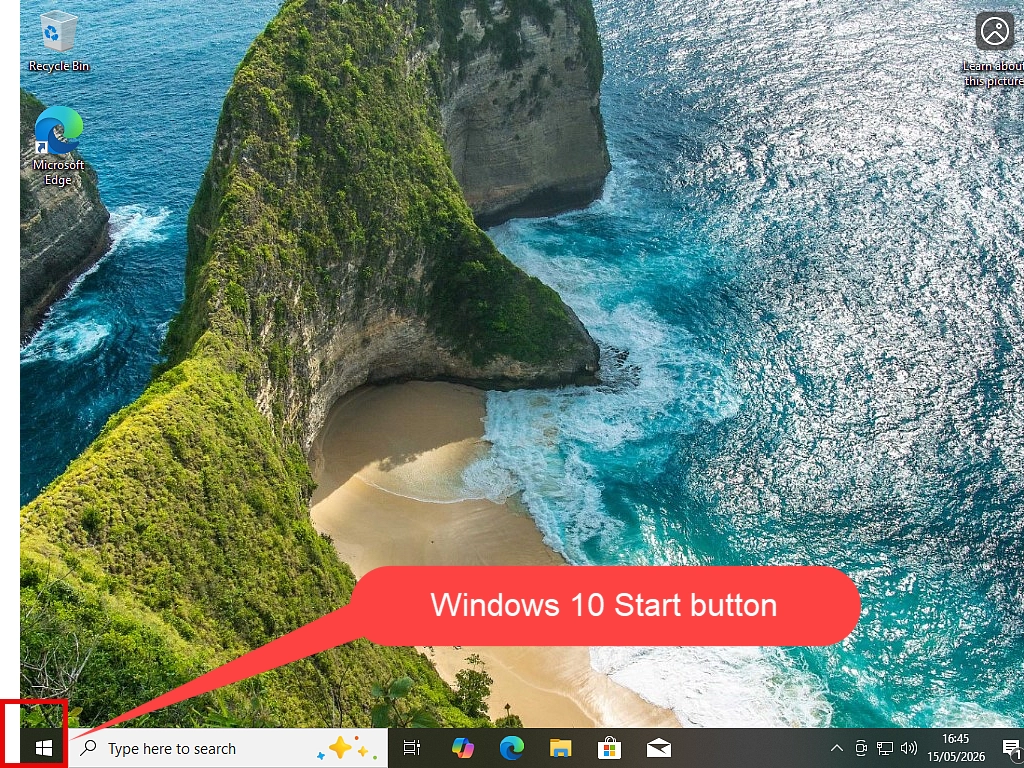
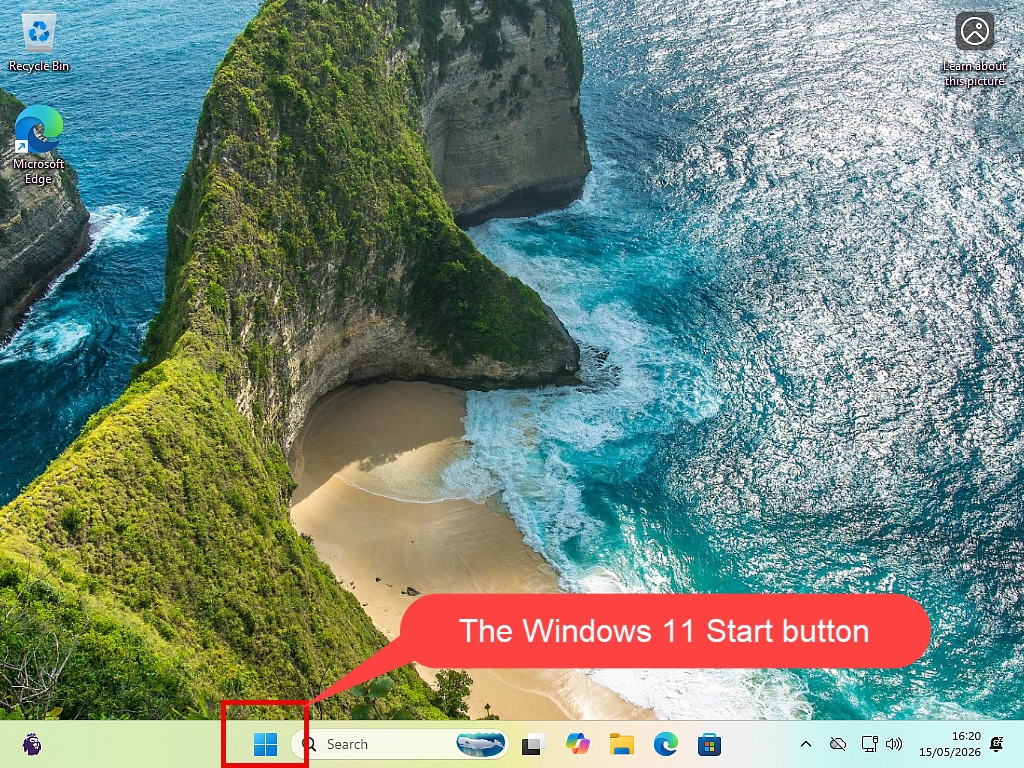
What’s on the Start Menu?
The Start menu gives you quick access to your installed apps, system settings, and the power button. The layout differs slightly between Windows 10 and Windows 11.
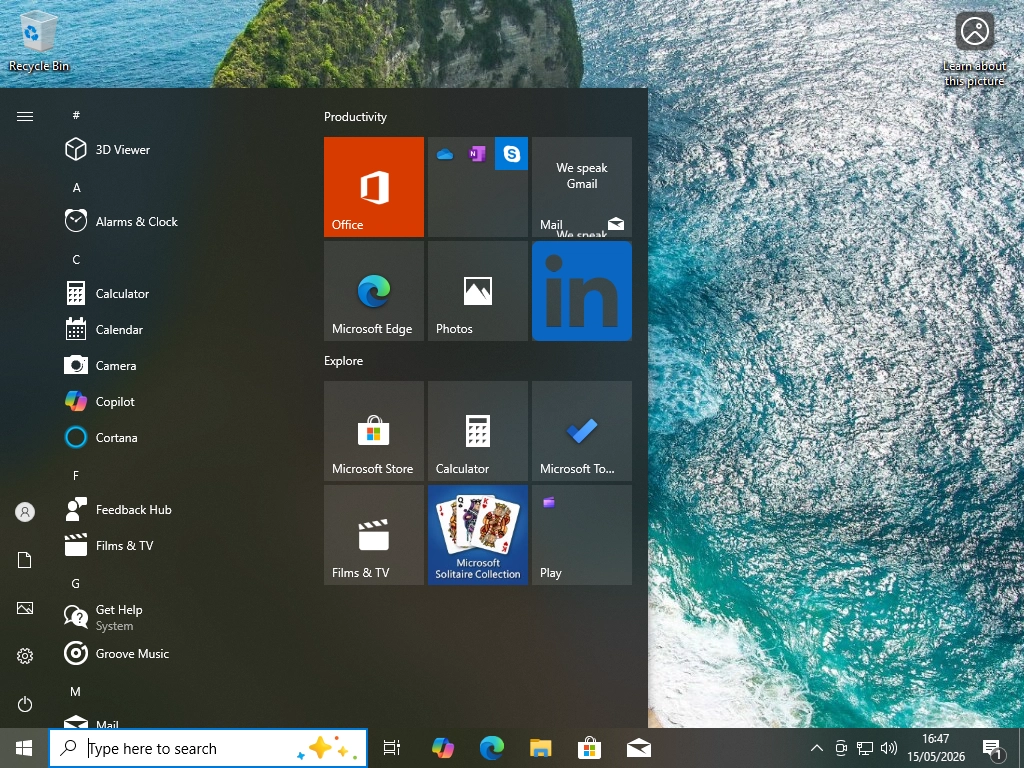
Windows 10 Start Menu
- Apps list (centre): Alphabetical list of all installed programs
- Live Tiles (right): Pre-installed app shortcuts from Microsoft
- Left panel: User account, Settings gear, and Power button.
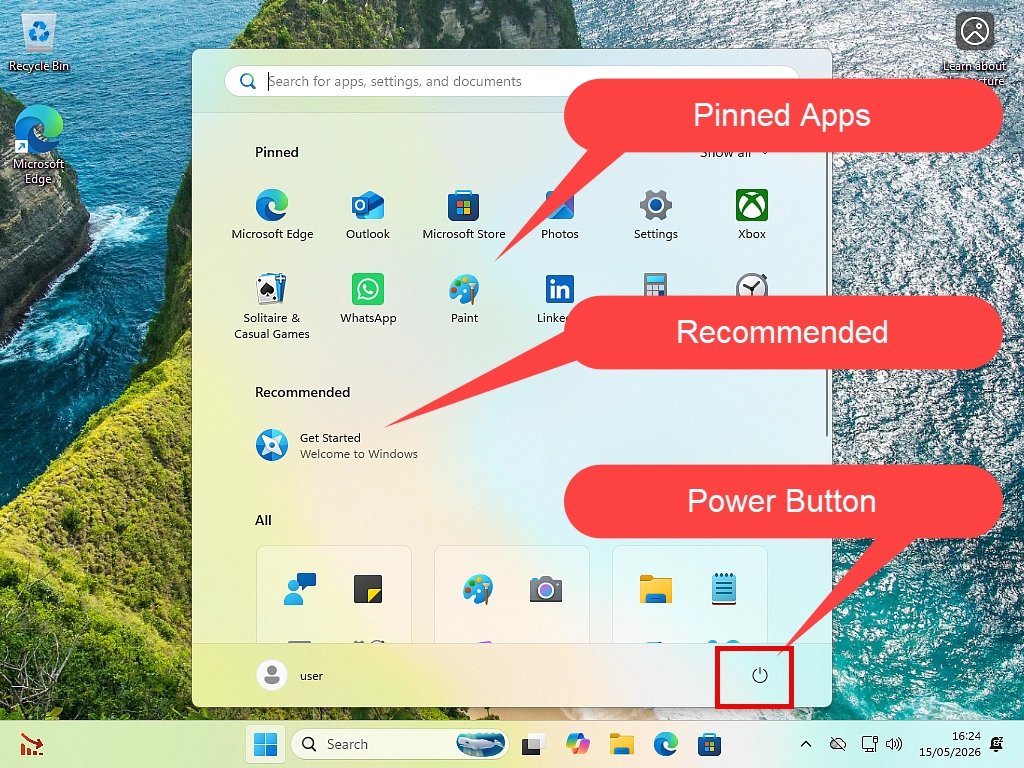
Windows 11 Start Menu
- Pinned apps (top): Shortcuts to your most-used apps
- Recommended (below): Recent files and frequently used apps.
- Power button: Located in the bottom-right corner
Change Windows 11 Start Menu Program List
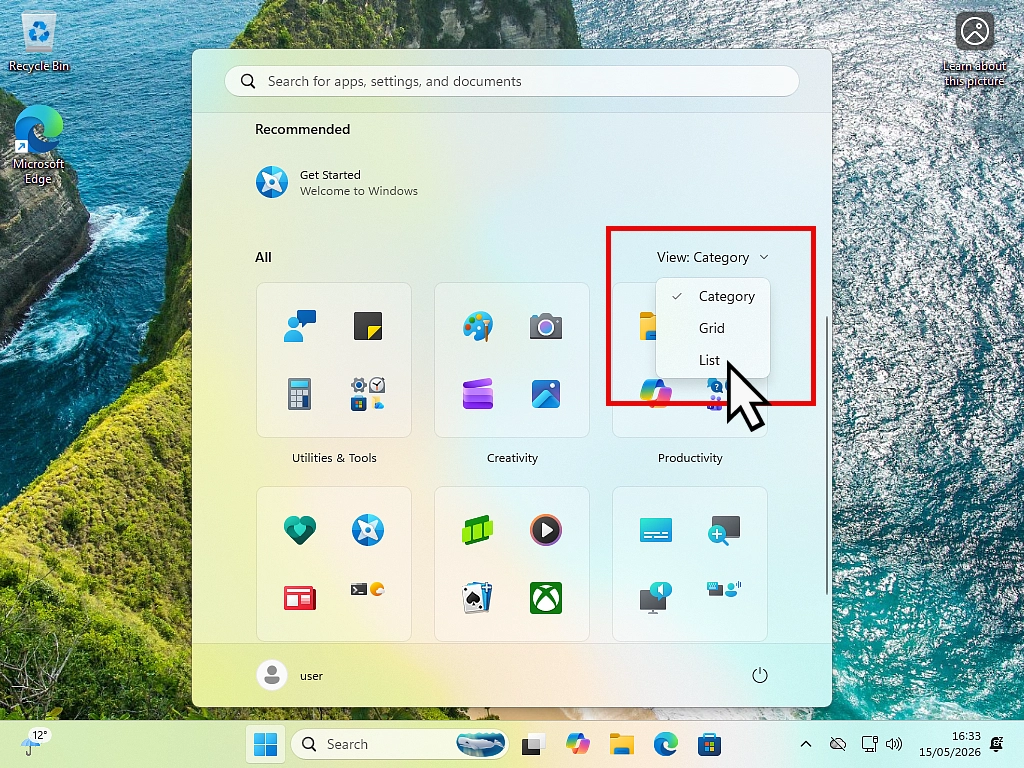
Windows 11 has introduced a Category View for its list of installed programs and apps. Most people agree that it’s pretty awful. It makes finding a specific app difficult because you have to guess which category it’ll be in.
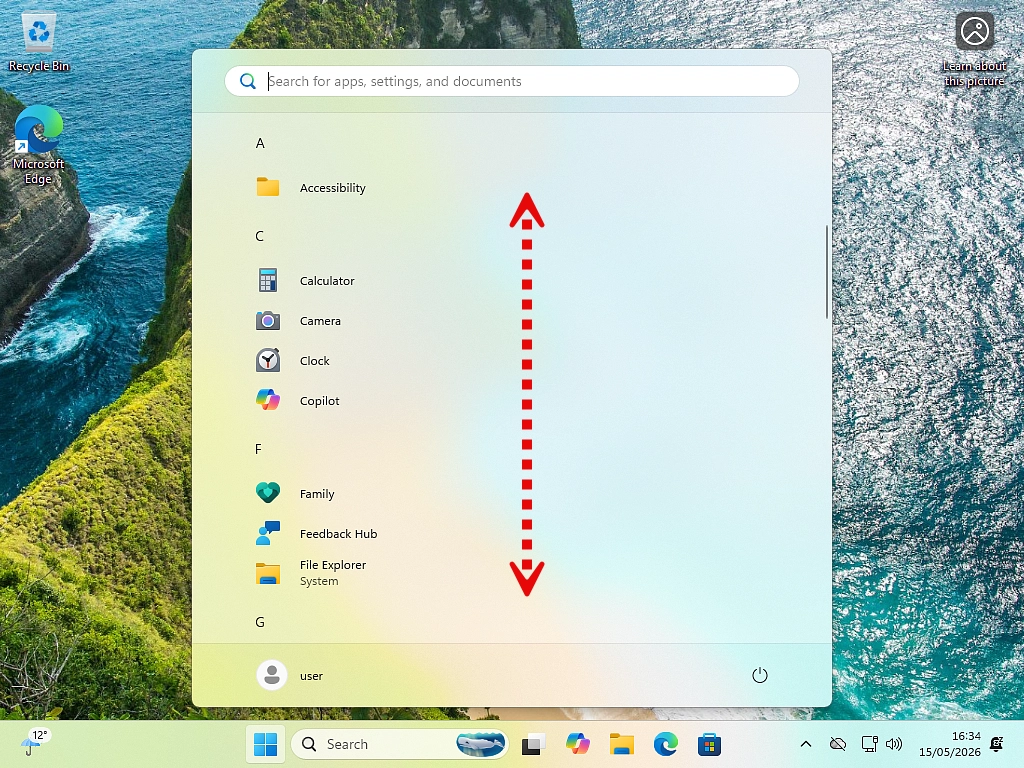
However you can change the Start menu programs list back into a list by clicking the drop down arrow beside “View Category”. On the menu, left click List.
How to Unpin Items from the Start Menu
Out of the box, both Windows 10 and Windows 11 Start menus are cluttered with apps pinned by Microsoft and your PC manufacturer. Many are little more than advertising or apps you’ll never use.
The best approach: a fresh start — unpin everything, clear the table, then add only what you actually want. The programs and apps that you use. It makes the Start menu much easier to use and is far less intimidating for beginners.
To unpin an item from the Start Menu
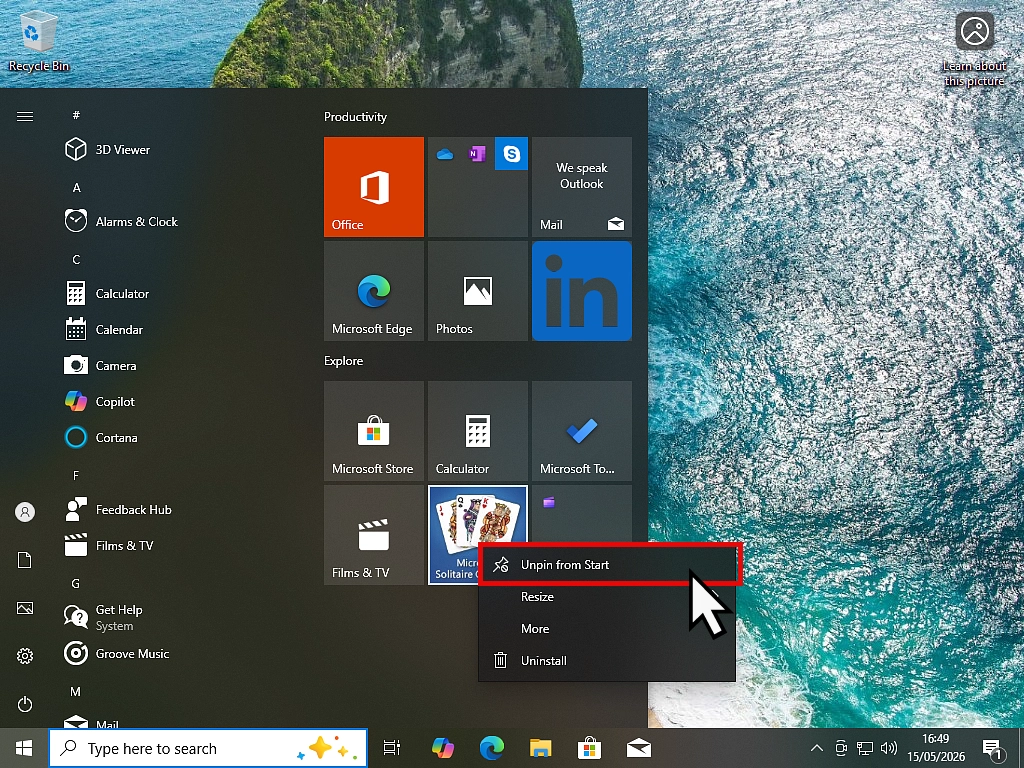
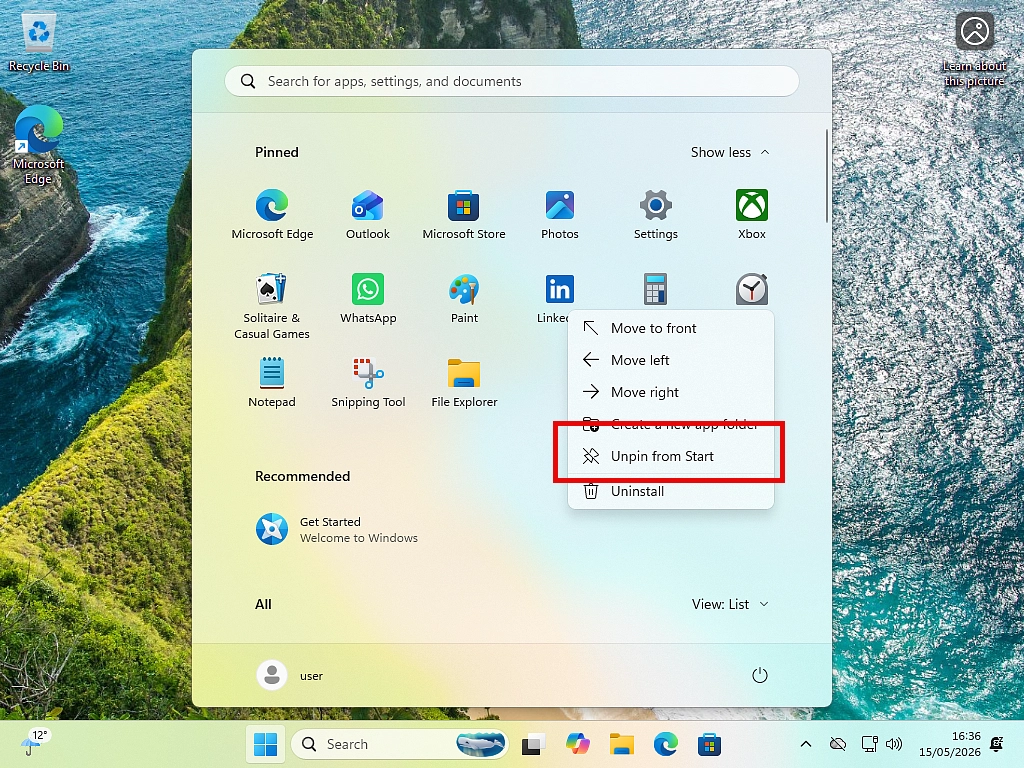
- Right click on an app or program.
- Then left click “Unpin from Start” in the menu that appears.
- Repeat the process for every other item that you don’t want.
Windows 10 Users
Unpin everything from the Live Tiles panel on the right-hand side. You can always add back anything you later want.
Windows 11 Users
Unpin everything except the Settings app (the gear wheel icon) — it’s the most useful default item.
Unpinning is not Uninstalling
Unpinning is not the same as uninstalling. Removing an item from the Start menu only removes the shortcut. The program is still installed on your PC and accessible from the All Apps list. You can always re-pin it later.
How to Pin Apps, Folders and Shortcuts to Start
Now that you’ve cleared the clutter, add the items you actually use. This is called pinning to Start. I appreciate that for beginners, you may not have any idea what you want pinned, but as you use your PC, you’ll discover programs and apps that you want. At this point, you don’t really need to pin anything, just know how to do it.
To Pin an App from the Apps List
- Open the Start menu and scroll through the apps list until you reach an app that you want pinned to Start.
- Right click on the app and a menu will open.
- Left click “Pin to Start”.
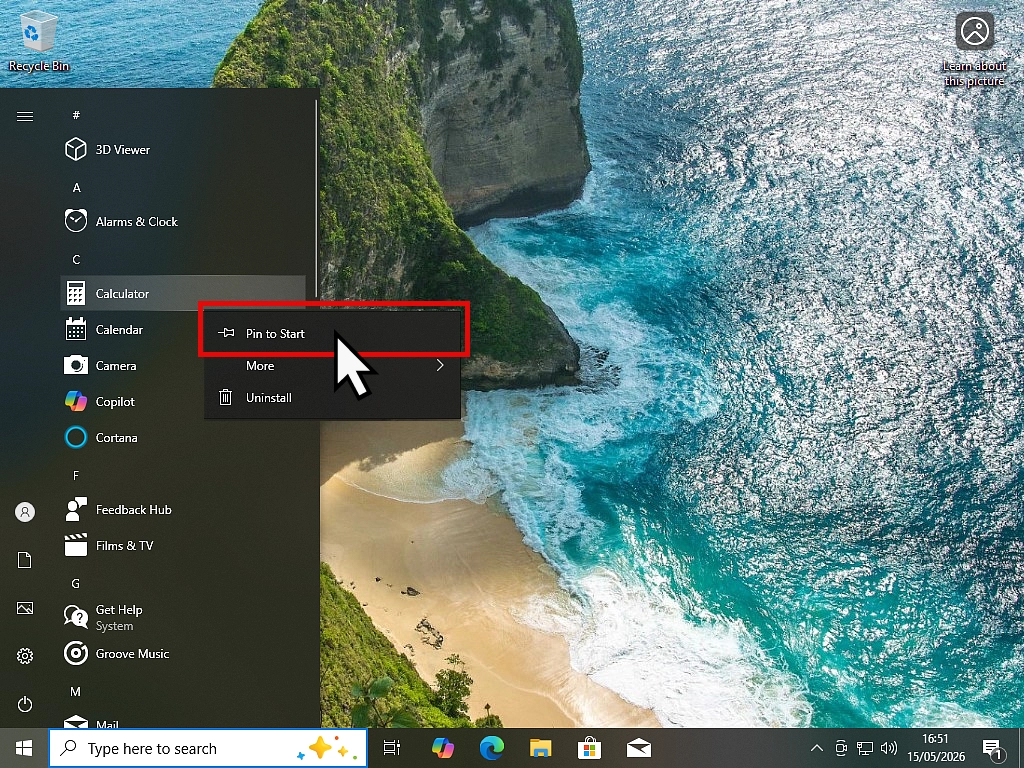
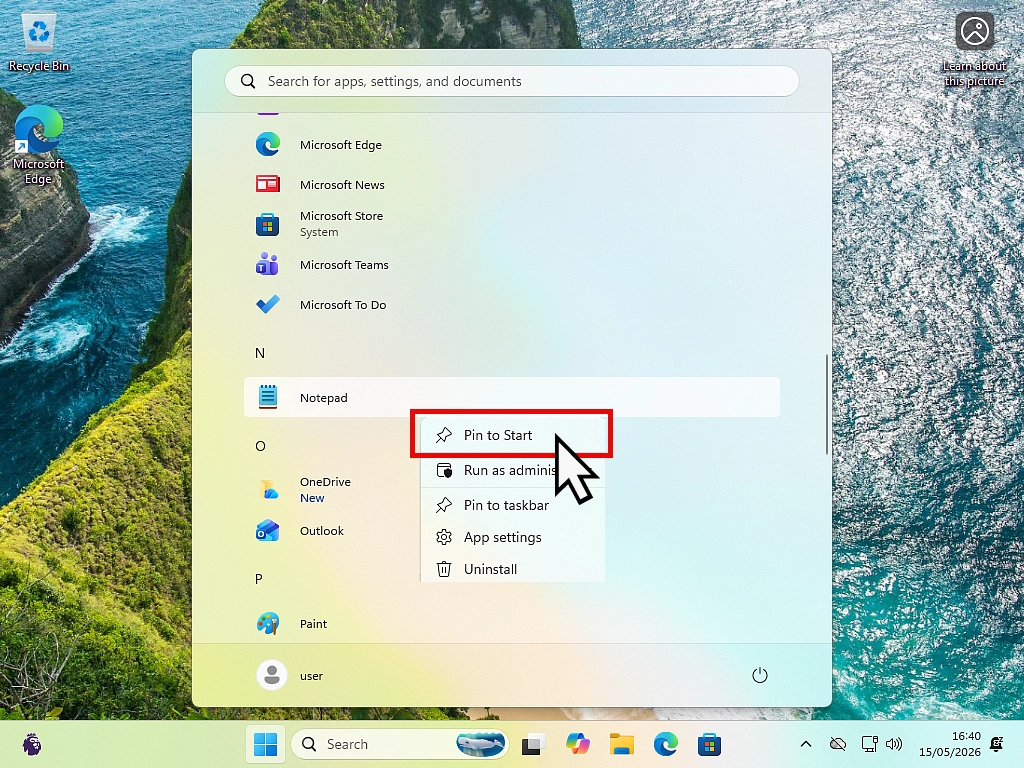
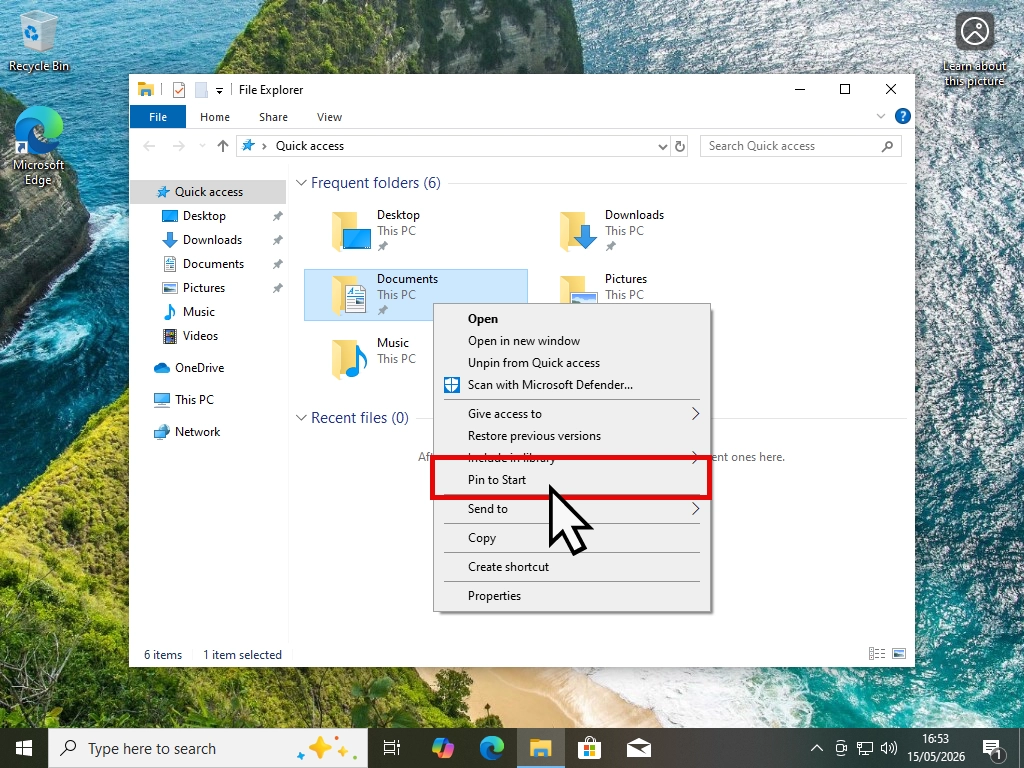
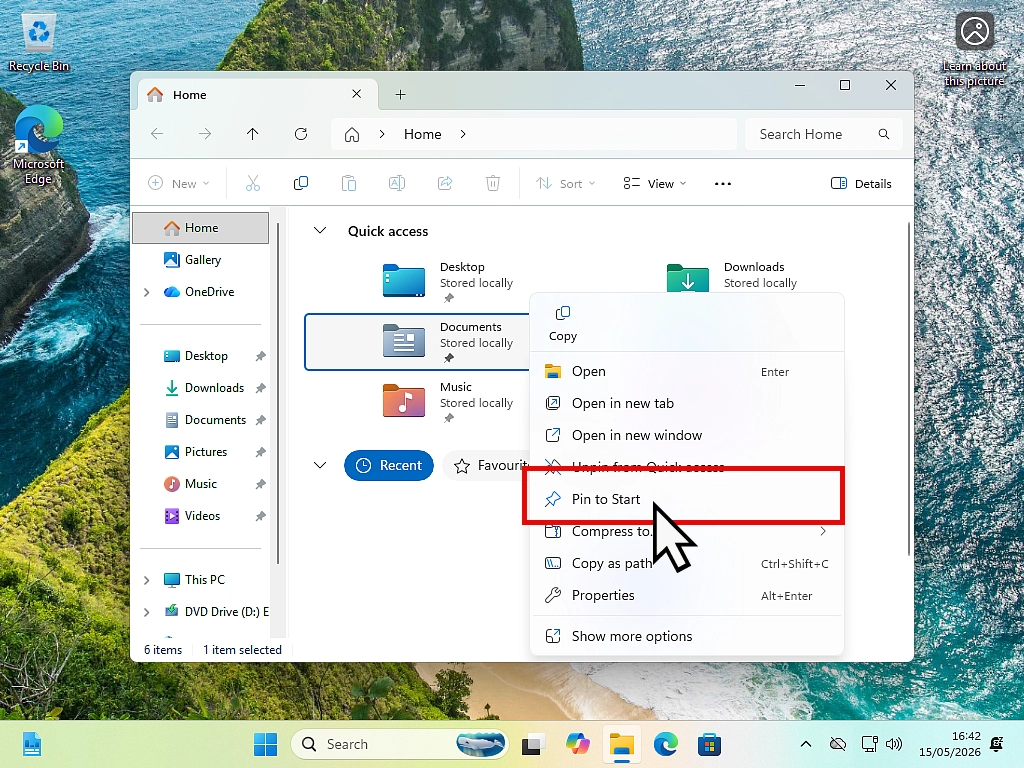
To Pin a Desktop Shortcut or Folder
- Find the shortcut or folder on your desktop or in File Explorer (note that we’ll get to using File Explorer later in the course).
- Right click on the shortcut or folder to open the options menu.
- Left click “Pin to Start”.
- Note that not everything can be pinned to the Start menu. If the item can’t be pinned, then the option to “Pin to Start” won’t appear on the options menu.
What can be pinned?
You can pin programs, apps, folders, and most desktop shortcuts — making the Start menu a personalised quick-launch panel rather than a cluttered default screen.
How to Rearrange the Start Menu
Once you’ve pinned your chosen items, drag them into a layout that suits you. Try grouping similar apps together — keep all your office tools in one area and your browser or communication apps in another. A well-organised Start menu means less time hunting for the things you want.
- Hover your mouse over the item you want to move.
- Hold down the left mouse button.
- Keeping the mouse button depressed, drag the item to its new position.
- Release the mouse button to drop it in place.
What Should You Pin to the Start Menu?
There’s no single right answer — it depends on how you use your PC. What you use it for. Here are some practical starting points:
Settings
Essential for Windows 11 users. (Windows 10 has it built into the left panel.)
Notepad
A lightweight text editor — great for quick notes and plain-text copying.
Calculator
Surprisingly useful to have just one click away.
Office Apps
Word, Excel, PowerPoint etc. If you use them, pin them.
Another Browser
Your main web browser should be on the taskbar, but it’s handy to have a second one.
Key Folders
Pin frequently accessed folders like Downloads or Documents.
Summary
Think of the Start menu as a living, flexible tool rather than a one-time setup. It should be constantly evolving as you discover new programs and apps on your home computer. Pin items when you’re using them regularly, unpin them when you don’t. Keeping it tidy means you can find what you need at a glance.
A well-set-up Start menu takes less than ten minutes to organise, but it’ll save you time every single day.
Lesson 3
Course Progress – 2 of 35
Part of the At Home Basic Computer Course — free computer guides for beginners.
At Home Computer Step By Step Guides
 Easy to follow tutorials for users of Windows 10 and Windows 11 computers.
How To Setup RealTimeSync
RealTimeSync is a companion tool for the popular sync program…
How To Automate FreeFileSync In Task Scheduler
How to automate FreeFileSync in Windows Task Scheduler so that…
How To Setup FreeFileSync
FreeFileSync is a free and open source program that allows…
How To Use VeraCrypt To Encrypt A Folder
Use VeraCrypt to encrypt and password protect files and folders….
Device Encryption on Windows Home Editions
Device Encryption is silently being enabled on all Windows 10…
How To Restore Windows 11 From EaseUS System Image Backup
How to restore a Windows 11 computer using a system…
Windows 11 Backup
How to create a Windows 11 backup for free. Make…
Change Download Folder In Chrome, Edge And Firefox
Change the default Download folder for Chrome, Edge and Firefox….

How To Expand A Virtual Hard Disk
How to increase the size of a virtual disk in…