
You type something into the bar at the top of your browser, press Enter, and up come Bing results. You didn’t ask for Bing. You’ve never asked for Bing. But there it is again.
Changing your default search engine is one of those things that feels like it should be obvious and somehow it’s not. The setting exists, it’s free, and it takes about thirty seconds once you know where it lives. The problem is that every browser hides it somewhere slightly different, and Microsoft in particular does not make it easy.
So I’ll show you exactly where to click in Chrome, Microsoft Edge and Firefox so that you can decide for yourself which search engine you use. I’ll also show you the second Edge setting that almost nobody mentions, the one that explains why Edge keeps giving you Bing even after you have changed it.
Table of contents
- Your Search Engine, Your Browser and Your Home Page Are Three Different Things
- How to Make Google the Default Search Engine in Chrome
- How to Change Bing to Google Search in Microsoft Edge
- How to Set Google as the Default Search Engine in Firefox
- Prefer Something Other Than Google?
- Getting UK Results Instead of Google.com
- Why Your Search Engine Keeps Changing Back
- Windows Search Still Uses Bing, and You Cannot Change It
- Troubleshooting
- Frequently Asked Questions
- Summary
Your Search Engine, Your Browser and Your Home Page Are Three Different Things
Before we start clicking I think it’s worth spending thirty seconds on this, because it saves a lot of confusion later.
Your browser is the program you open to get on the internet. Chrome, Edge, Firefox.
Your search engine is the service that actually finds things when you type. Google, Bing, DuckDuckGo.
Your home page is simply the page that appears when you open the browser or click the little house icon on the browser toolbar.
They are three separate settings and changing one does not change the others. You can absolutely use Microsoft Edge with Google as your search engine, and a lot of people do. You do not have to install Chrome to use Google.
I’ve covered all three below, search engine first.
How to Make Google the Default Search Engine in Chrome
Chrome usually comes with Google set as the default search engine already, since Google makes Chrome. If yours is showing something else, something has changed it, and there’s a section further down about why that happens.
- Open Chrome.
- You can use the shortcut in the grey box below. Just copy and paste it into the Chrome address bar and press Enter.
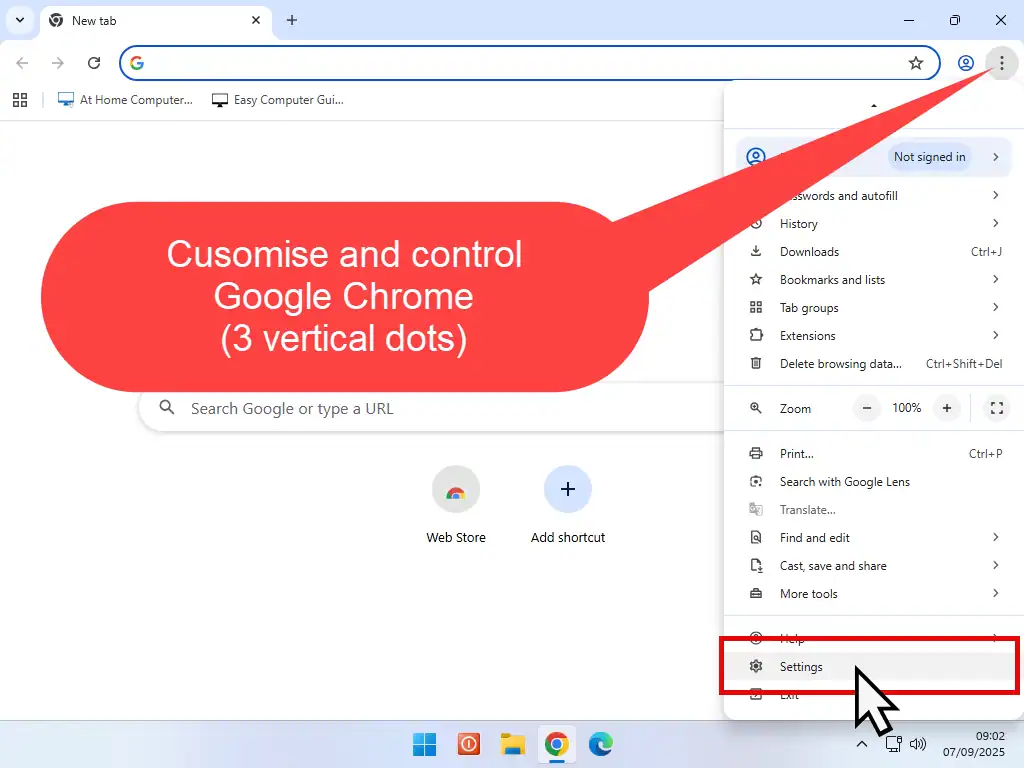
- Or if you prefer using the menus, click the three dots in the top right corner.
- Click Settings.
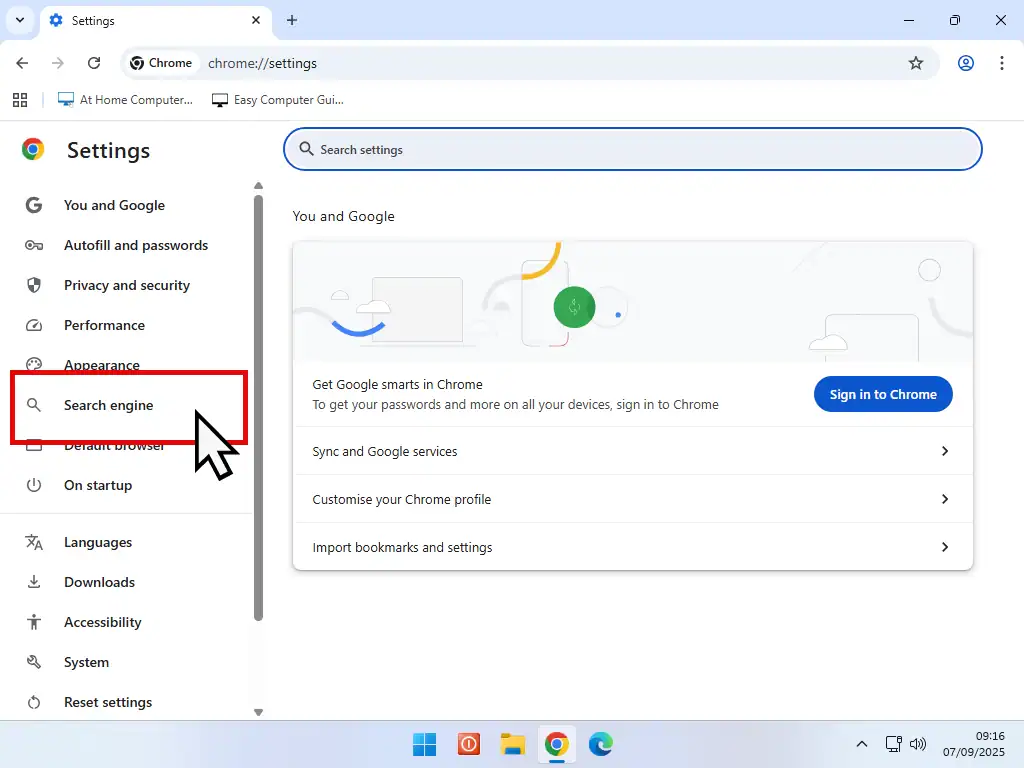
- Click Search engine in the list down the left hand side.
- Click Change.
- Select Google from the list.
chrome://settings/search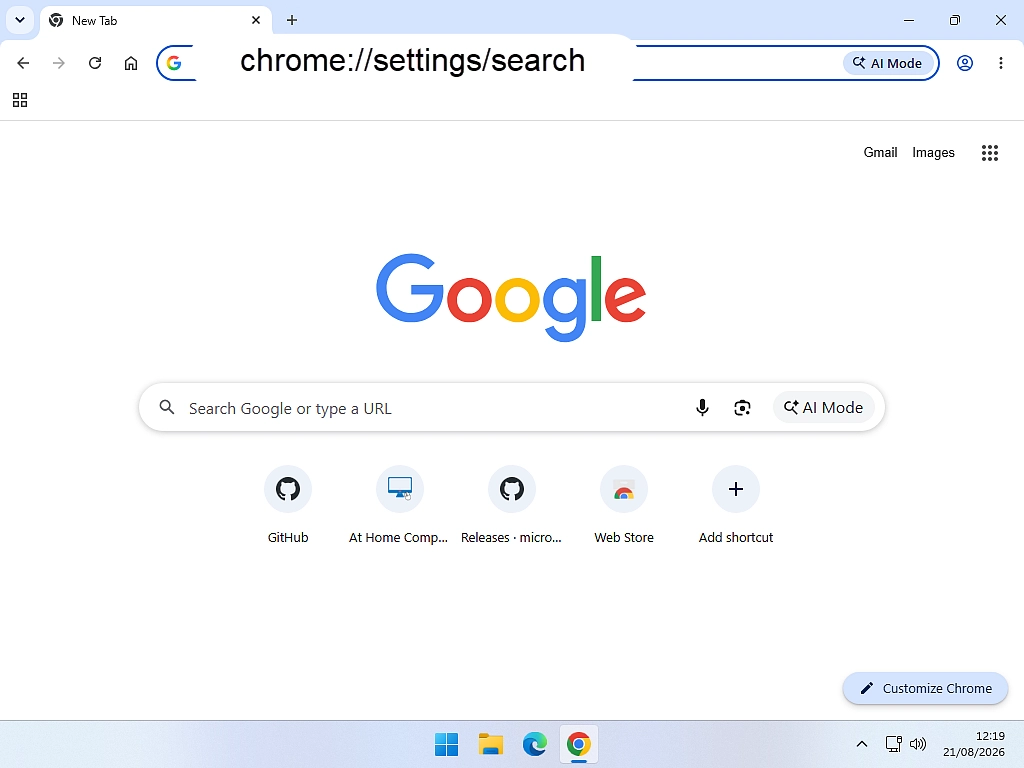
Quick Tip
Those addresses starting with chrome:// are not websites. They’re Chrome’s own internal pages. You can’nt Google them and you won’t find them on the internet, they only work typed into Chrome itself.
If you’re setting Chrome up from scratch, I have a full walkthrough on how to set up Google Chrome that covers the rest of it.
What to Do if Google Is Not in the List
Occasionally Google is simply missing from the dropdown list of search engines. You can add it back by hand.
In Settings, click Search engine, then Manage search engines and site search.
Next scroll down a little to the Site search section and click Add.
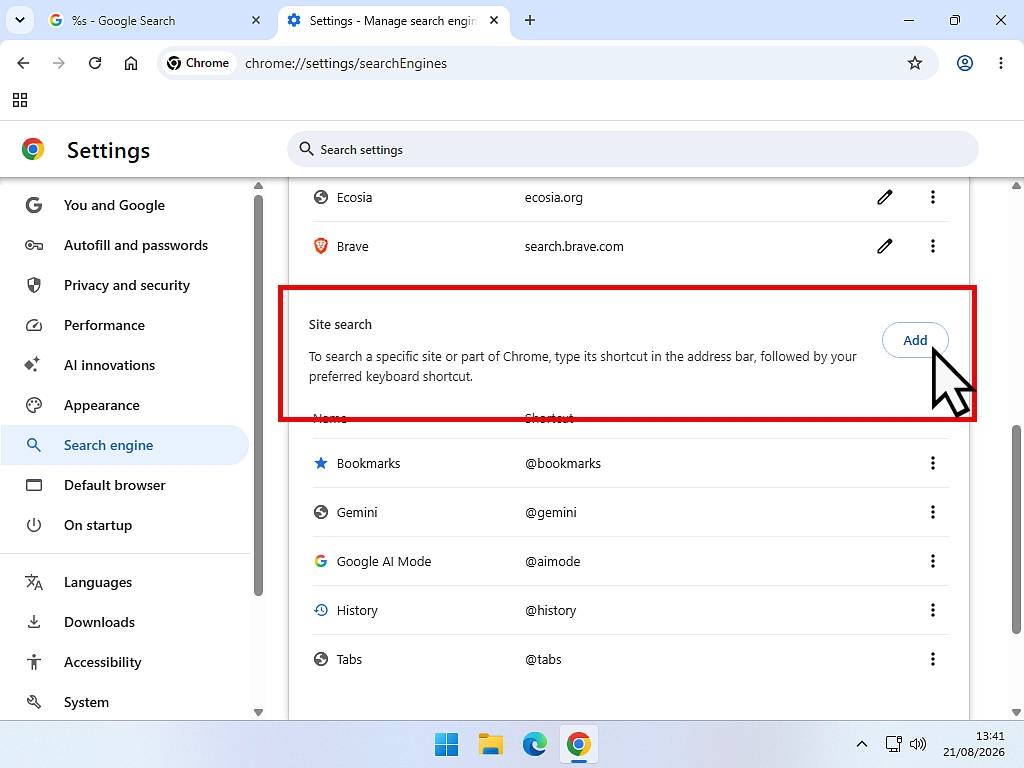
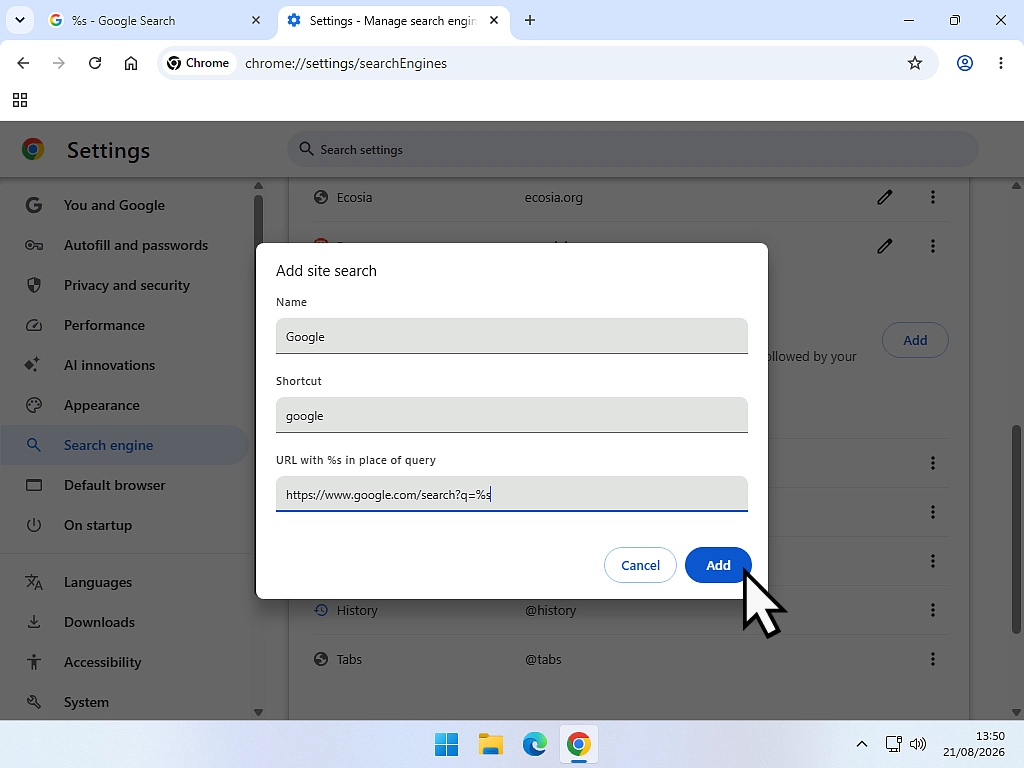
You’ll see the Add Site Search window appear. In the Name box type Google (with a capital G), in the Shortcut box type google (lower case g) and then in the URL box paste the address in the grey box below.
The %s on the end is not a typo. That is where Chrome drops in whatever you typed.
https://www.google.com/search?q=%sClick Add, then click the three dots beside your new entry and choose Make default.
Make Google Your Start Page in Chrome
This is the separate setting I mentioned earlier. It decides which web page that you see when Chrome first opens.
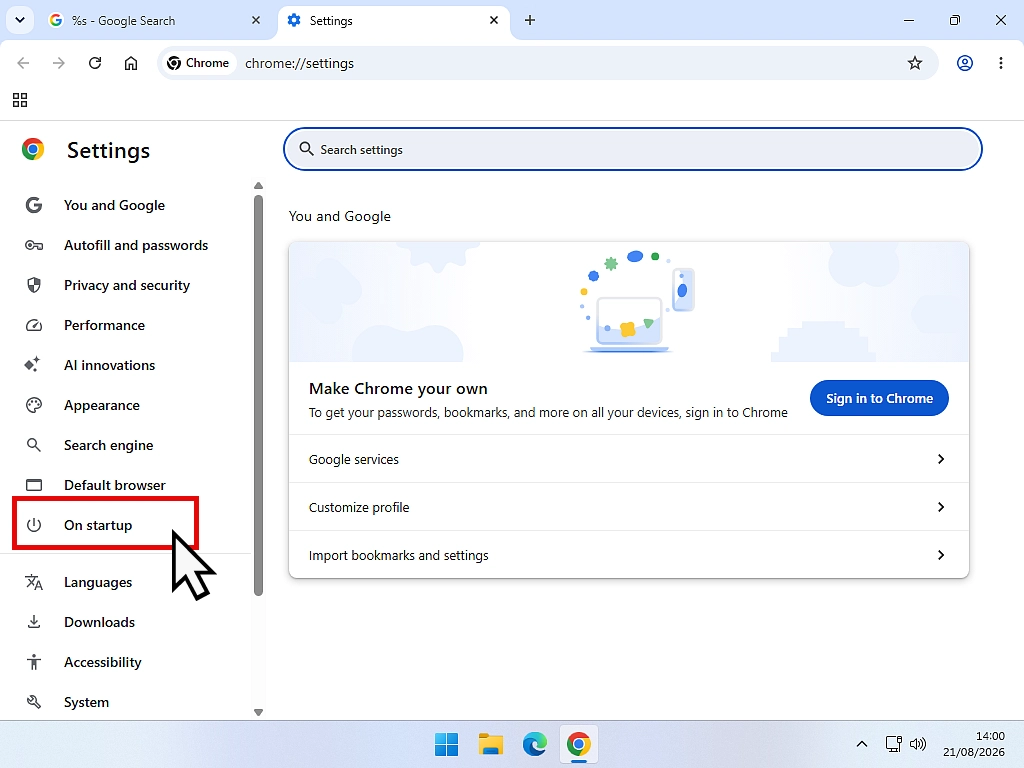
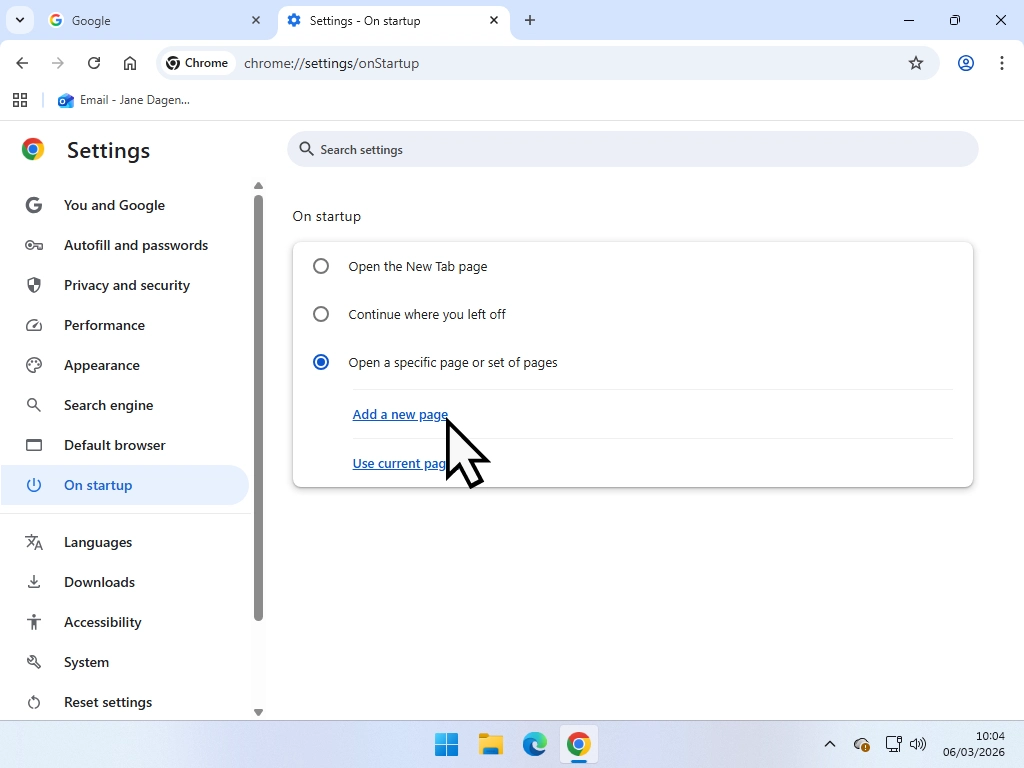
- In Settings, click On startup.
- Choose Open a specific page or set of pages.
- Click Add a new page.
- Type google.com and click Add.
How to Change Bing to Google Search in Microsoft Edge
This is the one most people are here for, and it is the one Microsoft has made the most awkward. There are two settings to change, not one. If you change only the first setting Edge will carry on serving you Bing results, which is exactly why so many people think the setting is broken.
Starting with the address bar.
- Open Edge.
- The best way to get to where you need to be is to type (or copy and paste) the shortcut from the grey box below into the address bar and press Enter.
- If you’d rather use the menus, click the three dots in the top right corner and then click Settings on the menu.
edge://settings/search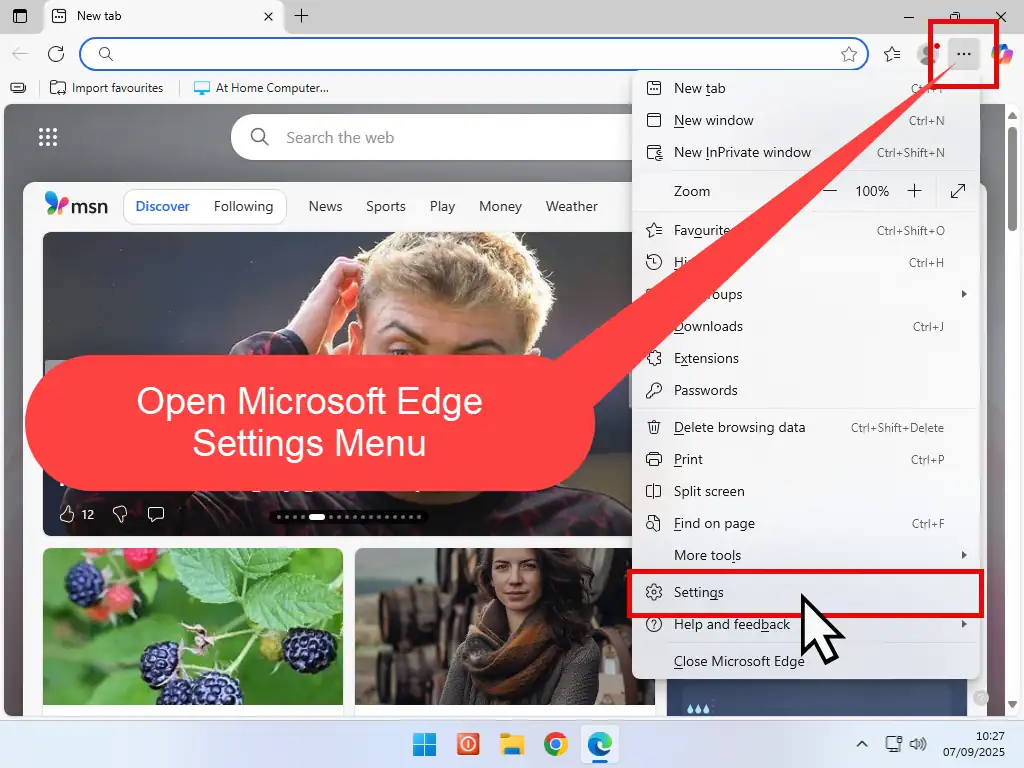
- Click Privacy, search, and services from the navigation menu.
- If the navigation menu is closed, click the 3 horizontal lines beside Settings to open it.
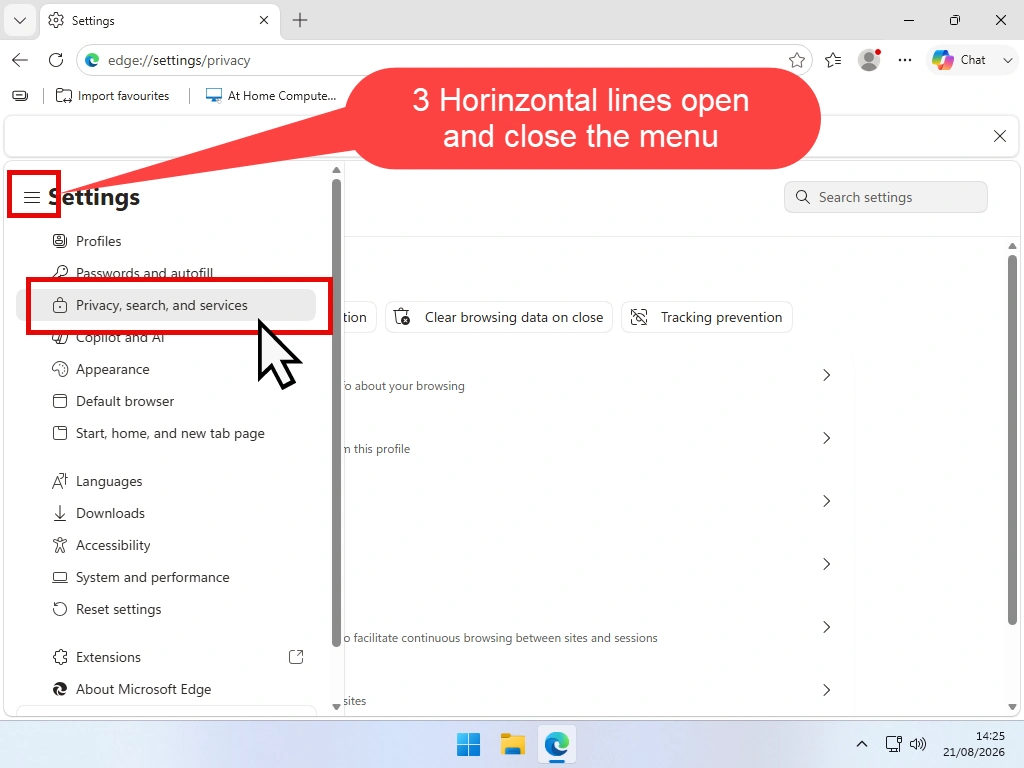
- At the bottom of the list, click “Search and connected experiences”.
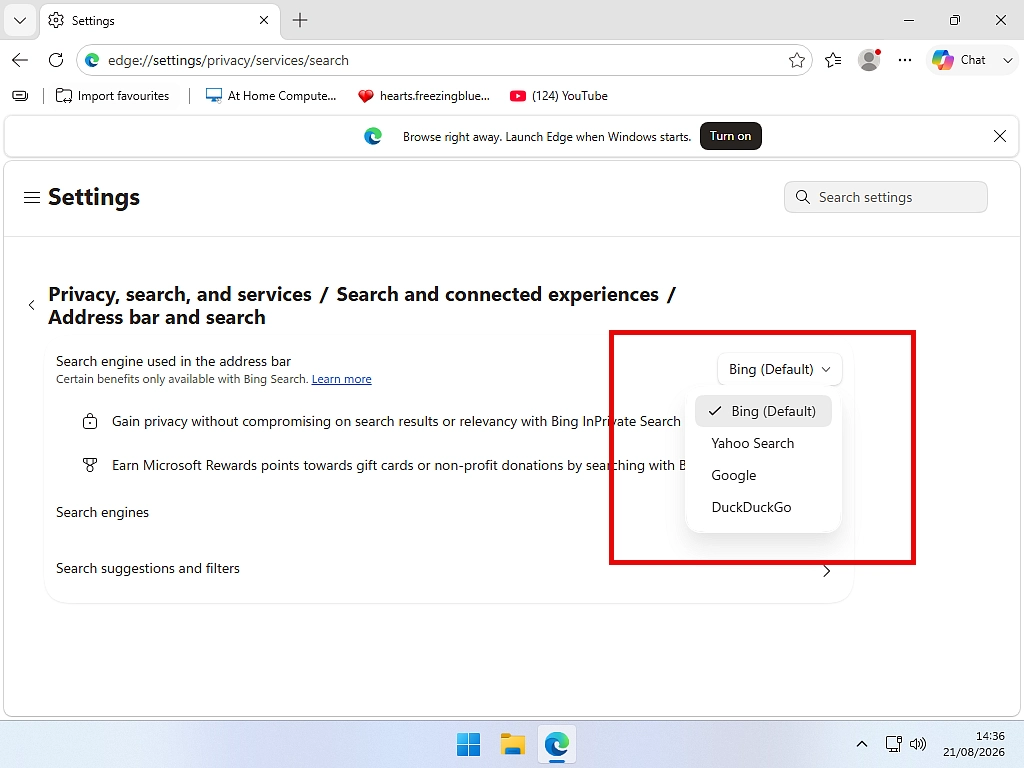
- Next click on “Address bar and search”.
- In “Search engine used in the address bar”, select Google.
Why Edge Still Uses Bing on the New Tab Page
Here is the part that catches everybody out.
You’ve changed the setting. You open a new tab, type into the search box sitting in the middle of the page, and you get Bing results anyway. Nothing is broken and you haven’t done it wrong. That search box in the middle of the new tab page is a separate thing from the address bar at the top, and it has its own setting which you’ll need to change in order to move over to Google search.
- Go back to Address bar and search, the same page you were just on.
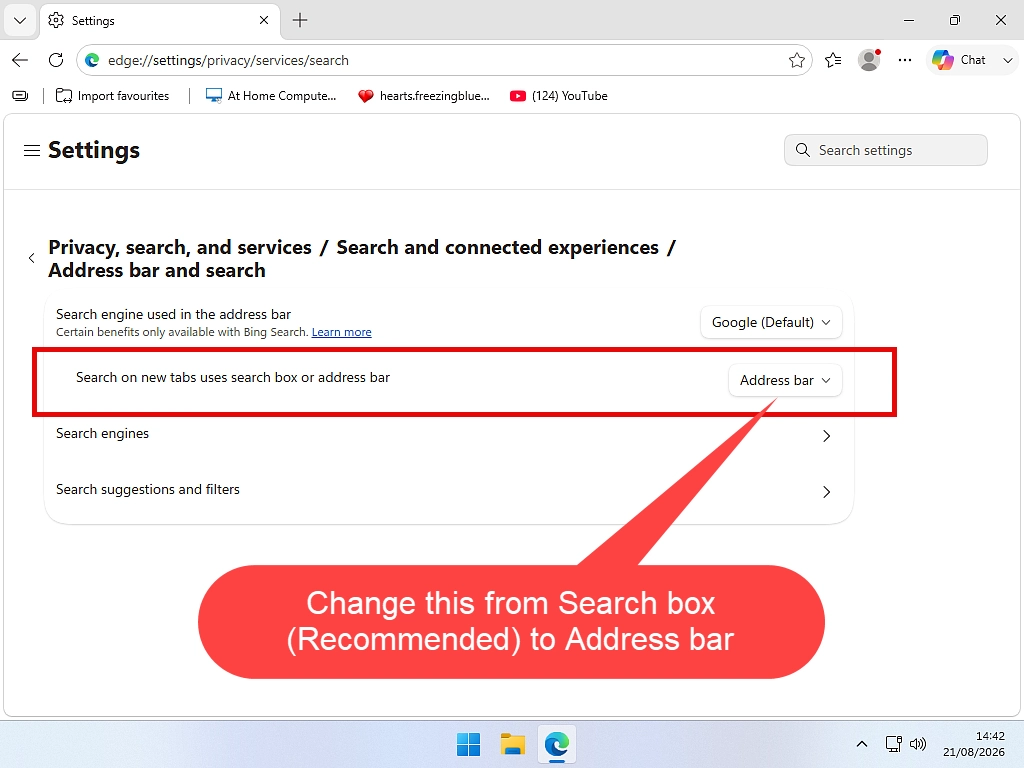
- Find Search on new tabs uses search box or address bar.
- Change it to Address bar.
Now the new tab search box uses Google as well.
Do the two in order.
The new tab setting only does anything once the address bar is set to something other than Bing. If you go looking for it first, it will not appear to do anything at all. Change the address bar, then come back for this one.
I’ll be blunt with you about this one. Microsoft’s own support page on changing your search engine in Edge doesn’t mention this second setting at all. But it’s the one thing that’s behind an enormous number of “I changed it and it did not work” posts on Microsoft’s own forums. But then I suppose Microsoft wouldn’t be Microsoft if they made it easy.
Make Google Your Home Page in Edge
This is something else that a lot of people get confused about. In the guide above we’ve changed the search engine to Google in Edge, but sometimes what people actually want is the Google home page rather than the Bing page, which is the default.
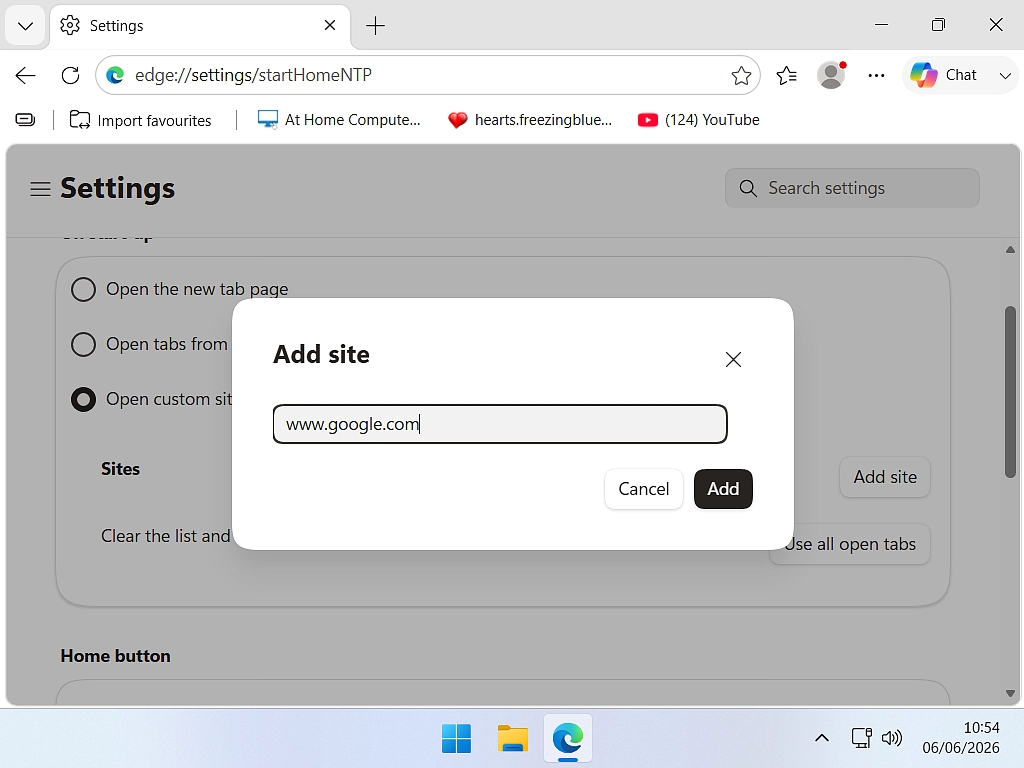
- In Settings, on the navigation menu, click Start, home, and new tab page.
- Under When Edge starts, choose Open these pages.
- Click Add a new page, type google.com and click Add.
If Edge is new to you, my guide on how to set up Microsoft Edge goes through the rest of the settings worth changing.
How to Set Google as the Default Search Engine in Firefox
Firefox is the easiest of the three in which to change the search engine. It’s just one dropdown menu and one click, done.
- Open Firefox.
- You can copy and paste the shortcut from the grey box below in to the address bar to go straight to the search engine settings in Firefox.
- Or if you prefer to use the menus, click the three lines in the top right corner then click Settings from the menu
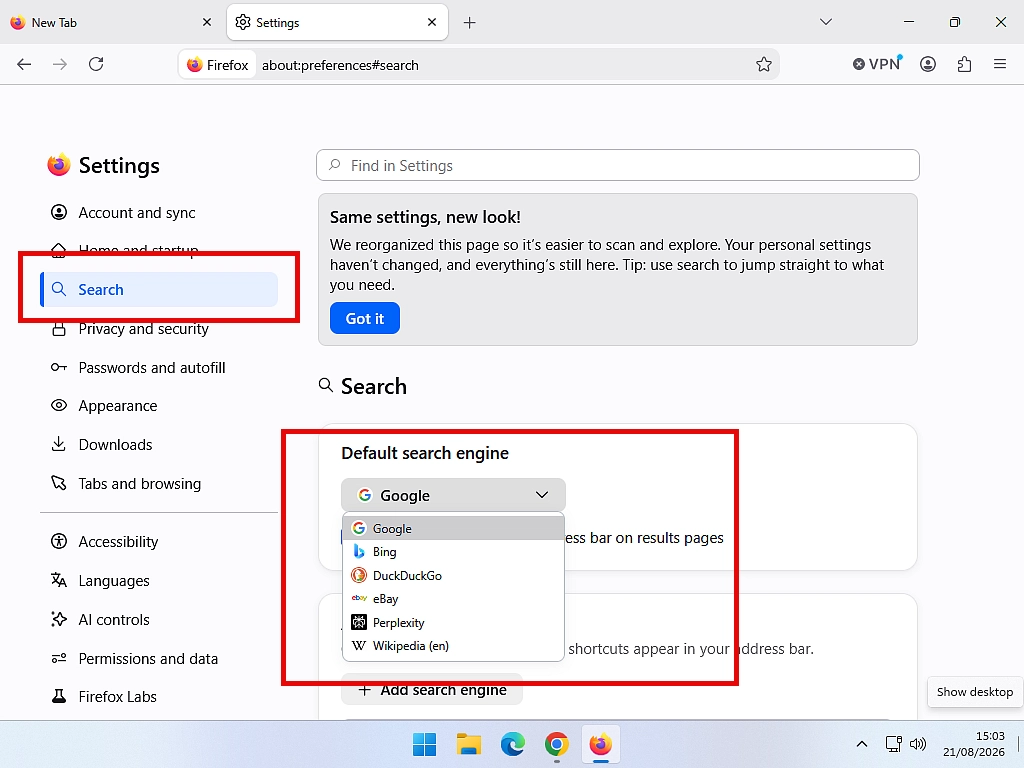
- Click Search in the list in the navigation menu on the left. Or if the menu is closed, you may need to click the Search icon (which is a magnifying glass).
- Under Default Search Engine, choose Google.
about:preferences#search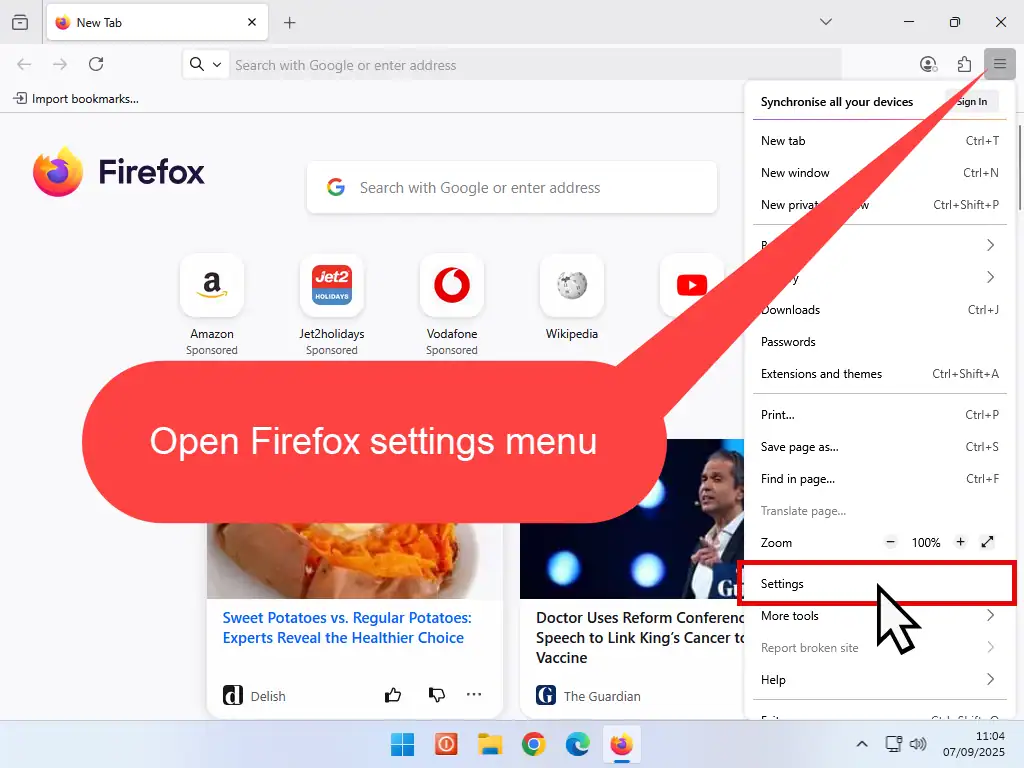
If you have a separate search box
Firefox lets you add a second box next to the address bar just for searching. If you have one, it uses the same Default Search Engine setting, so changing it once covers both. You will find the option to add or remove that box on the same Search settings page.
Make Google Your Start Page in Firefox
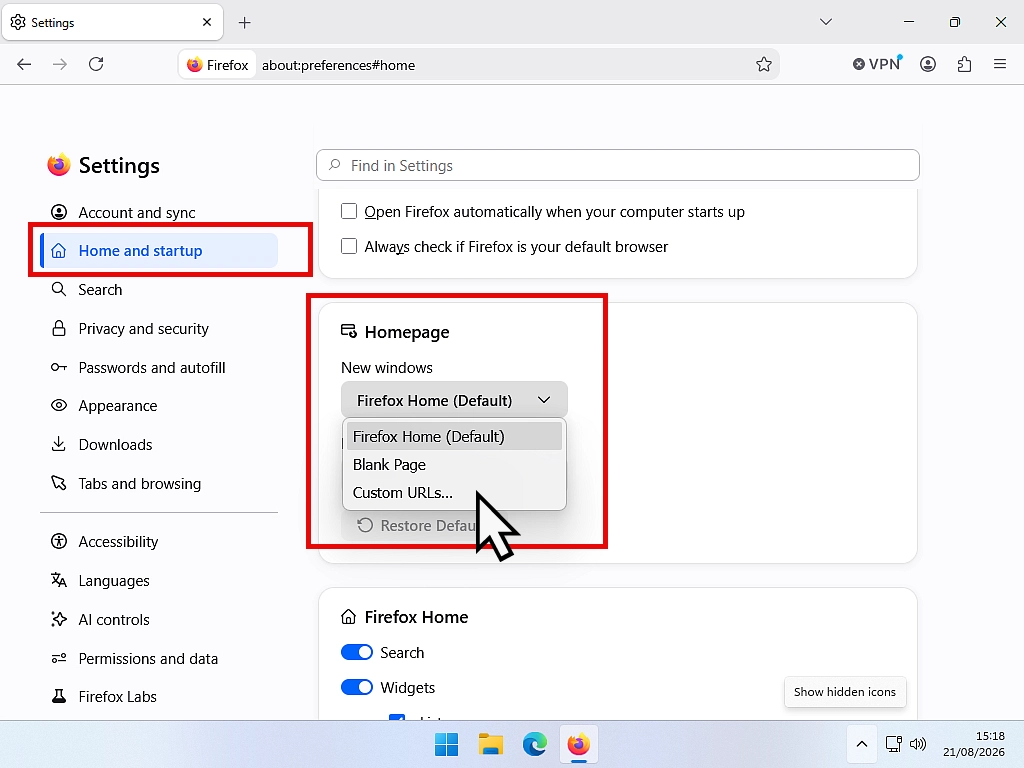
- In Settings, click Home and startup.
- Beside Homepage and new windows, choose Custom URLs.
- Click Choose a specific site.
- Type google.com into the box.
Prefer Something Other Than Google?
Everything above works exactly the same way if you would rather not use Google at all. Same dropdown, same three clicks, you just pick a different name from the list.
Most people who switch away from Google do it for one of two reasons. Either they do not like being followed around by adverts for something they looked at once, or they want results that are not shaped by what Google thinks they want. Here is what you actually get with each of the main ones, without the marketing.
DuckDuckGo
The best known of them, and it is in the dropdown list in all three browsers, so switching takes seconds.
The honest description is that most of what you see comes from Bing, topped up by DuckDuckGo’s own crawler and by sources like Wikipedia. So the results themselves will feel familiar if you have used Bing. What changes is that no search history gets built up against your name, and DuckDuckGo passes your searches on to its partners through its own servers so those partners never see who you are or where you are.
Pick it if: you want the adverts to stop following you and you are not fussy about whose results you are reading.
Ecosia
Ecosia puts its advertising profits into planting trees. That is the whole pitch and it is a perfectly good reason to use it.
Be clear about where the results come from, though. In the UK and the US they are a mix of Google’s and Bing’s. Ecosia has been building its own European search index with Qwant, but as things stand that only covers French and German. So for an English speaker, Ecosia is mostly a different front door onto the same results, with the money going somewhere you might prefer.
Pick it if: you like the idea of your searching paying for something useful.
Startpage
Startpage is the interesting one. It shows you Google’s actual results, but it fetches them on your behalf so that Google never learns it was you asking.
If you are switching because you want to escape the tracking but you do not want to give up the results you are used to, that is the one to look at. It is usually not in the dropdown list, so you will need to add it by hand using the same steps as the “What to Do if Google Is Not in the List” section further up.
Pick it if: you want Google’s results without Google’s memory.
What About Brave and Opera?
These come up a lot and they are worth untangling, because they are a different kind of thing.
Brave and Opera are browsers, not search engines. They belong in the same box as Chrome, Edge and Firefox. Installing one does not change your search engine, and changing your search engine does not require you to install one. Brave does also run its own search engine, confusingly called Brave Search, but that is a separate product you can use in any browser.
My advice, if you are here because Bing keeps appearing and it is driving you mad, is to fix the setting in the browser you already have. Installing a whole new browser to solve a dropdown is a lot of upheaval for a small problem, and you will only have to learn where everything lives all over again.
Do not expect too much of this
Changing your search engine stops that search engine building a profile of you. It does not make you invisible. Your internet provider can still see which sites you visit, the sites themselves can still track you, and none of this is a VPN.
It is one useful step, not a cloak. If you thought private browsing already covered you, that guide is worth five minutes, because it does rather less than most people assume.
Getting UK Results Instead of Google.com
A lot of people in the UK want google.co.uk specifically, and go hunting for a setting to force it. There isn’t one any more, and here is why.
Google retired its country addresses. From April 2025 Google began redirecting google.co.uk, google.fr, google.de and all the rest to plain google.com. Type google.co.uk today and you land on google.com. That is not a fault with your computer and there is nothing to fix.
Google’s reasoning is that it has worked out where you are since 2017 and serves local results regardless of which address you use. In practice that is mostly true. You will still get UK shops, UK news and prices in pounds.
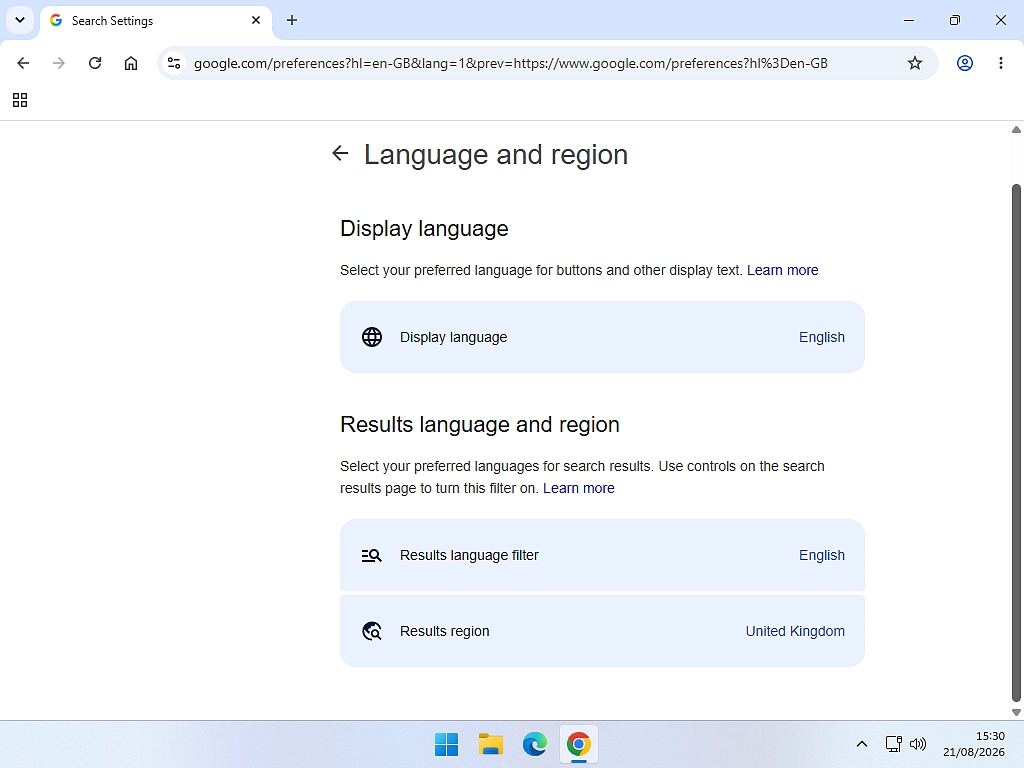
If it does get your region wrong, and it sometimes does, you can set it by hand.
- Go to google.com. Even though you might be on the Google home page, you still need to type this into the address bar and press Enter.
- Click Settings at the bottom right of the page.
- On the menu that opens, click Search settings.
- In the left hand navigation panel, click Other Settings.
- Click Language & region.
- Set the region to United Kingdom (or whichever region you may require) and save.
Why Your Search Engine Keeps Changing Back
You set it to Google, and a week later you’re back on Bing or Yahoo. There are four usual culprits.
A Browser Extension Changed It
This is far and away the most common one. Some extensions, particularly free coupon finders, weather bars and “search helpers”, change your search engine on purpose and change it straight back if you undo it. It’s how they make their money.
Go through your extensions and turn off anything you don’t remember installing and use regularly. In Chrome and Edge that’ the three dots, then Extensions. In Firefox it’s the three lines, then Add-ons and themes. Turn them off, then set your search engine again and see if it sticks.
Something Came Bundled With a Download
Free software installers often carry a tick box, usually already ticked, that changes your search engine and home page as part of the installation. It is nearly always on the screen everybody clicks Next without reading.
If your search engine changed on the same day you installed something, that’s almost certainly what happened. Uninstall software you installed if you can, then set your search engine back. If you have problems uninstalling, and you might, check this guide How to Uninstall Programs that Won’t Uninstall
Edge Reset It During an Update
This one is not your fault at all. Since late 2025 a steady stream of people have reported on Microsoft’s own community forums that an Edge update put their search engine back to Bing without asking. Microsoft has not publicly acknowledged it or said it is fixed.
There is no fix for this. If it happens, change it back using the steps above, and check both settings while you are in there, not just the address bar one. At the end of day, Microsoft control Edge and if they want to change your settings, they can.
It Is a Work or School Computer
If the setting is greyed out, or it changes back every single time you restart, your employer or school has locked it. You’ll see a small note somewhere in Settings saying the browser is managed by your organisation. There is no way round that, and you should not try. Ask your IT department.
While you’re tidying up, it’s worth knowing how to delete your search history as well, since a hijacked search engine has usually been logging everything you typed.
Windows Search Still Uses Bing, and You Cannot Change It
Worth saying plainly, because it catches people out and almost nobody admits it.
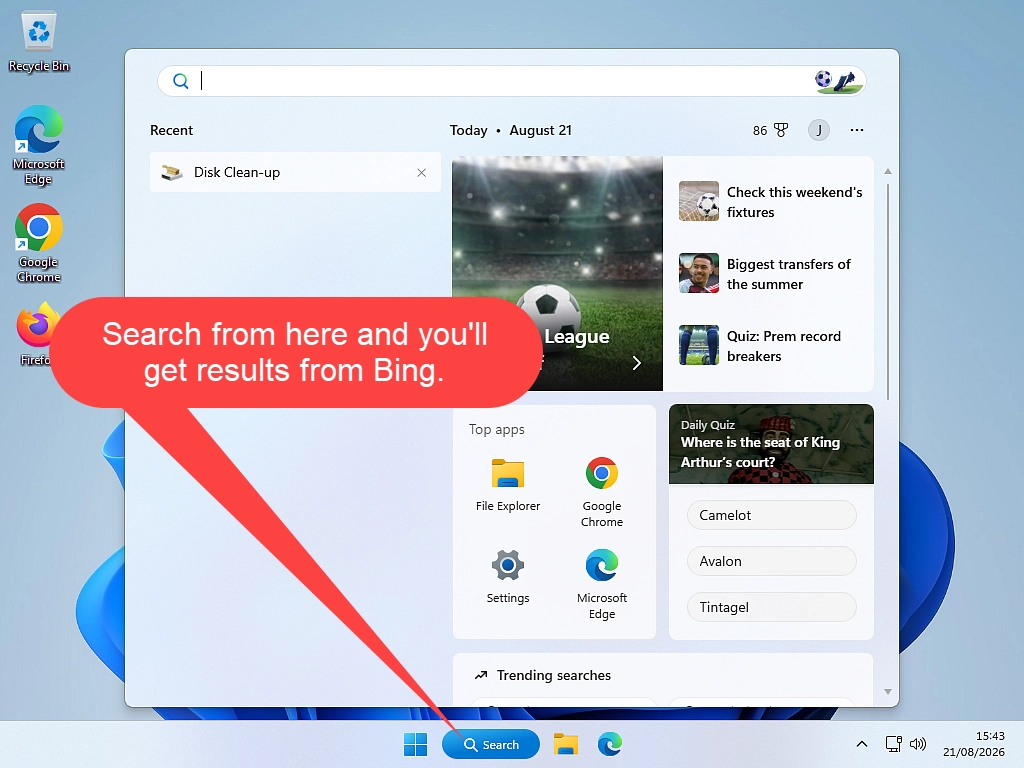
The search box on the Windows taskbar, and the search at the top of the Start menu, are not your browser. When you type something there and it goes to the web, Windows sends it to Bing and opens it in Edge. It does that whatever browser you’ve set as default and whatever search engine you’ve chosen inside that browser.
There is no setting in Windows 11 to change it. Microsoft has been testing one, but as of August 2026 it has not arrived for ordinary users.
The one exception is the European Economic Area, where competition rules force Windows to use your chosen browser for these searches. That covers the EU countries, Norway, Iceland and Liechtenstein. It does not cover the UK, and it does not cover the United States.
So what do you actually do? Open your browser and search from there. It sounds like a cop out, but it is genuinely the answer, and it is one keystroke. There are third party tools that redirect these searches, but they hook into Windows at a level I wouldn’t recommend to anyone who isn’t comfortable undoing it, and Microsoft has broken them before.
Troubleshooting
I Changed It but the New Tab Page Still Shows Bing
Edge, almost certainly. You have changed the address bar but not the second setting. Go back up to the Edge section and set Search on new tabs uses search box or address bar to Address bar.
Google Is Not in the Dropdown List
In Edge, visit google.com and run one search there, then go back into the settings page. Edge only lists search engines it has seen you use. In Chrome, add it by hand using the steps in the Chrome section above.
The Setting Is Greyed Out
Either the browser is managed by your workplace or school, or an extension has taken control of it. Check your extensions first. If there is a line in Settings saying your browser is managed by your organisation, it is the former and there is nothing you can do.
It Works on One Computer but Not the Other
These settings live in your browser profile, not in your Google account, so they do not follow you around. You have to change it on each computer separately. Same on your phone and tablet.
Typing google.co.uk Takes Me to Google.com
That is correct and there is nothing wrong. Google retired its country addresses during 2025. See the UK section above if you want to set your region by hand.
I Set It, Restarted, and It Was Back to Bing
Work through the four causes in the section above, in order. Extensions first, because that is the answer four times out of five.
Frequently Asked Questions
You do not install anything. Google is a website, not a program, and it is already available in every browser. You just pick it in your browser’s settings, and it is free. Follow the steps above for whichever browser you use.
In Microsoft Edge, go to Settings, Privacy search and services, then Address bar and search, and change Search engine used in the address bar to Google. Then change Search on new tabs uses search box or address bar to Address bar, or the new tab page will keep using Bing.
Usually a browser extension is holding onto the setting, or the browser is managed by your workplace or school. Turn off any extensions you do not recognise, then try again.
If you mean the bar you type into at the top of the browser, that is the address bar and it is always there. Changing your default search engine to Google makes it search with Google. If you mean the big search box on the Google home page, set google.com as your home page using the steps above.
Exactly the same steps as for Bing. Yahoo almost always arrives via a browser extension or something bundled with a download, so check your extensions too, or it will come back.
No. Google works perfectly well in Edge and Firefox. Chrome is a browser, Google is a search engine, and they are separate things.
No. It is a setting in software you already have. Nothing to buy, nothing to download.
As a separate site, yes. Google began redirecting all its country addresses to google.com in April 2025. You still get UK results, and you can set your region by hand in Google’s search settings if it guesses wrong.
Summary
Making Google your default search engine takes under a minute once you know where the setting hides.
In Chrome, it is Settings, Search engine, Change. In Firefox, it is Settings, Search, Default Search Engine. Both are one dropdown.
Edge is the awkward one, and it is worth remembering why. There are two settings, not one. Change the address bar to Google, then change the new tab setting to Address bar as well. Miss the second and Edge will keep handing you Bing, and you will think you did it wrong.
If it will not stay put, look at your browser extensions before anything else. And if it is the Windows taskbar search that is giving you Bing rather than your browser, that one is not fixable, so open your browser and search from there instead.
If you found this useful, you might also like my guide on changing the download folder in Chrome, Edge and Firefox, which is another setting all three browsers bury in a different place.
Next Lesson
Download Files from the Internet
At some point we all need to download something from the internet. It might be a program, a PDF form, a photo or a manual for your new printer.
Course Progress – 20 of 37 completed.
Part of the At Home Beginner Computer Course.
Previous Lesson
Favourites in Edge
Favourites are saved web pages. Learn how to use them effectively.
Written by Jeff Porter. I’ve been fixing Windows PCs since 2010 and I’m CompTIA Network+ certified. More about me