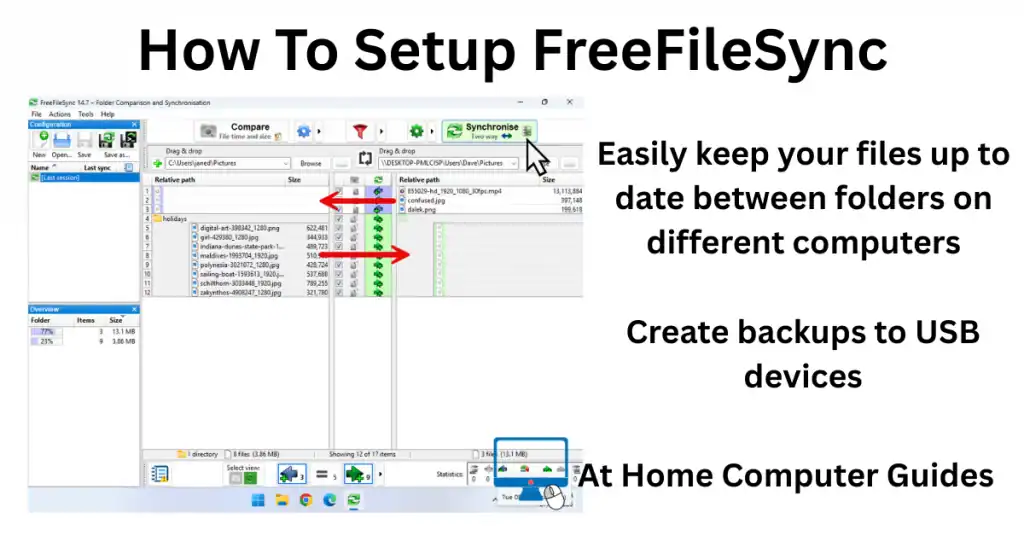
RealTimeSync is a companion tool for the popular sync program FreeFileSync. Once FreeFileSync has been setup to sync between 2 folders, you can use RealTimeSync for continuous syncing between those folders.
It’s quick and easy and in this guide I’ll show you how to set it up.
Create A FreeFileSync Batch File
RealTimeSync uses a batch file to continuously monitor the synced folders. When it detects any changes, RealTimeSync will call on FreeFileSync to run its sync operation.
To setup RealTimeSync, you’ll need to create a batch file from the saved configuration file in FreeFileSync. It’s easy to do and I’ll show you how below.
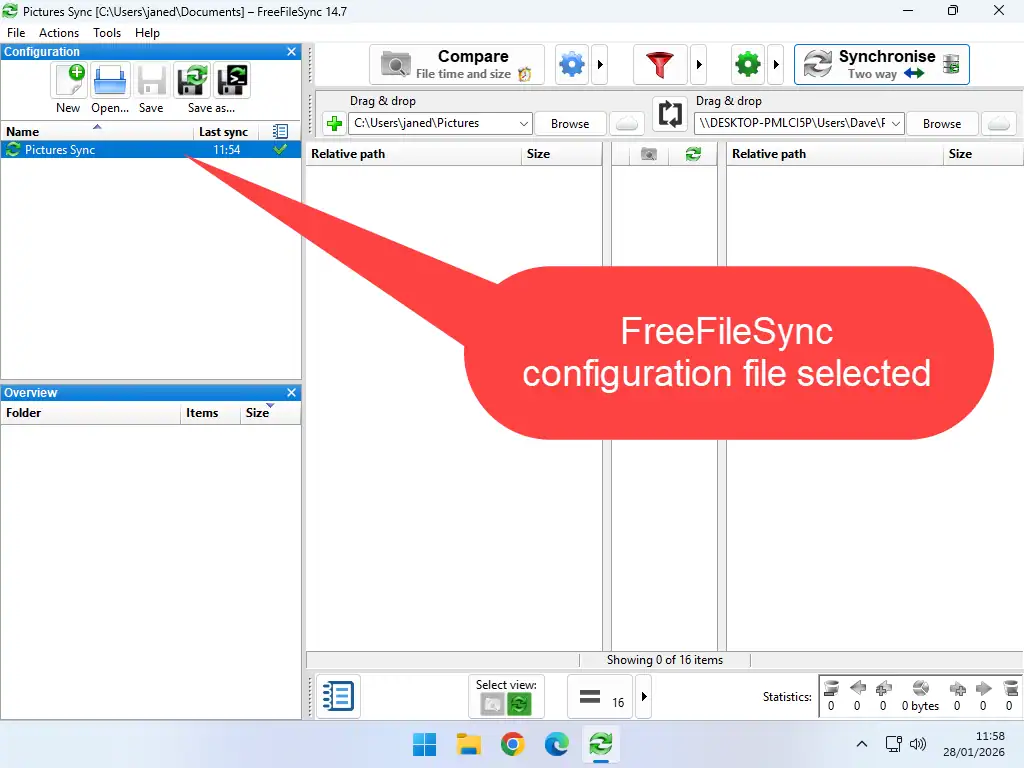
- Open FreeFileSync and select the saved configuration file that you want to use. If you only have one configuration file, then it’ll usually be auto selected
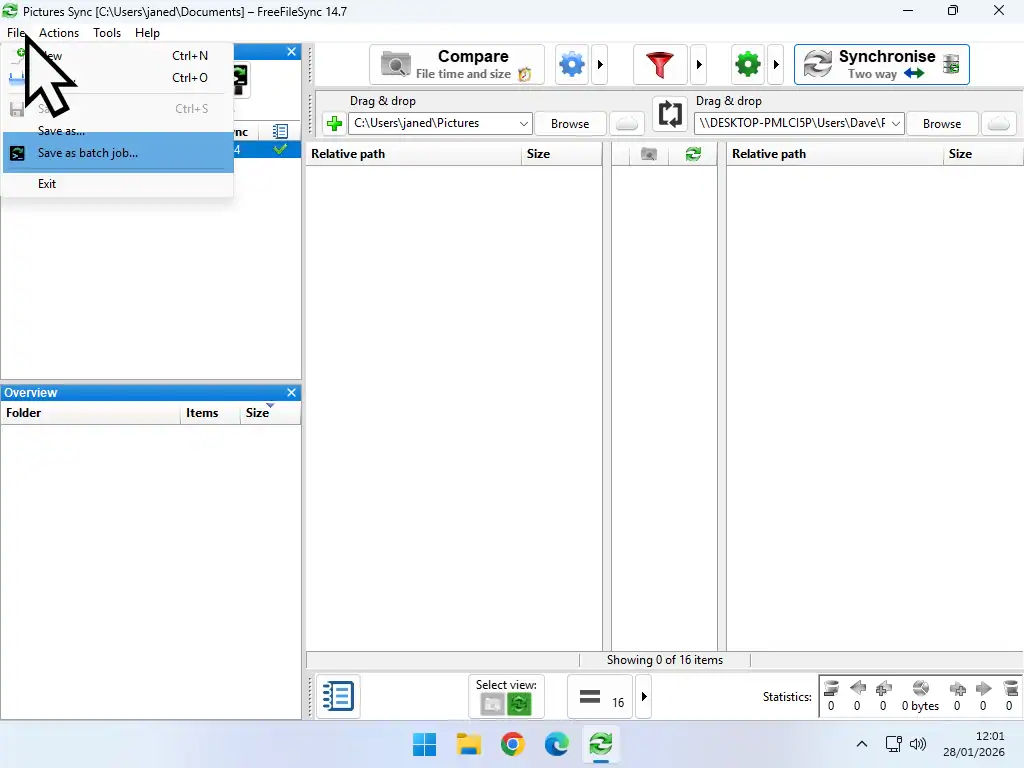
- Click the File button (top left corner) and then click Save As Batch Job
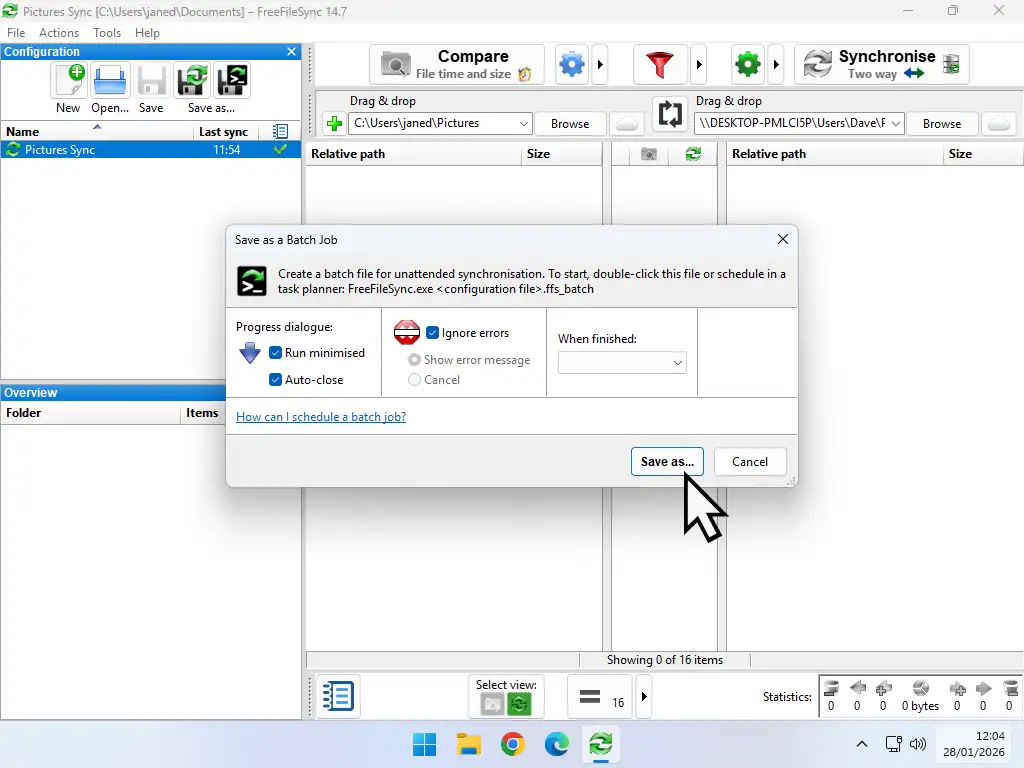
- On the batch job popup select Run Minimised and Ignore Errors, then click the Save As button
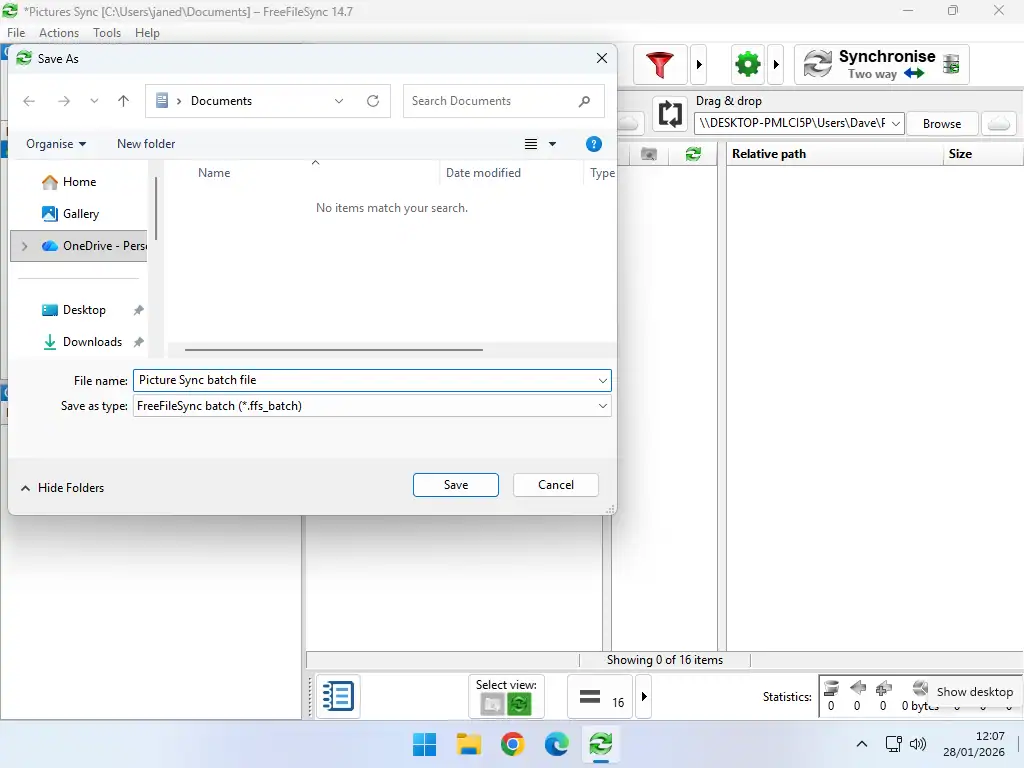
- Give the batch file a descriptive name and save it to your PC. You can use any name, just be sure you know what it is because you’ll need this file later.
How To Setup RealTimeSync
Now that you have the FreeFileSync batch file all you need to do is to import it into RealTimeSync.
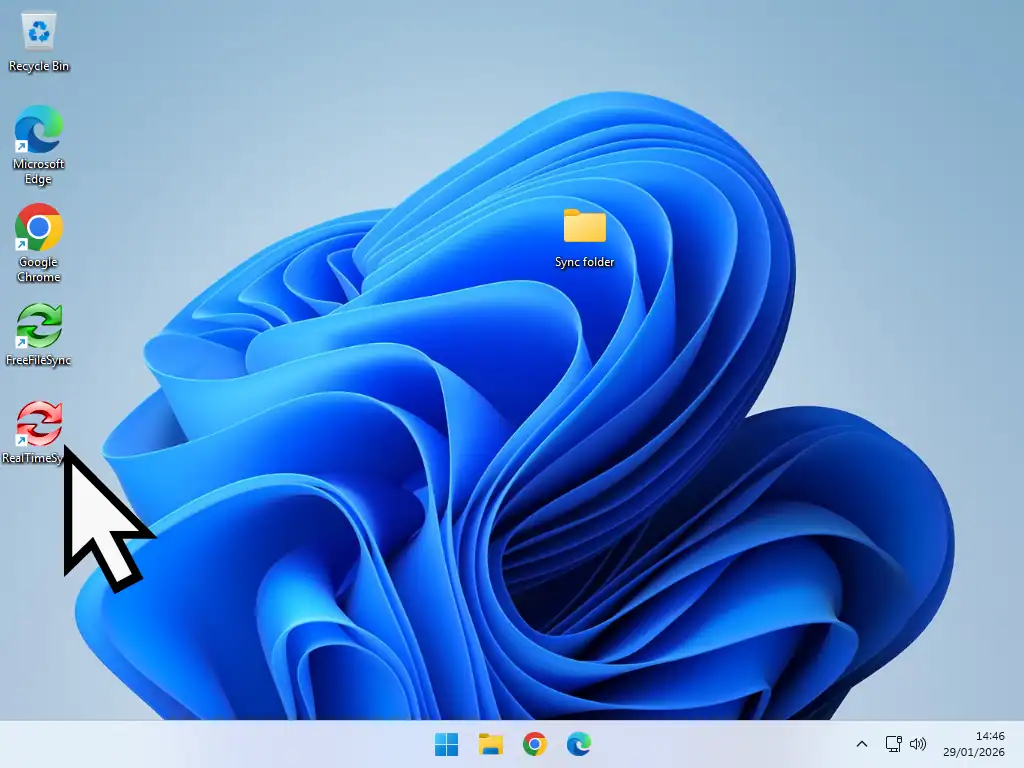
- Launch RealTimeSync
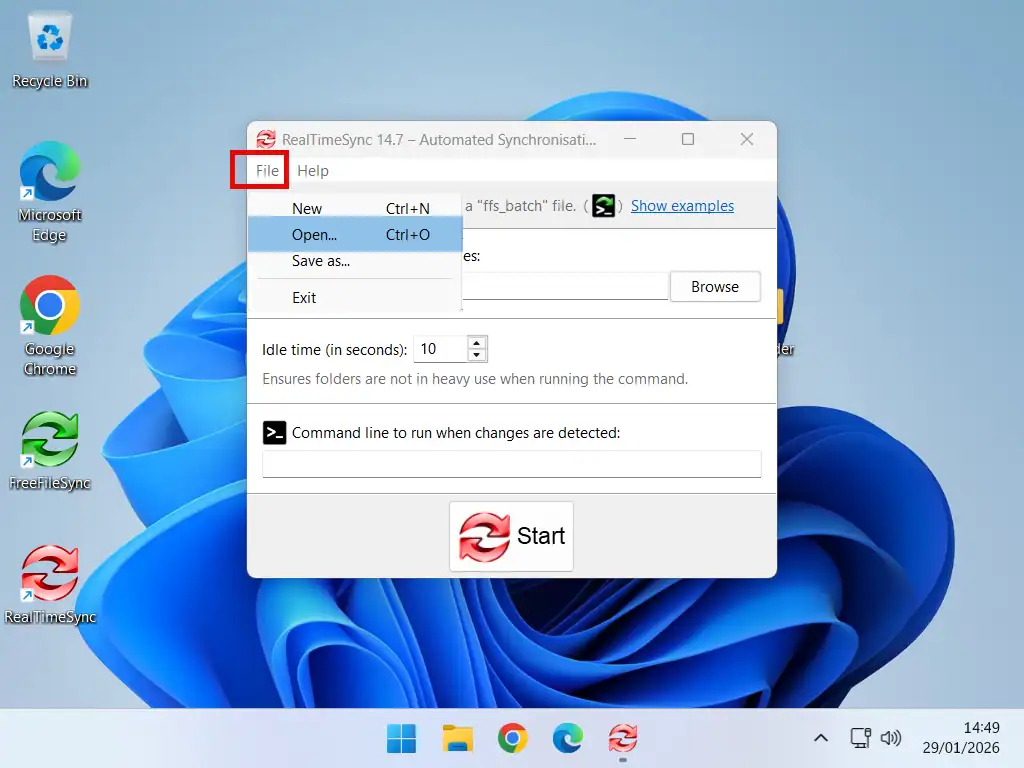
- When it opens, click the File button and then Open.
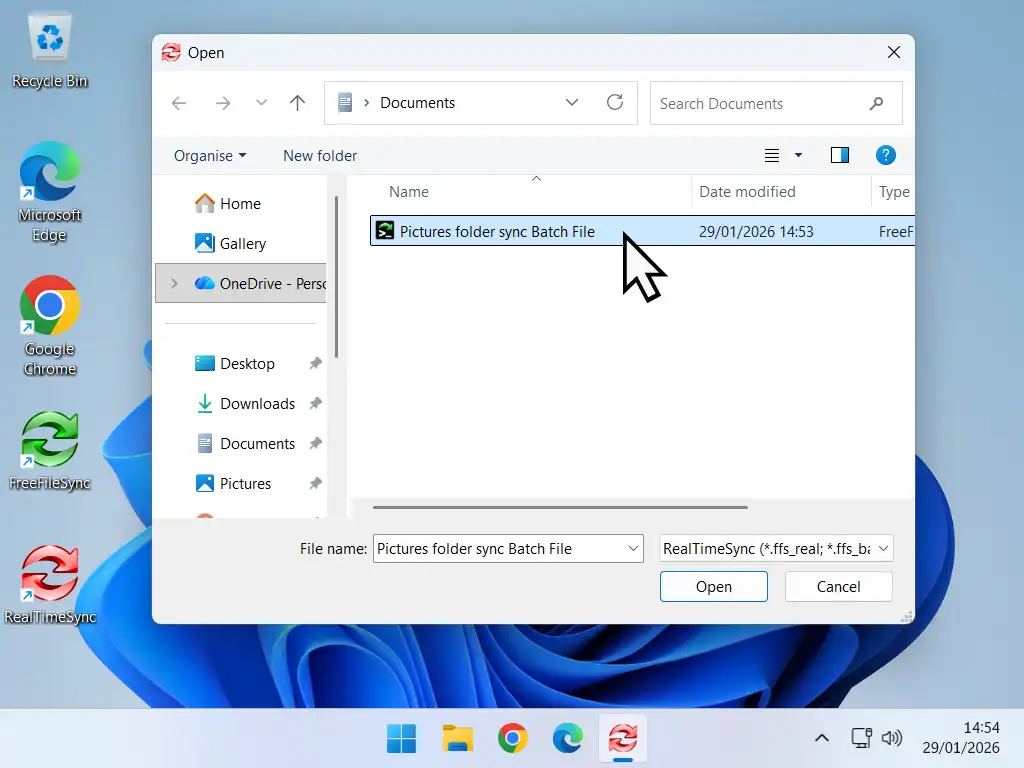
- Navigate to where you saved the batch file (usually it’ll be in your Documents folder). Select it and click Open.
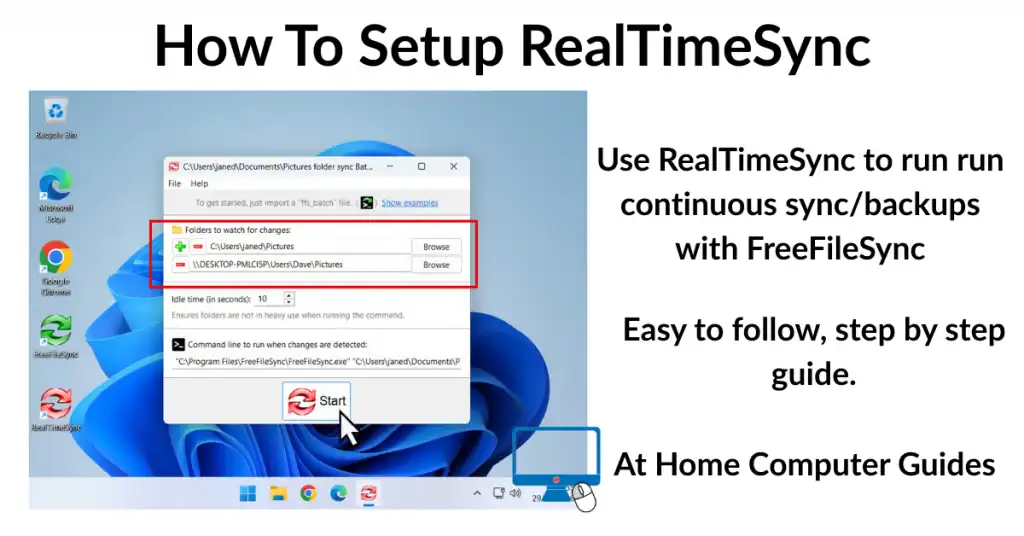
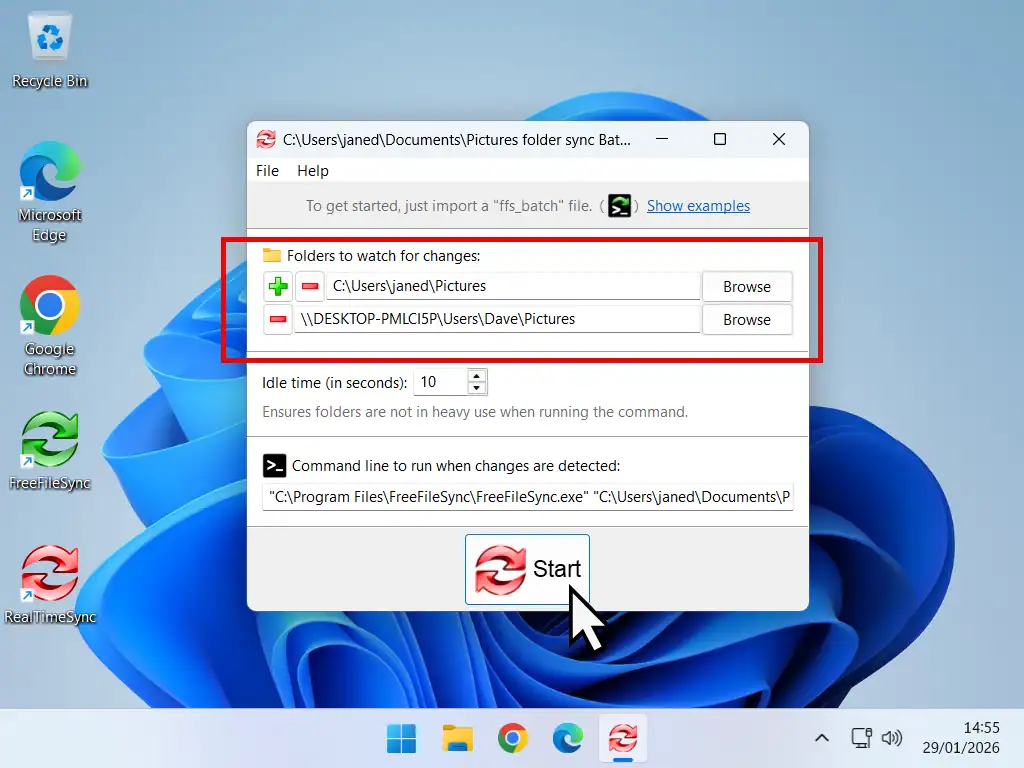
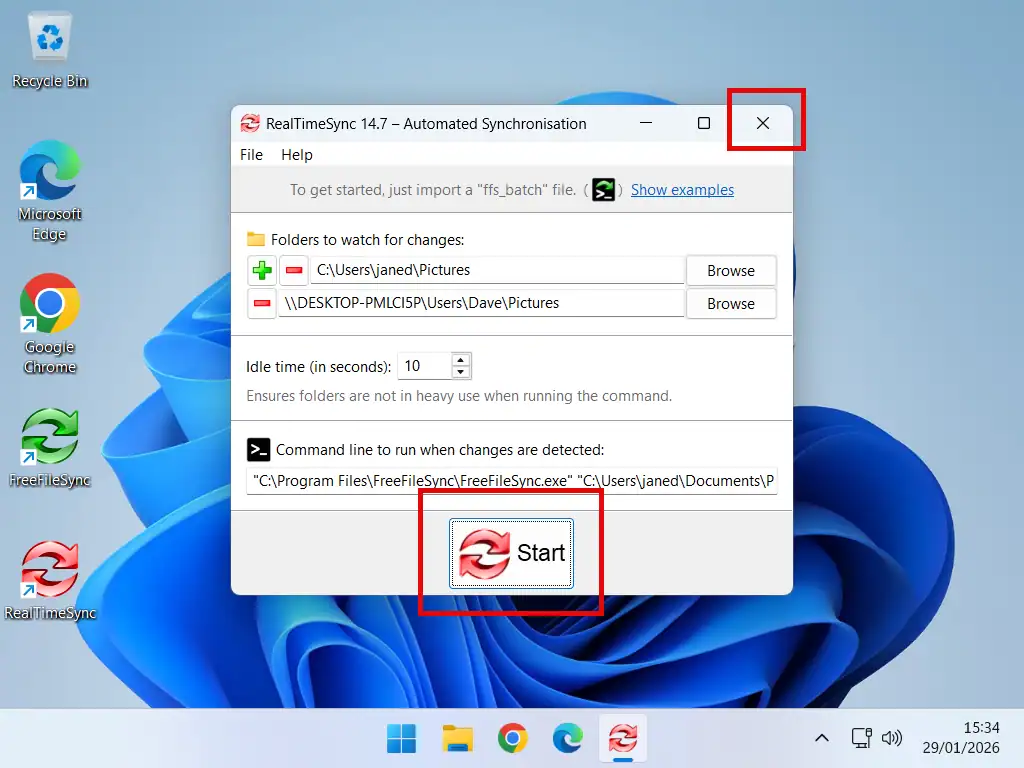
- In the Folders to Watch for Changes section you’ll see that it’s been automatically filled out with the folder paths that you’re syncing. To begin continuous syncing just click the Start button.
From this point on any changes to the folders, such as new files, edits and deletions, will automatically synced.
RealTimeSync Auto Start With Windows
RealTimeSync will continue monitoring your folders for as long as your computer remains on. However you’ll need to restart RealTimeSync every time that you reboot your system. While that’s not difficult (just a couple of clicks), it does open the possibility of forgetting to start it.
To get around that issue you can have RealTimeSync start with Windows –
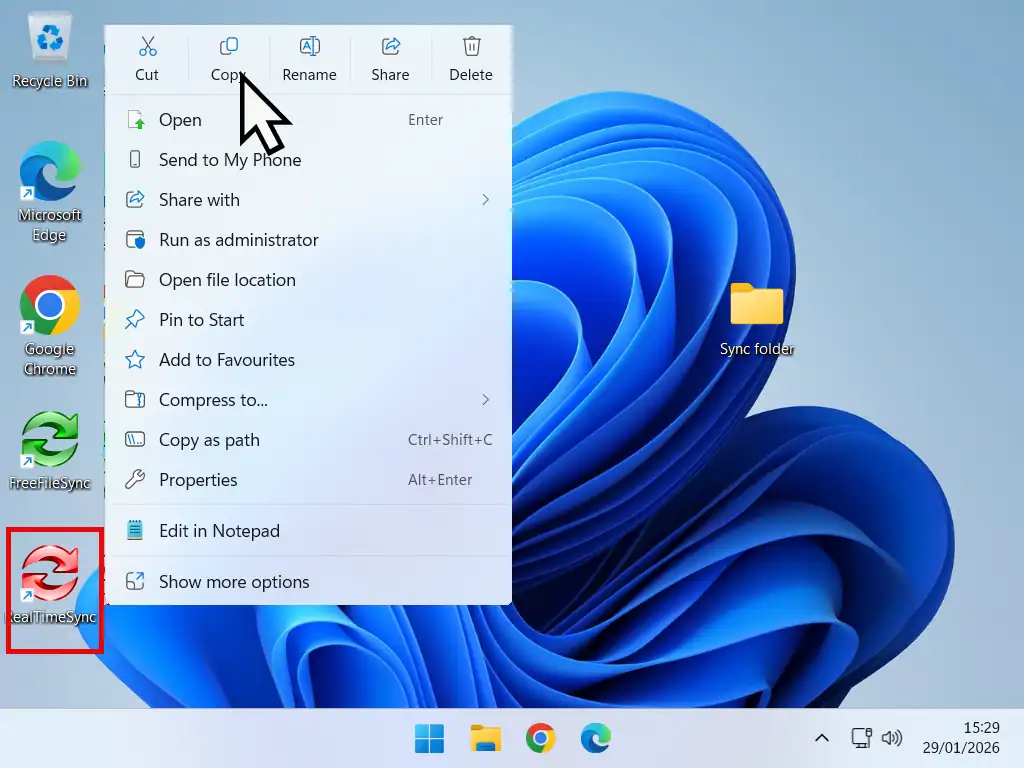
- Right click the RealTimeSync shortcut on your desktop. On the options menu, click Copy.
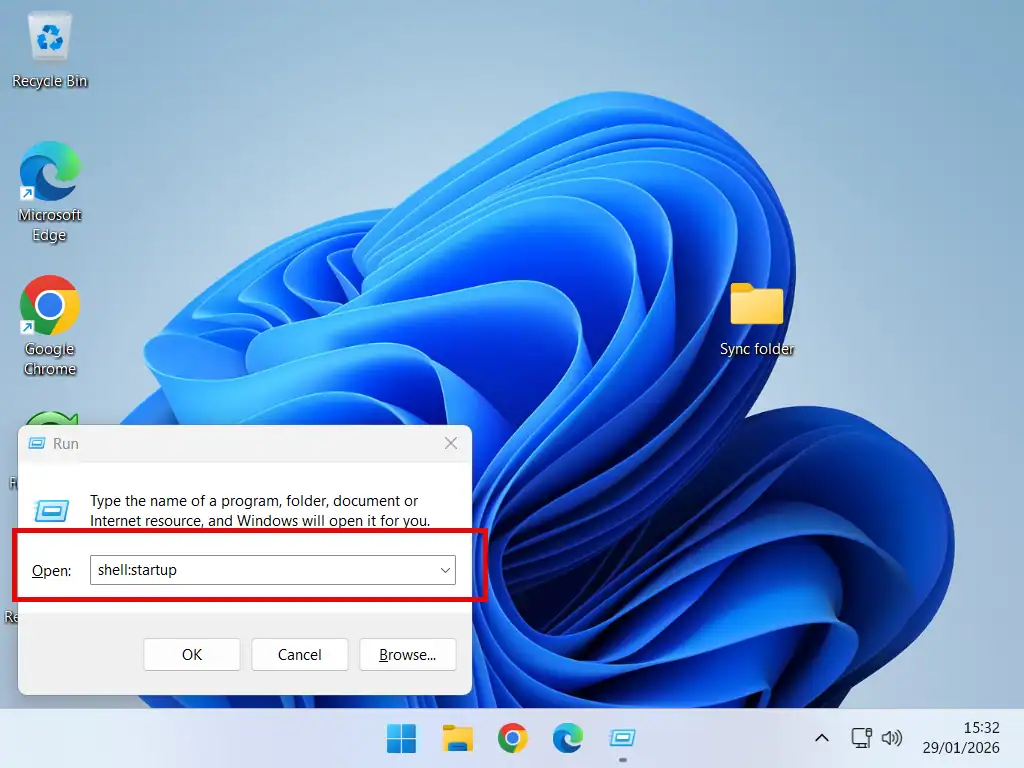
- Press the Windows key and letter R on your keyboard to open the Run box. Type “shell:startup” into the box and click OK.
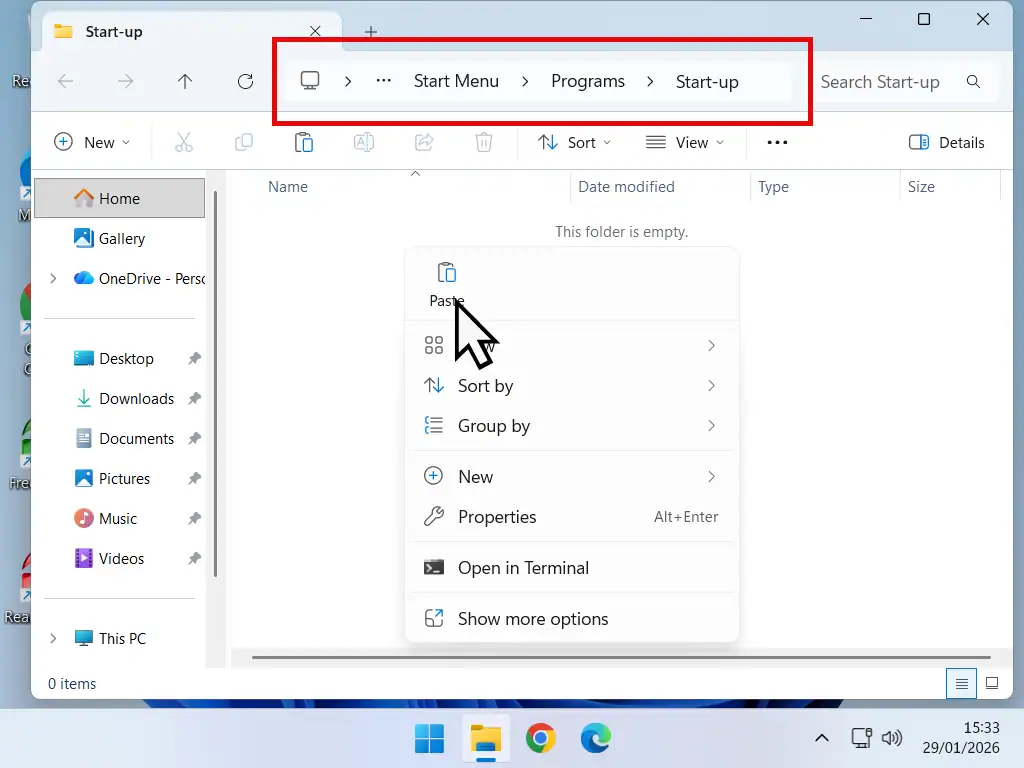
- The Startup folder will open. Now Paste the shortcut you just copied into the folder. Close the folder and restart your PC.
- From now on whenever your computer boots up RealTimeSync will appear. You can choose to start continuous syncing or, if you don’t need it this time, simply close it by clicking the X in the top right corner.
Summary
RealTimeSync provides an easy way to setup continuous syncing/backing up using FreeFileSync.
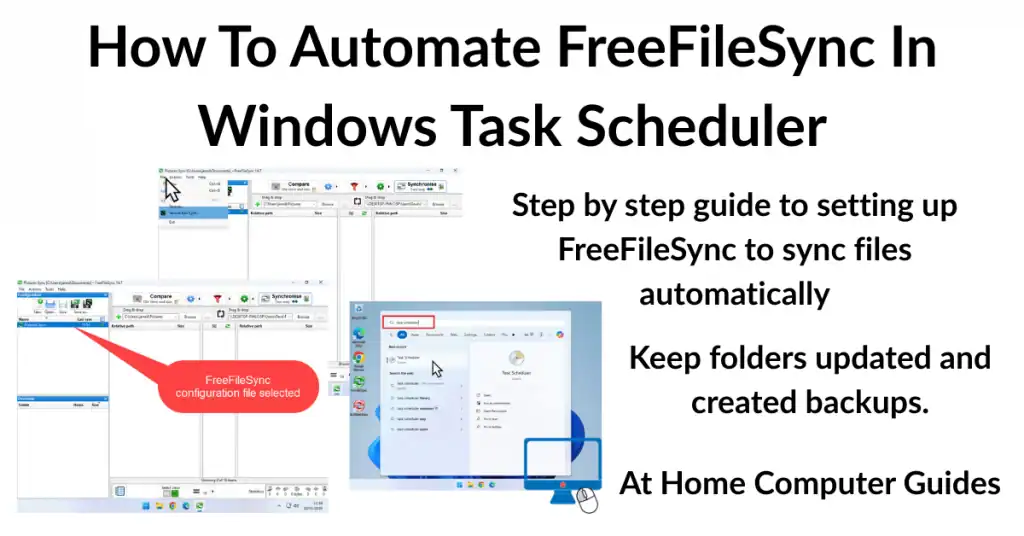
You can also run FreeFileSync by using the Windows Task Scheduler. This can be set to run daily, weekly or monthly syncs. It’s not continuous, since it only runs once at the time that you’ve set but it could be all that you need How To Automate FreeFileSync In Task Scheduler
Related Posts
How to Change a Computer Name
Every Windows computer has a Device Name, or PC name. Often they’re difficult to remember. But you can change them.
How To Run Android Apps On A Windows PC
Ever wanted to run one of those apps from your phone on your computer? You probably can.
Windows 11 Backup
Before making changes to your PC, back it up. Everyone (including me) will tell you that. But how?
Remote Desktop
Remote Desktop allows you to connect and control another computer from the one you’re using.
Windows Remote Desktop works across your home network.
Chrome Remote Desktop allows you to connect from anywhere across the internet.