
Microsoft push OneDrive as a way to back up your files. Left on its default settings it isn’t one, it’s a sync tool, and the difference is the thing that costs people their photographs.
The good news is that you can change that. With a couple of settings you can make OneDrive keep a proper second copy of your files, and the 5 GB Microsoft give you free is genuinely useful once it’s set up properly.
In this guide I’ll show you how to switch OneDrive backup on, how to change the one setting that turns syncing into something closer to a real backup, what the Personal Vault is actually good for, and where OneDrive still falls short of a proper backup so you know what else you need.
Why OneDrive Isn’t A Backup Out Of The Box
A backup means two copies. The original, and a spare somewhere else that isn’t affected by whatever happens to the original. That’s the whole idea.
Out of the box, OneDrive gives you one copy. It moves your files up into the cloud and leaves a placeholder behind on your computer, so it looks as though the file is still there when it isn’t. One copy, in one place, that you can only reach with an internet connection and a working Microsoft account.
That’s not a backup, it’s storage. The fix is a single setting called Always keep on this device, and I’ll come to it once OneDrive is switched on.
How to Setup OneDrive Backup
Most people sign in to their computer with a Microsoft account already, which makes this fairly painless.
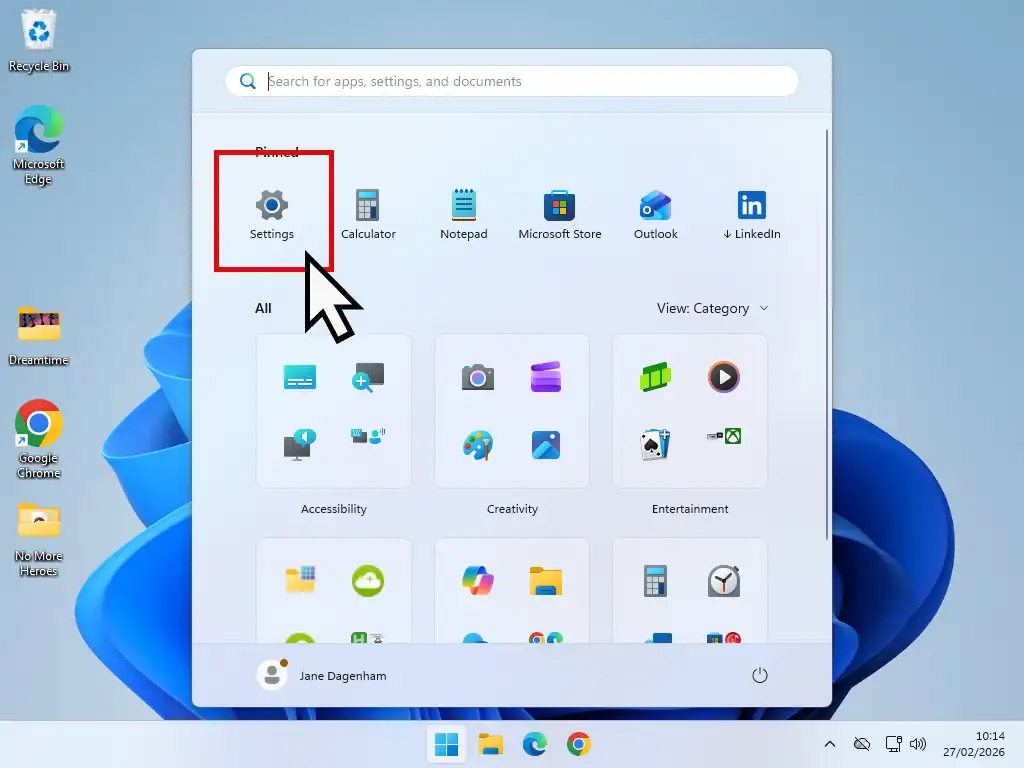
- Click the Start button, then the Settings icon, the gear wheel.
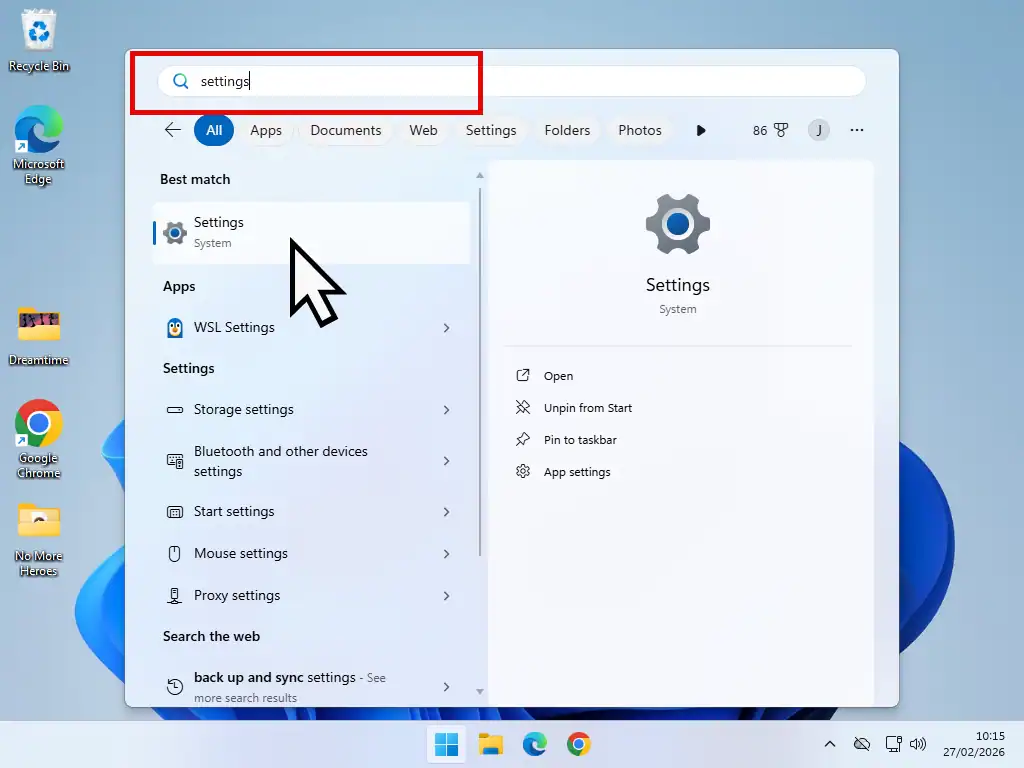
- If you can’t see it, type settings into the search box and click Settings (System).
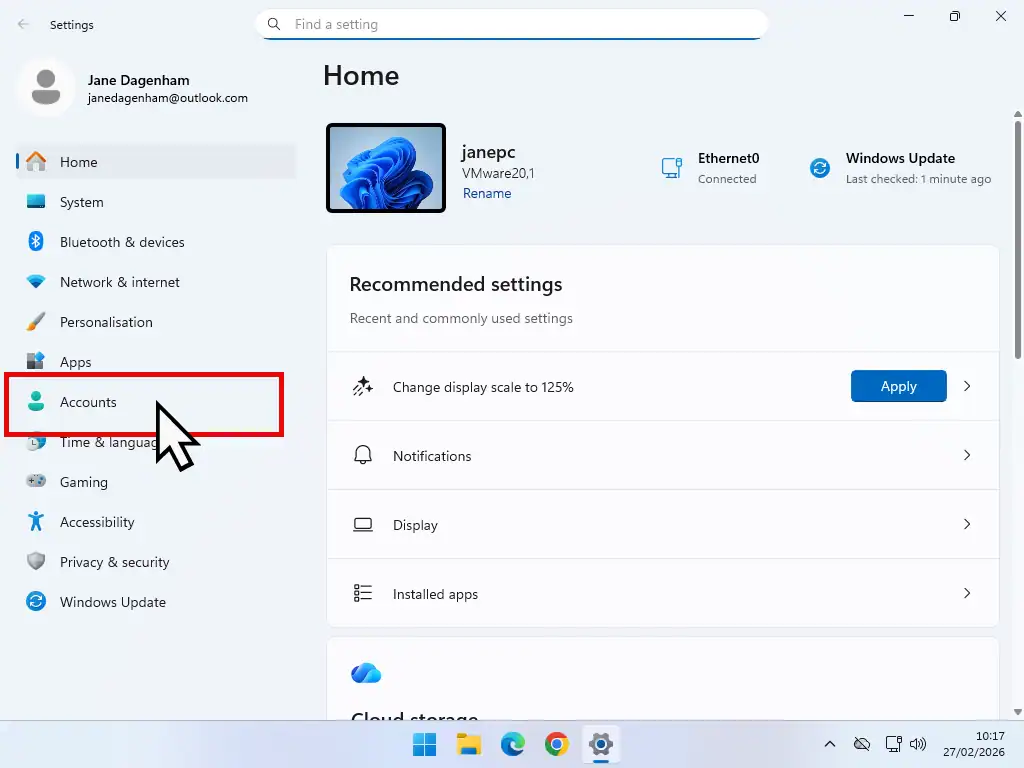
- On the Settings home screen, click Accounts in the left hand panel.
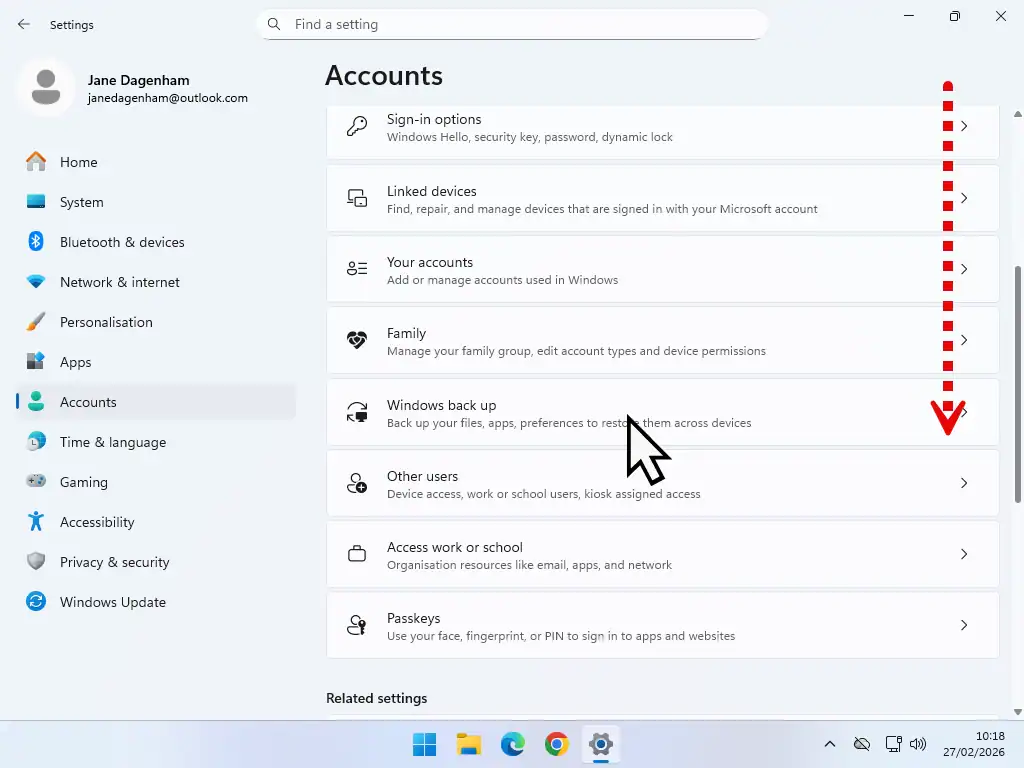
- Scroll down the Accounts screen and click Windows backup.
Where Is The OneDrive Cloud Icon
Quick aside, because it catches people out throughout this guide. Most OneDrive settings are reached from the little cloud icon rather than from the Settings app.
It lives at the right hand end of the taskbar, down by the clock. If you can’t see it, click the small arrowhead next to those icons to show the hidden ones, and it’ll be in there.
A grey or white cloud means OneDrive is running and signed in. A cloud with a line through it means you’re signed out. No cloud at all, even among the hidden icons, means OneDrive isn’t running, so search the Start menu for OneDrive and open it.
OneDrive Folder Syncing
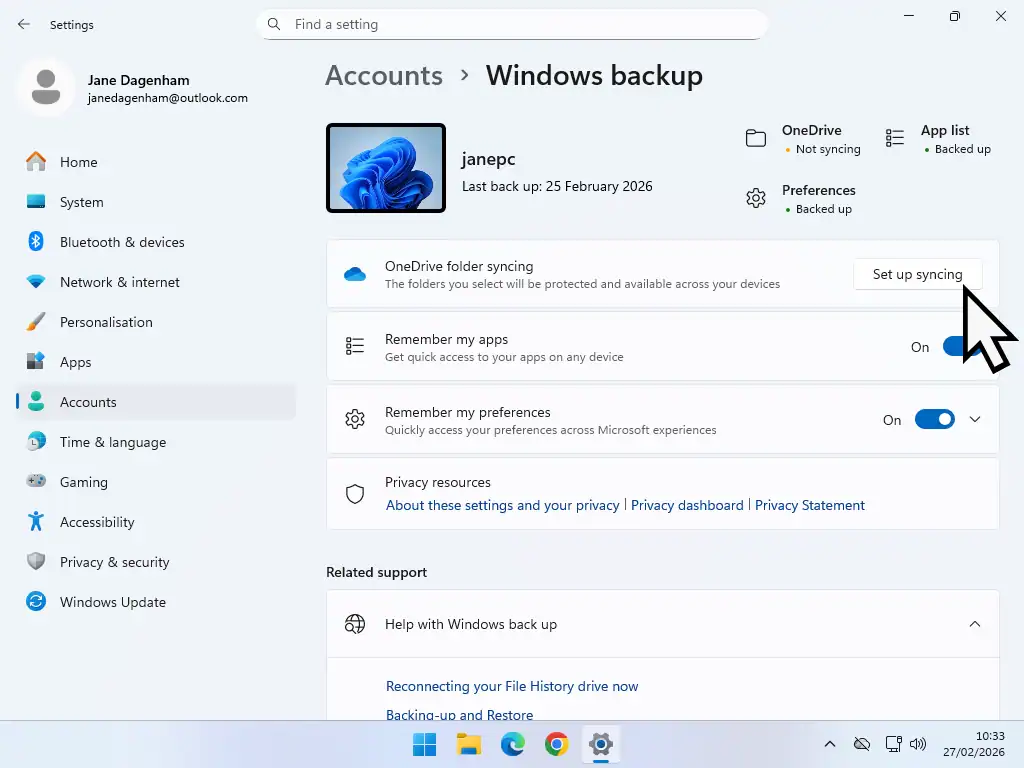
- On the Windows backup screen, click Set up syncing. If OneDrive is already partly set up you’ll see Manage sync settings instead, which takes you to the same place.
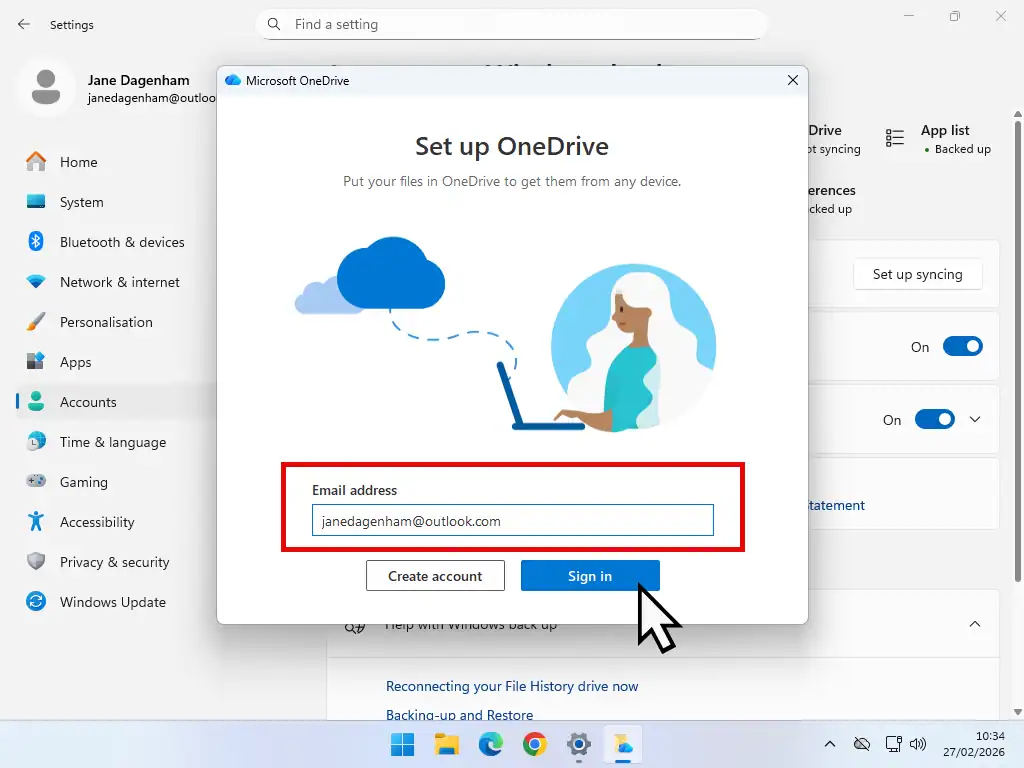
- Sign in to your Microsoft account. The email box is often filled in already. Click Sign in, then enter your PIN or your Microsoft password if you’re asked for it.
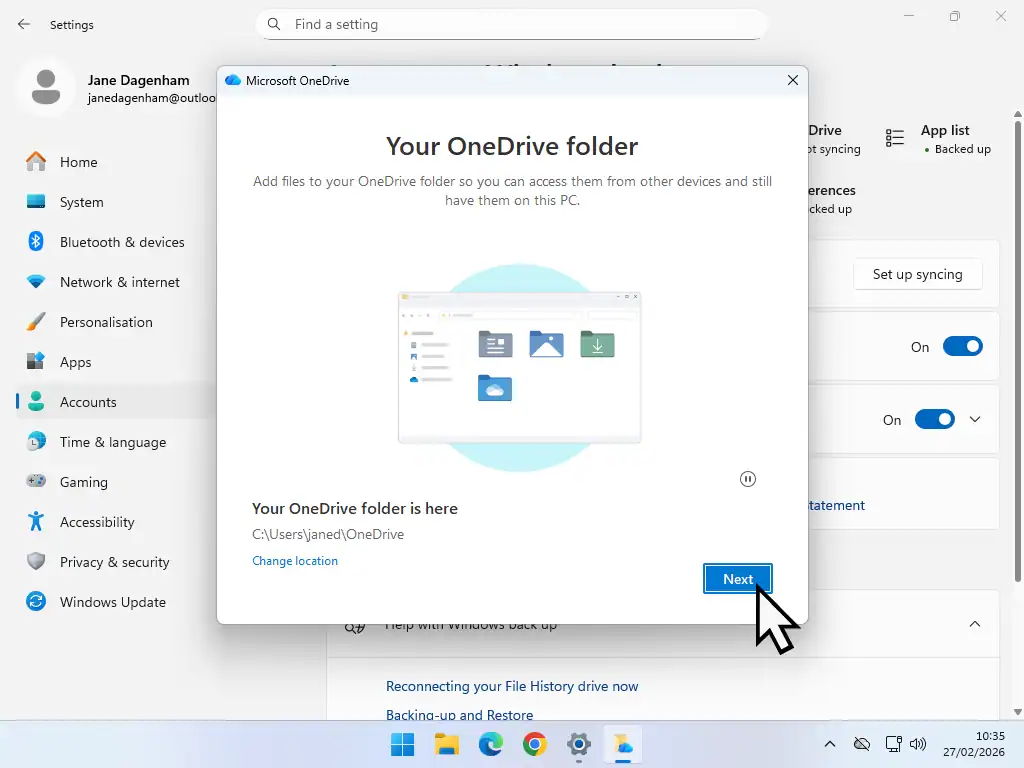
- The Your OneDrive folder screen appears. Click Next.
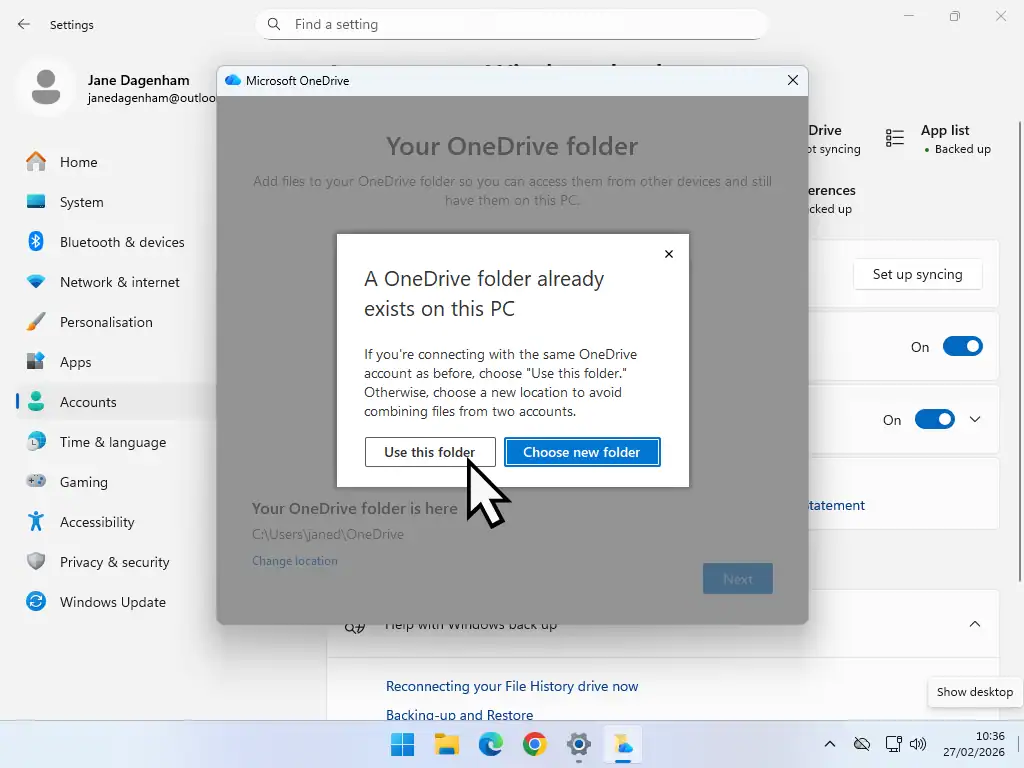
- If a message says the OneDrive folder already exists, click Use this folder.
Back Up Folders On This PC
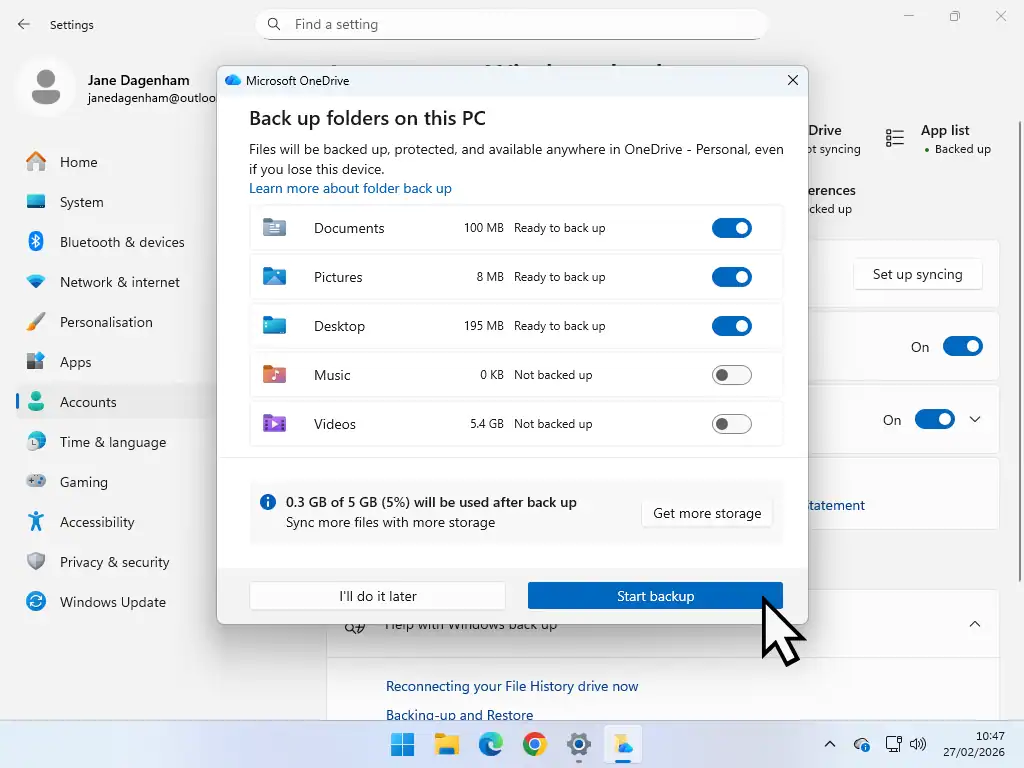
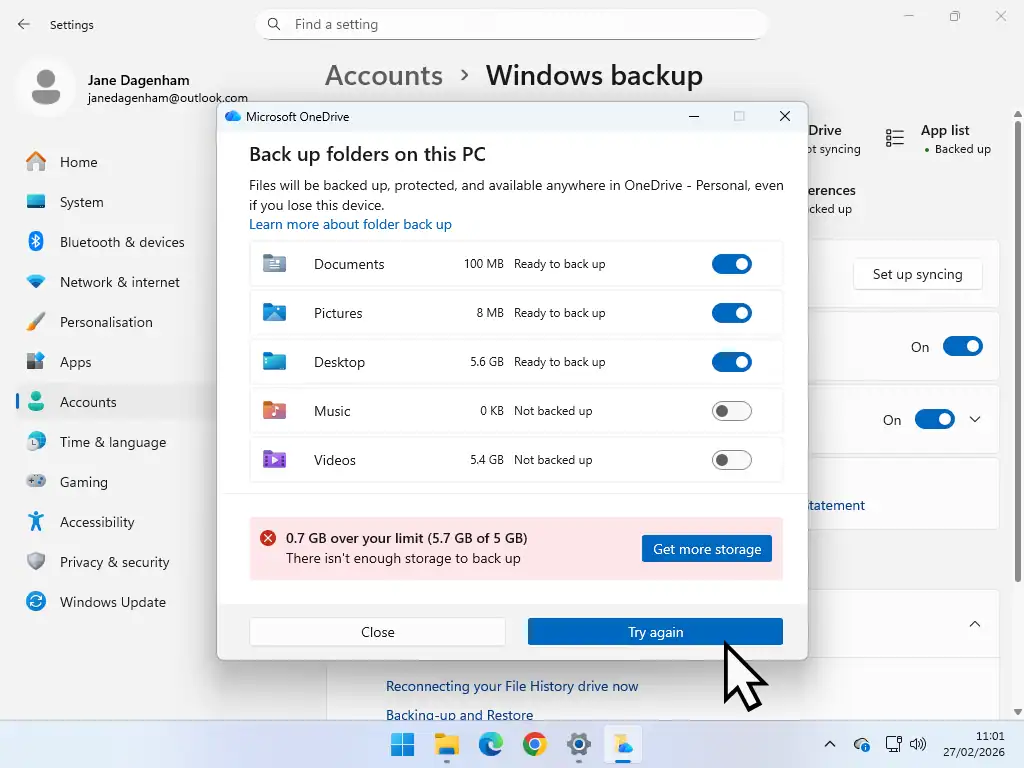
OneDrive now scans your Desktop, Documents and Pictures folders, which are the three it takes by default, and tells you how much space they’ll need. On the free plan you have 5 GB, so as long as the three of them come to less than that you can click Start backup.
You can add your Music and Videos folders too by clicking their toggle switches, though on 5 GB I’d think hard about that.
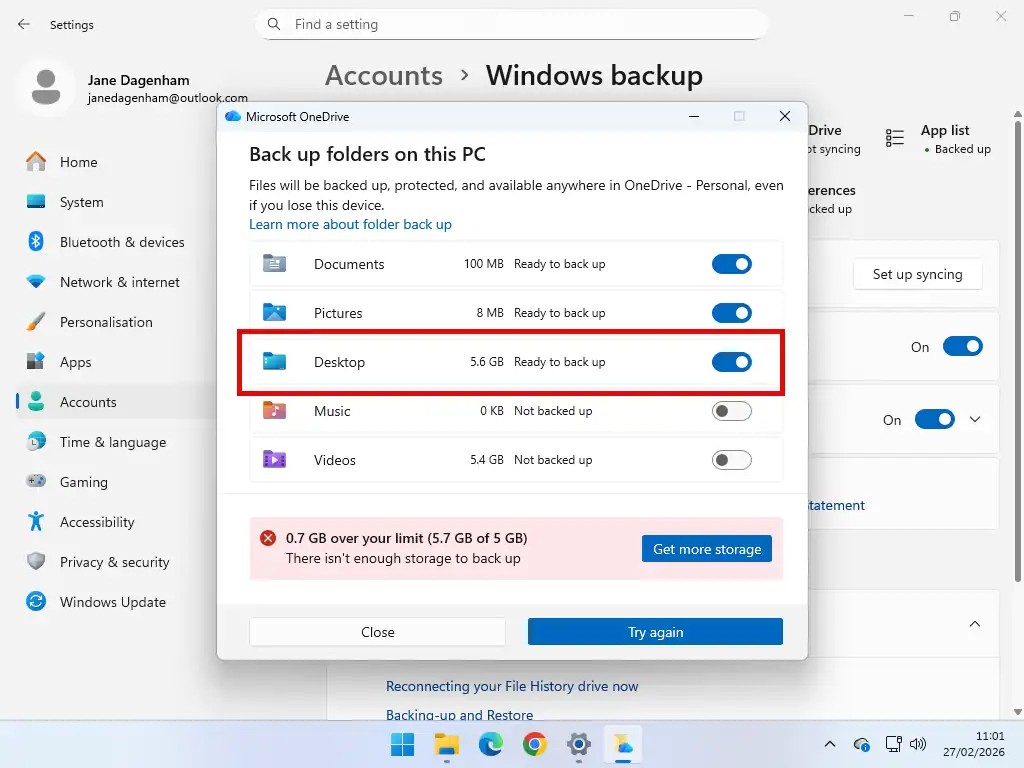
Don’t be surprised if you’re told you’re over the limit before you’ve even started. Pictures alone will do it for most people.
If You’re Over Your OneDrive Limit
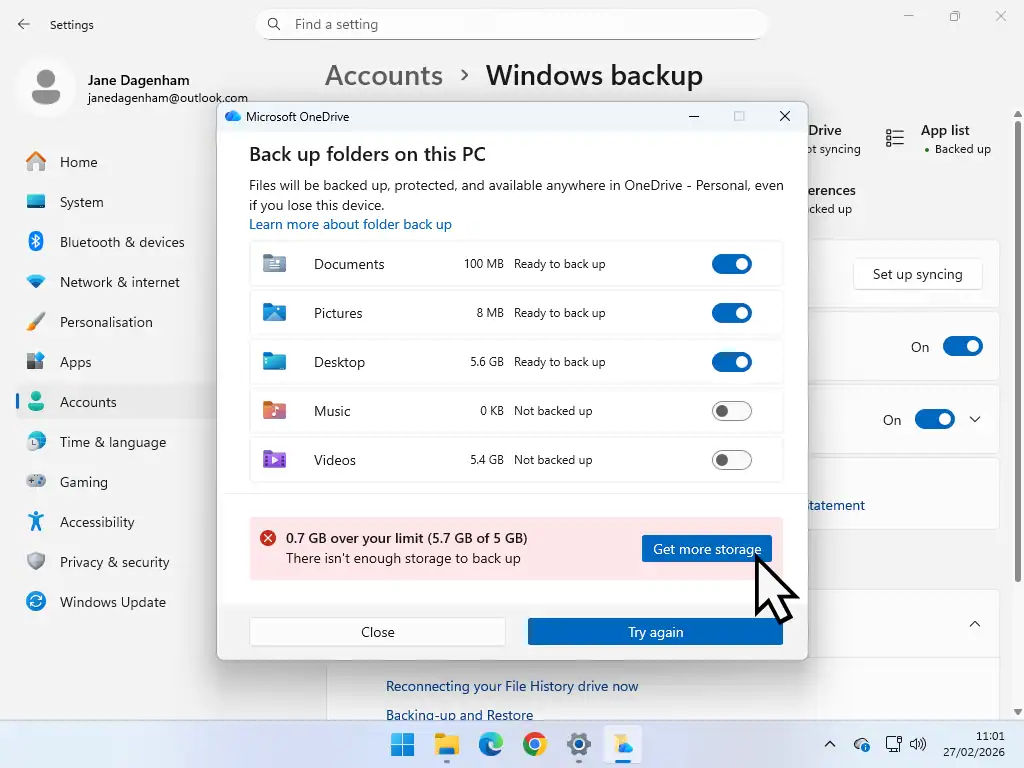
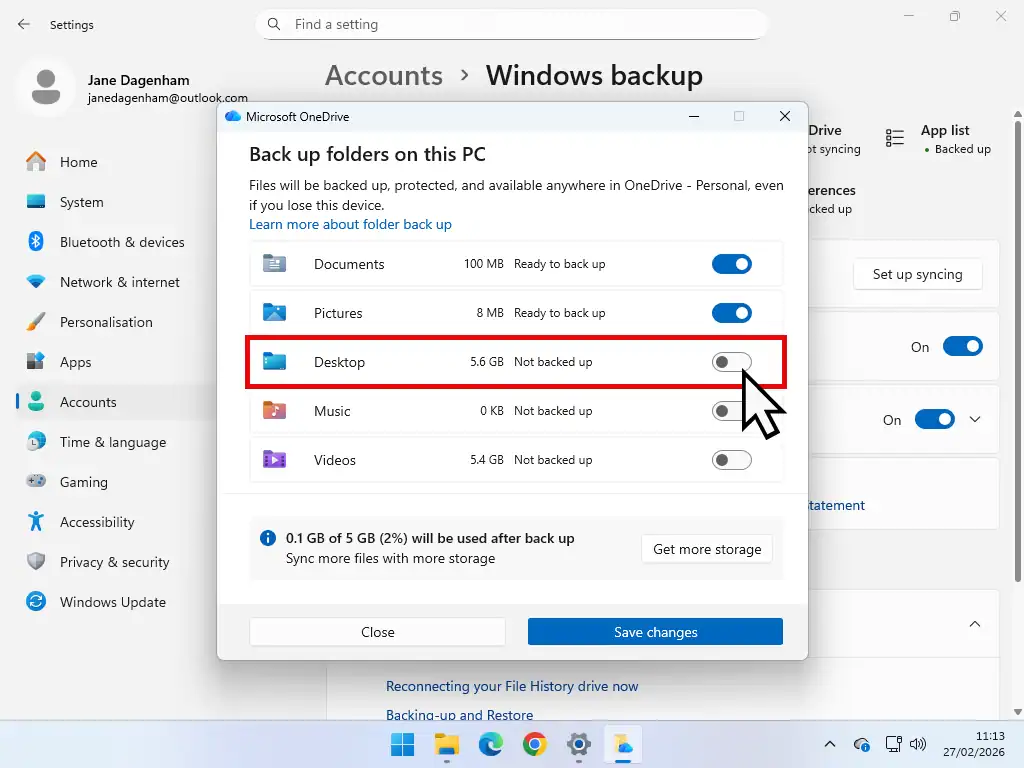
If one or more folders push you past your storage limit, you have three options.
- Deselect the folder that’s too big. Click its toggle switch and OneDrive leaves it alone. It won’t be backed up, but the others will. Usually it’s Pictures, and usually that’s the folder you most wanted backed up, which tells you something about 5 GB.
- Move things out of it. Use cut and paste to shift large files somewhere outside the folder, then click Try again and OneDrive recalculates.
- Buy more storage. The Get more storage button, and the one Microsoft are hoping for. Microsoft 365 Basic is around £1.99 a month or £19.99 a year for 100 GB, which is twenty times the free allowance and also lifts your mailbox to 100 GB. Prices change, so check before you commit.
My own view is that £20 a year for 100 GB is fair enough if you want the convenience, but a £10 USB stick holds more and doesn’t renew. Neither is wrong, they’re just different trades.
If 5 GB Isn’t Enough
OneDrive isn’t the only cloud option. Google Drive for desktop works much the same way with two useful differences. You get 15 GB free rather than 5, and you have more control over which folders are backed up.
If it’s already too late and OneDrive is full, what to do when OneDrive is full covers getting out of it safely.
Always Keep On This Device, The Setting That Matters
This is the one. Everything up to here has just switched OneDrive on. This is what turns it into something worth calling a backup.
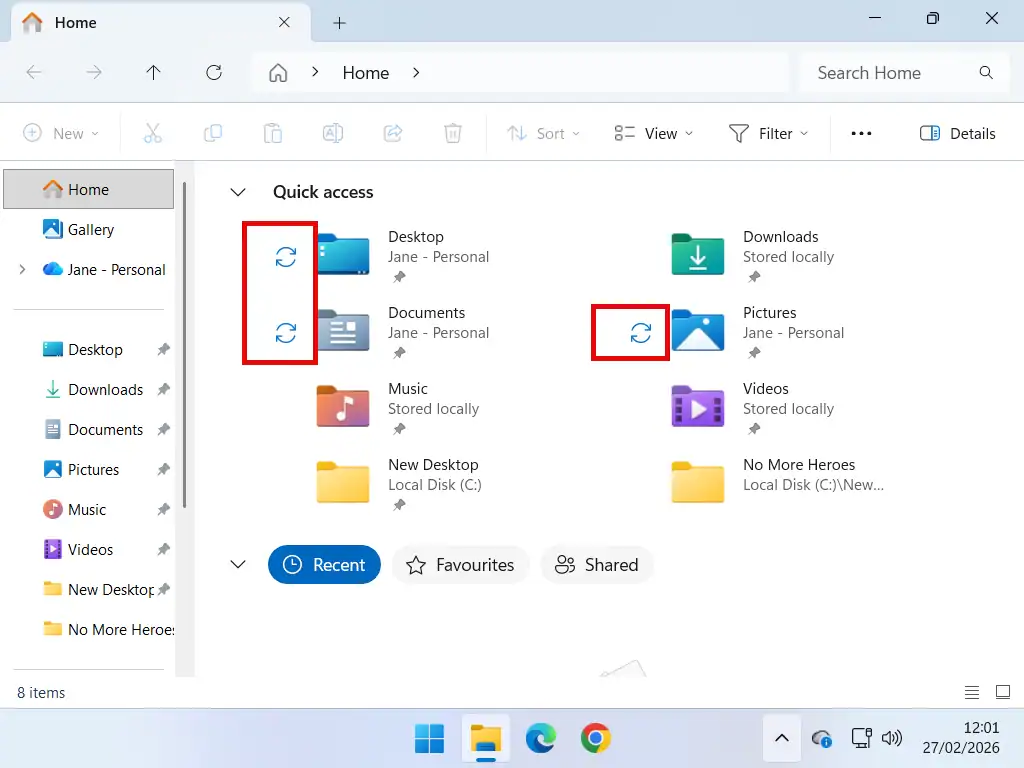
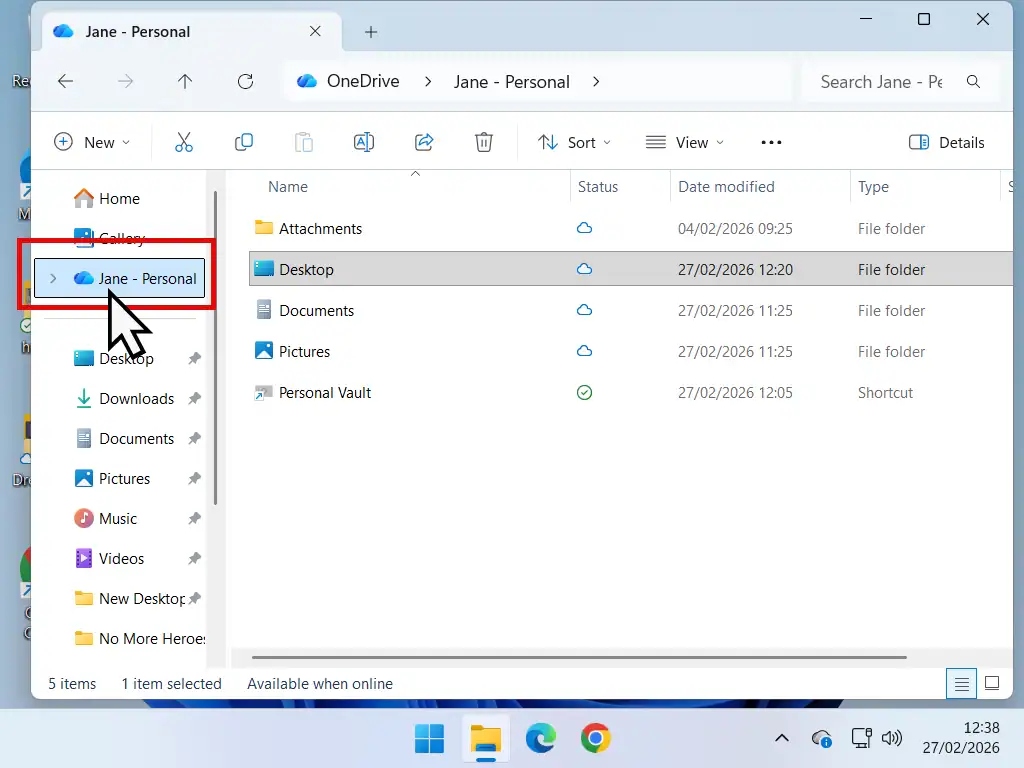
First, check whether OneDrive has finished. Open File Explorer and look at the symbols beside your folders. Two blue circling arrows mean it’s still uploading, so give it a few minutes and look again. On a first run with a lot of photos it can take hours.
OneDrive Status Symbols
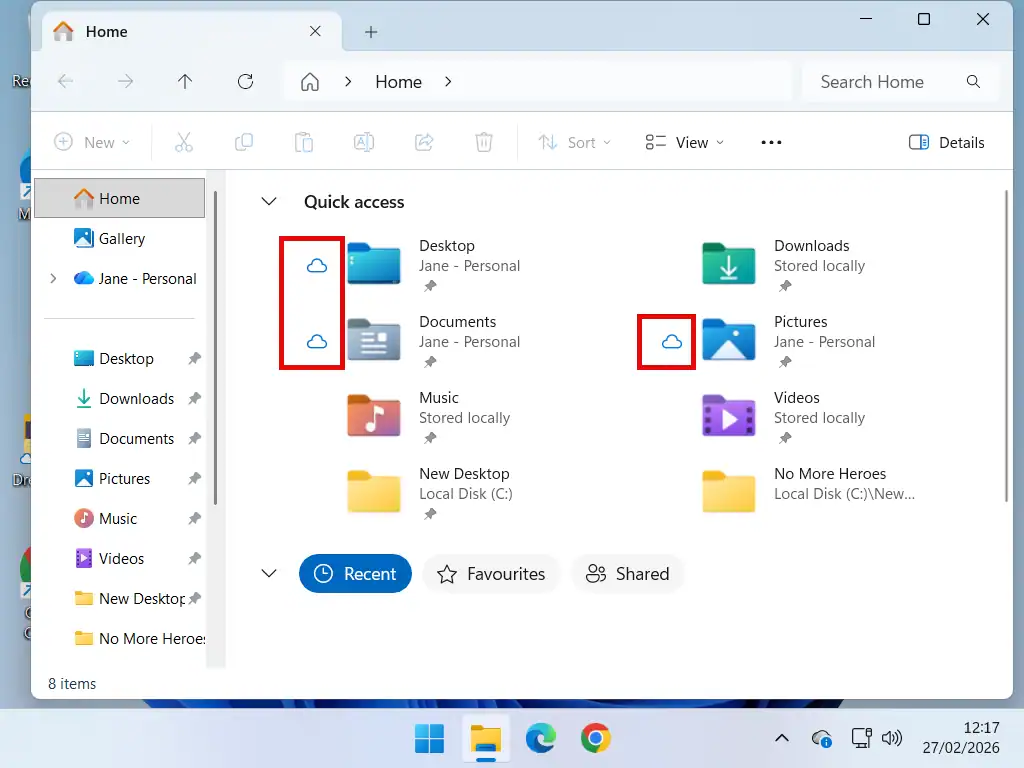
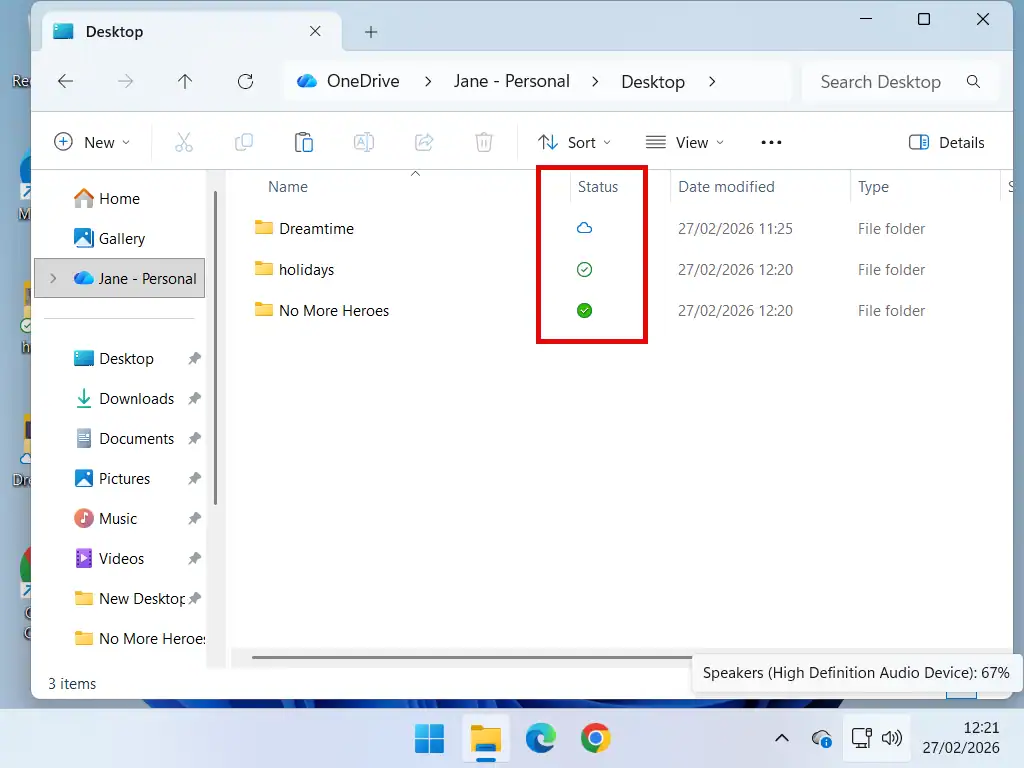
Once syncing has finished, the symbol beside each file and folder tells you where it’s actually stored. For backup purposes these are the most important things on the screen.
 Blue cloud. Online only. The file is not on your computer. That means one copy, in the cloud, and that is not a backup.
 Green tick, white background. The file has been downloaded and is on your computer now, usually because you opened it. It stays there, but not permanently. Use Free up space, or let Windows decide it needs the room, and it goes back to online only. So it’s probably two copies, which isn’t good enough for anything you care about.
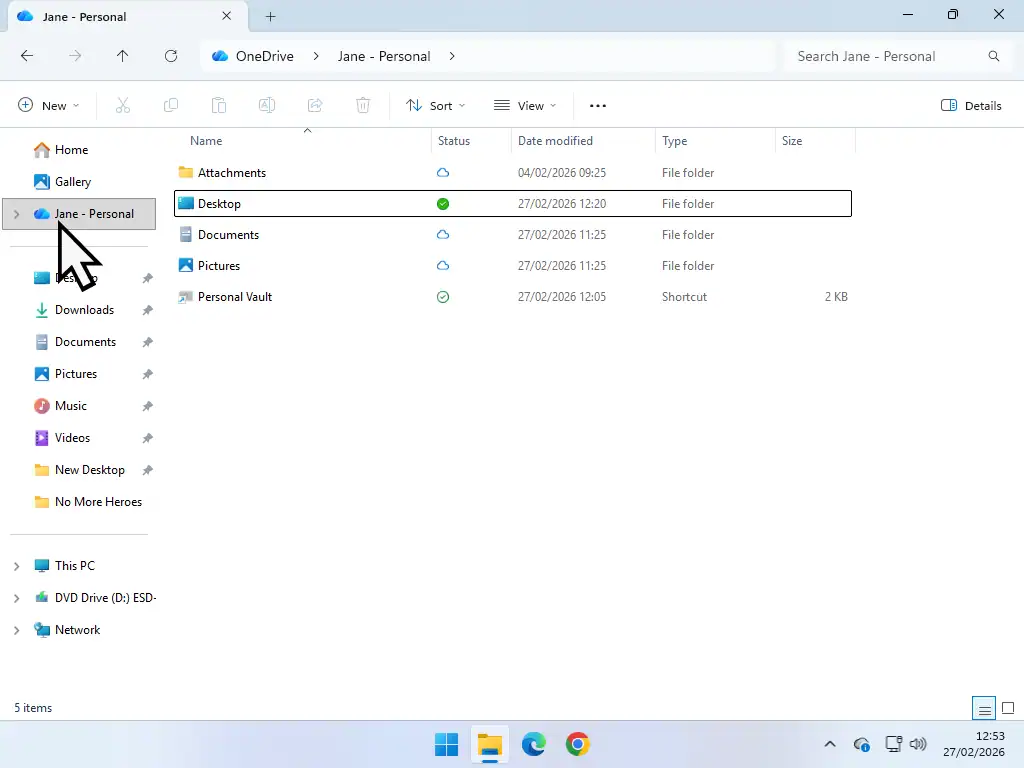
 White tick, solid green background. Always keep on this device. The file is on your computer and in the cloud, permanently, and Windows leaves it alone. Two copies. This is the one you want.
How to Keep Files on Your PC
To use OneDrive as a backup you need that second copy sitting on your own hard drive.
- In File Explorer, left click OneDrive in the left hand panel.
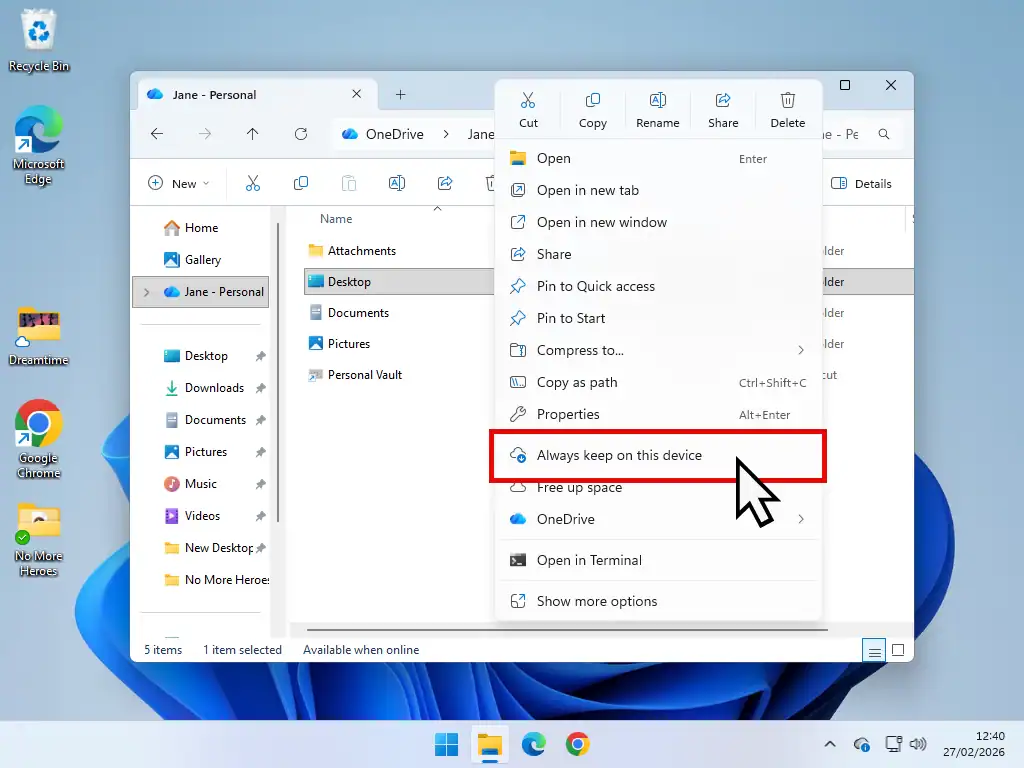
- Right click one of your backed up folders in the middle panel.
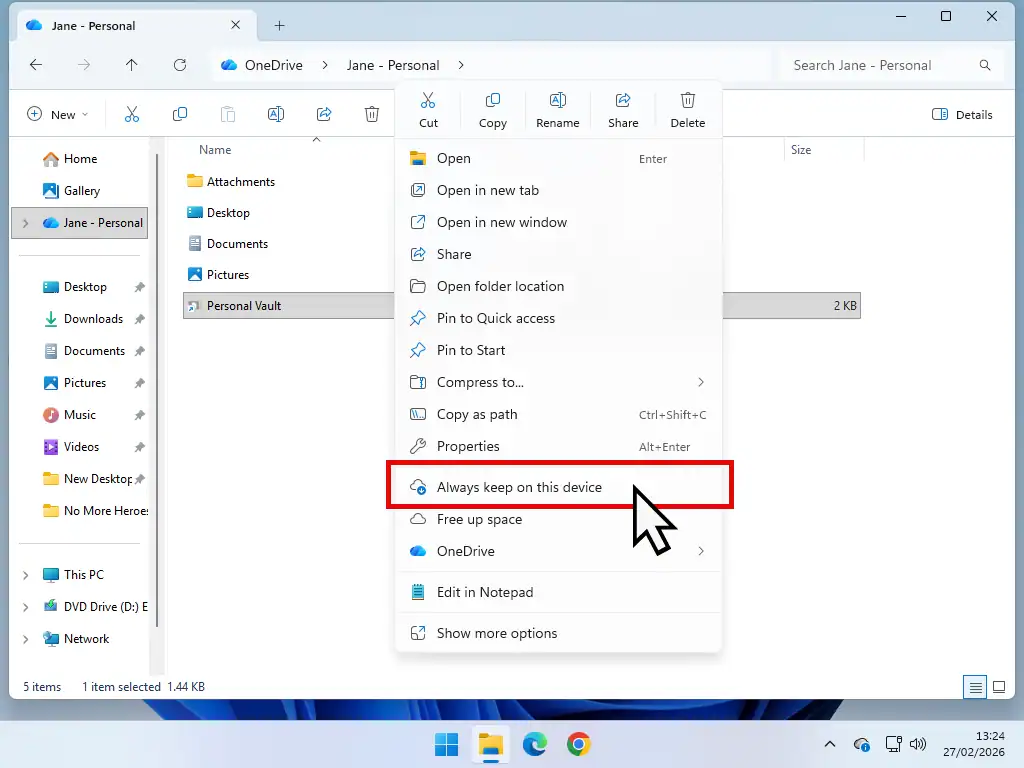
- Left click Always keep on this device. In Windows 11 you may need Show more options first.
- Repeat for each folder, then wait for the white tick on green to appear against all of them.
OneDrive downloads everything back to your PC while keeping the online copy. Two copies, which is what you were after.
Bear in mind this uses hard drive space. That’s the point, but if your computer is short on room, do it one folder at a time and keep an eye on the free space.
Test It, Don’t Assume It
Turn your wifi off and open a few files. If they open, you genuinely have two copies. If they won’t, something didn’t take and you still have one.
Two minutes now beats finding out the hard way.
The OneDrive Personal Vault
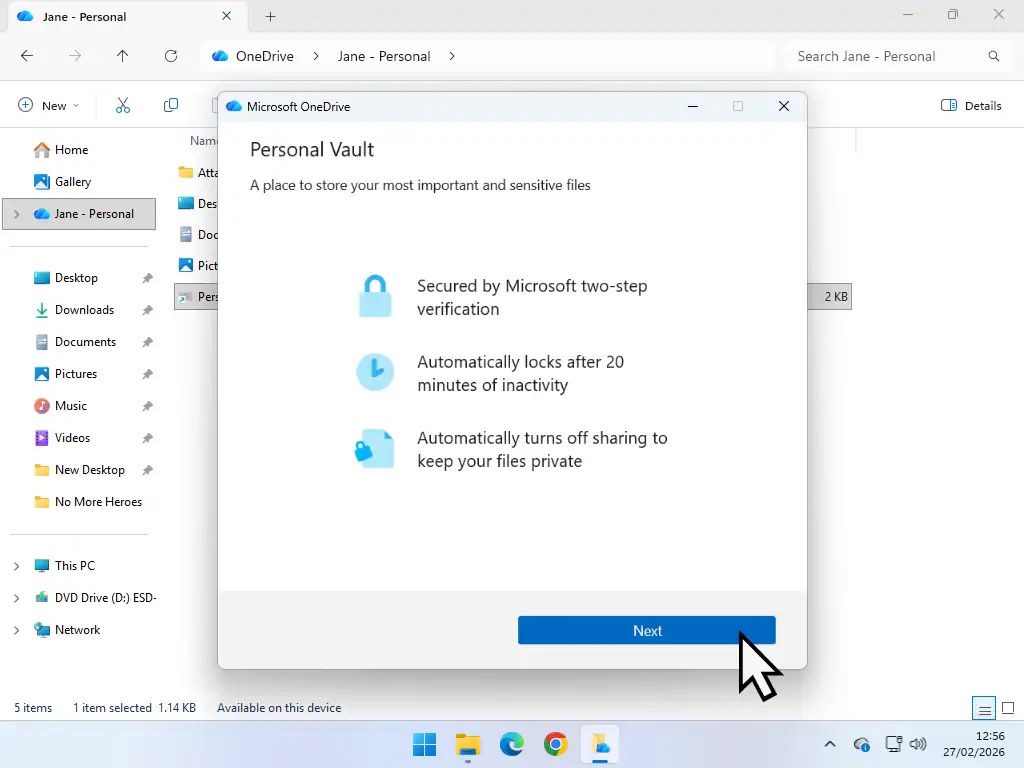
The Personal Vault is a separate, extra secure area inside OneDrive, meant for the things you’d least like anybody else to see. Passport scans, insurance documents, that sort of thing. It’s encrypted, it locks itself, and it needs a second check before it’ll open even when you’re already signed in.
Before you get excited about it, there’s a limit nobody mentions.
The Three File Limit
On a free OneDrive account, the Personal Vault holds a maximum of three files. Not 3 GB, three files. Try to put a fourth in and it refuses.
To store more than three you need a Microsoft 365 subscription, and it’s worth checking which one before you pay, because Microsoft’s own support answers say the cheaper plans keep the three file limit too.
So treat the vault for what it is on a free account. It isn’t somewhere to back up a folder. It’s somewhere to put two or three genuinely critical documents, and for that it’s rather good. A passport scan and a copy of your house insurance is exactly the right use of three files.
Everything else goes in your ordinary OneDrive folders, backed up the way described above.
Setting Up Your Personal Vault
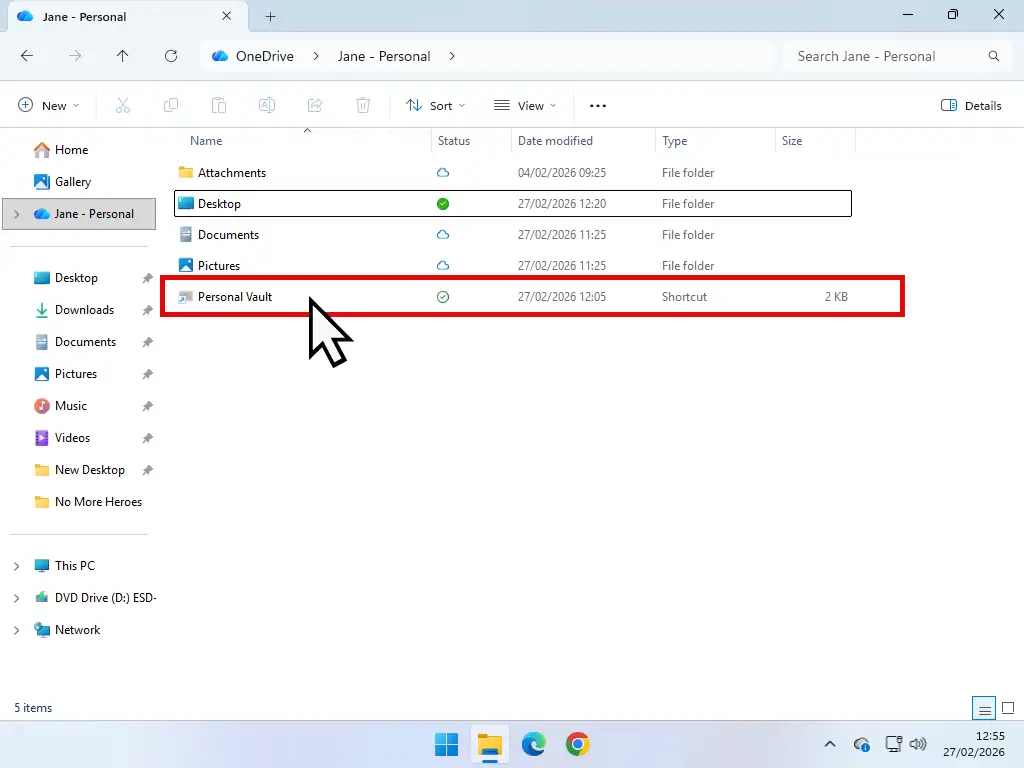
- Open File Explorer and left click OneDrive in the left hand panel.
- Double left click the Personal Vault folder in the middle panel.
- Read the short description and click Next.
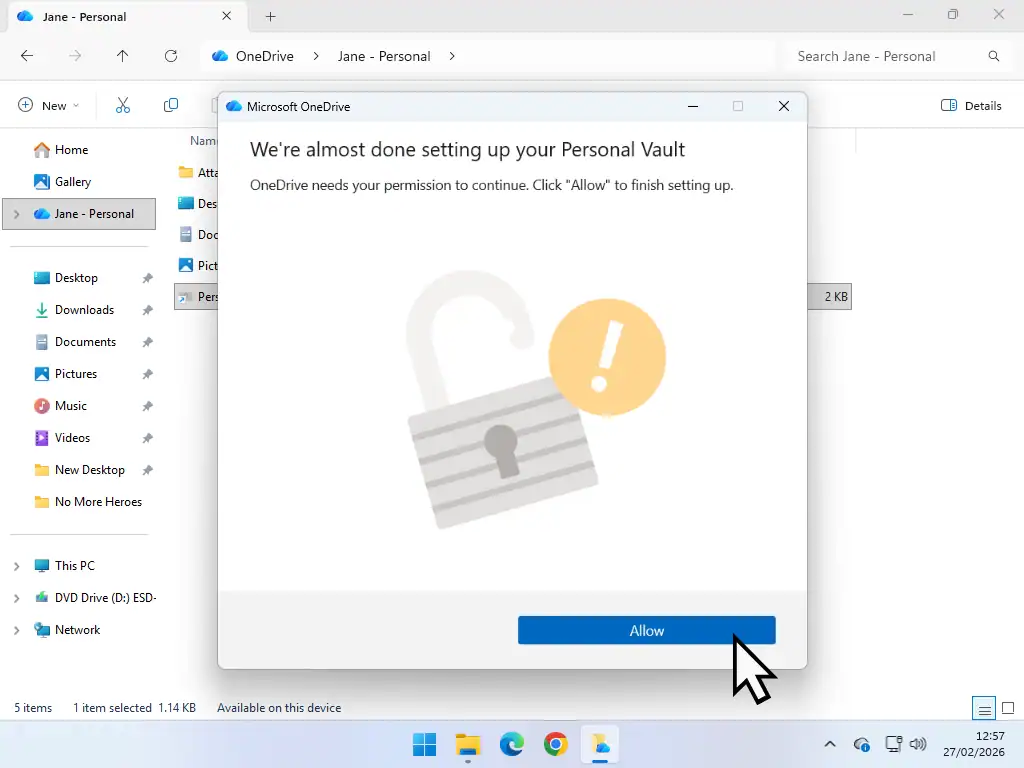
- Click Allow when OneDrive asks for permission to make changes.
Sign In With Your PIN
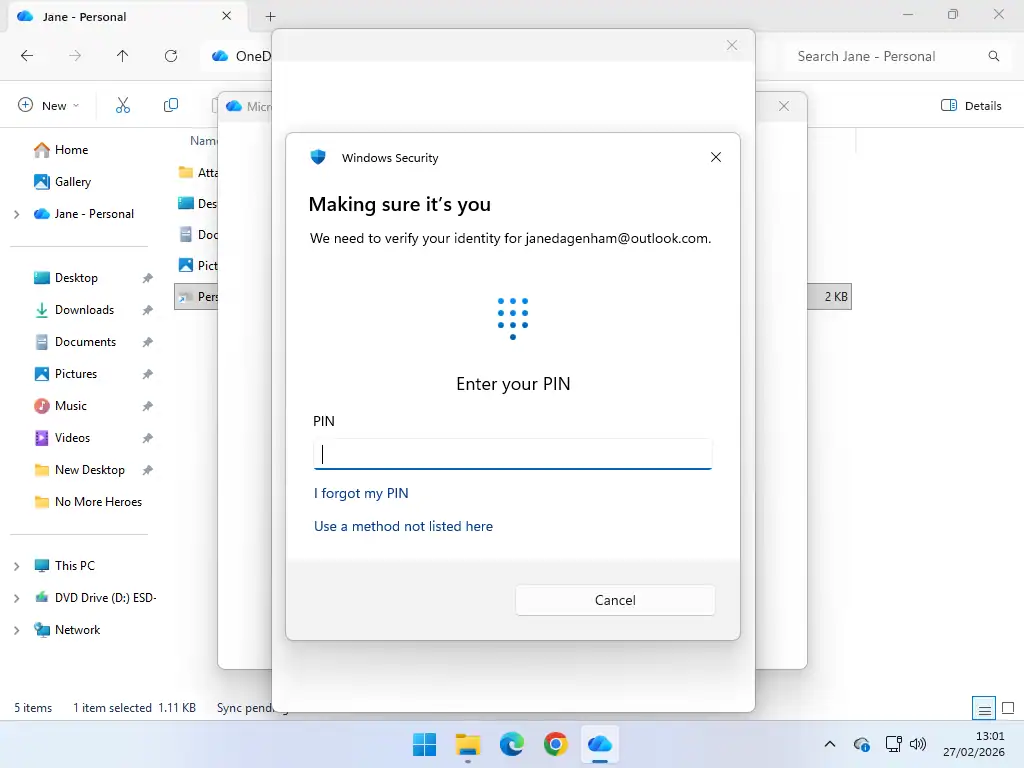
If you sign in to your computer with a PIN, this is easy. Type the same PIN into the box and OneDrive handles the rest. From then on, that PIN is what opens the vault.
Depending on your PC you may be offered your fingerprint or your face instead, which works just as well.
Sign In Without A PIN
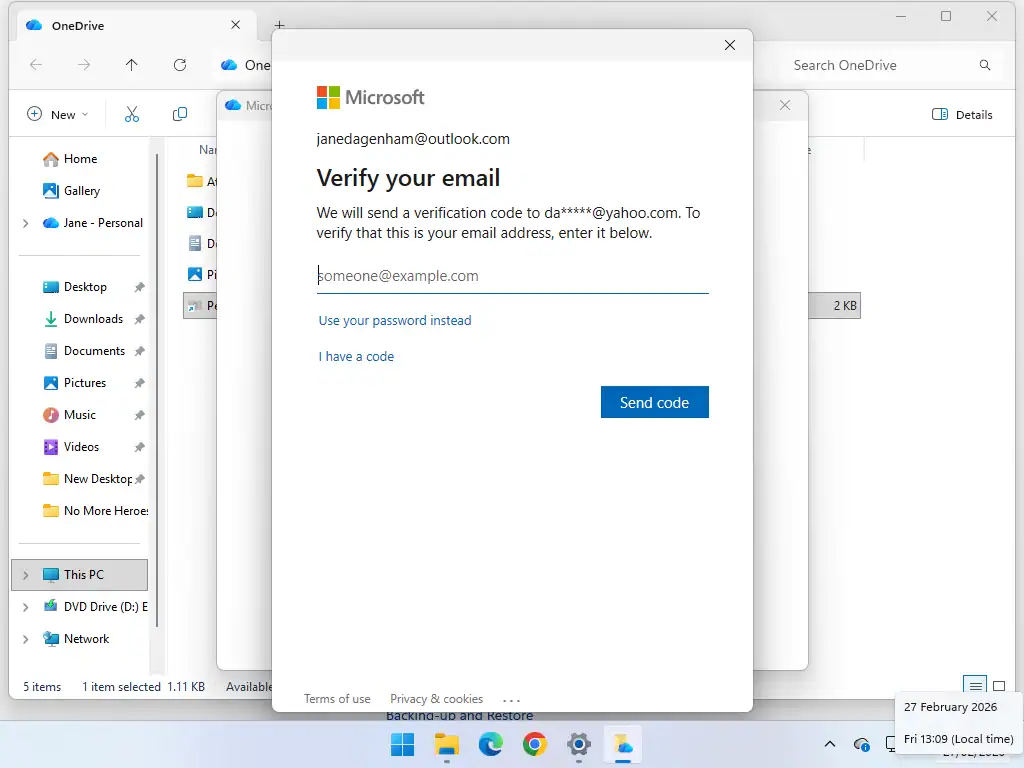
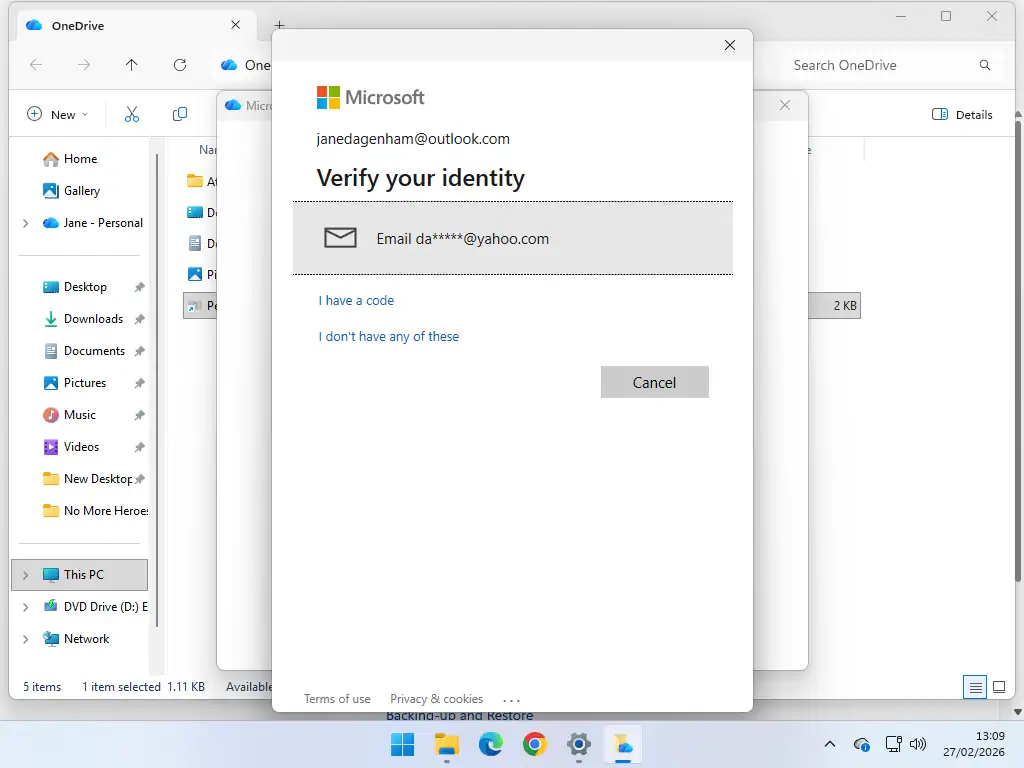
If you sign in with your Microsoft password instead, you’ll be asked to prove who you are another way, usually a code sent to your phone or to your recovery email address.
That’s not Microsoft being awkward. They’ve been moving away from passwords for a while, and passkeys are now the default sign in method for new Microsoft accounts. A password on its own is no longer considered enough to unlock something like the vault.
Make sure your recovery email address and phone number are up to date before you rely on this, or you’ll lock yourself out of your own vault.
Keeping Vault Files On Your PC
The same two copies rule applies to the vault. If the only copy of your passport scan is in the cloud, it isn’t backed up.
Try right clicking the Personal Vault folder and looking for Always keep on this device. On Windows, vault files are held in a specially encrypted area of your hard drive rather than an ordinary folder, so this option doesn’t always behave the same way it does elsewhere, and it may not be offered at all.
If it isn’t there, don’t fight it. Keep your own copy of those two or three documents somewhere else instead, on a USB stick kept in a drawer, and you’ve got your second copy without needing Microsoft’s help.
So Does OneDrive Work As A Backup?
Partly. Set up the way this guide describes, it’s a genuinely useful thing to have. But it isn’t a complete answer and it’s worth being clear about both halves.
What It Does Well
- It’s automatic. Once it’s on, it just runs. No reminders, nothing to remember, and that beats a perfect backup you never actually do.
- It’s off site. A fire or a burglary takes your computer and your USB drive if they’re in the same house. It doesn’t take your OneDrive.
- Recovery is easy. New computer, sign in with your Microsoft account, and your files come back down on their own.
- It shares well. Sending a folder of photos to family is a couple of clicks, see how to share a folder in OneDrive.
Where It Falls Short
- It’s still a sync tool underneath. Delete a file on your PC and it’s deleted from the cloud too, so it protects you from a dead hard drive but not from your own mistake. There’s a 30 day recycle bin, and after that it’s gone. How to delete files from OneDrive covers doing it safely.
- 5 GB isn’t much. For most people it won’t hold their photos, and photos are what they’d miss most.
- It all hangs off one account. Lose access to your Microsoft account and you lose access to the cloud copy at the same time. That’s exactly why the local copy matters.
- No version history you’d want to rely on. A real backup lets you go back to how a file looked last month. OneDrive keeps some versions, but it isn’t built for that.
Which is why my advice is to use OneDrive and something else, rather than treating it as the whole plan.
Troubleshooting
The Blue Arrows Never Stop
A first backup of a big Pictures folder genuinely can take hours, so give it time before assuming it’s stuck. If it’s still going the next day, click the OneDrive cloud icon and see what it says, it will usually name the file it’s struggling with. Signing out and back in clears most of the rest.
There’s No Personal Vault Folder
It only appears in your OneDrive folder, not elsewhere, and only on a personal Microsoft account. Work and school accounts don’t have it at all. If it’s missing, check you’re looking inside OneDrive itself and that OneDrive is signed in.
My Vault Won’t Take A Fourth File
That’s the three file limit doing its job, not a fault. Free accounts get three files in the vault and no more. Everything else can live in your normal OneDrive folders.
Always Keep On This Device Isn’t On The Menu
In Windows 11 the short right click menu hides it. Click Show more options at the bottom to see the full menu. If it’s still missing, the folder probably isn’t inside OneDrive, so check you’re in the right place in File Explorer.
Frequently Asked Questions
Q. Is OneDrive a backup?
A. Not on its default settings. It moves your files to the cloud and leaves one copy, which is storage rather than backup. Set every folder to “Always keep on this device” and you get a copy on your PC as well, which is much closer to a real backup.
Q. Which folders does OneDrive back up?
A. Desktop, Documents and Pictures by default. You can add Music and Videos, or switch any of them off, in Settings, Accounts, Windows backup.
Q. How much free storage do I get with OneDrive?
A. 5 GB with a free Microsoft account. Microsoft 365 Basic is around £1.99 a month or £19.99 a year for 100 GB. Google Drive gives you 15 GB free if you’d rather not pay.
Q. How many files can I put in the OneDrive Personal Vault?
A. Three, on a free account. It’s meant for a handful of critical documents rather than as a folder. You need a Microsoft 365 subscription to store more, and it’s worth checking which plan lifts the limit before paying.
Q. What does “Always keep on this device” actually do?
A. It tells Windows to keep a permanent copy of the file on your hard drive as well as in the cloud, instead of leaving it online only. That second copy is what makes it a backup.
Q. If I delete a file from my PC, is it still in my OneDrive backup?
A. No. OneDrive syncs the deletion, so it goes from both. It sits in the OneDrive recycle bin for 30 days and then it’s gone for good.
Q. Where is the OneDrive cloud icon?
A. At the right hand end of the taskbar near the clock. Click the small arrowhead beside those icons if you can’t see it, as Windows often hides it.
Q. Do I still need another backup if I use OneDrive?
A. Yes, for anything you really can’t lose. OneDrive protects you from a broken computer, not from deleting something by accident or losing access to your Microsoft account.
Summary
OneDrive can be made to work as a backup, it just doesn’t arrive that way. Switch it on through Settings, Accounts, Windows backup, then set every folder to Always keep on this device so you end up with two copies rather than one. Test it with your wifi off.
Use the Personal Vault for two or three documents that really matter, and don’t expect more than that from it on a free account.
And I’d still use something else alongside it. OneDrive protects you from a dead hard drive, but not from deleting a file by accident or being locked out of your Microsoft account. FreeFileSync is free and makes offline copies to a USB drive or another PC on your network, which covers exactly the gaps OneDrive leaves.
Related Posts
What Is OneDrive And What Does It Do
Start here if you’re not sure what OneDrive is doing on your computer in the first place.
What to do When OneDrive is Full
5 GB fills up fast, and a full OneDrive stops your email working too.
Windows File History
Back up your files offline to a USB device using the tool built into Windows.
Windows 11 Backup
Create a complete system image, or just back up your folders.
How to Backup Windows 11
Create a complete and reliable system image of your Windows 11 PC for free. Backup everything on your computer before it’s too late.
You can find this and other related step by step guides in – At Home Computer Backup Guides