
One of the best things about OneDrive is how easily you can share files and folders with other people. Holiday photos for the family, a document you want someone to look over, a folder of paperwork for an accountant. You send them a link, they click it, and they are in.
You can also set permissions, so people either just look at your files, or get to edit them properly. And you can take that access away again whenever you want.
In this guide I’ll show you how to share a folder in OneDrive from File Explorer and from the OneDrive website, how to set the permissions before you send anything, and, just as important, how to stop sharing when you’re finished. That last part is the bit most guides leave out, and it’s the bit that matters.
How to Share a Folder in OneDrive
Every file and every folder stored in OneDrive has its own unique web address. Sharing a folder simply means sending somebody that address as a clickable link. They click it, and your folder opens for them.
Nothing gets emailed, nothing gets copied. They’re looking at the same folder you are, which is why it works so well for photos and why you want to be a bit careful about what’s in there.
To share a folder, open File Explorer.
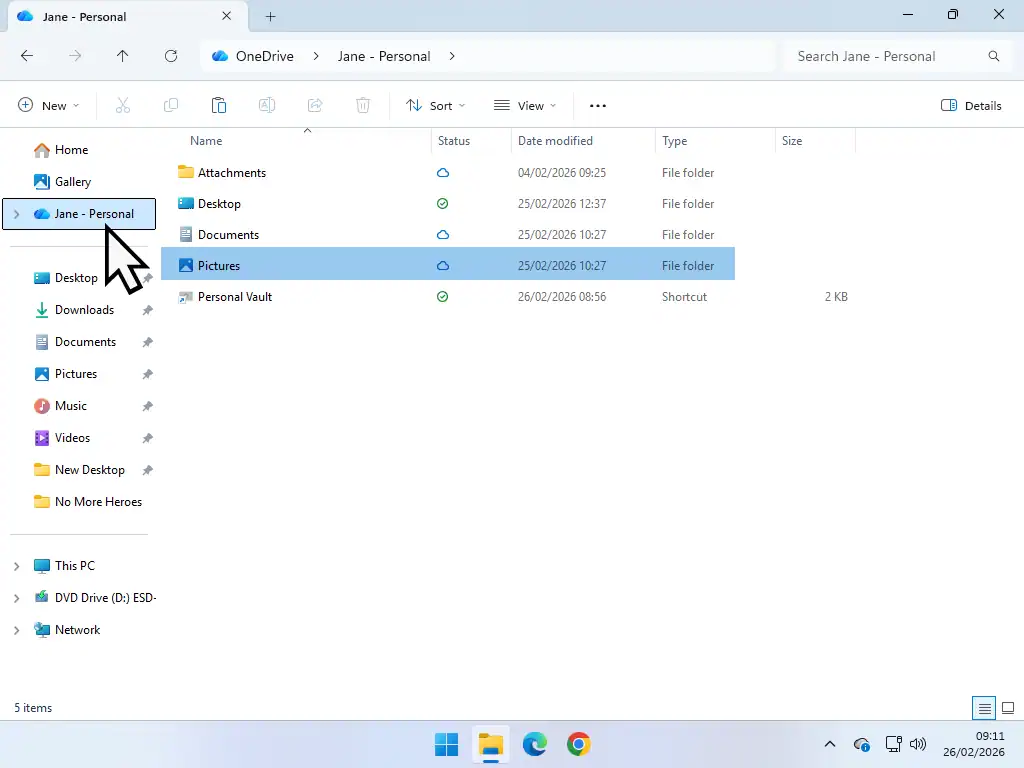
- Click your OneDrive folder in the left hand navigation panel.
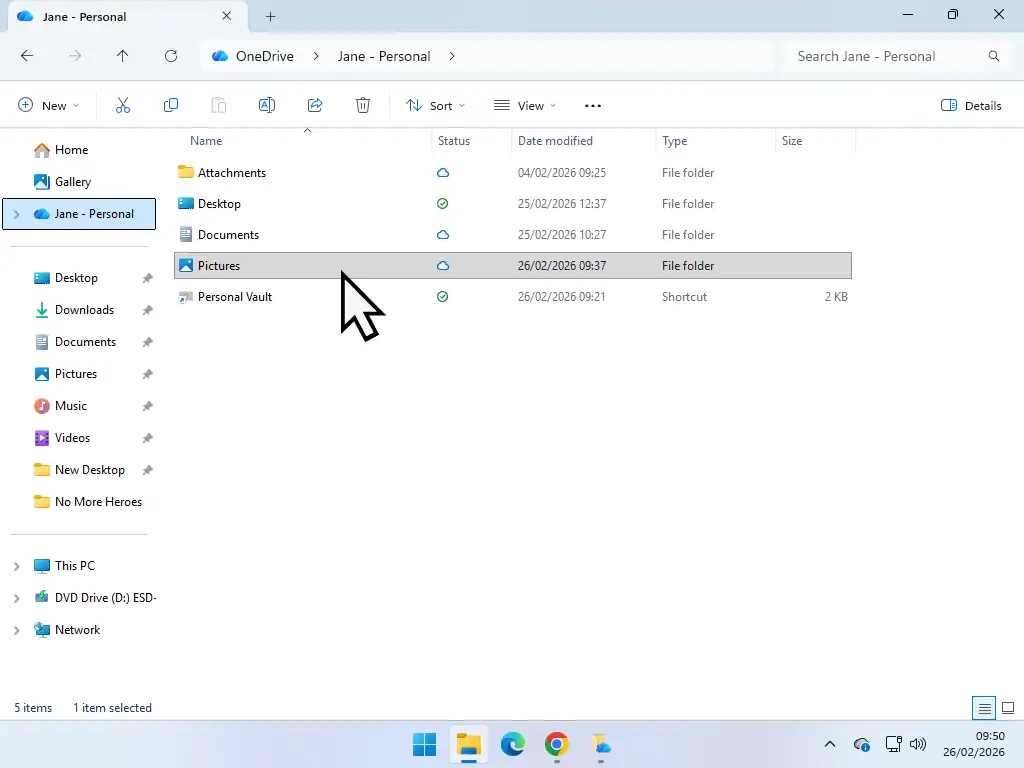
- Work through your folders until you find the one you want to share.
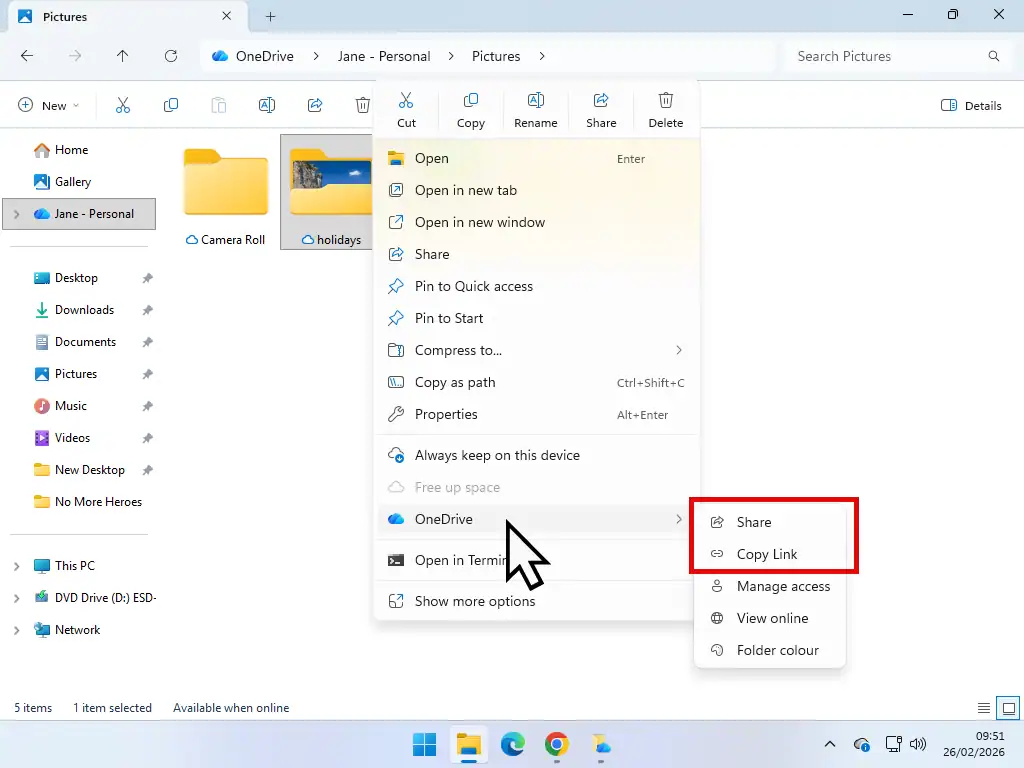
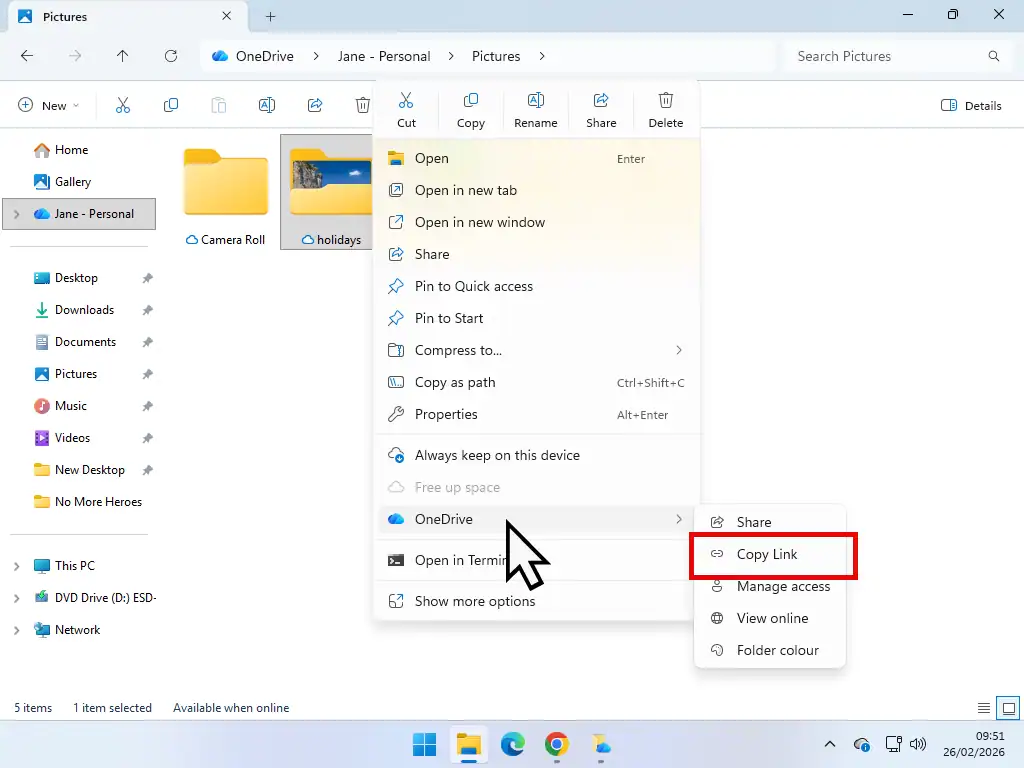
- Right click the folder, then hover your mouse pointer over OneDrive on the menu. A second menu appears with two options, Share and Copy link.
Either option will share the folder, they just go about it differently. Share sends the email for you. Copy link puts the address on your clipboard and lets you send it however you like. I’ll go through both.
Using the Share Option
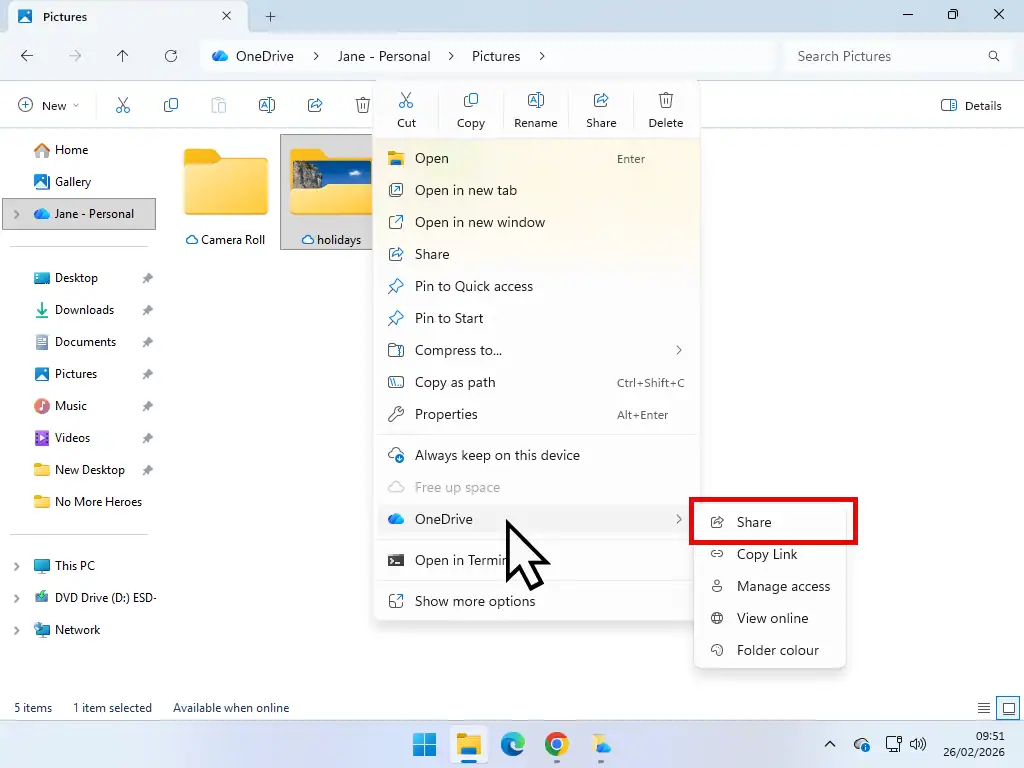
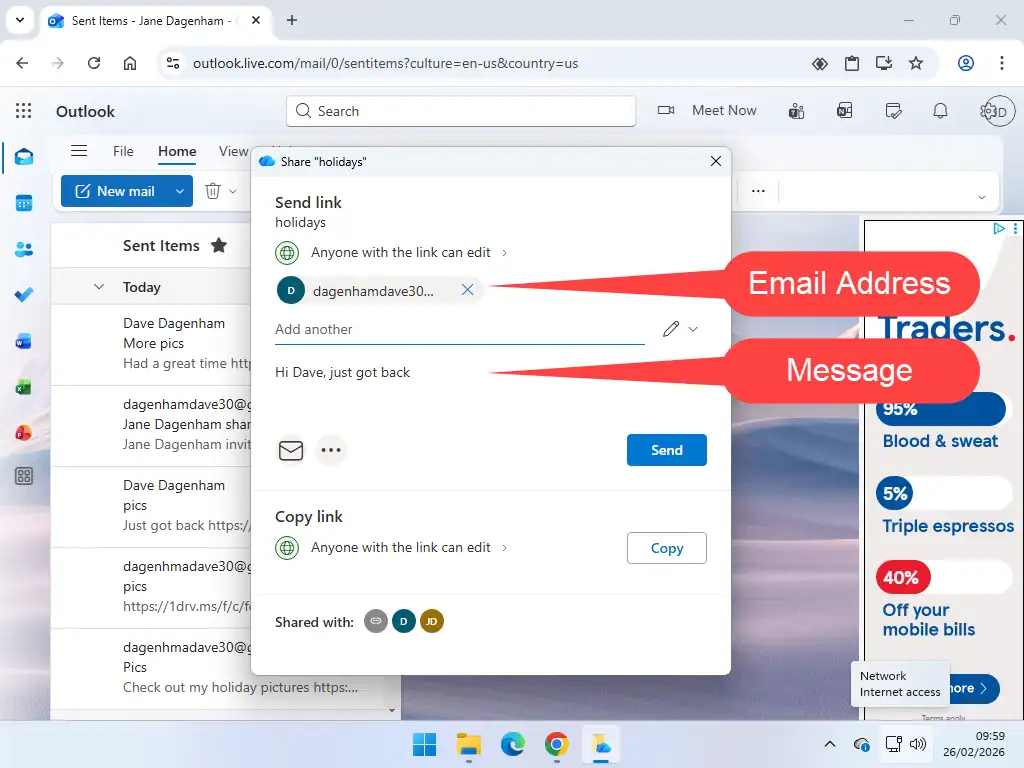
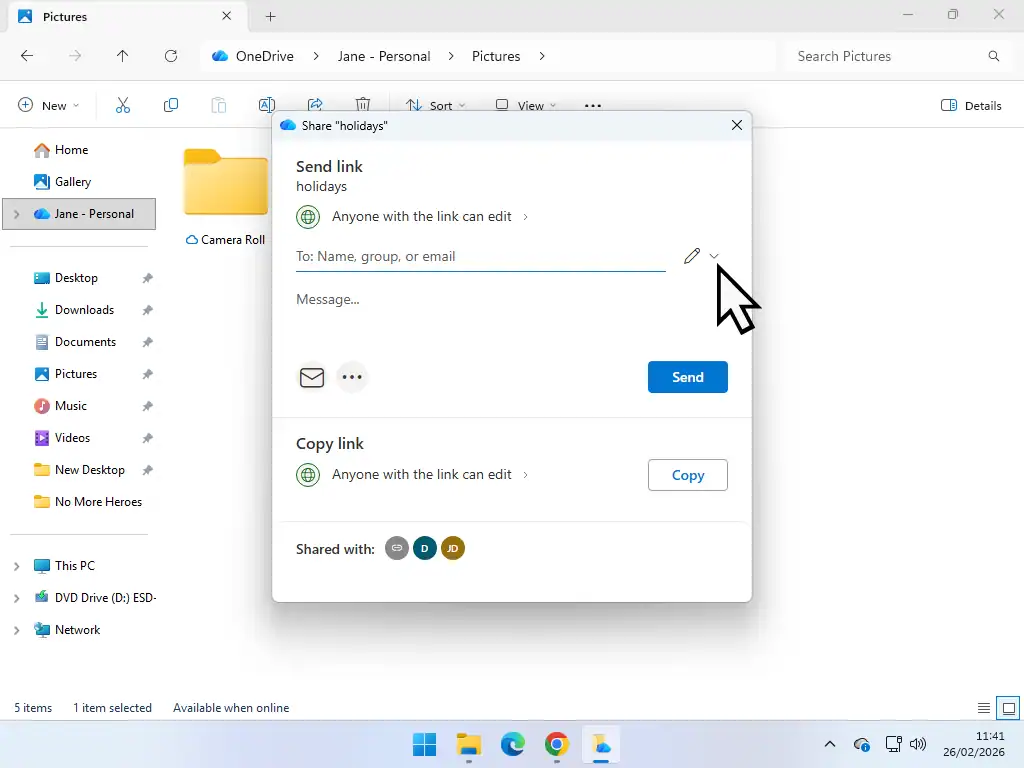
Choosing Share opens a Send link popup. Type in your recipient’s email address, add a short message if you want to, then click Send.
An email goes out automatically from your Microsoft account with a clickable link to the shared folder. You don’t need to open your email program at all.
Set the permission before you click Send. There’s a section on that further down, and it’s much easier to get right first time than to fix afterwards.
Using the Copy Link Option
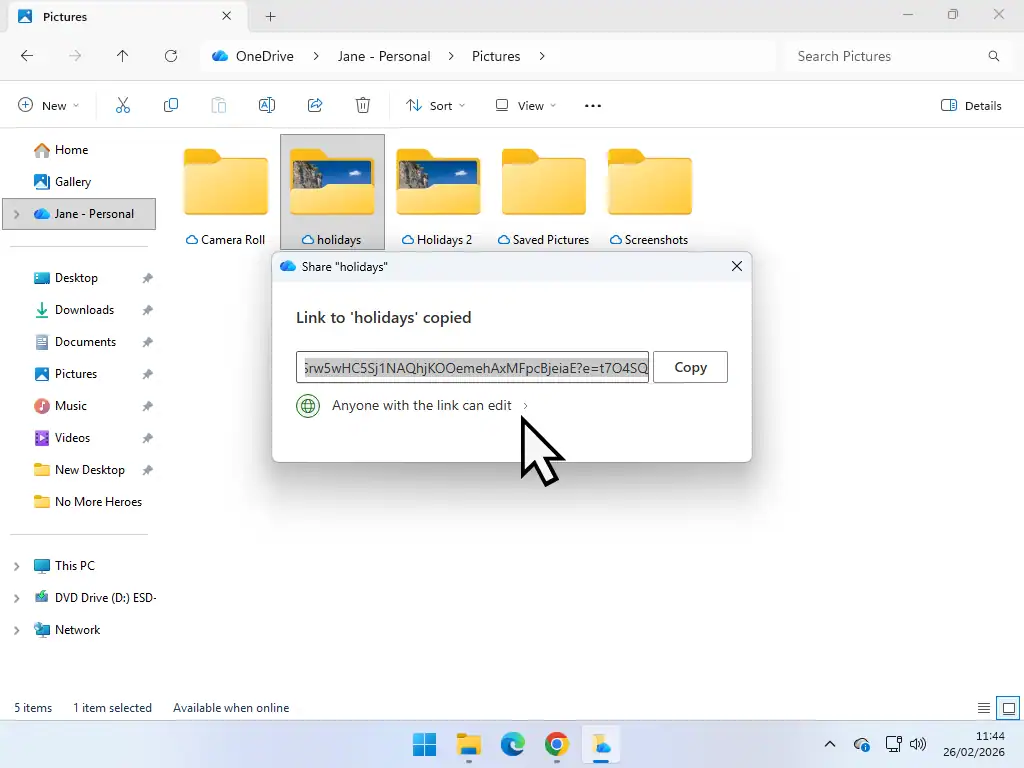
Choosing Copy link copies the address of your shared folder onto the computer clipboard. Nothing is sent anywhere yet, it’s just sitting there waiting for you.
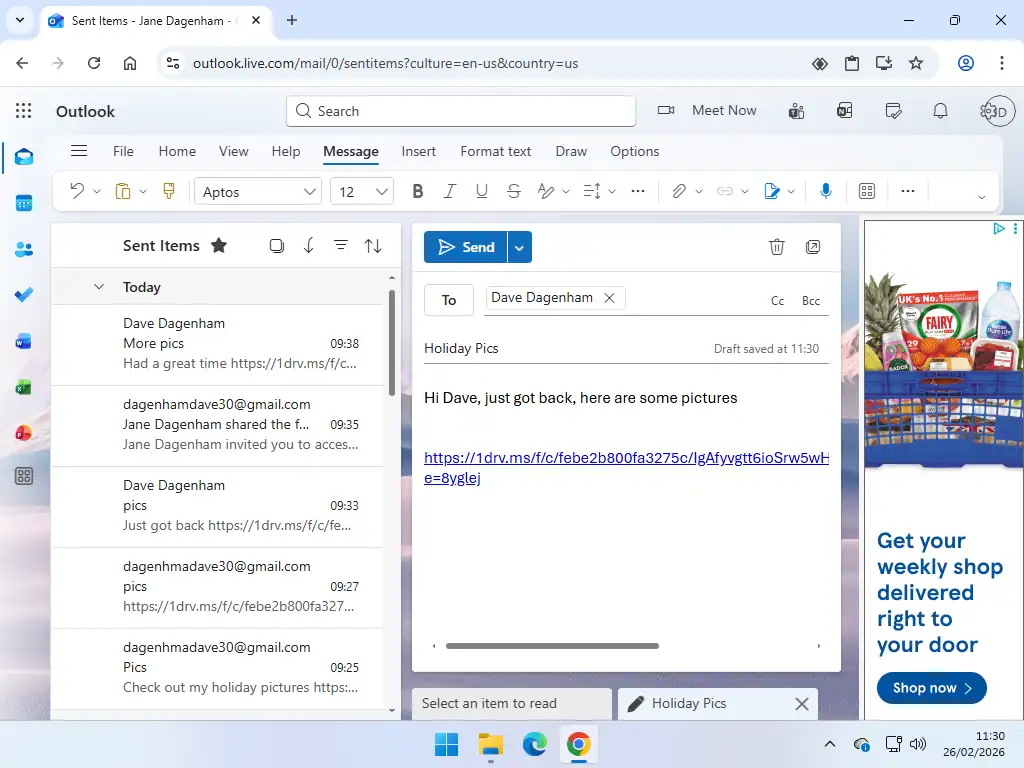
Open your email, start a new message, and paste the link in the usual way with Ctrl and V. It works just as well in a text message, a WhatsApp message or anywhere else you can paste.
This is the one I use, because I like to see exactly what I’m sending before it goes.
How to Share a OneDrive Folder from the Website
You don’t have to be at your own computer to share a folder. If you’re on somebody else’s PC, a tablet or a phone, you can do the whole thing at onedrive.com.
- Go to onedrive.com and sign in with your Microsoft account.
- Click My files, then find the folder you want to share.
- Click the circle to the left of the folder name to select it.
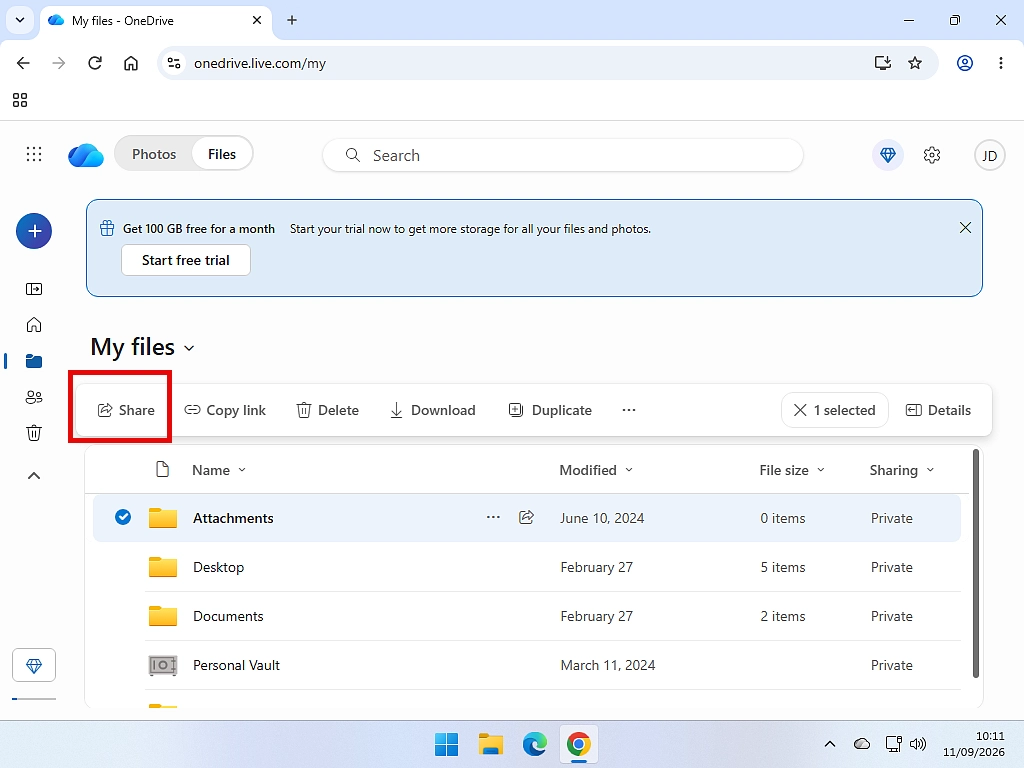
- Click Share on the toolbar along the top.
- Either type an email address and click Send, or click Copy link to get the address on your clipboard.
It’s the same popup you get in File Explorer, so everything in the rest of this guide applies here too.
Folder Share Permissions in OneDrive
When you share a folder, or a single file, you decide whether people can change your files or only look at them. There are actually two separate settings here and they do different jobs. Most guides only mention the first one.
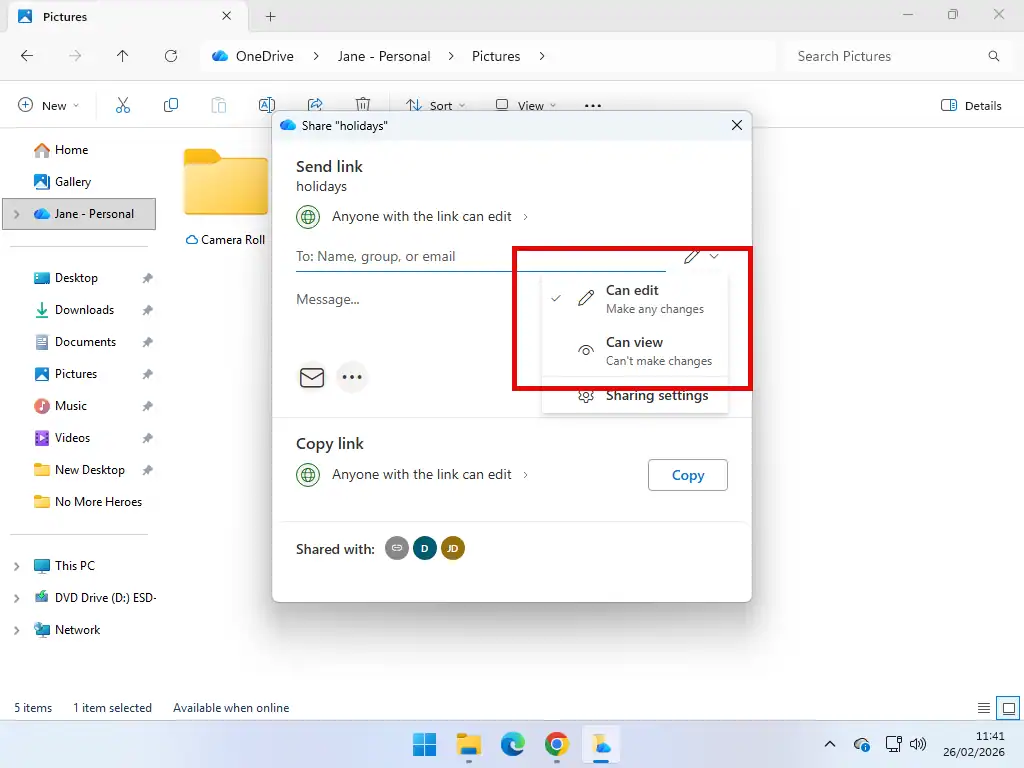
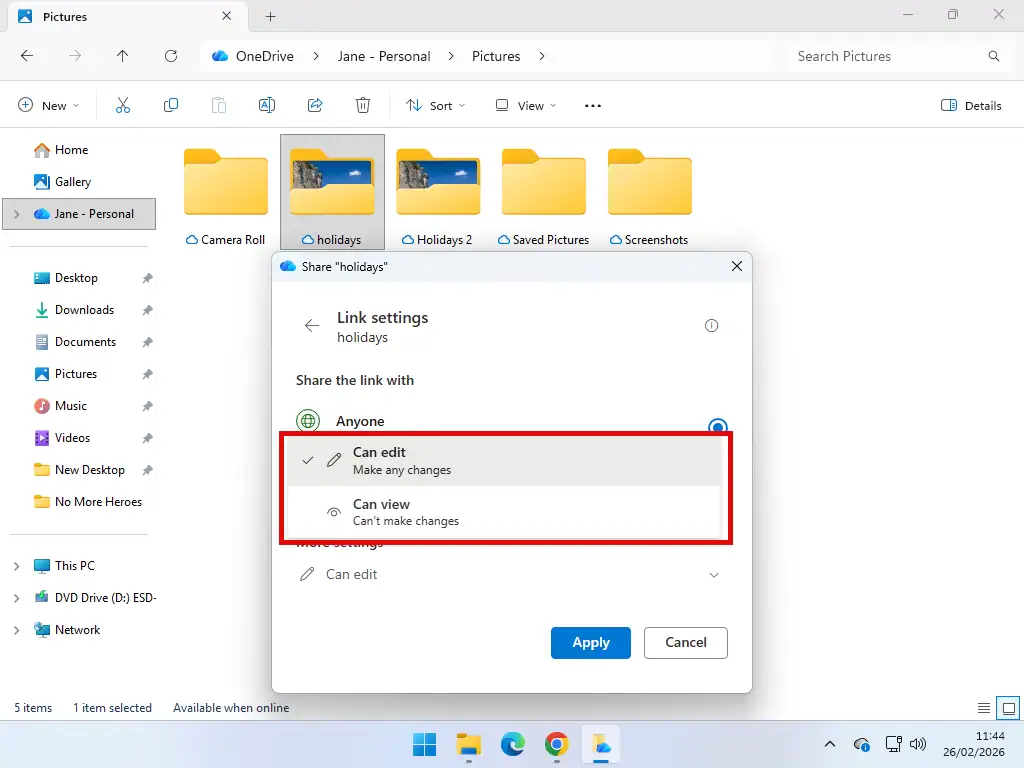
Can Edit or Can View
This is the one that decides what your recipient is allowed to do. Where you find it depends on which option you picked earlier.
- Share. Click the drop down arrowhead beside the email address box, then select either Can edit or Can view.
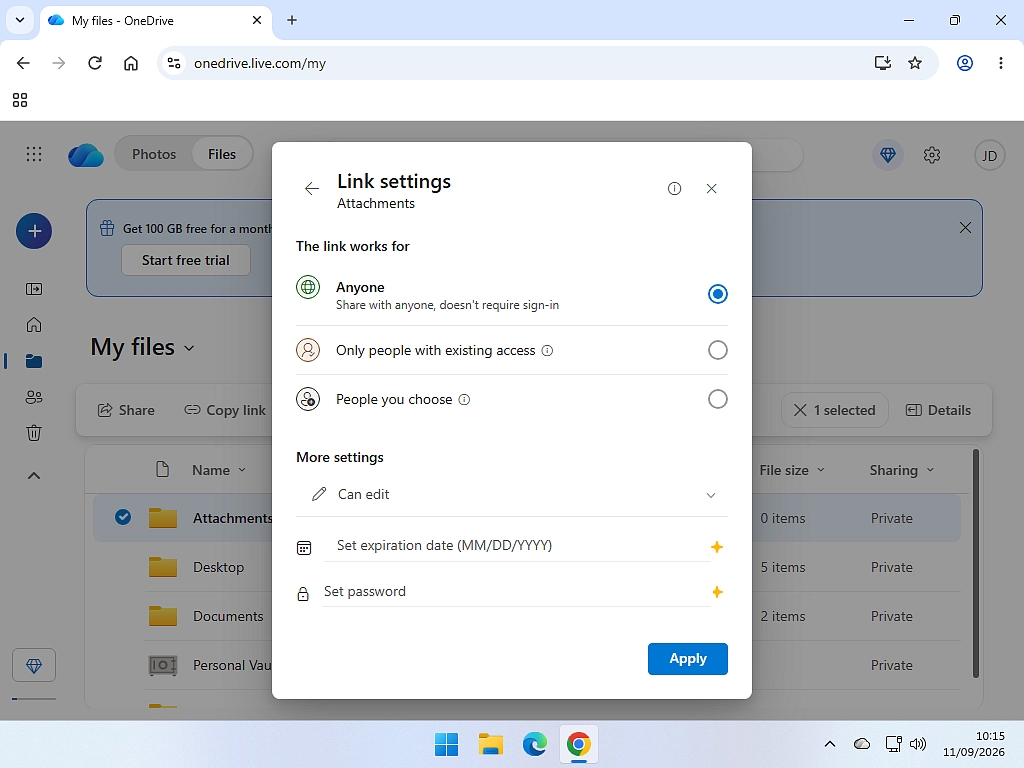
- Copy link. Click the line that reads “Anyone with the link can…”. On the next window click More settings and choose Can view or Can edit.
Do check which one is already selected rather than assuming. Microsoft change the starting option from time to time, and being handed edit rights to somebody’s photo folder when all you wanted was a look is nobody’s idea of a good time.
Anyone With the Link, or Only People You Choose
This is the setting almost nobody looks at, and it matters more than Can edit does. It decides who the link works for.
- Anyone with the link. Exactly what it says. Anybody who ends up with that link can open your folder, whether you sent it to them or somebody forwarded it on. They don’t need a Microsoft account and they don’t have to sign in to anything. Easy for your recipient, and completely out of your hands once it’s been sent.
- Specific people. Only the email addresses you name can open the folder. Forwarding the link to somebody else won’t work. The catch is that those people need a Microsoft account and will have to sign in.
Which One Should You Use?
Holiday photos for the family, Anyone with the link is fine and saves your relatives a lot of grief trying to sign in to something.
Anything with your name, address, bank details or paperwork in it, use Specific people. It’s a bit more hassle for them and worth every second of it.
Expiry Dates and Passwords
In the same settings window you may see options to set an expiry date on the link, or put a password on it. Both are useful and both come with a condition.
They’re only available to Microsoft 365 subscribers. On a free OneDrive account the options either won’t appear or won’t work.
That leads to something worth understanding properly, because Microsoft are quite clear about it. If no expiry date is set, and the file hasn’t been deleted, the link stays valid permanently. Not a month, not a year. It works until you go and switch it off yourself.
So on a free account, the only expiry date is you remembering to stop sharing. That’s the next section, and it’s the reason I put it in this guide.
How to Stop Sharing a Folder in OneDrive
Sharing a folder is easy enough that people forget they’ve done it. Months later that link is still live and still working. This takes about thirty seconds and it’s worth doing a clear out now and again.
Stop Sharing With Everybody
- Go to onedrive.com and sign in.
- Select the shared folder, then open the Details panel using the button near your profile picture in the top right.
- Under Has access, click Manage access.
- Click Stop sharing.
Every link to that folder stops working immediately. Anyone who clicks an old one gets a message telling them they don’t have access. Your files are untouched, you’ve simply pulled up the drawbridge.
Remove Just One Person
If you shared with several people and only want to remove one of them, open Manage access in the same way. You’ll see a list under Direct access showing everybody who can currently get in. Find the person, and remove them.
The Manage access window is also just a good thing to look at occasionally. It’s the only place that tells you who can see what, and most people have never opened it.
You Can’t Change a Link from Edit to View
This one catches people out, and it’s Microsoft’s own rule rather than my opinion. Once a sharing link exists, you cannot switch it from Can edit to Can view, or the other way round.
What you have to do instead is delete that link and create a fresh one with the permission you actually wanted. Which means the old link needs removing in Manage access, otherwise whoever has it keeps the access it gave them.
It’s a good argument for checking Can edit or Can view before you hit Send rather than afterwards.
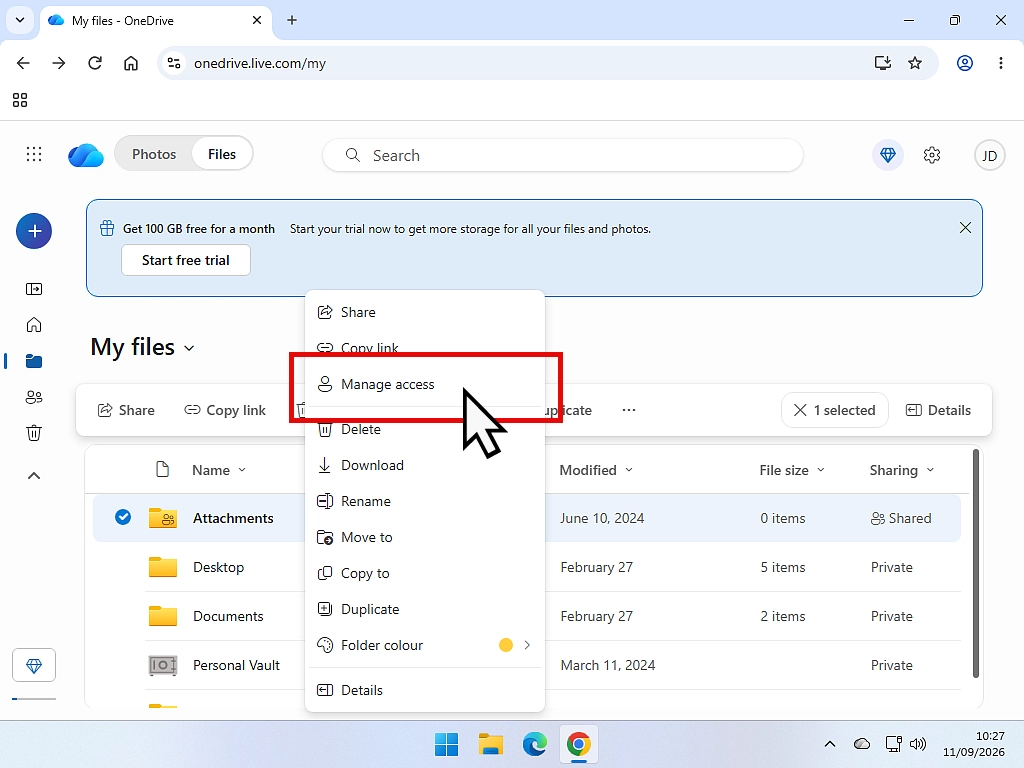
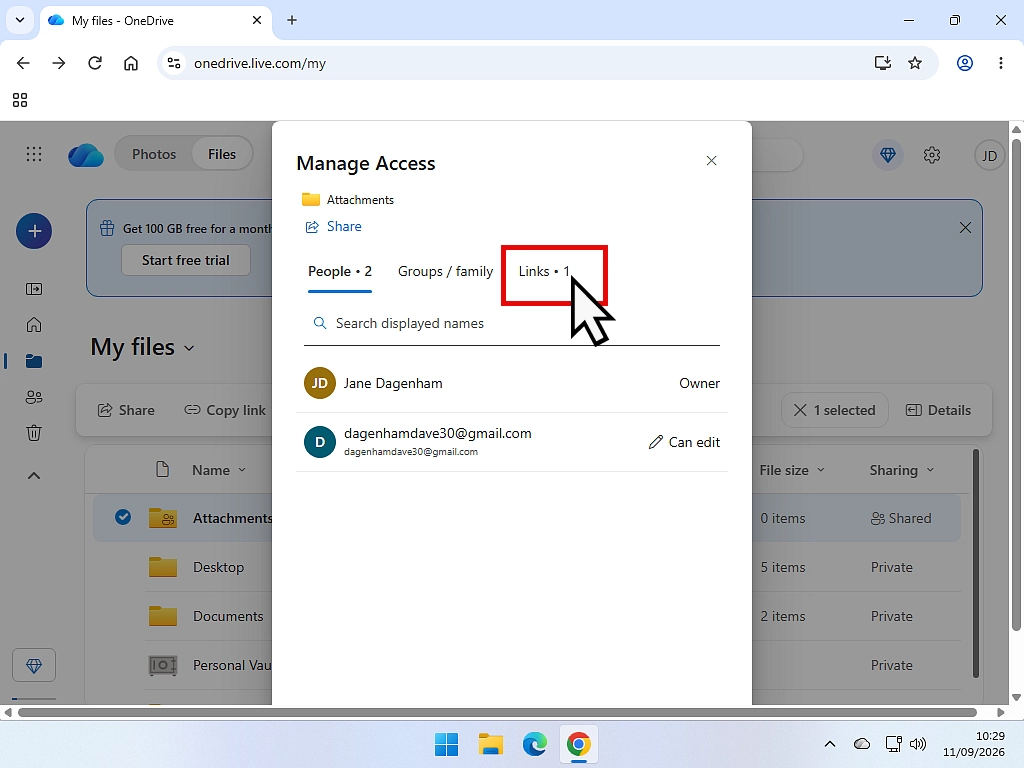
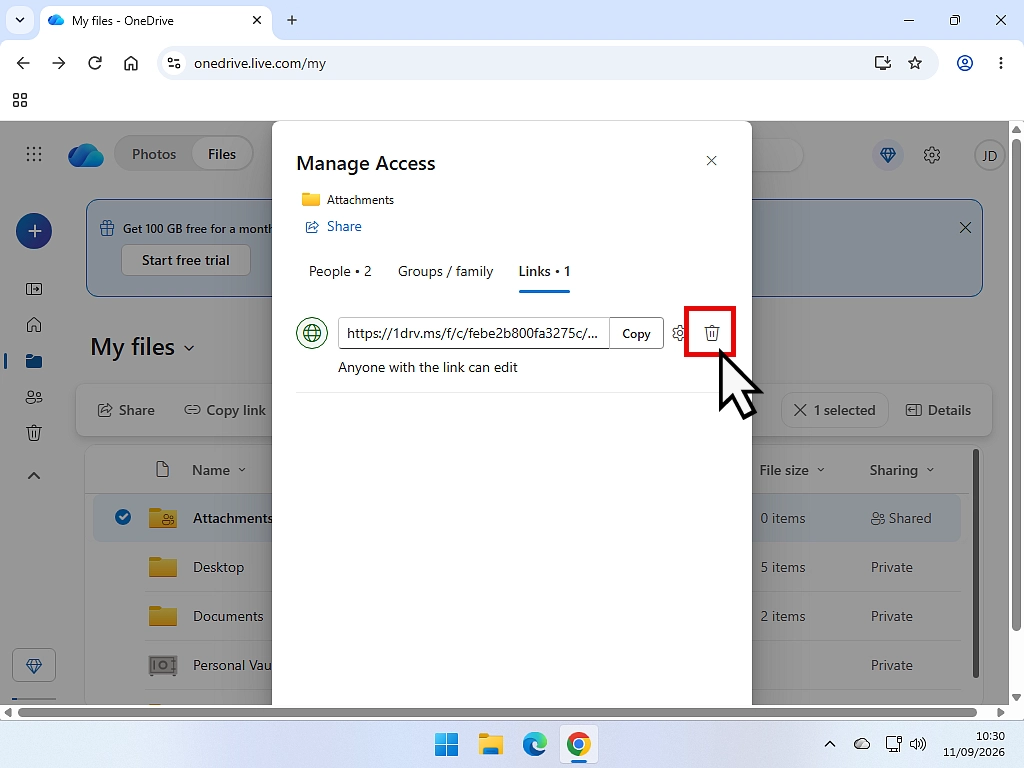
To remove a link:
- Right click on a shared folder. On the menu left click Manage Access.
- Then click the Links tab.
- On the next page, delete the link.
Things to Know Before You Share a Folder
Three things that aren’t obvious until they’ve caught you out once.
Sharing a folder shares everything inside it. Every file, and every subfolder, and everything inside those. If there’s something in a corner of that folder you’d rather people didn’t see, it’s going too. Have a proper look before you send the link, or make a new folder and copy across only what you want to share.
Can view doesn’t stop people keeping a copy. Somebody with view only access can still download your files to their own computer and do whatever they like with them there. View only stops them editing your copy, that’s all. It’s a courtesy setting, not a lock.
It’s still one folder, not a copy. If you give somebody edit access and they delete a file, it’s gone from your OneDrive as well. And because OneDrive syncs, it disappears from your PC too. That’s worth remembering before you hand out edit rights, and if it does happen there’s a way back, see how to delete files from OneDrive for how the recycle bin works.
Quick Tip
Make yourself a folder in OneDrive called Shared, and put copies of things in there when you want to send them to somebody. Nothing private ever ends up in it by accident, and when you want to know what you’ve shared you only have one place to look.
Keep an eye on your space while you’re at it. Shared folders count against your 5 GB like everything else, see what to do when OneDrive is full.
Troubleshooting
There’s No OneDrive Option When I Right Click
The Share and Copy link options only appear on files and folders that are actually inside your OneDrive folder. Right click something on your Desktop that isn’t synced and you’ll get nothing.
Check you’re in the OneDrive folder in File Explorer’s left hand panel. And in Windows 11, you may need to click Show more options at the bottom of the short menu to see the full one.
My Recipient Says the Link Doesn’t Work
Nearly always the link was set to Specific people and they’re either not signed in, or they’re signed in with a different email address to the one you sent it to.
Ask which address they’re using, then either share it again to that one, or switch the link to Anyone with the link if the contents aren’t sensitive.
They Can Open It but Can’t Change Anything
The link was set to Can view. Remember you can’t just switch that link over to Can edit, you’ll need to remove it in Manage access and share the folder again with edit permission.
I Can’t Remember What I’ve Shared
Sign in at onedrive.com and click Shared in the left hand panel. Switch it to show what you’ve shared rather than what’s been shared with you, and you’ve got the full list.
Frequently Asked Questions
Q. Does the person I share with need a OneDrive account?
A. Not if you use an “Anyone with the link” link, they can just click and open it. If you use “Specific people” then yes, they’ll need a Microsoft account and will have to sign in.
Q. How do I stop sharing a folder in OneDrive?
A. Go to onedrive.com, select the folder, open the Details panel, click Manage access, then Stop sharing. Every link to that folder stops working straight away.
Q. Do OneDrive share links expire?
A. Not on a free account. Microsoft say that with no expiry date set, and the file not deleted, the link stays valid permanently. Expiry dates are a Microsoft 365 subscriber feature, so on a free account you have to stop sharing yourself.
Q. Can I change a link from Can edit to Can view?
A. No. Microsoft don’t allow an existing link’s permission to be changed. Delete that link in Manage access and create a new one with the permission you want.
Q. If I share a folder, can people see everything in it?
A. Yes, including every subfolder and everything inside those. Check what’s in there before you send the link.
Q. Can somebody with view only access still download my files?
A. Yes. View only stops them editing your copy, it doesn’t stop them saving their own. Don’t treat it as security.
Q. Does a shared folder use up my OneDrive storage?
A. A folder you share is your folder, so yes it counts against your 5 GB. A folder somebody else shares with you can also count against your storage if you add it to your own OneDrive.
Q. Can I share a OneDrive folder with someone who doesn’t have Windows?
A. Yes. A shared link opens in any web browser on any device, Mac, phone or tablet included.
Summary
Sharing files and folders in OneDrive is genuinely easy, and for home users it’s a great way of passing holiday photos around the family or getting somebody to help with a document.
Two things to carry away. Sharing a folder shares everything inside it, subfolders and all. And on a free account the link never expires, so the only thing that ends a share is you going into Manage access and stopping it.
Set the permission before you send, use Specific people for anything you wouldn’t want forwarded, and have a look through Manage access once in a while to see what’s still open.
Related Posts
What Is OneDrive And What Does It Do
Not sure about OneDrive? Read this guide to find out how OneDrive works and what it does.
What To Do When OneDrive Is Full
You only get 5 GB of free storage and it’s easy to fill that space. Be careful how you create more.
How To Delete Files From OneDrive
Be careful when deleting files from OneDrive, you could be deleting them from your computer too.
How To Setup OneDrive To Backup Your Files
Getting OneDrive set up properly in the first place, so it does what you want and nothing you don’t.
Rename Multiple Files at Once
Got a folder full of photos called IMG_4471.jpg? Windows can rename the lot in one go.
Start with the built-in F2 method, then use PowerRename for photos, folders and file extensions. Both are free.
You can find this and other related step by step guides in – At Home Computer Guides