
How to fix the VMware error message “VMware Tools is no longer shipped with VMware Workstation for legacy guest operating systems” after setting up XP or Vista virtual machines.
Both Windows XP and Windows Vista have been designated as “legacy” operating systems and the latest versions of VMware tools just doesn’t support them.
The good news is that you can still download and install a legacy version of VMware Tools that does work with XP and Vista and it’s easy to do.
So if you’re trying to setup an XP or Vista virtual machine, then read on and I’ll show you how to install VMware Tools on XP and Vista.
Download VMware Tools for Legacy Operating Systems
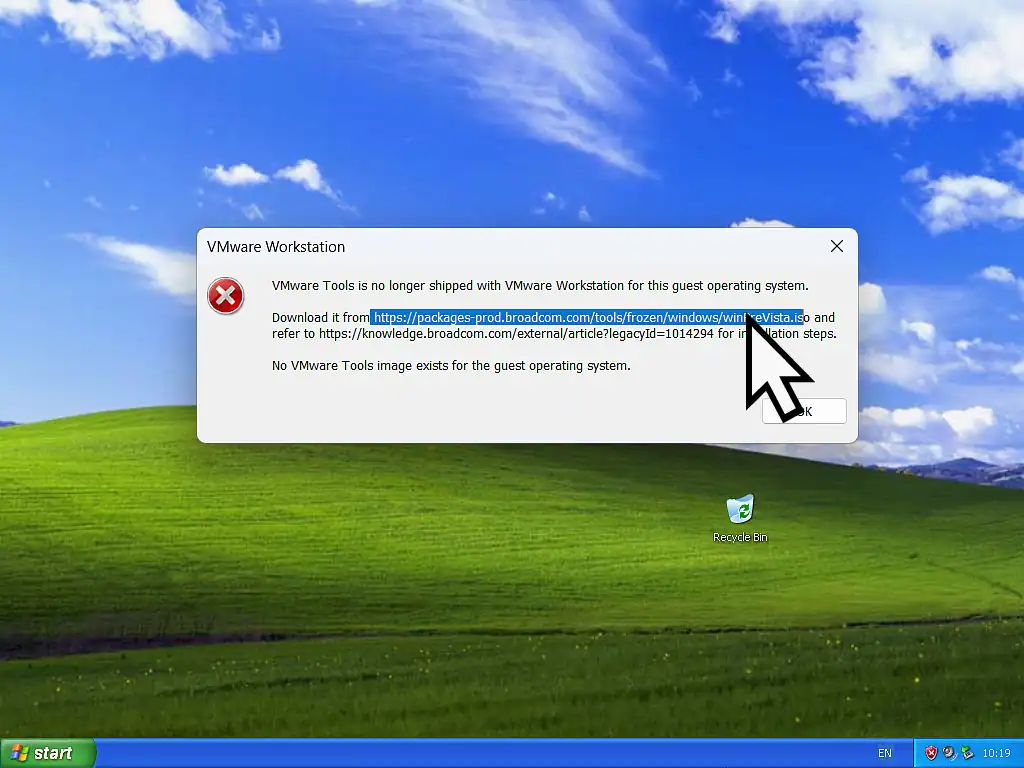
When you try to install VMware Tools on to a Windows XP or Windows Vista virtual machine, you’ll see this message popup:
“VMware Tools is no longer shipped with VMware Workstation for this guest operating system“.
What you need to do is to download VMware Tools 10.0.12. Anything later than that won’t work.
The VMware error message contains 2 links, one directly on top of the other.
You can either click the link in the message on your PC or I’ve added the link below:
https://packages-prod.broadcom.com/tools/frozen/windows/winPreVista.iso
Install VMware Tools in XP and Vista
Once the legacy Tools has finished downloading, you’ll find that it’s in the ISO format. That makes it easy to simply mount the file in a virtual CD/DVD drive.
Mounting the ISO File
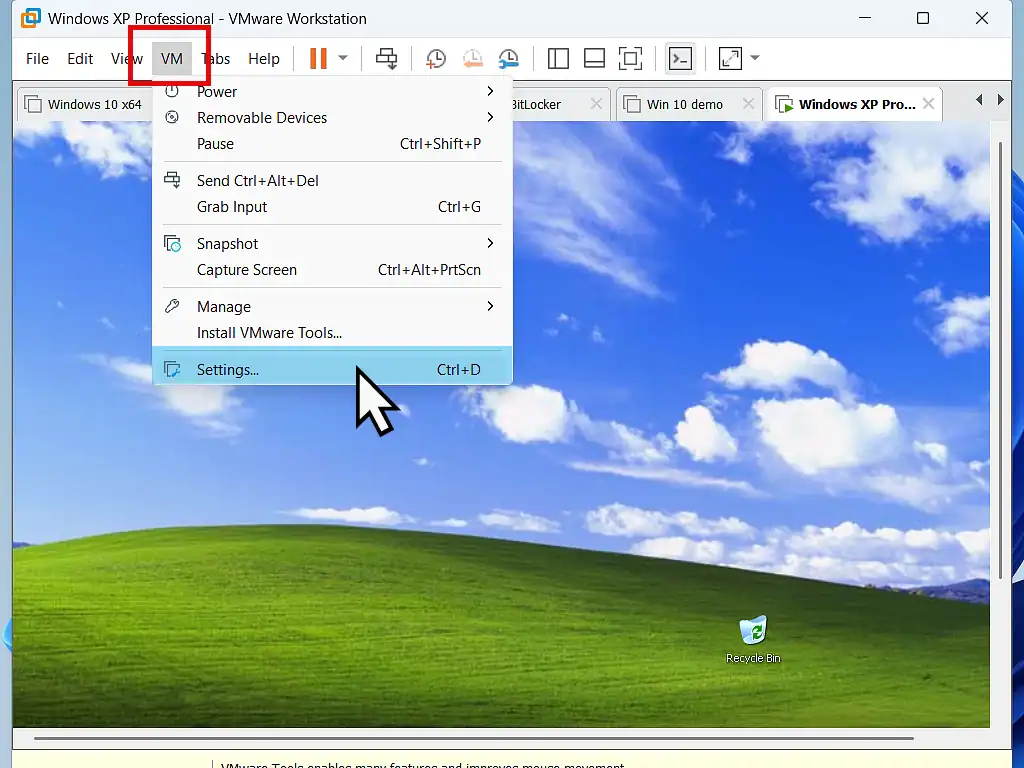
- To mount the VMware Tools ISO file, boot up your virtual machine (XP or Vista) and once it’s up and running click on the VM button on the Workstation Pro toolbar. On the drop down menu click Settings
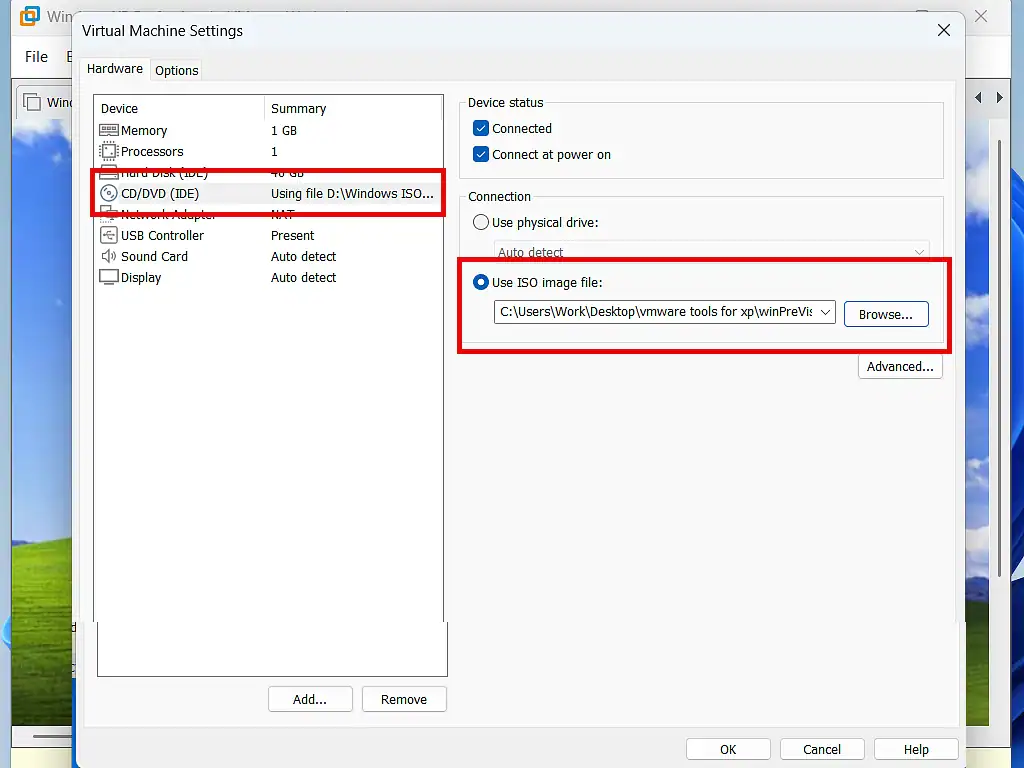
- On the Settings page, select CD/DVD (IDE) in the left hand pane.
- Then on the right hand pane, use the browse button to navigate to and select the legacy VMware Tools ISO file that you just downloaded.
- When that’s done, click the OK button at the bottom of the page.
Install Legacy VMware Tools
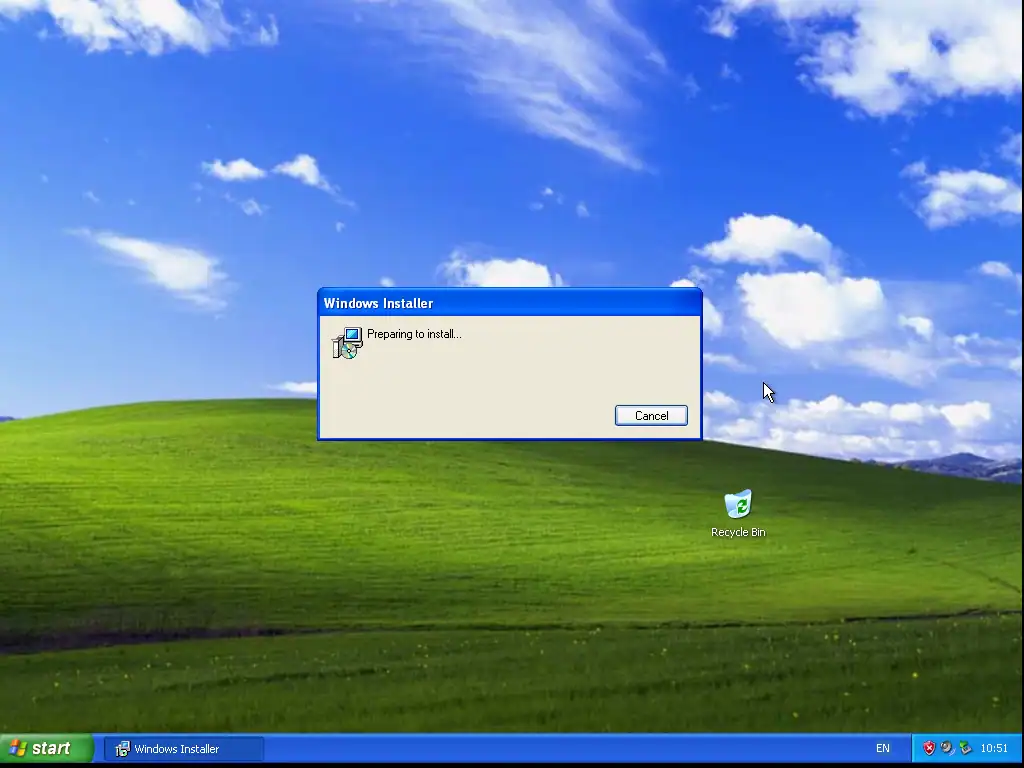
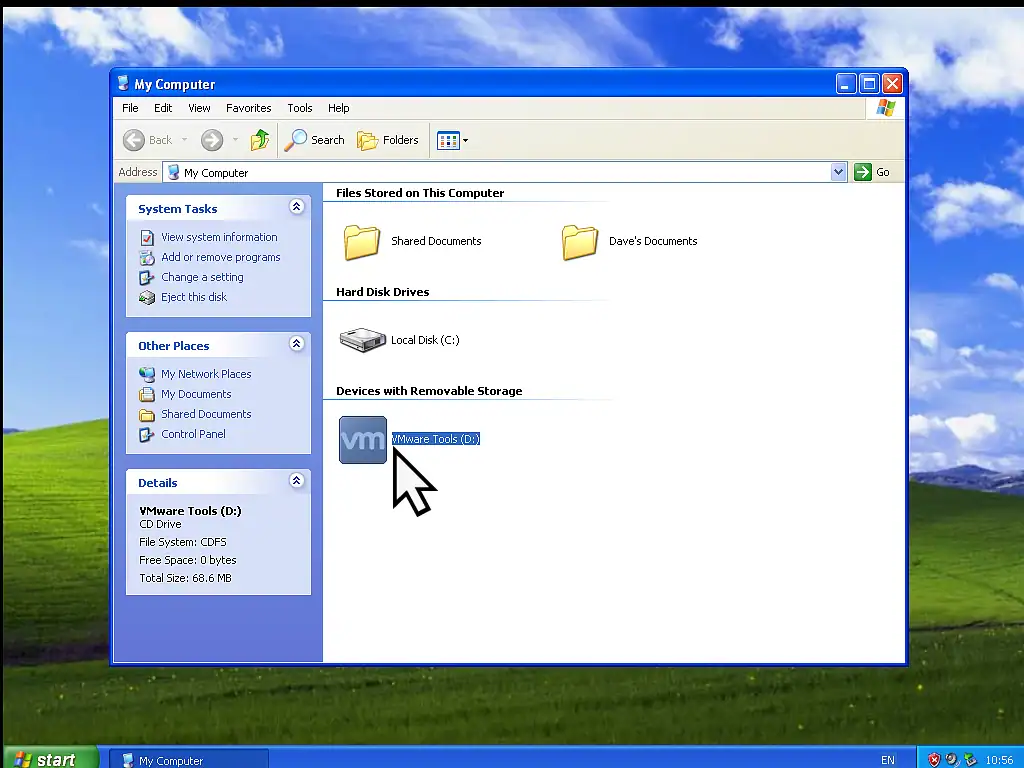
After a short pause while VMware mounts the iso you should see the Windows installer start up. If it doesn’t, if autoplay is disabled, then open My Computer in the virtual machine and double click the virtual CD/DVD drive.
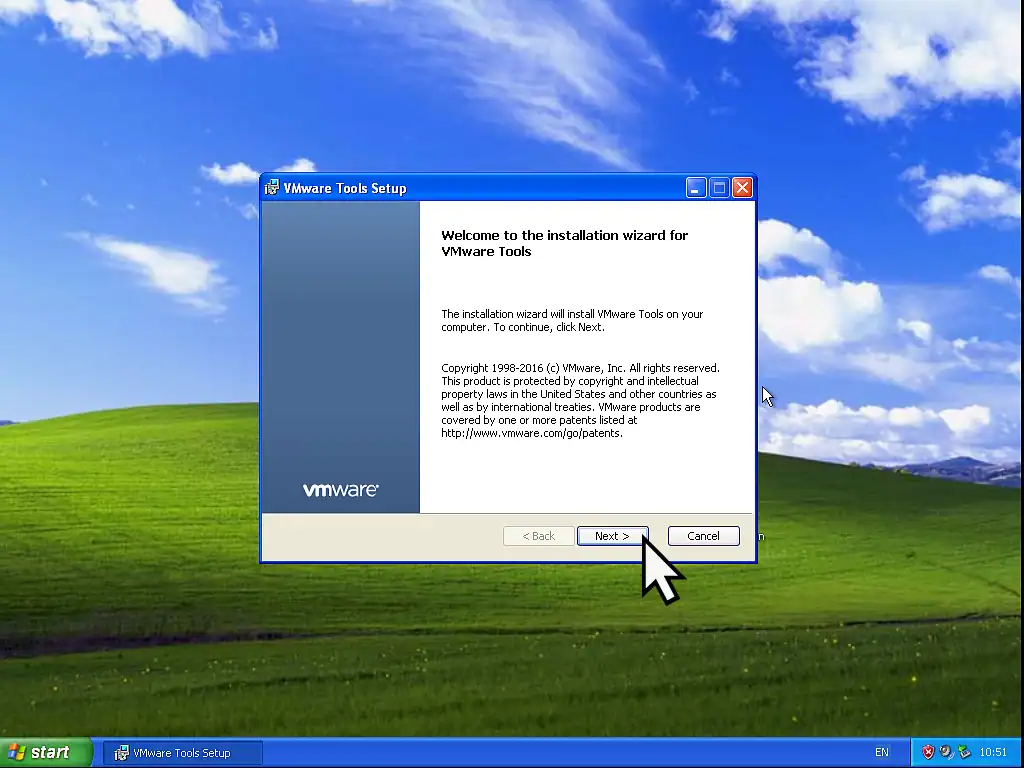
The VMware Tools installation wizard will open. Click Next and follow the prompts to install the legacy tools on to your virtual machine.
Summary
It’s understandable that Broadcom has removed the legacy Tools from the standard Workstation Pro setup. It adds extra weight to the download and not so many people still use XP or Vista even as virtual machines.
But if you’re one of those people, then it’s still available for download. And installing it is much easier than perhaps you thought it would be. One thing to do after finishing setting your VM is to create a complete backup.
Related Step by Step VMware Guides
How To Create A Windows 7 Virtual Machine.
XP was a great operating system, but so was Windows 7. Workstation Pro can run both.
How to Install a Windows 10 Virtual Machine in Workstation Pro.
Windows 10 also runs great as a virtual machine.
Convert A Physical PC To A Virtual Machine On Workstation Pro
This is a brilliant project. Take a running computer and convert it in to a virtual machine. Fully functional with all your apps and data intact. Perfect for older Windows 10 machines.
Windows 11 Virtual Computer
Create a Windows virtual machine. It’s free and not that difficult to do.
Virtual machines are great for experimenting with. You can try out new operating systems, you can browse the web safely and open suspicious emails. Download new software to try it out, all without risking your host (real) computer.
Set up a Windows 11 VM even if your PC doesn’t currently support it.
You can find this and other related step by step guides in – At Home Computer VMware Guides