
Whether it’s a company that won’t stop sending you offers, a stranger who keeps emailing, or a flood of out-and-out junk, unwanted emails are a pain. The good news is that Gmail gives you several ways to deal with them.
You can block a sender, report spam, unsubscribe from mailing lists, or set up a filter that deletes certain emails before you ever see them. I’ll show you how to do each one, and which one to use when. Read on.
Which Option Should You Use?
Each option is meant for a different kind of unwanted email, so it’s worth picking the right one:
- One person or company keeps emailing you: block them.
- Junk or scam emails from people you don’t know: report them as spam.
- Newsletters or shop emails you signed up for: unsubscribe.
- A sender who keeps changing their email address, or a whole company you never want to hear from: set up a filter.
How to Block Someone in Gmail
- Open an email from the person you want to block.
- Click the More icon (three dots) at the top right of the email, next to the Reply arrow.
- Click Block, followed by the sender’s name.
- Click Block again to confirm.
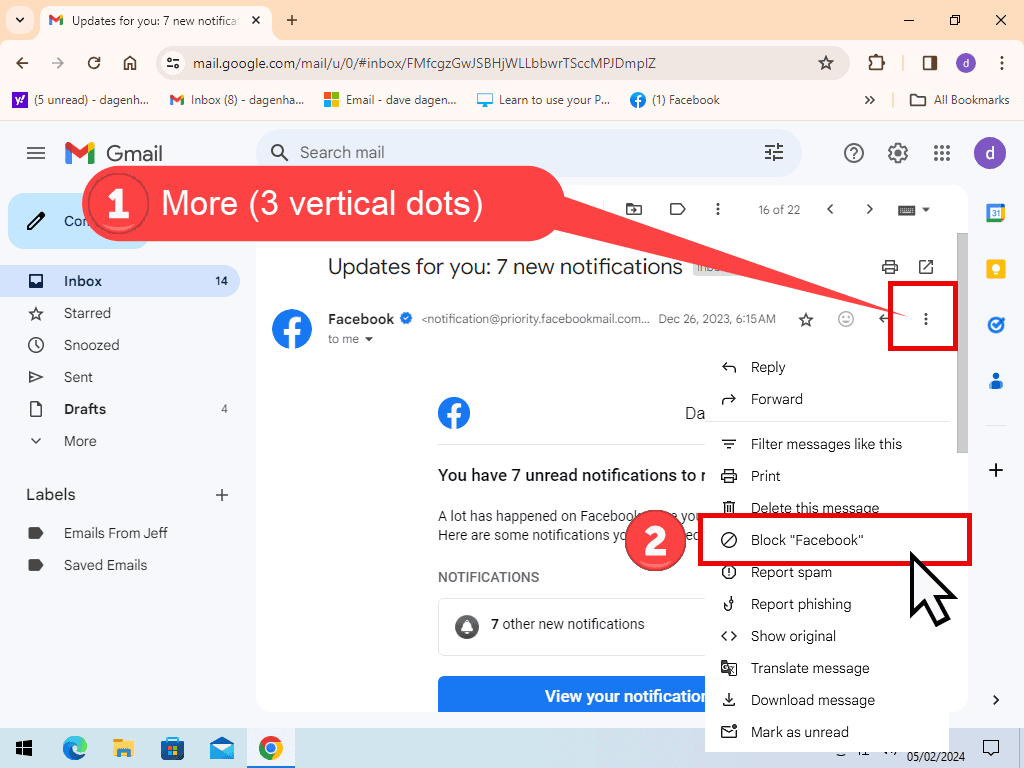
From now on, any emails from that address go straight to your Spam folder instead of your inbox. The sender isn’t told they’ve been blocked. Emails they’ve already sent you stay where they are, so delete those yourself if you don’t want them.
Blocking doesn’t unsubscribe you. If it’s a newsletter or a shop you signed up with, their emails will keep being sent, they’ll just land in Spam. Unsubscribing (see below) stops them at the source.
How to Report Spam in Gmail
For junk and scam emails from people you don’t know, reporting them as spam is better than blocking. As well as moving the email out of your inbox, it helps Gmail learn what spam looks like, for you and for everyone else.
Tick the box next to the email in your inbox (or open it), then click the Spam icon at the top. It looks like an exclamation mark.
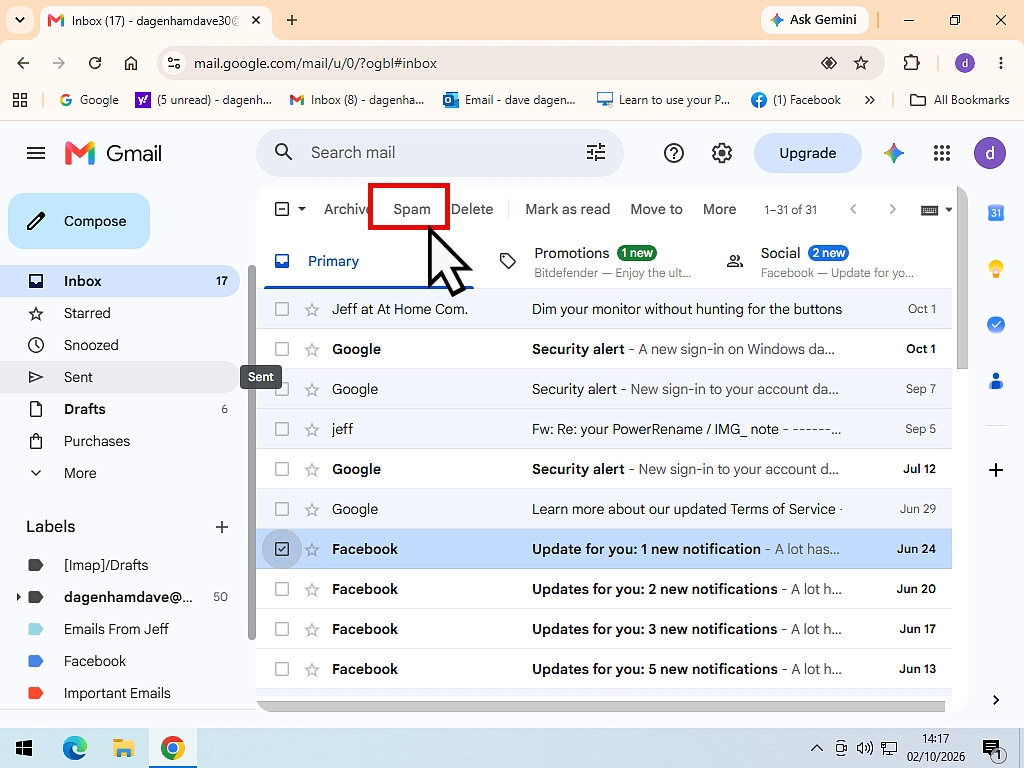
Anything reported as spam goes to your Spam folder. To find it, click More in the left-hand menu, then Spam. Gmail deletes emails in the Spam folder automatically after 30 days.
If a genuine email ends up in Spam by mistake, open it and click Not spam. It’ll go back to your inbox, and Gmail will be less likely to make the same mistake again.
Don’t click links in scam emails. Not even an unsubscribe link, because it tells the scammer your email address is real and being read. Just report it. Our guide What Is Phishing? How to Spot a Phishing Email explains the warning signs.
How to Unsubscribe From Emails in Gmail
If you once signed up to a newsletter or bought something from a shop, and now wish you hadn’t, unsubscribing is the tidiest fix. It tells the sender to stop emailing you, rather than just hiding their emails.
Unsubscribe From One Sender
Open one of their emails. For most newsletters and mailing lists, Gmail shows an Unsubscribe link at the top, right next to the sender’s name. Click it and confirm.
Unsubscribe From Lots of Senders at Once
Gmail has a newer page that lists all the mailing lists you’re on, with the busiest senders at the top. Click More in the left-hand menu, then click Manage subscriptions. Click Unsubscribe next to any sender you don’t want to hear from again.
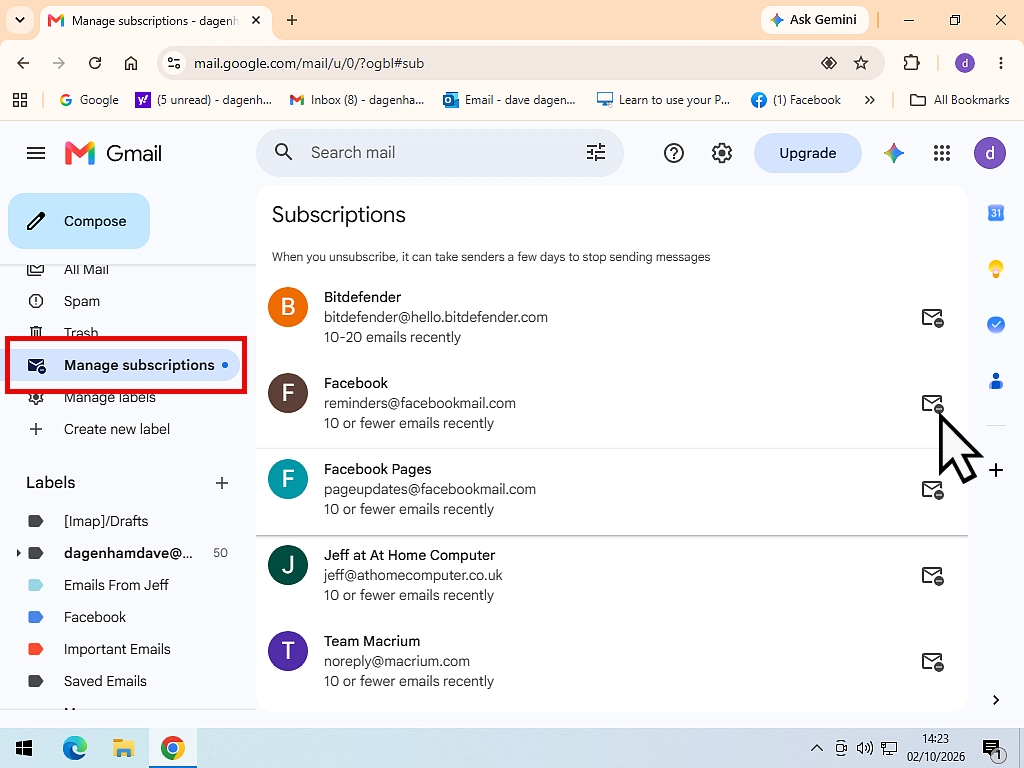
Google is still rolling this page out, so if you don’t see it yet, it’ll arrive soon. It can also take a few days for a sender to take you off their list, so don’t worry if another email or two gets through.
How to Block Emails Using Filters
Blocking only works on one email address at a time. If a sender keeps popping up with new addresses, or you want to block every email from a company, you need a filter. A filter checks every email as it arrives and deals with the ones that match, automatically.
Create a Filter From an Email
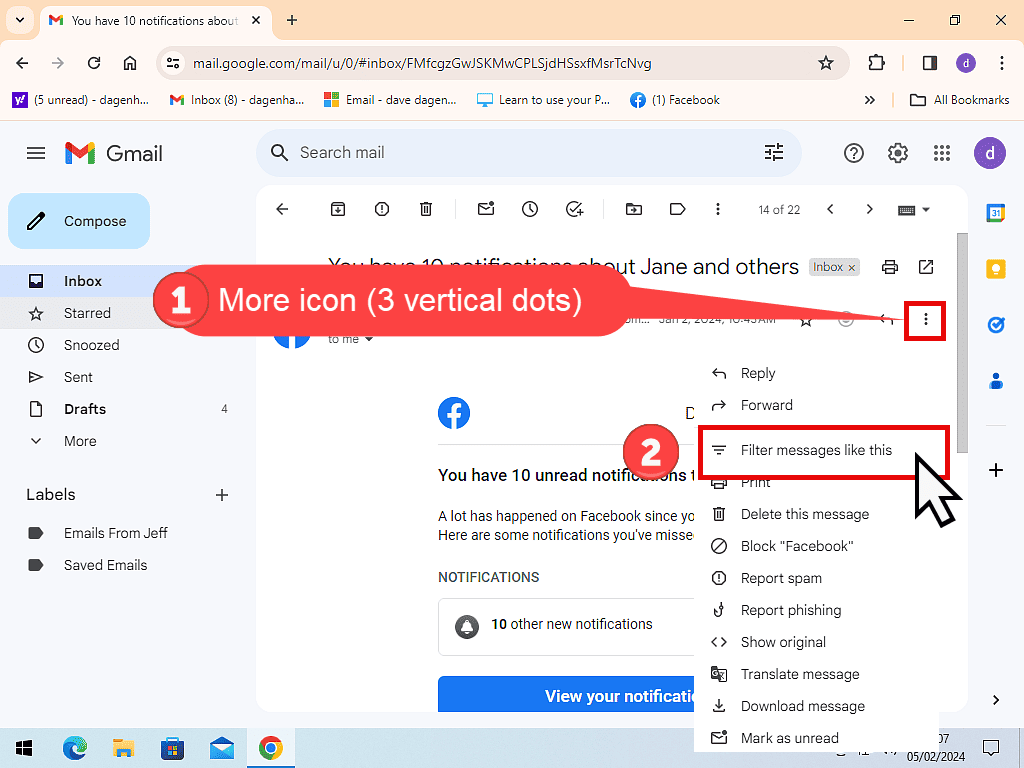
Tick the box next to one of the emails you want to block. Click the More icon (three dots) at the top, then click Filter messages like these. A box will open with the sender’s address already filled in.
Block a Whole Company
To block every email from a company, whatever address they use, change the From box so it only has the part after the @ sign. For example, typing @example.com will catch sales@example.com, offers@example.com and anything else from that company.
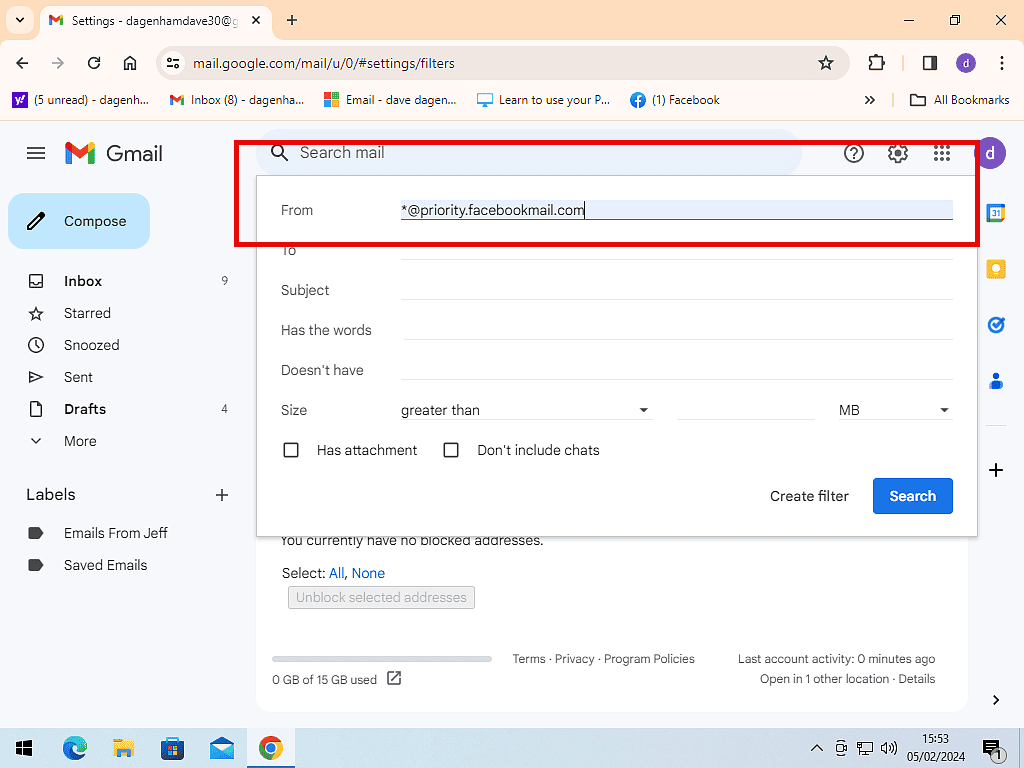
Block Emails by Subject or Words
You don’t have to use an email address at all. Persistent junk often uses the same word or phrase every time, so you can type it into the Subject box or the Has the words box instead. Just make sure it’s not a word that appears in emails you actually want.
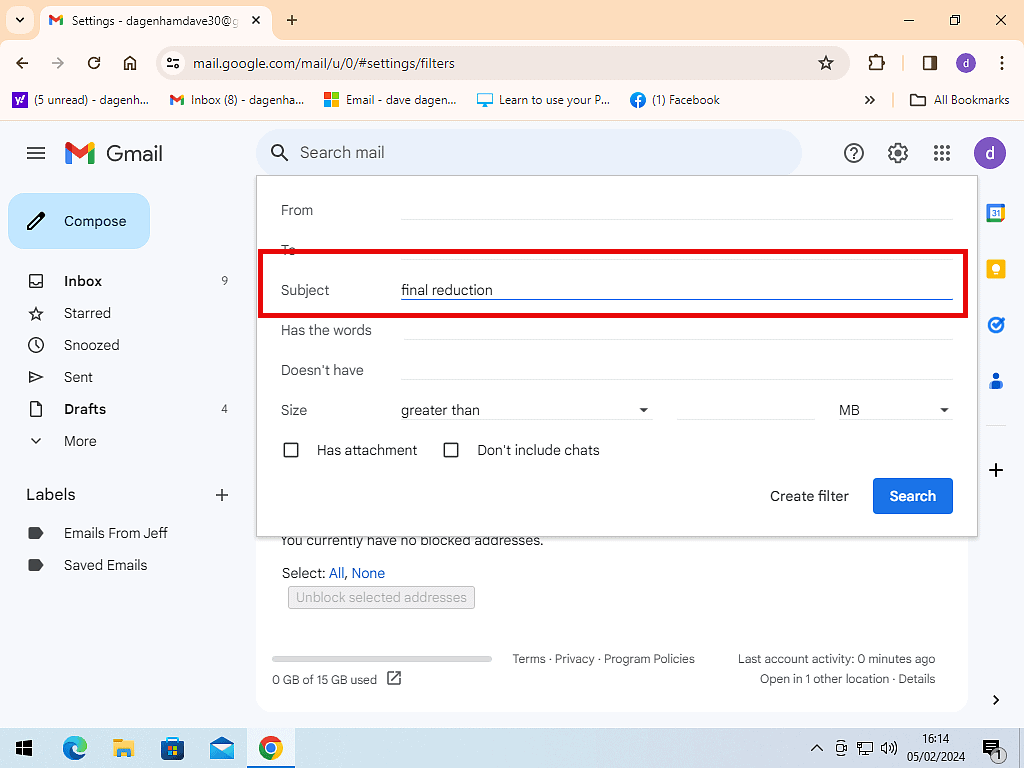
Choose What Happens to Them
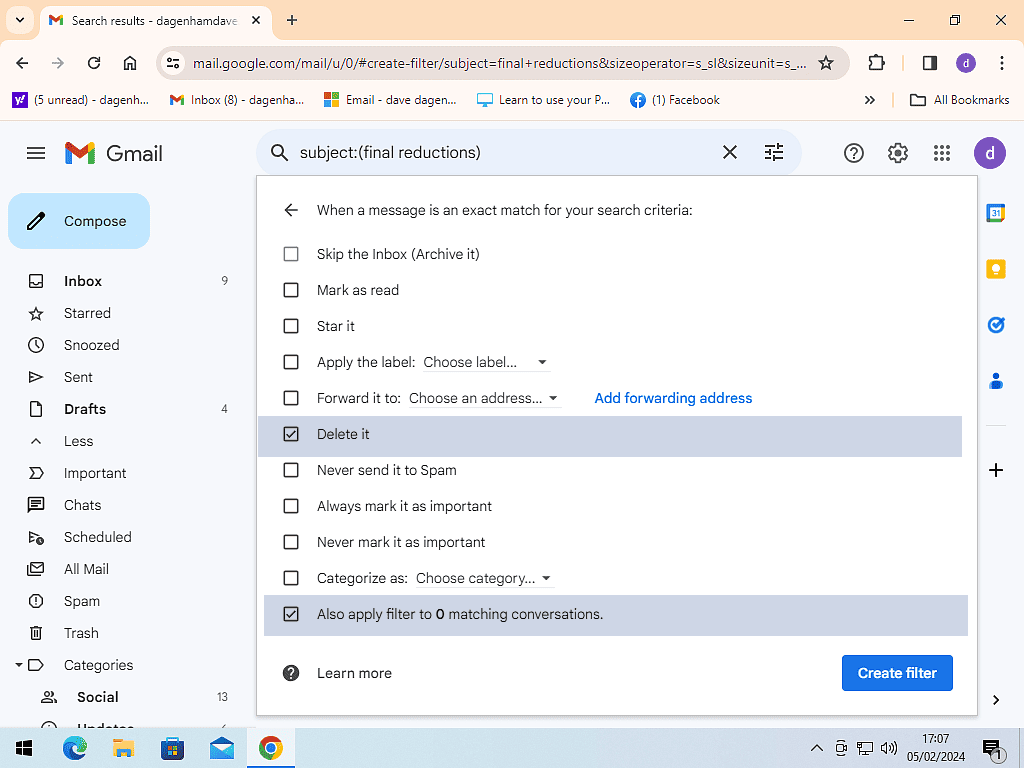
Click Create filter. You can now choose what Gmail should do with matching emails. To block them, tick Delete it. If you also want to clear out the ones already in your inbox, tick Also apply filter to matching conversations. Then click Create filter.
Keep an eye on your Bin for a week or two. A filter will delete every email that matches, even genuine ones. Deleted emails stay in the Bin (called Trash in US English) for 30 days, so check it now and then to make sure nothing important is being caught.
How to Unblock Someone or Change a Filter
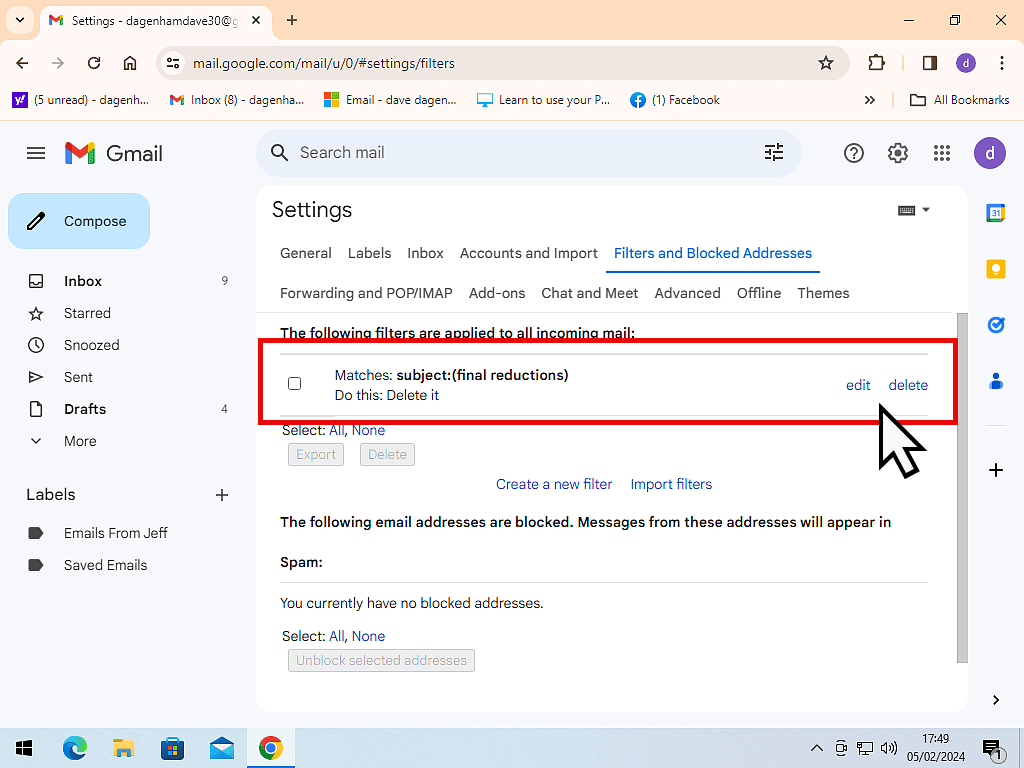
Click the Settings icon (the gear wheel) at the top right of Gmail, then click See all settings. Click the Filters and blocked addresses tab.
Your filters are listed at the top. Click edit to change one or delete to remove it. Blocked email addresses are listed underneath. Tick the ones you want to unblock and click Unblock selected addresses.
There’s a quicker way to unblock someone, too. Open one of their emails (it’ll be in your Spam folder), click the More icon and click Unblock.
Troubleshooting
I Blocked Someone but I’m Still Getting Their Emails
- Are they in Spam or your inbox? Blocked emails still arrive, they just go to Spam. That’s normal.
- Are they using a different address? Blocking only stops the one address. Set up a filter to block the whole company, or use a word they always use.
- Is it the right account? If you have more than one Gmail account, blocks and filters only apply to the one you set them up in.
I Can’t See the Block Option
Block only appears when an email is open. Make sure you click the three dots at the top right of the email itself, next to the Reply arrow, not the ones at the top of your inbox.
Emails I Want Are Going to Spam
Open the Spam folder, open the email and click Not spam. Then check your filters (Settings, See all settings, Filters and blocked addresses) in case one of them is catching more than it should.
Frequently Asked Questions
Q: Will the person know I’ve blocked them?
A: No. Gmail doesn’t tell them. Their emails send normally from their end, they just land in your Spam folder instead of your inbox.
Q: Where do blocked emails go?
A: To your Spam folder. Gmail automatically deletes anything that’s been in Spam for more than 30 days.
Q: Can I block someone in the Gmail app on my phone?
A: Yes. Open one of their emails, tap the three dots at the top right of the email and tap Block.
Q: Does blocking stop all spam?
A: No. Blocking only stops the one email address. For junk that comes from lots of different addresses, report it as spam. The more you report, the better Gmail gets at catching it for you.
Q: Should I unsubscribe or block?
A: Unsubscribe from anything you signed up for, like newsletters and shops. Block or report anything you didn’t ask for. If an email looks like a scam, don’t click any links in it, not even an unsubscribe link.
Summary
Gmail gives you plenty of ways to cut down on unwanted emails. Block people who won’t leave you alone, report junk and scams as spam, unsubscribe from anything you signed up for, and use a filter for the really persistent ones.
Use a different email service as well? See How To Block Emails On Yahoo Mail and How to Block an Email Address in Outlook.
Change Your Name in Yahoo Mail
The name people see when you email them often decides whether your email gets opened or ignored.
Change your Yahoo Mail sending name in a minute, in both the new and old Yahoo Mail.
You can find this and other related step by step guides in – At Home Computer Email Guides
Written by Jeff Porter. I’ve been fixing Windows PCs since 2010 and I’m CompTIA Network+ certified. More about me