
When you send an email from Yahoo Mail, the person receiving it doesn’t just see your email address. They see a name as well, and that name is often what decides whether your email gets opened or ignored.
If your emails are going out with the wrong name, maybe an old surname, a spelling mistake, or just your email address, it only takes a minute to change. Read on.
What Is Your Yahoo Mail Name?
Yahoo calls it your sending name, but you’ll also see it called your display name. It’s the name that appears in the recipient’s inbox next to your email, before they’ve even opened it.
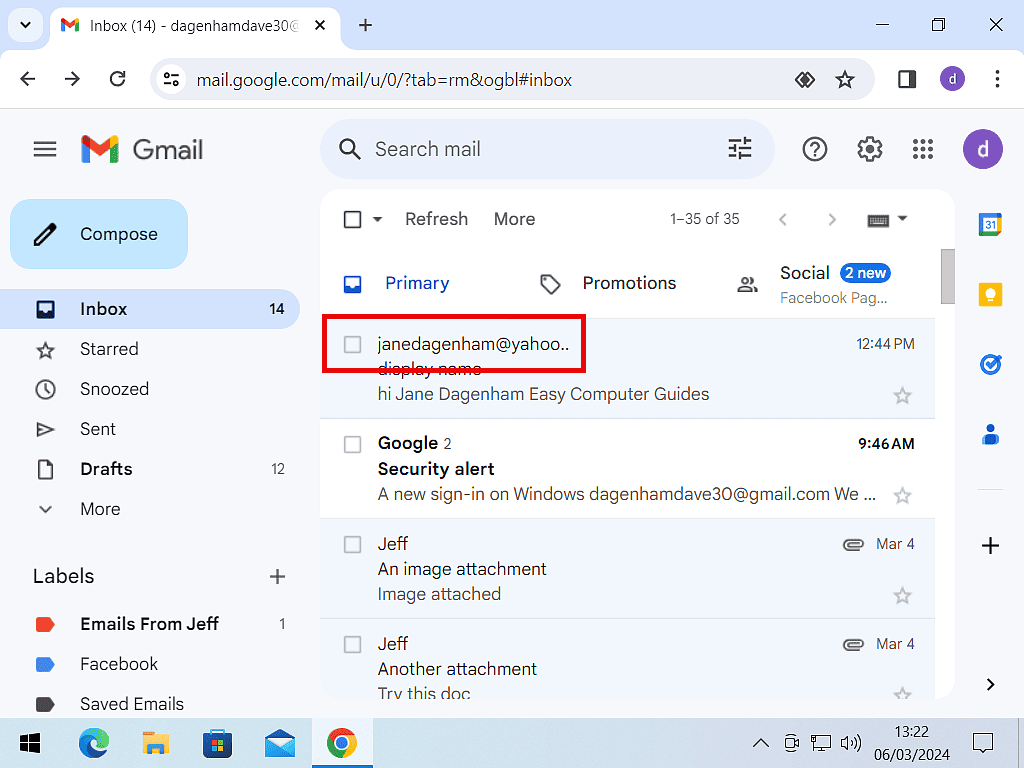
Changing it doesn’t change your email address. It only changes the name people see. So you can use your full name, a nickname, or something like “Sue Smith – Garden Services” if you use the account for a small business.
Worth knowing: anyone can type any name they like into this box. That’s why scammers often put a trusted name, like your bank or a friend, on an email address that has nothing to do with them.
So when an email looks a bit odd, always check the actual email address, not just the name. Our guide What Is Phishing? How to Spot a Phishing Email explains what to look for, and if the same sender keeps getting through, see How To Block Emails On Yahoo Mail.
How to Change Your Name in Yahoo Mail
These steps are for the current version of Yahoo Mail on a computer. If your screen looks different, you may still have the older version. In that case, skip to the next section.
- Sign in to Yahoo Mail.
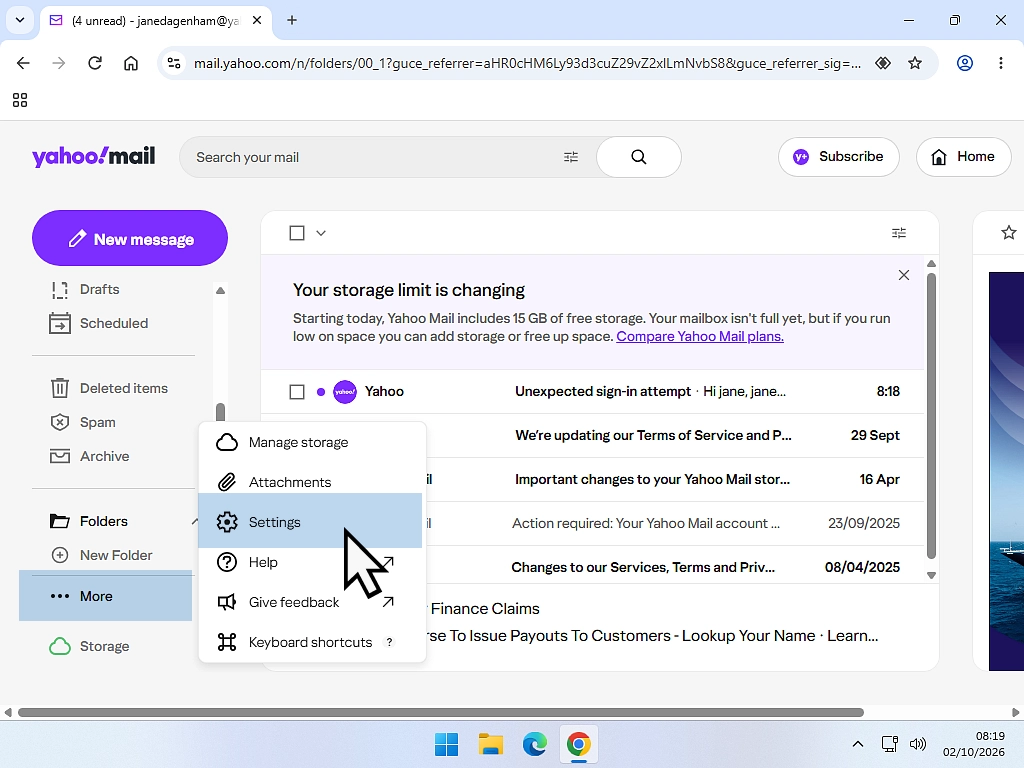
- Click the More options icon in the left-hand panel, then click Settings.
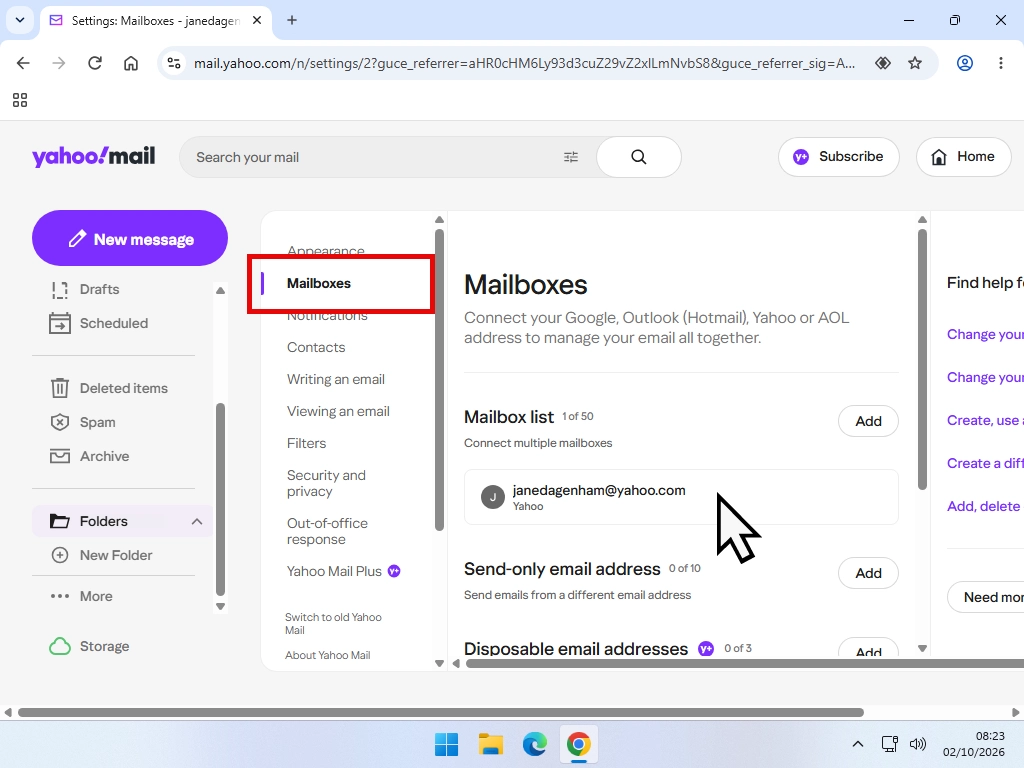
- Click Mailboxes.
- Click the email account you want to change.
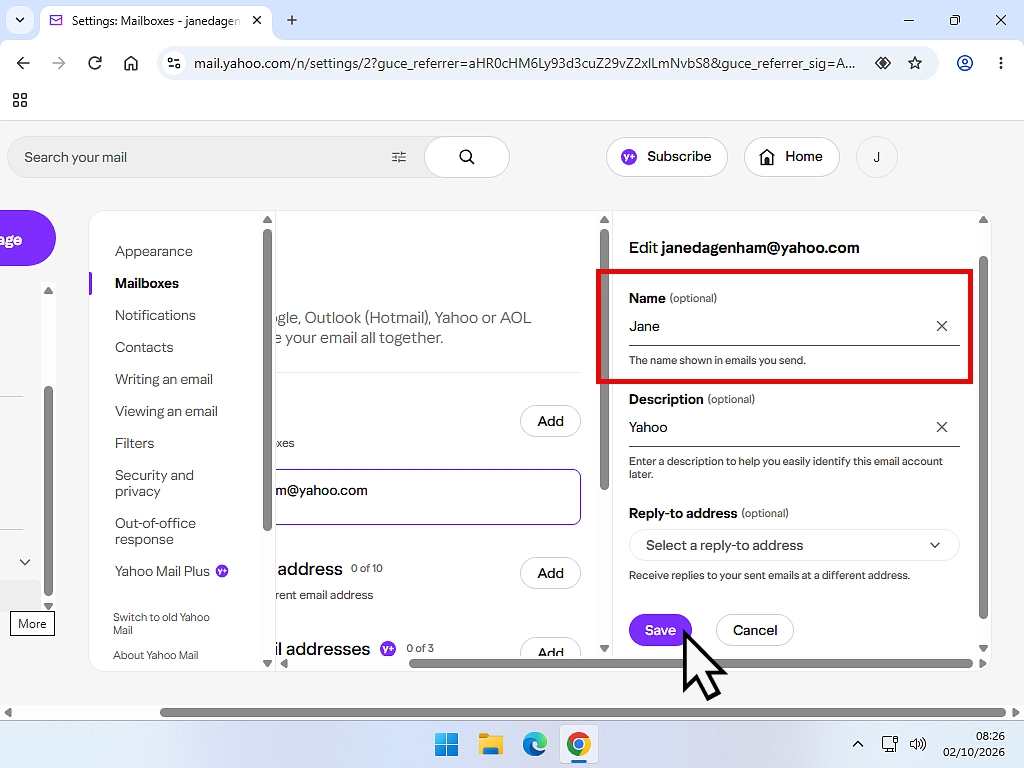
- In the Your name box, delete the old name and type your new one.
- Scroll down and click Save.
Open Yahoo Mail Settings
Sign in to Yahoo Mail on your computer. In the panel down the left-hand side of your inbox, click the More options icon. On the menu that opens, click Settings.
Choose Your Mailbox
On the Settings page, click Mailboxes. You’ll see a list of your email accounts. For most people there’s only one, but if you’ve added other email accounts to Yahoo Mail, they’ll be listed here too.
Click the account you want to change the name for. Its details will open on the right.
Type Your New Name
Click in the Your name box, delete what’s there and type the name you want people to see. Check your spelling, because this is exactly how your name will appear on every email you send.
Then scroll down to the bottom of the page and click Save. It’s easy to miss, and if you don’t click it your new name won’t be kept.
That’s it. Any new emails you send will show your new name.
Using the Older Version of Yahoo Mail?
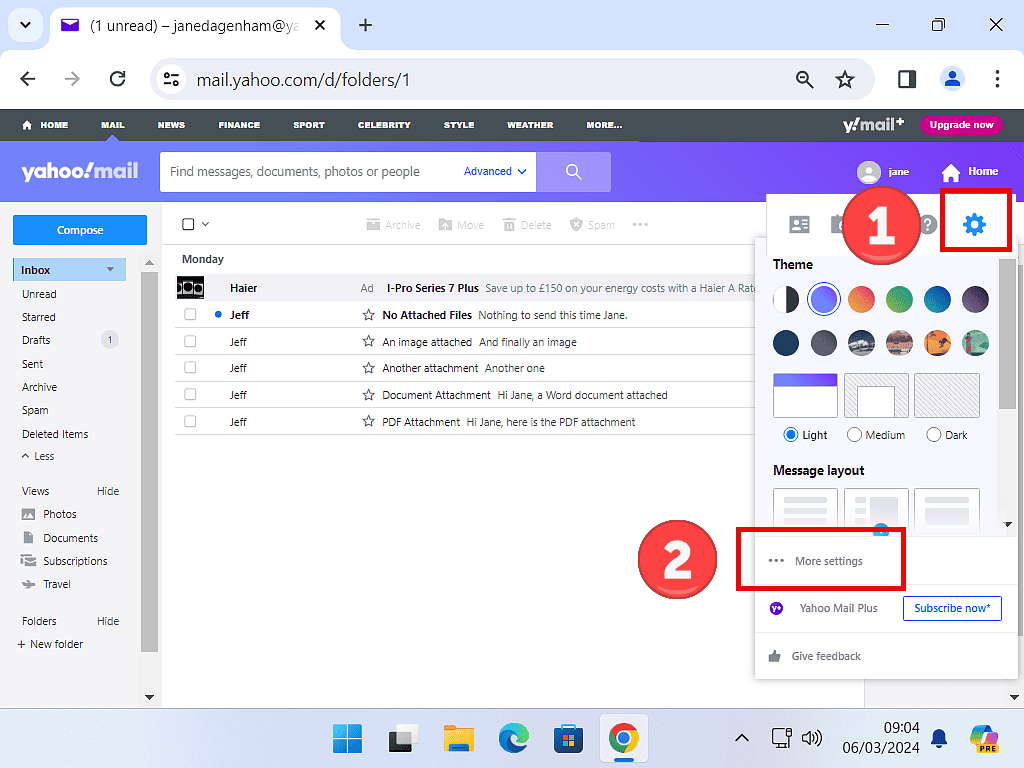
Some people still have the older look of Yahoo Mail, where the Settings icon (a gear wheel) is in the top right-hand corner. The steps are nearly the same.
Click the Settings icon, then click More Settings at the bottom of the menu.
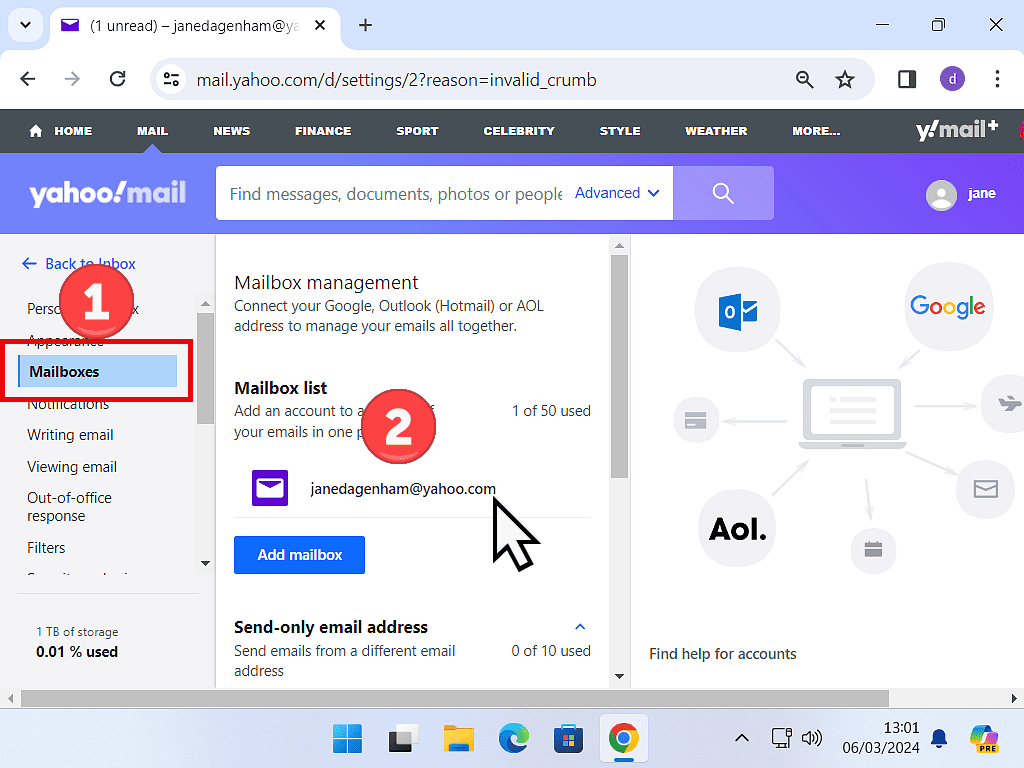
Click Mailboxes in the left-hand panel, then click the account you want to change.
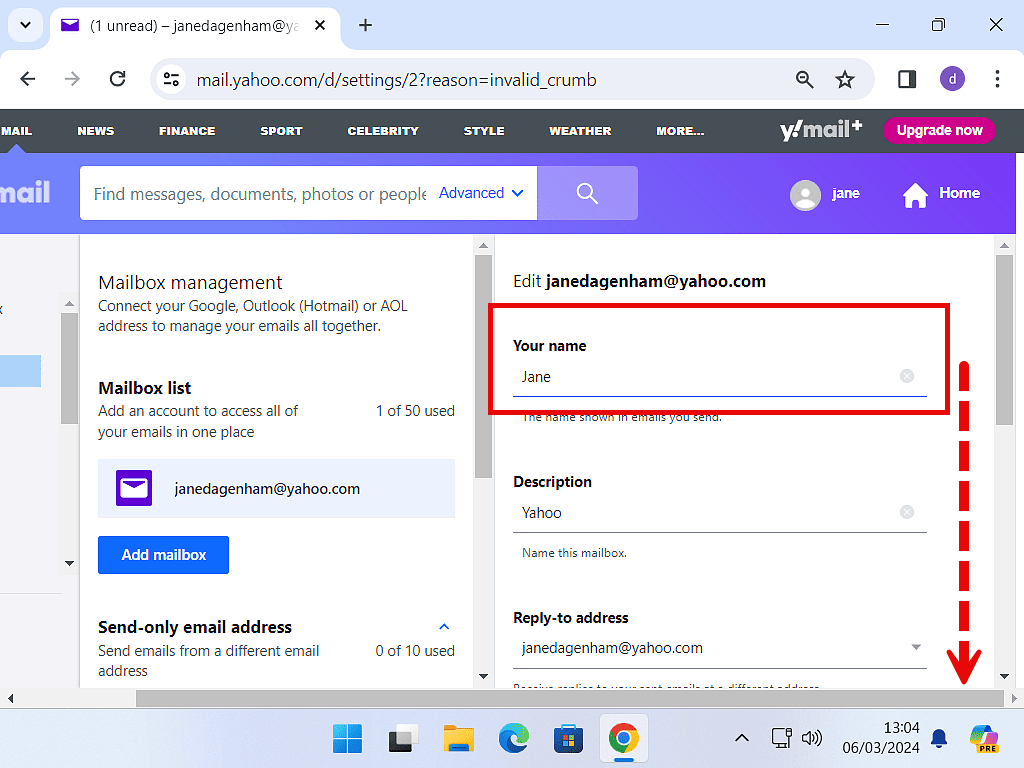
Type your new name into the Your name box, scroll to the bottom of the page and click Save.
How to Change the Name on Your Yahoo Account
Your Yahoo account has its own name as well, which is separate from the name on your emails. It’s the name Yahoo holds for you, and it’s shown at the top of Yahoo’s websites and apps.
To change it:
- Open your Yahoo Account info page (click your profile picture or initials in Yahoo Mail and choose Manage Your Account).
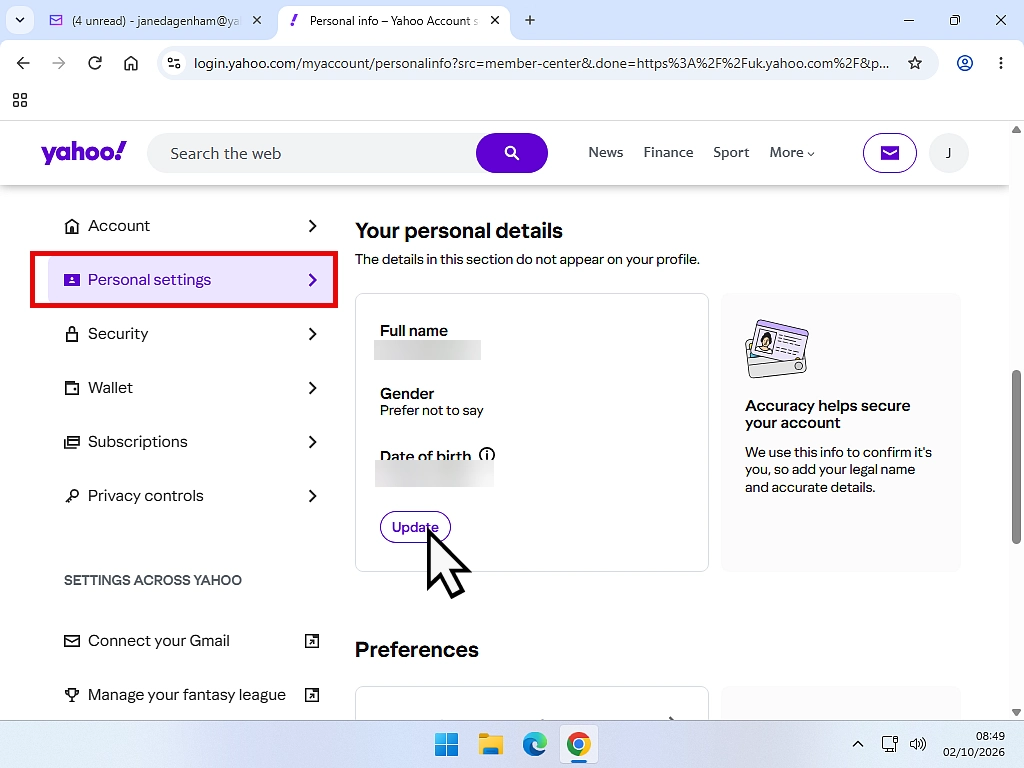
- Click Personal Settings in the left hand column.
- Scroll down to Your Personal Details and click Update.
- Edit your name and click Done.
Changing your account name won’t change the name on your emails. If you want them both to match, you need to change both.
You’ll also see a Change display name option on the same page. Confusingly, that isn’t the name on your emails either. It’s the name Yahoo shows next to any comments you leave on Yahoo News.
Can You Change Your Yahoo Email Address?
No. Yahoo doesn’t let you change the email address itself, the part before @yahoo.com. It stays the same for as long as you have the account.
If you really want a different address, you have three options:
- Create a new Yahoo account with the address you want, then let your contacts know about the change.
- If you pay for Yahoo Mail Plus, you can add extra “disposable” addresses that deliver to your normal inbox. Our guide How to Use Burner Email Addresses explains how these work.
- Move to a different email provider altogether. If that’s Gmail, see How to Transfer Yahoo Mail to Gmail.
Troubleshooting
My New Name Isn’t Showing
If your emails are still going out with the old name, check these:
- Did you click Save? The Save button is right at the bottom of the page, so it’s easy to miss.
- Did you change the right mailbox? If you have more than one account in Mailboxes, make sure you changed the one you send from.
- Are you using a different email program? Programs like Outlook for Windows, Windows Mail and Thunderbird have their own name setting, and it overrides the one in Yahoo Mail. Change the name in that program instead. Our guide How to Setup Your Email Accounts in Outlook for Windows App shows where the account settings are.
- Are you looking at an old email? Emails you’ve already sent keep the old name. Only new emails show the new one.
The Person I Emailed Still Sees My Old Name
If they’ve saved you in their contacts, their email program shows the name they saved you under, not the name you send with. The only fix is for them to edit your contact.
Frequently Asked Questions
Q: Can I change my name in the Yahoo Mail app?
A: The Yahoo Mail app on phones and tablets doesn’t have a setting for your sending name. Change it on a computer using the steps above, and your new name will be used on emails you send from the app too.
Q: Does changing my name change my email address?
A: No. It only changes the name people see. Your email address stays exactly the same.
Q: How long does it take for my new name to show?
A: It works straight away for any new emails you send. Emails you’ve already sent keep the old name.
Q: What’s the difference between my display name and my sending name?
A: In Yahoo Mail they’re the same thing. Yahoo calls it your sending name in its settings. The separate Change display name option on your Yahoo account page is only used for comments you leave on Yahoo News.
Q: Can I use any name I like?
A: Yes, Yahoo lets you type any name you want. It’s best to use one your contacts will recognise, because emails from a name people don’t know are more likely to be ignored or mistaken for spam.
Summary
Your Yahoo Mail name is the first thing people see before they open your email, so it’s worth getting right. It only takes a minute to change in Settings > Mailboxes, and your new name is used on every email you send from then on.
Just remember it’s separate from your Yahoo account name, and from your email address, which can’t be changed at all.
Gmail is Switching Off Gmailify and Check Email From Other Accounts
Nothing has been switched off yet but if you have emails from different services, such as Yahoo, Outlook etc, sent to your Gmail account, you need to check this.
You can find this and other related step by step guides in – At Home Computer Gmail Guides