
If your inbox has suddenly filled up with dozens, or even hundreds, of “please confirm your subscription”, “welcome to our newsletter” and “verify your account” emails from websites you’ve never heard of, you’re not imagining it. And no, you didn’t sign up for them in your sleep.
Someone has typed your email address into hundreds of real websites’ sign-up forms, usually with a computer program, all at the same time. It’s called subscription bombing, or email bombing.
The emails themselves are harmless. What matters is why someone did it, because sometimes the flood is there to hide something far more important. In this guide I’ll show you what to check first, how to spot the scam that often follows, and how to sweep the lot out of your inbox in Gmail and Outlook.
Table of contents
- Is It Email Bombing or Just a Lot of Spam?
- Why Would Someone Do This?
- What to Do First: Check Your Important Accounts
- Never Let a “Helpdesk” Caller Onto Your PC
- Don’t Click the Confirm Links
- How to Stop Email Bombing in Gmail With a Filter
- How to Stop Email Bombing in Outlook With a Rule
- Lock Down Your Accounts
- Run a Website? Protect Your Sign-Up Form
- Troubleshooting
- Frequently Asked Questions
- Summary
The Short Version
- Check your important accounts first. Look at your bank, email and shopping accounts, and search the flood for password, sign in and order emails.
- Never let anyone onto your PC. If someone calls or messages offering to fix the flood, it’s a scam.
- Don’t click the confirm links. Ignore them and those websites can’t email you again.
- Sweep the rest out with a Gmail filter or an Outlook rule.
- Change your email password, turn on two-step verification, and tell your bank if anything looks wrong.
It Happened on This Website
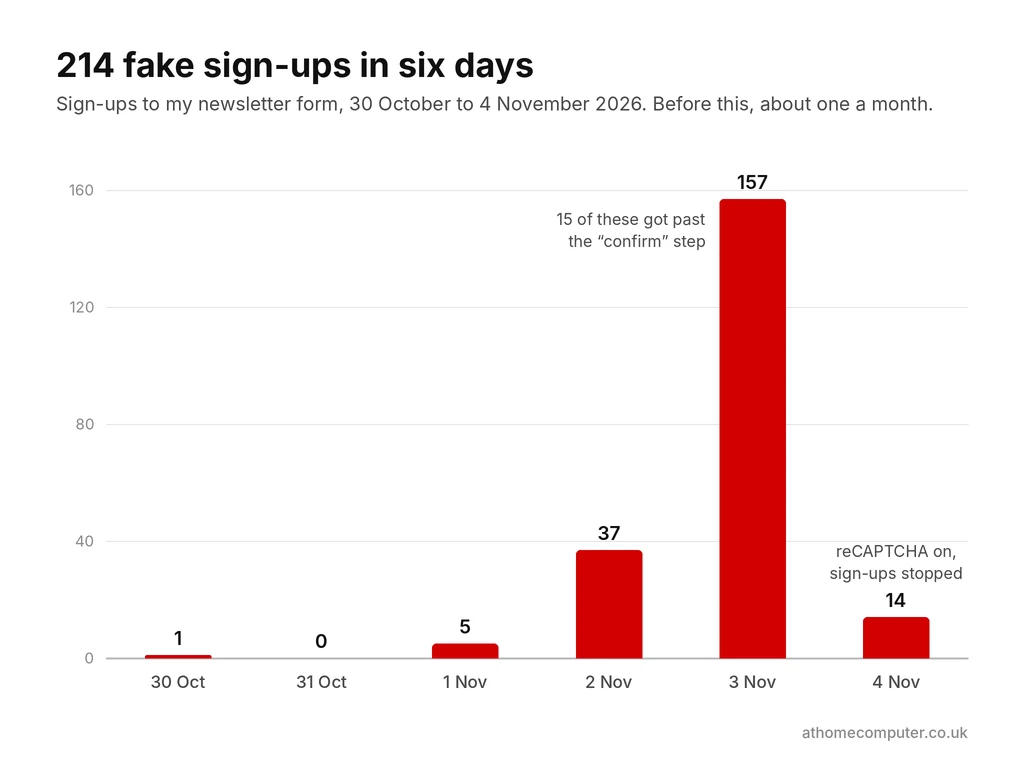
I’ve seen one of these attacks from the other side. Between 30 October and 4 November 2026, the newsletter sign-up form on this website was one of the forms being used, and it was fed 214 fake sign-ups.
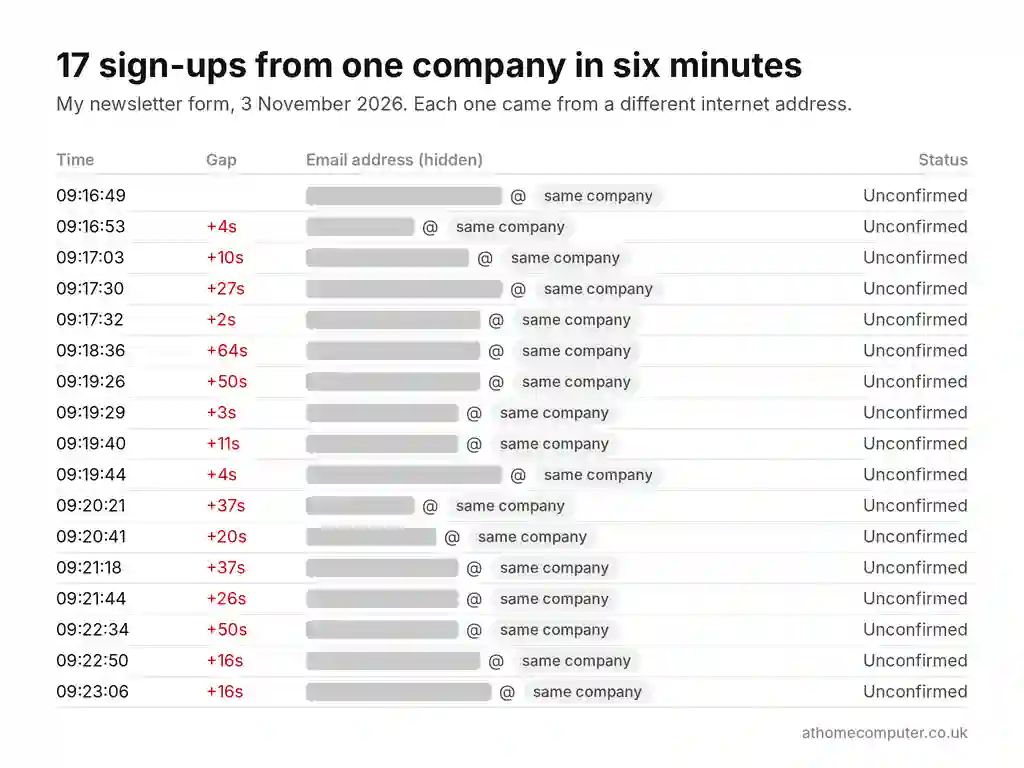
They weren’t random. There were whole company staff lists, including 17 people at one German firm in the space of six minutes, and staff at banks and insurance companies.
Every one of those people got a “please confirm” email from me, mixed in with hundreds from other websites. 14 of them were even confirmed, not by the people themselves, but by their company’s email security filter, which clicked every link in every email to check it was safe.
I deleted all 214 and switched on reCAPTCHA, a check that stops computer programs filling in the form. The fake sign-ups stopped straight away. So if you’ve had a confirm email from At Home Computer that you didn’t ask for, that’s why, and you won’t hear from me again.
Is It Email Bombing or Just a Lot of Spam?
Lots of people are asking why they’re suddenly getting so many spam emails at the moment. Most of the time it’s ordinary spam. Email bombing looks different, and once you know the signs it’s easy to tell apart.
It’s probably email bombing if:
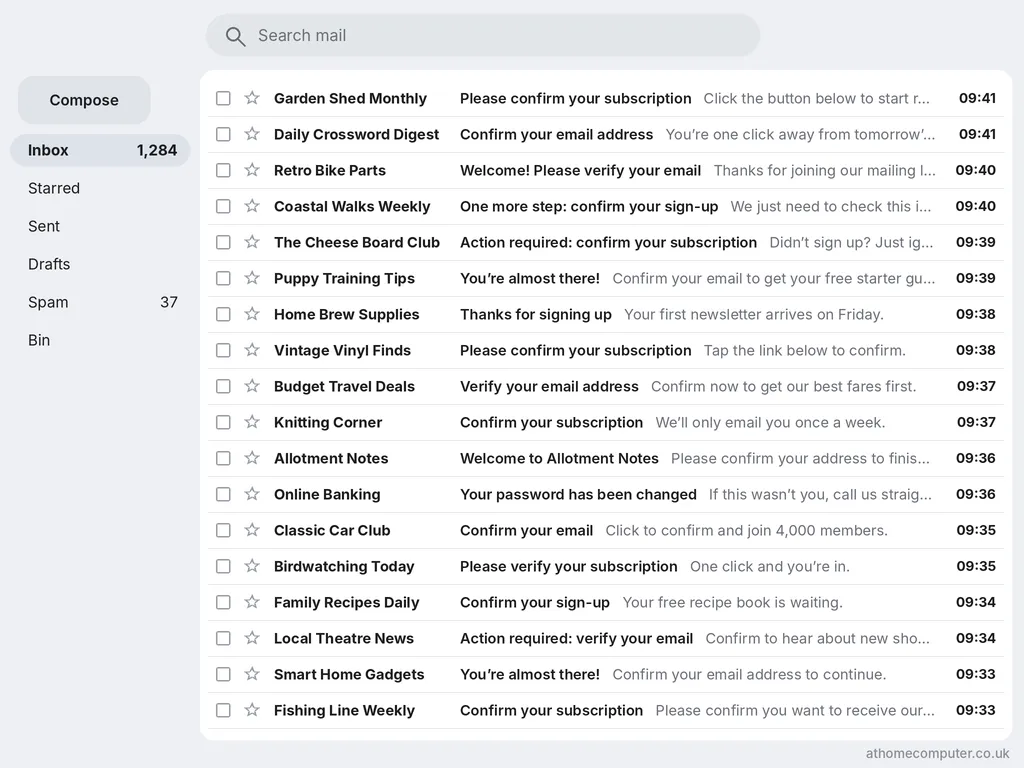
- The emails arrived in a sudden burst, often hundreds in an hour or two.
- They’re from real companies and websites: shops, charities, forums and newsletters, many of them abroad and in other languages.
- Most are “confirm your subscription”, “verify your email”, “welcome” or “your new account” emails.
- They’re landing in your inbox, not Spam.
- Nobody is actually trying to sell you anything.
Ordinary spam is different. It tends to arrive in a steady trickle, from senders you’ve never heard of, and it wants something from you: your money, your password or a click. If that sounds more like your inbox, my guide on how to block emails in Gmail and stop spam is the one you want.
Why Would Someone Do This?
Nobody signs a stranger up to 500 newsletters for fun. There are three usual reasons, and the first two are why I say check your accounts before you do anything else.
To Hide a Fraud Alert
This is the big one. If a criminal has got into your bank, email, Amazon or PayPal account, that account will usually email you to say so. “Your password has been changed.” “New sign-in on Windows.” “Thanks for your order.” “You’ve sent £500.”
Any one of those emails could ruin things for them, so they bury it. Security company Proofpoint has seen floods of more than 1,500 emails an hour, and at that rate the one email that matters scrolls out of sight in seconds.
For Example
Someone who has stolen your Amazon password signs in, orders a laptop to a different address, then sets off the flood. By the time you open your inbox, the “your order has been placed” email is 600 emails down, and you’re busy deleting newsletters.
To Set Up a Fake IT Support Call
This one mostly targets people at work, but it’s worth knowing about at home too.
First the inbox floods. Then, a few minutes later, someone gets in touch offering to fix it. It might be a phone call, or a Microsoft Teams message from “Help Desk” or “IT Support”. They’re friendly and helpful, and all they need is to connect to your PC for a minute.
In May 2024, Microsoft reported a criminal group it calls Storm-1811 doing exactly this. It signed staff up to mailing lists, phoned them pretending to be the helpdesk, and talked them into opening Quick Assist, the remote help tool built into Windows. Once in, it installed its own tools, and in some cases went on to spread Black Basta ransomware across the company’s network.
It hasn’t gone away. In October 2026, security company Arctic Wolf said it had seen more than 400 of these fake helpdesk attacks through Teams, and that once someone went along with it, the attackers could be running their own software on the PC in under 15 minutes.
At home, the same trick turns up as a phone call from “Microsoft”, your broadband company or your bank, kindly offering to stop the spam.
Harassment for Hire
Sometimes the flood is the whole point. Someone wants to make your life miserable, or knock a small business’s email out for the day.
It’s cheap to do. Researchers at xorlab, who studied 24 of these attacks on businesses in late 2024, found floods being sold by the hour on criminal forums, with one service charging $10 for 10,000 credits.
This kind is horrible to deal with, but on its own it can’t get into your accounts. A filter, which I’ll show you below, takes most of the sting out of it.
Why the Emails Get Past Your Spam Filter
Your spam filter is looking for junk, and these aren’t junk. They’re genuine emails from genuine companies, sent because someone filled in a genuine form on their website, usually one with nothing to stop a computer program doing it.
To Gmail or Outlook, it looks exactly like you signing up for a lot of newsletters at once. That’s why the attackers use real websites, and why the emails sail straight into your inbox.
What to Do First: Check Your Important Accounts
Before you delete a single email, spend ten minutes making sure the flood isn’t hiding anything. Most of the time it isn’t, but this is your best chance to catch it early.
Search the Flood for the Emails That Matter
In Gmail, copy this into the search box at the top and press Enter:
password OR "sign in" OR "security alert" OR "new device" OR order OR paymentGmail shows only the emails with those words in them, so the hundreds of newsletters drop away. You can add your bank’s name on the end too, for example OR Barclays.
In Outlook, search for one word at a time instead: password, then sign in, then order, then payment.
Here’s what you’re looking for:
- “Your password has been changed” or “new sign-in” emails for any account, especially your email, bank, Amazon, PayPal or eBay.
- Order and delivery confirmations for things you didn’t buy.
- Payment, transfer or new payee emails from your bank.
- Emails saying your email address or phone number was changed on an account.
Quick Tip
A “reset your password” email you didn’t ask for is normal in a flood, because attackers trigger them by the hundred. Ignore those. A “your password has been changed“ email is different. It means someone got in, so act on it straight away.
Check Your Bank, Shopping and Email Accounts Directly
Next, check the accounts themselves. Don’t use a link in any email for this. Open your banking app, or type the website address in yourself.
- Your bank and credit cards: look through recent payments for anything you don’t recognise.
- Amazon, eBay and PayPal: check recent orders and activity, and make sure the delivery address and email address are still yours.
- Your Google account (for Gmail): go to myaccount.google.com, click Security, and look at Recent security activity and Your devices.
- Your Microsoft account (for Outlook and Hotmail): go to account.microsoft.com, click Security, and look at your sign-in activity.
All fine? Good. Then this is most likely harassment, or an attack that went nowhere, and you can skip down to sweeping the flood out of your inbox. Found something you don’t recognise? Go straight to the section on locking down your accounts.
Never Let a “Helpdesk” Caller Onto Your PC
If someone gets in touch offering to stop the flood, that’s the scam. It doesn’t matter how helpful they sound, or how much they seem to know about you.
At home, there’s no IT department to ring you. And Microsoft says plainly that it won’t call you to offer tech support unless you contacted it first.
At work, the caller might sound exactly like your helpdesk. Hang up or close the chat, then contact your IT team on a number or address you already know. In Teams, look for the External label next to their name. Your own IT staff aren’t external, although Arctic Wolf found scammers putting “(Internal)” in their names to try to get round this.
Here’s what they’ll ask you to do. Say no to all of it:
- Press Ctrl + Windows key + Q to open Quick Assist, then type in a code they give you.
- Install a remote control program such as AnyDesk, TeamViewer or ScreenConnect.
- Copy and paste a command into Windows.
- Read out a code that’s just been texted to you, or approve a sign-in on your phone.
The One Rule
Only let someone connect to your PC if you contacted them first, using a phone number or website you found yourself. Never because they contacted you.
Already Let Someone In?
Don’t panic, but do act quickly.
- Disconnect from the internet. Turn off Wi-Fi or unplug the network cable. That cuts them off.
- At work, tell your IT team straight away, using a number you trust. Minutes matter.
- Change your passwords from a different device, starting with your email, then your bank.
- Call your bank if you think they could have seen any banking details.
- Run a full scan with Windows Security, then get a second opinion with a free malware scanner.
If you’re not confident the PC is clean, have it checked by someone you trust before you use it for banking again.
Don’t Click the Confirm Links
It’s tempting to open each one and click something, just to make them stop. Don’t. Ignoring them is what makes them stop.
Most of these emails come from mailing lists with a confirm step, sometimes called double opt-in. Until you click Confirm, you’re not on the list, and the sender isn’t allowed to send you anything else. MailerLite, which I use for my own newsletter, says unconfirmed subscribers “cannot receive any of your newsletters”.
So every confirm email you leave alone is a list you’ll never hear from again. Click the button, and you’ve signed yourself up for real.
There’s a second reason to keep your hands off. Among hundreds of genuine emails it’s easy to slip in a fake one, and a quick click, click, click is exactly how people end up on a phishing page.
Some Will Keep Coming: Unsubscribe Safely
Not every website asks you to confirm. Some add you straight away and start sending newsletters, and some create an account in your name and send a “welcome” email.
Those you can unsubscribe from, and with genuine companies it’s safe to do. The safest way is the Unsubscribe button your email gives you, rather than a link inside the email itself.
- In Gmail: open the email and click Unsubscribe next to the sender’s name at the top. To do lots at once, click More in the menu on the left, then Manage subscriptions.
- In Outlook: open the email and click Unsubscribe in the bar at the top of the message.
There’s more on both in my guide to unsubscribing and blocking in Gmail.
The “welcome to your new account” emails are a nuisance rather than a danger. Ignore them, or if one website keeps emailing you, use its own delete account option.
How to Stop Email Bombing in Gmail With a Filter
You can’t stop the flood arriving, but you can stop it landing in your inbox. A filter checks every email as it comes in and moves the ones that match into a folder of their own, out of the way.
You’ll need a computer for this, because the Gmail app on your phone can’t make filters. Once it’s set up, it works on your phone too.
This is the line you’ll paste in:
confirm OR confirmation OR verify OR subscription OR subscribe OR welcome OR newsletter OR activate- Copy the line above.
- Open Gmail in your web browser and sign in.
- In the search box at the top, click Show search options, the little sliders icon at the right-hand end.
- Click in the Subject box and paste the line in.
- Click Create filter at the bottom.
- Tick Skip the Inbox (Archive it).
- Tick Apply the label, click Choose label and pick New label. Call it Sign-up flood and click Create.
- Tick Also apply filter to matching conversations, so the ones already in your inbox move too.
- Click Create filter.
The flood now goes into your Sign-up flood folder instead of your inbox. Gmail calls folders labels, and you’ll find it in the menu on the left. There’s more on how they work in my guide to creating folders in Gmail.
Why Not Just Delete Them?
A filter can delete emails instead, but I wouldn’t, not at first. A word like confirm can also catch the one email you need, such as a real “confirm this payment” email from your bank. Moving them to a folder means you can have a quick look through before anything is lost.
Once the flood has died down and you’ve checked the folder, you can delete the whole lot in one go. Leave the filter on for a couple of weeks to catch the stragglers, then remove it from Settings (the gear wheel), See all settings, Filters and blocked addresses.
Catch the Ones in Other Languages
Some of the websites used in these attacks are abroad, so some confirm emails won’t say confirm at all. If some are still getting through, make a second filter the same way with this line in the Subject box:
bestätigen OR bestätigung OR anmeldung OR confirmer OR confirmez OR inscription OR confirmar OR conferma OR bevestig OR bevestigenThat covers the confirm and sign-up words in German, French, Spanish, Italian and Dutch.
How to Stop Email Bombing in Outlook With a Rule
Outlook does the same job with a rule. These steps are for Outlook.com in your web browser and the free Outlook app that comes with Windows, which work the same way.
First, make a folder for the flood. In the folder list on the left, right-click Inbox, choose Create new subfolder and call it Sign-up flood. Then:
- Click Settings, the gear wheel at the top right.
- Click Mail, then Rules.
- Click Add new rule and give it a name, such as Sign-up flood.
- Under Add a condition, choose Subject includes. Type confirm and press Enter, then do the same for verify, subscription, welcome and newsletter.
- Under Add an action, choose Move to and pick your Sign-up flood folder.
- Click Save.
- To move the ones already in your inbox, click the Run rule now button next to your new rule.
Using Outlook classic, the version that comes with Microsoft Office? The same thing lives under Rules, Manage Rules & Alerts, on the Home tab.
As with Gmail, I’d move them rather than delete them until you’ve had a look through. If one company keeps emailing after the flood is over, you can block the whole domain in Outlook instead.
On Yahoo Mail the same idea works with filters, and my guide to blocking emails on Yahoo Mail shows you where to find them.
Lock Down Your Accounts
If you found anything worrying, do this now. If you didn’t, it’s still worth doing, because someone went to the trouble of targeting you.
Change Your Passwords, Email First
Start with your email account. Whoever controls your email can reset the password on almost everything else, so it’s the key to the lot. Then do your bank, then any shopping accounts with a saved card, such as Amazon, eBay and PayPal.
- Go to each website by typing the address yourself, or use the official app. Never use a link in an email.
- Use a different password for every account. A password manager, like the free password manager in Microsoft Edge, remembers them all for you.
- If someone has already changed your Microsoft password and you can’t get in, follow my guide to resetting a Microsoft account password.
Turn On Two-Step Verification
Two-step verification means a stolen password isn’t enough on its own. When someone signs in on a new device, they also need a code from your phone, or your approval in an app.
Google calls it 2-Step Verification, and you’ll find it under Security in your Google account. Microsoft, Amazon and PayPal all have it too, usually in their security or sign-in settings. Turn it on for your email first, then for everything with your money in it.
And remember the scam from earlier. If anyone ever asks you to read out one of these codes, it’s a scam. Real companies never ask for them.
Tell Your Bank if Anything Looks Wrong
If you’ve spotted a payment you didn’t make, or think someone has your banking details, ring your bank straight away on the number on the back of your card. In the UK you can also call 159 from most phones to be put through to your bank.
If you’ve lost money or an account has been taken over, report it to Report Fraud, which replaced Action Fraud in December 2025, online or on 0300 123 2040. That covers England, Wales and Northern Ireland. In Scotland, call Police Scotland on 101.
Nothing Wrong? Good.
If your accounts all look fine, the flood was most likely harassment, or an attack that didn’t get anywhere. It usually dies down within hours, with a few stragglers for a day or two, and your filter will deal with those.
Run a Website? Protect Your Sign-Up Form
If you run a website, a club newsletter or a small shop with an email sign-up box, it could be one of the hundreds of forms being used against someone else, just as mine was.
Two things stop it:
- A CAPTCHA, the “I’m not a robot” check. I switched on Google’s free reCAPTCHA and the fake sign-ups stopped straight away. Spamhaus, the anti-spam organisation, calls a CAPTCHA the single best way to protect a form.
- A confirm step (double opt-in), so nobody goes on your list until they’ve clicked a link themselves.
Even with both, keep an eye out for sudden bursts of sign-ups. As I found, some company email filters click every link automatically, so a few fake sign-ups can still end up confirmed.
Troubleshooting
The Emails Are Still Coming Days Later
That’s normal. Some websites are slow to send, and lists that didn’t need confirming will keep going until you unsubscribe. Leave your filter or rule switched on for a couple of weeks, and unsubscribe from anything that keeps turning up.
My Filter Is Catching Emails I Want
Edit the filter and take out the word that’s causing it. In Gmail that’s Settings, See all settings, Filters and blocked addresses, then edit. In Outlook it’s Settings, Mail, Rules. Then move the email you wanted back to your inbox.
I Can’t Find Show Search Options on My Phone
The Gmail app doesn’t do filters. Make the filter on a computer and it will work on your phone as well.
I Clicked a Confirm Link by Mistake
No harm done. You’ve joined one genuine mailing list, that’s all. When their next email arrives, click Unsubscribe.
I Can’t Get Into My Email
If your password suddenly doesn’t work, someone may have changed it. Use the Forgot password link on the sign-in page straight away, from a device you trust. For Outlook and Hotmail, my guide to resetting a Microsoft account password walks you through it.
Frequently Asked Questions
Q: Why am I suddenly getting so many subscription emails?
A: Most likely someone has typed your email address into hundreds of websites’ sign-up forms at once. It’s called subscription bombing or email bombing. Check your bank, email and shopping accounts first, then filter the emails out of your inbox.
Q: Has my email been hacked?
A: Not necessarily. Anyone who knows your email address can do this. But because the flood is sometimes used to hide a break-in, check your important accounts and search for “password changed” or “new sign-in” emails.
Q: How long does email bombing last?
A: Usually a few hours. One study of 24 attacks found the average lasted just over an hour and sent nearly 2,000 emails. Stragglers can keep arriving for a day or two.
Q: Should I click the confirm links to make them stop?
A: No. Ignore them. A mailing list can’t send you newsletters until you confirm, so leaving them alone is what makes them stop. For newsletters that arrive without asking you to confirm, use the Unsubscribe button in Gmail or Outlook.
Q: Why am I getting newsletters when I didn’t confirm anything?
A: Some websites don’t ask you to confirm. And at work, some email security filters click every link in every email to check it, which can confirm a subscription without you knowing.
Q: Someone called offering to fix the spam. Is that real?
A: No. It’s a known scam. They want you to let them connect to your PC with Quick Assist or a similar tool. Hang up, and if it’s at work, contact your IT team on a number you already know.
Q: Should I change my email address?
A: Not usually. A filter deals with the flood, and changing address is a lot of work. Changing your password and turning on two-step verification matters far more.
Q: Should I report email bombing?
A: If you’ve lost money or an account has been taken over, tell your bank and report it to Report Fraud (England, Wales and Northern Ireland) or Police Scotland on 101. If it’s just the flood, there’s usually nothing to report.
Summary
A sudden flood of “please confirm your subscription” emails is a nuisance, but the emails themselves can’t hurt you. What matters is making sure nothing has been hidden underneath them.
Check your bank, email and shopping accounts first. Never let anyone who contacts you onto your PC. Ignore the confirm links, sweep the rest into a folder with a filter or rule, and change your email password with two-step verification turned on.
Do that, and most of the time the whole thing is over within a day.
Related Posts
What Is Phishing? How to Spot a Phishing Email
How to Use the Password Manager in Microsoft Edge
How to Block an Email Address in Outlook
Change Your Name in Yahoo Mail
The name people see when you email them often decides whether your email gets opened or ignored.
Change your Yahoo Mail sending name in a minute, in both the new and old Yahoo Mail.
You can find this and other related step by step guides in – At Home Computer Email Guides
Written by Jeff Porter. I’ve been fixing Windows PCs since 2010 and I’m CompTIA Network+ certified. More about me