
When it comes to antivirus protection, Microsoft gives you a free one built into Windows. It’s called Windows Security.
It used to be called Windows Defender and Windows Security Centre, and it’s improved over the years to the point that, for most people, it could be all the protection you need.
In this lesson I’ll show you how to open Windows Security, what the shield icon is telling you, how to scan your computer for viruses, and how to switch on its ransomware protection.
The Short Version
- Click Start, type windows security and open it.
- A green tick on everything means you’re protected.
- To scan your computer, click Virus & threat protection, then Quick scan.
- For extra protection against ransomware, switch on Controlled folder access.
Table of contents
- Microsoft Windows Security
- The Security at a Glance Page
- How to Scan Your Computer with Windows Defender
- Windows Defender Scan Options
- Ransomware Protection in Windows Security
- How to Turn Off Ransomware Protection in Windows Security
- Is Windows Security Good Enough?
- Troubleshooting
- Frequently Asked Questions
- Summary
Microsoft Windows Security
Windows Security is the app that looks after your computer’s protection. The antivirus inside it is called Microsoft Defender Antivirus, which is why you’ll still see the name Defender here and there. It’s free, it’s switched on as soon as you start using Windows, and it updates itself.
How to Open Windows Security
Click the Start button and type windows security, then click Windows Security in the results.
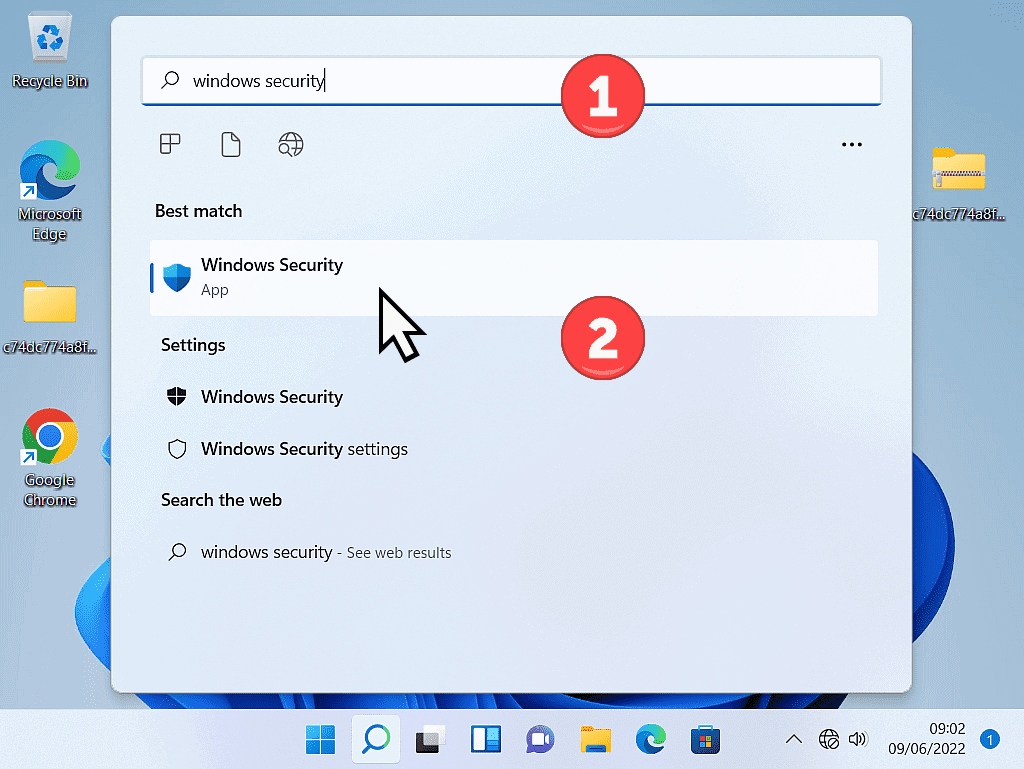
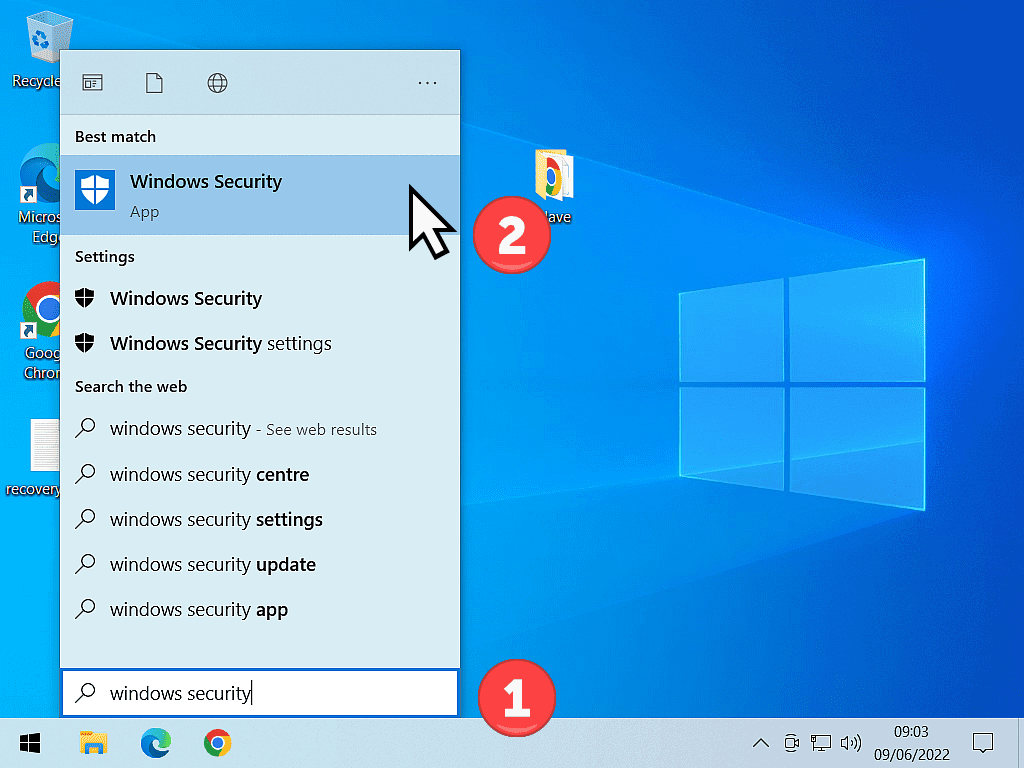
You can also open it from the hidden icons area on your taskbar. Click the small upward arrow next to the clock, then click the shield icon.


What the Windows Security Icon Means
The little shield icon is a quick way to check you’re protected, without opening anything. Look at the small badge on it:
- Green tick: everything’s fine. Nothing needs doing.
- Yellow warning triangle: Windows recommends you do something. You’re usually still protected, but something is out of date or switched off.
- Red cross: something needs your attention now. Your protection may be off.
If you see yellow or red, open Windows Security and look for the section with the same badge. It tells you what’s wrong, and usually gives you a button to fix it.
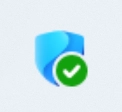
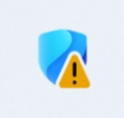
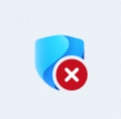
Green means you’re protected, yellow means an action is recommended, and red means act now.
The Security at a Glance Page
When Windows Security opens, you’ll be on the Security at a glance page. This is its home page, and every part of Windows Security is on it:
- Virus & threat protection: the antivirus. This is where you run scans and set up ransomware protection.
- Account protection: sign-in options and your Microsoft account.
- Firewall & network protection: blocks unwanted connections to and from your computer.
- App & browser control: warns you about dangerous downloads, websites and programs.
- Device security: security features built into your computer’s hardware.
- Device performance & health: a quick health check on storage, battery and updates.
- Family options: parental controls for children’s accounts.
The very first thing to do is check that Microsoft Defender is the antivirus protecting your computer. Click the Virus & threat protection title itself.
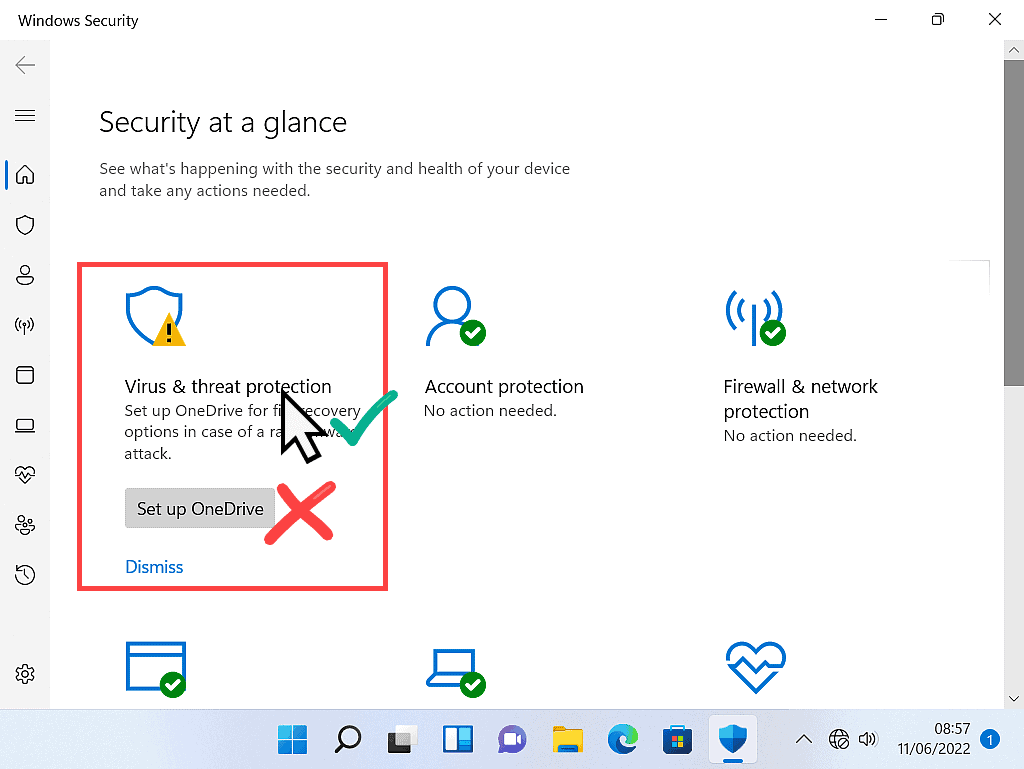
Ignore the OneDrive Button
If there’s a button under a section asking you to Set up OneDrive or sign in with a Microsoft account, you don’t need to click it to be protected. Click the section’s title instead. If the yellow warning bothers you, click Dismiss.
Other Security Options
There are two more security options you can switch on in Windows Security, but they’re a little more involved than this lesson. If you’d like to look at them, see my guides to reputation-based protection and core isolation.
Third Party Anti-Virus
If you’ve got another antivirus program installed, such as McAfee, Norton or Avast, it’s listed here.
In this example, Avast Antivirus is protecting the computer, not Microsoft Defender. When another antivirus program is installed, Microsoft Defender steps aside so the two don’t clash.

Using Another Antivirus Program?
If you see another antivirus program listed, that’s the one you use to scan your computer. Each works a little differently. I have guides for some of the free ones:
- How to Scan Your Computer with Avast Free Antivirus
- How to Scan Your PC with AVG Free Antivirus
- Scan Your Computer for Malware Your Antivirus Missed
You’ll also see Microsoft Defender Antivirus options with a Periodic scanning switch. Turn it on and Defender runs the odd scan as a second opinion, without getting in the way of your main antivirus.
If you don’t have any other antivirus installed, the Virus & threat protection page will look something like this, with no mention of any other program. Microsoft Defender is protecting your computer.
To go back to the Security at a glance page, click the back arrow at the top left of the window.

How to Scan Your Computer with Windows Defender
Windows Security works quietly in the background, checking files as you use them. But just like any other antivirus, it can miss things, and malware can slip through the net. It’s worth getting into the habit of running a scan yourself now and then.
- Open Windows Security and click Virus & threat protection.
- Click the Quick scan button.
- Wait for it to finish. You can carry on using your computer while it runs.
A quick scan usually takes no more than about five minutes, depending on your computer. It checks the places on your computer where malware is most likely to be hiding.

Do You Think You May Be Infected?
If you think your computer might be infected, run a more thorough scan by clicking Scan options, just below the Quick scan button.
Don’t wait for proof. Sometimes it’s just a feeling that something isn’t right. Intuition, if you like. Whatever it is, run a full scan.
Windows Defender Scan Options
Windows Security has four types of scan you can use to find and remove malware. Click Scan options, choose a scan, then click Scan now.
- Quick scan: the one we’ve just looked at.
- Full scan: checks everything on your computer, every file and folder. It can take a long time, often hours. Here’s what to do if a scan takes too long.
- Custom scan: scans just the folder or drive you choose. Handy for checking a USB stick or an external hard drive.
- Microsoft Defender Antivirus (offline scan): some malware is impossible to find or remove while Windows is running. The offline scan restarts your computer and scans it before Windows loads. Save anything you’re working on first.
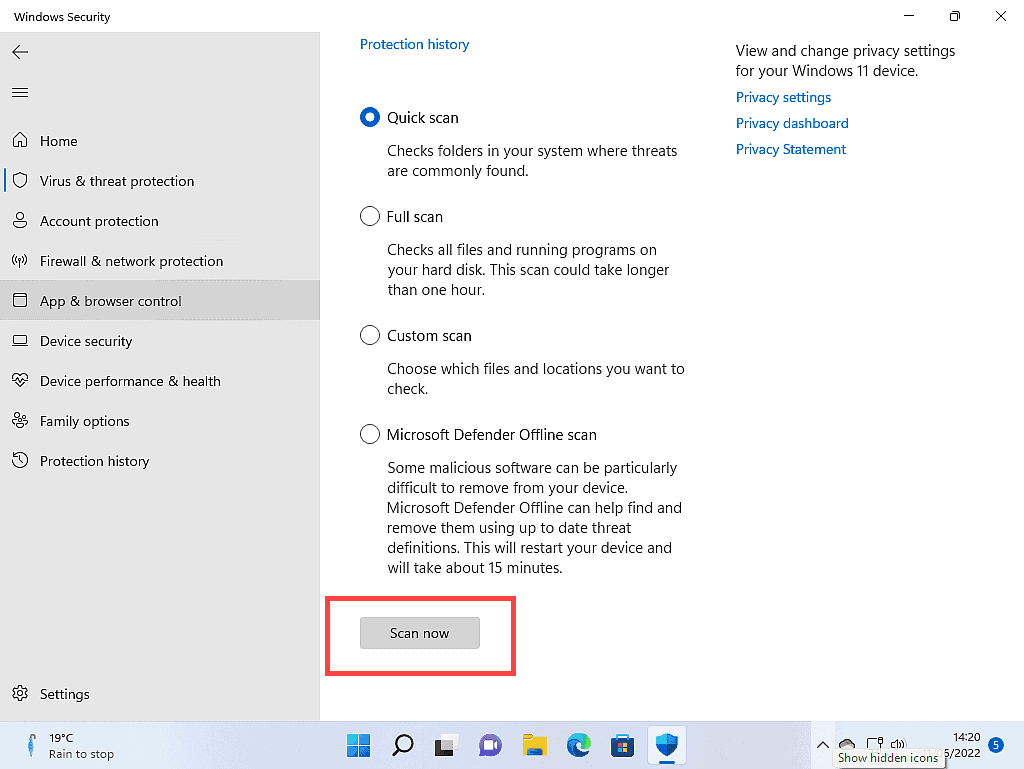
To see what a scan found, and what Windows Security did about it, click Protection history on the left.
Keep Windows Security Up to Date
Windows Security downloads new virus information every day by itself. To check, go to Virus & threat protection, click Protection updates under Virus & threat protection updates, then Check for updates.
Still Using Windows 10?
Microsoft stopped making security updates for Windows 10 itself in October 2025. Microsoft Defender will keep getting its virus updates until October 2028, which helps, but it can’t fix the holes in Windows that are no longer being patched.
Ransomware Protection in Windows Security
Ransomware is one of the nastiest threats you can run into on the internet. It encrypts your files (documents, pictures, videos and so on) so you can’t open them, until, that is, you pay the ransom.
The best protection is not letting it onto your computer in the first place. Windows Security checks the websites you visit and everything you download to keep malware off your system.
But it isn’t perfect. No antivirus is, whether it’s free or paid for. They all have weaknesses.
To protect your most valuable files, you can tell Windows Security to guard certain folders. It’s called Controlled folder access. When a folder is protected, Windows Security tries to stop any untrusted program from changing the files inside it, which stops ransomware encrypting them. That’s the theory, anyway.
How to Set Up Ransomware Protection in Windows Security
Ransomware protection is switched off until you turn it on.
- Open Windows Security and click Virus & threat protection.
- Scroll down to the Ransomware protection section.
- Click Manage ransomware protection.

In the Controlled folder access section, click the switch to turn it on. If a User Account Control box asks for permission, click Yes.


Selecting Which Folders to Protect
Once it’s on, Windows Security protects your Documents, Pictures, Videos, Music and Favourites folders. You can add your own folders to that list.
In the Controlled folder access section, click Protected folders. Again, click Yes if a User Account Control box pops up.
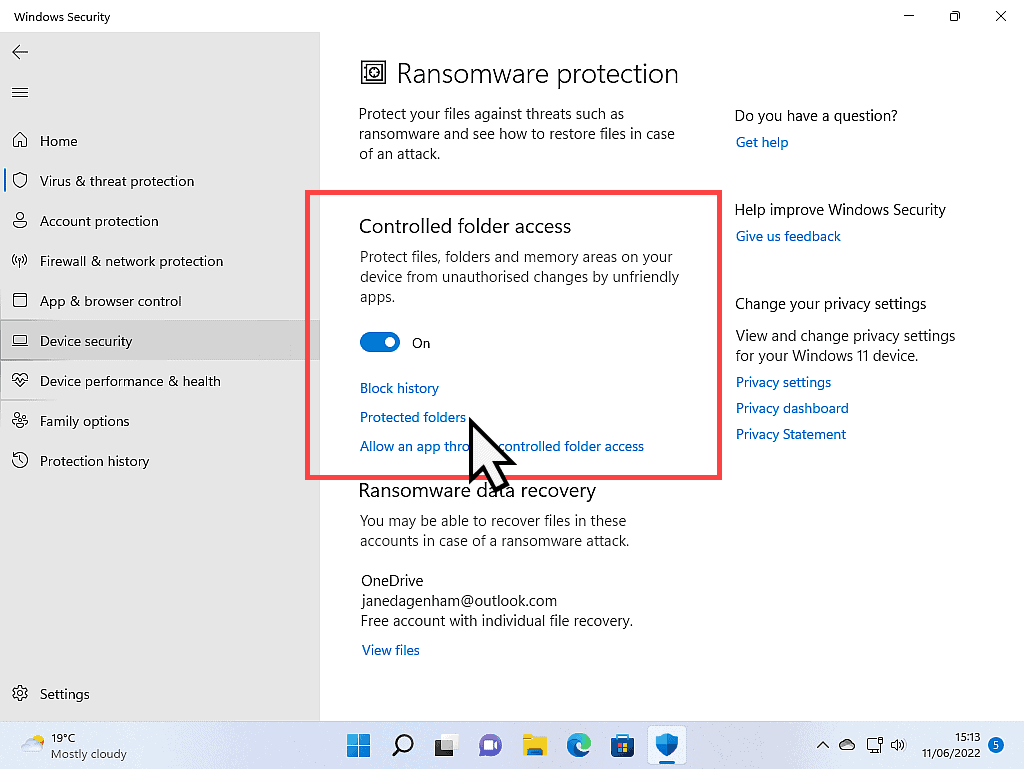
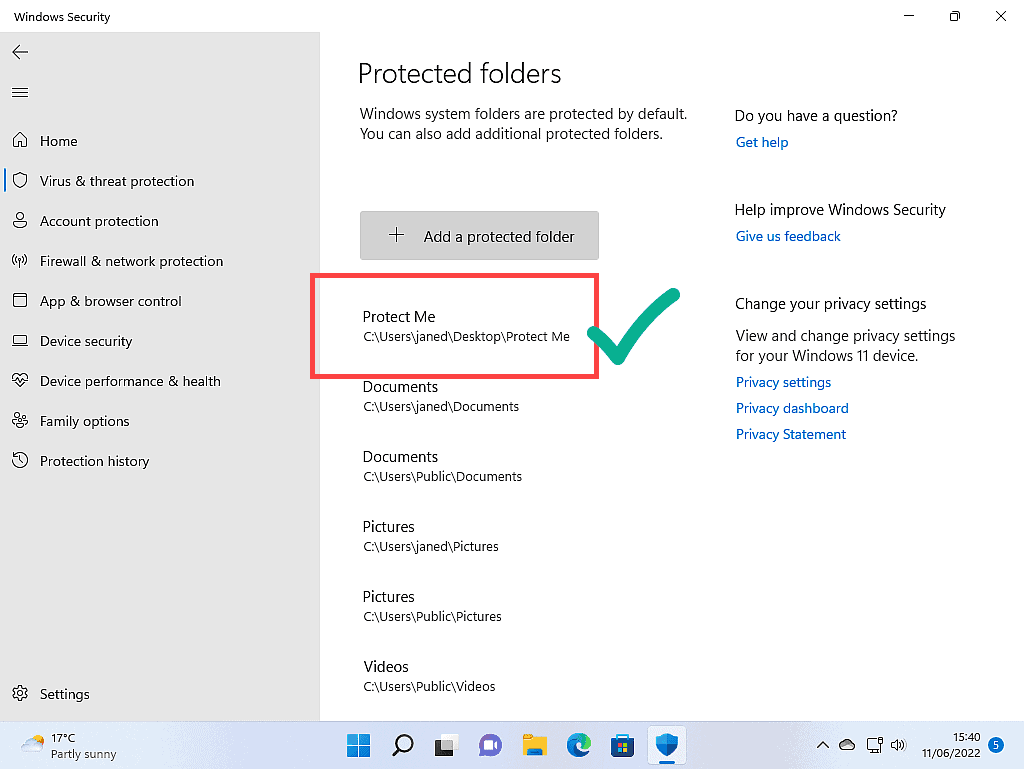
The Protected folders page lists every folder that’s being watched. To add another, click Add a protected folder.

Now find the folder you want to protect, click it once to select it, and click Select Folder. If you need a reminder on finding your way around, see the File Explorer lesson.

The folder you chose appears in the list of protected folders. From now on, Windows Security keeps a close eye on the files inside it, ready to stop anything trying to encrypt them.
You can still use the folder and its files exactly as you normally would. As far as you’re concerned, nothing has changed.
If a Program You Trust Gets Blocked
Now and then Controlled folder access blocks a program you trust, and Windows tells you an unauthorised change was blocked. If you’re sure the program is safe, go back to Manage ransomware protection, click Allow an app through Controlled folder access, and add it.
Ransomware Protection Isn’t a Backup
Controlled folder access makes ransomware much harder, but the only real cure is a copy of your files somewhere else. If you haven’t already, back up your files. We cover backups later in the course.
How to Turn Off Ransomware Protection in Windows Security
You might find that ransomware protection gets in the way, or even stops you using your computer the way you want to.
For example, a program that converts files inside a protected folder can look like malicious activity, so it gets blocked. After all, that’s exactly what ransomware does: it converts your files into encrypted ones.
If it keeps getting in the way, you can simply turn it off:
- Open Windows Security and click Virus & threat protection.
- Scroll down and click Manage ransomware protection.
- Click the Controlled folder access switch to turn it off.

Is Windows Security Good Enough?
For most people at home, yes. It’s no longer the poor relation it once was.
The independent testing labs agree. In AV-TEST’s spring 2026 test of home antivirus programs, Microsoft Defender scored full marks: 6 out of 6 for protection, performance and usability. AV-Comparatives found it blocked 99% of real-world attacks between February and May 2026.
Paid antivirus programs add extras, such as password managers, VPNs and identity monitoring, and some people want those. But you don’t need to pay for the basic protection. I go through the choices in About Anti Virus Software
Troubleshooting
Windows Security Says You Have No Antivirus, or Defender Is Turned Off
This usually happens when a trial of another antivirus, such as the McAfee or Norton that came with a new computer, has run out. Windows still thinks it’s your antivirus, so Defender stays switched off, but the trial isn’t protecting you either.
Either pay for the other antivirus, or uninstall it. Once it’s gone, Microsoft Defender switches itself back on. If it refuses to go, here’s how to uninstall antivirus programs that won’t uninstall.
Two Antivirus Icons on the Taskbar
Two antivirus programs running at the same time can slow your computer down and get in each other’s way. Choose one and uninstall the other. If the one you’re removing is the paid one, check you’re not still paying for it.
A Yellow Warning That Won’t Go Away
Open Windows Security and look for the section with a yellow triangle. Often it’s something you can dismiss, such as setting up OneDrive or signing in with a Microsoft account. If every section is green but the icon is still yellow, restart your computer and check Windows Update. It usually clears itself.
Frequently Asked Questions
Q: Is Windows Security the same as Windows Defender?
A: Yes, more or less. Windows Defender was the old name. Now the app is called Windows Security, and the antivirus inside it is called Microsoft Defender Antivirus.
Q: Is Windows Security free?
A: Yes. It’s part of Windows 11 and Windows 10, and there’s nothing to buy or renew.
Q: Do I need another antivirus if I have Windows Security?
A: For most people at home, no. Independent tests in 2026 gave Microsoft Defender top marks for protection. Paid programs add extras, but the basic protection is already there.
Q: How do I know if Windows Security is turned on?
A: Look at the shield icon in the hidden icons area of the taskbar. A green tick means you’re protected. You can also open Windows Security and check that Virus and threat protection has a green tick.
Q: Does Windows Security still work on Windows 10?
A: Yes. Microsoft Defender keeps getting virus updates on Windows 10 until October 2028. But Windows 10 itself stopped getting security updates in October 2025, so it’s still less safe than Windows 11.
Q: Can I use Windows Security with another antivirus?
A: Yes. When you install another antivirus, Microsoft Defender steps aside so they don’t clash. You can switch on Periodic scanning so Defender still runs the odd scan as a second opinion.
Summary
Windows Security does a good job of protecting your computer from viruses and other malware. It isn’t perfect, but then no antivirus is, and you can still get infected however much your antivirus cost.
I’m not saying you shouldn’t buy protection, just that you shouldn’t feel pressured into it. You already have an effective antivirus on your computer. If you’re still deciding, see which antivirus you should use.
- Check the shield icon now and then. Green means you’re protected.
- Run a Quick scan every so often, and a Full scan if something doesn’t feel right.
- Switch on Controlled folder access to protect your most important files from ransomware.
Antivirus can only do so much. Most scams arrive by email, and in the next lesson I’ll show you how to spot phishing.
Next Lesson
Microsoft Edge Password Manager
Edge has a free password manager built in. How to save passwords and find them.
Course Progress – 28 of 37 lessons completed.
Part of the At Home Beginner Computer Course.
Previous Lesson
Printing Emails in Yahoo, Gmail and Outlook
Because every now and then you’ll need to print an email.
Written by Jeff Porter. I’ve been fixing Windows PCs since 2010 and I’m CompTIA Network+ certified. More about me