
How many passwords do you have? If you’re like most people, far too many to remember, so you end up using the same one everywhere, or writing them all down.
The good news is that Microsoft Edge has a free password manager built in. It remembers your passwords, fills them in for you, makes up strong new ones, and warns you if one has been leaked.
In this lesson I’ll show you how to use the Edge password manager to save your passwords, find them again, keep them safe, and use them on your phone too.
The Short Version
- Sign in to a website as normal. When Edge asks to save your password, click Save.
- Next time you visit, Edge fills in your username and password for you.
- To see your saved passwords, click the three dots at the top right of Edge, then Settings, Passwords and autofill, and Microsoft Password Manager.
- Turn on the Password security check so Edge warns you about leaked passwords.
Table of contents
- What Is the Edge Password Manager?
- How to Save a Password in Edge
- How Edge Fills In Your Passwords
- How to Find Your Saved Passwords in Edge
- Create Strong Passwords with the Password Generator
- Check Your Passwords for Leaks
- Use Your Edge Passwords on Your Phone
- Move Your Passwords Into or Out of Edge
- Using LastPass, Bitwarden or 1Password with Edge
- Is the Edge Password Manager Safe?
- Troubleshooting
- Frequently Asked Questions
- Summary
What Is the Edge Password Manager?
A password manager is a safe place to keep all your passwords. Instead of remembering them, you let the password manager remember them for you and fill them in when you need them.
Edge’s password manager is called Microsoft Password Manager. It’s part of Microsoft Edge on Windows 11 and Windows 10, and it’s completely free. It can:
- save your username and password when you sign in to a website
- fill them in for you next time
- suggest a strong password when you create a new account
- check your saved passwords for leaks, reuse and weak ones
- sync your passwords to Edge on your phone and your other computers
To get all of that, you need to sign in to Edge with your Microsoft account. A personal Microsoft account is what backs your passwords up and syncs them to your other devices.
It’s Moved: Where Edge Keeps Your Passwords Now
If you’ve followed older instructions that told you to look in Wallet, or under Profiles and Passwords, that’s why you couldn’t find anything. Microsoft retired Wallet in Edge in 2025, and your passwords are now under Settings, Passwords and autofill. Nothing was lost in the move.
And if you used to fill in passwords with the Microsoft Authenticator app on your phone, Microsoft switched that off in August 2025. Those passwords live in Edge now.
How to Save a Password in Edge
You don’t need to set anything up. Edge offers to save your password the first time you sign in to a website.
- Go to a website and sign in with your username (or email address) and password as normal.
- A small box appears at the top right of Edge, asking if you want to save your password.
- Check the username is right, then click Save.
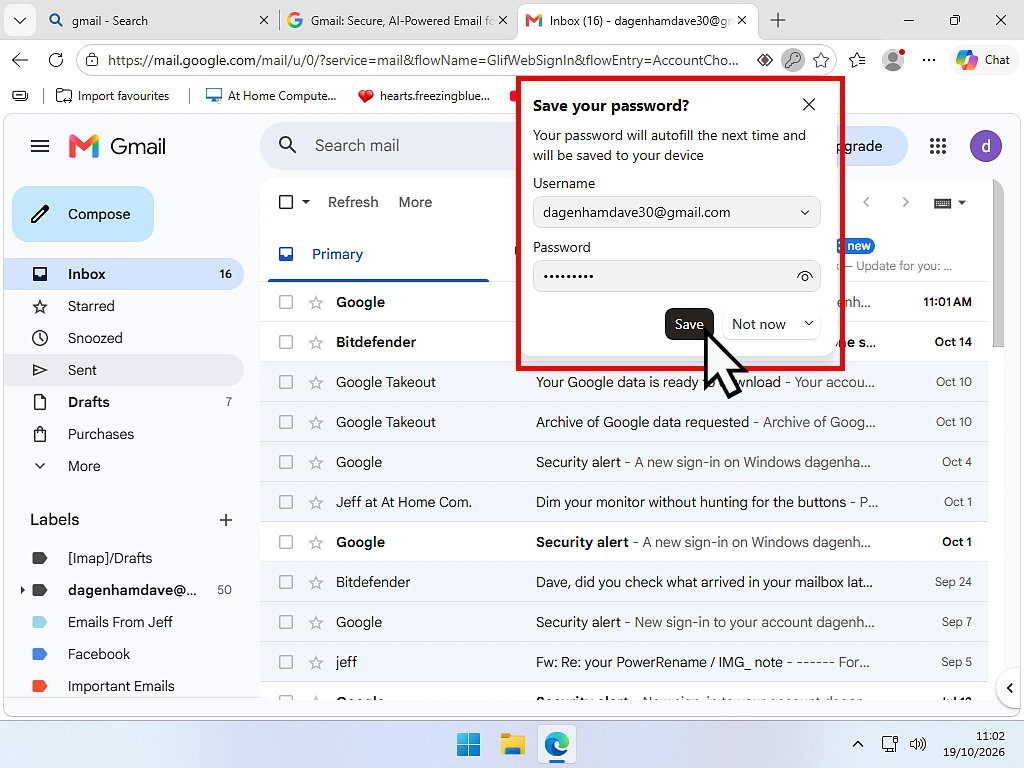
If you change your password on a website later, Edge notices and offers to update the one it’s saved. Click Update and it’s done.
Clicked Not Now by Mistake?
If you tell Edge not now it won’t save your password this time but you’ll see the popup appear next time you sign in to this website.
If you don’t want Edge to save your password ever and stop the popup appearing, click the drop down arrow beside Not now and select Never, it won’t ask again for that site. You can undo that from the list of sites that are never saved, at the bottom of the Microsoft Password Manager page.
How Edge Fills In Your Passwords
The next time you go to the website, Edge fills in your username and password for you. All you have to do is click the sign-in button.
If you’ve saved more than one account for the same website, click in the username box and pick the one you want from the list.
A Handy Way to Spot Fake Websites
Edge only fills in your password on the real website it was saved for. If you’ve clicked a link in an email and Edge doesn’t fill in your password, stop and check the address. It could be a fake site trying to steal your details. That trick is called phishing, and we cover it later in the course.
Ask for Your Windows PIN Before Filling In Passwords
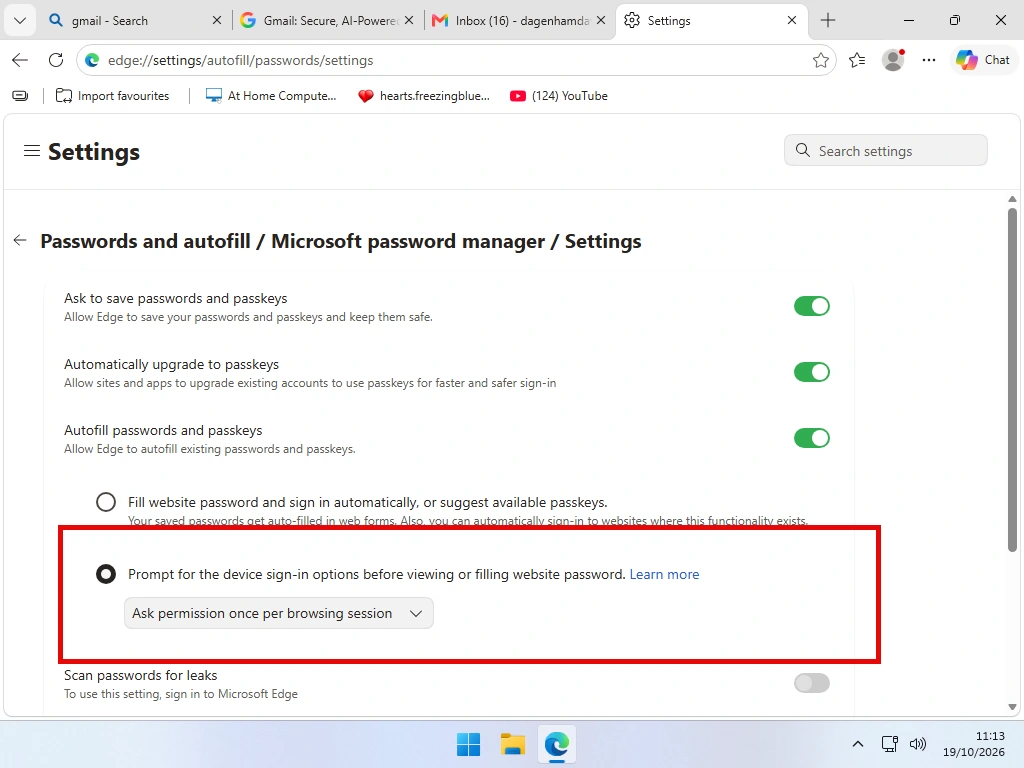
If other people use your computer, you can make Edge ask for your Windows PIN (or your fingerprint or face, if you use Windows Hello) before it fills in or shows a password.
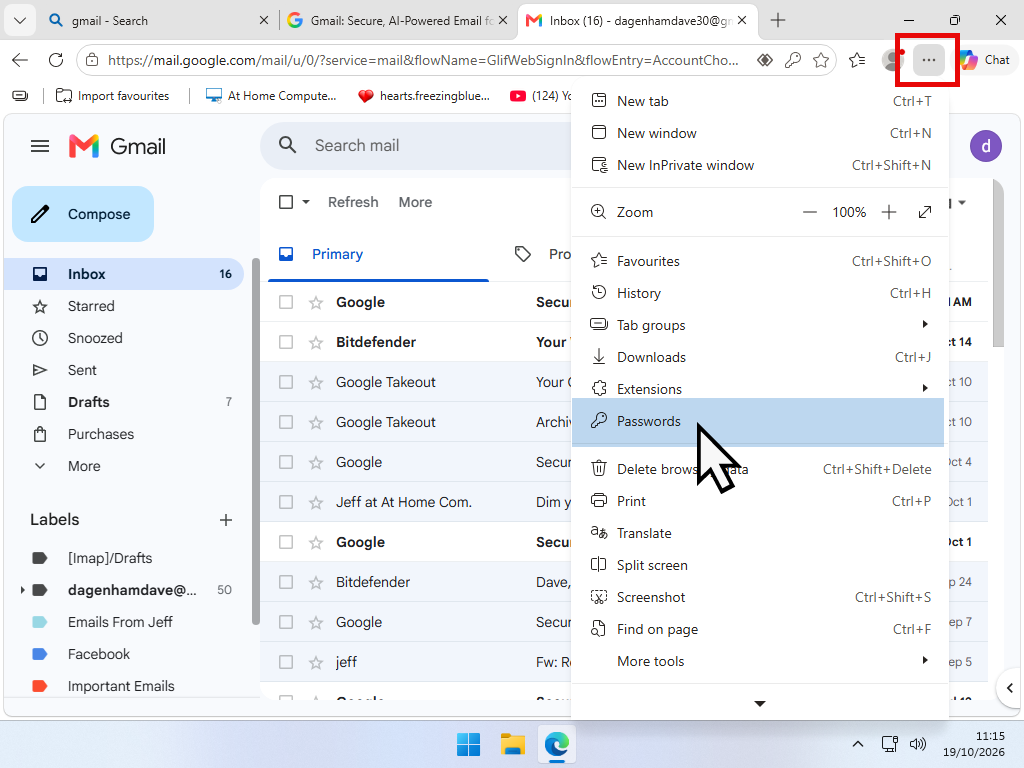
- Click the three dots at the top right of Edge, then Settings.
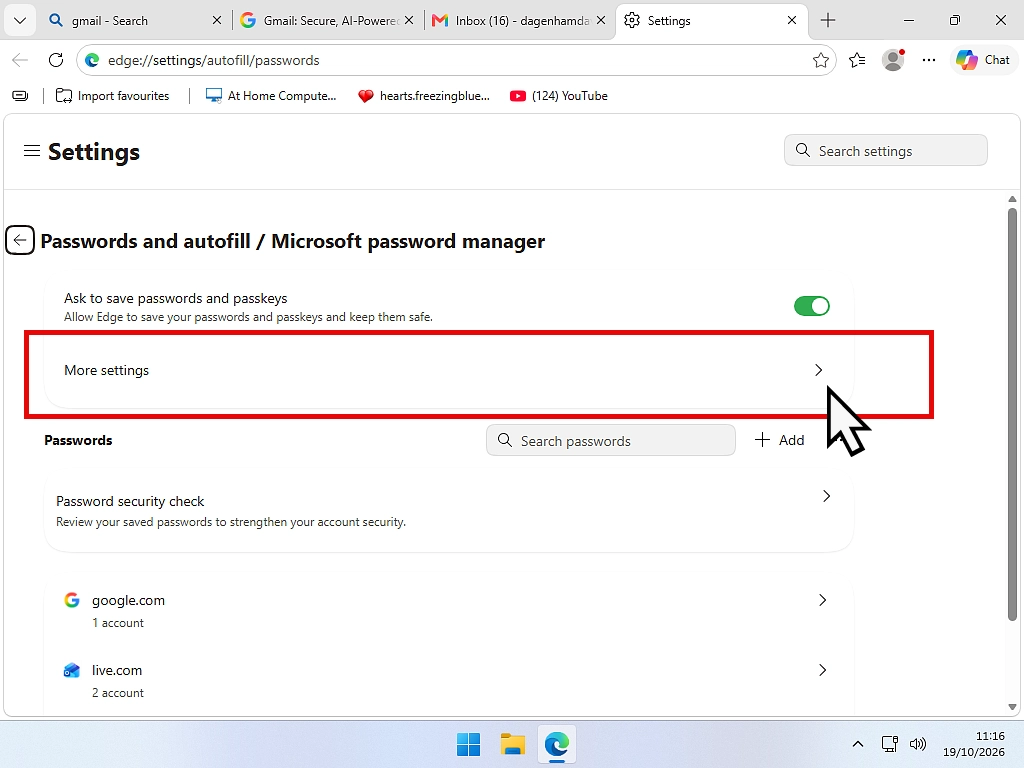
- On the menu click Passwords.
- The Passwords and autofill / Microsoft password manager page will open. Click More settings
- Find the option that asks for your device sign-in before viewing or filling passwords, and turn it on.
How to Find Your Saved Passwords in Edge
Forgotten a password? Edge can show it to you.
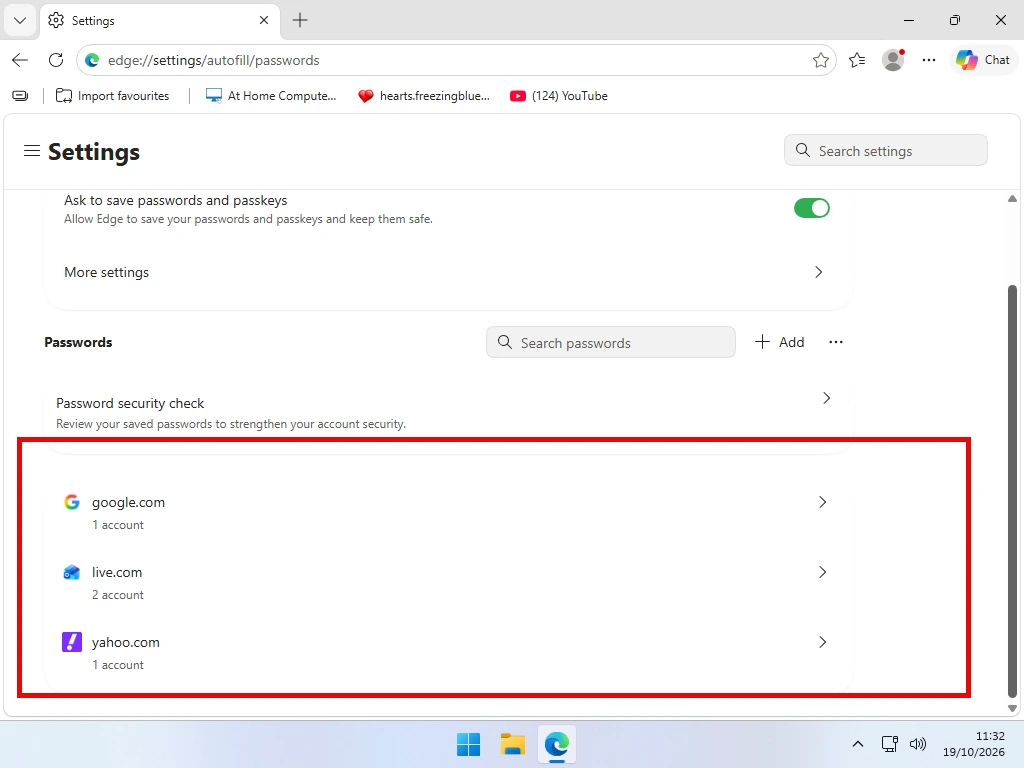
- Click the three dots (Settings and more) at the top right of Edge.
- Click Passwords.
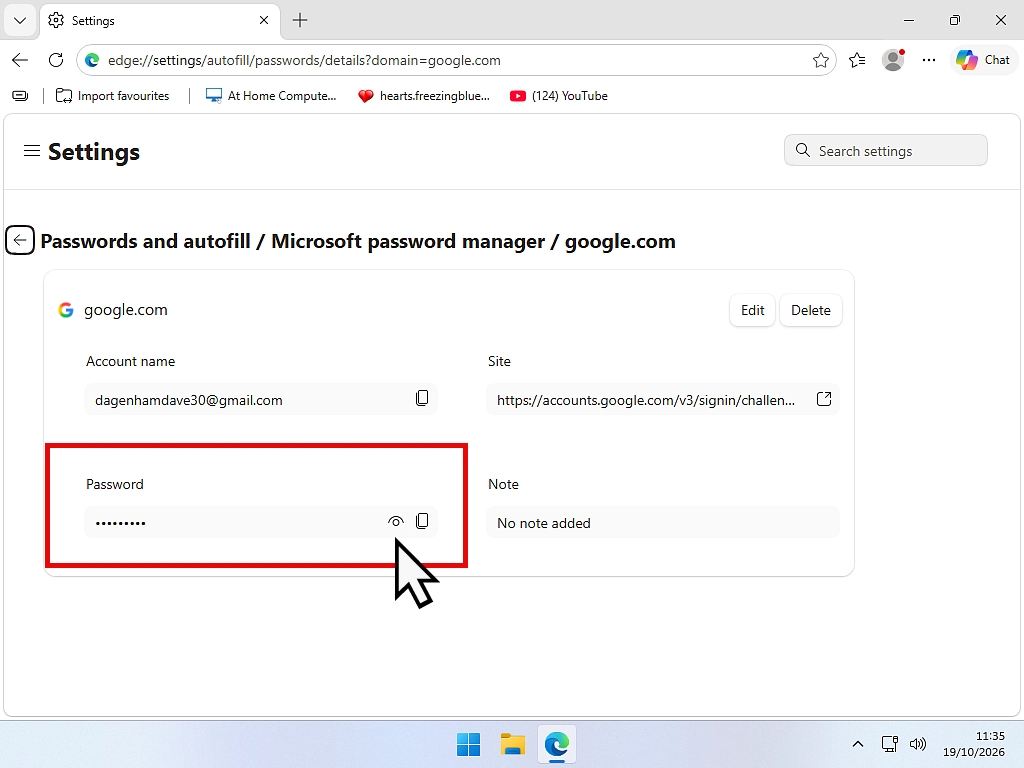
- You’ll see a list of every website you’ve saved a password for. Click the arrow next to the one you want.
- Windows may ask for your PIN or password to prove it’s you.
- Click the eye icon to show the password.
How to Change a Saved Password
Open the entry as above, click Edit, make your change and click Save.
Be aware that this only changes what Edge has saved. It doesn’t change your password on the website itself. To do that, change it on the website first. Edge then offers to update the saved one for you.
How to Delete a Saved Password
Open the entry and click Delete. If you sync your passwords, it’s deleted from your other devices too.
Create Strong Passwords with the Password Generator
When you create a new account, or change a password, Edge can make up a strong one for you, a long random mix of letters, numbers and symbols that nobody could guess.
- Go to the website’s sign-up page (or its change password page).
- Click in the password box. Edge shows a suggested strong password underneath it.
- Click the suggestion. Edge fills it in and saves it for you.
If no suggestion appears, right-click in the password box and choose Suggest strong password.
You Don’t Need to Remember It
That’s the whole point. Edge remembers it for you, and you can always look it up in the password manager if you need to type it on another device.
Check Your Passwords for Leaks
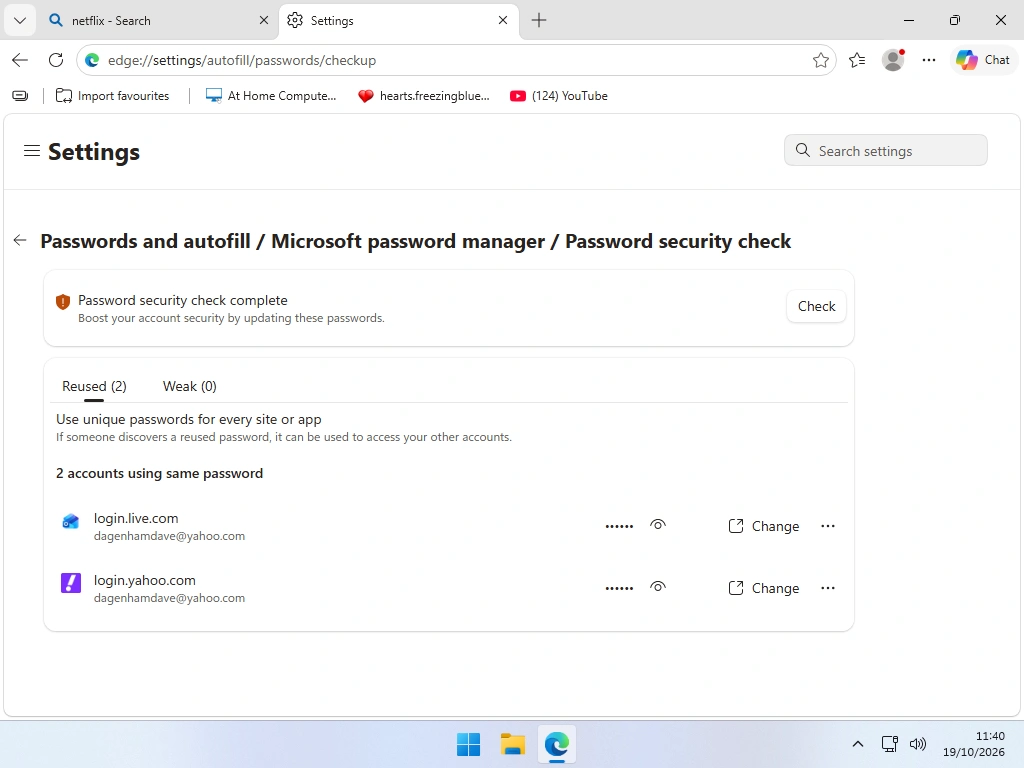
Websites get hacked, and when they do, usernames and passwords can end up for sale. Edge’s Password security check (it used to be called Password Monitor) compares your saved passwords against lists of leaked ones and warns you.
- Open Settings, Passwords and autofill, then Microsoft Password Manager.
- Click Password security check.
- Turn on the leaked password scan.
Edge then lists any passwords that have been leaked, reused on more than one website, or are weak. Click Change next to one, and Edge takes you to that website so you can change it.
Start with the Important Ones
If the list is long, don’t panic. Change your email password first, then your bank and shopping accounts. Whoever gets into your email can reset everything else.
Use Your Edge Passwords on Your Phone
Your passwords can follow you to your phone or tablet, as long as you use the same Microsoft account.
- On your computer, open Edge Settings, click Profiles, then Sync, and check Passwords is switched on.
- Install Microsoft Edge on your phone from the Google Play Store or the App Store.
- Open Edge on your phone and sign in with the same Microsoft account.
Your passwords appear in Edge on your phone, and it fills them in on websites just like it does on your computer.
Fill In Passwords in Other Apps
Edge can also fill in your passwords in other apps on your phone, such as your bank’s app. You have to tell your phone to use Edge for this:
- Android: open Settings, search for Autofill, and choose Edge.
- iPhone or iPad: open Settings, General, AutoFill & Passwords, and turn on Edge.
Move Your Passwords Into or Out of Edge
Import Your Passwords from Chrome
If you’ve been using Chrome and Google Password Manager, you can bring all your passwords across to Edge in one go.
- Open Edge Settings and click Profiles.
- Click Import browser data.
- Choose to import from Google Chrome.
- Tick Saved passwords (and anything else you want, such as your favourites), then click Import.
Export Your Passwords
You can also save all your passwords to a file, for example to move them to another password manager. On the Microsoft Password Manager page, click the three dots (More) and choose Export passwords.
Be Careful with That File
The file is a plain spreadsheet. Anyone who opens it can read every password in it. Import it where you need it, then delete it, and empty the Recycle Bin.
Using LastPass, Bitwarden or 1Password with Edge
You don’t have to use Edge’s own password manager. LastPass, Bitwarden, 1Password and the rest all work in Edge as add-ons (extensions).
- Get the add-on from the Edge Add-ons store, or the password manager’s own website.
- Sign in to it with your account for that password manager.
- Turn off Edge’s own offer to save passwords, so you don’t get two pop-ups every time you sign in. It’s under Microsoft Password Manager, More settings, Ask to save passwords and passkeys.
Do You Need One?
For most people who use Edge on their computer and phone, Edge’s own password manager is all you need, and it’s free.
A separate password manager makes more sense if you use different browsers, such as Chrome at work and Safari on an iPhone, or if you want to share passwords safely with your family. If you use Chrome, see my guide to Google Password Manager instead.
Is the Edge Password Manager Safe?
Yes, for most people it’s far safer than the alternatives, such as using the same password everywhere or keeping a list next to the computer.
- Your passwords are encrypted, and locked to your Windows account. Someone who steals the hard drive can’t read them.
- Synced passwords are encrypted on your computer before they leave it, and stay encrypted on Microsoft’s servers.
- The Password security check warns you if one of your passwords turns up in a leak.
What it can’t protect against is someone using your computer while you’re signed in, or malware running on your computer. So:
- lock your computer when you walk away (press the Windows key and L)
- turn on the Windows PIN check before filling passwords, shown above
- give everyone who uses the computer their own user account
- keep your antivirus switched on and up to date
- protect your Microsoft account with two-step verification, because it’s the key to all your synced passwords
Troubleshooting
Edge Isn’t Offering to Save Passwords
Go to Microsoft Password Manager, More settings, and check Ask to save passwords and passkeys is turned on. If it’s just one website, check it isn’t in the never-saved list. Some websites, often banks, block password saving on purpose.
My Saved Passwords Have Disappeared
Check you’re signed in to Edge with the same Microsoft account as before (click your picture at the top left of Edge). If you have more than one profile, you may be in the wrong one. Your passwords weren’t deleted when Wallet was retired, they just moved to Passwords and autofill.
Edge Fills In an Old Password
You’ve changed the password on the website but not in Edge. Open the entry in the password manager, click Edit and type the new one, or delete the old entry and let Edge save it again next time you sign in.
I Can’t See Microsoft Password Manager
Microsoft Password Manager needs a personal Microsoft account. If Edge is signed in with a work or school account, your employer or school controls it and may have switched it off.
Frequently Asked Questions
Q: Where are my saved passwords in Microsoft Edge?
A: Click the three dots at the top right of Edge, then Settings, Passwords and autofill, and Microsoft Password Manager. Click the arrow next to a website and then the eye icon to show its password.
Q: Is the Edge password manager free?
A: Yes. It’s built into Microsoft Edge on Windows 11 and Windows 10, and there’s nothing to buy.
Q: Is it safe to save passwords in Edge?
A: For most people, yes. Your passwords are encrypted and locked to your Windows account, and synced passwords are encrypted too. Lock your computer when you leave it, and turn on the Windows PIN check before filling passwords if other people use your computer.
Q: What happened to Wallet in Microsoft Edge?
A: Microsoft retired Wallet in 2025. Your passwords, payment cards and personal details are now under Settings, Passwords and autofill. Nothing was lost.
Q: Can I use my Edge passwords on my phone?
A: Yes. Install Edge on your phone and sign in with the same Microsoft account, with password sync turned on. You can also set Edge as the app that fills in passwords in other apps.
Q: Can I move my passwords from Chrome to Edge?
A: Yes. In Edge, go to Settings, Profiles, Import browser data, choose Google Chrome and tick Saved passwords.
Q: Does the Edge password manager work in Chrome or Firefox?
A: No, it only works in Microsoft Edge. If you use more than one browser, a separate password manager such as Bitwarden or 1Password works in all of them.
Summary
The password manager in Microsoft Edge is free, it’s already on your computer, and it takes the hard work out of passwords:
- Click Save when Edge offers, and it fills in your password next time.
- Find your saved passwords under Settings, Passwords and autofill, Microsoft Password Manager.
- Let Edge suggest strong passwords for new accounts.
- Turn on the Password security check and change anything it flags.
- Sign in to Edge on your phone to take your passwords with you.
Use a different, strong password for every website and let Edge remember them. It’s one of the simplest things you can do to stay safe online.
Next Lesson
What Is Phishing? How to Spot a Phishing Email
Phishing is the name given by scammers (fraudsters) to their attempts to steal sensitive information from you, or to trick you into paying them money.
Course Progress – 29 of 37 lessons completed.
Part of the At Home Beginner Computer Course.
Previous Lesson
Windows Security Antivirus
Windows Security (sometimes known as Windows Defender) is the anti virus already installed on your computer.
Written by Jeff Porter. I’ve been fixing Windows PCs since 2010 and I’m CompTIA Network+ certified. More about me