OneDrive is a powerful cloud syncing tool that’s built into both Windows 10 and Windows 11. But its “two-way sync” feature can be a double-edged sword. If you delete a file in one place, such as from the cloud, it disappears everywhere, such as from your computer.
In this guide I’ll show you how to delete files from OneDrive without losing any of your data.
How To Delete Files In OneDrive
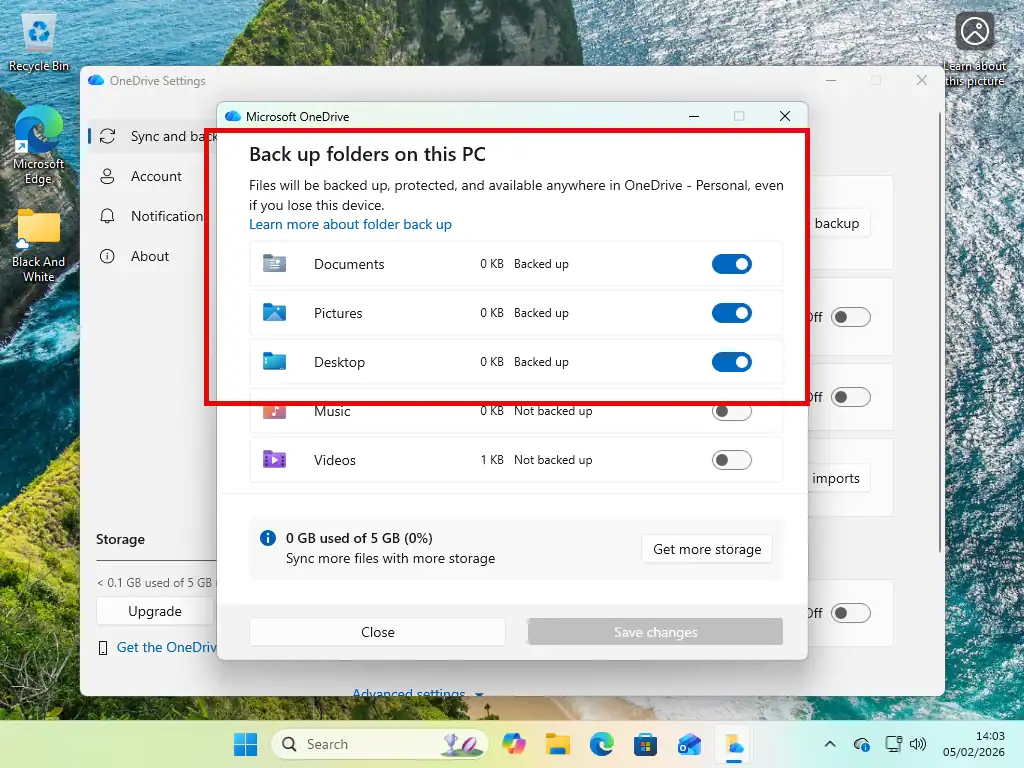
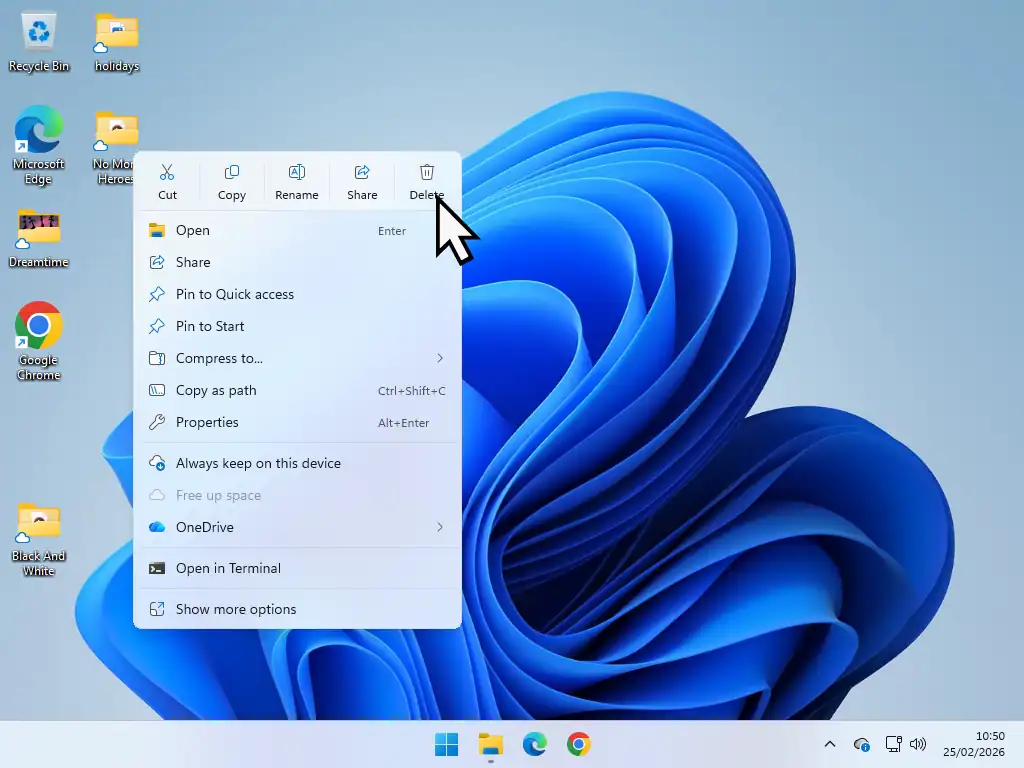
The files that are stored in your OneDrive cloud are linked to the files on your computer. By default OneDrive will sync everything stored in your Desktop, Documents and Pictures folders to the cloud. So simply deleting a file or folder from one of these folders will automatically delete it from OneDrive.
Delete Files From Everywhere
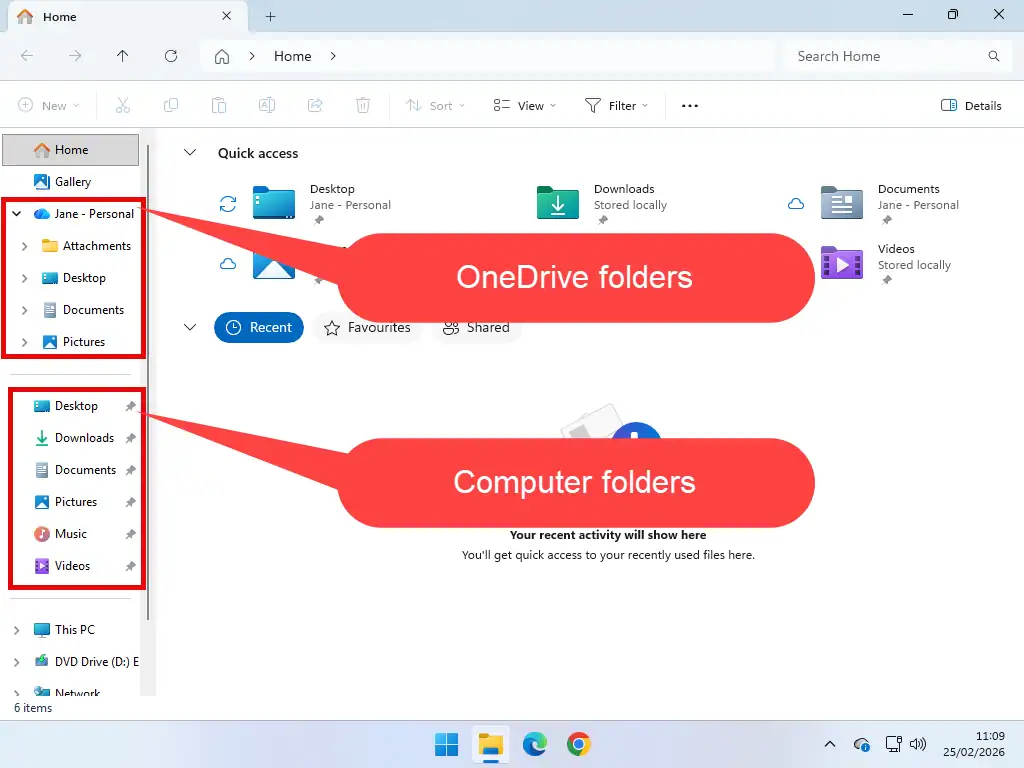
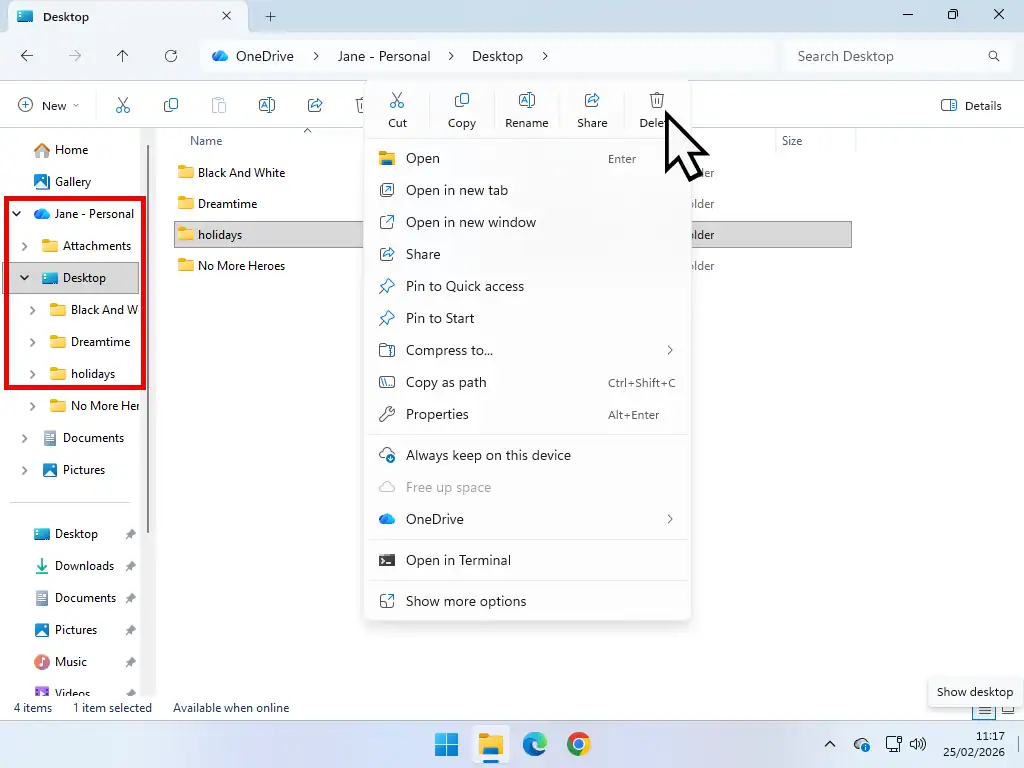
Where OneDrive gets confusing is when you open File Explorer. It appears that the folders in OneDrive are separate from your computer folders. But they’re not. They’re the same folders.
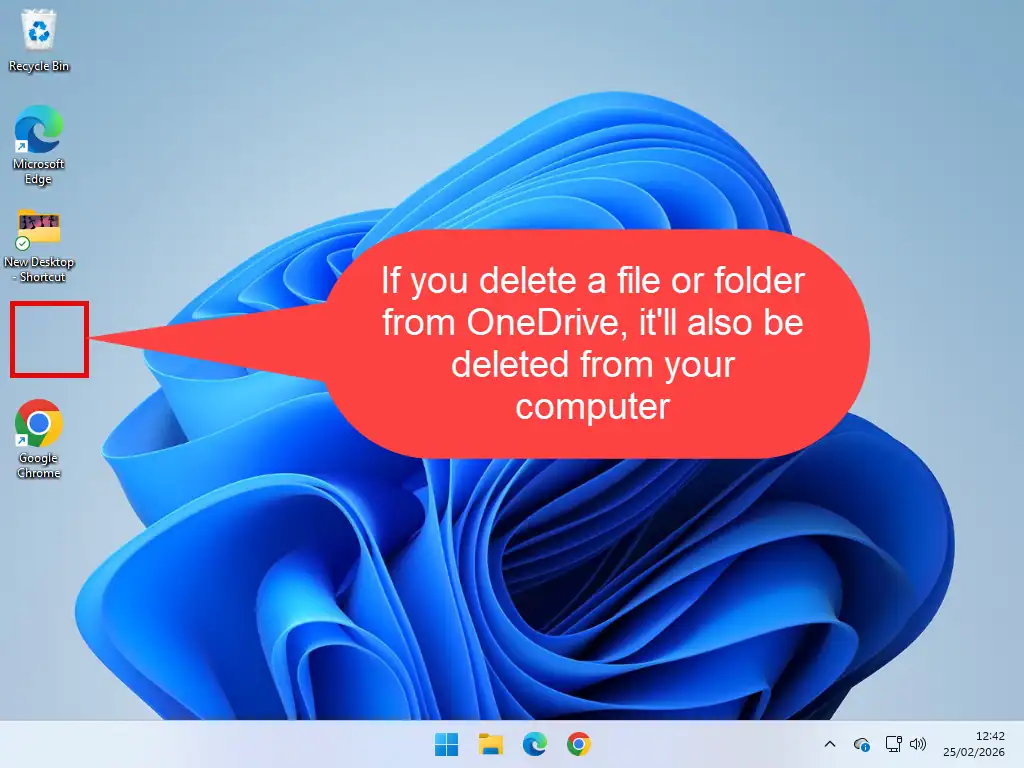
If you delete a file or folder from OneDrive, it’ll also be deleted from your PC. This is how many people end up losing their files. For a complete guide on OneDrive read What Is OneDrive And What Does It Do
How To Delete Files From OneDrive But Keep Them On Your PC
There are many reasons why you might want to remove files from OneDrive. One of the most common is simply that it’s full What To Do When OneDrive Is Full.
But if you just want to move a file or folder out of OneDrive but still keep it on your computer, then the best way is to move it into a different folder. One that isn’t being synced by OneDrive.
So assuming that on your computer OneDrive is syncing your Desktop, Documents and Pictures folders, then you could create a new folder on your C: drive to store the files that you don’t want OneDrive to store in the cloud.
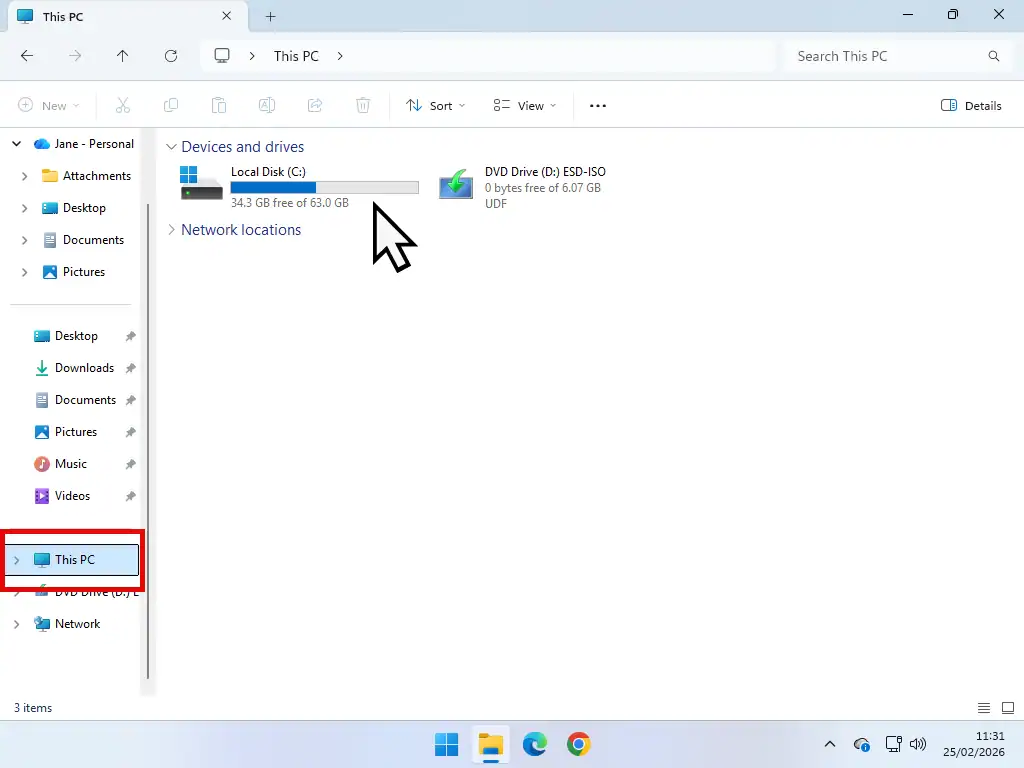
- Open File Explorer and click This PC in the left hand panel. Then double left click on your system drive (usually the C: drive).
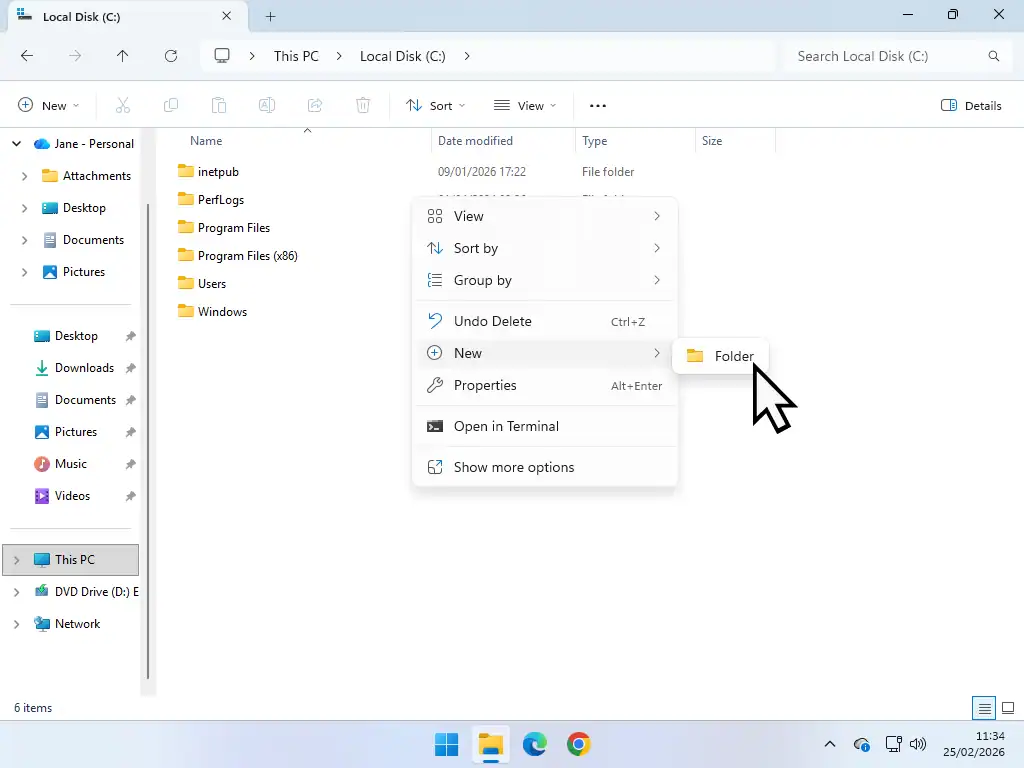
- Create a new folder by pressing CTRL + Shift + N simultaneously. Name the folder something descriptive so that you’ll know what it is, e.g. New Desktop, New Documents etc.
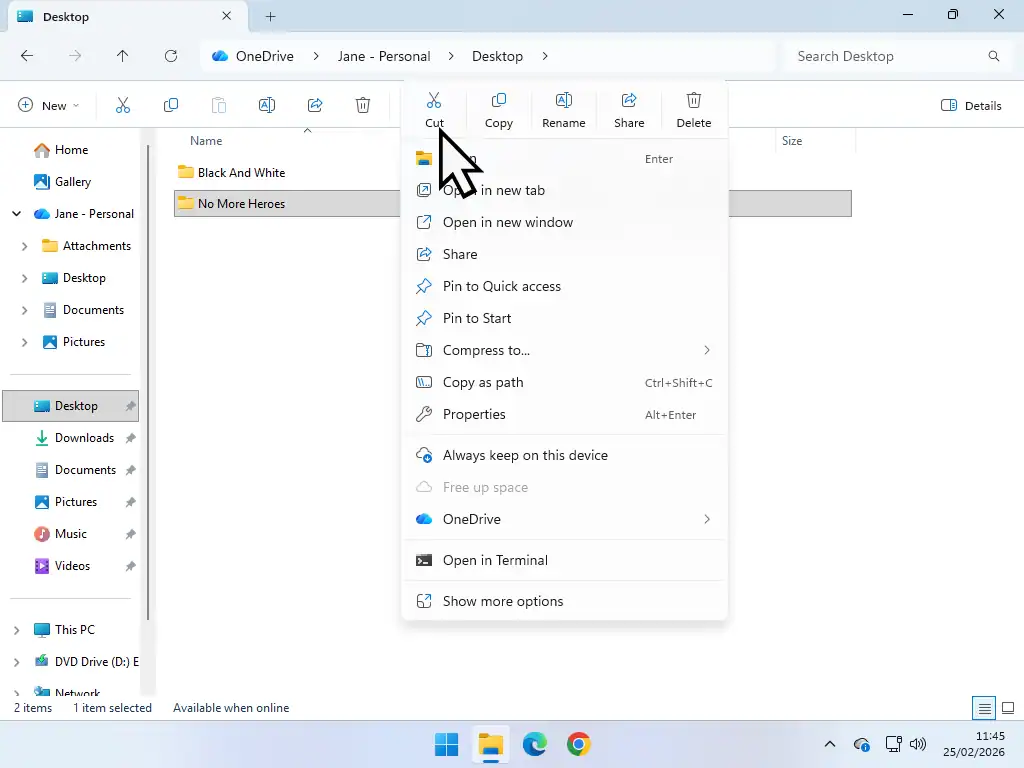
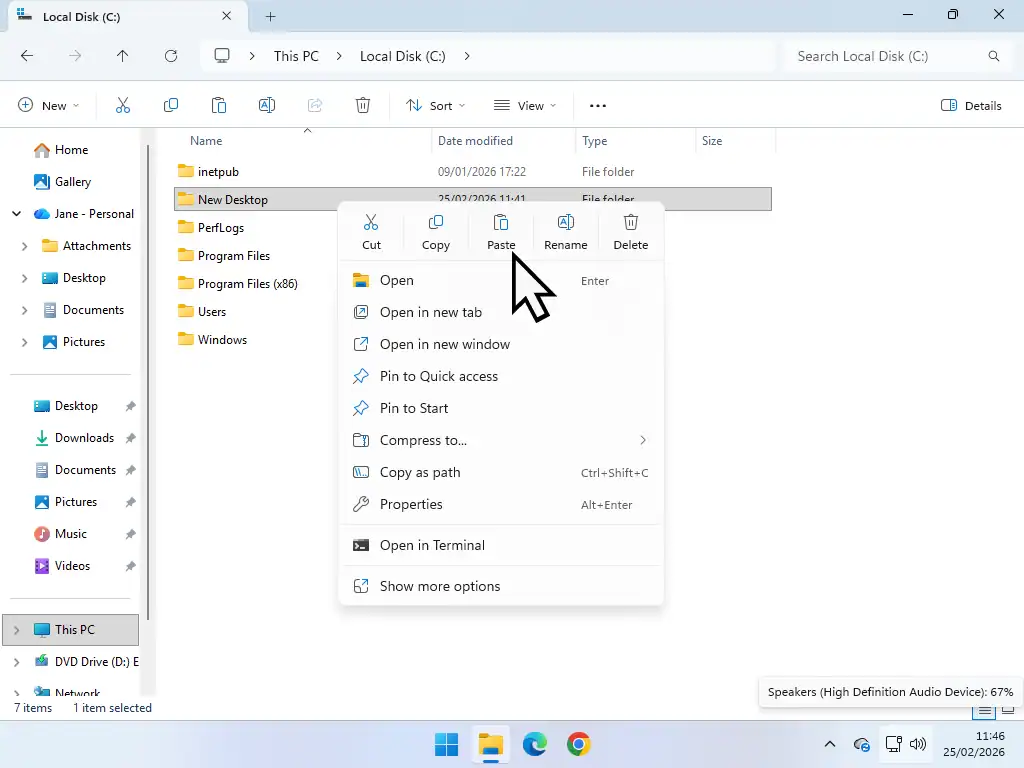
- Next cut and paste the files and folders that you want deleted from OneDrive but need to stay on your computer into the new folder that you just created.
- Since your new folder isn’t being synced by OneDrive, anything that you move in to it will be deleted from OneDrive. Just be sure to use cut and paste, not copy and paste.
Moving Files Out Of OneDrive
What you’re doing here is moving your data out of OneDrive synced folders to a folder that isn’t. In that way you’re effectively deleting the files from OneDrive while keeping them on your computer.
Create A Shortcut
To make accessing your new folder easier and quicker you can also create a shortcut to it from your Desktop and also pin it to the Quick Access area of File Explorer.
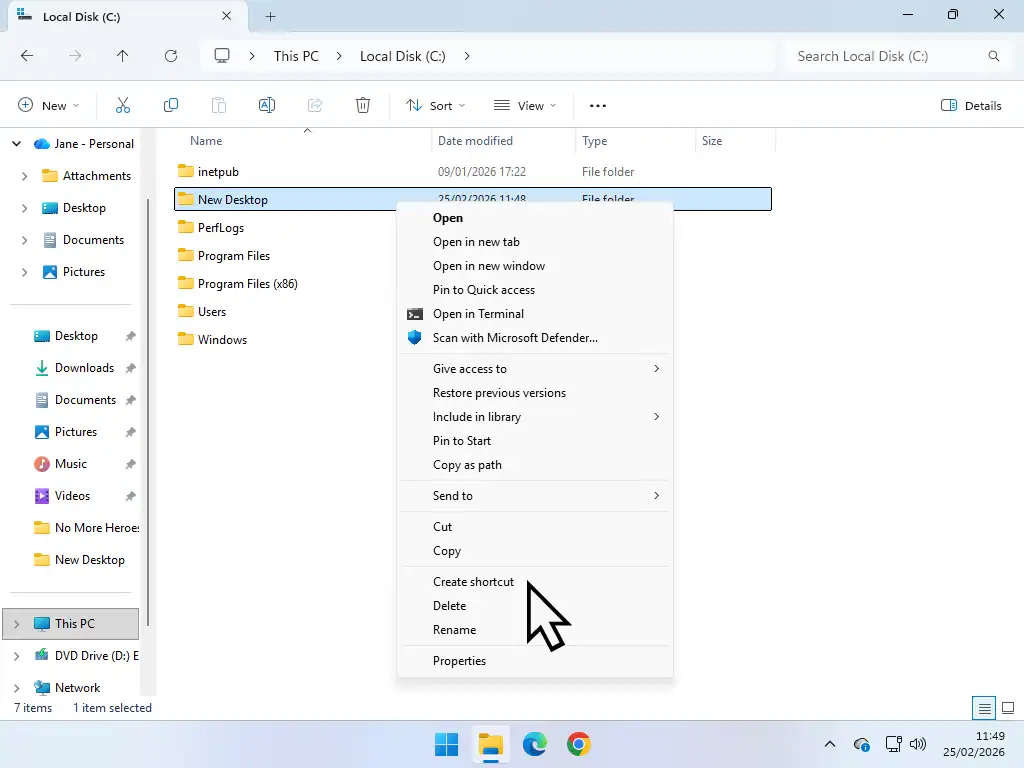
- To create a shortcut to the new folder, right click on it then left click Create Shortcut. If you’re using Windows 11 you might have to click Show More Options first.
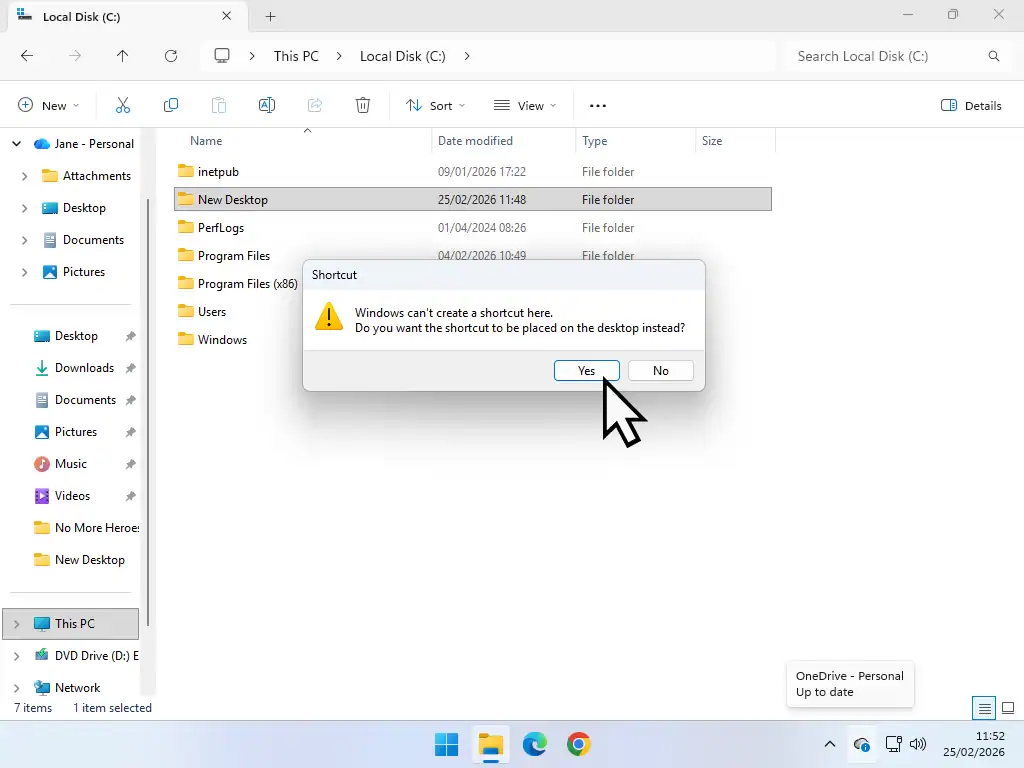
- Windows will warn you that it can’t create a shortcut here. Click the Yes button to have the shortcut placed on your desktop.
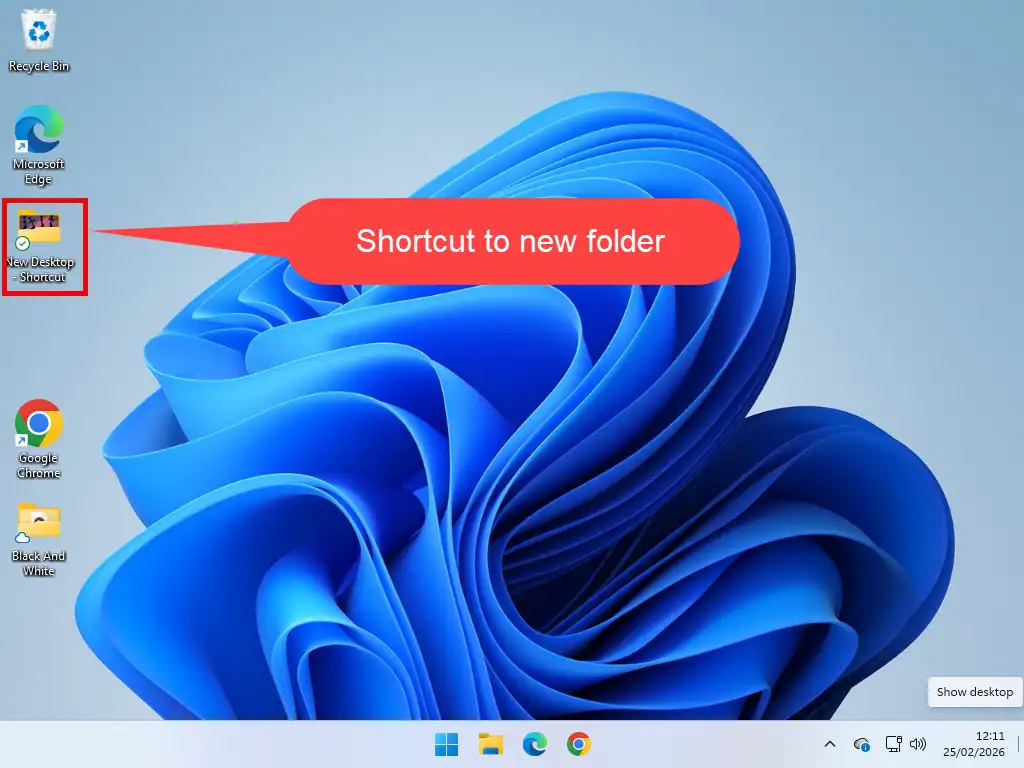
- Returning to your desktop you’ll see the newly created shortcut that leads directly to your new folder. You can also pin the shortcut to your Start menu and/or taskbar.
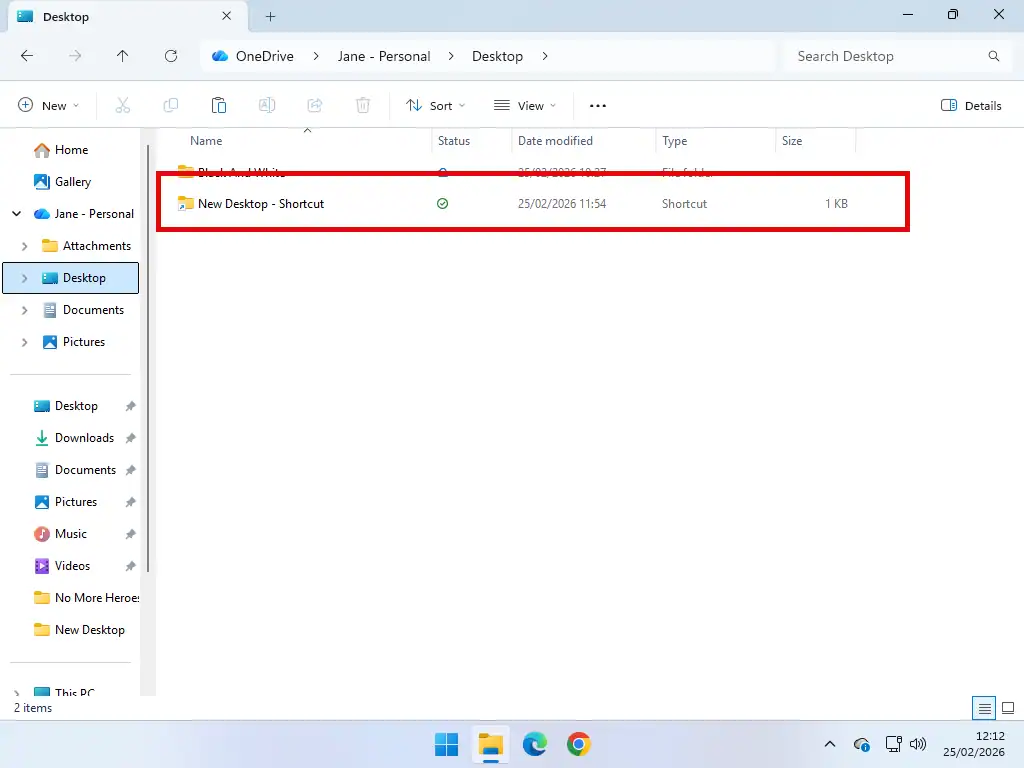
- If you open File Explorer you’ll see that the shortcut has been added to OneDrive. But it’s only the shortcut, not the folder or its contents. Anything that you save into this new folder won’t be synced to OneDrive.
Pin To Quick Access In File Explorer
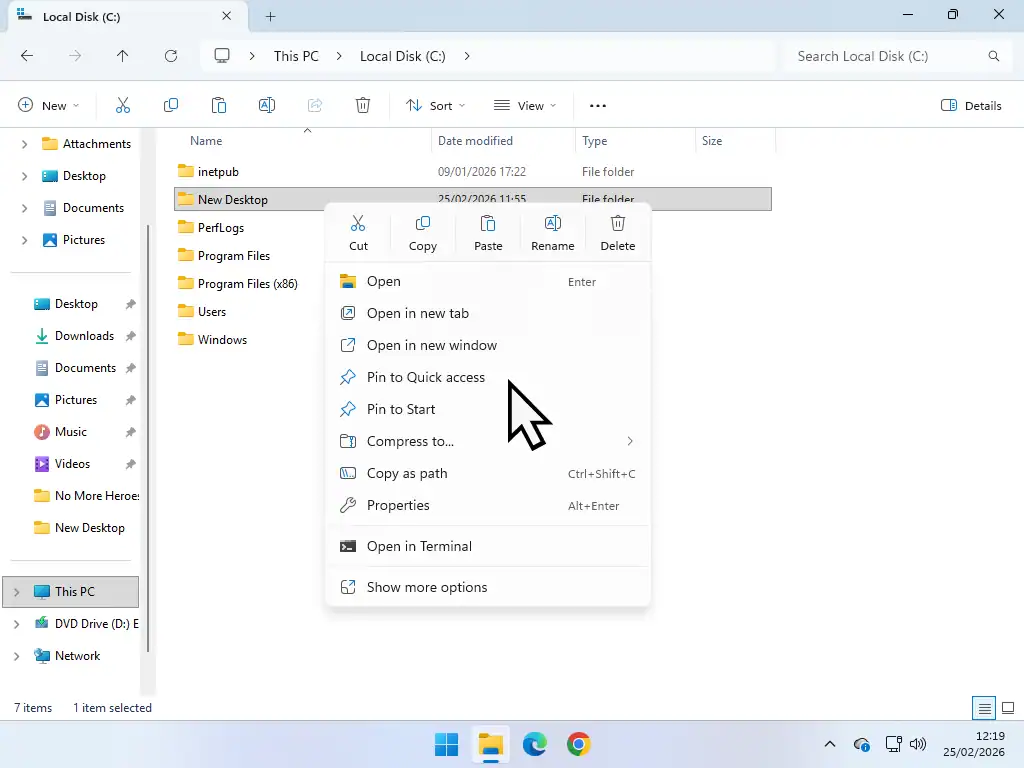
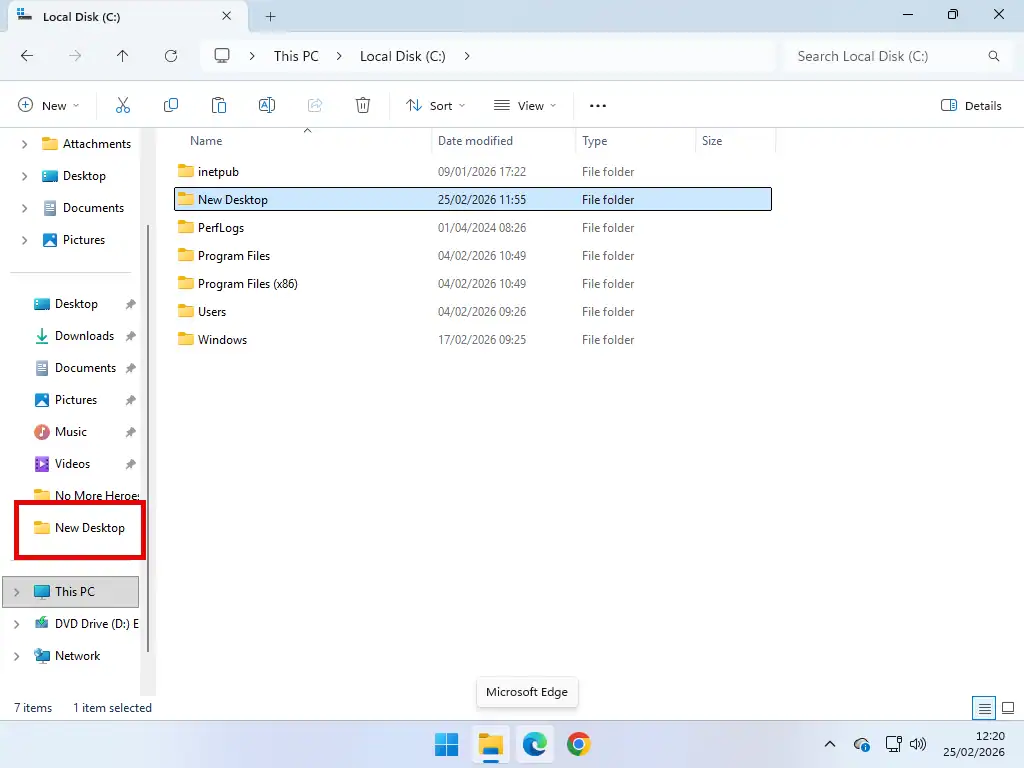
You can also pin the shortcut to your Quick Access area of File Explorer. Right click the folder and then left click Pin To Quick Access.
Deleting Files From OneDrive Online
You can use your web browser to sign in to your OneDrive account and then delete files online. But you do need to be careful when you’re doing this because the files will also be deleted from your computer. Is that what you really wanted to do? If not then you’d be better off following the guide above to move files out of OneDrive.
To delete files and folders from OneDrive online, log in to your account then –
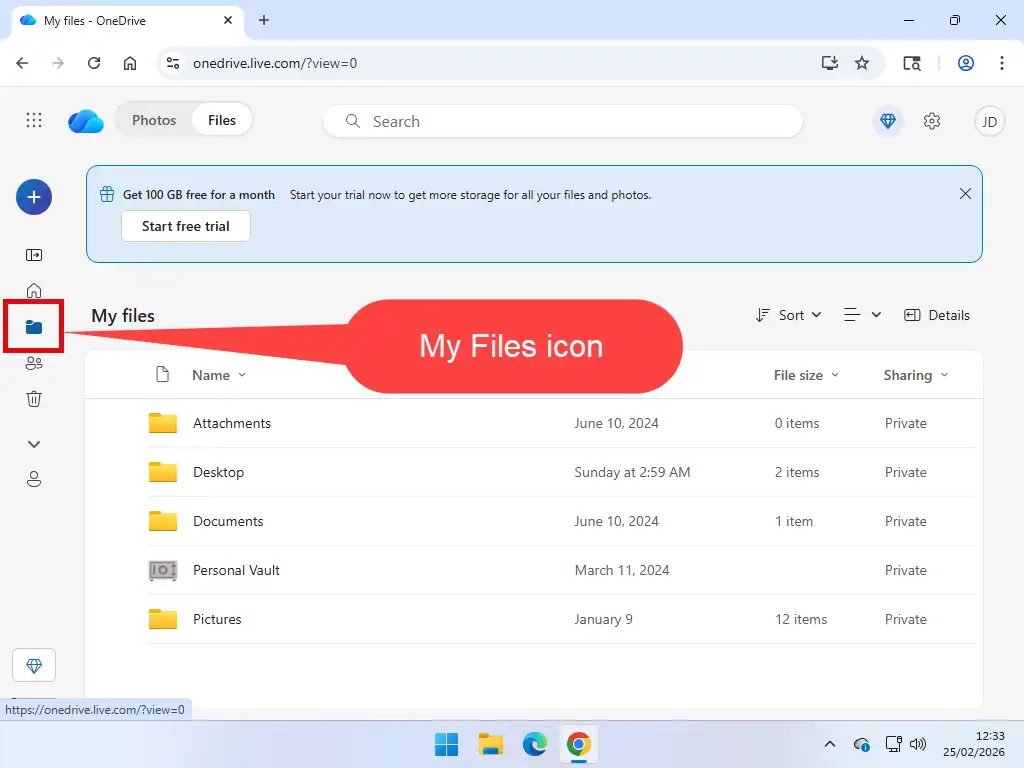
- Click the My Files icon in the left hand navigation panel.
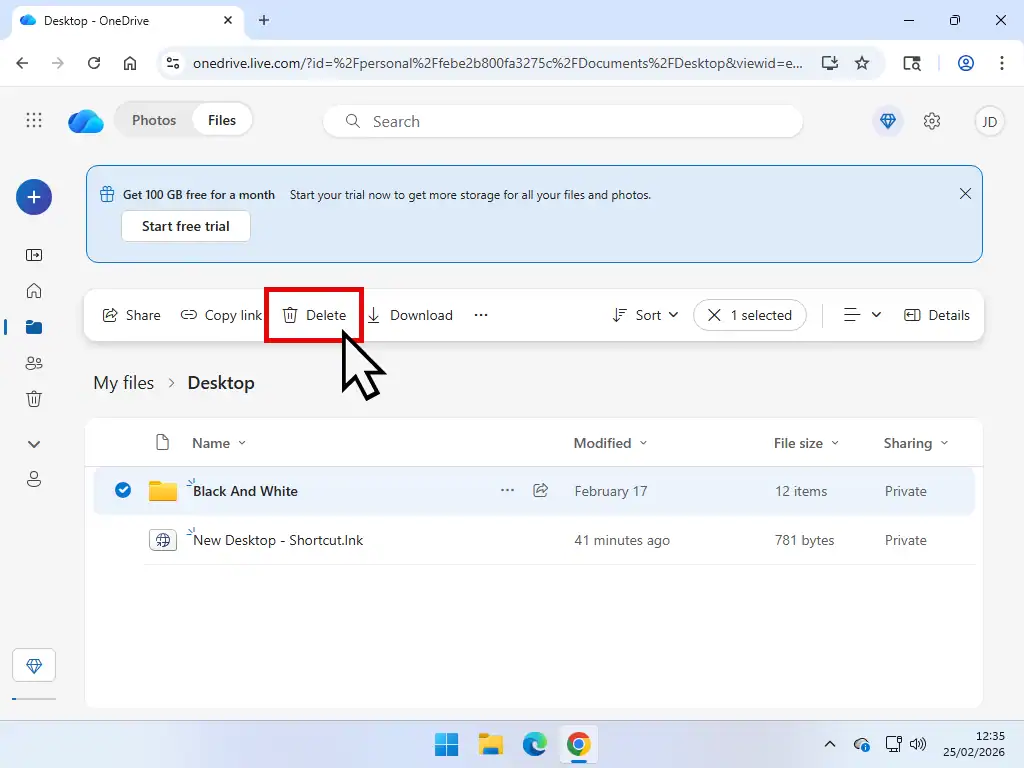
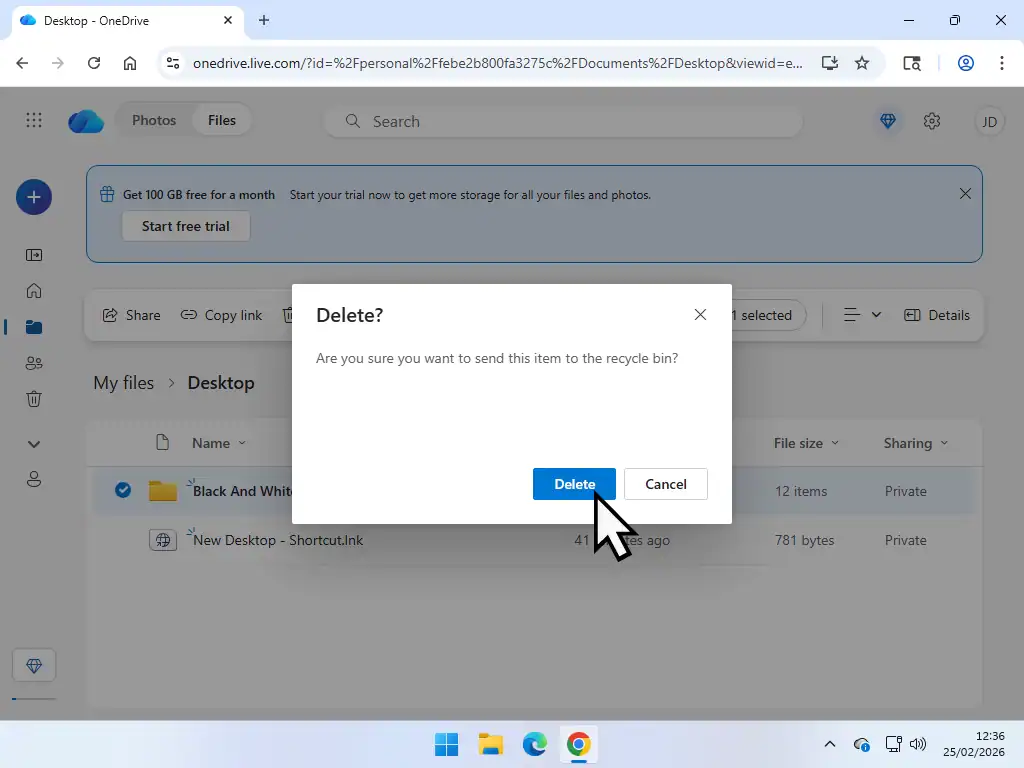
- Select the file or folder that you want to delete from OneDrive. Then click the Delete button on the toolbar.
- You’ll see a confirmation popup, click Delete to confirm.
- Please note that deleting files from OneDrive online will also delete them from your computer. Remember that OneDrive is a sync tool. Any changes that you make will be propagated to all your connected devices.
OneDrive Recycle Bin
OneDrive does have a recycle bin similar to that on your Windows computer. Anything that you delete will be sent to the recycle bin. For personal OneDrive accounts they’ll stay there for about 30 days. You can either restore an item that you deleted by accident or delete it permanently from OneDrive.
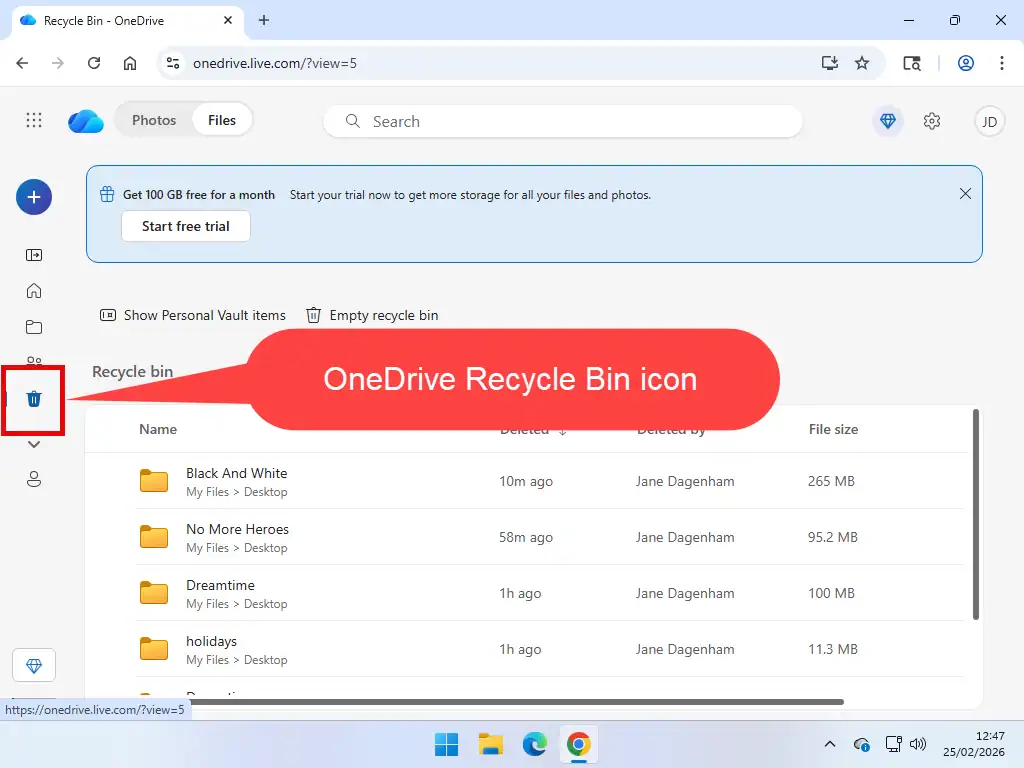
- Log in to your OneDrive account and then click the Recycle Bin icon in the left hand panel.
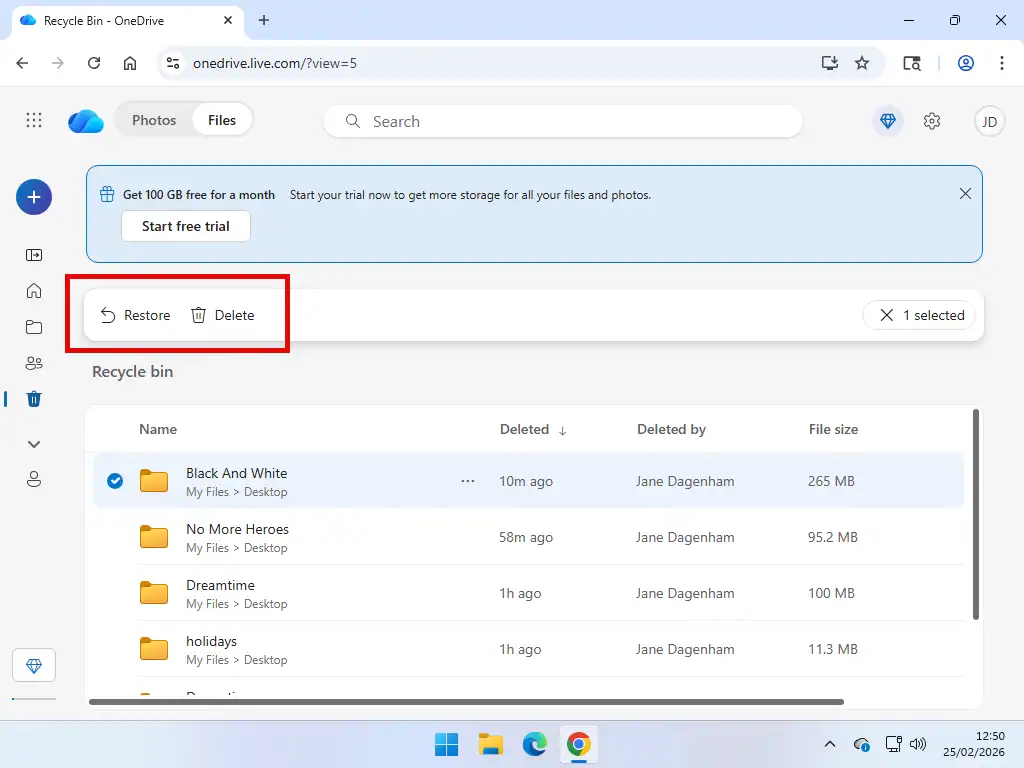
- Select a file or folder in the bin and then click either Restore or Delete from the toolbar.
Summary
Deleting files from OneDrive without losing any data can be tricky. Microsoft offer OneDrive as a backup, but it really isn’t, it’s a sync tool. And that’s where the confusion comes in. Just remember that whatever you delete from OneDrive will also be deleted from your synced folders on your computer.
Personally I think that the Google Drive for desktop app is a better choice for syncing files to the cloud. It allows you more storage space for free and you have complete control over which folders get synced.
Related Posts
How To Setup FreeFileSync
Use FreeFileSync to back up files and folders offline. Nothing needs to go to the cloud. You can sync to a second (internal) hard drive, external USB drive, or across your home network to another PC.
Windows 11 Backup
Create a true backup of either your files or your complete computer (system image) for free.
Free Computer Course
Learn the basics of using a Windows computer. Step by step guides that link together to give you a fuller understanding of how Windows works.