
Gmail’s confidential mode lets you send an email that the person can read but can’t forward, copy, print or download. You can make it expire after a set time, ask for a passcode before it opens, and take it back whenever you like.
In this guide I’ll show you how to send a confidential email in Gmail on a computer or phone, what to do when someone sends one to you, and the bit most guides skip: what confidential mode doesn’t protect, and how to send something properly secure.
The Short Version
- In Gmail, click Compose and write your email as normal.
- At the bottom of the window, click the padlock icon (Toggle confidential mode).
- Choose when it expires and whether it needs an SMS passcode, then click Save.
- Click Send.
What Is Confidential Mode in Gmail?
Confidential mode puts limits on what the person receiving your email can do with it:
- They can’t forward it, copy and paste the text, print it or download it. The same goes for any attachments.
- It expires after a time you choose: 1 day, 1 week, 1 month, 3 months or 5 years. After that, it can’t be opened.
- You can take it back early. Remove access and the email stops opening, even before it expires.
- You can ask for a passcode sent to their phone by text before it will open.
It’s handy for things like bank details, a copy of a passport or the code for a key safe. Things you need to send once, but don’t want sitting in someone’s inbox for years.
Confidential Doesn’t Mean Encrypted
Confidential mode controls what the other person can do with your email. It doesn’t scramble the email itself, and it can’t stop someone taking a photo of their screen. More on that further down.
How to Send a Confidential Email in Gmail
Sign in to Gmail on your computer and click Compose. Add the email address, a subject and your message, exactly as you would for any other email. You can add attachments too.
Before you click Send, click the Toggle confidential mode icon at the bottom of the window. It looks like a padlock with a clock.

Set an Expiry Date
Gmail sets the email to expire after 1 week. To change it, click the drop-down box under Set expiry and choose 1 day, 1 week, 1 month, 3 months or 5 years.


Require an SMS Passcode
For extra protection, make the other person enter a passcode before the email opens.
- Under Require passcode, choose SMS passcode.
- Click Save.
- Type in the other person’s mobile number. Gmail texts the passcode to them when they try to open it. Don’t put your own number in.


Don’t want a passcode? Leave it on No SMS passcode and click Save. People who use Gmail can then open it straight away. Anyone using a different email service is sent a passcode by email instead.

Send a Confidential Email From Your Phone
In the Gmail app on Android or iPhone, start a new email, then tap the More icon (three dots) at the top right and tap Confidential mode. Choose the expiry and passcode options, tap Save, then send.
Changing Confidential Mode Settings in Gmail
Changed your mind before sending? The settings you chose are shown at the bottom of the email. Click Edit to change them, or click the X next to it to turn confidential mode off and send a normal email.

Remove Access to an Email
You can stop a confidential email opening at any time, without waiting for it to expire.
- Click Sent in the menu on the left.
- Open the confidential email.
- Click Remove access.

The email still shows in the other person’s inbox, but when they open it they’re told they don’t have access. The message and any attachments can’t be opened. If you change your mind, the same place has a Renew access link.

Got a Confidential Email? How to Open It
If someone has sent you a confidential email, how you open it depends on where you read your email.
If You Use Gmail
Without a passcode, it opens like any other email. If the sender asked for an SMS passcode, click Send passcode, wait for the text on your phone, type the code in and click Submit.
If You Use Outlook, Yahoo, BT or Another Email Service
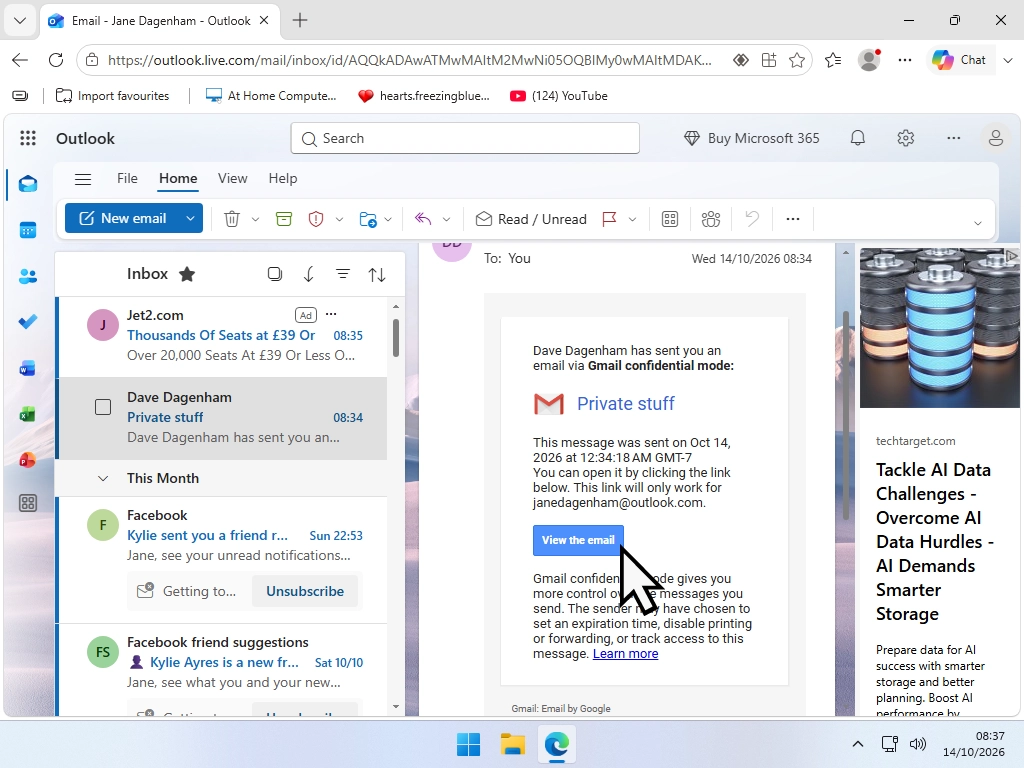
You won’t get the message itself. You get an email from Gmail with a link instead.
- Open the email and click View the email.
- On the page that opens, click Send passcode.
- Look for the passcode in a text message or a second email, depending on what the sender chose.
- Type it in and click Submit. The email opens in your web browser.
This works the same on an iPhone or Android phone. The link opens in your phone’s browser.
Check It’s Really From Someone You Know
Scammers copy the look of these emails to get people clicking. If you weren’t expecting a confidential email, check the sender’s address before clicking anything, and never enter your password on the page it takes you to. A real one only ever asks for the passcode. What Is Phishing? explains the tricks to watch for.
“You Don’t Have Access” or the Email Has Expired
If a confidential email won’t open, either it has passed its expiry date or the sender has removed your access. There’s nothing you can do your end. Ask the sender to send it again.

How to Reply to a Confidential Email
You can’t forward or print a confidential email, but you can reply to it.
If you’ve opened the email in a window of its own, you may not see a Reply button. Go back to your inbox, find the email in the list and reply from there.


Is Gmail Confidential Mode Encrypted?
No, not in the way most people mean. Confidential mode is about controlling what the other person can do. It isn’t end-to-end encryption, and Google can still read the email on its own servers.
What every Gmail does have is standard encryption while it travels. Google calls it TLS, and it works as long as the other person’s email service supports it too. Almost all do. Google shows a grey padlock for this. A red open padlock next to someone’s address means the email won’t be encrypted on the way, so don’t send anything private to them.
Proper end-to-end encryption in Gmail is only available on some paid Google Workspace accounts for businesses and schools. It isn’t available on a free Gmail account.
And whatever you use, nothing stops someone taking a screenshot, or a photo of their screen with their phone.
How to Send Something Securely From Gmail
For a home user, the simplest secure way is to put the private information in a file and lock that file with a password:
- Put the information in a document, or gather the files together.
- Lock it with a password. A Word document can be locked from File, Info, Protect Document, Encrypt with Password. For anything else, use the free 7-Zip, which How to Use 7-Zip to Password Protect Files walks through.
- Attach the file to your email. Turn on confidential mode too, if you like.
- Send the password a different way, by text message or a phone call. Never in the same email.
Even if the email ends up in the wrong hands, the file is useless without the password.
Troubleshooting
I Can’t See the Confidential Mode Icon
Make the compose window bigger, or click More options (the three dots at the bottom). If it’s a work or school Gmail account, your administrator may have switched confidential mode off. Personal Gmail accounts all have it.
They Didn’t Get the Passcode
Check you typed their mobile number correctly, including the right country code. If you chose no SMS passcode, theirs comes by email, so ask them to look in their spam or junk folder.
I Can’t Print, Copy or Forward a Confidential Email
That’s confidential mode doing its job. The sender has switched those options off. If you need a copy, ask them to send it as a normal email. Ordinary emails can be printed with How to Print an Email in Gmail.
Frequently Asked Questions
Q: What is confidential mode in Gmail?
A: It’s a setting that stops the person receiving your email forwarding, copying, printing or downloading it. You can also make it expire and require a passcode.
Q: How do I send a confidential email in Gmail?
A: Click Compose, write your email, then click the Toggle confidential mode icon at the bottom of the window. Choose the expiry and passcode options, click Save, then Send.
Q: Is Gmail confidential mode encrypted?
A: No. Gmail encrypts emails while they travel, but confidential mode isn’t end-to-end encryption. To send something securely, password-protect the file and send the password separately.
Q: Can someone screenshot a confidential email?
A: Yes. Confidential mode can’t stop screenshots or someone photographing their screen.
Q: How do I open a confidential Gmail in Outlook?
A: Open the email from Gmail, click View the email, then Send passcode. Enter the code you receive by text or email and click Submit. The email opens in your browser.
Q: Why does a confidential email say I don’t have access?
A: Either it has expired or the sender has removed your access. Ask them to send it again.
Q: Can I send a confidential email from my phone?
A: Yes. In the Gmail app, start a new email, tap More (three dots), then Confidential mode.
Q: Can I reply to a confidential email?
A: Yes, you can reply but not forward. If there’s no Reply button, go back to your inbox and reply from the email list.
Q: Does confidential mode hide my email address?
A: No. The other person still sees who it’s from. Confidential mode controls what they can do with the email, not who sent it.
Summary
Gmail’s confidential mode is a quick way to send something private: one click before you send, and the email can’t be forwarded, copied or printed, and disappears when you choose. You’re not likely to use it every day, but it’s worth knowing for the times you need it.
Just remember what it can’t do. It isn’t end-to-end encryption, and it can’t stop a screenshot. For anything really sensitive, put it in a password-protected file and send the password another way.
Change Your Name in Yahoo Mail
The name people see when you email them often decides whether your email gets opened or ignored.
Change your Yahoo Mail sending name in a minute, in both the new and old Yahoo Mail.
You can find this and other related step by step guides in – At Home Computer Email Guides
Written by Jeff Porter. I’ve been fixing Windows PCs since 2010 and I’m CompTIA Network+ certified. More about me