
Why Does Gmail Say Storage Is Full?
On the free plan with your Google account you get 15 GB of data storage for free, if you fill up that space you’ll need to pay. Unfortunately your Gmail storage space isn’t only used for emails. So lets look at why your Gmail may be reporting as being full.
Your 15GB is Shared Across Gmail, Drive And Photos
Every free Google account gets 15GB of storage. That 15GB isn’t just for Gmail — it’s shared across your Gmail messages, your Google Drive files, and your Google Photos library.
Fill any combination of those up, and Gmail is what stops working first, because it’s usually the service you notice straight away when it does.
So deleting a few dozen old emails might barely move the needle if the real problem is sitting in Drive or Photos.
It’s not Just Emails — Your Phone’s Backup Counts Too
If you have an Android phone signed in with the same Google account, it’s almost certainly backing up photos and videos to that same 15GB pool. Photos and videos take up far more space than text emails, and if you’re a “snap happy” phone user, that backup queue adds up fast.
This applies to iPhone users too, if you use the Google Photos or Google Drive apps for backups — the same shared storage limit applies regardless of what phone you’re using.
Deleted Emails Still Count Until You Empty Trash And Spam
Here’s the part that trips most people up. When you delete an email, it doesn’t disappear — it moves to Trash (which acts the same as the recycle bin in Windows), where it still counts against your storage for 30 days. If you’ve been deleting emails one by one and wondering why your storage hasn’t budged, this is very likely why.
Gmail Storage Full But You’re Nowhere Near 15GB?
If Gmail says you’re full but your own math says you shouldn’t be, a couple of things are usually going on:
- Storage figures take time to refresh. Google can take up to 48–72 hours to update your usage after a big cleanup.
- The real culprit is hiding in Photos or Drive, not your inbox, so “storage full” can appear even if Gmail itself looks almost empty.
How to Check What’s Using Your Google Storage
Before deleting anything, it’s worth seeing exactly where your 15GB is going. Google has a built-in tool for this:
- Go to one.google.com/storage (or tap Manage storage from within Gmail’s storage warning).
- You’ll see a breakdown by service — Gmail, Drive, and Photos — showing exactly how much each one is using.
- Scroll down to “Clean up by service” for suggestions on what’s safe to delete, including old large files and duplicates.
Doing this first saves a lot of guesswork, especially if you assumed the problem was emails when it’s actually years of forgotten video backups.
How to Fix Gmail Storage Full: Step By Step
These are the steps you can take to free up space in your Google account. Starting with the easiest, work through each step and you should be able to create enough space for Gmail to start working properly again.
1. Empty Trash and Spam First
This is the fastest possible fix, and you’re not going to lose anything because you’ve already deleted these messages.
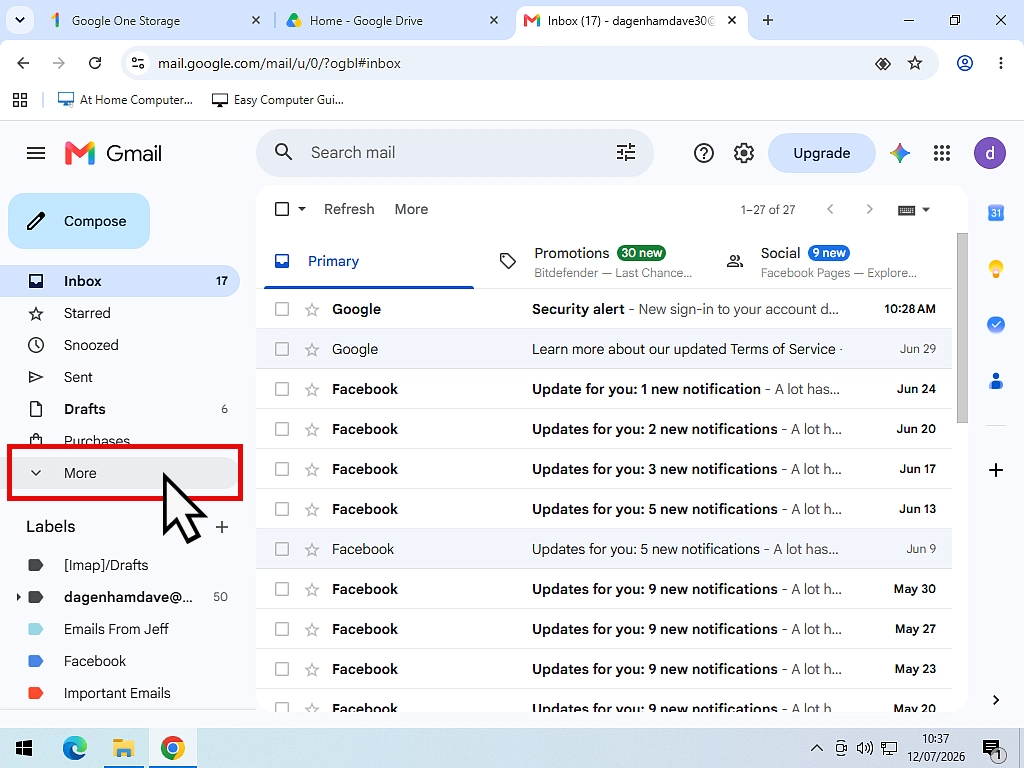
In Gmail, click More in the left sidebar to reveal Trash and Spam.
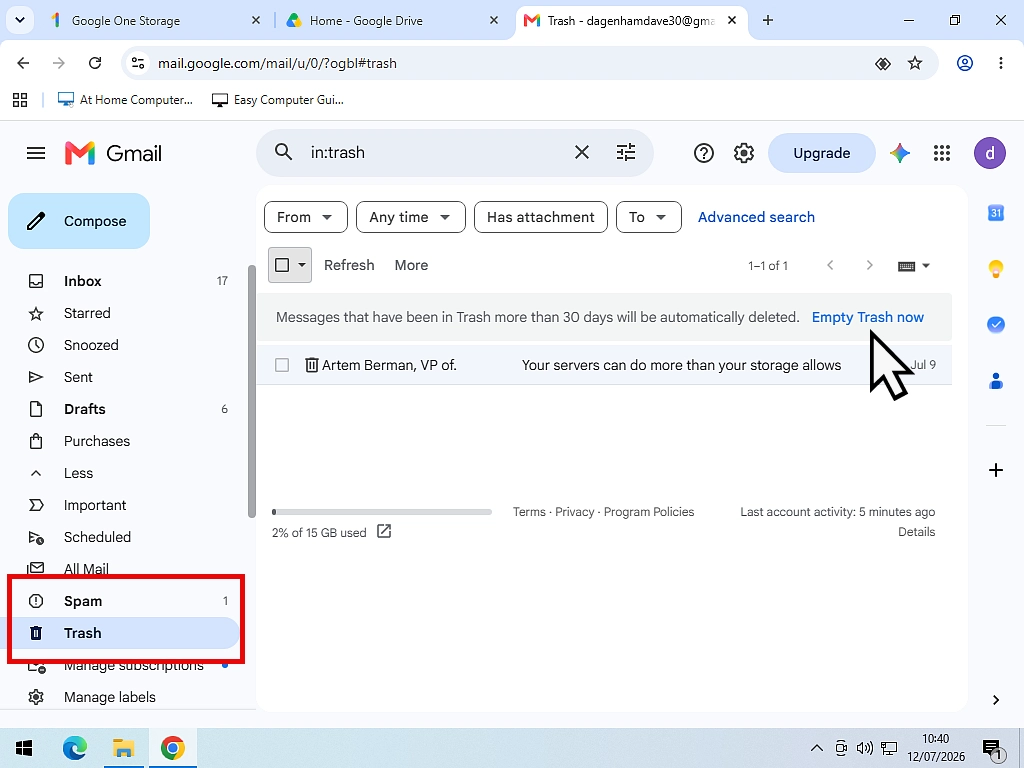
- Open Trash, then click Empty Trash now.
- Open Spam, then click Delete all spam messages now.
For a lot of people, this single step recovers enough space to get Gmail working again immediately.
2. Find and Delete Your Biggest Emails
If clearing your Trash and Spam folders doesn’t create enough space for you, then try searching your Inbox for any overly large emails.
Gmail doesn’t let you sort your inbox by size, but its search bar has powerful shortcuts that do the same job. Try these in the Gmail search box:
- has:attachment larger:10M — finds emails with attachments over 10MB
- size:10M — finds any email over 10MB, attachment or not
- older_than:1y has:attachment — finds attachments you haven’t touched in a year
- category:promotions older_than:1y — clears out old newsletters and promotional emails
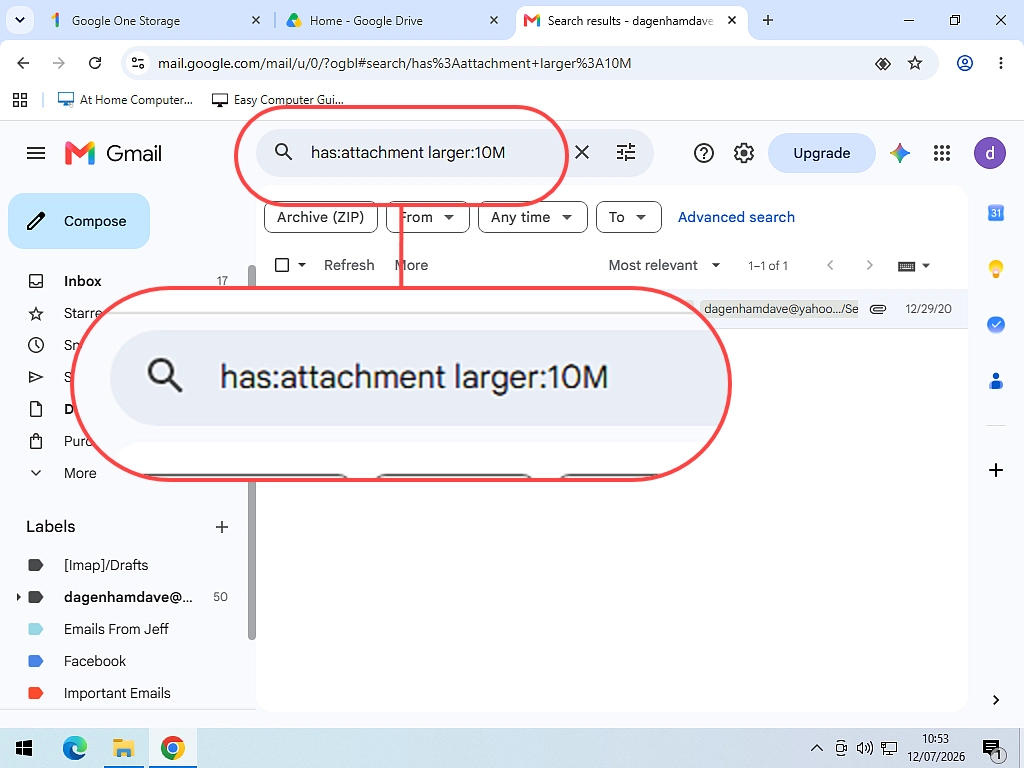
Select through the results. If you’ve only got a few, then they’re unlikely to be the problem, but if you have a lot of large emails then you’ll need to delete them.
Consider downloading emails that you need to keep before you go ahead and delete them. Go back and empty Trash again — deleting doesn’t free the space until Trash is cleared.
3. Turn Off Photo and Video Backup on Your Phone
If an Android phone is linked to your Google account, this is usually where most of the space is going.
First, connect your phone to a PC and copy your photos and videos across manually, so nothing is lost. Once they’re safely backed up on your computer:
Go to Settings > System > Backup (or open the Google Photos app > your profile photo > Photos settings > Backup) and turn off photo and video backup.
You have to do this first because there’s likely to be a queue of photos waiting to upload the moment any space frees up, so this stops that queue from immediately refilling your storage.
4. Clear Out Google Drive
Log in to Google Drive on a PC and start deleting files you don’t need — videos and large files first, since they use the most space.
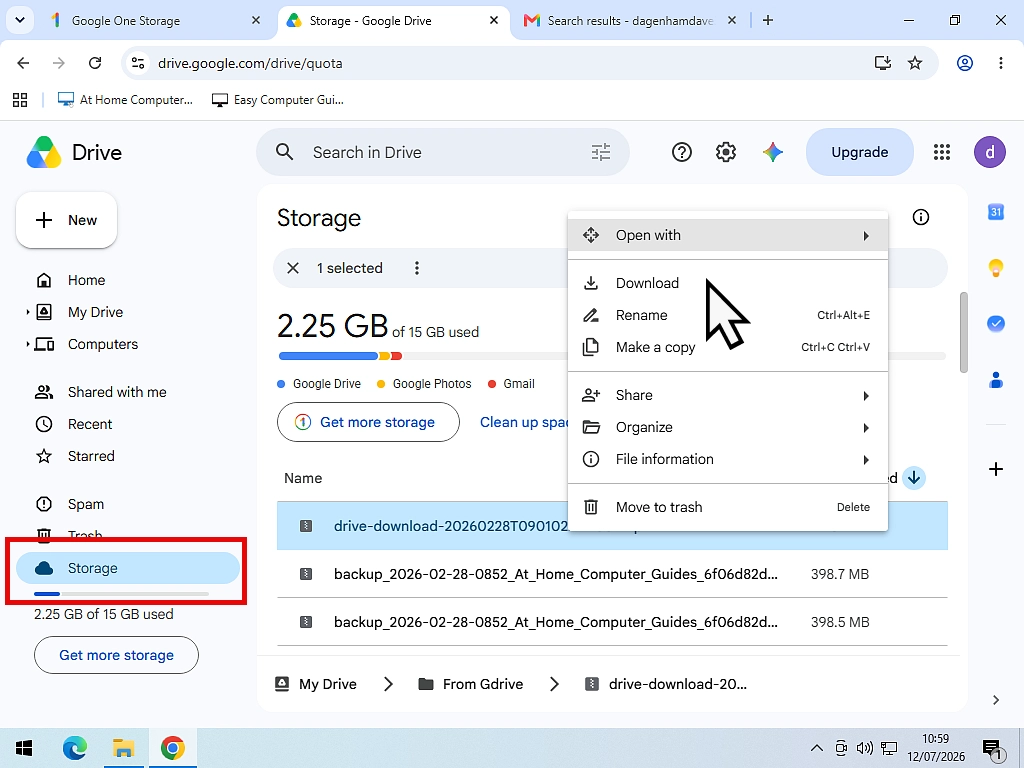
- Click Storage in the left-hand menu to see your files sorted largest to smallest.
- Download anything important before deleting it. To download an item from Google Drive, right click on it and then left click Download.
- Empty the Drive Bin afterwards — like Gmail, deleted Drive files still count until the Bin is emptied.
5. Clean Up Google Photos
Google Photos is often the biggest space user of the three. From the Storage Manager (see above), you can jump straight to your largest photos and videos.
- Click on the Type drop down menu and select Photos and Images.
- Backup any photos by downloading them to your PC.
- Delete as many as you can.
- Empty the Trash.
- Do the same for Videos.
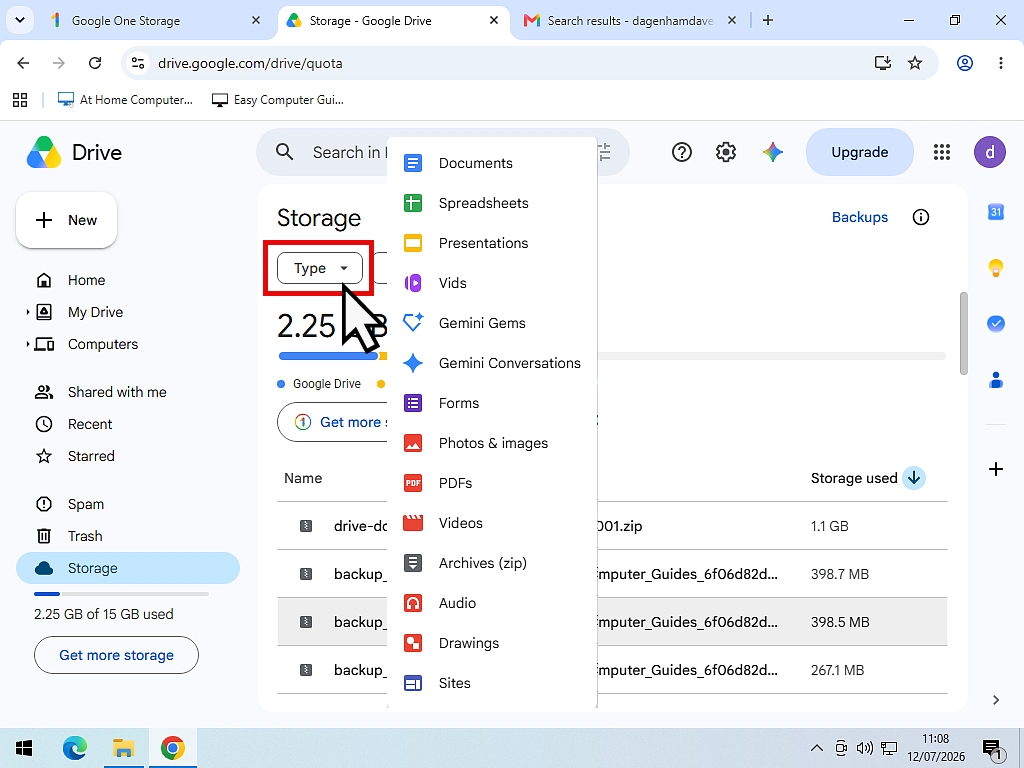
For anything you keep uploading going forward, consider switching new uploads to Storage Saver quality in the Google Photos app settings — it compresses new photos and videos slightly to use less space, without needing to delete anything, but it does reduce image and video quality.
6. Check WhatsApp Backups (Android Users)
This one catches a lot of people out. If you use WhatsApp on Android, its chat backups are stored in the same 15GB Google account storage as Gmail — not somewhere separate.
To stop videos (usually the biggest culprit) from bloating future backups: open WhatsApp > Settings > Chats > Chat backup > Turn off Include videos. Note that deleting an existing WhatsApp backup is permanent, so only do this if you’re sure.
7. Google Drive for Desktop
On your computer you may be using Google Drive for Desktop to backup files and folders from your PC to your Google cloud storage. Check which folders are being uploaded and stop any that are pushing you over your limit.
8. Turn Phone Backup Back On (Just Not Photos)
Once you’ve freed up space, go back and turn general phone backup on again — just leave Photo and Video backup switched off. General backup uses very little space by comparison; it’s almost always the media backups causing the problem.
Should I Just Pay for More Google Storage?
If cleaning up feels like more hassle than it’s worth, or you genuinely need to keep everything, Google One plans start at around £1.99 a month for 100GB in the UK, shared across Gmail, Drive and Photos, with the option to share it across up to five family members at no extra cost. Prices and plans do change from time to time, so it’s worth checking current pricing at one.google.com/about/plans before subscribing.
For most people who just have a backlog of old photos and forgotten attachments, a proper cleanup using the steps above is enough. Paying for storage makes more sense if you’re consistently generating more photos and video than 15GB can hold.
How Long Does it Take for Storage to Update?
After deleting files and emptying Trash, Gmail usually reflects the freed-up space within about 30 minutes. If you’ve deleted a large amount in one go, Google says it can take up to 48–72 hours for the numbers to fully update. If your account is still showing full well beyond that, it’s worth working back through the Storage Manager to double-check nothing’s been missed.
Troubleshooting
I emptied Trash and Spam but Gmail still says full.
Give it at least 30 minutes, and up to 72 hours if you deleted a large number of files. Check the Storage Manager again to confirm the figures have actually updated.
I can’t find the backup settings on my phone.
The exact menu varies by phone brand and Android version. Try Settings > Google > Backup, or open the Google Photos app directly and look under your profile photo for Photos settings > Backup.
Google Drive looks almost empty, but I’m still over my limit.
The real space is probably in Google Photos or a phone/WhatsApp backup rather than Drive itself. Use the Storage Manager at one.google.com/storage to see the true breakdown by service.
I need to send or receive an email urgently, right now.
Emptying Trash and Spam is the fastest possible fix and often frees enough space within minutes. If it’s genuinely urgent, ask the sender to use an alternative email address while you sort out the rest.
FAQ
Summary
Backing up your phone is a good habit, and most of us would be lost without it. But photos and videos don’t have to live in the same 15GB pool as your emails — there are other places to store them, such as on your computer or USB hard drive.
Start with the fastest fix (Trash and Spam), check the Storage Manager to see where your space is really going, and work through cleanup from there. Most people find the actual culprit isn’t their inbox at all.
Related Posts
How to Send Confidential Email in Gmail
Need to send a private email in Gmail? Use Confidential Mode.
How to Open EML Files
Downloaded emails will arrive as .eml files. Here’s how you can open and view them.
Gmail is Switching Off Gmailify and Check Email From Other Accounts
Nothing has been switched off yet but if you have emails from different services, such as Yahoo, Outlook etc, sent to your Gmail account, you need to check this.
You can find this and other related step by step guides in – At Home Computer Gmail Guides