
Every file on your computer, whether it’s a photo, a document, a song, or a video, has two important things: a file format and a file name extension. You’ve probably seen them without realising it. When you save a photo and see .jpg at the end of the file name, that’s a filename extension. And the format is what determines how that file is structured inside.
In this guide, I’ll explain what file formats and filename extensions are, show you the most common types you’ll come across on a home PC, and explain how to convert a file from one format to another.
What Is a File Format?
A file format is the way the data inside a file is organised and stored. Think of it as a language. Just as a book written in French can only be read by someone who understands French, a file in a particular format can only be opened by software that understands that format.
Every type of file stores its data differently. A text file organises information as lines of characters. An image file stores data as a grid of coloured pixels. A music file stores audio samples and timing information. The format controls all of this — it’s the invisible structure that holds the file together.
A file’s format dictates which programs can open it, how much space it takes up, and how the information inside is interpreted by your computer.
What Is a Filename Extension?
A file extension (also called a filename extension or file name extension) is the short suffix that appears at the end of a file name, after a full stop. It usually consists of two to four letters or numbers. For example:
- A photo might be called holiday.jpg – the filename extension is .jpg
- A Word document might be called letter.docx – the file extension is .docx
- A music file might be called song.mp3 – the file extension is .mp3
The file name extension is added automatically by whichever program or app you used to create or save the file. You don’t need to type it yourself. Each format has its own unique extension that distinguishes it from all the others.
What Are Filename Extensions Used For?
File extensions serve a very important purpose: they tell your operating system (Windows, in most cases) what type of file it is dealing with, so Windows knows which program to use to open it.
When you double-click a file, Windows reads the extension and automatically opens the correct default application. For example:
- Double-click a .jpg file → Windows opens it in the Photos app
- Double-click a .docx file → Windows opens it in Microsoft Word
- Double-click an .mp3 file → Windows opens it in Media Player
You can think of file formats as a kind of language that the file is written in.
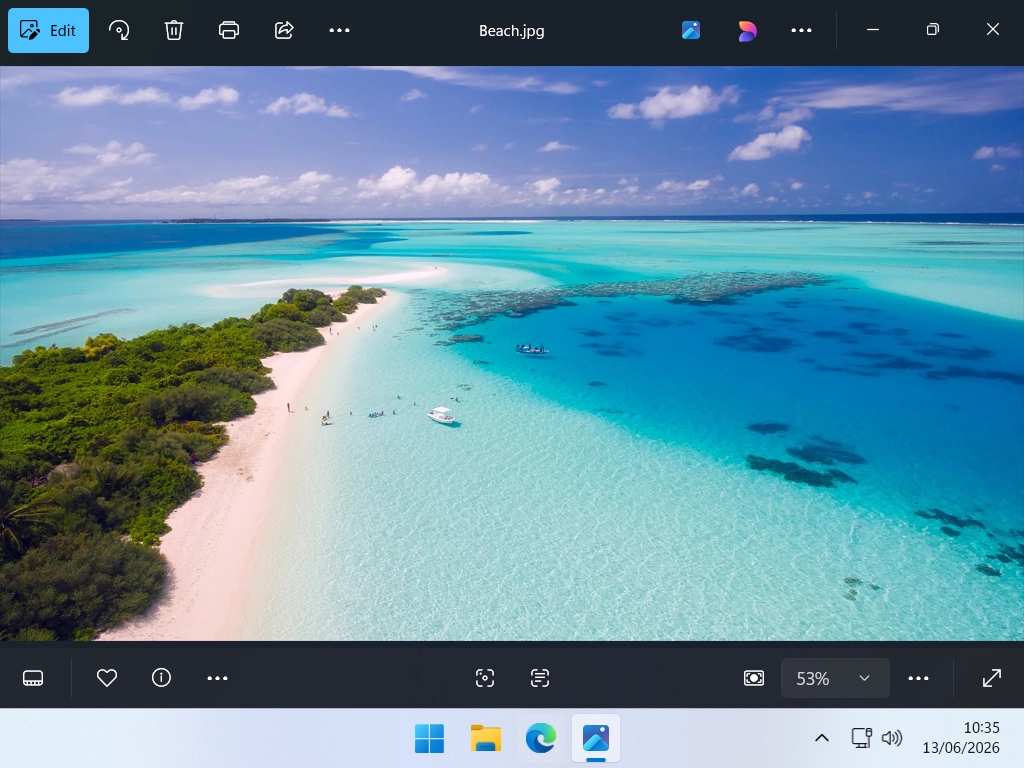
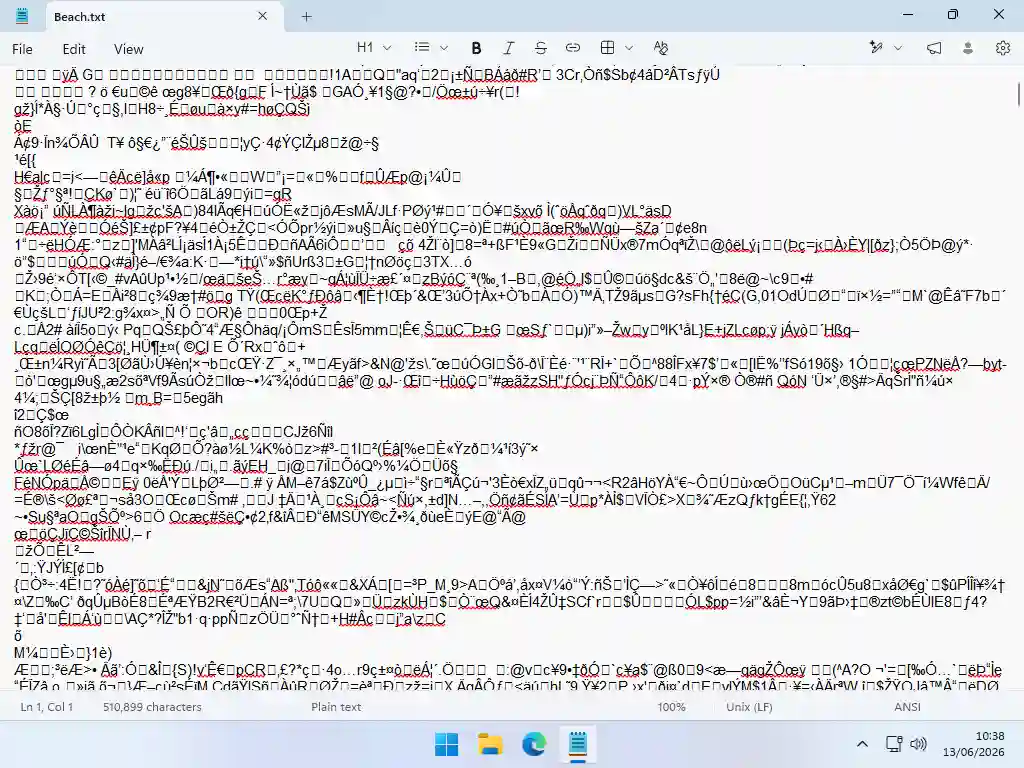
If you tried to open a .jpg image in Notepad (which is a text editor and doesn’t understand image files), you wouldn’t see a picture – you’d see a jumbled mess of characters, because Notepad doesn’t understand the image format.
Only applications that understand the file’s format can open it properly.
This is why the right file type needs to be matched with the right program: image viewers for images, media players for music and video, word processors for documents, and so on.
The Most Common File Formats and File Extensions
There are hundreds, possibly thousands, of file formats in use today. Below are the most common types you’re likely to come across on a home computer, grouped by category.
Audio File Formats
| Extension | Type | Description |
|---|---|---|
| .MP3 | Audio | The most widely used compressed audio format. Great balance of quality and file size. Most music files you have are likely MP3s. |
| .WAV | Audio | Waveform Audio File. Uncompressed, so sound quality is perfect but file sizes are much larger than MP3. |
| .AAC | Audio | Advanced Audio Coding. Used by Apple devices and services. You may encounter these even on a Windows PC. |
| .FLAC | Audio | Free Lossless Audio Codec. Uncompressed and perfect quality. Popular with audiophiles who want the best possible sound. |
| .WMA | Audio | Windows Media Audio. A Microsoft format from the early digital music era. Less common today. |
MP3 is what’s known as a lossy format. Meaning it removes sounds that you probably can’t hear. Most of the music on your computer will be in the MP3 format.
MP3 quality settings are :
- 320 kbps (Maximum Quality): Near CD-quality audio and is virtually indistinguishable from uncompressed files. Ideal for final music delivery and archiving.
- 256 kbps (High Quality): Commonly used for digital music purchases. Offers near-CD quality with a slightly smaller file size.
- 192 kbps (Standard): Balances a highly efficient file size with good audio fidelity for casual listening.
- 128 kbps (Mid-Range): Generally considered the lowest acceptable level of sound quality for music.
- 64–96 kbps (Low): Too compressed for music, but optimal for spoken-word content like audiobooks and podcasts.
FLAC stands for Free Lossless Audio Codec.
It is a digital audio file format that compresses music without permanently deleting any of the original audio data. It provides “bit-perfect” studio quality, but at roughly half the file size of uncompressed formats like WAV.
When ripping (copying) audio CDs to your PC consider which format you want to use before starting. These 2 guides will help: Rip CDs as MP3 files and Copy CD without any loss of sound quality
Video File Formats
| Extension | Type | Description |
|---|---|---|
| .MP4 | Video | The universal video standard today. Used by YouTube, streaming services, and smartphones, excellent quality at a manageable file size. |
| .MKV | Video | Matroska Video. A flexible format that can hold multiple audio tracks and subtitles. Popular for storing films and TV shows. |
| .MOV | Video | A video format created by Apple. Common when receiving videos recorded on an iPhone. |
| .AVI | Video | Audio Video Interleave. An older Microsoft format. AVI files tend to be large and are less widely used now. |
Image File Formats
| Extension | Type | Description |
|---|---|---|
| .JPG / .JPEG | Image | Joint Photographic Experts Group. The most common image format. Highly compressed, ideal for photos shared online or by email. |
| .PNG | Image | Portable Network Graphics. Compresses without losing detail and supports transparent backgrounds. Great for logos and graphics. |
| .GIF | Image | Graphics Interchange Format. Used for simple animations and basic web graphics. Only supports a limited colour range. |
| .BMP | Image | Bitmap. An uncompressed Windows image format. Very high quality but produces very large file sizes. |
| .WEBP | Image | A modern format from Google. Smaller file sizes than JPEG or PNG with similar quality. Increasingly common on websites. |
| HEIC | Image | High Efficiency Image Container. Apple’s default photo format for iPhones. Windows 11 can open these; older systems may need an extra app. |
JPG uses efficient, adjustable “lossy” compression to significantly reduce file sizes while maintaining a high visual quality.
To save space, the format permanently discards image data that the human eye is least likely to notice.
You can choose a compression level. A higher compression means a smaller file size but a lower image quality.
.jpg vs .jpeg: They are the exact same format. The difference only comes from older operating systems that restricted filename extensions to three characters
The PNG format uses lossless compression: The compression is fully reversible, so the file loses zero detail or sharpness which makes it a great format where text is used in the image. PNG files are much larger in size than JPEGs.
Document File Formats
| Extension | Type | Description |
|---|---|---|
| .TXT | Document | Plain text. The simplest format, just text, with no bold, colours, or fonts. Opens instantly in Notepad. |
| .DOCX | Document | Microsoft Word document (Word 2007 and later). The standard format for word-processed documents. |
| .DOC | Document | Microsoft Word document (Word 97–2003). An older format, still readable in modern Word and most word processors. |
| Document | Portable Document Format. A universal format that preserves a document’s exact layout, fonts, and graphics on any device. | |
| .XLSX | Document | Microsoft Excel spreadsheet (Excel 2007 and later). |
| .PPTX | Document | Microsoft PowerPoint presentation (PowerPoint 2007 and later). |
| .ODT | Document | Open Document Text. Used by free office software such as LibreOffice and Google Docs. |
| .EML | A standard file format that saves a single email message. |
You don’t necessarily need to have Microsoft Office in order to open DOCX and XLSX files. Most office software will open these types of files.
PDF files can also be opened using a variety of applications including your web browser (Chrome, Edge etc) However if you need to edit (change) a PDF that’s going to be more challenging. Try this easy guide How To Edit A PDF
System and Compressed File Formats
| Extension | Type | Description |
|---|---|---|
| .ZIP | Compressed | A compressed archive. Multiple files packed into one to save space or for easier sharing. Windows can open ZIP files without extra software. |
| .EXE | System | Executable file. How software programs are delivered on Windows. Double-clicking installs or runs the program. Only open .exe files from sources you trust. |
| .TMP | System | Temporary file. Created automatically by programs while they run. You would not normally need to open these. |
| .ISO | System | A digital copy of an optical disc (CD or DVD). ISO files preserve the complete structure of the original disc. |
How to Show Filename Extensions in Windows
By default, Windows hides file extensions — so a file might appear as holiday rather than holiday.jpg. Showing file extensions is a good idea because it helps you:
- Quickly identify what type of file something is at a glance
- Spot potentially dangerous files — for example, a file disguised as a PDF but actually an .exe program
- Manage and organise your files more confidently
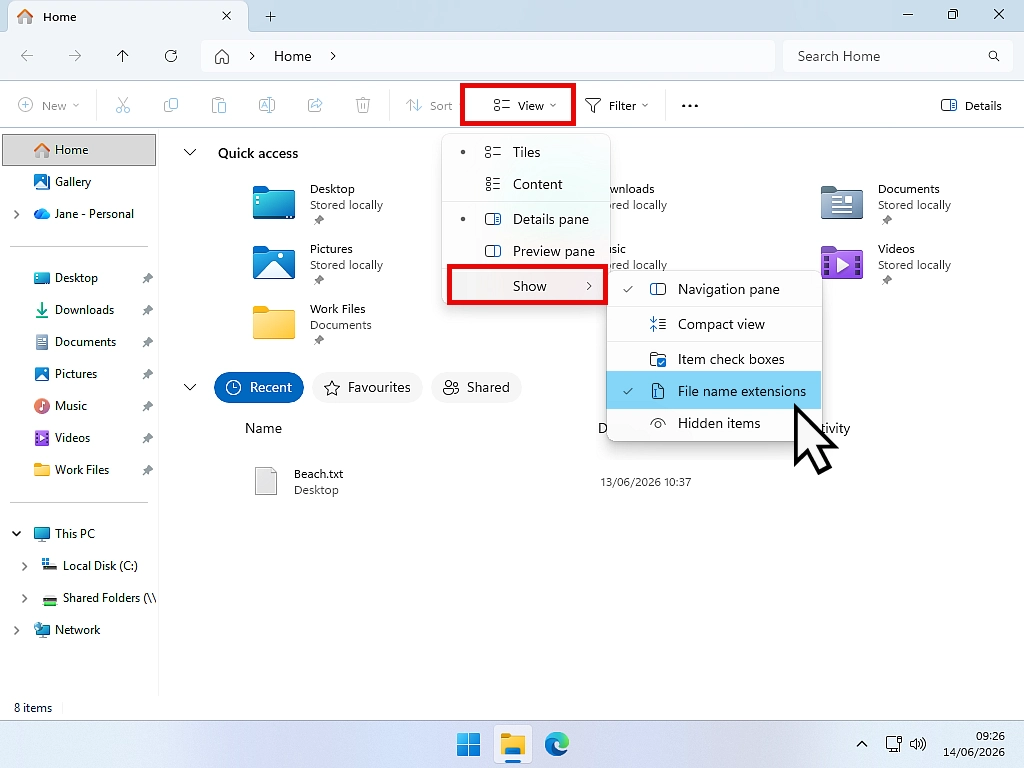
How to Show File Extensions in Windows 11
- Open File Explorer — press Windows key + E on your keyboard
- Click View in the toolbar at the top
- Hover over Show
- Click File name extensions
How to Show File Extensions in Windows 10
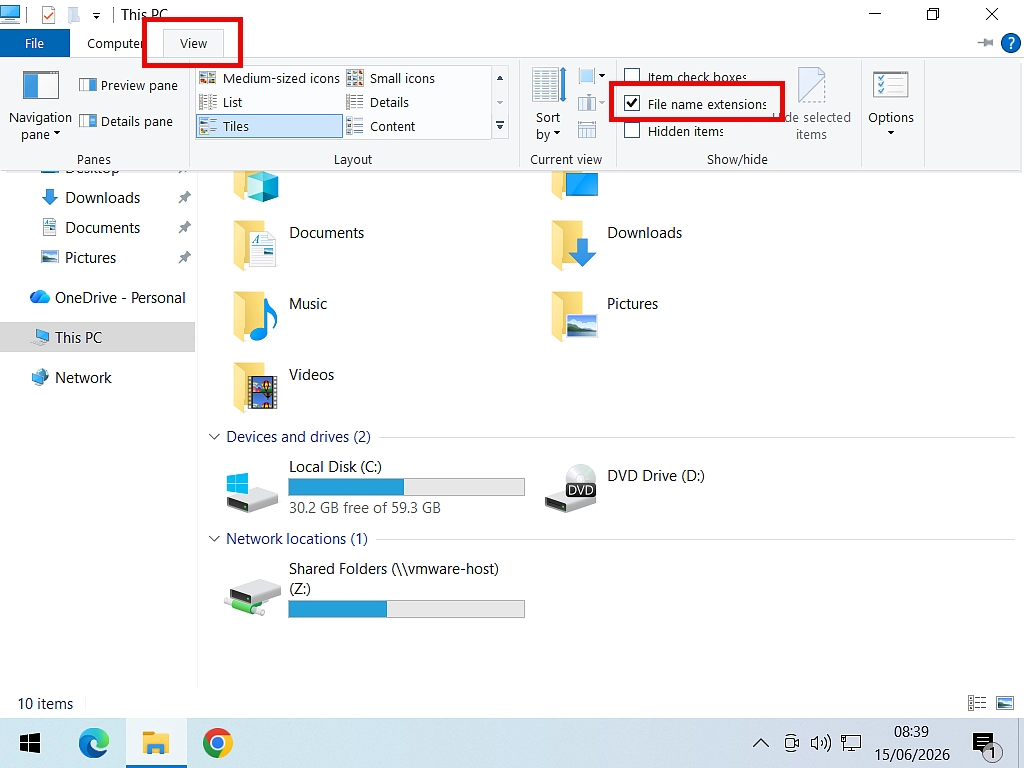
- Open File Explorer — press Windows key + E on your keyboard
- Click the View tab in the ribbon at the top of the window
- Tick the box labelled File name extensions
How to Convert a File to a Different Format
Occasionally you’ll need to convert a file from one format to another. This usually happens because:
- The program you’re using can’t open the file format you’ve received
- You need to send a file to someone who doesn’t have the right software to open it
- You want to reduce the file’s size
Method 1 – Use Save As (Easiest and Safest)
Most applications can save files in a variety of different formats. Before downloading anything new, the best tool is often the one you’re already using.
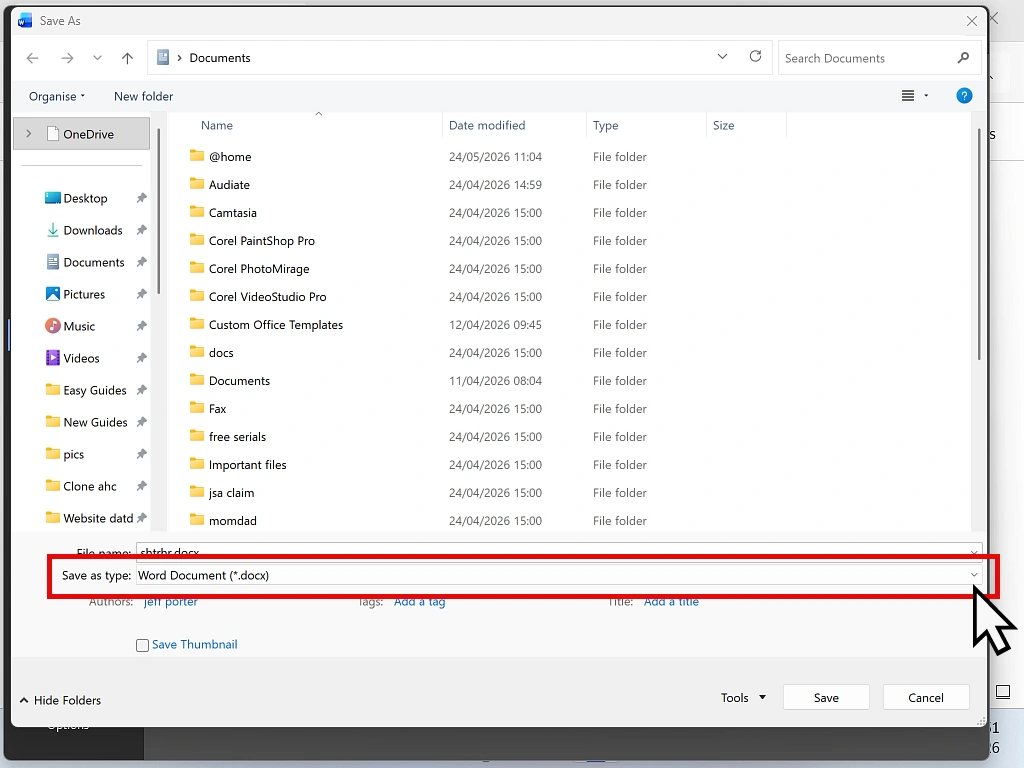
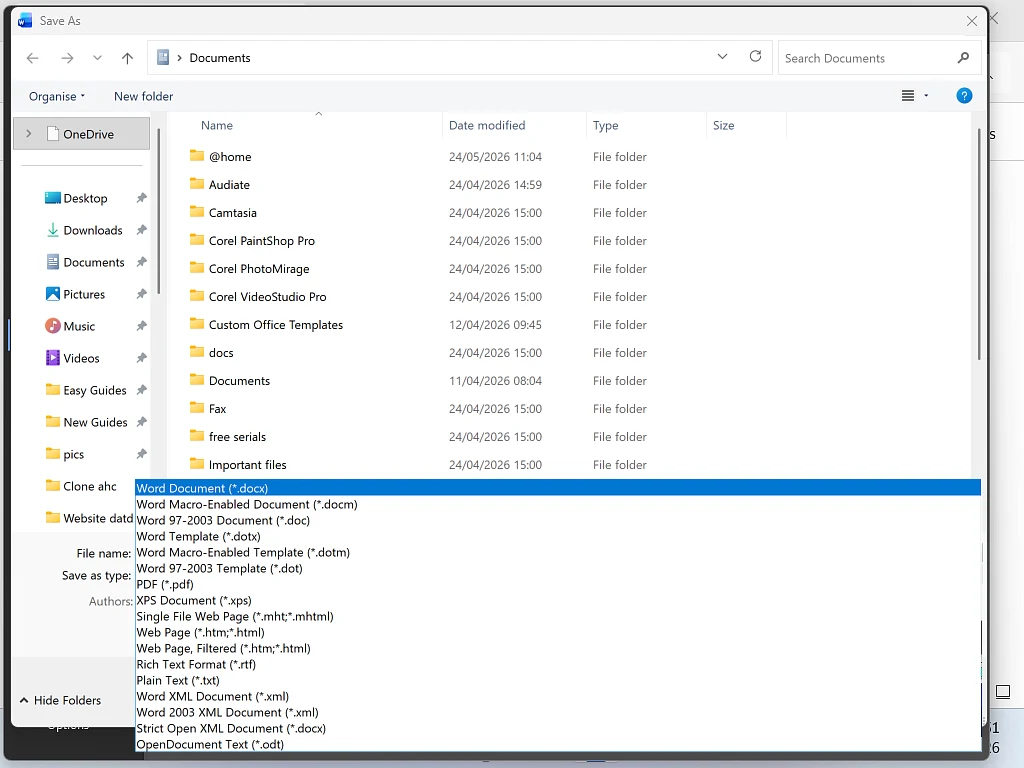
If you can open the file, click File > Save As. In the Save As window, look for the Save As Type drop-down menu. Click it and choose the format you want. Then click Save and your file will be saved in the new format.
Important: Always use Save As rather than Save. The Save option simply overwrites the existing file in its original format.
Method 2 – Find a Free Program That Supports the Format
If you don’t have a program that can open the file format you’re dealing with, you’ll need to find one. This is the most common reason people want to convert file formats on home computers.
- Note the file extension of the file you want to open
- Search Google — for example: “What is a .flac file?”
- Once you know what it is, search for a program that opens it — for example: “Free program to open .flac files”
- Look for well-known programs with good reviews. If you’re unsure, search: “Is [program name] safe?”
Many programs are free (or trial versions are available) and let you open a file and re-save it in a different format using the Save As method above. Just be careful to do a little research before installing unknown applications on your computer. If possible download and install on to a virtual machine first.
To convert audio formats you can usually use the free and open source program VLC. for example you can change WMA to MP3 and WAV files to MP3
Method 3 – Use an Online File Converter
If you can’t find a suitable program to install, an online file converter is a quick and convenient option. Well-known converters include Zamzar and CloudConvert.
- Search Google for: “Convert [your format] to [new format]” — for example, “Convert .png to .jpg”
- Choose a reputable-looking converter from the search results. Try searching Google for the website names to see if they are reliable or a scam.
- Upload your file, select the output format you want, and click Convert
- Download the converted file to your computer
A Word of Caution About Online File Converters
Online converters are convenient, but it’s important to use them carefully:
Privacy risk: When you upload a file, the website receives a copy of it. Reputable services should delete your file after conversion, but you can never be entirely certain.
Security risk: Only download converted files from websites you have reason to trust. Files from unknown sources could potentially contain malware.
Never upload sensitive documents – such as bank statements, tax forms, passports, or anything containing personal information or passwords. Always use a locally installed program for those.
As with installing unknown software, my advice is to use a virtual machine to upload and download your files. Open the downloaded file on the VM, see what happens. Only when you’re sure it’s safe should you transfer it to your host PC.
FAQs
A file format is the way data is organised inside a file. A file extension is the short suffix at the end of the file’s name (such as .jpg or .pdf) that tells the operating system what format the file is in. They are closely linked — the extension points to the format.
No — simply renaming a file extension does not actually convert the file. For example, changing photo.jpg to photo.png does not create a genuine PNG file. The data inside is still in JPEG format. To properly convert a file, use Save As in a compatible program, or use an online file converter.
Windows hides file extensions by default. You can switch them on in File Explorer. In Windows 11: View > Show > File name extensions. In Windows 10: View tab > tick File name extensions.
If Windows doesn’t recognise an extension, it won’t know which program to use to open the file. It may ask you to choose a program manually, or display an error. In this case, search online for the file extension to find out what type of file it is and which program can open it.
Not always. File extensions can be faked — a malicious file might be named something.pdf.exe to trick you. Always make sure file extensions are visible in Windows, and be careful about opening files from unknown sources, particularly .exe, .bat, and .zip files.
It depends on the use. JPEG is best for photographs, as it keeps file sizes small. PNG is better for graphics, logos, or anything needing a transparent background. WEBP is an increasingly popular choice for web images, producing small file sizes with good quality. HEIC is used by iPhones, though it’s less compatible with older Windows systems.
MP4 is the most widely used video format today. It’s used by YouTube, streaming platforms, and virtually all modern smartphones and cameras because it delivers high-quality video at a manageable file size.
Summary
File formats and their filename extensions aren’t that complicated when you dive in and find out a little more about them. Definitely change Windows settings to show filename extensions, it’s quick and easy to do and helps you to recognise what type of file you’re dealing with.
Related Posts
Free Beginner Computer Course – Learn Windows Step by Step
Are you new to computers? Or maybe had one for a while but aren’t really confident with it. This free course will help you to get to grips with everything you need to, hassle free.
How to Make Google the Default Search Engine in Chrome, Edge and Firefox
Google is the biggest search engine in the world.
What Does Subscribe Mean on YouTube?
Are you committing to anything? Is it free? Why should you subscribe?
Differential vs Incremental Backups
What they are, how they differ, and which one to use on your home PC.
This guide explains all three backup types in plain English, so you can make the right choice for your home PC.
You can find this and other related step by step guides in – At Home PC Tech Guides