
You try to delete a file, and Windows tells you it can’t because the file is open in another program. Except you haven’t got it open anywhere.
The message you’re looking at says something like this:
File In Use
The action can’t be completed because the file is open in another program.
Close the file and try again.
Close what file, though. That is the whole problem. Windows knows exactly which program is holding onto it but it’s decided not to tell you. Brilliant, now what?
Right, let me show you how to get rid of it. We’ll start with the fixes that take ten seconds and don’t need anything installing because most likely this will solve the problem. If that fails then we’ll go looking for the culprit properly.
What This Error Actually Means
Windows will not let two programs make changes to the same file at the same time. If one program has a file open, everything else gets locked out until it lets go.
That can be annoying but it’s actually protecting you. Imagine deleting a document while Word is halfway through saving it. You would end up with a file that is half one thing and half nothing, and no way back.
So the file is not broken and neither is your computer. Something is holding it. The job is finding out what.
Read Your Error Message Properly First
There are three versions of this message and they’re not the same.
- It names the program. “The action can’t be completed because the file is open in Microsoft Edge“, or Outlook, or Word. Windows has told you the answer. Close that program and you’re done. This is Windows at its most helpful.
- It says “another program”. This is the awkward one, and the reason this guide exists. Windows knows and is not saying. Not being helpful.
- It mentions a folder. “The action can’t be completed because the folder or a file in it is open in another program.” Same problem, except now it could be any one of the files inside, which is worse.
Go and look at yours before you carry on. If it names a program, you have just saved yourself twenty minutes.
Try These First, They Take Seconds
Nothing to download here. Work down the list and try the file again after each one.
The Preview Pane Is Holding It
Start here, because this one catches a huge number of people. It doesn’t happen all the time but it can and it’s an easy fix.
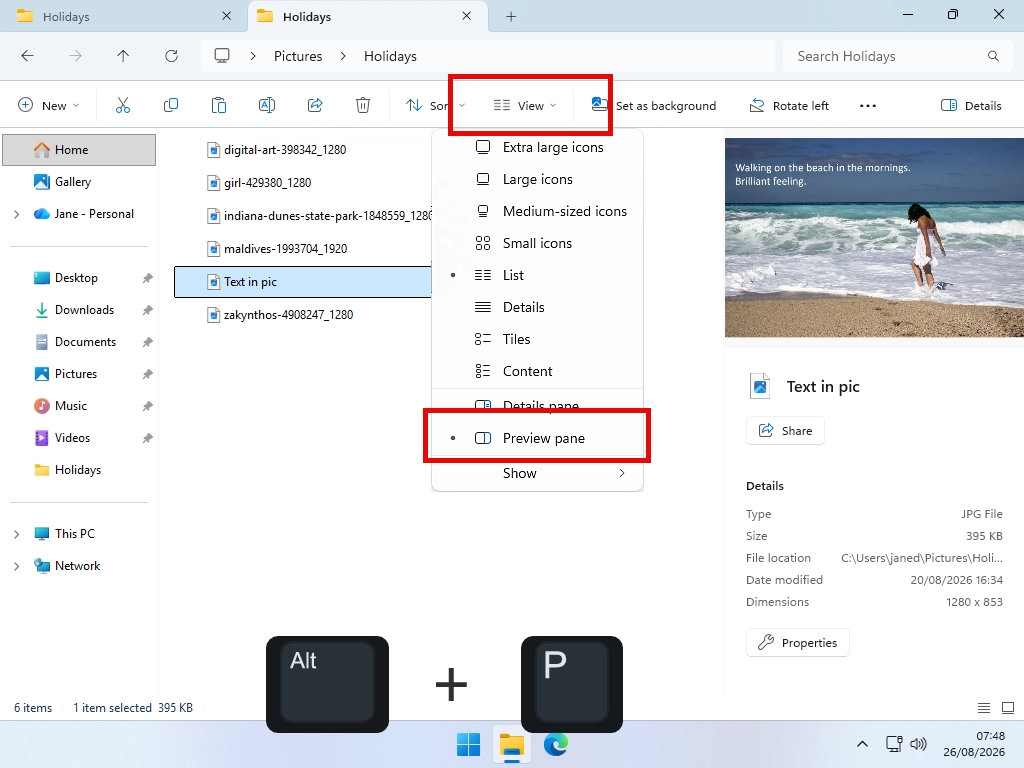
File Explorer has a Preview Pane, the panel down the right hand side that shows you what is inside a file when you click it. To show you that preview, File Explorer has to open the file. And a file that File Explorer has open is a file you cannot delete.
So you click the file, Explorer quietly opens it to draw the preview, and then Windows tells you the file is open in another program. The other program is File Explorer. The thing you are deleting it from.
- In File Explorer, click the View menu and then deselect Preview Pane.
- Alternatively you can use the keyboard shortcut Alt + P.
- Try deleting the file again.
Close the Folder Window Itself
Same idea, different cause. If you have the folder open in more than one window, or you are looking at the file in a thumbnail view, File Explorer may still be reading it.
This is easy to do with with the tabs that are now a part of File Explorer.
Close every File Explorer window, open a fresh one, go straight to the file without clicking on it along the way, and delete it.
Close the Obvious Suspects
Think about what the file is and what would have opened it. For example:
- A photo, maybe you looked at it in Photos earlier.
- A document you had open in Word, then closed the document but not Word.
- Something you downloaded, and your browser is still holding it.
- A video that is still sitting in a media player, paused, behind everything else.
Closing the document is not the same as closing the program. Plenty of programs keep hold of a file until you shut the whole thing down. It could be something as simple as that.
Restart the Computer
Boring and cliched but it works more often than anything else here, because restarting closes absolutely everything whether it wanted to close or not.
Restart, Not Shut Down.
Use Restart from the Start menu rather than shutting down and pressing the power button again. Windows has a fast startup feature that means a normal shut down does not clear everything out, but a restart always does.
If restarting fixes it and you would rather know why it happened, carry on reading. If it fixed it and you never want to think about it again, you’re all done, thanks for dropping by.
How to Find Out Exactly What Is Using the File
If the quick fixes didn’t do it, stop guessing. There is a free tool from Microsoft that just tells you the answer.
It is called File Locksmith, and it is part of Microsoft PowerToys, a free set of extra tools made by Microsoft themselves. You simply right click the stubborn file, and it shows you a list of every program currently holding onto it.
You’ll need PowerToys installed first. It’s free, it’s genuinely Microsoft’s own, and it takes a couple of minutes: how to install PowerToys, and is it safe. But once it’s installed you’ll never have this problem again.
Turn File Locksmith On
PowerToys is a collection of separate tools and they’re not all switched on to begin with. In fact it’s better to turn off everything you don’t want. Only enable what you’re using.
- Open PowerToys from the Start menu.
- Find File Locksmith in the list down the left.
- Turn on Enable File Locksmith.
Ask It What Is Using Your File
- Find the file in File Explorer and click it once to select it.
- Right click it.
- Click Show more options at the bottom of the menu.
- Click Unlock with File Locksmith.
A window opens listing every program that currently has your file open. That is your answer.
Do Not Skip Step 3.
In Windows 11, File Locksmith is not on the short right click menu you see first. It is hidden behind Show more options at the very bottom.
There is no setting to move it, and people have been asking Microsoft for one for a couple of years now. So if you right click and cannot see it, you have not installed it wrong. You just have not clicked Show more options yet.
Quicker still: hold Shift while you right click, and Windows gives you the full menu straight away.
Reading What It Tells You
Each entry in the list is one program holding your file. Click the arrow beside one to see more about it, including which files it has open and who it is running as.
There is an End task button beside each one, and a Reload button at the bottom to check again after you have closed something. Anything you close disappears from the list on its own.
Two things worth knowing before you go clicking End task. There is a section on that below, and it is worth reading.
If the List Looks Empty or Incomplete
Some programs run under a different user account, usually background things Windows itself started. File Locksmith cannot see those unless you give it permission.
Click Restart as administrator at the bottom of the File Locksmith window. It reopens with the full picture. If your list looked suspiciously short, this is why.
For example
You can right click a whole folder and run File Locksmith on that instead. It checks everything inside, including subfolders.
That is the answer to the “the folder or a file in it is open” version of the error, where you have no idea which of the forty files inside is the guilty one.
The Built-In Way, Without Installing Anything
If you would rather not install anything, Windows can tell you too. It is just less friendly about it.
The tool is called Resource Monitor and it has been in Windows for years.
- Hold the Windows key and press R.
- Type the command below and press Enter.
resmon.exe- Click the CPU tab along the top.
- Click the words Associated Handles to open that section up.
- Type the name of your file into the search box.
Anything holding your file appears in the list underneath. You do not need the full file name, a distinctive chunk of it is enough.
Once you know the culprit, go and close that program properly rather than ending it from here.
Which One Should You Use?
Honestly, if this happens to you once a year, use Resource Monitor and move on. Nothing to install and it is already there.
If it happens regularly, File Locksmith is worth having, because right clicking the file is a lot less faff than typing its name into a search box.
Ending a Program Safely
Now you know what is holding the file, and there is a big tempting End task button. Before you press it, one thing.
Ending a program throws away anything unsaved in it. No warning, no “are you sure”, no recovering it afterwards. If that is Word with two hours of work in it, those two hours are gone.
So work in this order.
- Recognise the name? Go and find that program, save what is in it, and close it normally. Always the better option.
- Do not recognise it? Look it up before ending it. Plenty of odd looking names are Windows doing its job.
- Only then use End task, and only on something you are confident about.
If the name is something like explorer.exe, that is File Explorer itself, which is the desktop and taskbar as well. Ending it makes your screen go blank for a second and come back. Alarming, harmless, and it usually releases the file.
And if you are not sure? Restart the computer instead. Slower, completely safe, and it gets you to the same place.
When Nothing Has It Open and Windows Still Says It Has
This is the version that drives people mad. You have closed everything. File Locksmith shows an empty list. Windows still will not let go.
You are not imagining it. A few things cause it.
- A program closed badly. It crashed, or you ended it, and Windows never got told to release the file. A restart clears it.
- Your antivirus is scanning it. Perfectly normal, and it lets go within a minute or two. Wait, then try again.
- OneDrive is syncing it. If the file lives in OneDrive, Documents or Desktop, it may be mid-upload. Look for the OneDrive cloud icon near the clock and wait for it to finish.
- It is on another computer. A file on a network drive or a shared folder can be held by somebody else entirely, and nothing on your machine will show you that.
For the first three, restarting is the sledgehammer that works. For the last one, you need whoever is at the other computer.
Troubleshooting
It Says the File Is Open in Outlook
Usually a .pst or .ost file, which is where Outlook keeps your emails. Outlook holds those open the entire time it is running, and closing the Outlook window is not always enough.
Close Outlook, wait ten seconds, and check the notification area by the clock in case it is still running quietly. If you are trying to move or delete a mail file, restarting is by far the easiest way.
It Is a Whole Folder I Cannot Delete
Run File Locksmith on the folder itself rather than hunting through it. It scans everything inside, subfolders included, and tells you which file is the problem.
I Cannot See Unlock with File Locksmith
Three possibilities, in order of likelihood. You have not clicked Show more options. You have not turned File Locksmith on in PowerToys settings. Or PowerToys is not running, in which case open it from the Start menu and try again.
The File Comes Back After I Delete It
That is a syncing folder, almost certainly OneDrive. You delete it here, the other copy syncs back down. Delete it from the OneDrive website instead and it will go everywhere.
I Get a Different Error About Permission
“You need permission to perform this action” is a different problem with a different fix. That one is about who owns the file, not what has it open, so nothing on this page will help.
Frequently Asked Questions
Find what has it open, then close that program. Turn off the File Explorer preview pane first, since that is the most common cause. If that does not do it, right click the file and use File Locksmith, or search for it in Resource Monitor. Restarting the computer works too and needs no tools at all.
Usually because a program closed badly and never released it, your antivirus is scanning it, or OneDrive is syncing it. It can also be the File Explorer preview pane, which opens files to show you what is inside them. A restart clears all of those.
Another program has the file open, and Windows will not let two programs change the same file at once. It is protecting the file from being damaged. Close whatever has it open and you can delete or rename it as normal.
It is safe for the computer, but anything unsaved in that program is lost with no warning. Where you recognise the program, go and close it properly instead. Where you do not recognise it, look it up before ending it.
Yes. It is part of Microsoft PowerToys, which is free, made by Microsoft, and has no adverts or paid extras.
In Windows 11 it sits under Show more options at the bottom of the right click menu, not on the short menu you see first. Hold Shift while right clicking to get the full menu straight away.
That is your Outlook mailbox and Outlook holds it open the whole time it is running. Close Outlook fully, check near the clock in case it is still running, then try again. Restarting is quicker.
Yes. Turn off the preview pane, or use Resource Monitor, which is already in Windows. Type resmon.exe after pressing the Windows key and R, then look under Associated Handles on the CPU tab.
Summary
Windows is not being awkward. Something genuinely has your file open, and it is stopping you damaging it.
Read the error message first. If it names a program, close that program and you are finished. If it says “another program”, start with the File Explorer preview pane, because that is the culprit more often than anything else and almost nobody knows it.
Still stuck, and you want the actual answer rather than more guessing? Right click the file and use File Locksmith, or search for it in Resource Monitor if you would rather not install anything. Both tell you exactly what is holding it.
Then close that program properly rather than ending it, so you do not lose anything you had not saved. And if all else fails, restart. It is not clever, but it works.
While you are here, my full beginner’s guide to Windows File Explorer covers the rest of what that window can do.
Change Monitor Brightness in Windows
No brightness slider for your desktop monitor? You’re not going mad. Windows usually doesn’t give you one.
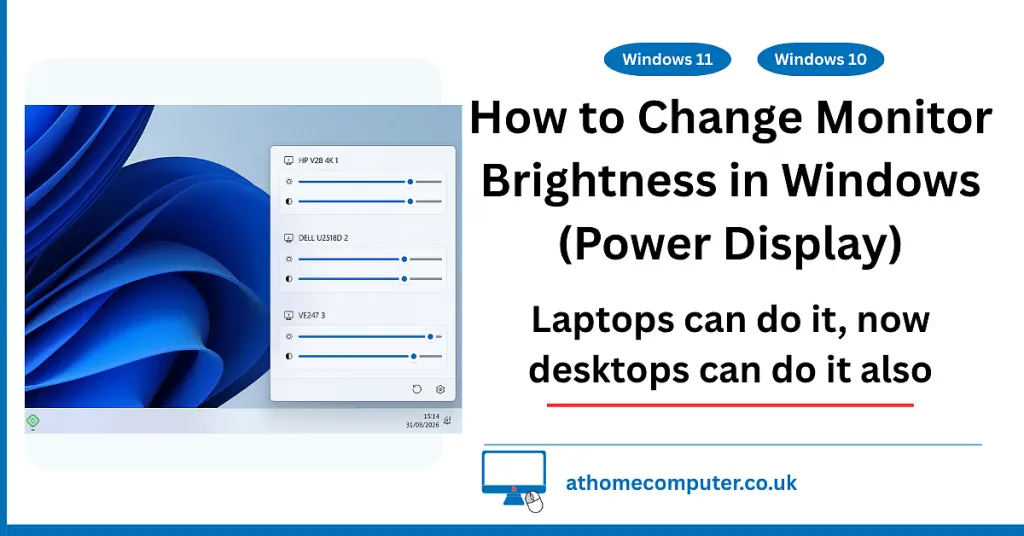
Here’s how to change the brightness of any external monitor from Windows itself. Free, and no fiddly buttons.
You can find this and other related step by step guides in – At Home Computer Guides