
Microsoft PowerToys is a free set of extra tools for Windows, made by Microsoft themselves. It adds around thirty small utilities that Windows doesn’t come with. Tools that let you rename hundreds of files in one go, resize a batch of photos, copy text from a picture, or pin a window so it always stays on top.
It’s free, open source and safe to use but PowerToys doesn’t come with Windows, you’ll need to download it and install it. I’ll show you how below.
Last checked: August 2026 – PowerToys version 0.100.2. When you read this the version may have changed.
Short Answer
Open the Microsoft Store on your PC, search for PowerToys, check the publisher says Microsoft Corporation, then click Get. Restart your computer afterwards. It’s free, it’s made by Microsoft and it’s safe. The only real risk is downloading it from somewhere other than the Store or Microsoft’s own GitHub page.
Table of contents
- What is Microsoft PowerToys?
- Is Microsoft PowerToys Safe to Install?
- What You’ll Need Before You Start
- How to Install PowerToys from the Microsoft Store
- How to Install PowerToys from GitHub
- How to Install PowerToys with WinGet
- What to do After Installing PowerToys
- How to Update PowerToys
- How to Uninstall PowerToys
- Troubleshooting
- Frequently Asked Questions
- Summary
What is Microsoft PowerToys?
PowerToys is a collection of small tools that add extra features to Windows. Microsoft build it and give it away for nothing.
The name goes back a long way, there were PowerToys for Windows 95 and Windows XP. Microsoft brought the idea back for Windows 10 and it’s been growing ever since. Today it includes around thirty separate utilities, and you can turn each one on or off individually.
A few examples of what’s in there:
- PowerRename – rename hundreds of files at once, using a search and replace
- Image Resizer – shrink a folder full of photos so they’ll fit in an email
- Text Extractor – copy text out of a picture or a screenshot
- Always On Top – pin a window so nothing else can cover it
- Light Switch – switch Windows to dark mode automatically at sunset
Is Microsoft PowerToys Safe to Install?
Yes. PowerToys is safe, and it’s worth explaining exactly why, because “download this free tool that unlocks hidden Windows features” is normally the sort of sentence that should set your alarm bells ringing. I generally advise against these type of ads. But just occasionally, they’re genuine.
Why PowerToys Can Be Trusted?
Microsoft make it. It’s published in the Microsoft Store under “Microsoft Corporation”, the same publisher name as every other Microsoft app on your PC.
The code is public. PowerToys is open source. That means that people who know what they’re looking at can read exactly what it does at github.com/microsoft/PowerToys. That’s not something adware ever does.
There’s nothing to pay and nothing to sign up for. No account needed, no trial, no subscription, no adverts, no “premium” version nagging you “Unlock more features”.
You control what runs. Every tool has its own on/off switch. If you only want one of them, turn the other twenty-nine off.
The One Real Risk: Fake Download Sites
PowerToys itself is safe. The danger is where you get it from.
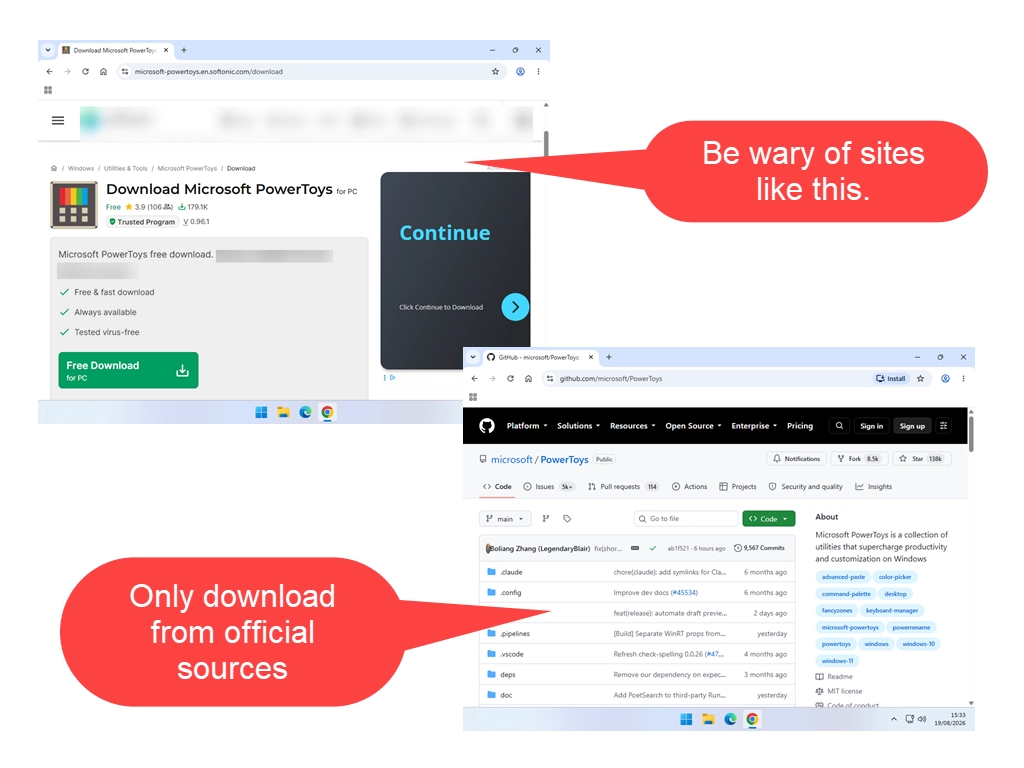
Search Google for “PowerToys download” and you’ll get plenty of results that aren’t Microsoft. Some are harmless enough. Others wrap the real installer in their own “download manager” that quietly installs a browser toolbar, changes your search engine, or worse.
There are only two places you should ever get PowerToys:
- The Microsoft Store app on your PC.
- github.com/microsoft/PowerToys – Microsoft’s own page.
Signs that you’ve hit the wrong site include: a big green DOWNLOAD button surrounded by other big green download buttons, a page telling you “your download will begin shortly”, a file that’s only a couple of hundred kilobytes (the real installer is far bigger), or an installer that offers you extra software along the way. Close the tab and start again.
What You’ll Need Before You Start
PowerToys won’t run on every PC. It’s worth checking these before you download anything.
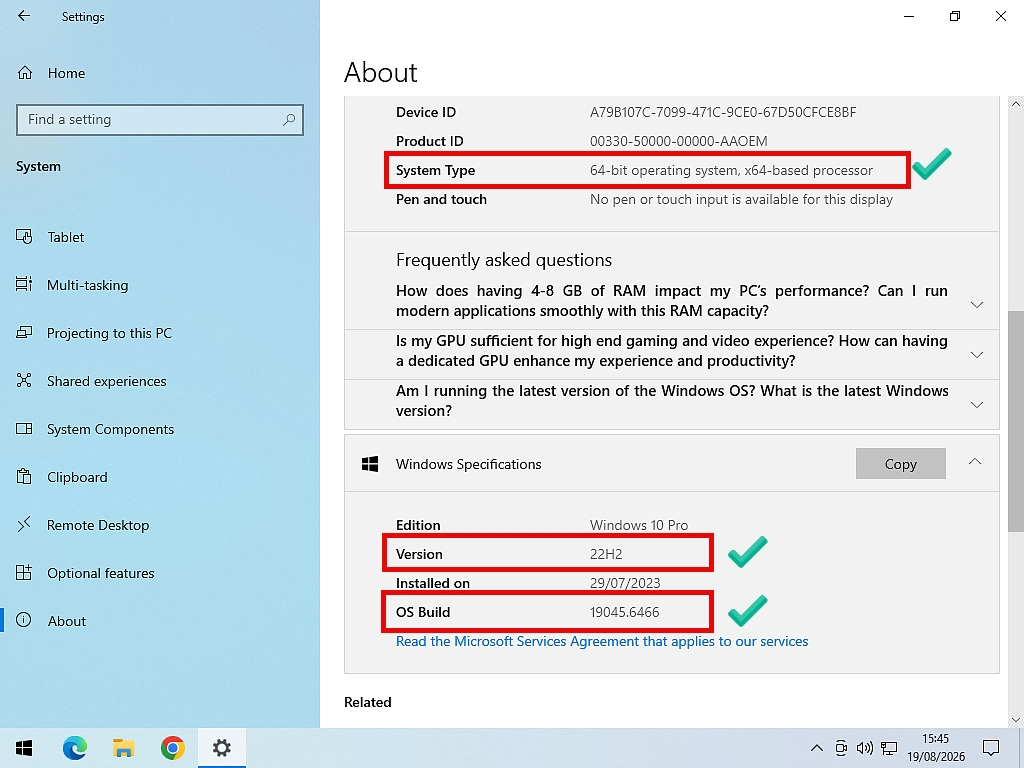
- Windows 11, or Windows 10 version 2004 (build 19041) or newer
- A 64-bit PC. There’s no 32-bit version
- The Microsoft Edge WebView2 runtime. Don’t worry about this one, if it’s missing the PowerToys installer adds it for you
How to Check Your Windows Version
- Press the Windows key + I to open Settings.
- Click System, then scroll to the bottom and click About.
- Under Device specifications, look at System type. It should say 64-bit operating system.
- Under Windows specifications, look at Version and OS build.
If System type says 32-bit operating system, PowerToys can’t be installed. There’s no way around that, it’s a limit of the processor rather than a setting you can change.
Still On Windows 10?
PowerToys still installs and runs on Windows 10, and it’s still useful. But Microsoft ended support for Windows 10 in October 2025, so the operating system underneath it no longer gets security updates. PowerToys can’t do anything about that.
How to Install PowerToys from the Microsoft Store
This is the easiest way and the one to use unless you’ve got a reason not to. The Store handles the download, the installation and all future updates for you.
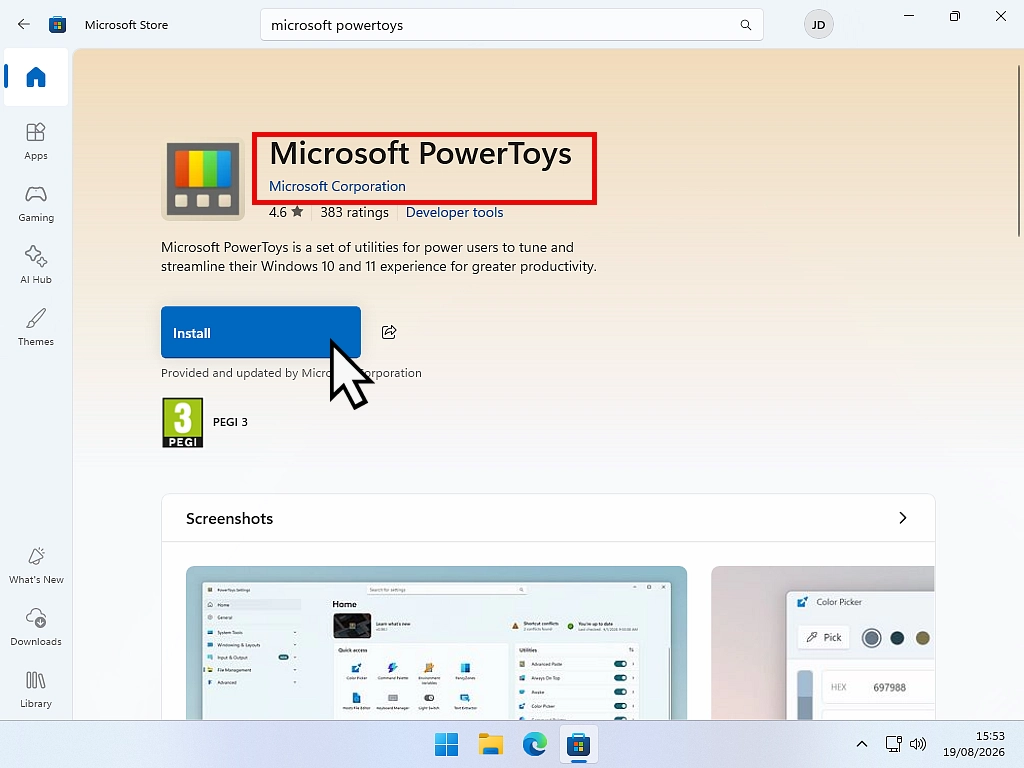
- Click Start, type Microsoft Store, and open it.
- When the Store opens search PowerToys.
- In the results, look for Microsoft PowerToys. Check the publisher underneath the name says Microsoft Corporation. There are copycat apps in the Store with similar names, so check it.
- Click it to select it, then click Get (or Install).
- Wait for the download to finish. It’s a fairly big app, so give it a minute or two.
Quick Tip
After the install has finished, restart your computer. The installer doesn’t require it, but I find that if you don’t, sometimes your PC can freeze, or lock up.
That happens because PowerToys has several utilities enabled by default. These tools make changes to Windows that can sometimes cause Windows to behave unexpectedly. A simple restart solves this issue.
How to Install PowerToys from GitHub
GitHub is Microsoft’s own home for PowerToys, and it’s where new versions land first. Use this method if the Microsoft Store isn’t working on your PC, if the Store is blocked, or if you’d simply rather have a normal installer file.
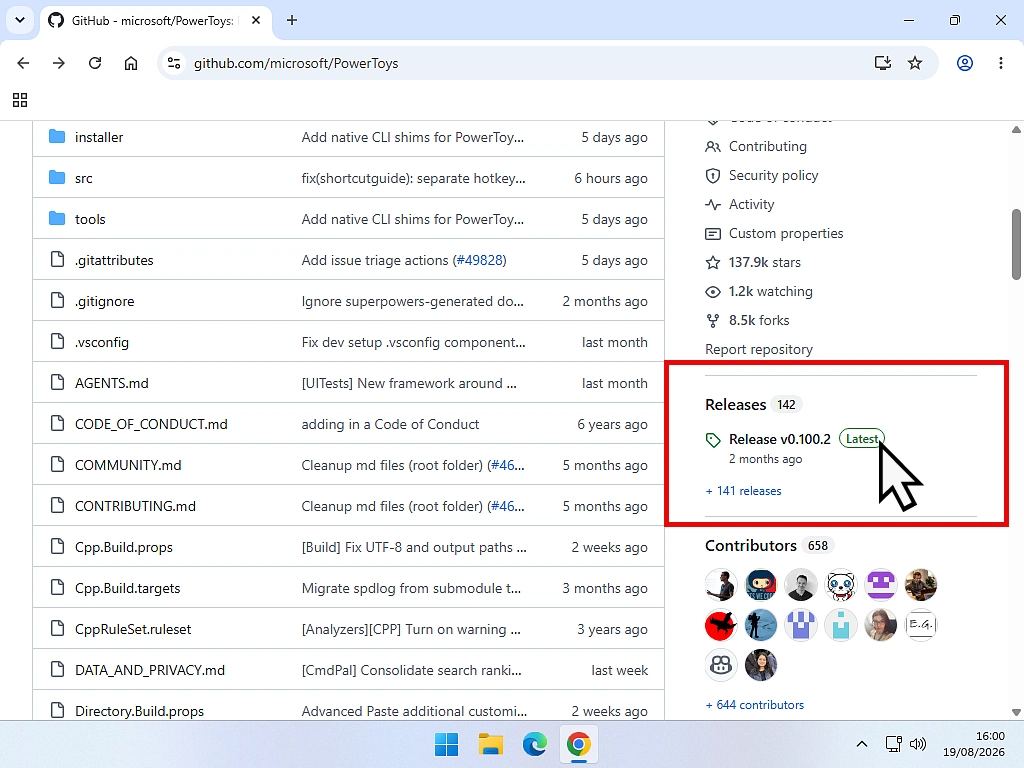
- Go to github.com/microsoft/PowerToys in your browser.
- Scroll down to the Releases section in the right hand panel. Click the Latest button.
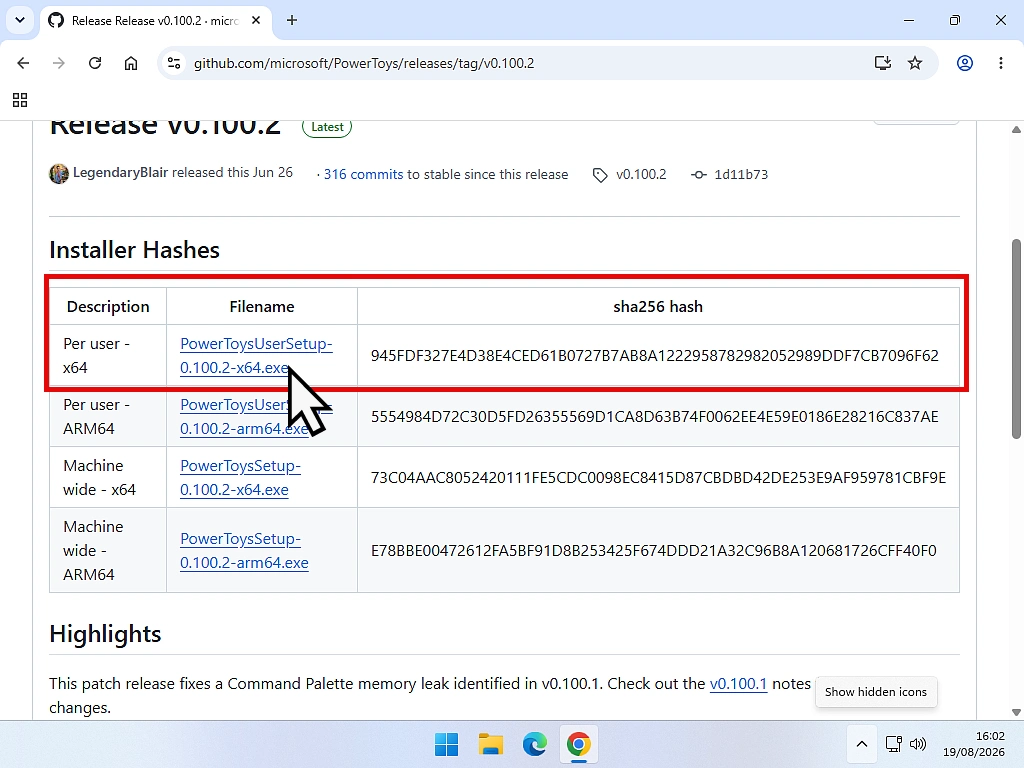
- Click the file that matches your PC (there’s help choosing below). It’ll be named something like PowerToysUserSetup-0.100.2-x64.exe.
- When the download finishes, open it and follow the installer.
- PowerToys opens when it’s done.
If you’re not sure where the file has gone after you click the download link, it’ll probably be sitting in your Downloads folder. There’s more on that in my guide to downloading files from the internet.
Restart Your PC.
Just as with installing from the Microsoft Store, I find that a quick restart helps to settle PowerToys in to Windows. Although the installer doesn’t require it, restart anyway.
Which File Should I Download?
The Assets list looks confusing at first because there are several files and it’s not always clear which one you need.
x64 or ARM64? Almost every desktop and laptop is x64.
ARM64 is for a small number of newer machines, mainly Copilot+ PCs and the Surface Pro X.
So for most people, just download the x64 version. In the unlikely case that you’ve downloaded the wrong version, your PC will notify you that you can’t use that file, so no harm done.
User setup or machine-wide setup? This one decides whether only you can use PowerToys, or can everyone use it.
PowerToysUserSetup installs PowerToys for your account only. Other accounts on the same PC won’t see it. It goes into your own user folder, so you don’t normally need administrator permission. This would be my recommended download.
PowerToysSetup (no “User” in the name) installs it for every account on the PC. It goes into Program Files, and it needs administrator permission.
The only difference in the filename is that little word User, which is easy to miss. Read it carefully before you click.
If it’s your own PC and you’re the only one using it, take the UserSetup file. It’s simpler and it doesn’t need admin rights.
How to Install PowerToys with WinGet
If you’re comfortable with a command line, this is the fastest way of the three. WinGet is Windows’ built-in package installer and it’s already on your PC.
- Right-click Start and choose Terminal (or Windows PowerShell).
- Type the command below and press Enter.
winget install --id Microsoft.PowerToys --source wingetWinGet downloads and installs it for you. If you’d rather not touch a command line, ignore this section entirely, the Microsoft Store method gets you to exactly the same place.
Two Hyphens, Not One
There are two hyphens in front of id, and two in front of source. If you type just one, WinGet won’t understand the command.
What to do After Installing PowerToys
PowerToys isn’t a program you open and close. Instead it runs in the background and the tools work wherever you are in Windows. The Settings window is just where you switch things on and off.
Where to Find PowerToys Settings
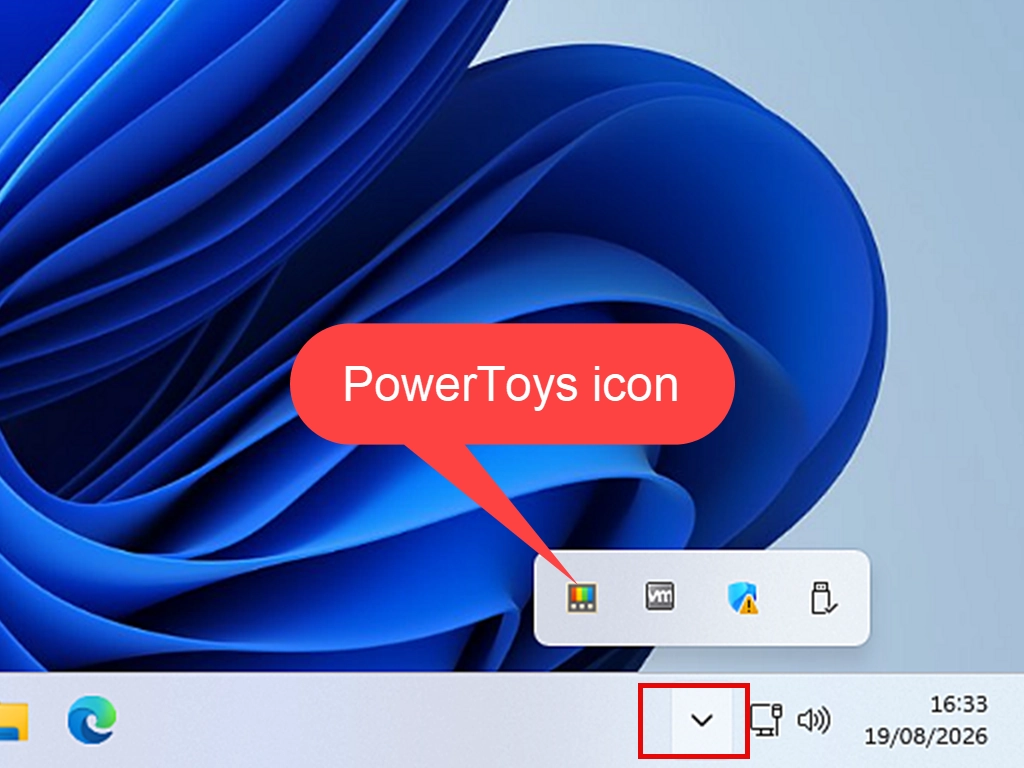
Look in the system tray, the little icons at the right-hand end of the taskbar, next to the clock. You may need to click the small arrow to show hidden icons. Double-click the PowerToys icon and Settings opens.
You can also just click Start and type PowerToys.
Some Tools Live in the Right-Click Menu
Not every PowerToys tool has a window of its own or a keyboard shortcut. Some of the most useful ones only appear when you right-click a file in File Explorer. PowerRename, Image Resizer and File Locksmith all work that way.
On Windows 11 you might not spot them at first. Windows 11 shows a shortened right-click menu, so you may need to click Show more options at the bottom before the PowerToys entries appear.
If that extra click annoys you, you can bring back the full right-click menu in Windows 11 so everything shows up straight away.
Turning Tools On and Off
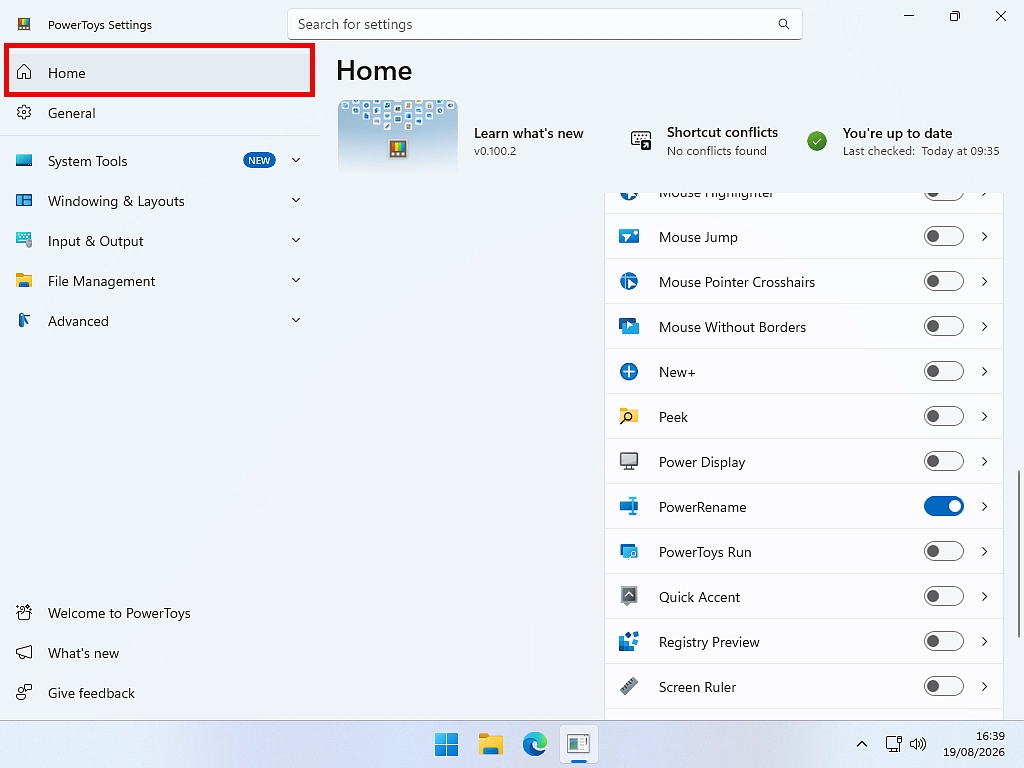
The Home screen lists every tool with a switch beside it. Some will be switched on by default, which is why a restart immediately after installation is recommended.
Most people installing PowerToys do so to get hold of just one or maybe two of its utilities. Not everything.
My advice is to go down the list and switch off everything that you don’t need or want.
For example, you may have installed PowerToys for the PowerRename tool. Turn off everything except for PowerRename.
You can always turn on anything that you want to try out later. Try each additional tool one at a time.
Which Tools to Try First
If you want one thing to try in the next thirty seconds, use Always On Top. Click any window and press Windows key + CTRL + T. After that the window now stays in front of everything else. It’s the quickest way to see the point of PowerToys.
After that, have a read through what every PowerToys tool does and pick the ones that might be useful for you. Remember that you aren’t making permanent changes, you can always turn off a utility if it gets in way.
Should PowerToys Start with Windows?
Yes, for most people. Nearly every PowerToys tool only works while PowerToys is running, the keyboard shortcuts do nothing if it’s closed.
The setting is in General, called Run at startup, and it’s usually on already. If your PC is slow to start and you only use PowerToys occasionally, turn it off and open PowerToys manually when you need it.
Do I Need to Run PowerToys as Administrator?
Almost certainly not, and you shouldn’t bother unless something specific stops working.
Windows keeps ordinary programs and administrator programs apart on purpose, for security reasons. So if you’ve got a program open that’s running as administrator, PowerToys can’t reach into it, your custom keyboard shortcuts won’t work in that window. Running PowerToys as administrator too lets it get past that wall. The two programs become equal.
For normal home use, leave it alone. It’s very unlikely that you’ll need to use PowerToys as an admin.
How to Update PowerToys
Microsoft release a new version roughly every month and as with most other software it’s worth keeping it up to date.
If you installed from the Microsoft Store, updates happen on their own. There’s nothing to do. Which is why I generally recommend it.
If you installed from GitHub or WinGet, PowerToys checks for updates itself while it’s running and pops up a notification when there’s a new version.
In General settings you’ll find an option to Download updates automatically and Show new updates as toast notifications. You can also click Check for updates whenever you like.
How to Uninstall PowerToys
Before you uninstall, remember you can switch off individual tools instead. If one particular utility is causing trouble, turning that one off is a lot less drastic than removing the whole thing.
If you do want it gone:
- Press Windows key + I to open Settings.
- Click Apps, then Installed apps.
- Find PowerToys in the list.
- Click the three dots beside it and choose Uninstall.
The extra entries PowerToys adds to your right-click menu disappear with it.
Troubleshooting
As with any other app there are always things that go wrong. Here are some of the most common.
The Installer Won’t Run
Check System type in Settings > System > About. If it says 32-bit, PowerToys can’t be installed on that PC. If it says 64-bit, check your Windows version is at least 2004 (build 19041).
I Can’t Find PowerToys in the Microsoft Store
Search for “Microsoft PowerToys” rather than just “PowerToys”, and check the publisher says Microsoft Corporation. If the Store itself won’t open or search, use the GitHub method instead.
It Installed But Nothing Happened
That’s normal. PowerToys doesn’t open a window and sit on your desktop, it runs in the background. Look for its icon in the system tray next to the clock, behind the hidden icons arrow.
The Keyboard Shortcuts Don’t Work
Three things to check, in order. Is PowerToys actually running (look in the tray)? Is that particular tool switched on in the dashboard? And is another program already using the same shortcut? You can change any PowerToys shortcut in its settings.
It Works Everywhere Except One Program
That program is probably running as administrator. Windows blocks ordinary programs from reaching into administrator ones. Restart PowerToys as administrator and it’ll work.
I Think I’ve Installed it Twice
Easily done if you tried the Store and then the installer. Two copies of PowerToys running at once will fight over the same keyboard shortcuts. Go to Settings > Apps > Installed apps, and if PowerToys appears more than once, uninstall one of them.
Frequently Asked Questions
Yes, completely. There’s no cost, no trial period, no subscription and no premium version. You don’t need to create an account to use it either.
Yes. It’s an official Microsoft project, published in the Microsoft Store under “Microsoft Corporation”, and the code is public for anyone to inspect. The only risk is getting it from a fake download site rather than from Microsoft.
Barely, as long as you only leave on the tools you actually use. Every utility has its own on/off switch, so switch off the ones you don’t need and PowerToys uses very little memory.
Yes, as long as you’re on Windows 10 version 2004 (build 19041) or newer and your PC is 64-bit. Bear in mind Microsoft stopped supporting Windows 10 in October 2025, so the operating system itself no longer gets security updates.
The installer doesn’t ask you to, but it’s worth doing. Several utilities are switched on by default and they make changes to the way Windows behaves. A restart lets everything settle and avoids the occasional freeze.
For most tools, yes. Keyboard shortcuts like Always On Top only work while PowerToys is running in the background, which is why it’s set to start with Windows by default.
Usually yes. Download the file with “UserSetup” in the name from GitHub rather than the machine-wide one. It installs into your own user folder and only applies to your account, so it doesn’t normally need admin permission.
Only two places. The Microsoft Store app on your PC, or Microsoft’s own page at github.com/microsoft/PowerToys. Other download sites may wrap the installer in their own software and add things you didn’t ask for.
Summary
PowerToys is free, it’s made by Microsoft, and it’s safe to use provided you get it from the Microsoft Store or Microsoft’s own GitHub page and nowhere else.
You’ll need Windows 11, or Windows 10 version 2004 or newer, on a 64-bit PC. The Microsoft Store is the easiest route and handles updates for you. Once it’s installed, PowerToys sits in the system tray and its tools work throughout Windows, so if it looks like nothing has happened, that’s exactly what should happen.
Turn off the tools you won’t use, and try Always On Top first for a quick sense of what PowerToys is for. When you’re ready to explore properly, see the complete guide to Microsoft PowerToys which covers what every single tool does.