
Microsoft PowerToys is a free collection of around thirty extra tools for Windows, built and given away by Microsoft themselves. It isn’t part of Windows. You have to add it yourself, and once it’s there it quietly adds features that Windows has never had.
Some of them are genuinely useful. For example there’s a tool to rename your photos in one go. Copy text straight out of a picture. Pinning a window on top so nothing can cover it. Others you’ll probably never touch, and that’s fine, because every tool has its own on/off switch.
This guide explains what PowerToys is, what every one of its tools actually does in plain English, and which ones are worth switching on first.
Last checked: August 2026 — PowerToys version 0.100.2
Table of contents
What is Microsoft PowerToys?
PowerToys is a set of small utilities that add extra abilities to Windows. Microsoft build it, Microsoft publish it, and Microsoft give it away for nothing.
The name goes back a very long way. There were PowerToys for Windows 95 and again for Windows XP, and older readers may well remember them. Microsoft revived the idea for Windows 10 and it’s been growing steadily ever since. Today it includes around thirty separate tools.
The most important thing to understand is that PowerToys isn’t one program. It’s a suite of thirty or so, the actual number varies with each release, bundled together, each with its own on/off switch.
You’ll see the individual tools called modules, utilities or add-ons in various places, including inside PowerToys itself. They all mean the same thing.
What Does PowerToys Cost?
Nothing at all. There’s no trial period, no subscription, no premium version and no account to create. PowerToys is also open source, which means anyone who understands the code can read exactly what it does. That’s not something dodgy software ever allows.
There’s more on that, and on the one real risk to watch for, further down this page.
Is PowerToys Worth Installing?
That depends entirely on whether one of the thirty tools solves a problem you actually have. Nobody uses all of them.
Because there are are so many the answer is probably yes, for most people, because you’ll find that at least one of them useful. If you’ve ever had to rename a bunch of files one at a time, squinted to find your mouse pointer, or tried to copy text out of a screenshot, there’s something here for you. Read the list below and see if anything makes you think “oh, that would be handy”. If nothing does, don’t bother installing it.
How to Get PowerToys onto Your Computer
You can get PowerToys direct from the Microsoft Store, search for PowerToys, check the publisher says Microsoft Corporation, and click Get. It’s free and it takes a couple of minutes.
You’ll need Windows 11, or Windows 10 version 2004 or newer, on a 64-bit PC. If you’d like the full step by step, including how to check your Windows version and the fake download sites to avoid, that’s all in How to Install Microsoft PowerToys.
How PowerToys Works Once It’s Installed
This catches a lot of people out, so it’s worth saying plainly. PowerToys isn’t a program you open and use. It runs in the background and its tools work wherever you happen to be in Windows.
If you install it and nothing seems to happen, that’s exactly right. Nothing is supposed to happen.
Where To Find The PowerToys Settings
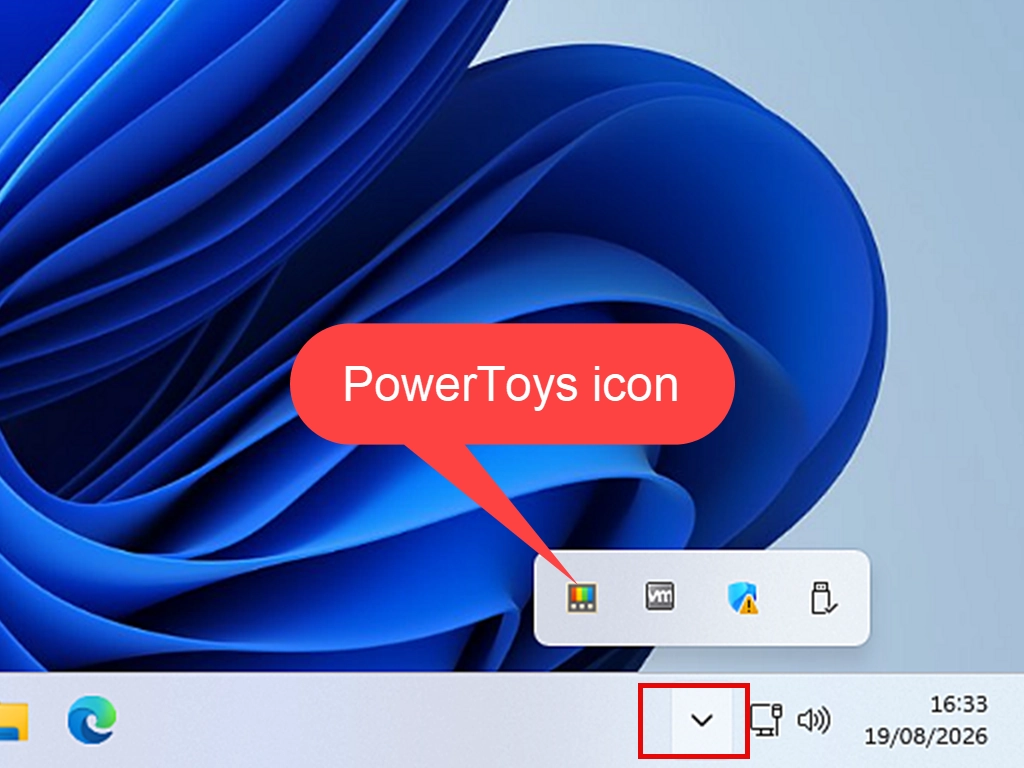
Look in the system tray, the small icons at the right-hand end of your taskbar, next to the clock. You may need to click the little arrow to show hidden icons. Double-click the PowerToys icon and the Settings window opens.
Or simply click Start and type PowerToys.
Switching Tools On and Off
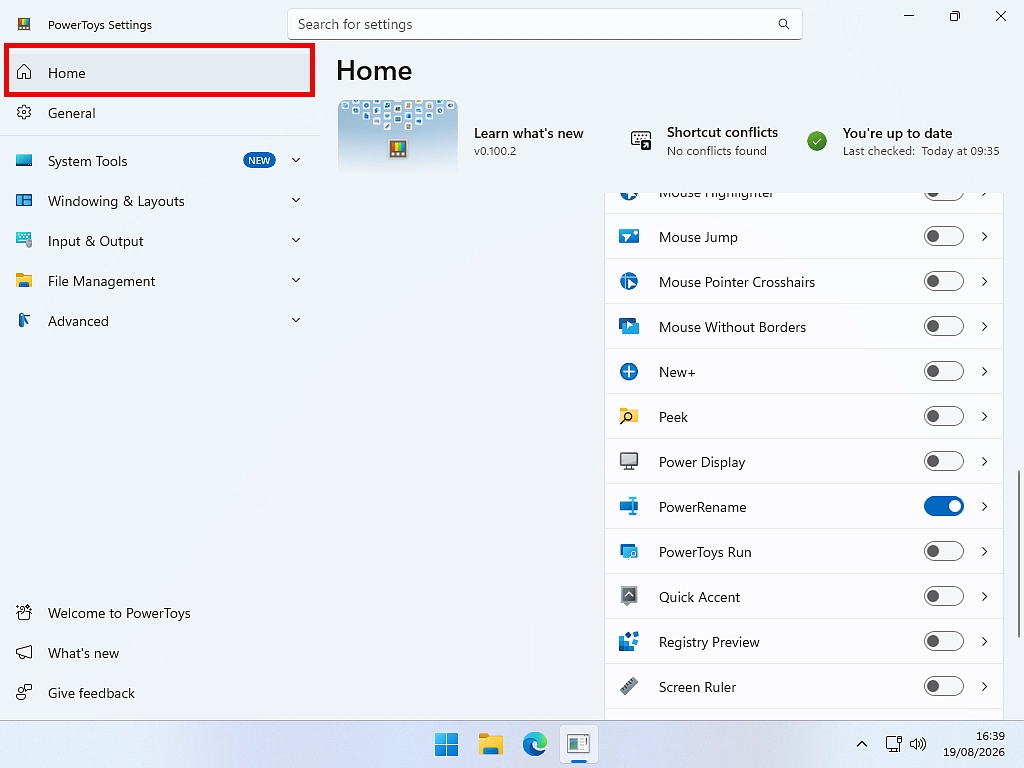
The dashboard lists every tool with a switch beside it. Several arrive already switched on, which is more than most people need running.
My advice is to go down the list and switch off anything you don’t recognise or won’t use. You can turn any of them back on later, and nothing is permanent. A leaner PowerToys uses less memory and, more usefully, stops you triggering keyboard shortcuts by accident.
Quick Tip
Try one tool at a time. Switch it on, use it for a few days, and only then add another.
Turning all thirty on at once is the fastest way to end up confused about which tool just did the unexpected thing to your screen.
Every PowerToys Tool, and What It Actually Does
Here’s the full list. I’ve grouped them by the job they do rather than listing them alphabetically.
Tools to Organize Your Files and Photos
PowerRename renames hundreds of files at once using a search and replace. It can also rename photos using the information stored inside them, so a folder of IMG_4471.jpg becomes a folder named by the date each picture was actually taken. Right-click menu.
Image Resizer shrinks a whole folder of photos in one go, which is what you want when they’re too big to email. It makes copies by default, so your originals are safe. Right-click menu.
File Locksmith tells you which program is holding on to a file when Windows says it can’t be deleted because it’s open somewhere. Right-click menu.
Peek shows you what’s inside a file without opening anything. Click a file in File Explorer and press the spacebar. Images, videos, Office documents, PDFs and text files all work. Press the arrow keys to flick through a folder.
New+ lets you build your own list of templates in the right-click New menu, so you can create a new document from your own starting point instead of a blank one.
File Explorer add-ons teach File Explorer to show previews and thumbnails for file types it normally ignores, like SVG images and Markdown files.
Tools for Managing Windows on Your Screen
Always On Top pins a window in front of everything else so nothing can cover it. Click the window and press Windows key + CTRL + T. Perfect for a calculator or a set of notes you’re copying from.
FancyZones lets you carve your screen into your own layout of zones and snap windows into them. Far more flexible than the side-by-side snapping Windows does on its own, and it comes into its own on a big monitor.
Grab And Move lets you move or resize a window by holding Alt and dragging from anywhere inside it, instead of having to grab the title bar or a thin edge. It’s the answer when a window’s title bar has ended up off the top of your screen.
Crop And Lock takes a small piece of a window — one chart, one panel — and turns it into its own little window that still works.
Workspaces remembers a set of programs and where they sat on screen, then reopens the whole arrangement with one click.
Tools for Copying, Pasting and Text
Advanced Paste pastes without dragging the original formatting along with it, no more website fonts and grey backgrounds landing in your Word document. Windows key + Shift + V.
Text Extractor copies text out of a picture, a screenshot or anything else on screen you can’t select. Windows key + Shift + T, then drag a box around the words. Genuinely feels like magic the first time.
Quick Accent types accented characters like é, ñ and ü on a keyboard that has no key for them. Hold the letter and tap the space bar.
Tools to Personalize Your Screen and Make it Easier to See
Mouse utilities is four small tools in one. Find My Mouse throws a spotlight on your pointer when you press CTRL twice — a real help on a big screen or two monitors. Mouse Highlighter puts a circle on every click. Mouse Jump throws the pointer a long way in one go. Crosshairs draws guide lines through the pointer so you can’t lose it.
Light Switch flips Windows between light and dark mode automatically at sunset and sunrise. Windows still can’t do this on its own.
Power Display puts brightness, contrast and volume for your monitors into one panel by the clock. If you have a desktop PC with no brightness slider, this is the tool you didn’t know existed. External monitors only — it can’t control a laptop’s built-in screen.
Screen Ruler measures anything on screen in pixels.
Color Picker grabs the exact colour of any pixel on screen and copies its code ready to paste. Windows key + Shift + C. Microsoft spell it the American way, so that’s how you’ll find it in the list.
ZoomIt zooms into part of your screen, lets you draw on it and can record what you’re doing. Made for showing something to somebody else.
Tools for Speed and Shortcuts
Command Palette is a search box that opens over whatever you’re doing and finds apps, files, settings pages and web searches, and does sums. Windows key + Alt + Space. It’s the newest of the big tools and it’s replacing the older PowerToys Run, which does much the same job and is still included for now.
Keyboard Manager changes what your keys do. Turn off Caps Lock because you keep hitting it, or make a working key stand in for one that’s broken.
Shortcut Guide shows you the keyboard shortcuts for whatever program you’re in, and you can search them. Windows key + Shift + ?.
Awake stops your computer going to sleep during a long download or while you’re presenting. It doesn’t change your power settings — it holds the machine awake temporarily and everything returns to normal afterwards. You can set it for a fixed number of hours or until a time you choose.
Mouse Without Borders lets one keyboard and mouse control up to four computers, moving between them by pushing the pointer off the edge of the screen. It shares the clipboard between them too.
The Ones You Can Safely Ignore
Four of the tools are built for programmers and system administrators. They’re perfectly safe, they’re just not aimed at home users, and nothing breaks if you leave them switched off. Most likely if you need these tools then you’ll already know how to use them.
- Environment Variables – manages the settings Windows uses to find programs
- Hosts File Editor – edits the file that points web addresses at particular computers
- Registry Preview – a viewer for Windows registry files
- Command Not Found – suggests what to install when a PowerShell command fails
Which PowerToys Tools Should You Try First?
Thirty tools suddenly landing on your PC at the same time is a lot to take in. Start by turning everything off except the one you want to try.
If you want somewhere to start, these five give you the most for the least effort, and none of them changes anything permanently.
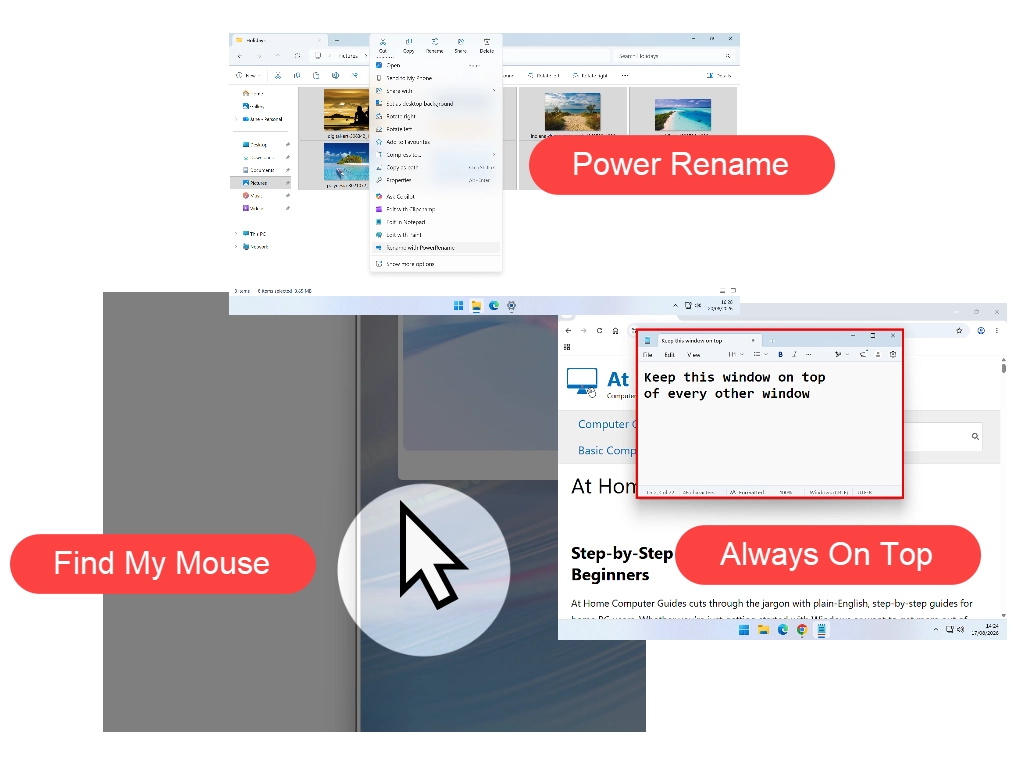
- Always On Top – the quickest way to see the point of PowerToys. Click a window, press Windows key + CTRL + T, and it stays in front.
- Peek – click a file, press the spacebar, see inside it. You’ll use this constantly.
- PowerRename – the first time you rename two hundred photos in one go you’ll wonder how you managed before.
- Text Extractor – copying words out of a picture is the tool people are most impressed by.
- Find My Mouse – press CTRL twice. If your eyes aren’t what they were, or you run two screens, this one earns its place daily.
How to Customize PowerToys
Nearly everything in PowerToys can be changed. Click a tool in the Settings window and you’ll find its options.
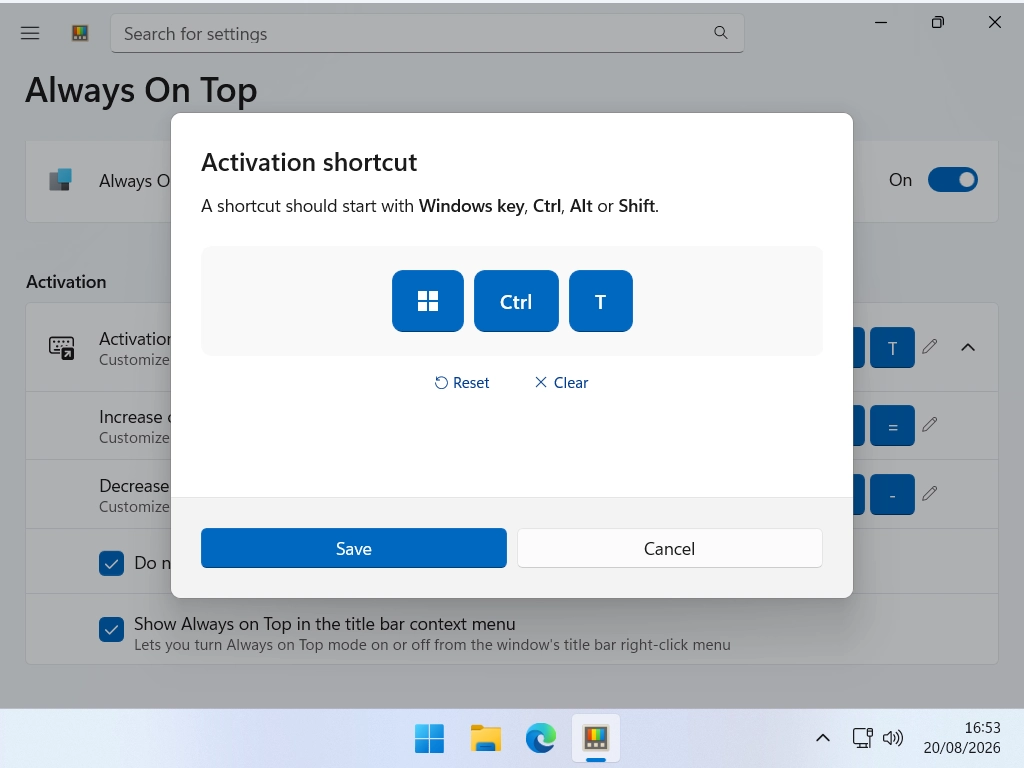
The setting worth knowing about first is the keyboard shortcut. Every tool that uses one lets you change it, which matters if a PowerToys shortcut clashes with something you already use.
In the General settings you’ll also find Run at startup. Leave this on. Almost every PowerToys tool only works while PowerToys is running, so if it’s closed the shortcuts simply do nothing.
How to Turn PowerToys Off or Remove It
If one tool is causing trouble, switch that one off rather than removing everything. It’s far less drastic and it usually fixes it.
To stop PowerToys for now, right-click its system tray icon and choose Exit. It’ll be back next time you start the computer unless you also turn off Run at startup.
To remove it completely, press Windows key + I, click Apps, then Installed apps, find PowerToys, click the three dots and choose Uninstall. The extra entries it adds to your right-click menu disappear along with it.
Frequently Asked Questions
It’s a free box of around thirty small tools from Microsoft that add features Windows doesn’t have on its own. You install it once, then switch on only the tools you want.
Completely. No cost, no trial, no subscription and no account needed. It’s also open source, so anyone can inspect exactly what it does.
Yes. PowerRename renames hundreds of photos at once and can name them by the date each one was taken. Image Resizer shrinks a whole folder in one go so they’ll fit in an email.
Around thirty, and the number grows. Microsoft release a new version roughly every month and new tools appear a few times a year.
Yes, every one of them. Open PowerToys Settings, click the tool, and change the activation shortcut. Useful if a PowerToys shortcut clashes with one you already use.
Up to a point. Light Switch changes between light and dark mode automatically, Power Display controls your monitor brightness, and FancyZones lets you set your own screen layout. It doesn’t change themes or wallpapers.
Yes, on Windows 10 version 2004 or newer with a 64-bit PC. Bear in mind Microsoft stopped supporting Windows 10 in October 2025, so the operating system itself no longer gets security updates.
No, and almost nobody does. Most people use two or three. Everything else can stay switched off.
Summary
Microsoft PowerToys is a free set of around thirty extra tools for Windows 11 and Windows 10, made and given away by Microsoft. It isn’t one program, it’s thirty of them in a box, and each has its own on/off switch.
Nobody uses all of them. Install it, read down the list above, and switch on the two or three that solve a problem you actually have. Leave the rest alone. You can always come back.
If you haven’t installed it yet, start with How To Install Microsoft PowerToys. If you have, try Always On Top first — click any window, press Windows key + CTRL + T, and you’ll see the point of the whole thing in about five seconds.