Sharing a computer at home shouldn’t mean sacrificing your privacy, we all need a little privacy. Knowing how to protect your files on your home PC is essential. Windows doesn’t really offer an automatic way to simply mark a folder as private. There’s no way to password protect a file or folder.
In this guide. I’ll show you how you 6 methods of either hiding or password protecting your files and folders to keep them private.
Protecting Your Files
I’m going to show you 6 ways of protecting files and folders on your computer. The first 3 will be simply hiding the files/folders from sight. “What the eye doesn’t see, the heart doesn’t miss”. Then we’ll look at how you add password protection to files.
- Hiding (Privacy): Keeps files out of sight. Good for decluttering or stopping accidental clicks. Low Security.
- Encryption (Security): Scrambles the data so it cannot be opened without a password. High Security.
Protect A File By Making It Invisible
If you just wanted to stop someone from casually seeing a file or folder on your desktop, you can make it “invisible.” This doesn’t encrypt the data, but it effectively removes it from view.
How to Hide a Folder using Windows Properties
- Right-click the file or folder you want to hide.
- Select Properties.
- In the General tab, check the box labelled Hidden.
- Click Apply and then OK.
To access your hidden files, open File Explorer, click the View tab (or “Show” in Windows 11), and check the box for Hidden items. Your folder will appear as a semi-transparent icon.
This method is great for basic privacy, it’s quick and easy to use and will stop the casual user from even seeing your files or folders. But anyone who uses the “Show Hidden Items” option will find it in seconds.
The “Ghost Folder”
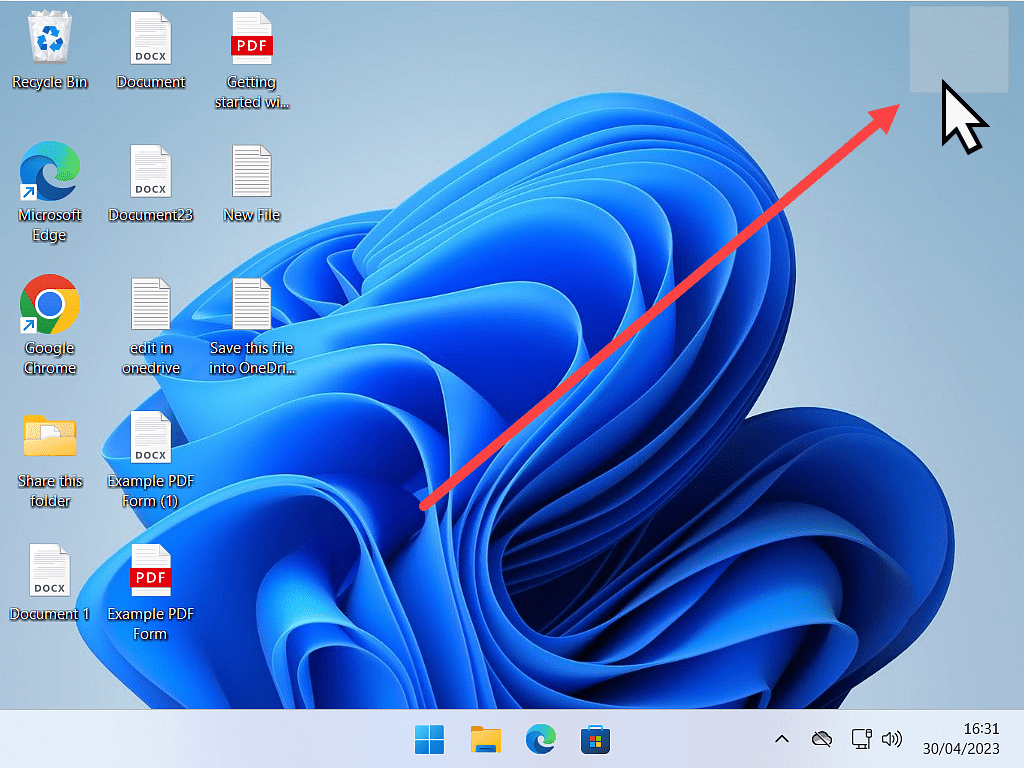
Did you know you can create a folder on your desktop that has no name and no icon? It effectively looks like empty space until you hover over it. A folder that is completely invisible unless you highlight it with your mouse.
Remove The Folder Icon
- Right-click your folder and choose Properties.
- Go to the Customize tab and click Change Icon.
- Scroll to the right until you see blank spaces. Select one of these “invisible” icons and click OK.
Remove The Folder Name
- Right-click the folder and choose Rename.
- Hold down the Alt key on your keyboard and type 0160 on the number pad.
- Release Alt and press Enter.
Ghost folders only appear when the mouse pointer passes over them. However they act exactly the same as any other folder.
Double click on one and it’ll open allowing you to add files that you want to keep protected.
Although it can’t be called secure on it’s own, you could always combine it with password protection such as 7-Zip.
For a more detailed guide on both of these methods of protecting files click How To Hide Folders In Windows.
Protect Files By Hiding Them Inside An Image
This is a method straight out of a spy movie. You can actually hide a .zip file inside a .jpg image file. To anyone else, it looks (and opens) like a normal photo. But if you open it with archive software, your secret files are there.
- Put your secret files into a Zip file (e.g., secret.zip) and have a cover image ready (e.g., picture.jpg). They’ll need to in the same folder, e.g. your desktop.
- Open Command Prompt and navigate to the folder where your image and zipped folder are.
- Use the command: copy /b picture.jpg + secret.zip newimage.jpg

The resulting file, newimage.jpg, will show no outward signs that it’s anything other than just a picture. Save the picture in to your Pictures folder along with several other pictures and it’s all but disappeared.
This method of hiding files is a little more involved since it requires the use of the Command Prompt, but it is doable. How To Hide A File Or Folder Inside An Image.
Password Protect Files With 7-Zip
Hiding your files and folders from view is all very good and well, but it isn’t in any way secure. It relies solely on your files not being discovered. Encrypting and password protecting files is quite different. No password, no access, its as simple as that.
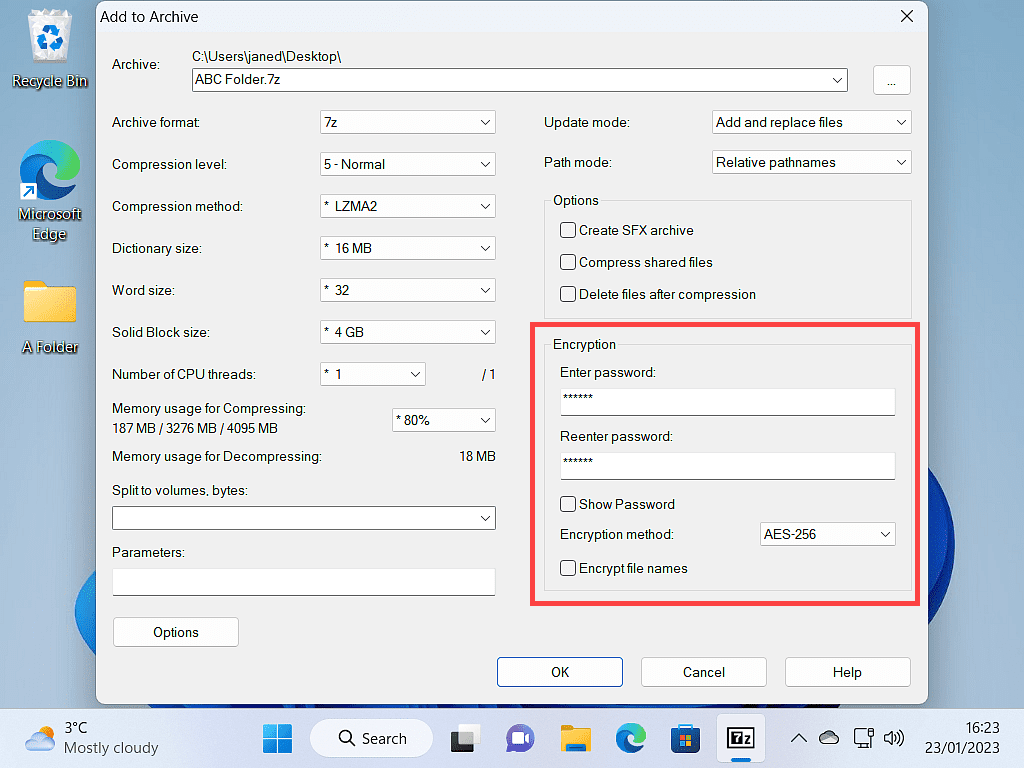
7-Zip is a free and open source tool that not only compresses (zips) files and folders, but can also encrypt them and require a password to unlock them.
7-Zip is a free and open source tool that not only compresses (zips) files and folders, but can also encrypt them and require a password to unlock them.
It’s a quick and easy way to protect your files and privacy. Read the complete step by step guide here How To Use 7-Zip To Password Protect Files.
Create A Secure Vault With VeraCrypt
For the ultimate protection for your files and folders, you want VeraCrypt. Like 7-Zip it’s free and open source but the similarities stop there. VeraCrypt creates an encrypted virtual drive that can only be opened with a password.
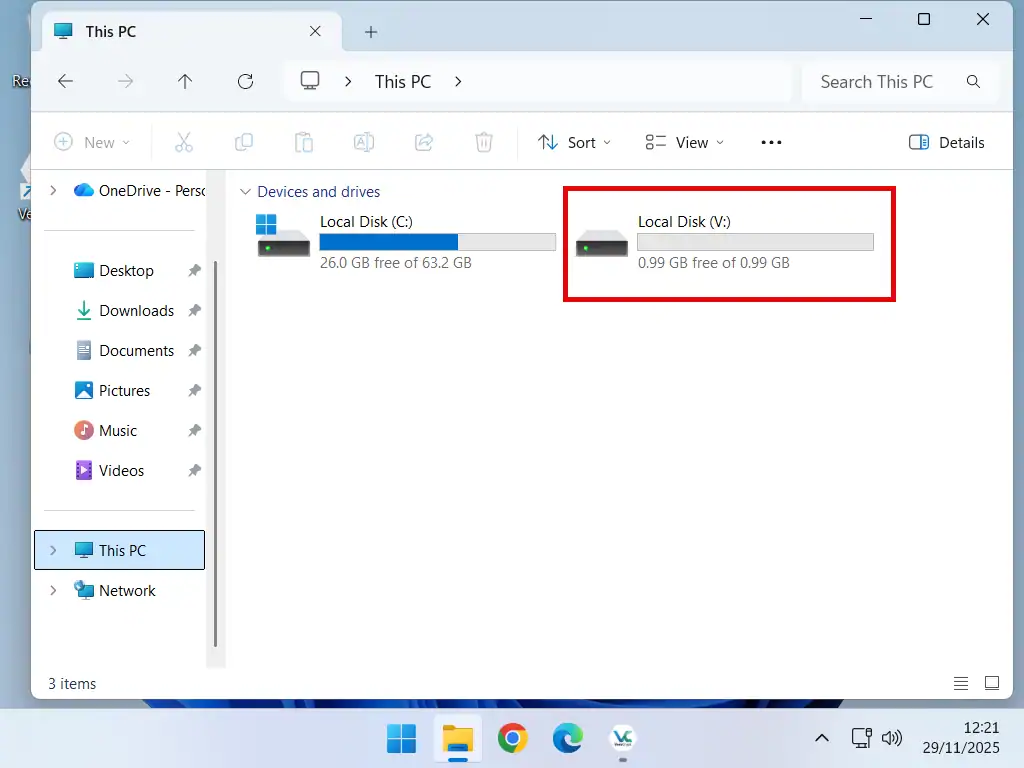
When you mount the drive it acts like a normal USB stick. It even appears in File Explorer. You can drag and drop files in and out of it and even save directly into it.
When the drive is unmounted, any files within it are instantly locked (encrypted) and the drive disappears from File Explorer.
Read the full guide here How To Use VeraCrypt To Encrypt A Folder
BitLocker With A Password
If you have Windows 10/11 Pro, then you have a powerful encryption tool built right in called BitLocker. Unlike the other methods discussed here that protect specific files, BitLocker encrypts your entire hard drive. All your data.
BitLocker normally unlocks your computer as you sign in but you can set it to require a PIN before Windows will even start up.
Configured like this there’s no way around entering either the PIN or the recovery key. Your files will remain protected until one or the other is entered.

Summary
Protecting your digital privacy doesn’t have to be complicated.
- For quick hiding: Use the Hidden property or the “Ghost Folder” trick.
- For sending private files: Use 7-Zip to password protect them.
- For a secure daily workspace: Set up a VeraCrypt volume.
Step By Step Guides
Windows 11 Backup
Create a complete system image of your Windows 11 PC for free. Do it now before something happens and it’s too late.
How To Edit A PDF
Need to fill in a PDF form but it doesn’t allow you to? I’ll show you how to do it.
How To Run Android Apps On A Windows PC
You can run your favourite Android apps on your computer.
Convert An Old PC To A Virtual Machine
As Windows 10 nears the end of its life cycle, many people will be considering buying a new PC. But what then happens to your old computer. It still has all your data and applications on it.
You could save your old machine together with all its data and apps and use it as a virtual computer on your new PC.
Or you could pass it on. In that case, make sure you remove all traces of your activities.