
Getting rid of an old computer? Whether you’re selling it, passing it on to family, donating it or taking it to the tip, deleting your files and emptying the Recycle Bin isn’t enough. Those files can still be recovered.
To protect your privacy you need to completely wipe the computer and reinstall Windows. The next owner gets a clean PC, and none of your photos, documents or passwords go with it.
But wiping it is the last job, not the first. In this guide I’ll take you through everything to do before your old PC goes, in the right order. Saving your files, keeping a copy of the whole computer as a single file, signing out of your accounts, then wiping it clean with Windows’ own Reset this PC tool.
It works the same on a laptop or a desktop, in Windows 11 and Windows 10.
The Short Answer
Open Settings › System › Recovery and click Reset PC. In Windows 10 it’s Settings › Update & Security › Recovery › Get started.
Choose Remove everything, click Change settings and switch Clean data to Yes. That erases your files properly and puts a fresh copy of Windows back on.
Before you do, read the checklist below. Once the wipe starts, there’s no going back.
Does It Really Need to Go?
If you’re replacing your PC only because it can’t run Windows 11, it may have more life in it than you think. Here’s how to install Windows 11 on unsupported hardware.
And then consider that a Windows 10 PC can still get security updates until 12 October 2027 through Microsoft’s Extended Security Updates (ESU) scheme. One way to sign up is free: you just back up your settings to your Microsoft account.
So if the PC is still working and doing its job, you could consider keeping it a little longer.
Table of contents
- Before You Get Rid of Your PC: A Quick Checklist
- Copy Your Files to Your New PC
- Keep a Copy of Your Whole Old PC as a VHDX File
- Save Your Passwords and Browser Favourites
- Sign Out of Your Accounts and Licences
- How to Wipe Your Computer Clean with Reset This PC
- Does a Factory Reset Really Wipe an SSD or Hard Drive?
- How to Wipe a PC That Won’t Start, or Without the Password
- Where to Take Your Old PC in the UK
- Troubleshooting
- Common Questions About Wiping a PC
- Summary
Before You Get Rid of Your PC: A Quick Checklist
Work through these in order. Each one has its own section further down.
- Copy your files to your new PC, an external drive or OneDrive.
- Keep a copy of the whole old PC as a VHDX file. It’s optional, but it’s a great safety net.
- Save your passwords and browser favourites.
- Sign out of OneDrive, Microsoft 365 and any paid programs.
- Install any waiting Windows updates.
- Wipe the PC with Reset this PC, with Clean data turned on.
- Remove the old PC from your Microsoft account.
- Check the DVD drive and USB ports for forgotten discs and memory sticks.
- Sell it, donate it or recycle it.
Copy Your Files to Your New PC
Start with the obvious ones, your Documents, Pictures, Music and Videos folders. Then check the two that everyone forgets, the Desktop and Downloads folders.
There are three easy ways to move them.
- An external hard drive or USB stick. Plug it in and copy your folders across. I show you how in how to copy files to a USB drive. USB sticks aren’t as reliable as they used to be, so if that’s all you have, copy everything onto two of them.
- OneDrive. If your files are already in OneDrive, sign in on the new PC with the same Microsoft account and they’ll appear. Make sure you know your Microsoft password and can still get any two-step verification (2FA) codes you set up.
- Over your home network. If both PCs are on the same network, a free program called FreeFileSync can copy everything across for you.
If you use webmail such as Gmail or Outlook.com, your emails live online, so there’s nothing to copy. Just make sure you can sign in on the new PC.
Keep a Copy of Your Whole Old PC as a VHDX File
This is the step most guides skip, and it’s the one I always recommend. It’s possible to virtualize your complete “live” computer. Then use it on your new PC. Sounds incredibly complicated but it really isn’t.
However careful you are, it’s easy to miss something. A program you can’t download any more, a folder saved somewhere odd, or a file you only realise you need three months later. Once the PC has been wiped and gone, it’s too late.
So before you wipe it, save the entire old computer, Windows, programs, files and all, as one big file on an external drive. If you ever need anything from your old laptop or PC in the future, it’s still there. You have it and you can access it.
What Is a VHDX File?
A VHDX file is a virtual hard disk, a complete copy of a hard drive packed into a single file.
Your new PC can open it just like a USB drive, so you can browse your old folders and copy files out. You can even start it up as a virtual machine, which is your old computer running in a window on your new one.
VHD is the older version of the same thing, so you’ll see both names.
It can all be done for free using Microsoft programs, the only thing you’ll need to provide for yourself is a suitable external drive.
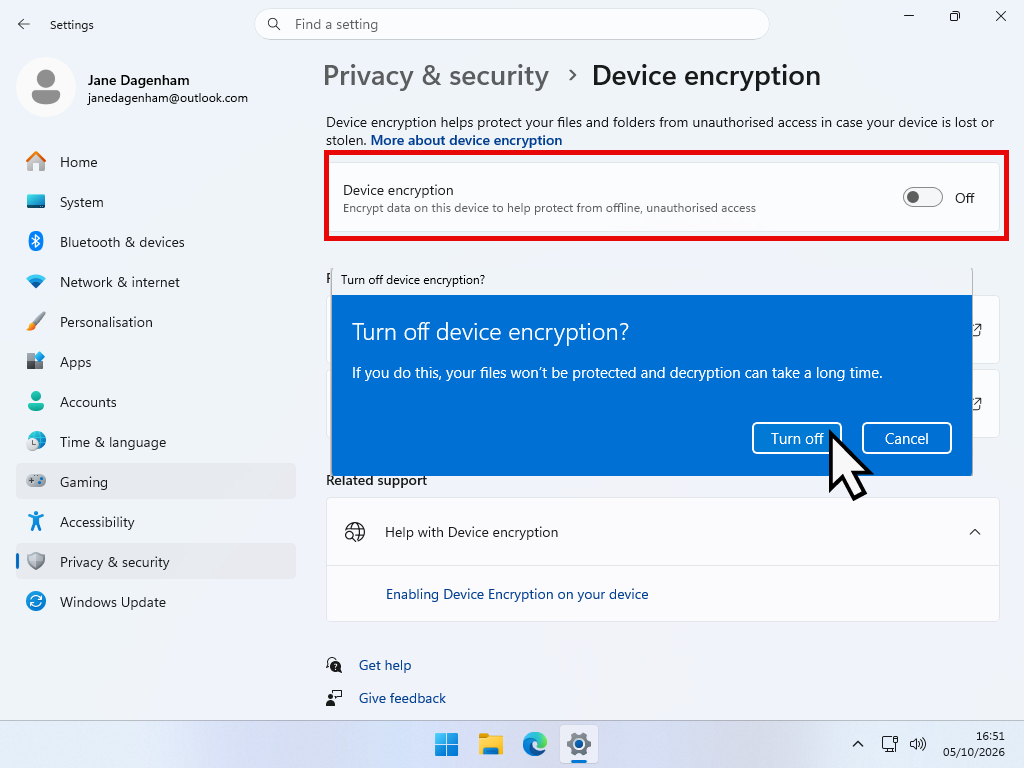
Turn Off BitLocker or Device Encryption First
The free tool I use, Disk2vhd, can’t copy a drive that’s encrypted. Lots of newer laptops have encryption switched on without you knowing, so check first.
- In Windows 11, open Settings › Privacy & security › Device encryption. In Windows 10 it’s Settings › Update & Security › Device encryption.
- If it’s On, switch it Off.
- Wait until Windows says the drive is fully decrypted before you carry on. This can take an hour or two.
On Windows Pro the setting may be called BitLocker instead. Type manage bitlocker into the Start menu and click Turn off BitLocker.
If you can’t find either setting, your drive isn’t encrypted and you can carry on.
Keep the Copy Safe
Your VHDX file isn’t encrypted, so it holds all your personal files in a form anyone could open. Keep the drive it’s on somewhere safe, just as you would a backup.
Make the Copy with Disk2vhd
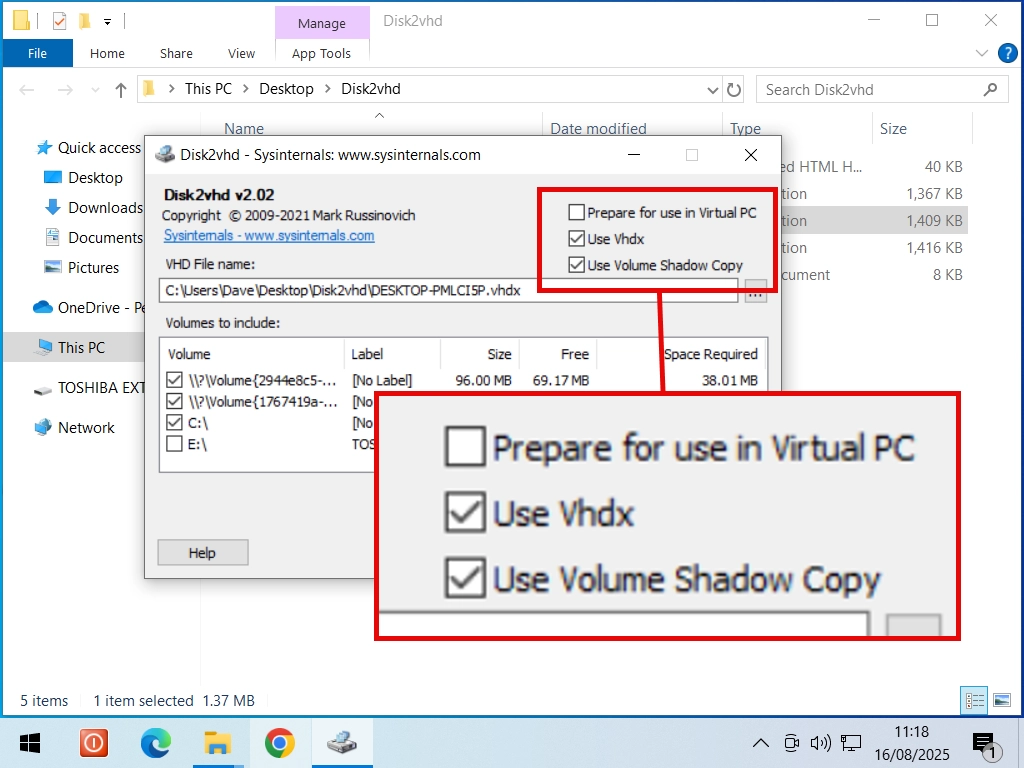
Disk2vhd is a free tool from Microsoft. You run it on the old PC while Windows is running, and it copies the whole drive into a VHDX file.
You’ll need an external drive with enough free space for everything on the old PC. Open This PC and look at how much of the C: drive is used.
- Plug in your external drive.
- Download Disk2vhd from Microsoft, unzip it and run it.
- Leave Use Vhdx and Use Volume Shadow Copy ticked.
- Choose your external drive as the place to save the file.
- Tick every drive in the list, then click Create.
I go through every screen in detail, including whether to choose VHD or VHDX, in my guide to convert an old PC into a virtual machine.
Open the Copy on Your New PC
This is the bit I like. You don’t need any extra software.
- Plug the external drive into your new PC.
- Double-click the VHDX file, or right-click it and choose Mount.
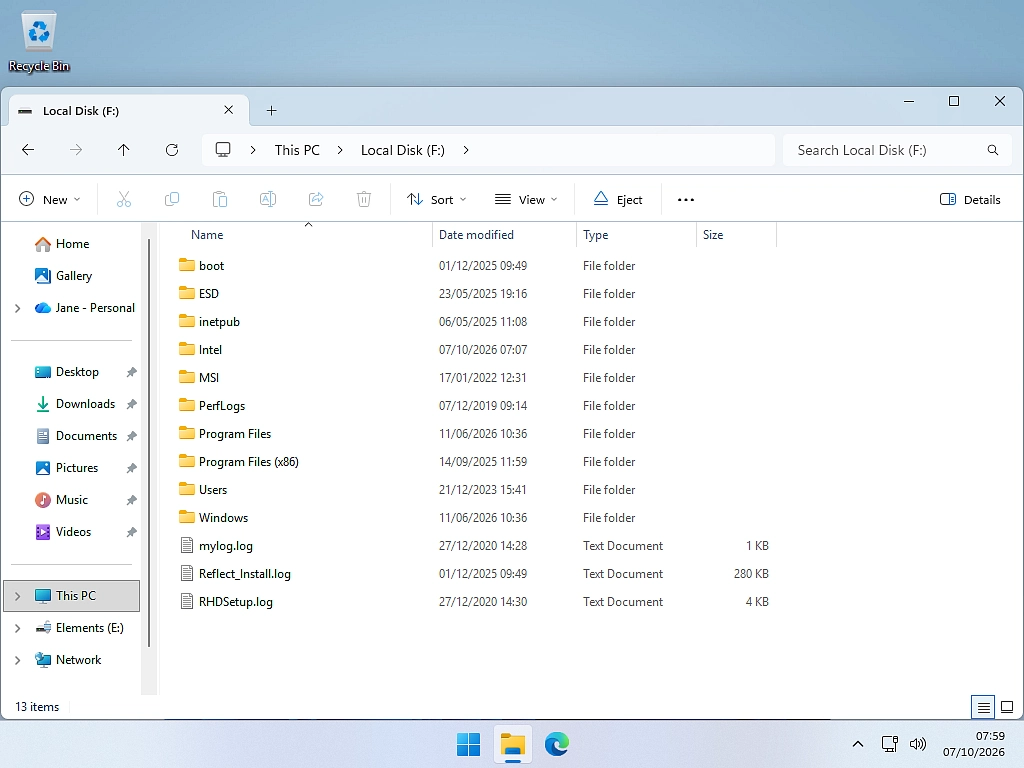
- Open This PC. The copy shows up as one or more new drives, just like a USB stick.
- Open the drive that has a Users folder, then your old user name, to find your Documents, Pictures, Desktop and so on.
- When you’ve finished, right-click the drive in This PC and choose Eject.
This works in Windows 11 and Windows 10, Home editions included. You need to be signed in with an administrator account.
Run Your Old PC as a Virtual Machine
If you need an old program as well as your files, you can start the whole old computer up in a window on your new one.
- Windows 11 or 10 Pro has Hyper-V built in. Here’s how to import a VHDX file into Hyper-V.
- Windows Home doesn’t have Hyper-V, but VirtualBox is free. It works with the older VHD format, so untick Use Vhdx when you make your copy. Then follow my guide to import a VHD file into VirtualBox.
Windows inside the copy will probably tell you it isn’t activated. That doesn’t matter if you only need it to get at old files, or to run an old program now and again.
Prefer Windows’ Own Backup?
A Windows system image does a similar job, but it’s built for putting back onto the same PC, not for opening on a new one. If you’d still rather use one, see my guides to the Windows 10 system image and the Windows 11 system image.
Save Your Passwords and Browser Favourites
If you sign in to Chrome or Edge with your Google or Microsoft account, your passwords and favourites are already saved to that account. Sign in on the new PC and they come back.
Check that they have before you wipe the old one. Open the browser on your new PC and look for a couple of passwords and favourites you know you use.
If you don’t sign in to your browser, the easiest fix is to sign in now, let it sync, then sign in on the new PC. These guides show you where everything lives:
Sign Out of Your Accounts and Licences
Some programs only let you use them on a set number of computers. Sign the old PC out now, or it’ll keep using up one of your places.
- OneDrive. Click the OneDrive cloud icon on the taskbar, then the gear icon › Settings › Account › Unlink this PC. Your files stay safe in OneDrive.
- Microsoft 365 (Word, Excel and Outlook). In any Office app, go to File › Account › Sign out.
- iTunes or Apple Music. Choose Deauthorise This Computer from the Account menu. Apple only lets you authorise five computers.
- Paid programs such as antivirus, photo editors or older versions of Office. Deactivate them, or at least make a note of the licence key so you can reinstall them on the new PC.
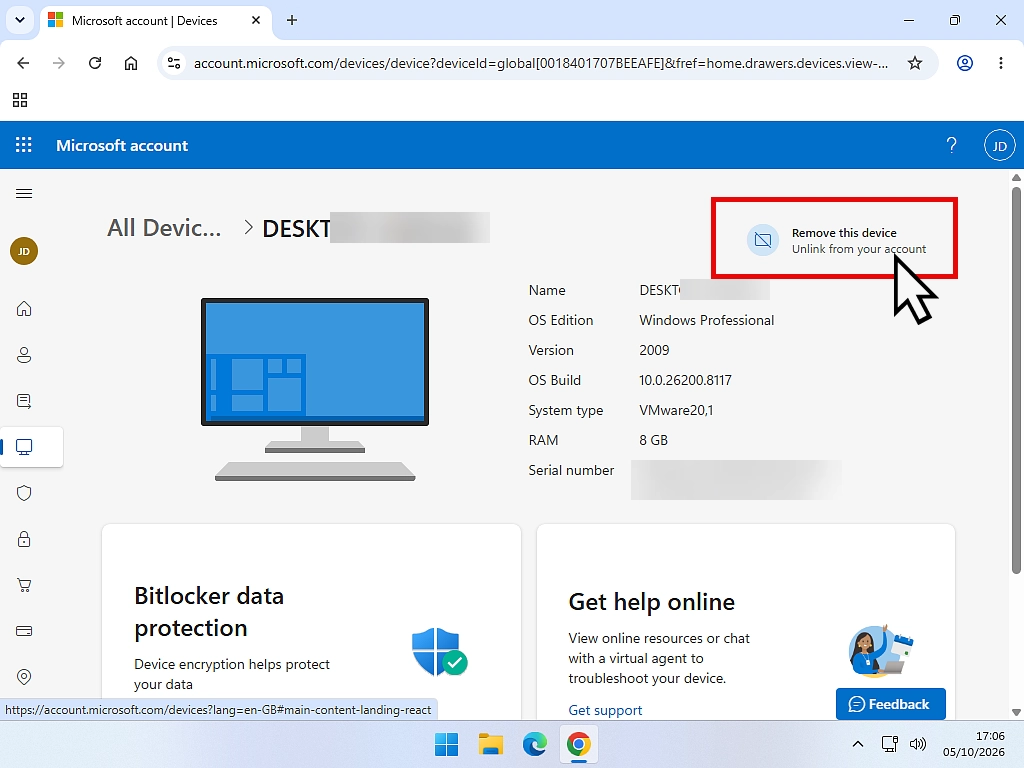
Then, once the PC has been wiped, remove it from your Microsoft account.Go to account.microsoft.com/devices, sign in, find the old PC in the list and remove it. You can do this from any computer, or from your phone.
How to Wipe Your Computer Clean with Reset This PC
Windows has its own factory reset tool called Reset this PC. With the right settings it erases everything on the drive, then reinstalls a fresh copy of Windows, ready for the next owner.
If it’s a laptop, plug it into the mains before you start. You really don’t want the battery to die halfway through.
Install Windows Updates First
Open Settings › Windows Update (in Windows 10, Settings › Update & Security), install anything that’s waiting, then restart.
This matters. In early 2022 a bug in Reset this PC could leave some files behind, OneDrive files in particular. Microsoft fixed it in the March 2022 updates, so a PC that’s up to date is fine.
Open Reset This PC
Click the Start button and type reset this pc. In the search results, click Reset this PC (System settings).
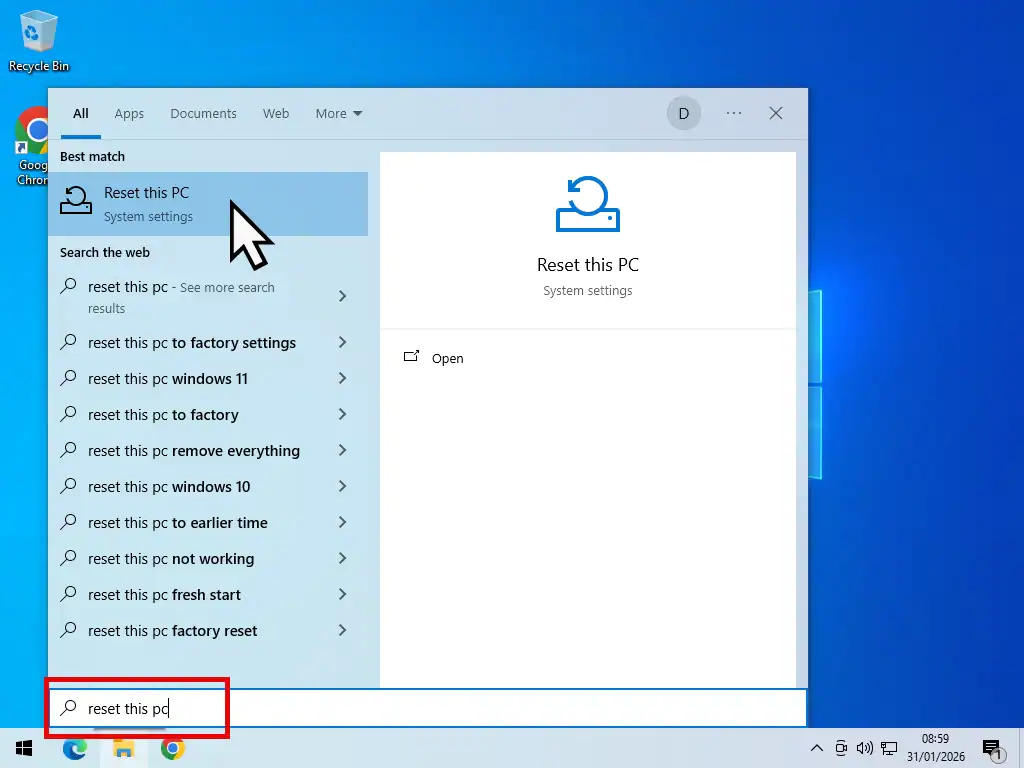
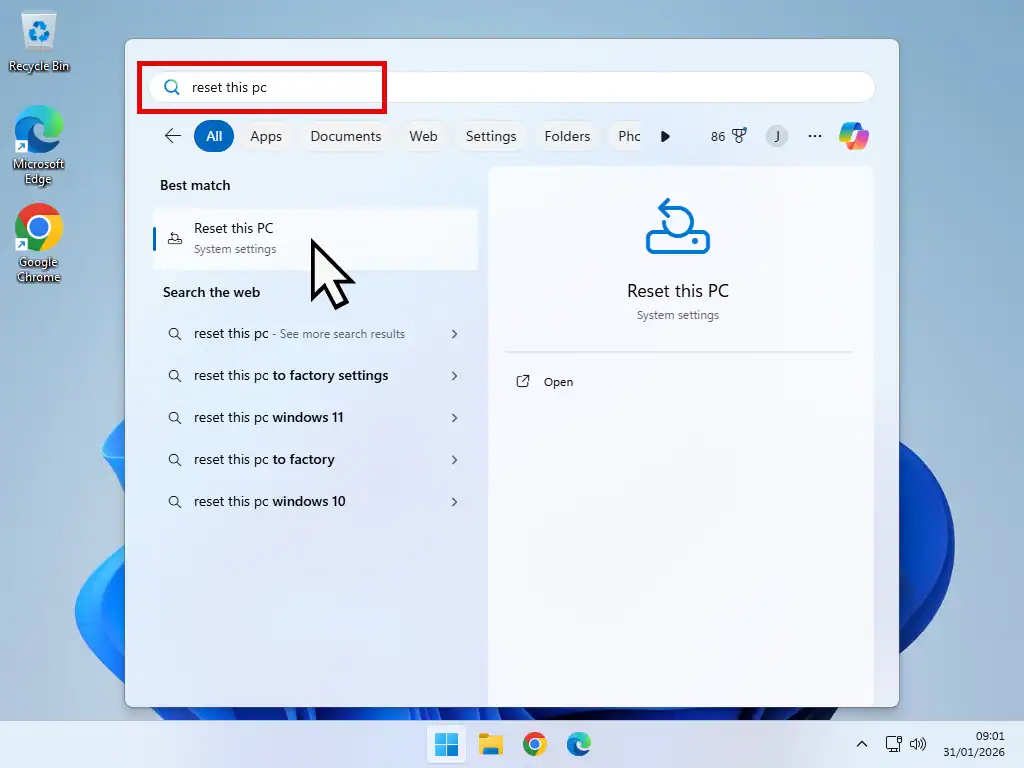
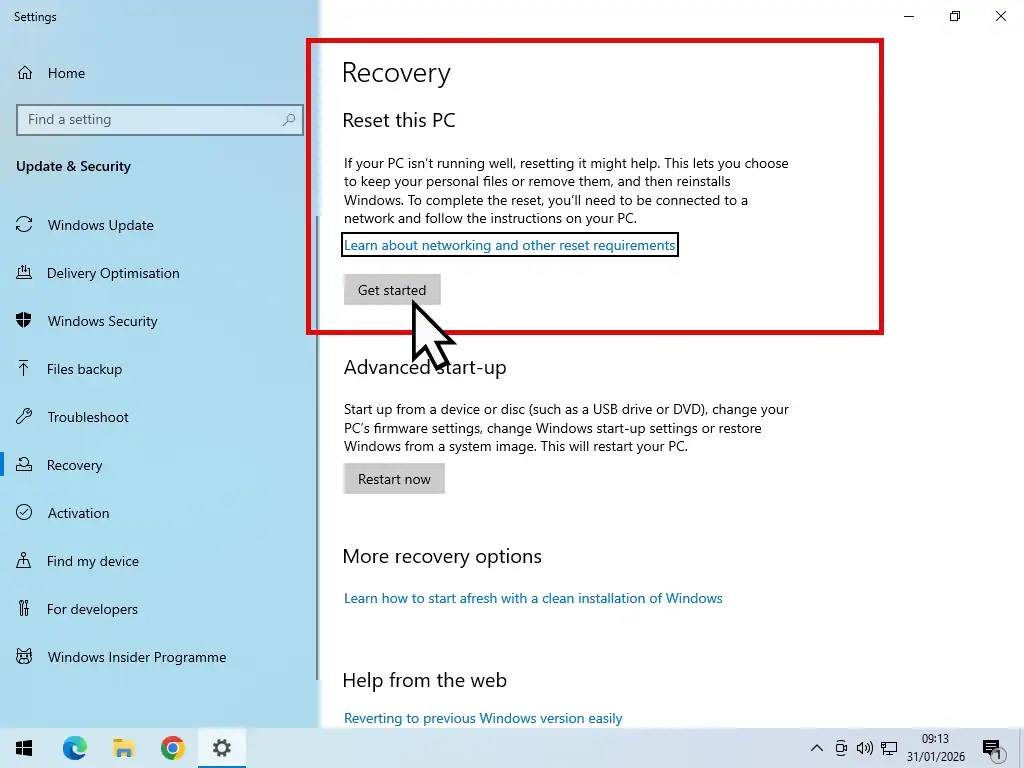
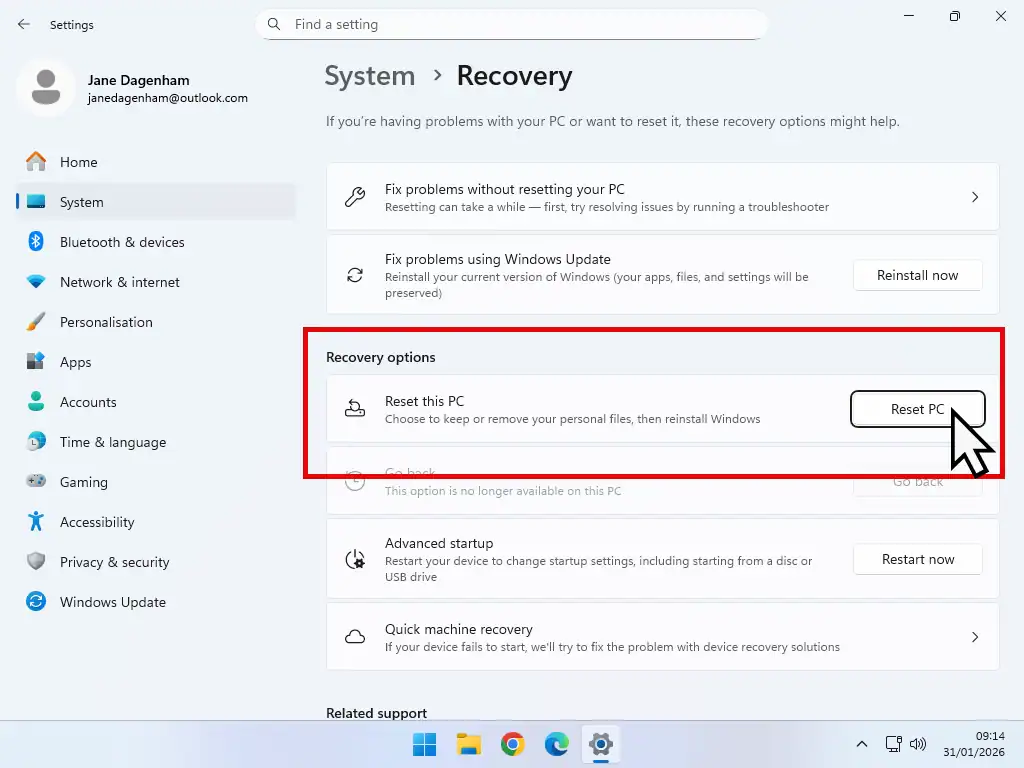
The Recovery screen opens.
- In Windows 10, click Get started under Reset this PC.
- In Windows 11, click Reset PC next to Reset this PC.
Choose Remove Everything
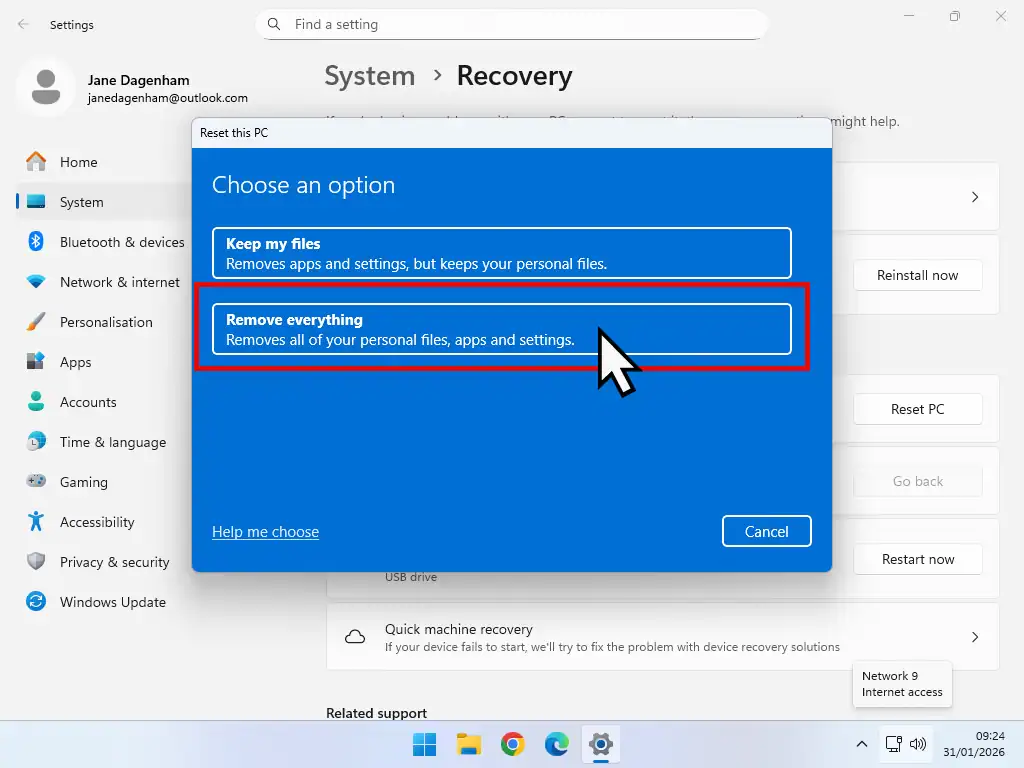
Windows asks what you want to do with your files. Choose Remove everything.
This removes all your apps, settings and personal files. Keep my files is for fixing a PC you’re keeping. Never use it on one you’re getting rid of.
Cloud Download or Local Reinstall?
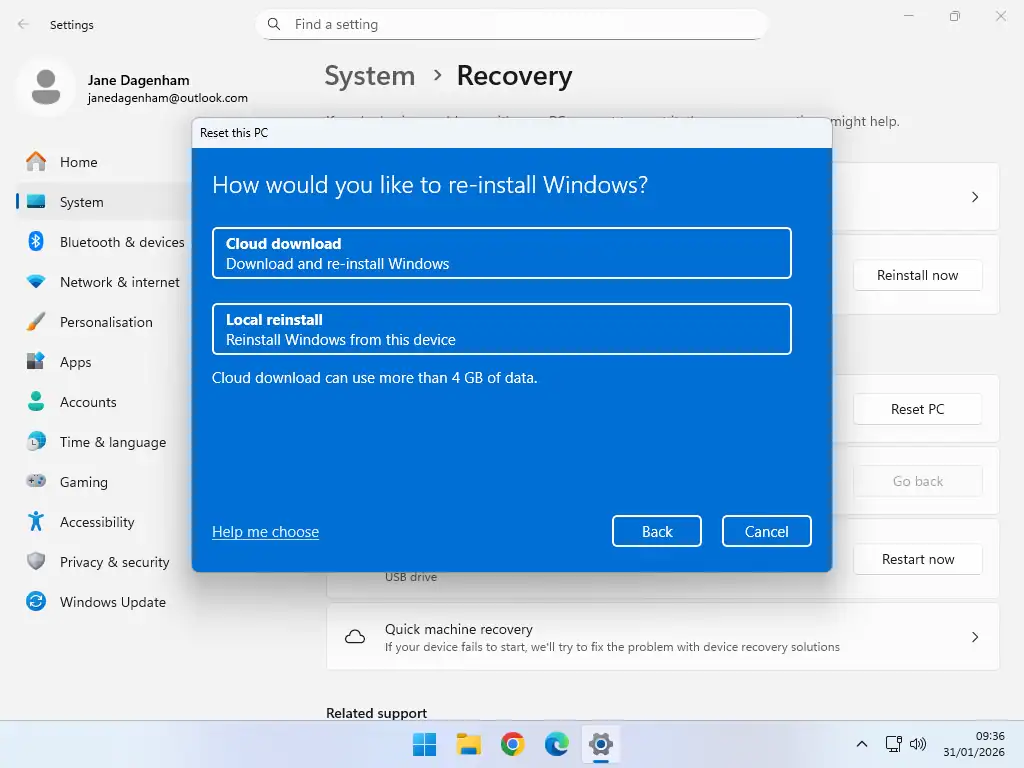
Everything is going to be erased, including Windows itself, so Windows needs to know where to get a fresh copy from.
- Cloud download downloads a fresh copy of Windows from Microsoft. It’s the cleanest option, but it’s slower and you’ll need an internet connection.
- Local reinstall uses the files already on your PC. This is the standard factory reset option.
Cloud vs Local Reinstall
PC makers such as Acer, Dell, Lenovo and HP add their own software to their computers. If you want the PC back exactly as it was when you first bought it, choose Local reinstall.
Cloud download only reinstalls Windows itself. Any software that came pre-installed on the computer won’t be reinstalled.
Turn On Clean Data for a Secure Wipe
This is the step most people miss. By default Windows does a quick reset. It removes your files, but they can still be recovered with the right software.
That’s because deleting a file only hides it from Windows. The file stays on the drive until something new is written over it, and recovery software ignores Windows and reads the drive directly. If you’re curious, here’s how a computer stores data.
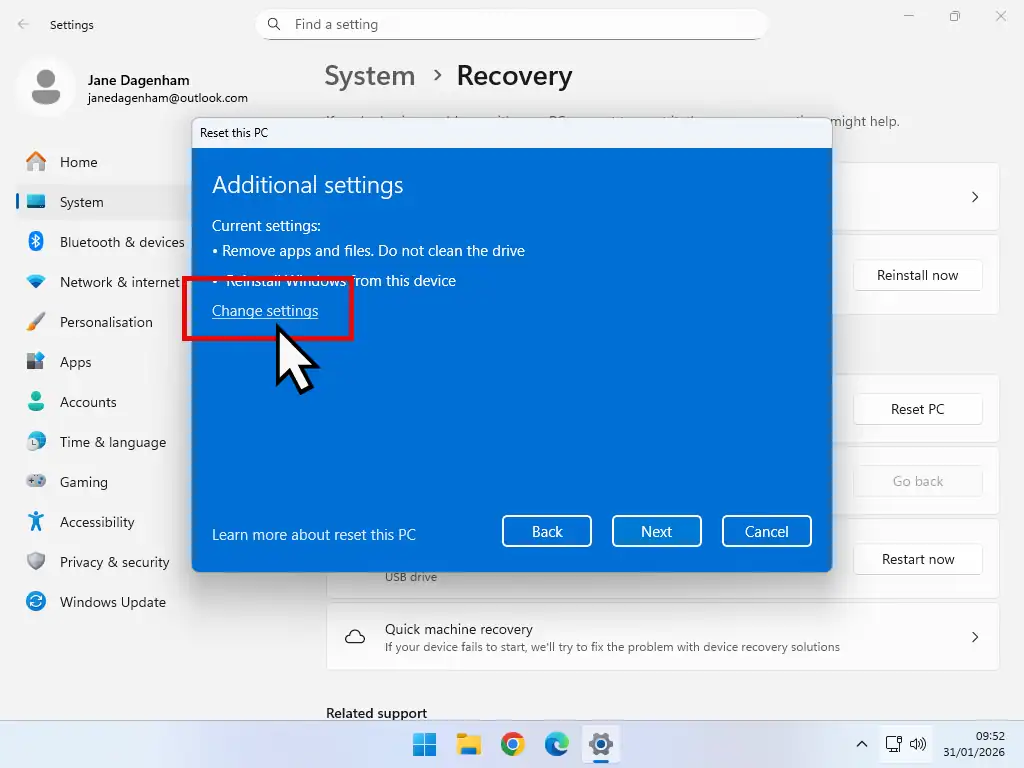
- On the Additional settings screen, click Change settings.
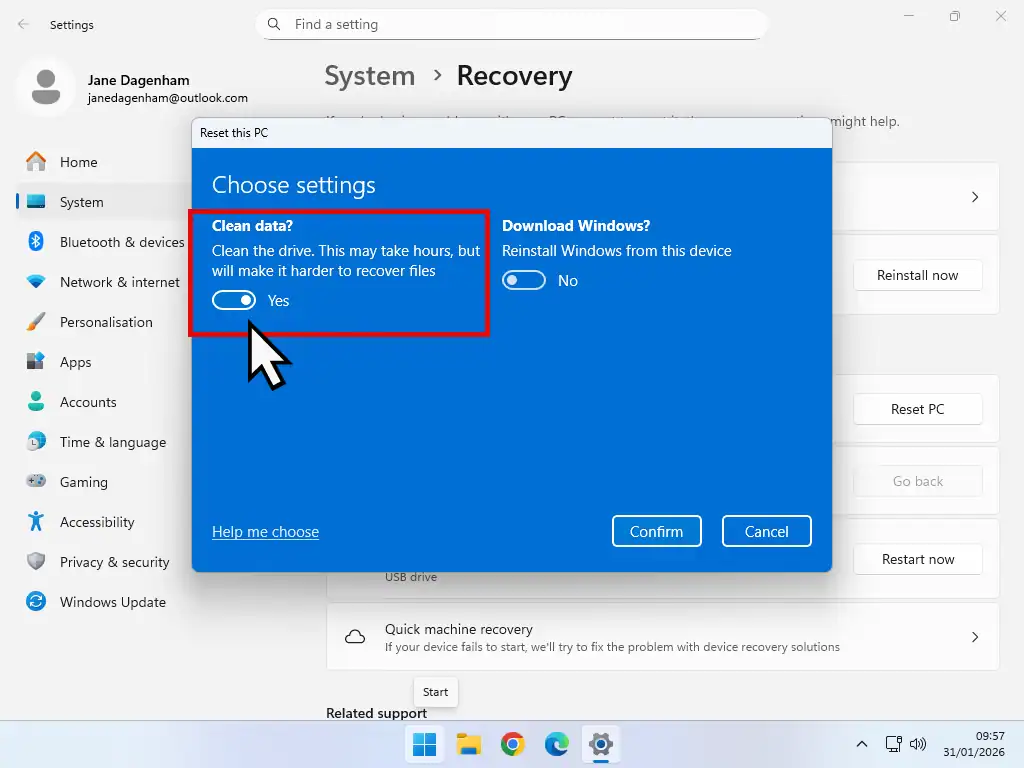
- Switch Clean data? to Yes.
- If your PC has more than one drive you’ll also see Delete files from all drives? Switch that to Yes too.
- Click Confirm, then Next.
- On the final Ready to reset this PC screen, click Reset.
Clean data overwrites the drive so your old files can’t be recovered. It takes much longer, but it’s the whole point of wiping the PC. Miss the second drive and it’s left exactly as it is, files and all.
Wait While the Drive Is Wiped
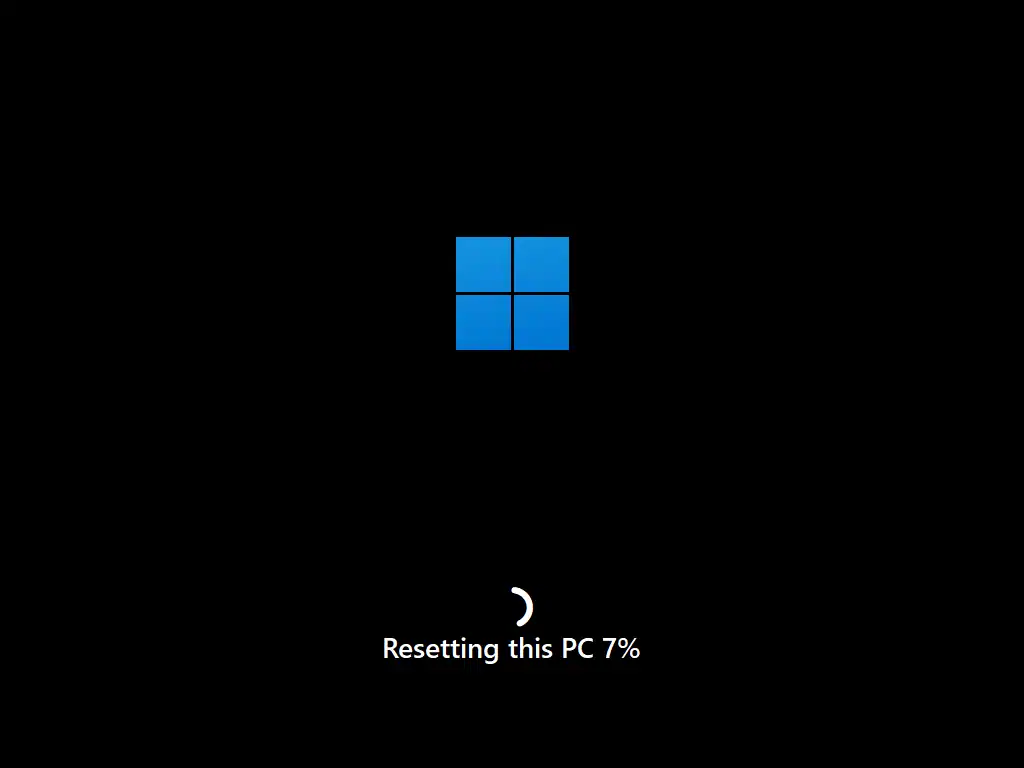
Windows restarts and you’ll see the Resetting this PC screen. This part can take a long time, because Windows is overwriting the whole drive.
Old mechanical hard drives are much slower than SSDs, so be prepared for a wait of several hours. Leave it alone, even if the percentage seems to stick.
Eventually Windows starts to install itself.

Finalising It for the New Owner
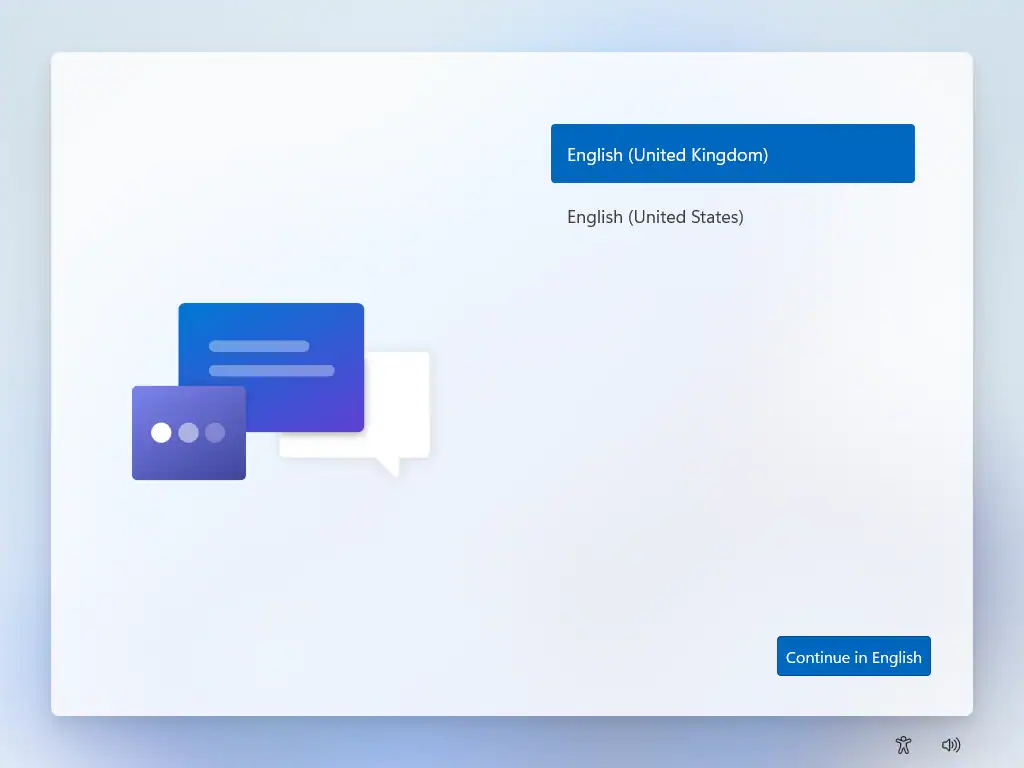
When the drive has been wiped and Windows reinstalled, the PC restarts at the Select your region screen, the start of Windows setup. You have two choices.
- If you’re selling it or giving it away, turn it off here by holding the power button. The new owner finishes the setup with their own account.
- If you’re setting it up for someone, carry on with setup. If they don’t have a Microsoft account, here’s how to install Windows without a Microsoft account.
Last of all, remove the old PC from your Microsoft account from any other device, as I explained above.
Does a Factory Reset Really Wipe an SSD or Hard Drive?
For a hard drive, yes. Reset this PC with Clean data turned on overwrites the drive, and file recovery software won’t get your files back.
SSDs are a little different. To stop themselves wearing out, they spread data around behind the scenes, so no overwrite can promise to reach every last bit. For a home PC you’re selling or giving away, Reset this PC with Clean data is still the sensible, standard choice.
If you want to be absolutely sure, you have three options.
- Check the BIOS. Many Dell, HP and Lenovo computers have a secure erase option built into the BIOS setup screens. It wipes the drive completely, Windows included, so it’s fine if you’re recycling the PC but less handy if you’re selling it.
- Use the drive maker’s tool. SSD makers such as Samsung and Crucial have free programs with a secure erase option.
- Take the drive out. If the PC is going for recycling, removing the drive and keeping it, or destroying it, is the only 100% answer.
How to Wipe a PC That Won’t Start, or Without the Password
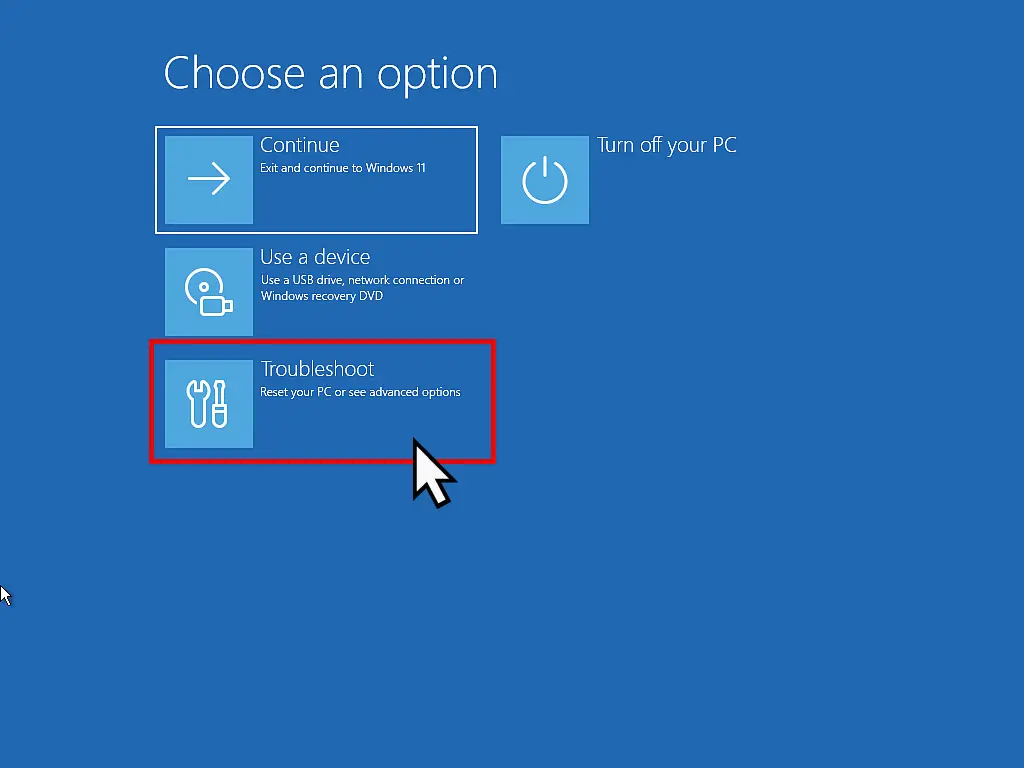
You can still do it. Reset this PC is also on Windows’ own recovery screens, and you don’t need to sign in to reach them.
- On the sign-in screen, hold down the Shift key, click the Power icon and choose Restart. Keep holding Shift until a blue screen appears.
- Choose Troubleshoot › Reset this PC › Remove everything.
- If you’re asked which drives to clear, choose All drives.
- When you’re asked about cleaning the drive, choose Fully clean the drive. This is the same as turning on Clean data.
If Windows won’t start at all, it should open these recovery screens by itself after two or three failed starts. Look for Advanced options, then Troubleshoot.
If you’re asked for a BitLocker recovery key, you’ll find it in your Microsoft account at account.microsoft.com/devices/recoverykey.
Keeping the PC and just forgotten the password? You don’t need to wipe it. Here’s how to reset a forgotten Windows password instead.
And if none of this works, take the drive out before the PC goes.
Where to Take Your Old PC in the UK
Once it’s wiped, you’ve got three choices.
- Sell it. CeX and musicMagpie buy laptops and PCs, or you can sell it yourself on eBay or Facebook Marketplace. If you’re buying a new one from Currys, ask about their trade-in.
- Donate it. WeeeCharity collects old computers for free, wipes them securely and passes them on to people who need one. Computer Aid International sends them to developing countries. Local schools, community groups and Freecycle are worth a try too.
- Recycle it. Your council’s household recycling centre will take it for free. Enter your postcode at Recycle Your Electricals to find your nearest drop-off point. Shops that sell electricals also have to offer a free way to take your old one back when you buy a new one.
Don’t put it in your household bin. Computers contain materials that need proper recycling, which is why they carry the crossed-out wheelie bin symbol.
If you’re outside the UK, your local council or electronics shop will tell you where to take it.
Troubleshooting
“There Was a Problem Resetting Your PC”
This is the most common error. Try again and choose Cloud download instead of Local reinstall. Local reinstall uses the files already on the PC, and if any of them are damaged the reset fails.
If it still won’t go, start the reset from the recovery screens instead, as I explained in the section on PCs that won’t start.
The Reset Looks Stuck
With Clean data turned on, an old hard drive can take several hours, and the percentage can sit still for a long time. Keep a laptop plugged in and give it plenty of time, overnight if need be, before you decide it’s stuck.
Disk2vhd Won’t Make a Copy
- The drive is encrypted. Turn off BitLocker or Device encryption and wait for it to finish, as I showed above.
- There isn’t enough space. The external drive needs room for everything on the old PC.
- The drive is formatted FAT32. Many USB sticks are, and FAT32 can’t hold a file bigger than 4GB. Use an external drive formatted as NTFS or exFAT.
The VHDX File Won’t Open on My New PC
- Make sure you’re signed in with an administrator account.
- If the file is on a network drive or NAS, copy it onto the PC first.
- Right-click the file and choose Properties. If there’s an Unblock box at the bottom, tick it and click OK.
“You Don’t Currently Have Permission to Access This Folder”
You’ll see this when you open your old user folder inside the VHDX copy. Windows is protecting the old account’s files. Click Continue and Windows gives your new account access.
Common Questions About Wiping a PC
Does a factory reset delete everything?
Yes, as long as you choose Remove everything and switch Clean data on. That removes all your personal files, apps, settings and accounts, and overwrites the drive so they can’t be recovered. Keep my files does not wipe the PC.
How long does it take to wipe a computer?
A normal reset takes around 30 to 60 minutes. With Clean data turned on it can take several hours, depending on the size and type of drive. Old mechanical hard drives are the slowest.
Can I wipe my PC but keep Windows?
Yes, that’s exactly what Reset this PC does. It erases everything, then reinstalls a fresh copy of Windows, so the next owner can set it up straight away.
Is it safe to sell a laptop after a factory reset?
Yes, if you used Remove everything with Clean data turned on and removed the laptop from your Microsoft account afterwards. For an SSD, the secure erase options in this guide give you extra peace of mind.
What’s the difference between wiping, erasing and a factory reset?
Wiping and erasing mean the same thing, overwriting the drive so your files can’t be recovered. A factory reset puts Windows back as it was when the PC was new. Reset this PC does both, but it only wipes the drive properly if Clean data is turned on.
Should I take the hard drive out before recycling my computer?
You don’t need to if you’ve wiped it with Clean data turned on. If the PC won’t start and you can’t wipe it, then yes, take the drive out and keep it or destroy it.
Can I still get to my old files after the PC has gone?
Only if you kept a copy. That’s why I recommend saving the whole old PC as a VHDX file before you wipe it. Double-click the file on your new PC and your old drive opens like a USB stick, or you can run it as a virtual machine.
How do I wipe a Windows 7 computer?
Windows 7 doesn’t have Reset this PC. Most Windows 7 computers have a recovery option from the manufacturer, usually reached by pressing a key as the PC starts. That puts Windows back to factory settings but doesn’t securely wipe the drive, so if your files matter, take the drive out.
Summary
Wiping your PC is the last job, not the first. Copy your files, keep a VHDX copy of the whole computer if you can, save your passwords and sign out of your accounts.
Then use Reset this PC with Remove everything and Clean data turned on, and remove the PC from your Microsoft account.
Do it in that order and your old computer leaves with none of your personal data, and you haven’t lost anything you might need later.
Related Posts
Convert an Old Windows 10 PC into a Virtual Machine
Replacing an old computer? Turn it into a virtual machine that runs on your new PC, with all your data, apps, accounts and settings there if you need them.
How to Set Up FreeFileSync
Back up your files to USB drives, external hard drives or over your home network automatically.
Protect Your Personal Data When Sending Your PC for Repair
Not getting rid of it, just sending it away to be fixed? Here’s how to keep your files private while it’s gone.
Beware of Device Encryption on Windows 11 Home
Device Encryption is silently being enabled on all Windows 10 and Windows 11 Home editions that meet the hardware requirements and you’re signed in with a Microsoft account.
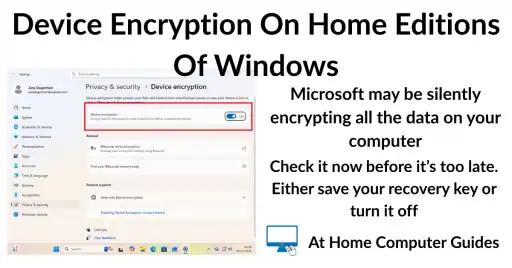
It’s very important that you check whether or not device encryption is enabled on your computer and if it is, then you MUST either disable it or find your recovery key. I’ll show you how to do both.
You can find this and other related step by step guides in – At Home Computer Security Guides
Written by Jeff Porter. I’ve been fixing Windows PCs since 2010 and I’m CompTIA Network+ certified. More about me