
Copying your files onto a USB stick (also called a USB drive, USB flash drive, pen drive or thumb drive) is a quick and easy way of creating a backup of your important files and folders.
Having duplicates on a separate device protects you from accidental deletion, corruption, hardware failure and ransomware attacks. It’s also a handy way to move or share files between computers.
You can store all sorts of things on a USB stick — pictures, documents, music and video, whatever you need.
In this guide, we’ll cover every way to copy files to a USB drive in Windows 10 and Windows 11, plus how to safely remove your USB stick once you’re done, and what to do if your files won’t copy.
What You’ll Need
- A Windows 10 or Windows 11 computer (These guides are specifically for Windows users, but actually it’s the same on Linux computers as well)
- A USB flash drive (USB stick) with enough free space for your files
- A free USB port on your PC to plug the USB stick into. Note that you can mix and match USB versions. For example you can plug a USB 3.0 device in to a USB 2.0 port and vice versa. You just won’t get the related transfer speeds.
How to Access Your USB Stick
Before you can copy files to a USB stick, you need to know how to access it from your computer. Depending on how your machine is set up, one of three things will happen when you plug it in.
Autoplay Notification
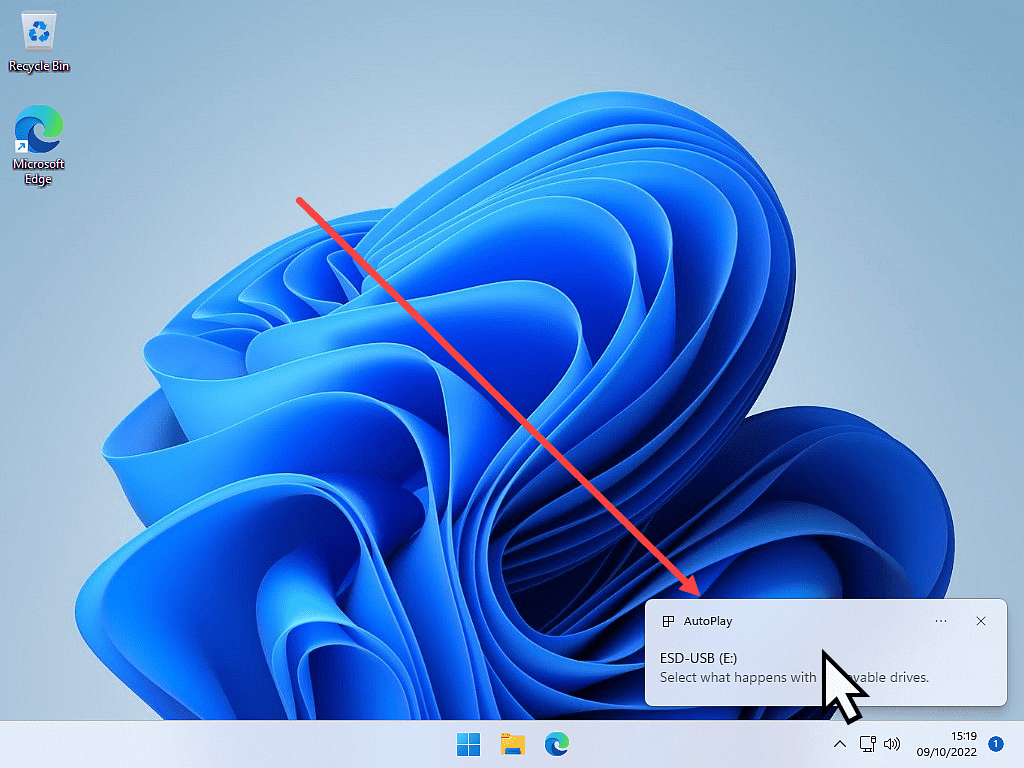
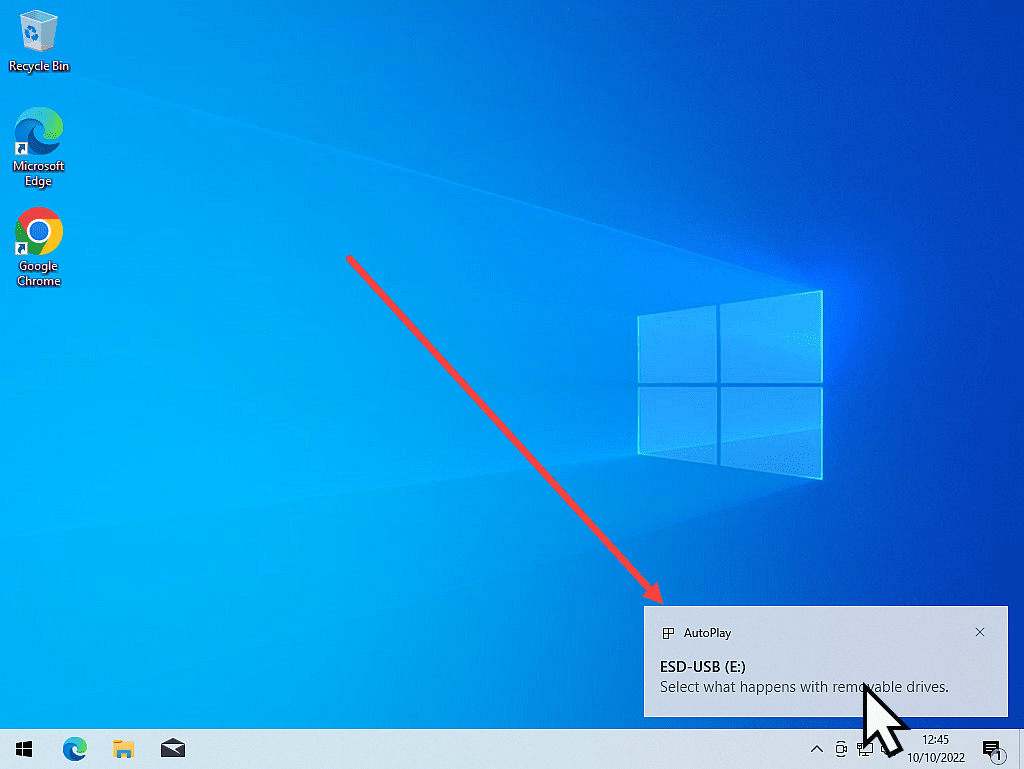
When you plug in your USB stick, Windows will recognise it and pop up the Autoplay notification in the bottom right-hand corner of the screen.
If you’re quick enough, left-click once on the notification — but it doesn’t hang around for long, so don’t worry if you miss it (we’ll cover that below).
Windows 11
Windows 10
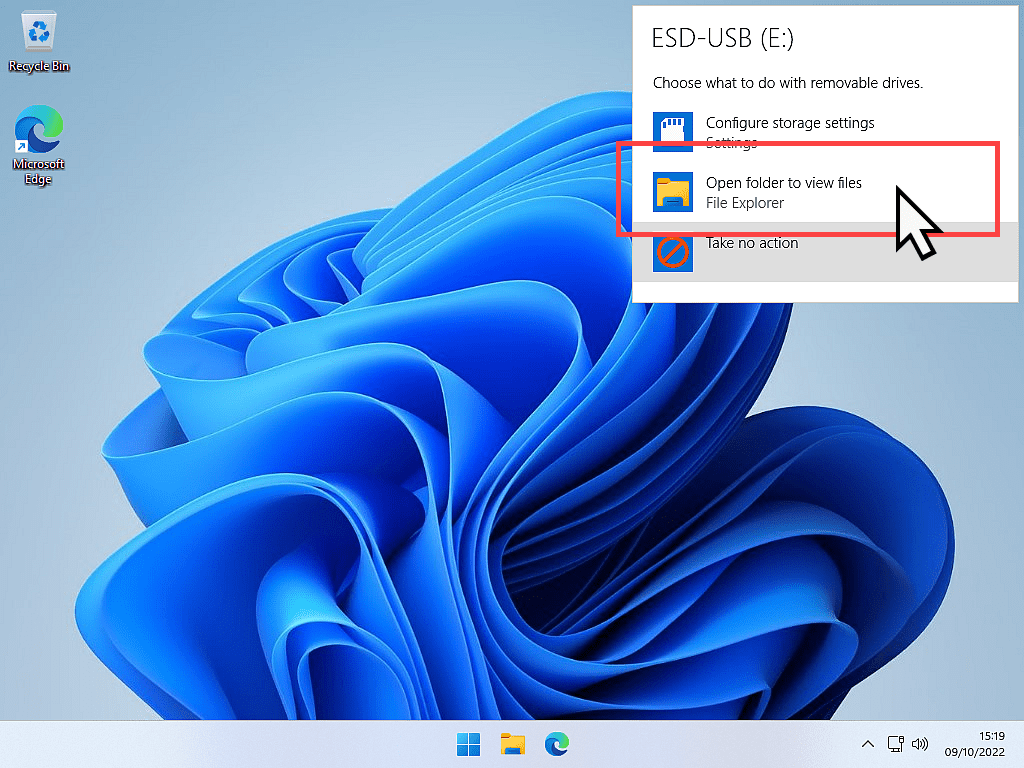
If you click the notification in time, the “Choose what to do with removable drives” dialogue opens in the top right corner of your screen.
This window hangs around longer, so there’s no rush.
Left-click “Open folder to view files.”
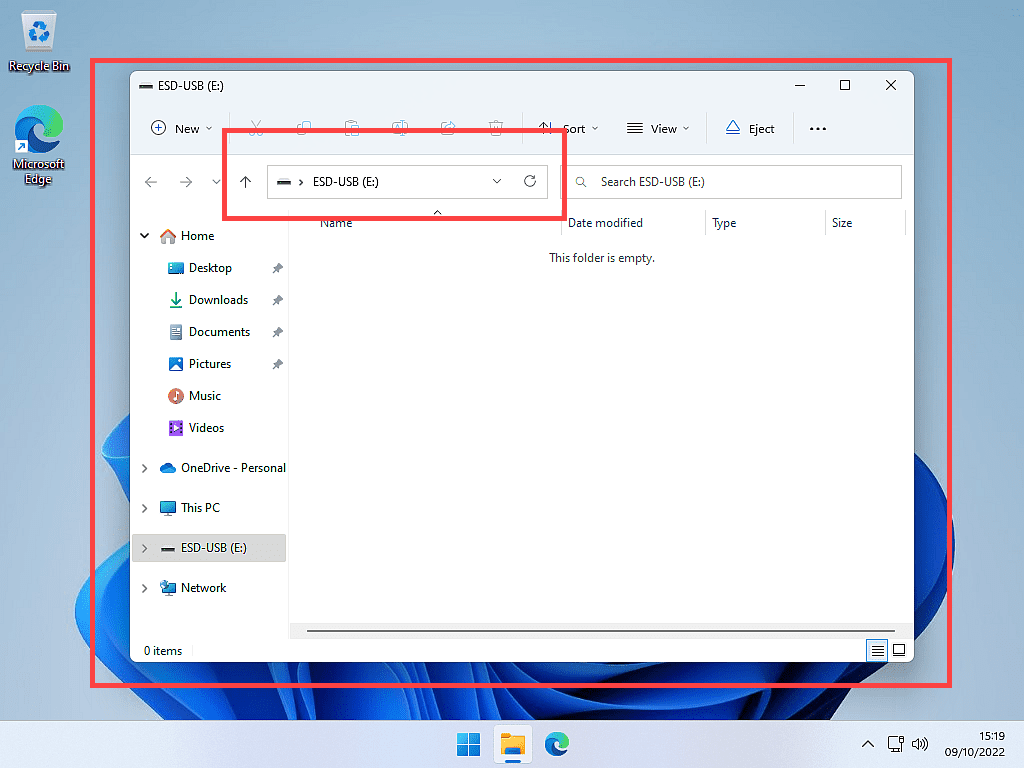
The contents of your USB stick will open in a standard File Explorer window. You’re now ready to start copying files onto the drive.
File Explorer Automatically Opens Your USB Drive
This option is perfect — when you plug in your USB stick, File Explorer automatically opens after a few moments, showing the contents of the drive.
If this happens, you’re ready to start transferring files straight away.
Nothing Happens or You Missed the Autoplay Notification
If nothing happens when you plug in your USB stick, or you missed the Autoplay notification, you can open it manually.
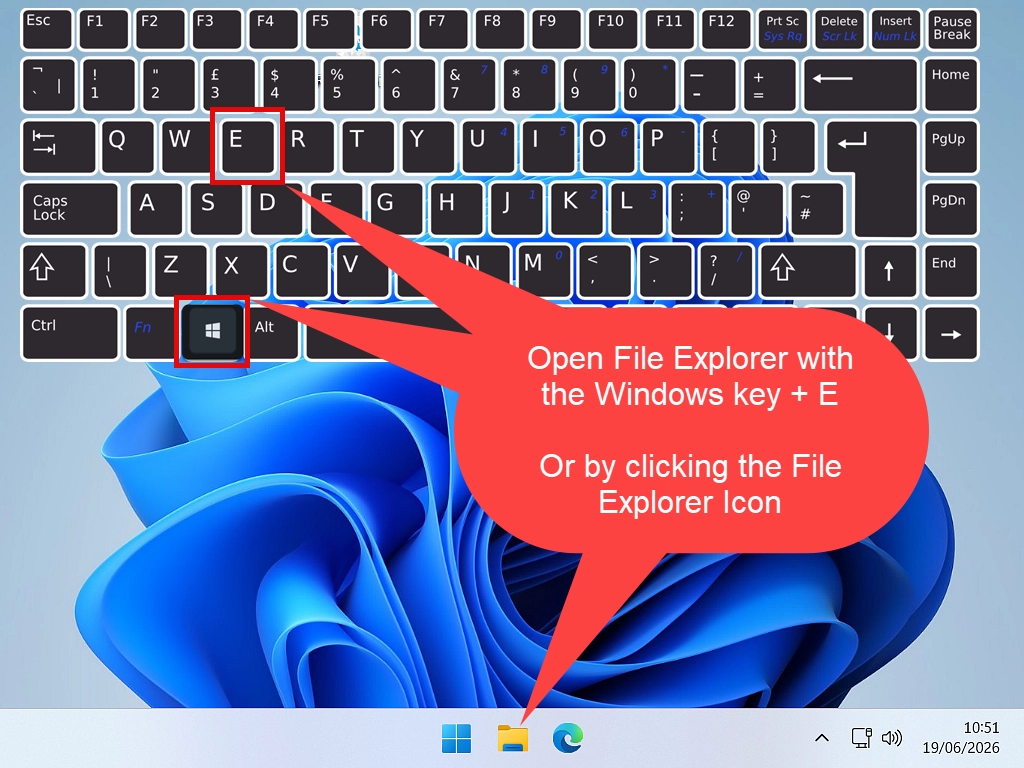
- Open File Explorer by clicking its icon on the taskbar, or by pressing the Windows key + E.
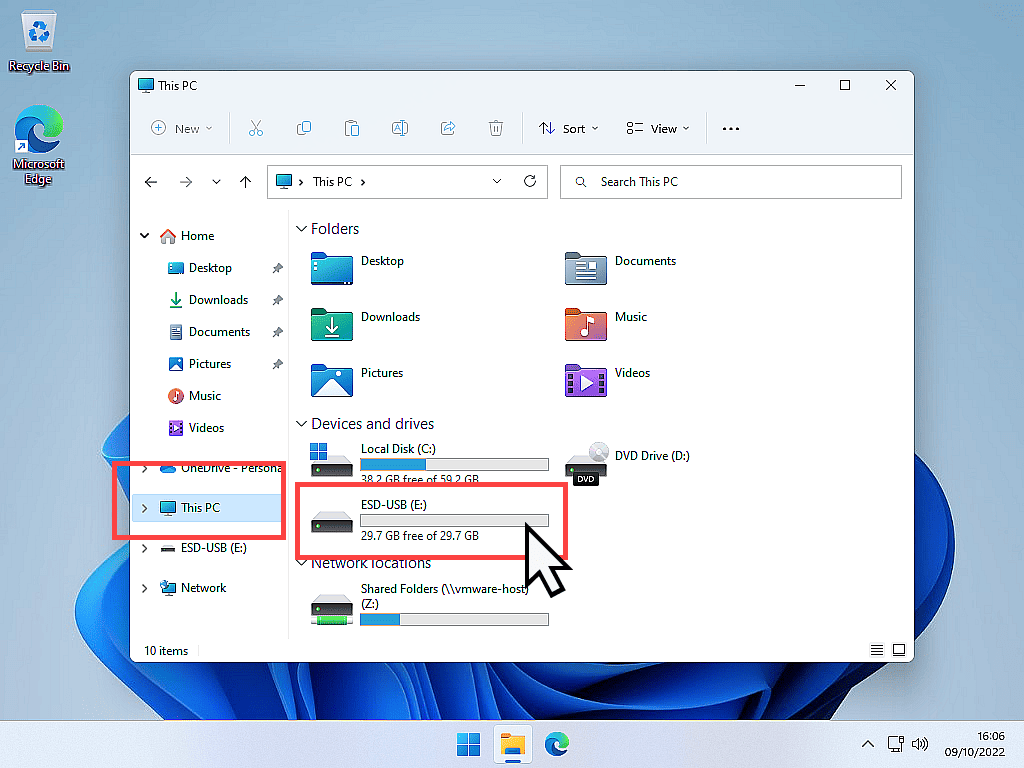
- When File Explorer opens, double left-click your USB drive to open it.
- If you can’t see it, click This PC in the navigation panel first.
How to Copy Files or Folders to a USB Stick
Now that you can access your USB drive, the rest is easy. There are three ways to copy files onto it — pick whichever feels easiest.
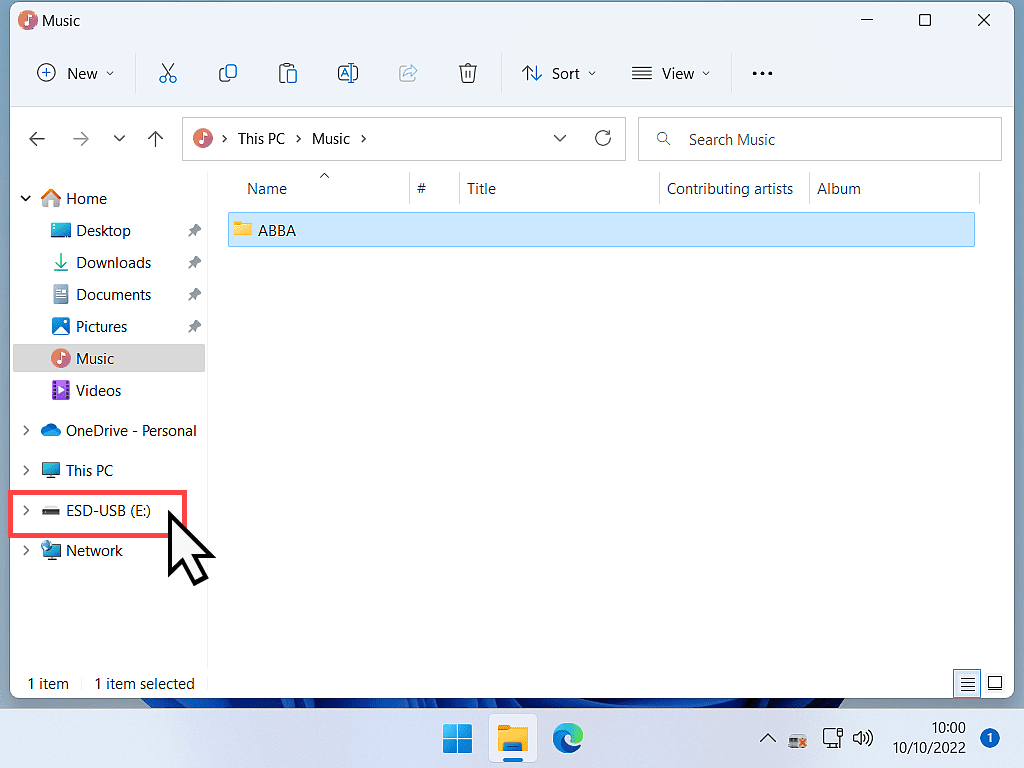
We’ll use copy and paste as the main example, copying a folder from the Music folder onto the USB drive. But this is just an example and you can use any file or folder you want. The principle is exactly the same.
Method 1: Copy and Paste (Right-Click)
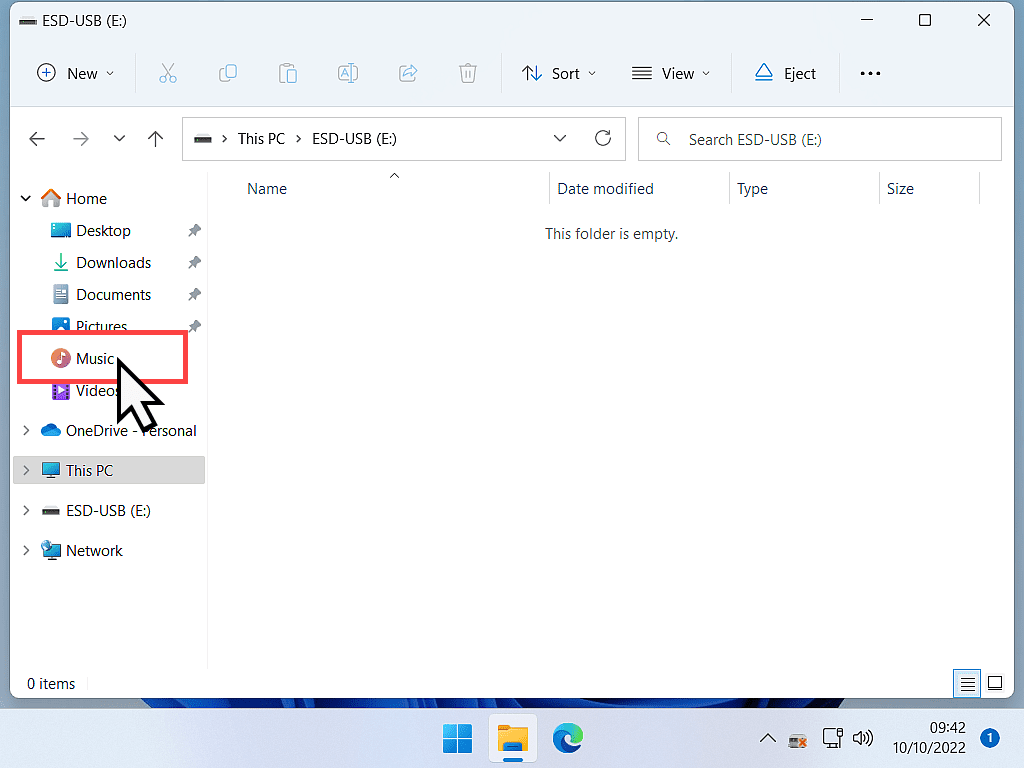
- In the left-hand navigation pane of File Explorer, click the folder where your files are located (e.g. Documents, Pictures, Music, Videos).
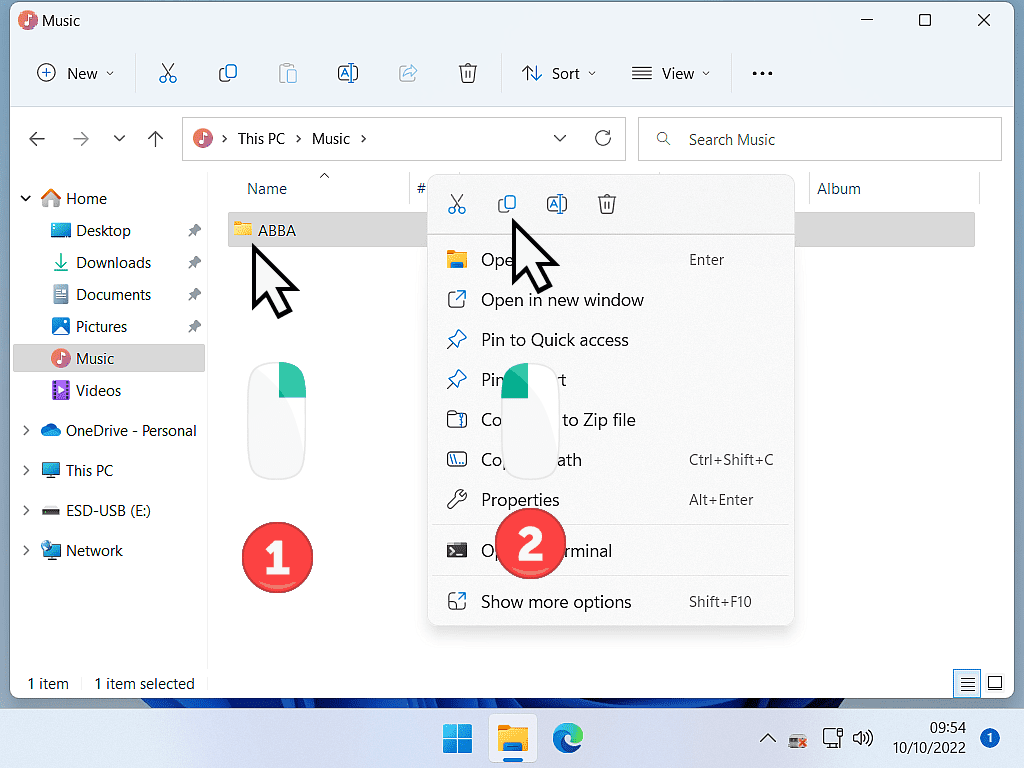
- Find the file or folder you want to copy.
- Right-click on it and left-click Copy on the menu.
Paste to USB Device
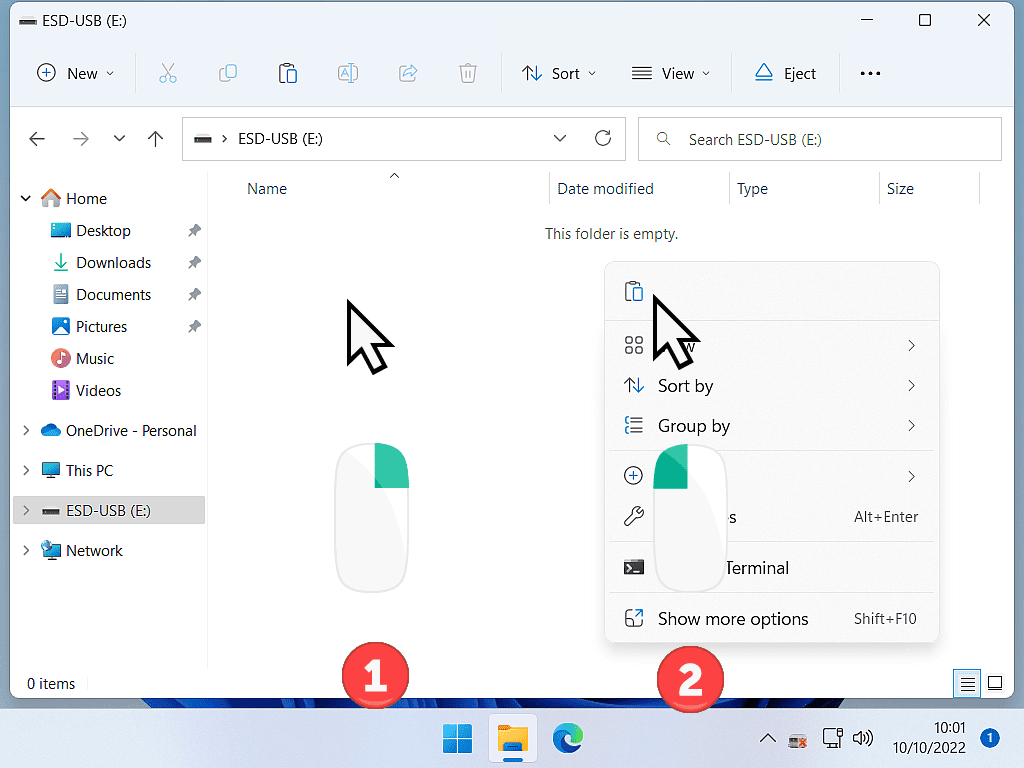
Now click your USB stick in the navigation pane of File Explorer, move your pointer to an empty bit of space in the centre pane, then right-click and left-click Paste.
Method 2: Drag and Drop
If you’d rather skip the right-click menu, you can drag files straight onto your USB drive.
- Open a second File Explorer window by pressing Windows key + E, and use it to find your USB drive in the navigation pane.
- Arrange the two windows so you can see both your files (or folder) and your USB drive at the same time.
- Click and hold the file or folder you want to copy, then drag it across into the USB drive window.
- Release the mouse button to drop it. Windows will start copying automatically.
This is a quick way to move several files at once, especially on a wide screen where you can see both windows side by side.
Method 3: Keyboard Shortcuts
If you prefer the keyboard to the mouse, this is the fastest method once you’re used to it.
- Click the file or folder you want to copy and select it with a single mouse click (or use Ctrl + A to select everything in the folder).
- Press Ctrl + C to copy it.
- Click your USB drive in the navigation pane to open it.
- Click an empty space inside the USB drive window, then press Ctrl + V to paste.
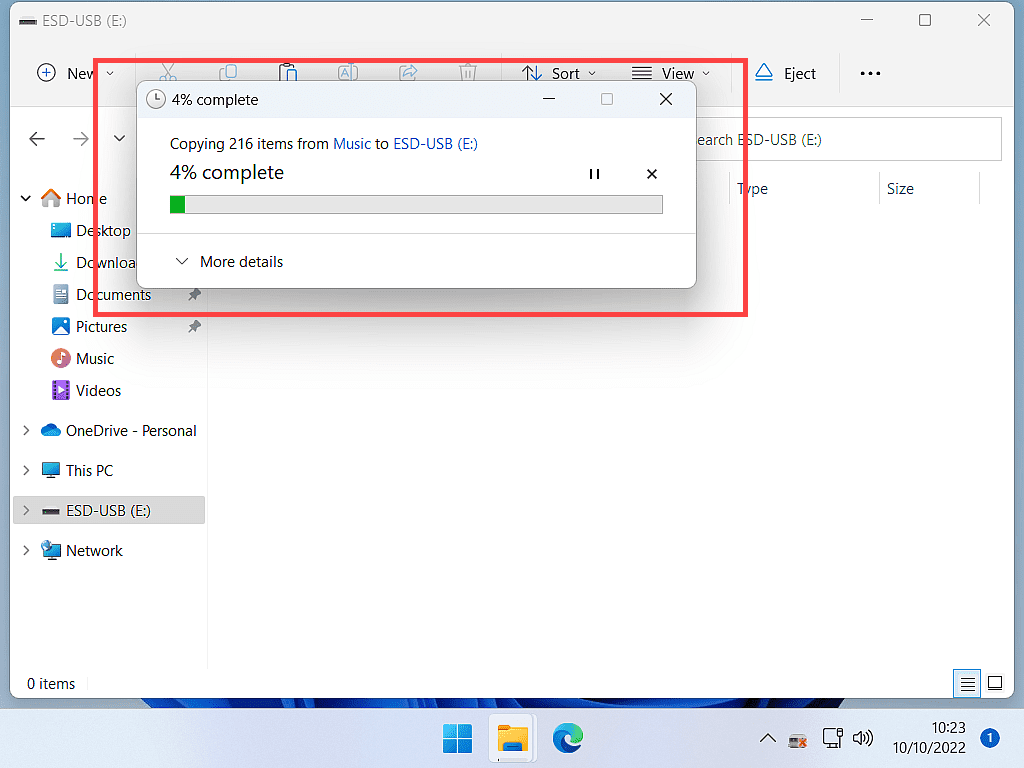
It might take a little while for your files to copy over, depending on how large they are.
You’ll often see a copy progress bar while this happens.
File Transfer Speeds
Copying large files and folders to USB drives may take some time. It’s not going to happen as quickly as moving files around on your internal hard drives. A lot will depend on whether your devices are USB 2 or USB 3 and the size of the files.
Troubleshooting: My Files Won’t Copy to the USB Stick
If copying fails partway through, it’s usually down to one of these common issues.
“The File is Too Large for the Destination File System”
Older USB sticks are often formatted as FAT32, which can’t store individual files larger than 4GB, even if the drive itself has plenty of free space. If you see this message, the file itself is too big for that format, not because the drive is too full.
The fix is to reformat the USB stick using the exFAT or NTFS file system instead, both of which support much larger files. Be aware that reformatting erases everything currently on the drive, so back up anything important first.
“There is Not Enough Space on the Destination”
This simply means your USB stick doesn’t have enough free space left for the files you’re copying. Delete something you no longer need from the drive, or use a larger capacity USB stick.
The USB Drive is Write-Protected
Some USB sticks have a small physical switch that locks them to read-only. Check the side of the drive for a lock switch and make sure it’s set to unlocked.
Frequently Asked Questions
Yes. Open a second File Explorer window with your USB drive visible, then click and drag your files or folders across into it.
Right-click the folder and select Copy, then open your USB drive, right-click an empty space inside it, and select Paste. This copies the folder and everything inside it.
It’s best avoided. Always use Safely Remove Hardware first, especially after copying larger files, to avoid corrupting your data.
The most common reasons are not enough free space, a file larger than 4GB on a FAT32-formatted drive, or the drive’s write-protect switch being enabled.
Nothing – they’re different names for the same thing: a small, portable storage device that plugs into a USB port.
Copying Files To A USB Stick: Summary
Copying files to a USB stick is just as easy as copying files between folders — it’s all done through File Explorer, whether you prefer copy and paste, drag and drop, or keyboard shortcuts.
USB drives are small and convenient to carry around, making them great for moving files between computers. And because they keep a separate copy of your photos and documents on a different device, they’re a great backup solution that helps you recover more easily from a ransomware or malware attack.
Just remember to safely eject your drive once you’re finished, to keep your files safe.
At Home Beginner Computer Course: Next Pages
Continuing with the beginners course we’re heading on to the internet.
To access the internet you need to use a program called a “browser” (or web browser). There’re hundreds of them, I can’t cover them all.
Microsoft Edge is a the browser that comes preinstalled with all Windows PCs and Google Chrome is the most popular browser.
To continue with the course, select which browser you use. If you don’t use either of these two, go for the Chrome guide since it’s most the likely to be similar to whichever browser you’re using.
Lesson 16
Microsoft Edge 

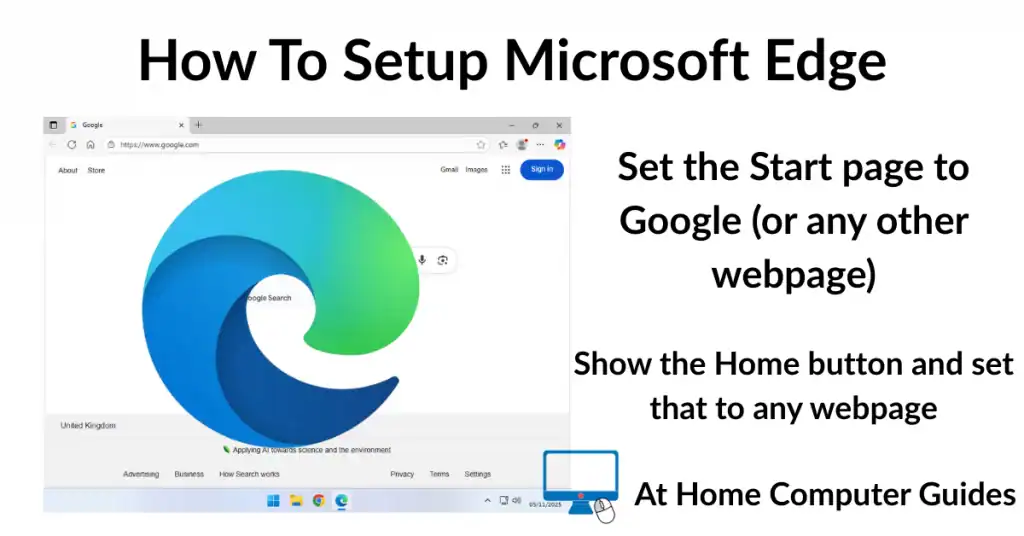
Edge is installed on every Windows computer. If you use Edge to get on the internet, then follow this guide to get it setup for you.
Course Progress – 15 of 37
Part of the At Home Basic Computer Course — free computer guides for beginners.
Lesson 17
Google Chrome

Chrome is by far the most popular browser on the internet. If you’re using Chrome, follow this guide and I’ll show you how to set it up
Course Progress – 15 of 37
Part of the At Home Basic Computer Course — free computer guides for beginners.