
Sending your computer to a repair shop is stressful enough — but the question of what happens to your personal files while it’s out of your hands is one most people never think about until it’s too late.
The answer might surprise you. A peer-reviewed study by researchers at the University of Guelph tested 16 repair shops across Ontario, Canada, and found that technicians at six of those shops accessed customers’ personal data without permission — including private photos, browsing history, and financial files. Two of those technicians even copied customer data onto a personal device. Some tried to cover their tracks afterwards by deleting file access logs.
That’s not a reason to panic, but it is a reason to take a few sensible precautions before handing over your machine.
So what can you do to protect your personal data when sending your PC in for repair?
Is Your Data Safe at a Repair Shop? (The Honest Truth)
Most repair technicians are trustworthy professionals who are there to fix your hardware, not snoop through your photos. But the study above shows that a significant minority are not — and almost no repair shops have enforceable privacy policies in place.
When you hand your PC over, the technician potentially has access to:
- Your documents, photos, and downloads
- Saved passwords in your browser
- Emails stored locally in apps like Outlook or Thunderbird
- Your browsing history and autofill data
- Any financial or banking files you have saved
Even if you trust the shop, the technician working on your machine is a stranger. Taking precautions is just sensible — the same way you wouldn’t leave your house keys with someone you’d just met.
Encrypt Your Sensitive Files Beforehand (The Best Long-Term Solution)
By far the very best solution is to encrypt your sensitive data before anything happens to your computer. It means that even if a technician does try to access your files, they won’t be able to read them without your password.
Why BitLocker Alone Won’t Protect You at a Repair Shop
You may already know about BitLocker — the built-in encryption tool that comes with Windows 10 and 11 Pro. BitLocker can encrypt your entire hard drive, which sounds like the perfect solution.
The problem is that in practice, it doesn’t help much in a repair scenario. For the technician to boot your PC and run diagnostics, they’ll need it to start up — and that means you’ll have to give them your BitLocker password. Once they’re logged in, they have access to everything on your drive, just like normal.
The Better Solution: VeraCrypt or Cryptomator
A more practical approach is to encrypt only your sensitive folders, not the whole drive. That way, the technician can boot your PC, run their tests, and complete the repair — but your private files remain locked and inaccessible.
Two excellent free tools for this are:
VeraCrypt
VeraCrypt creates an encrypted “container” — a kind of locked vault — that lives as a single file on your hard drive. You open it with a password, work with your files inside it, and then close it when you’re done. When closed, the contents are completely unreadable to anyone else.
When your PC goes to the shop, simply leave the container closed. The technician will see a file but won’t be able to open it. How To Use VeraCrypt To Encrypt A Folder
Cryptomator
Cryptomator works in a similar way but is particularly well-suited if you also use cloud storage. It encrypts your files before they’re uploaded to OneDrive or Google Drive, so your files are protected both locally and in the cloud. It’s slightly simpler to set up than VeraCrypt for everyday use.
Both are free, open-source, and trusted by privacy and security professionals.
Quick Things to Do Right Before You Hand Your PC Over
Assuming that you can actually start your computer there are a few things you could do even if you haven’t set up encryption in advance.
Create a Guest Account for the Technician
Windows lets you create separate user accounts. You can set up an account for the technicians to use rather than giving them your own account credentials.
To do this:
- Go to Settings > Accounts > Family & other users
- Click Add someone else to this PC
- Create a local account (not linked to a Microsoft account) and set it to Administrator. It’ll need to be an Admin account (rather than a standard account) in order for them to do their work
- Tell the technician to use that account
This doesn’t make your files invisible and the tech guys could easily access your files because they’re using an Admin account, but it removes the temptation of them appearing directly in front of the technician when they log in.
Clear Your Browser History and Saved Passwords
Most web browsers save your login credentials and credit card details automatically. Before handing over your PC, it may be worth clearing these. But only if you have backups. You don’t want to end up locking yourself out of your own accounts.
In Chrome or Edge:
- Press Ctrl + Shift + Delete
- Select “All time” as the time range
- Tick Browsing history, Passwords, and Autofill form data
- Click Clear data
In Firefox:
- Go to Settings > Privacy & Security > Clear Data
- Tick everything and click Clear
Log Out of All Accounts
Log out of your email, social media, banking apps, and anything else that auto-opens when Windows starts. This is a small but meaningful step — remember, the University of Guelph researchers found that one technician scrolled through a customer’s Facebook account and viewed private photos directly.
What If Your PC Won’t Even Boot? (Last-Minute Options)
Sometimes your PC is too broken to do any of the above. It won’t start, it keeps crashing. What then? All the above solutions for protecting your personal files rely on you being able to start Windows and that’s not always going to be possible.
If your computer won’t even start then your options are extremely limited. But you might be able to use a Linux live USB drive to get to files. As a last-ditch attempt to protect your privacy when having your computer repaired, it might be worth trying.
Use a Linux Live USB to Copy and Delete Private Files
If your PC won’t start Windows at all, you could still access your files using a bootable Linux USB drive. This sounds technical, but it’s actually straightforward.
What you’ll need:
- A working USB flash drive (8GB or larger)
- Access to another working computer temporarily
- A second USB drive or external hard drive to copy your files onto
Here’s what to do:
- On another PC, download Linux Mint from linuxmint.com — it’s free and beginner-friendly
- Download the free tool Rufus (rufus.ie) and use it to write Linux Mint onto your USB drive (just follow the on-screen steps)
- Plug the USB into your broken PC and power it on — you may need to press F2, F12, or Del during startup to access the boot menu and choose to boot from USB
- Linux will load into what’s called a Live environment — it runs entirely from the USB stick and doesn’t install anything or change anything on your hard drive
- Once you’re at the Linux desktop, open the file manager. Your Windows C: drive will usually appear in the left panel — click it to open it
- Find your personal folders (Documents, Pictures, Downloads, etc.) and copy them to your second USB drive or external hard drive
- Use Copy and Paste rather than Cut and Paste — if anything goes wrong mid-transfer, you won’t lose the originals
- Once you’ve confirmed everything has copied across safely, you can go back and delete the originals from the hard drive
You can even empty the Windows Recycle Bin from within Linux. Right-click the Recycle Bin folder — you’ll find it under C:\$Recycle.Bin — and empty it.
Frequently Asked Questions
Yes, they can — unless you take steps to prevent it. Research by the University of Guelph found that technicians at around half of the repair shops tested accessed customers’ personal data without permission. Most repair shops do not have enforceable privacy policies. Taking steps to encrypt or remove sensitive files before handing over your PC is strongly recommended.
Not reliably. BitLocker encrypts your entire drive, but the technician needs to boot your PC to carry out repairs — and that means you’ll need to share your decryption password with them. Once logged in, they have full access to your files. A better option for repair scenarios is to encrypt only your sensitive folders using a tool like VeraCrypt.
VeraCrypt is a free, open-source encryption tool that lets you create an encrypted folder (called a container) on your PC. You open it with a password to access your files, and close it when you’re done. When closed, the files inside are completely unreadable to anyone else. It has a learning curve, but there are plenty of beginner tutorials available online and it’s widely trusted by security professionals. just don’t forget the password you used.
Yes — if at all possible always create backups. Repairs can go wrong, and some manufacturers state in their terms that data may be lost during the repair process. Back up to an external hard drive, a USB drive, or cloud storage before dropping your machine off. This protects you regardless of what the technician does or doesn’t do.
If Windows won’t boot, you may still be able to access your files using a free Linux Live USB. Boot from the USB drive, browse your Windows hard drive from the Linux desktop, and copy your personal files to a separate USB or external drive. Once copied and verified, delete the originals from your hard drive. This works even when Windows itself is completely broken.
A factory reset is the most thorough option if your PC works well enough to complete one — it wipes all your personal files and returns Windows to its default state. Just make sure you’ve backed everything up first. It’s not always practical (especially if the PC won’t boot), but if you can do it, it’s very effective.
Ideally, no — or at least, not your main account password. A better approach is to create a temporary standard user account specifically for the technician. This gives them enough access to run diagnostics and carry out repairs, without your personal files appearing front and centre when they log in.
Summary
The bottom line here is trust — and unfortunately, you can’t guarantee that everyone who touches your machine will respect your privacy. Most will. But some won’t.
The best habit you can build right now is to start using VeraCrypt or Cryptomator for your most sensitive files. It takes about 20 minutes to set up, and once it’s part of your routine, you’ll never have to worry about this again — whether your PC goes to a repair shop, gets lost, or is stolen.
If you’re not repairing your own computer, your options are limited once it’s already out of your hands. So encrypt your data now, before something goes wrong.
At Home Computer Guides That May Help
Windows 11 Backup
Create full system image backups (everything) or just backup certain folders. But do it now.
Hard Drive Not Showing Up? How to Fix it (Windows 10 and 11)
Added a new hard drive/disk to your PC but you can’t see it in File Explorer? Fix it now. Easy.
Scan Computer for Malware your Antivirus Missed
If you think your PC may be infected, run a scan with Malwarebytes.
Beware of Device Encryption on Windows 11 Home
Device Encryption is silently being enabled on all Windows 10 and Windows 11 Home editions that meet the hardware requirements and you’re signed in with a Microsoft account.
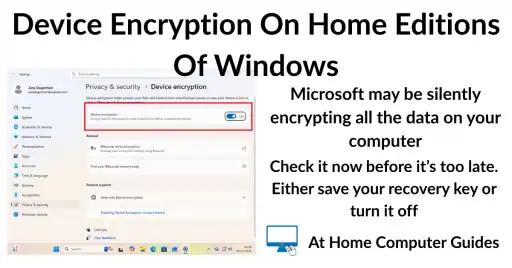
It’s very important that you check whether or not device encryption is enabled on your computer and if it is, then you MUST either disable it or find your recovery key. I’ll show you how to do both.
You can find this and other related step by step guides in – At Home Computer Security Guides