One of the best features of OneDrive is the ease with which you can share files and folders with others across the internet. You can set “permissions” that will allow your users to only view shared files or give them complete control to edit them.
How To Share A Folder In OneDrive
Each item (individual file or entire folder) stored in OneDrive has a unique URL. To share a folder in OneDrive all you need to do is to send your intended recipient that unique URL in the form of a clickable link. They can then click on the link and the file or folder will be accessible to them.
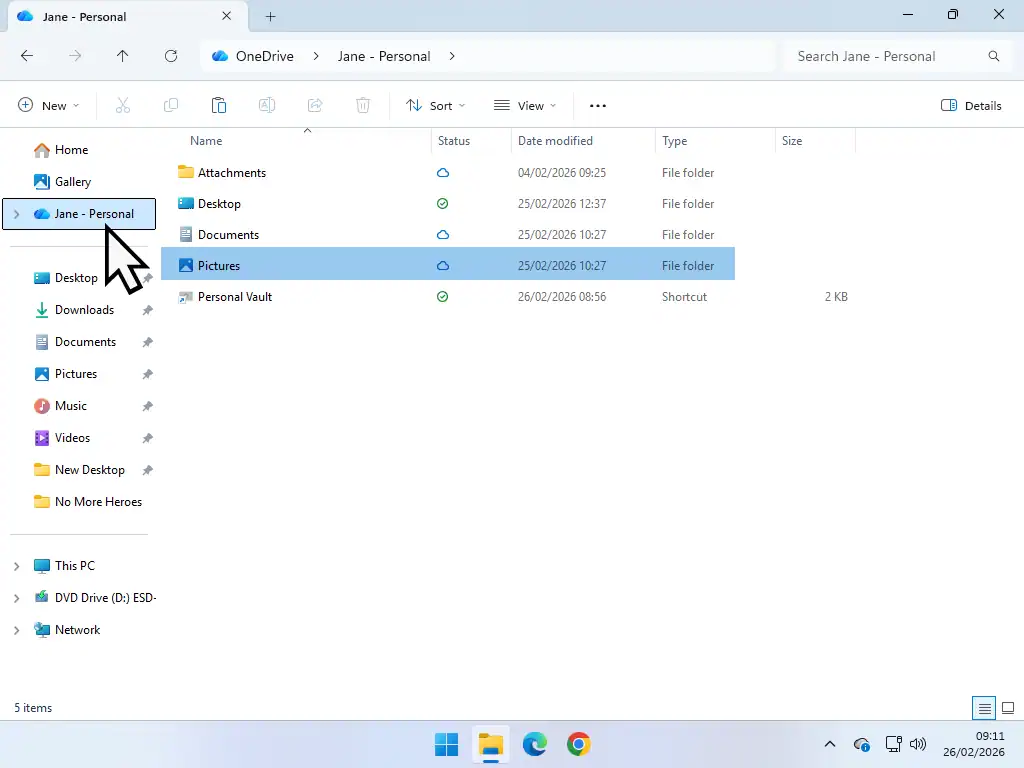
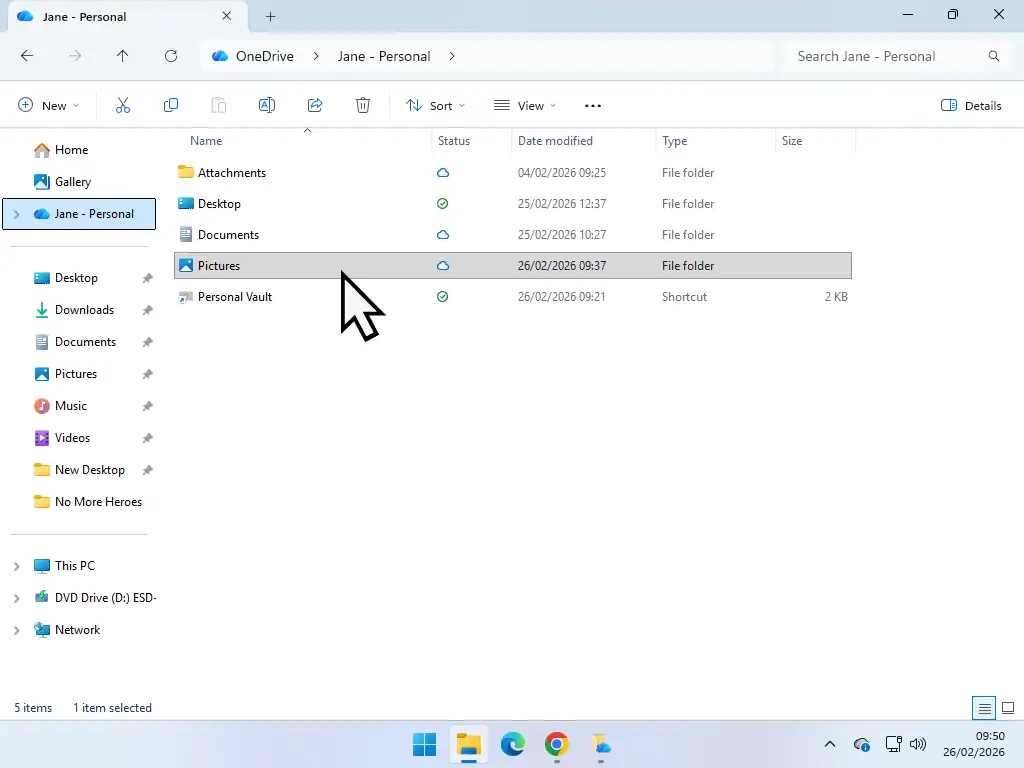
To share a folder open File Explorer –
- Then click on your OneDrive folder in the left hand navigation panel.
- Navigate through your folders until you find the one you want to share.
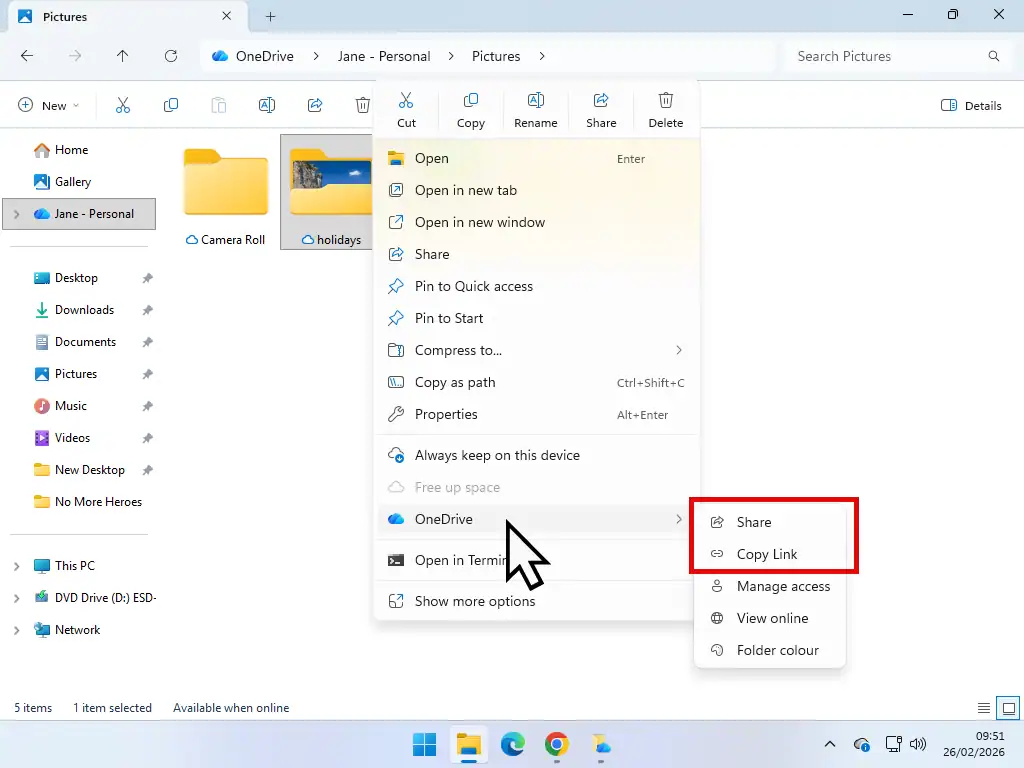
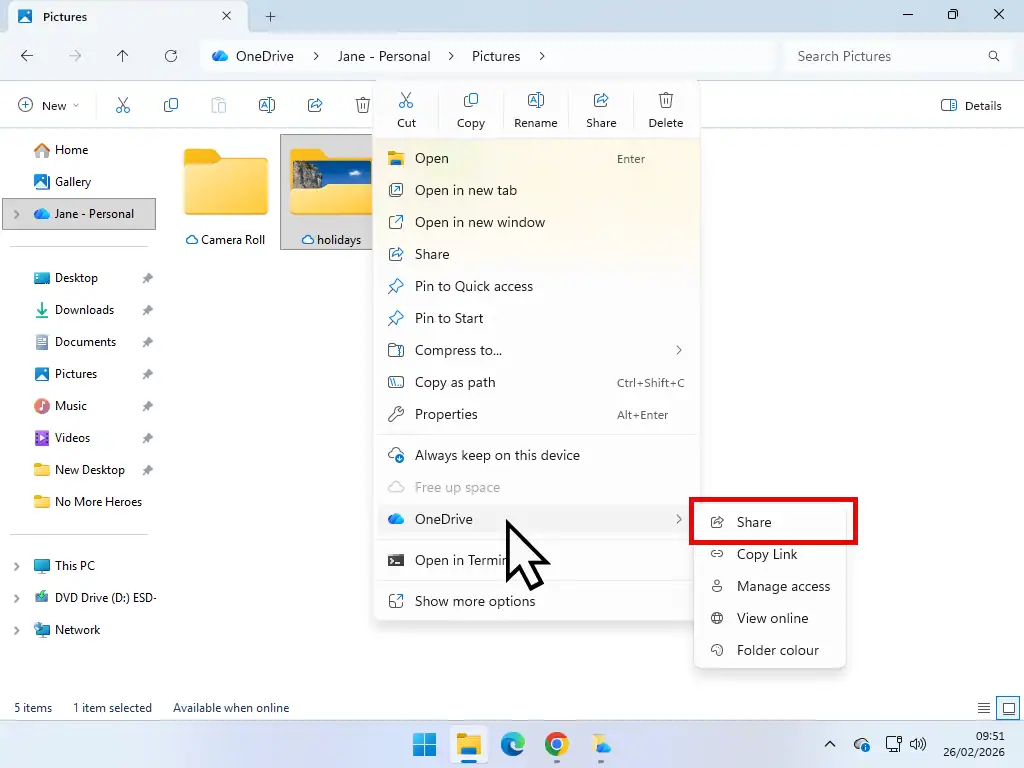
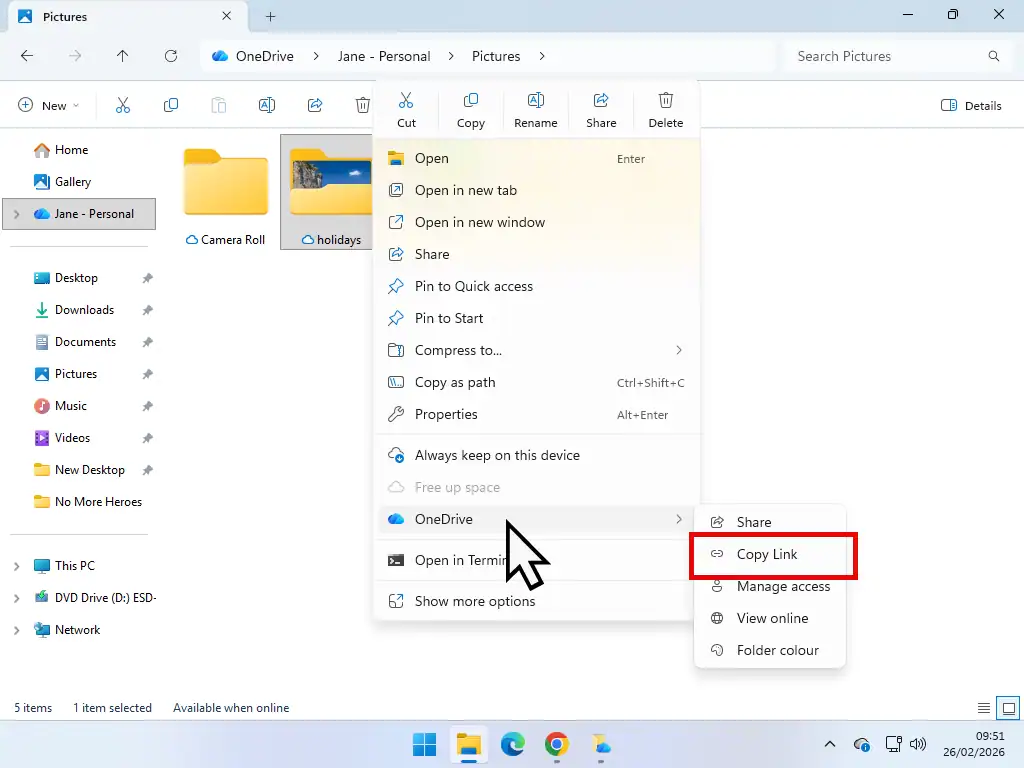
- Right click on the folder to be shared. On the menu hover your mouse pointer over OneDrive. You’ll see a second (sub) menu appear. There are 2 options – Share and Copy Link. you can use either to share a folder in OneDrive.
Using The Share Option
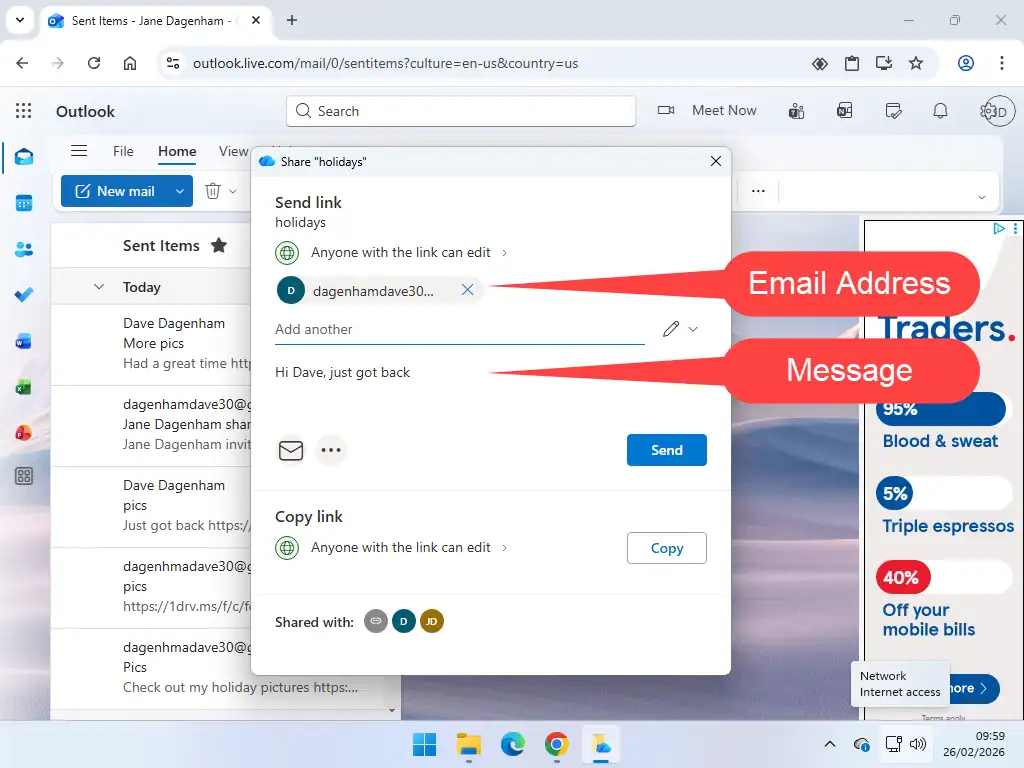
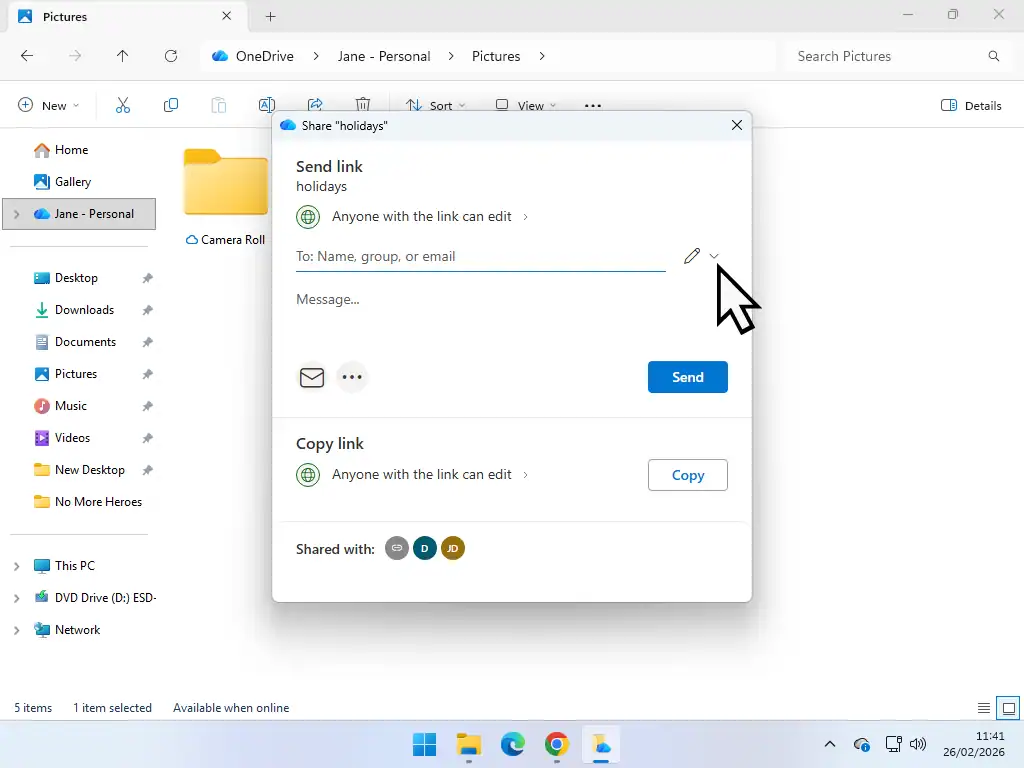
If you choose the Share option in OneDrive it’ll open a Send Link popup. Add the email address or your recipient and a brief message. Then click the Send button.
An email will automatically be sent from your Microsoft account with a clickable link to the shared folder in OneDrive.
Using The Copy Link Option
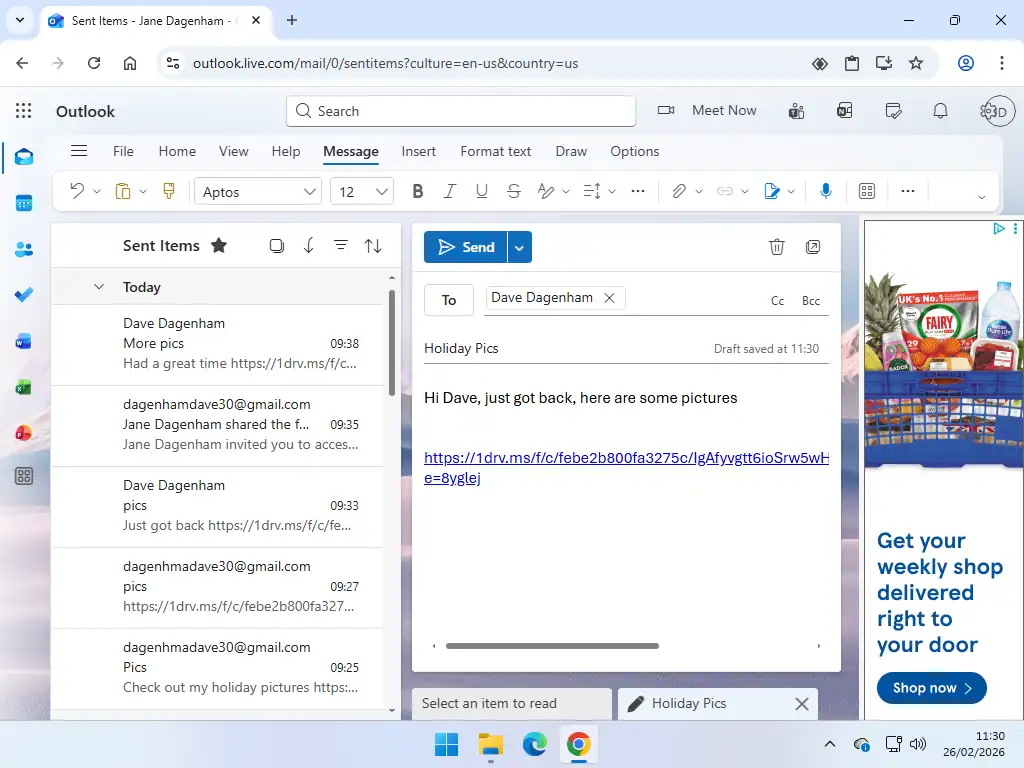
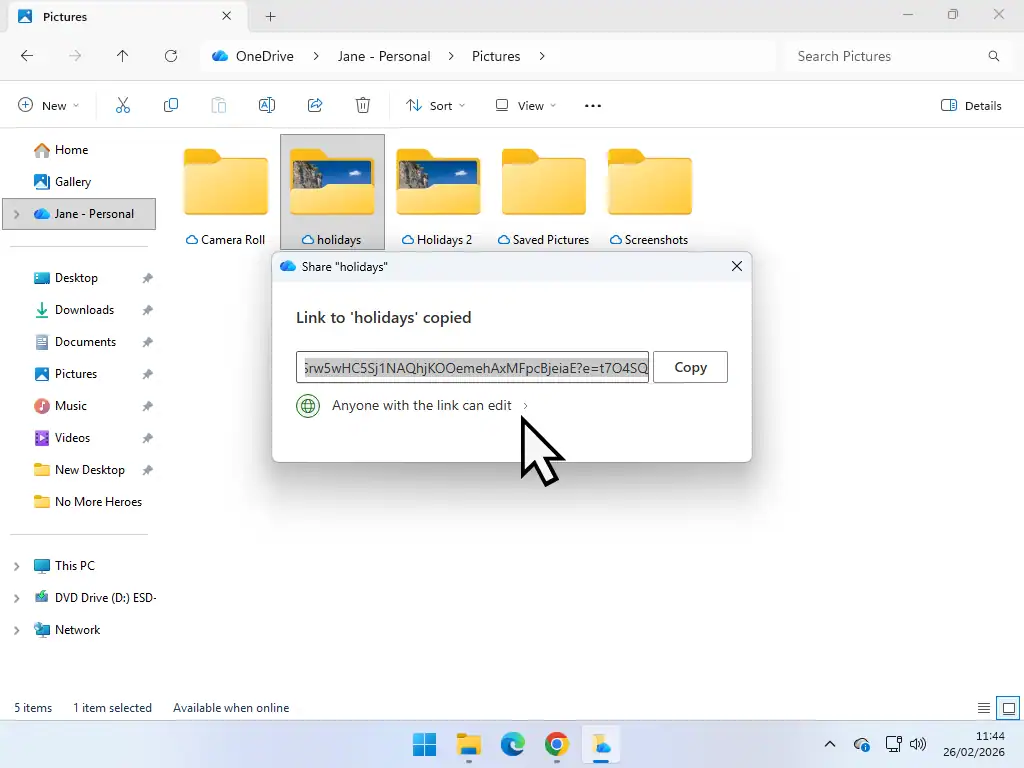
If you choose to Copy the Link, then the link to your shared folder is copied to the computer clipboard. Open your email and add the link in the usual way.
Folder Share Permissions In OneDrive
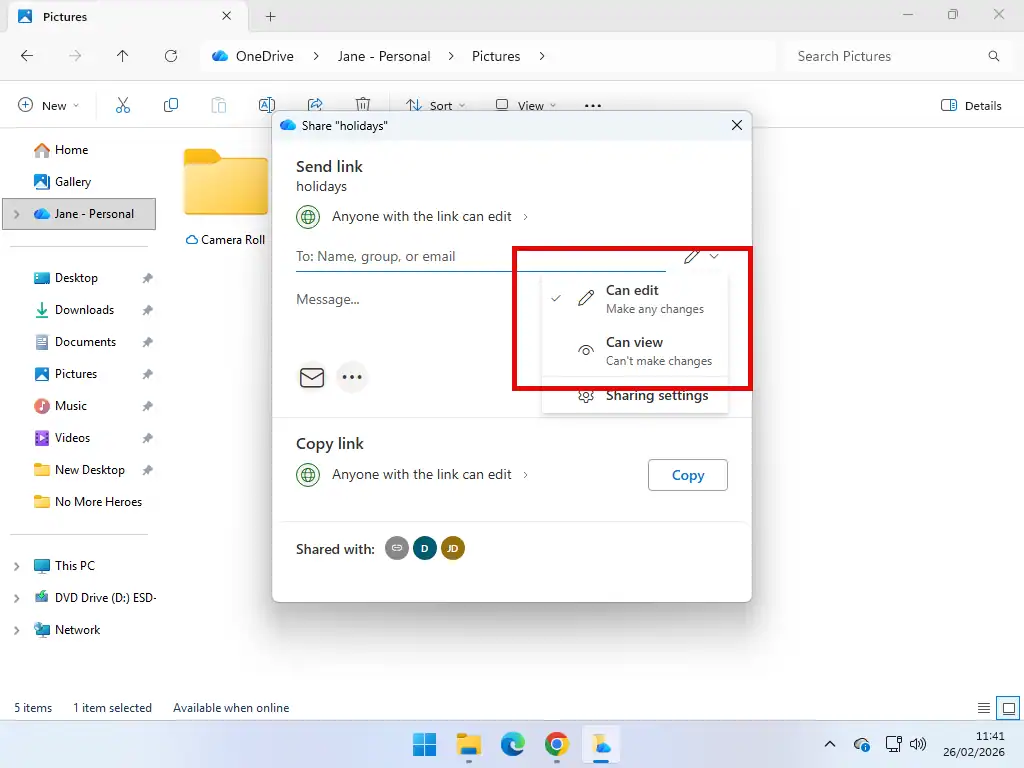
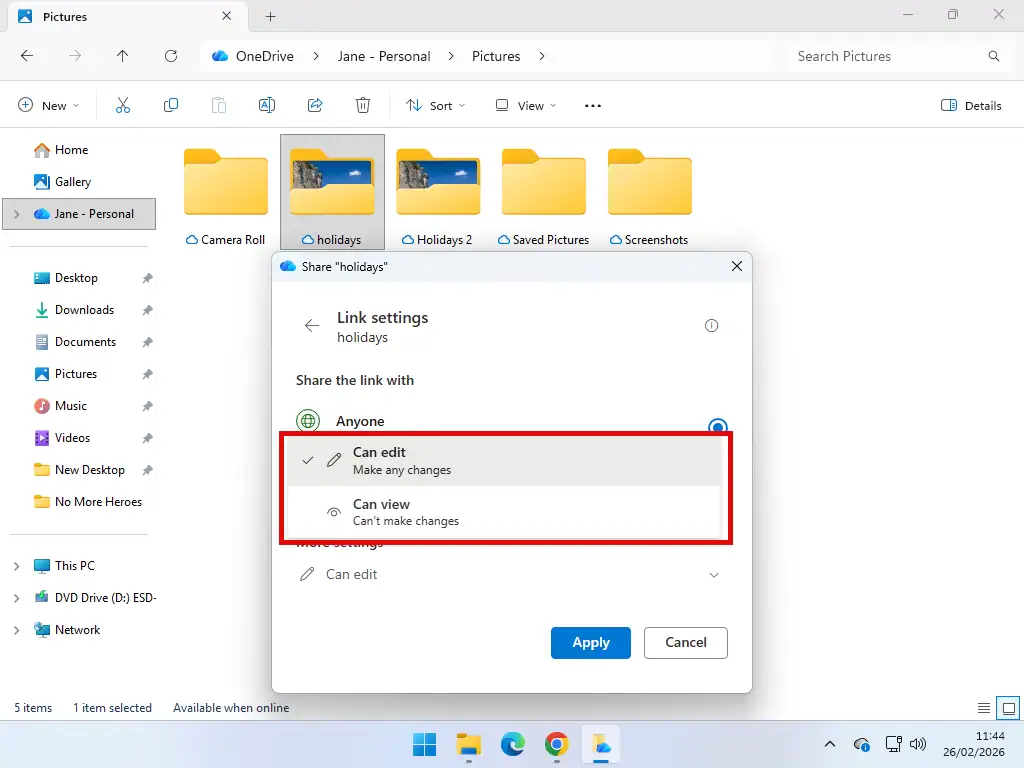
When sharing a folder in OneDrive (or an individual file) you can allow your recipient to edit the files or only view them without making any changes.
The way in which you change a share permission in OneDrive is slightly different depending on whether you chose to use the Share option or Copy Link option earlier.
- Share – Click the drop down arrowhead beside the email address box. Then select either Can Edit or Can View.
- Copy Link – Click the link “Anyone with the link can”. On the next window click on More Settings and select either Can View or Can edit.
Summary
Sharing files and folders using OneDrive is fairly easy to do and for home users it’s a great way of passing around photos to friends and family as well as getting help with creating documents and other files.
Just keep in mind that when you share a folder, the entire contents of that folder can be accessed by your recipient including any subfolders. Secondly, even though you might set the permissions to view only, the recipient can still download the files and edit them offline.
Related Posts
What Is OneDrive And What Does It Do
Not sure about OneDrive. Read this guide to find out how OneDrive works and what it does.
What To Do When OneDrive Is Full.
You only get 5 GB of free storage and it’s easy to fill up that space.
How To Delete Files From OneDrive.
Be careful when deleting file files from OneDrive, you could be deleting them from your computer too.
How To Setup OneDrive To Backup Your Files
You can use OneDrive to backup your most important files to the cloud.
Popular At Home Computer Guides
The most popular step by step guides for your home computer.