
Microsoft Publisher has gone. If you had it as part of Microsoft 365, Microsoft took it away at the start of October 2026. The older versions that came with Office 2016, 2019 and 2021 still work, but they don’t get any more updates.
That leaves a lot of people with folders full of newsletters, flyers, cards and calendars saved as .pub files, and nothing to open them with.
The good news is that your files haven’t gone anywhere. In this guide I’ll show you how to open a Publisher file without Publisher, how to convert it to a PDF, and how to get it into Word, all for free.
The Short Version
Still got Publisher? Open the file, click File > Save As and choose PDF in the Save as type list.
No Publisher? Install the free LibreOffice, open the .pub file in LibreOffice Draw, then click File > Export As > Export as PDF.
Need it in Word? Open the PDF in Word with File > Open. Word turns it into a document you can edit, although the layout may move about.
What’s Happening to Microsoft Publisher?
Microsoft has retired Publisher. What that means for you depends on which version you have.
- Publisher from Microsoft 365: it was removed at the start of October 2026. You can’t open or edit .pub files in it any more, and you can’t download it again.
- Publisher 2016 or 2019: it still works. It stopped getting updates in October 2025, when support for Office 2016 and 2019 ended.
- Publisher 2021: it still works too. Its support ended on 13 October 2026, so it won’t get any more fixes or security updates.
Either way, your .pub files are safe. Nothing deletes them. The only problem is that fewer and fewer computers will have anything that can open them.
Microsoft’s own advice is to turn your Publisher files into PDF or Word documents. You can read it on Microsoft’s Publisher retirement page.
Which Version of Publisher Have I Got?
Open Publisher, click File, then Account. Product Information shows which Office you have.
A name with a year in it, such as Microsoft Office Professional Plus 2021, means you bought Office outright and Publisher keeps working. Microsoft 365 means the subscription version.
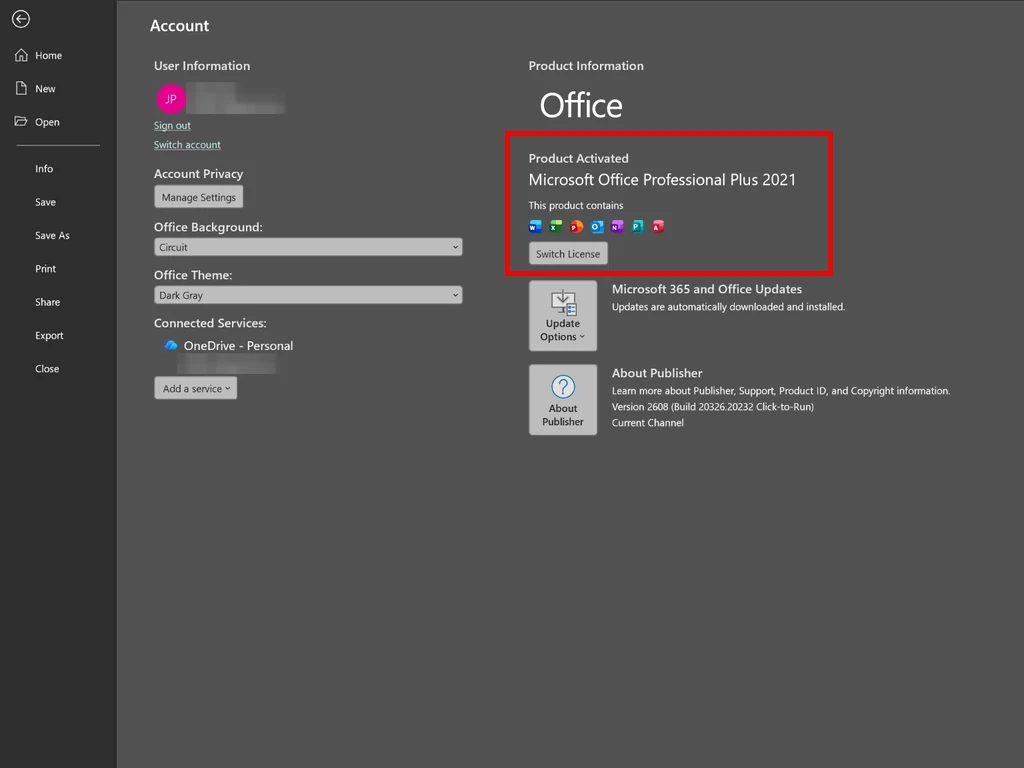
If Publisher won’t open at all, or you can’t find it on the Start menu, it was almost certainly the Microsoft 365 version.
If you’ve got 2016, 2019 or 2021, my advice is to convert everything you want to keep now, while Publisher still runs. A PDF made by Publisher itself is the most faithful copy you’ll ever get.
Microsoft say that the desktop versions of Office (which includes Publisher) will be unaffected and it’ll keep working, but you never know what’s going to happen in the future. Convert anything that you need to keep now.
What the “Publisher Is Retiring” Message Means
When you open Publisher, a box may pop up in the top right corner titled Publisher is retiring. It says that from October 2026 Publisher will no longer be supported, and you won’t be able to access Publisher or open Publisher files.
If you have Microsoft 365, that’s exactly what happens.
But the same message turns up in the versions you bought outright too. I’ve checked, and it appears in Publisher 2016, 2019 and 2021, even when you’re not signed in to a Microsoft account. For those versions it isn’t quite right.
Microsoft’s own retirement page says that if you bought Office outright, you can carry on installing and using Publisher, and you can still open and edit your files. What’s ended is support, so there won’t be any more fixes or security updates.
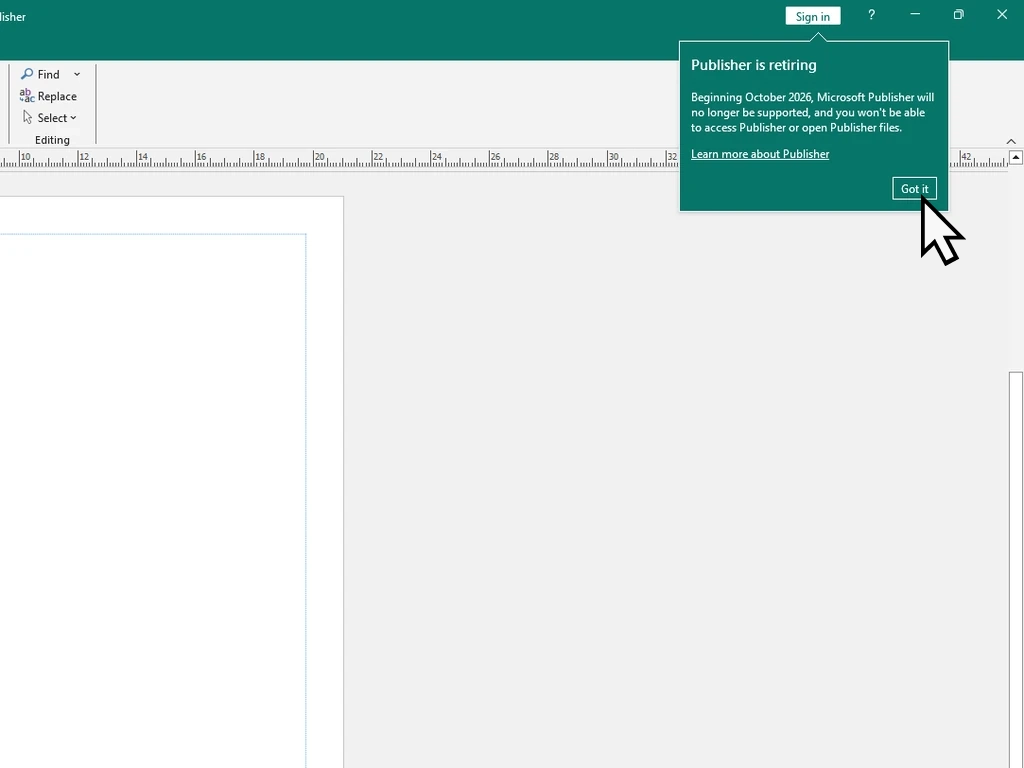
So don’t uninstall anything. If you’ve got Office 2016, 2019 or 2021, click Got it to close the message and use the time to convert the files you want to keep.
Quick Tip
Newer versions of Office, such as Office 2024, don’t include Publisher. If you upgrade, Publisher goes with the old version.
Keep your Office product key, or a note of the Microsoft account it’s linked to, somewhere safe. Then you can put Office 2021 back if you ever have to reset the PC.
Also, don’t upgrade to Office 2024 because it will simply replace earlier versions leaving you without Publisher.
Find All Your Publisher Files First
Before you convert anything, it’s worth gathering your Publisher files together so none get missed. Publisher files end in .pub, the file extension that tells Windows what kind of file it is.
- Open File Explorer and click This PC on the left.
- Click in the search box at the top right, type the line below and press Enter.
*.pubWindows lists every Publisher file on the PC. It can take a minute or two if you’ve got a lot of files. If you’re new to searching, my File Explorer guide walks you through it.
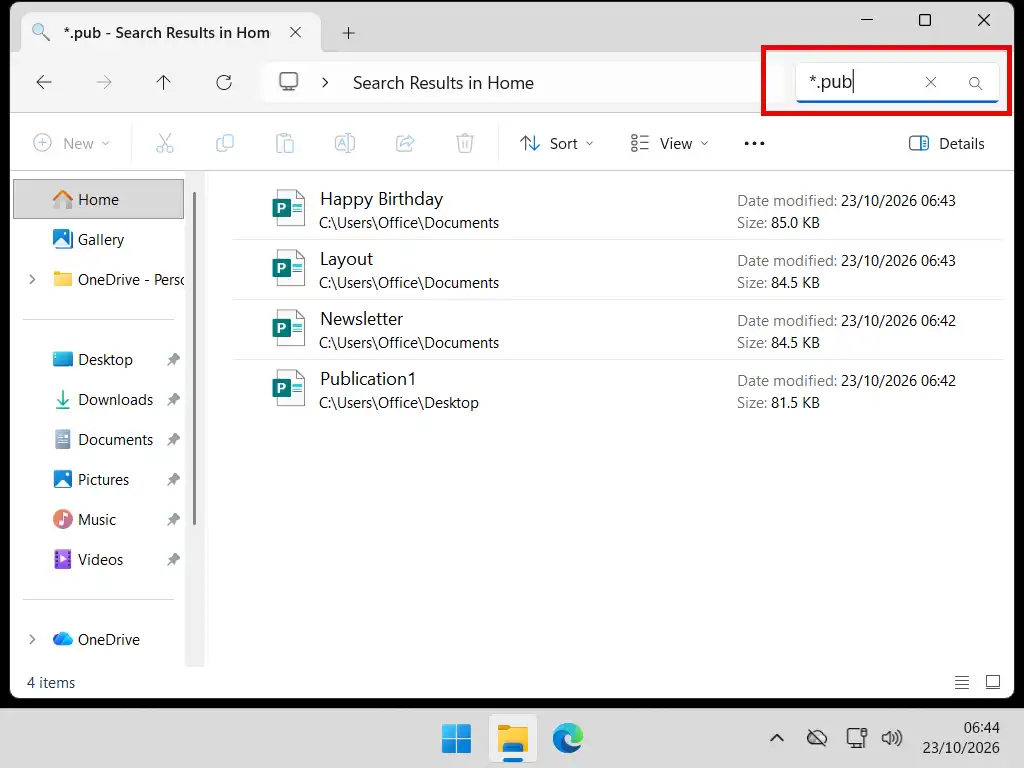
Don’t forget OneDrive, and any USB sticks or external drives you’ve kept files on.
Quick Tip
Copy them all into one folder, such as Publisher files in Documents, and work through them from there.
Keep the original .pub files even after you’ve converted them. If a conversion comes out wrong, you can go back and try another way. They’re worth including in your backups too.
How to Convert a Publisher File to PDF
If you still have Publisher, this is the best way to keep a copy of anything you’ve made. A PDF looks exactly like the original, opens on any computer, tablet or phone, and prints properly.
I’m using Publisher 2021 here. The steps are the same in Publisher 2016 and 2019.
- Open your file in Publisher.
- Click File > Save As > Browse.
- Choose where to save it and type a name in the File name box.
- Click the Save as type list and choose PDF.
- Click Save.
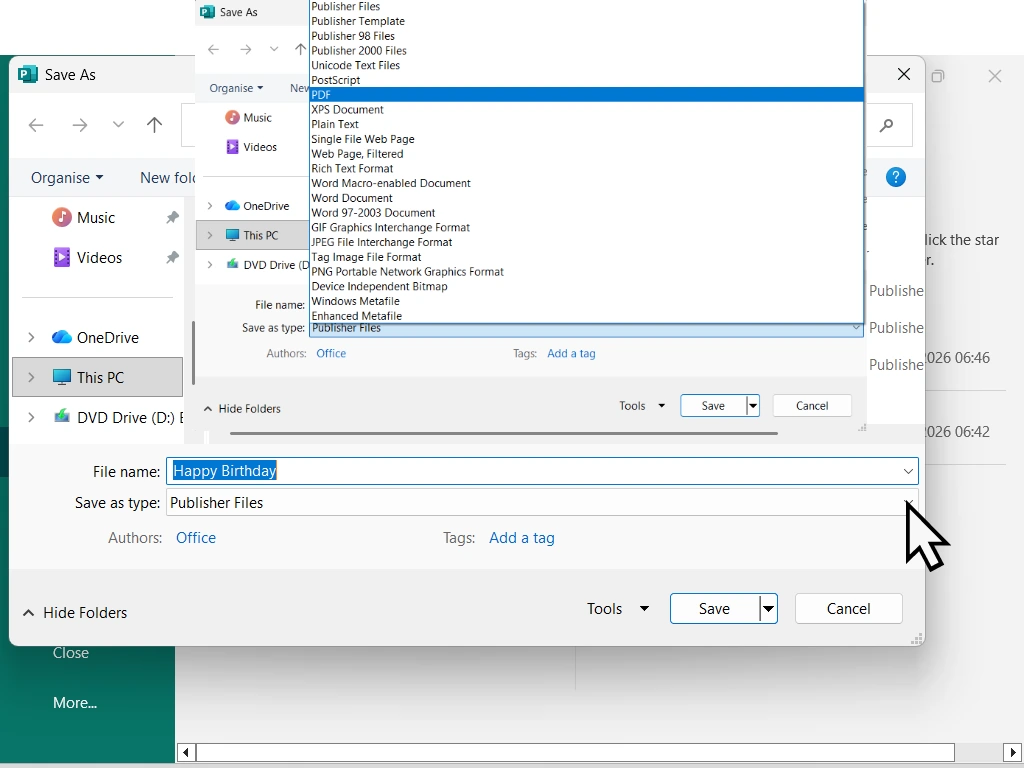
Your PDF will be in the folder you picked. You can also get to the same place from File > Export > Create PDF/XPS Document.
Choosing the Quality of Your PDF
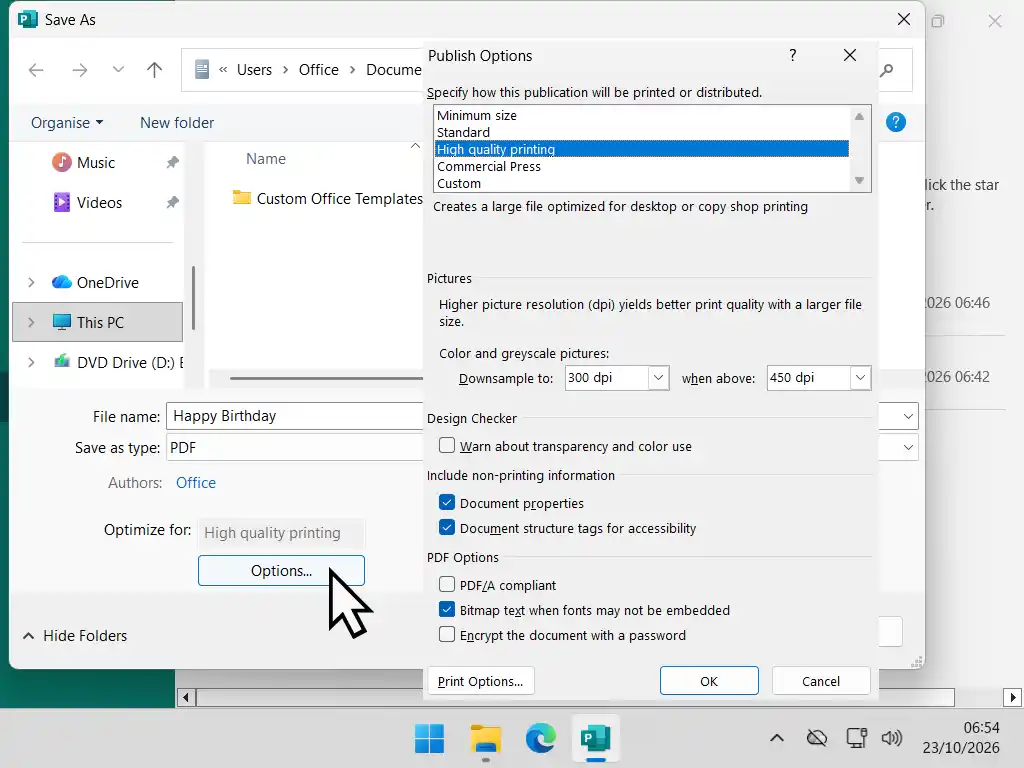
In the save box, click Options to choose how good the PDF should be. There are four choices:
- Minimum Size: the smallest file, for looking at on screen.
- Standard: good for emailing to someone who might print it.
- High Quality Printing: for printing at home or at a print shop.
- Commercial Press: the biggest file, for a professional printer.
For example, if it’s a newsletter you email round, Standard is fine. If it’s a calendar or a poster you want to print, pick High Quality Printing.
Once it’s a PDF, you can still make small changes, such as fixing a date. My guide on how to edit a PDF shows you how.
How to Open a Publisher File Without Publisher
If Publisher has gone from your PC, the best free way to open a .pub file is LibreOffice. It’s a free office suite, a bit like Microsoft Office, and its drawing program, LibreOffice Draw, can open Publisher files.
It’s also the private way to do it. Your files stay on your own computer, rather than being uploaded to a website.
Install LibreOffice
- Go to libreoffice.org and click Download.
- Download the version for Windows and open the file once it’s finished.
- Follow the steps in the installer. The Typical setup is fine.
Only ever download LibreOffice from its own website. If you’re not sure how to spot the real download button, my guide to installing programs safely shows what to watch out for.
Open the .pub File in LibreOffice Draw
- Open LibreOffice from the Start menu.
- Click Open File and find your Publisher file.
- Click Open.
LibreOffice opens it in Draw. Each page of your publication becomes a page in Draw, and you’ll see them down the left-hand side.
You can also right-click the .pub file, choose Open with, then LibreOffice Draw.
Check every page. LibreOffice does a good job with most Publisher files, especially simple ones like flyers and posters, but text can move about or a font can look different. The fixes for both are in the Troubleshooting section below.
Save It as a PDF from LibreOffice
- With the file open in Draw, click File > Export As > Export as PDF.
- Click Export.
- Choose where to save it, give it a name and click Save.
Keep Editing It in LibreOffice
If you want to keep changing the file, for example a newsletter you update every month, you can carry on in LibreOffice Draw.
Click File > Save As and save it as an ODF Drawing (.odg). That’s LibreOffice’s own format, and it keeps everything editable.
One thing to know: LibreOffice can open Publisher files, but it can’t save them as .pub. Once you’ve moved a file over to LibreOffice, it stays in LibreOffice or becomes a PDF.
How to Convert a Publisher File to Word
This is the one most people search for, so I’ll be straight with you. There’s no way to turn a Publisher file into a Word document that looks and works exactly the same. Publisher puts everything in boxes on the page, and Word doesn’t work like that.
What you can do is get close to the look, or keep all the text. Which one you want decides the method.
Method 1: Open the PDF in Word (Keeps the Look)
This is Microsoft’s own recommended way. First make a PDF of your file, with Publisher or LibreOffice as shown above. Then:
- Open Word and click File > Open > Browse.
- Find your PDF and click Open. You may have to change the type to All Files in order to find your PDF.
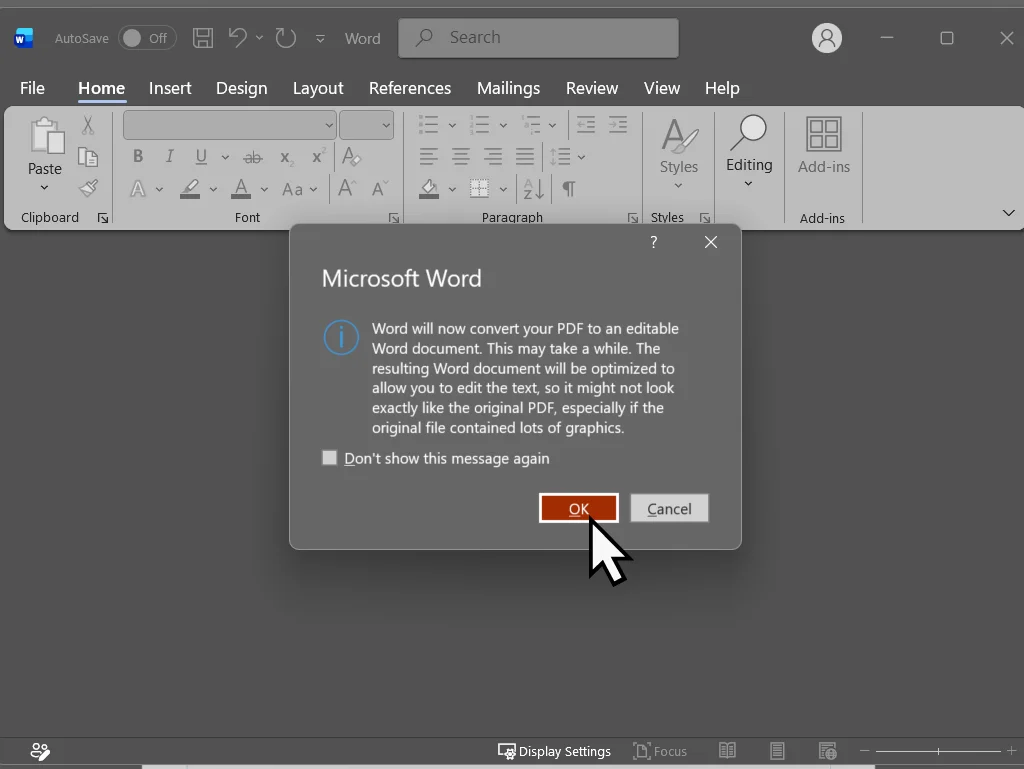
- Word tells you it’s going to convert the PDF into a document you can edit, and that it might not look exactly like the original. Click OK.
- When it’s finished, click File > Save As and save it as a Word Document.
Note that Word can appear to freeze during the conversion. It’ll often become unresponsive until it has finished. Just be patient and hopefully it’ll get there.
This works in Word 2013 and later, including Word 2016, 2019 and 2021.
How well it works depends on the file. Pages that are mostly text convert well. A page full of pictures and fancy lettering can come out jumbled, or even as one big picture you can’t edit at all.
Method 2: Save As Word from Publisher (Keeps the Text)
If you still have Publisher, it can save straight to Word. You get all the text, with its fonts, sizes and colours, but the pictures and the layout are left behind.
- Open the file in Publisher.
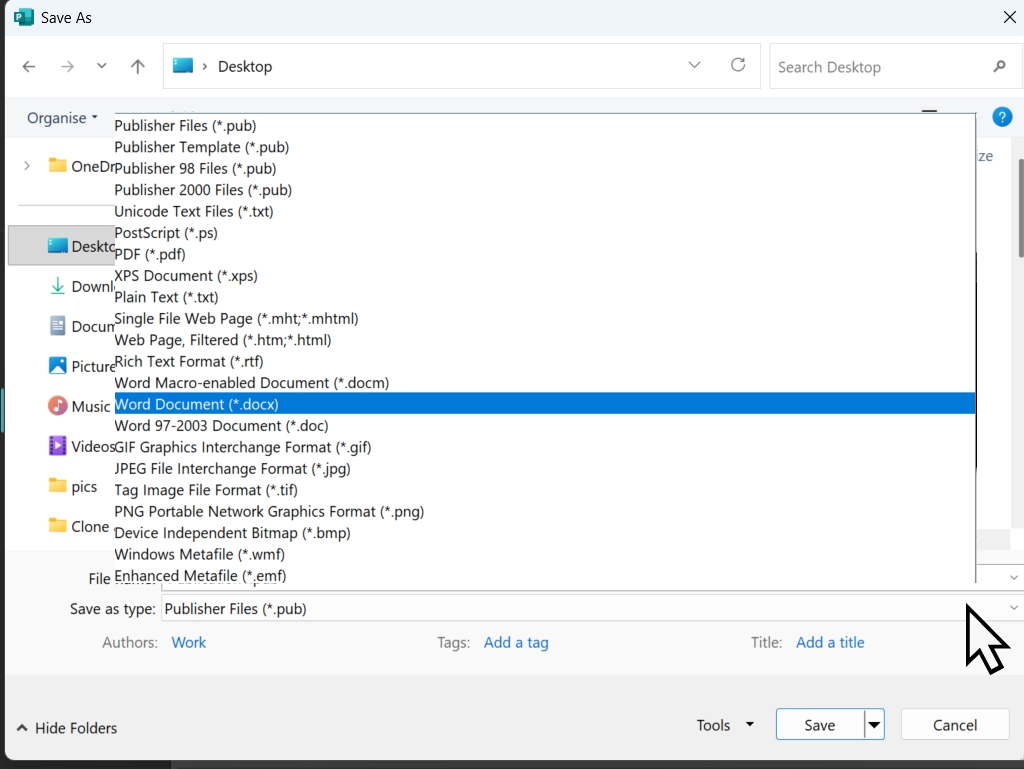
- Click File > Save As > Browse.
- In the Save as type list, choose the Word document option.
- Click Save.
This is the best choice for things you’ll keep updating, such as a newsletter. Save the text to Word once, add your pictures back in, and from then on it’s a normal Word document.
Method 3: Use an Online Converter
If you haven’t got Publisher, websites such as Zamzar and CloudConvert will convert a .pub file to PDF, and Zamzar will also convert it to Word. Upload the file, choose the format and download the result.
They’re free for small files, but you may be asked to pay for bigger ones.
Think Before You Upload
An online converter means your file goes to someone else’s computer. That’s fine for a flyer about a jumble sale.
For anything with names, addresses or phone numbers in it, such as a club membership list, use LibreOffice instead and keep it on your own PC.
Which One Should I Use?
Just want to keep it or print it? Make a PDF.
Want to keep editing it? Use Method 2 for the text and rebuild it in Word, or carry on in LibreOffice Draw.
Want it to look the same and still be editable? Try Method 1, then check it carefully.
What to Use Instead of Publisher
For anything new, Microsoft suggests using Word or PowerPoint, which can do most of what Publisher did.
- Word: newsletters, letters, labels, envelopes, flyers, certificates, cards and calendars.
- PowerPoint: posters, banners and signs, as well as flyers and cards.
- LibreOffice Draw: free, and the best choice for carrying on with your old Publisher files.
- Scribus: a free desktop publishing program for bigger jobs, such as a magazine with lots of pages. It can open Publisher files too.
Microsoft also has free Word and PowerPoint templates for flyers, cards and newsletters on its Microsoft Create website.
If you used to make a calendar in Publisher every year, I’ve made a free editable 2027 calendar for Word, Excel and PowerPoint, and a photo calendar with space for a picture each month.
Troubleshooting
The Text Looks Wrong in LibreOffice
This is usually a missing font. Publisher may have used a font that came with Microsoft Office, and if that font isn’t on your PC, LibreOffice swaps in a different one.
If you know which font it was and you have it, install it and open the file again. If you can get to a PC that still has Publisher, make the PDF there instead, because a PDF keeps the original fonts.
Text boxes that flow from one to the next, and tables, can also move about. Simple one-page things usually come out best.
Word Turned My Publication into One Big Picture
That happens with pages that are mostly pictures, borders and big lettering. Word can’t pull the pieces apart, so it gives you a picture of the whole page.
Use Method 2 above to get the text into Word, or keep the PDF if you only need to print it.
Publisher Has Disappeared from My PC
If it came with Microsoft 365, Microsoft removed it in October 2026 and it isn’t coming back. Use LibreOffice to open your files.
If you have Office 2016, 2019 or 2021, Publisher should still be there. Click Start and type Publisher to find it.
Windows Asks How to Open the .pub File
That means nothing on your PC is set up to open Publisher files. Install LibreOffice, then right-click the file, choose Open with and pick LibreOffice Draw. My guide on how to open files on a PC shows you how to make that the default.
The Online Converter Wants Me to Pay
Free converters have a size limit, and Publisher files with lots of pictures go over it quickly. LibreOffice has no limit and it’s free.
FAQ
Q: Is Microsoft Publisher being discontinued?
A: Yes. Publisher was removed from Microsoft 365 at the start of October 2026. Publisher 2016 and 2019 stopped getting updates in October 2025, and Publisher 2021 on 13 October 2026. Those versions still work, they just don’t get fixes.
Q: Will I lose my Publisher files?
A: No. Your .pub files stay where they are. You just need something else to open them, such as LibreOffice, or you can convert them to PDF or Word.
Q: Can I still use Publisher 2016, 2019 or 2021?
A: Yes. It keeps working, and you can still open, edit and save your files. It won’t get security updates, so convert anything important to PDF while you can.
Q: Why does my Publisher 2016, 2019 or 2021 say it’s retiring?
A: It shows the same message Microsoft 365 users get, even if you aren’t signed in. Microsoft says versions you bought outright keep working and can still open your files. Only support has ended.
Q: Can Word open a Publisher file?
A: No. Word can’t open .pub files. Convert the file to PDF first and open the PDF in Word, or save the text as a Word document from Publisher.
Q: What is the best free alternative to Microsoft Publisher?
A: For opening old Publisher files, LibreOffice Draw. For new things, Word or PowerPoint do most of what Publisher did, and Scribus is a free desktop publishing program for bigger jobs.
Q: Can LibreOffice save a file as a .pub file?
A: No. It can open Publisher files but not save them, so save your work as a LibreOffice drawing (.odg) or as a PDF.
Q: Can I convert lots of Publisher files at once?
A: Yes, but it’s fiddly. Microsoft has a PowerShell script that converts a folder of files to PDF, but it needs Publisher installed and isn’t something I’d suggest for a beginner. For a few dozen files, doing them one at a time is quicker.
Q: Can I convert a PDF back into a Publisher file?
A: There’s not much point now Publisher has been retired. Open the PDF in Word instead, which turns it into a document you can edit.
Q: Can I open a Publisher file on a Mac?
A: Yes. LibreOffice is free for Mac too, and it opens .pub files the same way.
Summary
Publisher has gone from Microsoft 365, and the older versions won’t get any more updates, but your .pub files aren’t lost.
If you still have Publisher, save everything you want to keep as a PDF now. If you don’t, install LibreOffice and open your files in Draw. If you need them in Word, open the PDF in Word to keep the look, or save as Word from Publisher to keep the text.
Whichever way you go, keep the original .pub files somewhere safe.
Related Guides
Free Editable and Printable 2027 Family Calendar (UK)
Differential vs Incremental Backups
What they are, how they differ, and which one to use on your home PC.
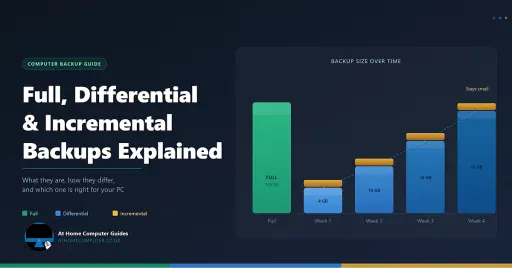
This guide explains all three backup types in plain English, so you can make the right choice for your home PC.
You can find this and other related step by step guides in – At Home PC Tech Guides
Written by Jeff Porter. I’ve been fixing Windows PCs since 2010 and I’m CompTIA Network+ certified. More about me