Do you need to run a Virtual Machine (VM), use an Android emulator like BlueStacks, or enable Windows Core Isolation? You likely need to enable Hardware Virtualization in your computer’s BIOS.
Virtualization allows your processor to act like several independent computers, letting you run different operating systems (like Linux or older versions of Windows) at the same time as your main OS.
While most modern PCs support this, it is often turned OFF by default for security reasons. This guide will show you how to check your status and enable it in minutes.
Step 1: Check if Virtualization is Already Enabled
Before jumping straight in and restarting your PC, check to see if virtualization is already active using Task Manager.
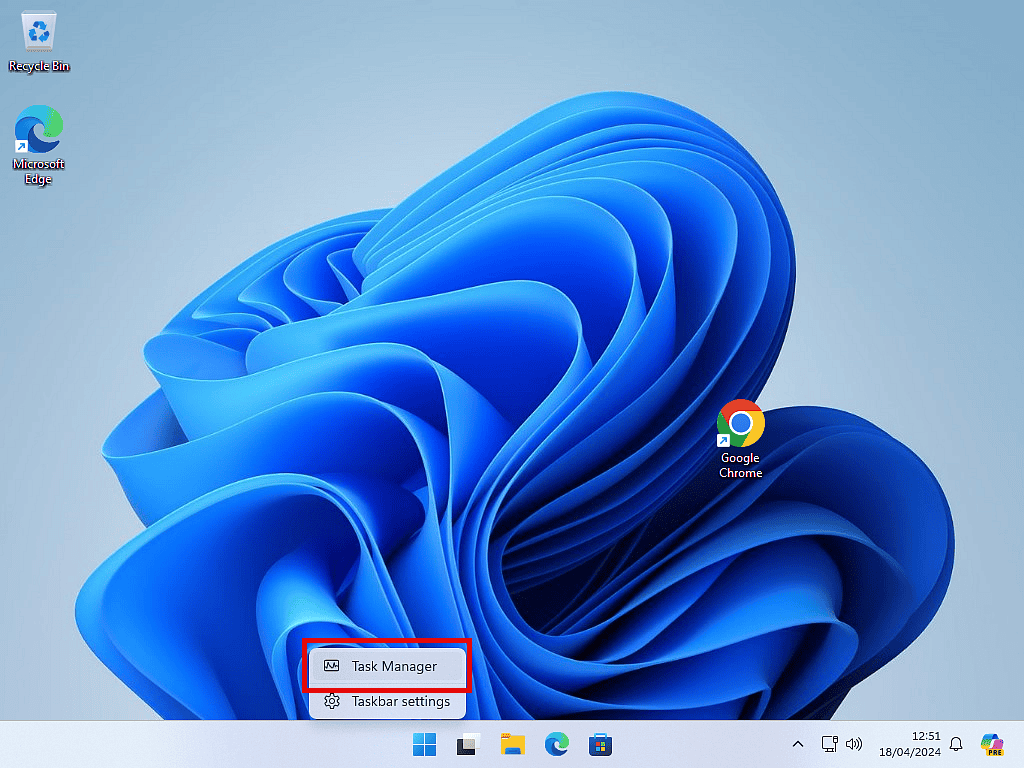
- Right-click the Taskbar and select Task Manager (or press Ctrl + Shift + Esc on your keyboard).
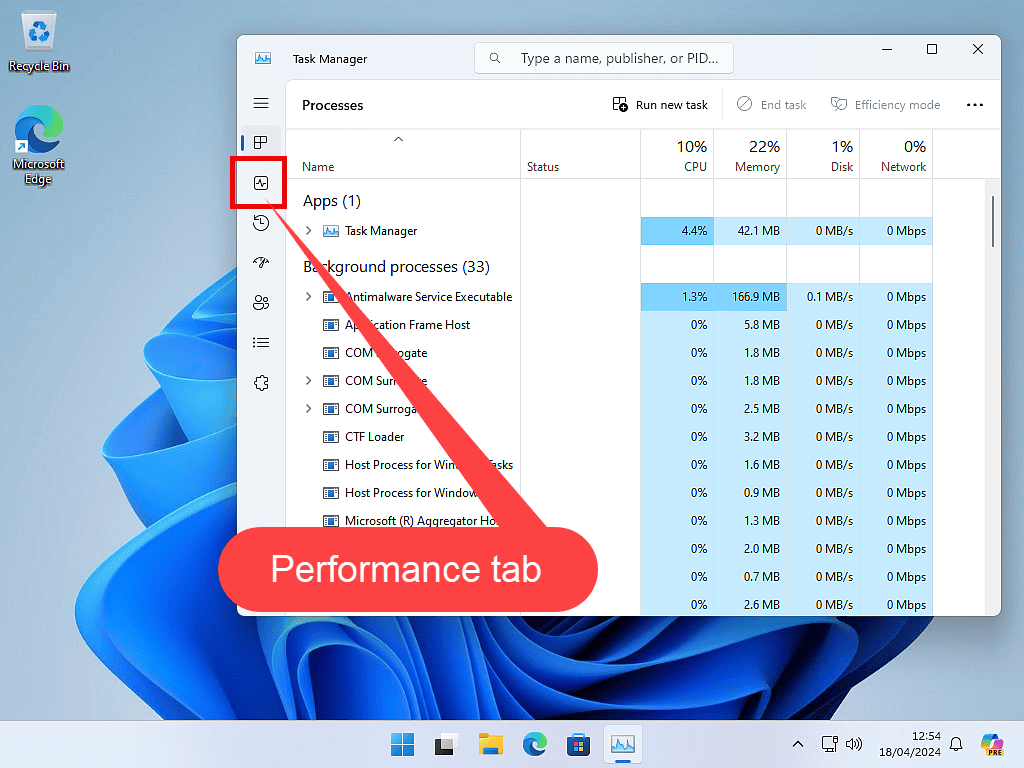
- Click the Performance tab.
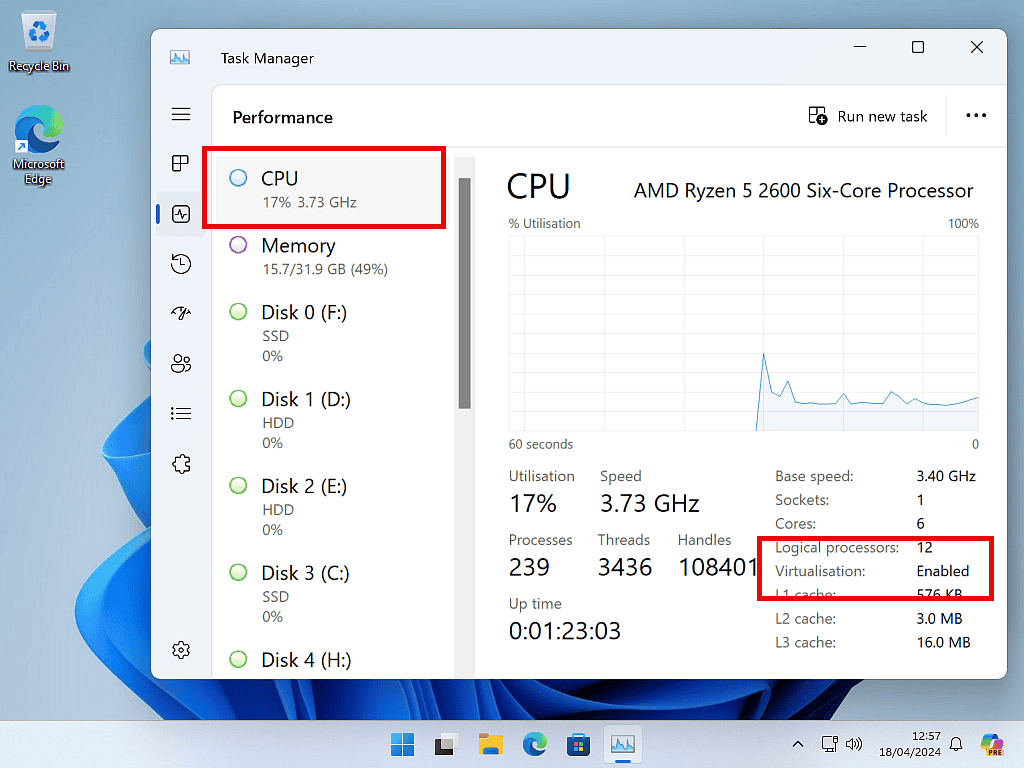
- Select CPU from the left-hand column.
- Look at the bottom right corner. You’ll see Virtualization: followed by either Enabled or Disabled.
If it says Enabled, you are all set! If it says Disabled, follow the steps below to enter your BIOS/UEFI.
Step 2: How to Enter the BIOS/UEFI Menu
To turn on virtualization, you must enter your computer’s BIOS (Basic Input/Output System).
Restart your computer. As soon as the PC begins to start (the screen goes black) repeatedly tap the BIOS key on your keyboard. The actual key you’ll need varies between manufacturers, but common keys are F2, F10, F12 and Del (delete).
Quick tip: A lot of computers briefly display the correct key on the splash screen, e.g. “Press F2 to enter setup”.
Entering BIOS via Windows Settings (Windows 10 & 11)
It can be a little tricky and frustrating trying to find the right BIOS key to press. If your PC boots too fast to catch the key, you can enter BIOS from within Windows:
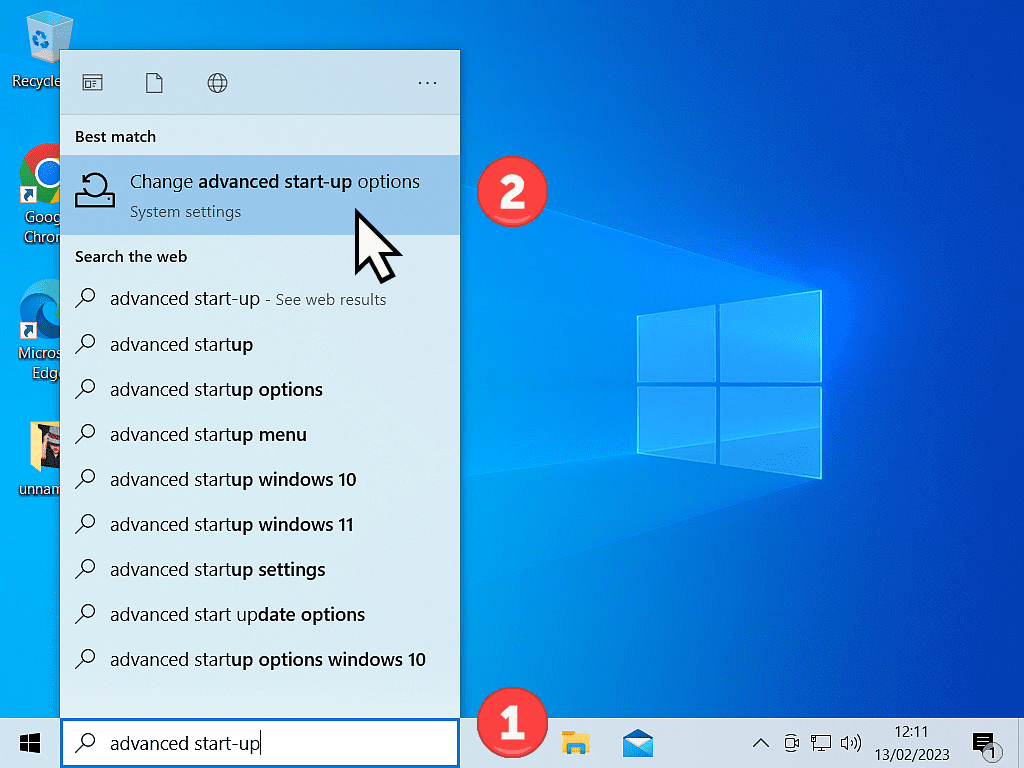
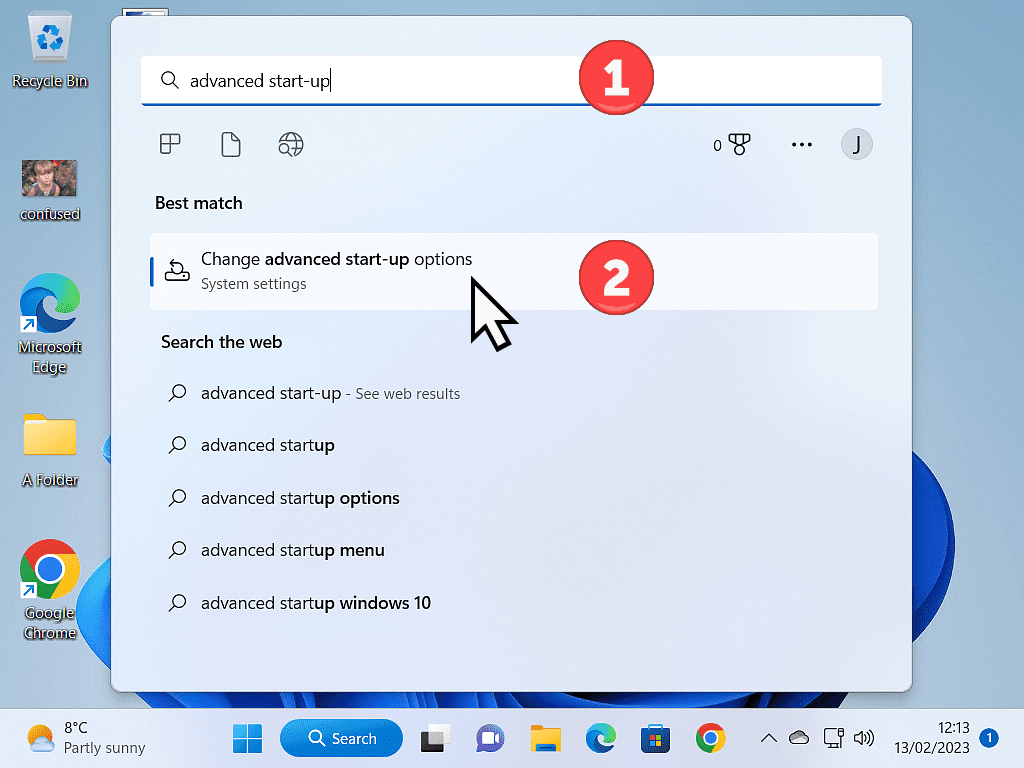
Click the Start button and type “advanced startup“ then left-click Change Advanced Start-Up Options (System Settings).
On the Advanced Startup screen:
In Windows 10 – Under the Advanced Start-up section, click the Restart Now button.
And for Windows 11 – Under the Recovery Options section, click the Restart Now button.
After the restart you’ll see the blue “Choose and Option” screen, click Troubleshoot, then Advanced options and then UEFI Firmware Settings and finally click Restart. Your PC will reboot into the BIOS/UEFI menu.
Step 3: Enable Virtualization Settings
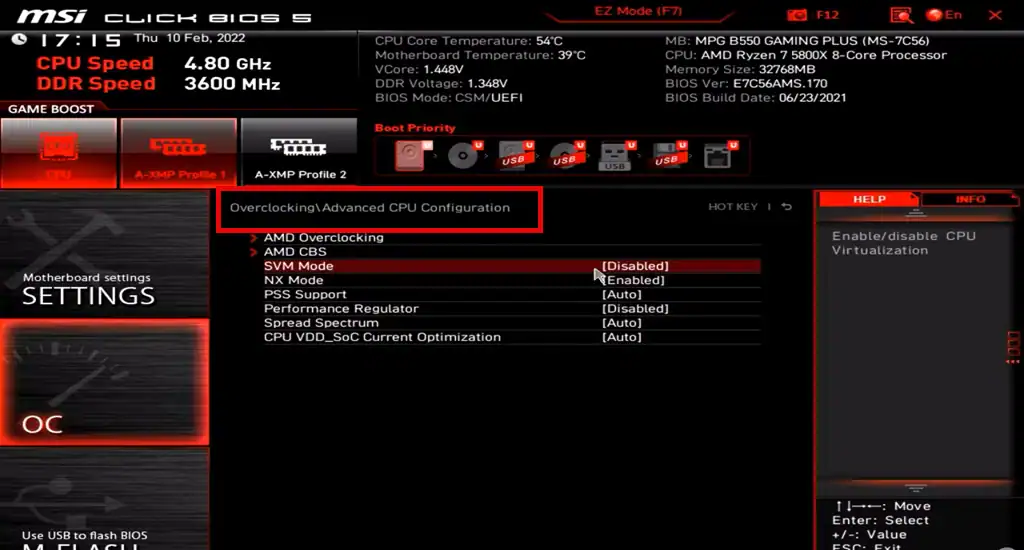
BIOS menus look different depending on your motherboard manufacturer (ASUS, Gigabyte, MSI, Dell, HP, etc.), there isn’t any kind of standardisation. Each manufacturer is free to layout the the settings as they see fit.
But the virtualisation setting is usually found in one of these locations:
For Intel Processors (Intel VT-x)
Look for “Advanced,” “CPU Configuration,” or “Security” tabs. You are looking for:
- Intel Virtualization Technology
- Intel VT-x
- VT-d (Directed I/O – recommended to enable this too)
Change the setting from Disabled to Enabled.
AMD users should look for “Advanced” or “MIT” settings. Look for:
- SVM Mode (Secure Virtual Machine)
- AMD-V
- AMD-Vi
Change the setting to Enabled.
Step 4: Save and Exit
- Once enabled, press F10 (Save and Exit).
- Confirm changes by selecting Yes.
- Your computer will restart and boot back into Windows normally.
Troubleshooting: Why is Virtualization Still Disabled?
If you enabled it in BIOS but Task Manager still shows “Disabled,” check the following:
- Third-Party Antivirus: Some antivirus software (like Avast or Kaspersky) uses “Hardware-assisted virtualization” which can lock the setting. Check your antivirus settings. Maybe temporarily disable your AV and try again.
- Hyper-V Conflict: If you are trying to use VirtualBox on Windows 10/11, Windows’ own “Hyper-V” might be interfering. You may need to disable Hyper-V in “Windows Features” to let other software use the CPU’s virtualization.
Summary
Virtualisation opens up so many possibilities on your computer. On most modern Windows 11 PCs it should be enabled by default. On Windows 10 computers, or PCs upgraded from Windows 10, it might not be.
Related Posts
How To Install VirtualBox Guest Additions.
Install and setup VirtualBox together with the Guest Additions add on.
How To Download VMware Workstation Pro For Free.
Download and install VMware.
How To Run Android Apps On A Windows PC
BlueStacks is the most widely used Android emulator.
Convert An Old PC To A Virtual Machine
As Windows 10 nears the end of its life cycle, many people will be considering buying a new PC. But what then happens to your old computer. It still has all your data and applications on it.
You could save your old machine together with all its data and apps and use it as a virtual computer on your new PC.
Or you could pass it on. In that case, make sure you remove all traces of your activities.