Folders are how your Windows PC keeps files organised, just like physical folders in a filing cabinet. This step-by-step guide will show you how to create a new folder in Windows 10 and Windows 11, give it a name, rename it later (if you need to), build subfolders, and delete folders you no longer want.
What Are Folders and Why Do They Matter?
A folder is a storage container on your computer. It holds your files, your documents, photos, music, videos etc and keeps related items together in one place so they’re easy to find later.
Think of your computer’s storage like a large filing cabinet. The cabinet itself is your hard drive. The drawers are the main folders (Documents, Pictures, Downloads, etc.). And the hanging files inside each drawer are your subfolders.
Windows sets up six default folders for you automatically:
- Desktop – things you want quick access to (and yes, the desktop is a folder)
- Documents – letters, spreadsheets, PDFs
- Downloads – files you download from the internet
- Pictures – photos and images
- Music – audio files
- Videos – video files
Inside each of these you can create as many of your own folders and subfolders as you like, which is exactly what this I’ll show you how to do.
How to Create a New Folder in Windows 10 & 11
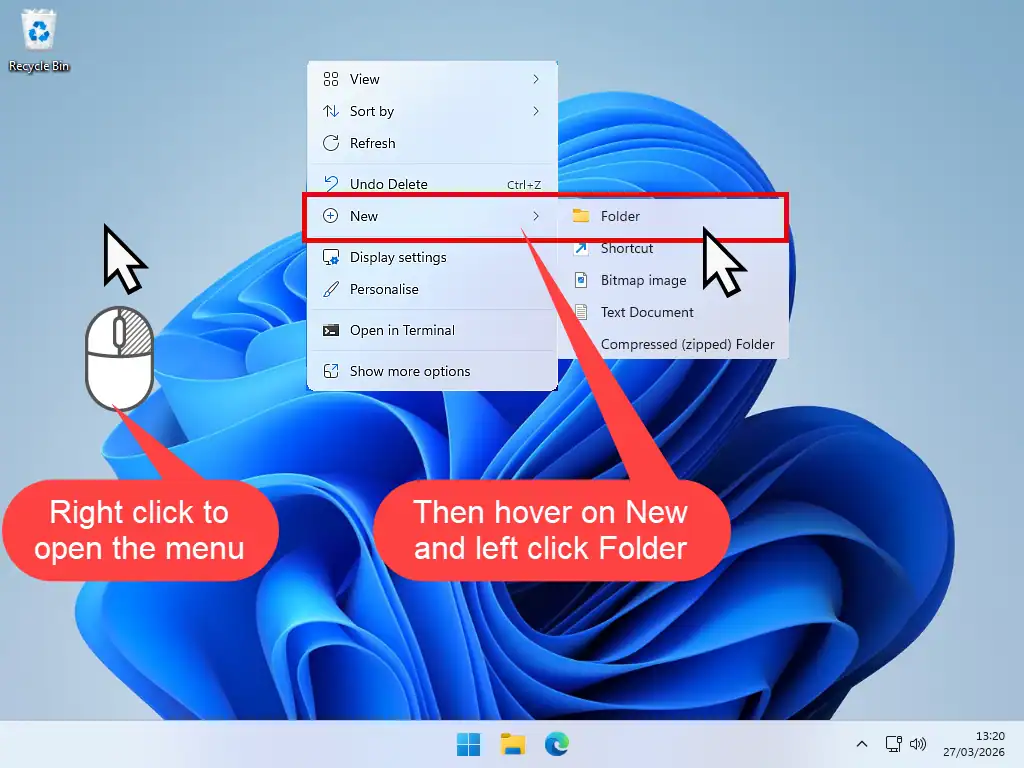
The quickest way most beginners learn first is the right-click method. It works the same whether you are on the Desktop, inside the Documents folder, or almost anywhere else in File Explorer.
Method 1 – Right-Click (works in both Windows 10 & 11)
- Navigate to the location where you want the new folder — for example, your Desktop or your Documents folder.
- Right-click on any empty space in that location. A menu will appear.
- Move your mouse pointer over New. A second menu slides out.
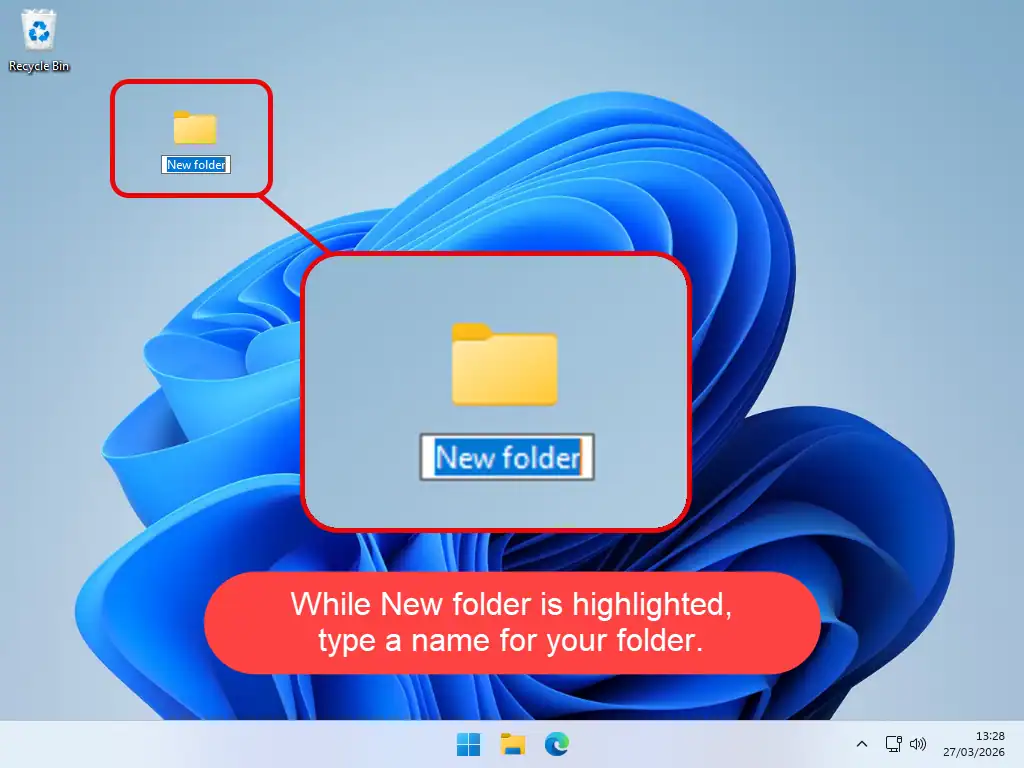
- Left-clickFolder. A new folder appears immediately, with its name highlighted.
- Type the name you want for your folder, then press Enter on your keyboard to save it.
Method 2 – Using the File Explorer Toolbar
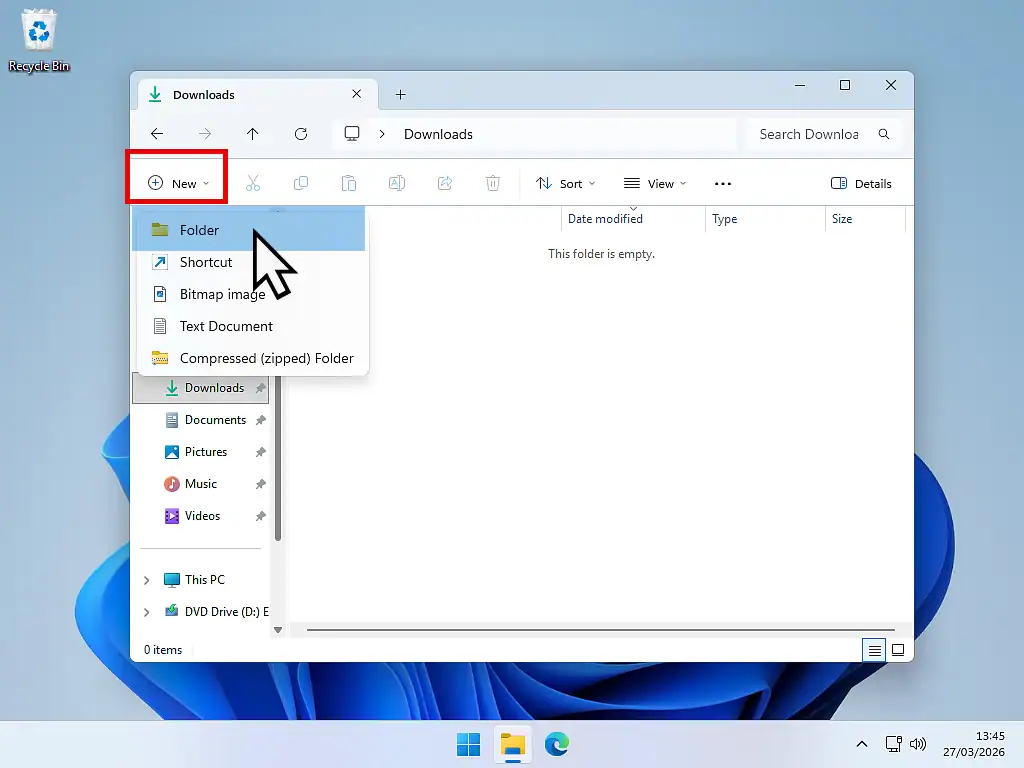
When you want to create a new folder inside a folder you can use the File Explorer toolbar.
Windows 11 Toolbar
- Click the New button in the toolbar.
- Select Folder from the drop down menu.
- Type a name for your folder.
Windows 10 Toolbar
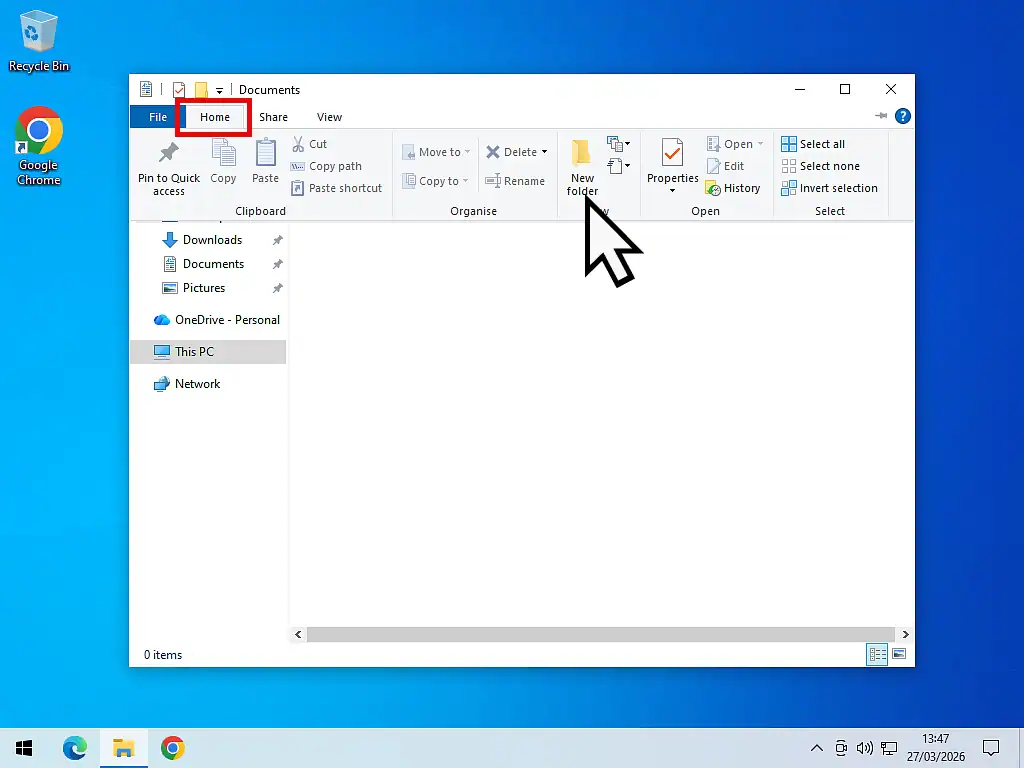
- Click the Home tab in the ribbon at the top of the screen.
- Click New Folder.
- Type a name for your folder.
Keyboard Shortcut: The Fastest Way to Make a New Folder
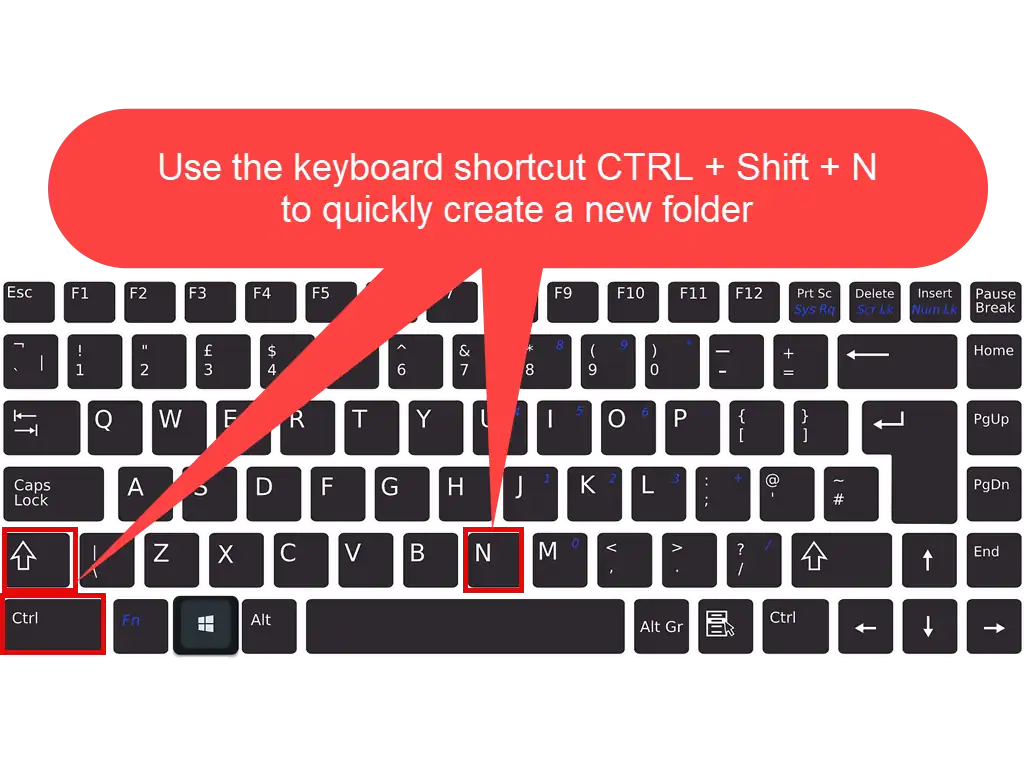
Once you know this shortcut you will probably use it all the time. It works in both Windows 10 and Windows 11, and it creates a new folder wherever you are in File Explorer.
On your keyboard, hold down the CTRL (Control) key and the Shift key, then hit the letter N. A new folder appears instantly, ready for you to type a name.
Tip: use the keyboard shortcut when a folder is crowded.
If you open a folder that is already full of files, finding an empty spot to right-click can be tricky. The CTRL + Shift + N shortcut bypasses this problem entirely.
How to Name a New Folder
The moment you create a new folder, Windows gives it the temporary name “New folder” and highlights the text ready for you to replace it.
- As soon as the folder appears just start typing your chosen name. You don’t need to click in the text box or press delete. Just start typing the name that you want the folder to have.
- When you’ve finished typing, press the Enter key to confirm the name. Done.
Tips for Choosing Good Folder Names – Make Your life Easy
A good folder name tells you at a glance what’s inside it. Computers can easily store thousands of files, take the frustration out of trying to find just one of them by using descriptive names for your folders.
Just compare these examples and see if you can figure out what’s inside each folder:
| Vague name (we all do it) | Descriptive name (the way it should be) |
|---|---|
| New Folder | Household Bills 2026 |
| My Stuff | Holiday Photos Spain |
| Folder 1 | Bank Statements |
| My Docs | NHS letters & Appointments |
Characters You Can’t Use in Folder Names
Windows will not allow the following characters in a folder or file name: \ / : * ? ” < > |. If you try to use them, Windows will show an error message.
How to Create Subfolders in Windows
A subfolder is simply a folder inside another folder. Subfolders let you break your filing system down into finer categories, making it much easier to find things later.
For example, Inside your Documents folder you could create a subfolder to hold your Household Bills. Then a subfolder in Household Bills for your Phone Bills.

Steps to Create a Subfolder
- Open the parent folder where you want to create your subfolder. For example, if you’re creating a subfolder for photos, open the Pictures folder on your PC.
- Use the right-click method, the toolbar button, or the keyboard shortcut CTRL + Shift + N to create your new subfolder.
- Type a descriptive name for the subfolder and press Enter.
How to Rename a Folder in Windows 10 & 11
If you make a mistake when naming your folder (typo), or you want to repurpose an old existing folder, you can simply rename it. It’s quick and easy to do in Windows.
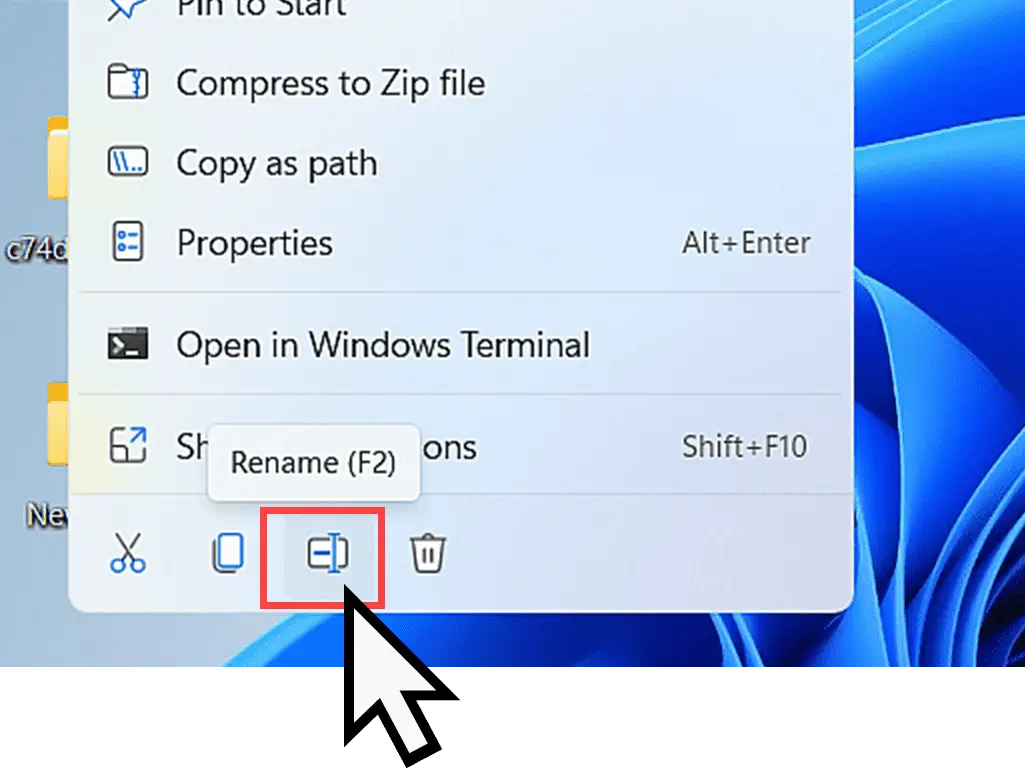
- Right click on the folder to rename. On the menu that appears, left click Rename.
- Alternatively you can select the folder with a single left click and then press the F2 key on your keyboard.
- Either way the folder name will become highlighted. Type the new name and press Enter.
How to Delete a Folder in Windows 10 & 11
Deleting a folder removes it from its current location and sends it to the Recycle Bin. It will not be permanently gone until you empty the Recycle Bin, so you have a chance to recover it if you delete something by accident.
You can delete a folder by selecting it with a single left click and then pressing the Delete (Del) key on your keyboard.
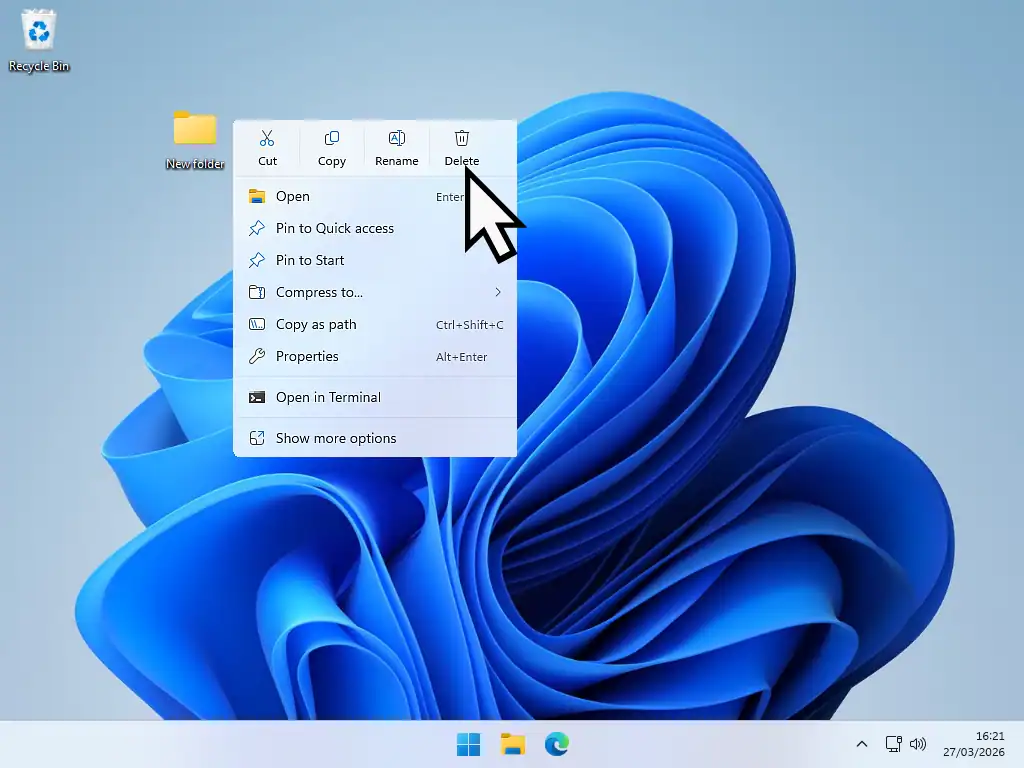
Alternatively you can use the right click menu:
- Right click the folder.
- On the Menu, left click Delete or the Trash can icon.
- The folder will be moved to the Recycle Bin.
Important: Deleting a Folder Deletes Everything Inside It
When you delete a folder, all of its contents are deleted too – including every file, subfolder, and anything nested inside those subfolders. Always double-check what is inside a folder before you delete it.
Frequently Asked Questions
Summary
If you save lots of files (documents, pictures etc) on your computer, then make use of folders. Divide your files into properly named folders and you’ll have a much easier time when you need to find a particular file.
I’ll see you on the next page where we’ll be looking at how you save files directly into folders.
At Home Basic Computer Course.
Save It
How to save files on your computer. Save them where you want them to be, so that you can find them easily.
More About Folders
There’s a lot more to learn about folders, here’s a few more advanced At Home Computer guides:
How To Use VeraCrypt To Encrypt A Folder
Keep the contents of a folder private by adding a password and encrypting its contents.
How To Hide Folders In Windows.
Hide folders and their contents. Not really secure but if only you know it’s there, it’s as good as.
How To Email A Folder
Keep several documents together when sending them to someone by email.
Create a new folder in Gmail
If you use Gmail you can create folders to save important messages in to.