
Saving a file is the most important thing you will ever learn to do on a computer. Everything else you do, every letter, photo and spreadsheet, only survives because you saved it somewhere you can find again.
In the last lesson we covered how to create and name folders. Your filing cabinet is built. Now it is time to put something in it.
This guide shows you how to save a file on a Windows PC or laptop, step by step, with a screenshot at every stage. It works the same way on Windows 10 and Windows 11.
We’ll cover saving to the desktop, saving into a folder you have made yourself, where your files end up if you don’t choose, and what to do when a file seems to have vanished into OneDrive.
Table of contents
- How to Save a File on a Windows PC or Laptop
- The Keyboard Shortcut to Save a File
- Understanding the Save As Window
- How to Save a File to the Desktop
- How to Save a File Into a Folder or Subfolder
- Where Do Saved Files Go on a PC?
- Why Your File Might Be in OneDrive Instead
- What Happens If You Close a Program Without Saving
- How to Save When There Is No File Menu
- Troubleshooting Common Saving Problems
- Frequently Asked Questions
- Summary
How to Save a File on a Windows PC or Laptop
When you open a program, a word processor, a photo editor, anything, it usually starts you off with a blank page. Whatever you type or draw only exists in the computer’s memory at this point. It isn’t a file yet.
Saving is what turns it into a real file, sitting on your hard drive, with a name you chose.
The good news is that the save option in every Windows program works in almost exactly the same way. Learn it once in Notepad and you’ve learned it everywhere.
Step 1: Open a Program and Type Something
Notepad is built into every version of Windows and has nothing in it to distract you. It is the perfect place to practise.
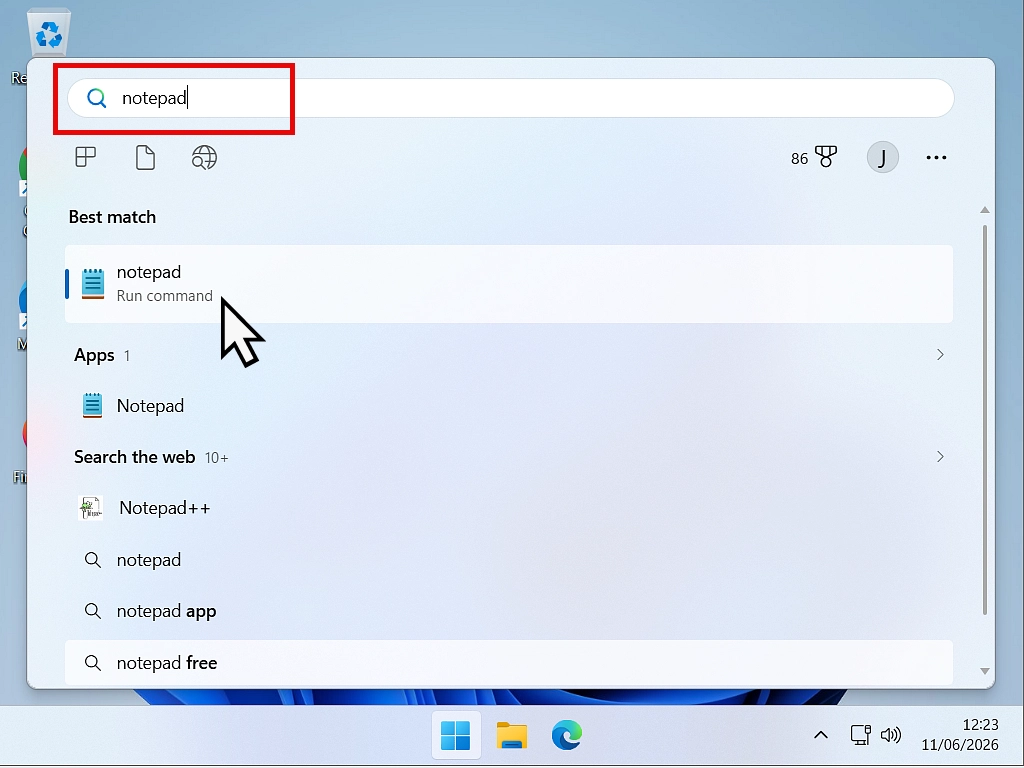
- Click the Start button on your taskbar.
- Type Notepad and click the Notepad app when it appears.
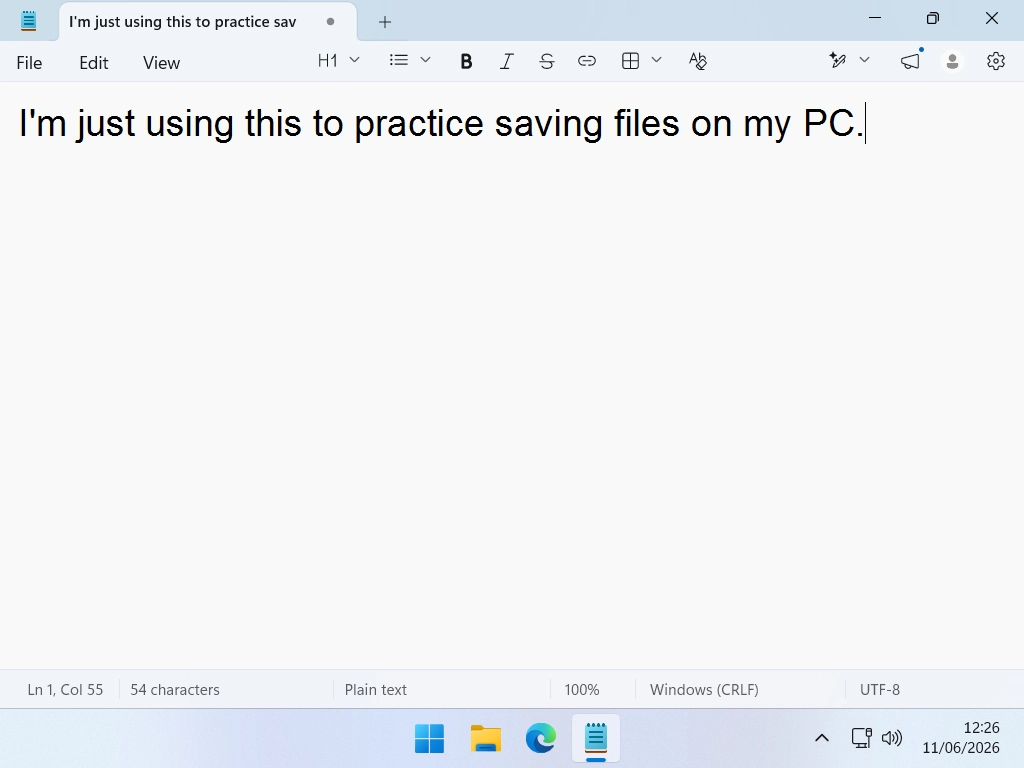
- Type a couple of sentences into the blank window. Anything at all.
Step 2: Click File, Then Save
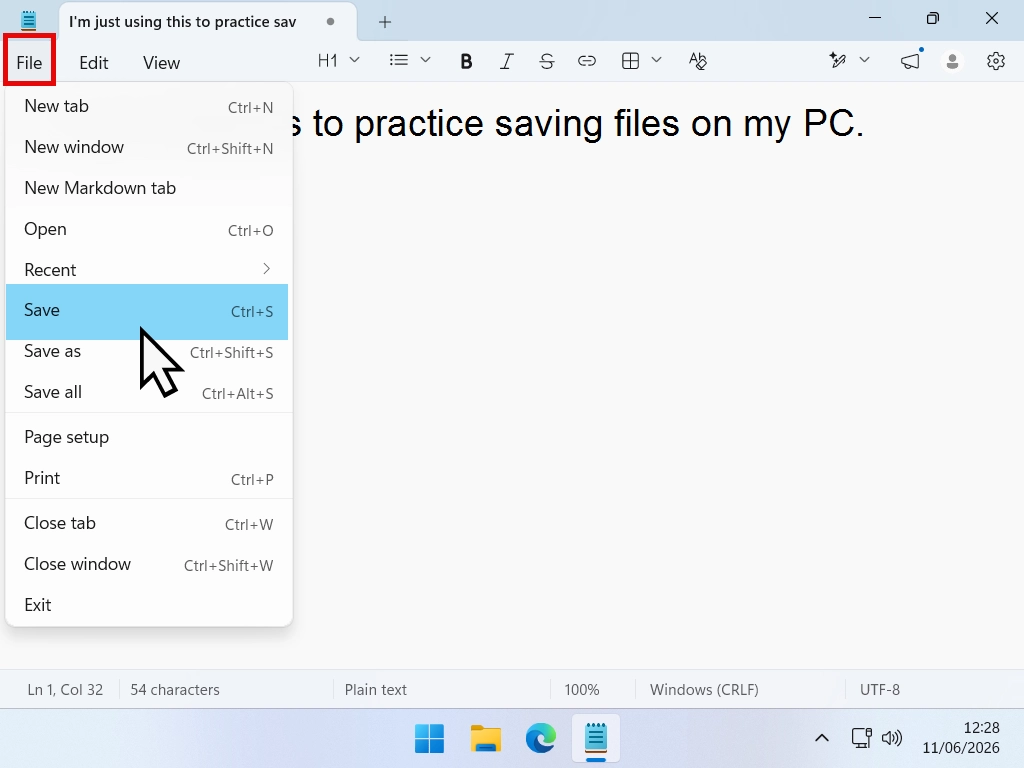
- Look at the top left corner of the program window and click File.
- Click Save in the drop down list.
A new window will open. That is the Save As window, and we’ll go through it properly in a moment.
Step 3: Give It a Name and Choose Where It Goes
Windows needs two things from you, and only two. A name for your file, and a place to put it.
- In the File name box at the bottom, delete whatever is already there and type your own name for the file.
- On the left hand side, click the folder you want to save into. Documents and Desktop are the two most common.
- Click the Save button in the bottom right corner.
That’s it. You have saved a file. The window closes and you’re back in your program, and the file now exists on your computer.
Give It a Name You’ll Recognise
My advice is to name the file the way you would describe it out loud. “Letter to the council March” beats “Document1” every single time. In six months you’ll be searching for it, and you will be searching using the words in your head, not the words the computer chose.
The Keyboard Shortcut to Save a File
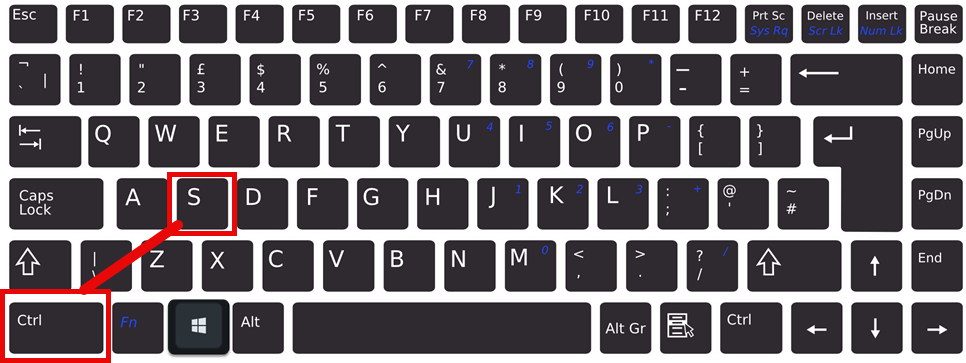
Once you’ve saved a file the first time, you never need the File menu again. There is a two key shortcut that saves your work instantly, and it is the same in almost every program ever written.
- Press and hold the Ctrl key.
- While still holding it, tap the S key.
Nothing dramatic happens. That is the point. The file is saved and you carry on working.
Get into the habit of tapping Ctrl + S every few minutes. It very quick and one day the power will go off or a program will freeze, and you will have lost two minutes of work instead of two hours.
Understanding the Save As Window
The first time you save any new file, Windows pops open the Save As window. It has to, because it doesn’t yet know what to call your file or where to put it.
This window looks busy, but it is really just Windows File Explorer wearing a different hat. At this point there are only four parts of it you need to care about.
- The Address Bar (along the top): tells you exactly which folder the file is about to go into. When you’re unsure where a file is heading, this is the line to read.
- The Navigation Panel (down the left): shortcuts to the main places on your computer. Desktop, Documents, Pictures, Downloads, and This PC.
- The Main Panel (the big area in the middle): shows what is already inside the folder you have selected.
- The File Name Box (near the bottom): where you type the name of the file you’re saving.
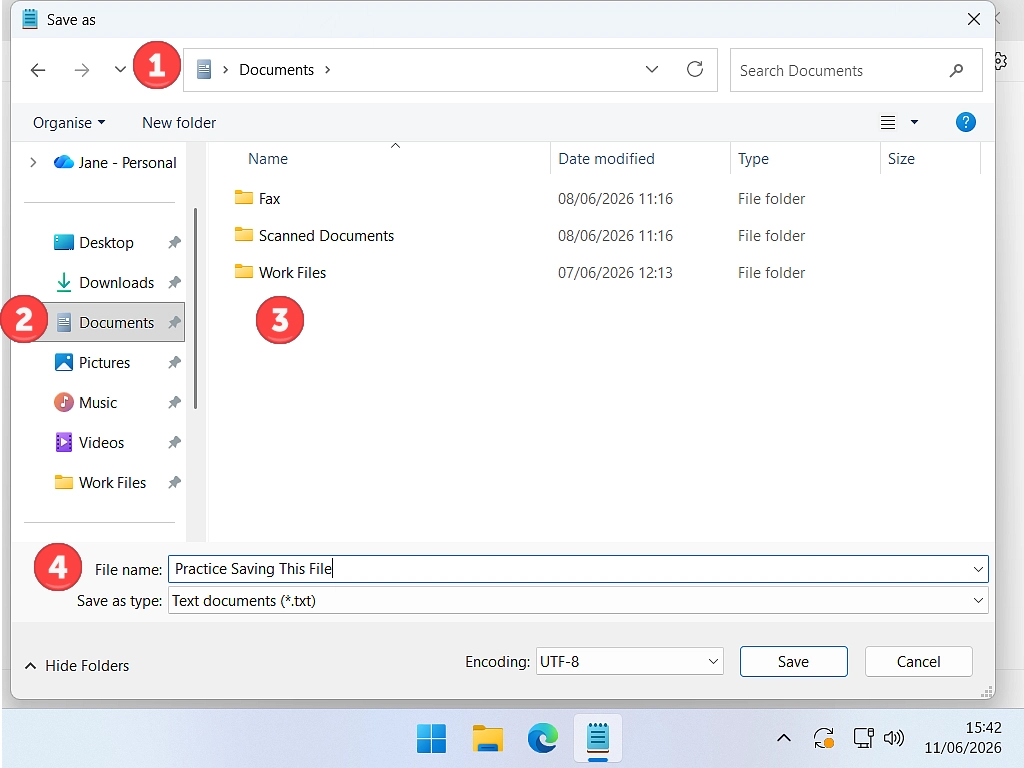
You may also have spotted a Save as type box. Leave it alone for now. It controls what format the file should be saved in. Ninety nine times out of a hundred the program has already picked the right one.
Worth knowing: Save and Save As do exactly the same thing on a brand new file. The difference only shows up later, once the file already exists, and I have covered that properly in the difference between Save and Save As.
How to Save a File to the Desktop
Saving straight to the desktop is the most popular thing people want to do, and for good reason. The file is right there in front of you the moment you close everything down. No hunting.
- Click File then Save, or just press Ctrl + S.
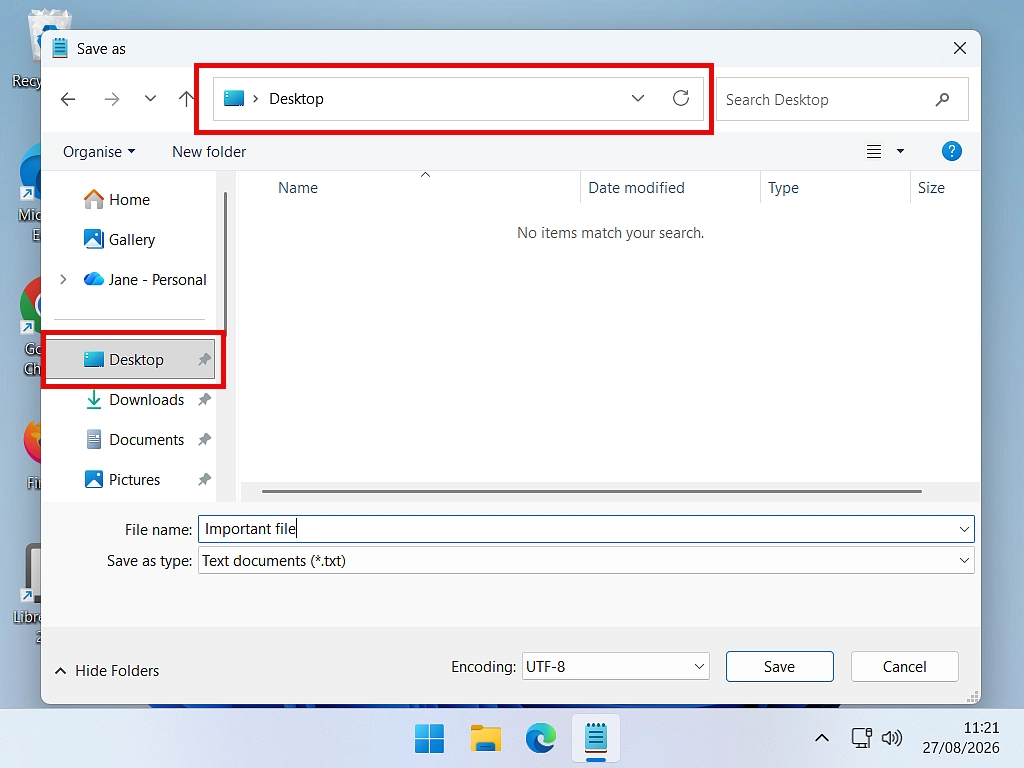
- When the Save As window opens, look down the left hand Navigation Panel and click Desktop.
- Check the Address Bar along the top now reads Desktop.
- Type a name into the File name box.
- Click Save.
Minimise your windows and the file will be sitting on your desktop waiting for you.
Quick Tip
The desktop is a brilliant place for something you’re working on this week. It is a terrible place to keep everything forever. Once you have twenty or thirty files sitting there you can’t see any of them, and it is exactly the mess we built folders to avoid.
My rule is simple. If I have finished with it, it moves into a proper folder that same day.
How to Save a File Into a Folder or Subfolder
Clicking Documents or Pictures on the left gets you into the main folder. But most of us keep things tidier than that, with folders inside folders.
A folder inside another folder is called a subfolder, and saving into one takes just one extra click.
Let’s say you have made a folder called Doodles inside your Pictures folder, and you have drawn something in Paint that you want to keep in there.
- Press Ctrl + S.
- In the Navigation Panel on the left, click Pictures. This is the parent folder.
- In the main panel in the middle, double click the Doodles folder to go inside it.
- Read the Address Bar at the top. It should now say Pictures, then Doodles.
- Type your file name and click Save.
That fourth step is the one people skip, and it is the one that matters. Clicking a folder once in the middle panel only highlights it. You have to double click to actually go inside.
If you haven’t made the folder yet, don’t close the window. There is a New folder button along the top of the Save As window, and it works exactly like it does in File Explorer.
Where Do Saved Files Go on a PC?
If you saved something in a hurry and clicked straight past the location, don’t panic. You almost certainly haven’t lost it. Programs make a sensible guess based on what sort of file it is.
- Text and office documents from Notepad or Word will land in your Documents folder.
- Images from Paint and photo editors go to Pictures.
- Screenshots taken with the Windows key and Print Screen go into a subfolder inside Pictures called Screenshots.
- Pictures you save from a web page or from the Photos app often land in a Pictures subfolder called Saved Pictures. This one catches people out constantly, because nobody ever told them it existed.
- Video editors use your Videos folder.
- Anything downloaded from a website goes to Downloads.
Still can’t find it? Open File Explorer, click This PC on the left, and type the file name into the search box in the top right corner. Windows will hunt through the whole machine for you.
Why Your File Might Be in OneDrive Instead
This is the one that confuses more beginners than anything else on this page, so it is worth two minutes of your time.
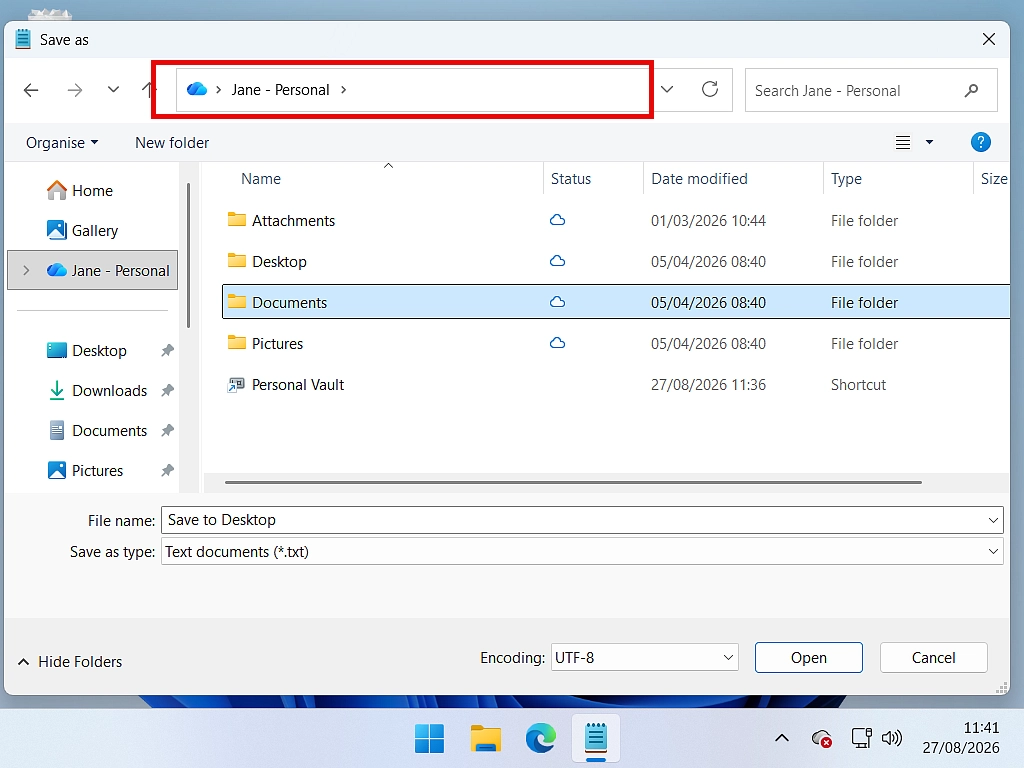
On most new Windows 11 PCs, and any PC you set up while signed in with a Microsoft account, Windows quietly hands your Desktop, Documents and Pictures folders over to OneDrive, Microsoft’s online storage.
The folders keep their names. They still show up in the same place on the left of the Save As window. But your files are now going up to the internet as well as onto your hard drive.
Nothing has been lost, and nothing is broken. But it explains a few things that otherwise make no sense at all:
- The same file turning up on your phone or tablet without you doing anything.
- Little blue cloud or green tick badges appearing on your file icons.
- Messages telling you your storage is full when your hard drive is nearly empty.
- Files you can see but can’t open when the internet is down.
How to Tell Where a File Is Actually Going
Read the Address Bar at the top of the Save As window before you click Save. If the path starts with OneDrive, the file is going to the cloud. If it starts with This PC, it is staying on your machine.
You will also see both listed separately down the left hand side, so you can pick whichever you want, file by file.
If you would rather your files stayed on the PC only, you can turn the folder backup off. Click the OneDrive cloud icon near your clock, click the gear icon, then Settings, then Sync and backup, then Manage backup. Switch off any folder you want back.
Windows will ask whether to keep the files in OneDrive or only on your PC. Read that question carefully and choose keep them only on my PC if you want them back on the machine.
Important Note
There is a lot more to it than that, and you really do have to be careful with OneDrive, you could end up losing your files. I cover it later in the course but you jump ahead if you want to: what OneDrive is and what it does.
What Happens If You Close a Program Without Saving
Sooner or later you will click the X in the corner with work still unsaved. Windows usually catches you.
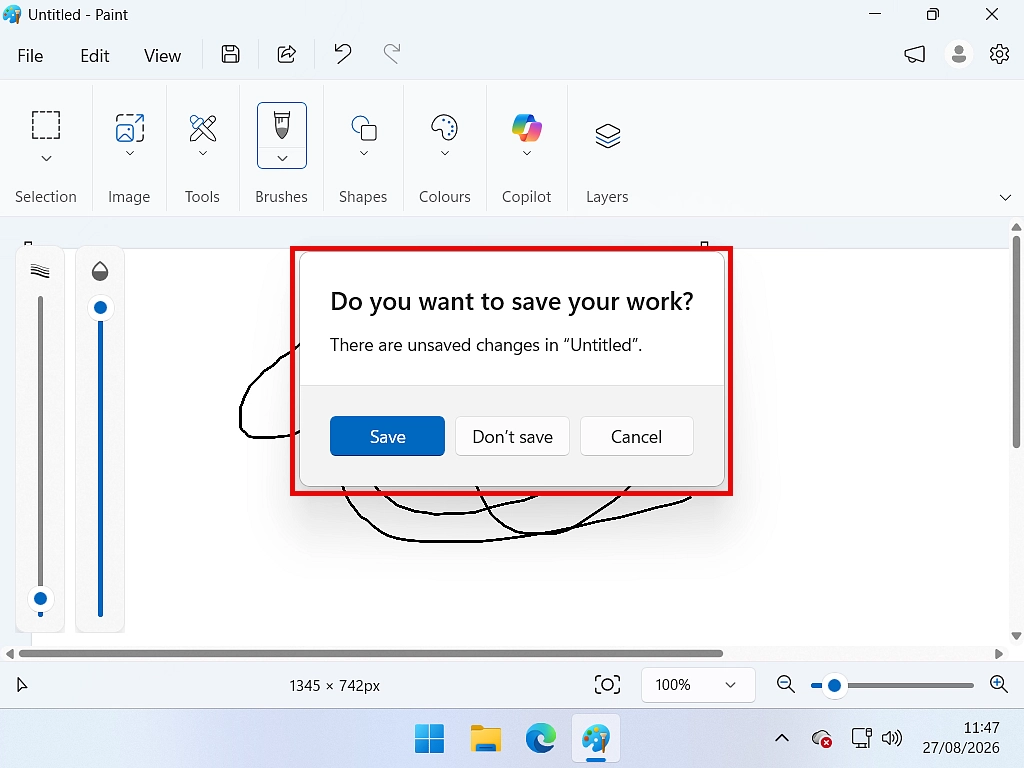
A small box appears asking “Do you want to save changes?” and gives you three buttons.
- Save opens the Save As window so you can name the file and pick a folder. Once you have, the program closes.
- Don’t Save closes the program and throws your work away. There is no undo.
- Cancel stops everything and puts you back where you were, as though you had never clicked the X.
The wording changes a little from program to program. You might see Keep, Discard or Return instead. They do the same three jobs.
If you want to see this for yourself, try it in Paint rather than Notepad. Open Paint, scribble something, click the X, and the prompt appears exactly as described.
Notepad Behaves Oddly Now
Notepad in Windows 11 is the exception, and it trips people up. It now remembers your session, so closing it with unsaved text often gives you no warning at all. Open Notepad again later and your text is sitting there as if nothing happened.
That sounds helpful, and sometimes it is. But please don’t rely on it. Nothing is a real file until you have given it a name and a folder, and Notepad is the only program on your PC that behaves this way.
You can turn it off if it bothers you. Open Notepad, click the gear icon, find When Notepad starts, and choose Start new session and discard unsaved changes. Check out this full guide Notepad Opens Tabs and Previous Files
How to Save When There Is No File Menu
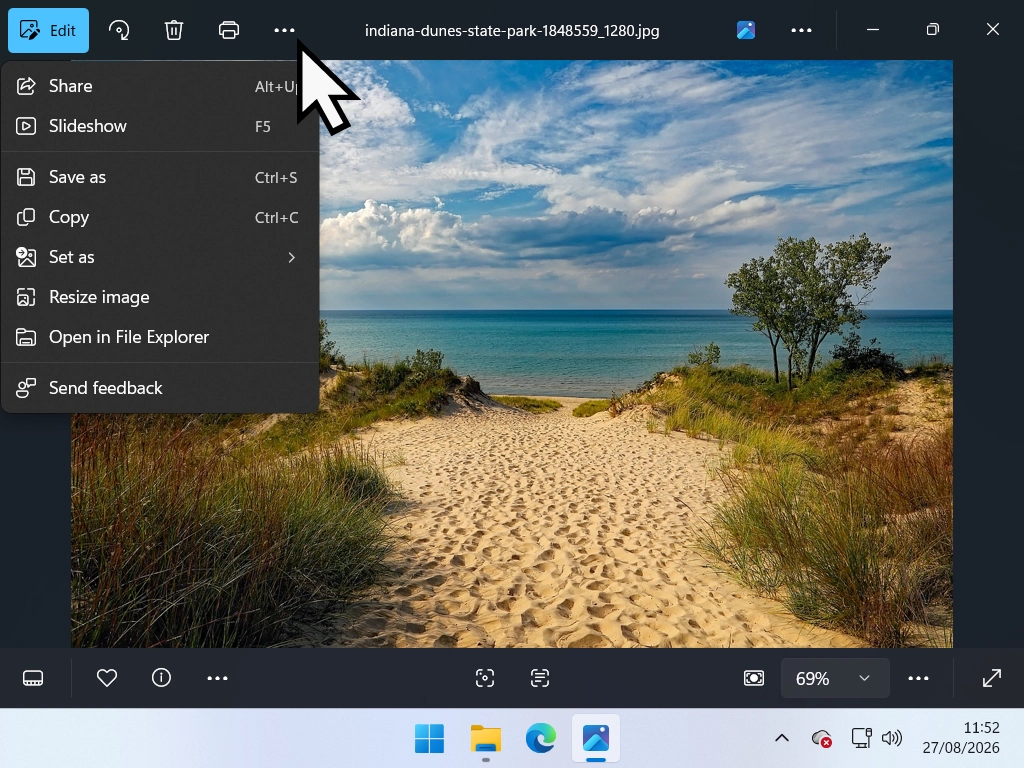
Some newer apps, the Windows Photos app being the usual culprit, have done away with the old File menu across the top. If you go looking for it you will not find it, and it is easy to assume the app simply won’t let you save.
It will. The button has just moved. Try these three things in order.
- Press Ctrl + S. The shortcut almost always still works even when the menu has gone. Start here.
- Look for three dots. Modern apps hide their menus behind a button showing three dots, either in a row or stacked. Click it and you will usually find Save or Save as.
- Look for a Save button with a small arrow beside it. Clicking the arrow rather than the button gives you the choice between saving a copy and replacing the original.
- Right click on your work. Right clicking directly onto the picture or document often brings up a menu with Save as on it.
Troubleshooting Common Saving Problems
I Saved It But I Can’t Find It
Go back into the program and click File. Most programs list the last few files you worked on right there, and hovering over one shows you the folder it lives in. That is usually faster than searching.
Windows Says the File Name Isn’t Valid
Windows won’t allow nine characters in a file name, because it uses them for other jobs. They are the backslash, forward slash, colon, asterisk, question mark, double quote, less than, greater than and the vertical bar.
Dates are the usual cause. Typing Invoice 12/03/2026 fails, because of the slashes. Invoice 12-03-2026 saves perfectly.
It Says I Don’t Have Permission to Save Here
You have wandered into a part of the hard drive that Windows protects, usually the top level of the C drive or the Program Files folder. Nothing is wrong with your computer. Just click Documents or Desktop on the left and save there instead.
The Save Option Is Greyed Out
That normally means there is nothing new to save. You have already saved since your last change, so the program has nothing to do. Type one more character and watch it come back to life.
It Won’t Let Me Save Over the File I Opened
Files opened straight out of an email attachment, or off a website, often open in a read only mode. Look along the top of the window for a Read Only or Protected View notice with an Enable Editing button on it. Click that first, then save.
Frequently Asked Questions
Q: What is the keyboard shortcut to save a file?
A: Hold down the Ctrl key and press S. It works in almost every Windows program. If the file is brand new the Save As window will open so you can name it. After that, Ctrl + S saves silently in the background.
Q: How do I save a file to the desktop?
A: Press Ctrl + S, click Desktop in the panel down the left of the Save As window, type a name in the File name box and click Save. Check the Address Bar along the top says Desktop before you click.
Q: How do I save a file into a subfolder?
A: Click the parent folder on the left, then double click the subfolder in the middle panel to go inside it. The Address Bar will show both folder names. Then type your file name and click Save. A single click only highlights the folder, it does not open it.
Q: Where does a file go if I don’t choose a folder?
A: The program picks for you based on the file type. Documents go to your Documents folder, images to Pictures, and anything from a website to Downloads. If OneDrive folder backup is switched on, those folders live in OneDrive rather than on the PC itself.
Q: Is saving on a laptop different to saving on a desktop PC?
A: No. It is identical. Ctrl + S and the File menu work the same way on a laptop, a desktop tower and an all in one. The only difference you might notice is that some compact laptop keyboards put Ctrl in a slightly different spot.
Q: How do I save a file straight to a USB stick?
A: Plug the stick in, press Ctrl + S, then click This PC on the left of the Save As window and pick the USB drive from the list. Give it a name and click Save. Copying a file across afterwards is often easier, and I have covered that in the guide on copying files to a USB drive.
Q: What is the difference between Save and Save As?
A: On a brand new file, nothing at all, they do exactly the same job. The difference appears once the file already exists. Save updates it. Save As makes a second copy under a new name or in a different place, leaving the original untouched.
Summary
Saving a file comes down to three decisions, and then a habit.
- Give it a name you will recognise in six months.
- Choose the folder yourself rather than letting the computer choose for you.
- Read the Address Bar before you click Save, so you know whether it is going to your PC or to OneDrive.
The habit is Ctrl + S, every few minutes, forever.
In the next lesson we will do the other half of the job, opening your files again, including what to do when a file insists on opening in completely the wrong program.
Lesson 10
How to Open Files on a Windows PC
Opening files, sounds easy right? Just double left click and you’re done. But what about those times when you need the file to open in a different program?
Course Progress – 9 of 37
Part of the At Home Basic Computer Course — free computer guides for beginners.
Lesson 8
All About Folders
Folders are containers for your files. Pictures, documents, videos etc are stored in a folder. Create, name and rename them.
More guides are always being added to At Home Computer – How to Hide a Folder