
Your computer is on, and you want it off. Simple enough, until you open the Start menu and find three choices looking back at you. Shut down, Sleep, Restart. And if somebody has been in the settings, Hibernate as well.
I will show you what each one actually does, which to use and when, and what to do when your PC flatly refuses to turn off.
There is also something going on behind the scenes that almost nobody is told about. When you click Shut down, Windows does not really shut down. I will explain that too, because it is the reason some problems stick around no matter how many times you turn the thing off and on again.
The Short Version
- Finished for the day? Shut down.
- Back in an hour or two? Sleep.
- Laptop going in a bag for a few hours? Hibernate, or shut down.
- Something playing up? Restart, not Shut down. They are not the same thing.
Table of contents
- Where to find the Off button
- Shut down, sleep or hibernate, what is the difference?
- Which one should you use?
- Why Shut down does not really turn your PC off
- When your PC will not shut down
- How to turn hibernate on
- Changing when your PC goes to sleep on its own
- Making the power button do what you want
- Frequently asked questions
- Summary
Where to find the Off button
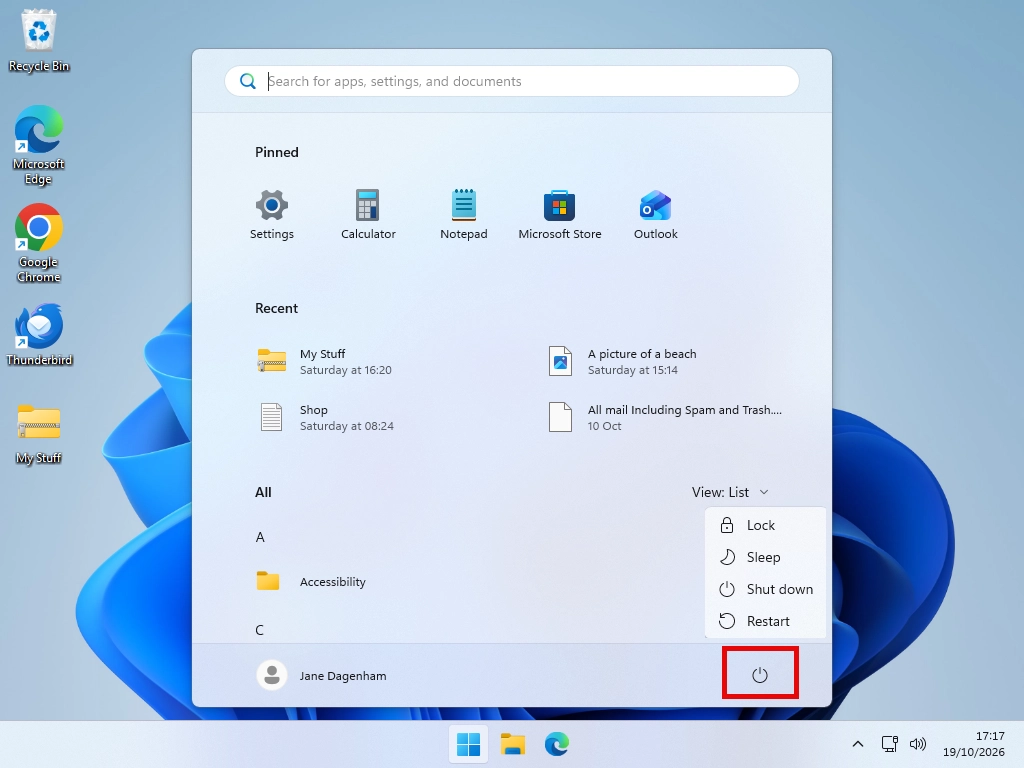
Click the Start button on the taskbar, then click the small power icon. On Windows 11 it sits in the bottom right corner of the Start menu, next to your name. On Windows 10 it is on the left hand edge.
If the Start menu is still new to you, I have a full walk through of it in my guide to the Windows Start menu.
How to shut down using the keyboard
You do not need the mouse at all, and these still work when the Start menu is being awkward or the screen has gone strange. Worth learning one of them.
- Click once on an empty bit of the desktop, then press Alt and F4 together. A small box appears with a drop down list. Shut down is usually already chosen, so just press Enter.
- Press Ctrl, Alt and Delete together. The power icon is in the bottom right corner of the screen that appears. Use the arrow keys and Enter if the mouse is not working.
- Press the Windows key and X together, then press U twice. That shuts the machine down without touching anything else. Press U then R instead and it restarts.
The Alt and F4 one is the handiest, because it works from the desktop in a second and you can see what you are choosing before you commit to it.
Quick Tip
Closing the lid of a laptop is not the same as turning it off. By default it only sends the machine to sleep. There is a setting further down this page that changes what the lid does.
Shut down, sleep or hibernate, what is the difference?
All three stop you using the computer. What changes is how much is remembered, and how much electricity it uses while it waits for you.
Shut down
Everything closes. Any work you have not saved is gone, although most programs will nag you before they let that happen. The machine uses no power at all.
Starting up again takes the longest, usually somewhere between fifteen seconds and a minute on a reasonably modern PC, and everything you had open is closed.
Sleep
Think of it as pausing rather than stopping. Everything you had open stays exactly where it was, held in the computer memory. The screen goes black and the fans stop.
The machine is still drawing a small trickle of electricity, enough to keep that memory alive. Waking it up takes a second or two, and everything is exactly as you left it.
On a laptop running on battery, sleep will slowly drain it. Over a night that is usually fine. Over a week it is not.
Hibernate
Hibernate is the sensible middle option, and it is switched off on most PCs, which is a shame.
It writes everything you have open onto the hard drive, then shuts the machine down completely. No power used at all. When you turn it back on, everything comes back exactly as you left it.
It is slower to wake than sleep, but faster than starting from scratch, and it uses no battery while it waits. For a laptop that is going in a bag, it is the one you want.
Which one should you use?
My advice, in plain terms:
- Shut down when you have finished for the day, or if the PC will be unplugged, moved, or left for more than a day or so.
- Sleep when you are stepping away for an hour, going for lunch, or nipping out. It is the one you will use most.
- Hibernate when a laptop is going away for a few hours or overnight and you want everything still open when you come back.
- Restart when something is misbehaving. Not Shut down. The next section explains why that difference matters more than you would think.
You do not need to shut a modern computer down every single night. It will not wear out. But a full shut down once every few days does clear things out, and it gives Windows a chance to finish installing updates properly.
Why Shut down does not really turn your PC off
This is the part that surprises people, and it explains a lot.
Windows has a feature called Fast Startup, and it is switched on by default. When you click Shut down, Windows closes all your programs and signs you out, which is what you would expect. But it does not shut down the core of Windows itself. Instead it saves that core to the hard drive, the same way hibernate does, and loads it straight back in next time you press the power button.
That is why your PC starts so quickly. It is not really starting from nothing, it is picking up where it left off.
Microsoft describes it plainly in its own documentation. During Fast Startup, it says, the core Windows session is not closed, it is hibernated. And a restart, by contrast, performs a full boot cycle.
What this means when something is playing up
If a program has locked up, a printer has stopped responding, or something has simply gone odd, the usual advice is to turn it off and on again.
Use Restart, not Shut down. Restart genuinely closes everything down and starts Windows again from scratch. Shut down, with Fast Startup on, reloads the same session you just had, problem included.
It is the single most useful thing on this page. If turning your computer off and on again has ever failed to fix something, this is very likely why.
Quick Tip
You might read elsewhere that you should switch Fast Startup off. I would leave it alone. Microsoft does not recommend turning it off, and you do not need to, because Restart already gives you the clean start when you want one.
When your PC will not shut down
You have clicked Shut down and nothing is happening. Or the screen says something is stopping it. This is almost always one stuck program rather than anything serious.
Closing a program that has frozen
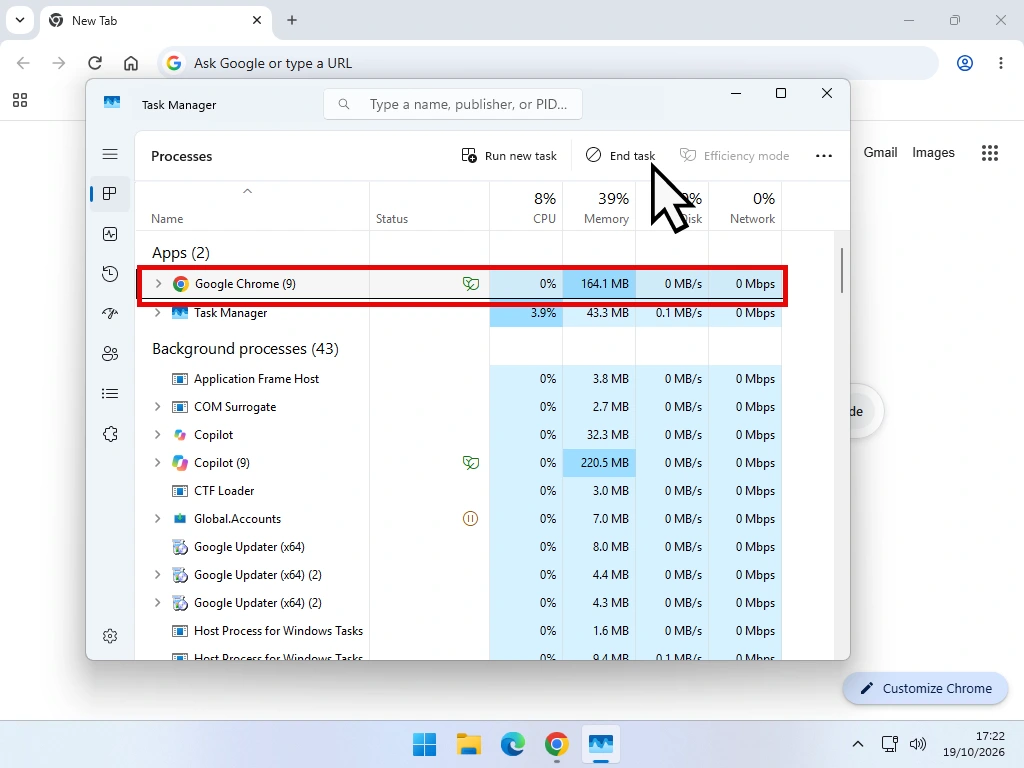
- Press Ctrl, Shift and Escape together. Task Manager opens.
- Find the program in the list. A frozen one usually says Not responding next to it.
- Click it once to select it, then click End task in the top right.
The program closes without being asked twice. Anything unsaved in that program is lost, which is the trade you are making, but a frozen program was not going to save anything anyway.
Quick Tip
There is a faster way, and it is worth switching on. Windows 11 can add an End Task option straight onto the right click menu of the taskbar, so you never open Task Manager at all.
Go to Settings, System, Advanced, and under Taskbar settings turn on End Task. On older versions of Windows 11 the same toggle lives under System, For developers. Do not be put off by the name, it is a perfectly ordinary setting.
After that, right click the frozen program on the taskbar and choose End Task.
If End task will not close it
Sometimes you click End task and the program just sits there. Give it a good thirty seconds, because Windows often gets there in the end and clicking repeatedly does not speed it up.
If it is still stuck, open Task Manager again and look at the Details tab on the left. Find the same program in that list, right click it and choose End task from there. That is a blunter instrument and it usually works when the first one did not.
If it sits on Shutting down for ages
Nine times out of ten the machine is installing updates, and it will say so on the screen. Leave it be, even if that means twenty minutes or more. Pulling the plug part way through an update is one of the few ways to make real trouble for yourself.
If there is no mention of updates and it has been stuck for more than ten minutes or so, it will be one program refusing to close. Hold the power button down to force it off, then start up again and use Restart instead.
If it shuts down and then starts itself up again
A PC that turns itself straight back on is usually being woken by something, most often the mouse or the keyboard, occasionally the network.
A twitchy mouse sitting on a shiny desk is by far the most common cause. Move it onto a mousemat or a different surface and see whether that settles it before you go digging through any settings.
When nothing responds at all
If the screen is frozen solid, Ctrl, Shift and Escape does nothing, and the mouse will not move, you are down to the last resort.
Press and hold the physical power button for about ten seconds until the machine goes off. Wait a few seconds, then press it again to start up.
This cuts the power rather than shutting down tidily, so use it only when there is genuinely nothing else left. Windows will usually sort itself out on the way back up. If you are having to do it often, that is worth looking into rather than living with.
How to turn hibernate on
Hibernate is hidden on most PCs. Getting it back takes two steps, and the first one needs a command typed in. Do not let that put you off, it is one line.
- Click the Start button and type cmd.
- Right click Command Prompt in the results and choose Run as administrator. Click Yes when Windows asks.
- Type the line below and press Enter. Nothing visible happens, which is normal.
powercfg /hibernate onThat switches hibernate on. Now to make it appear in the Start menu:
- Click Start, type Control Panel and open it.
- Go to Hardware and Sound, then Power Options.
- On the left, click Choose what the power buttons do.
- Click Change settings that are currently unavailable near the top.
- Under Shutdown settings, tick Hibernate.
- Click Save changes.
Hibernate will now be sitting in the Start menu alongside Sleep and Shut down.
Changing when your PC goes to sleep on its own
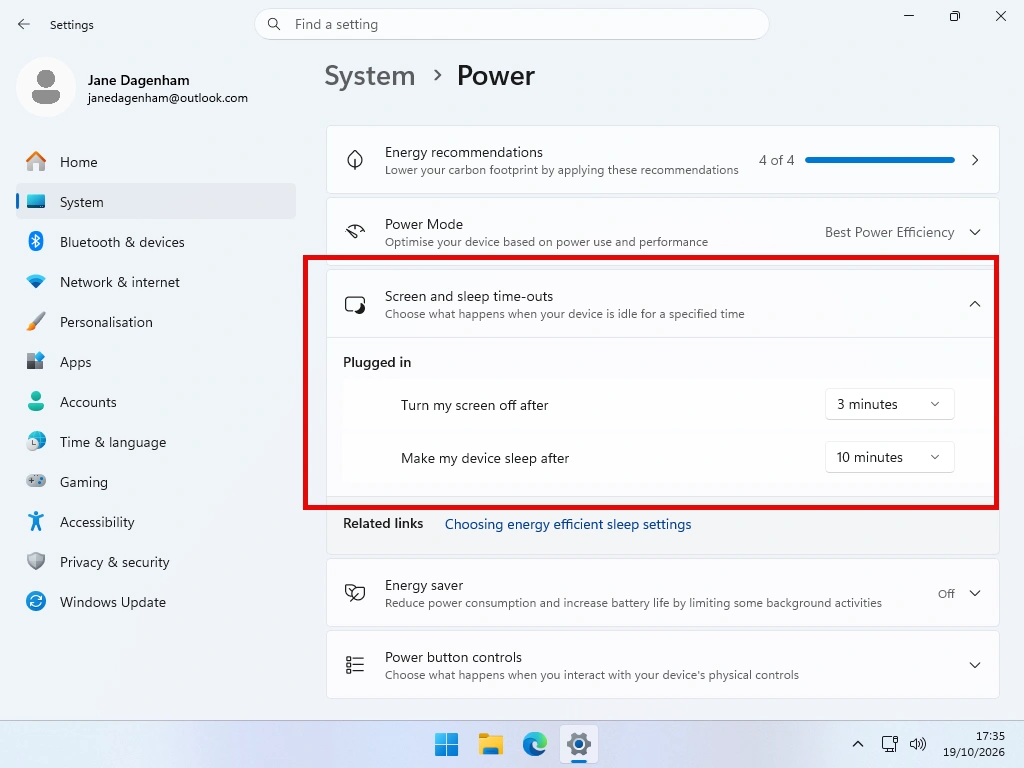
Left alone, your computer will turn the screen off after a few minutes and go to sleep after a few more. If that happens too soon for you, or not soon enough, it is easy to change.
- Click Start, then the Settings cog.
- Click System, then Power or Power & battery.
- Click Screen, sleep, & hibernate timeouts to open it up.
- Set Turn my screen off after and Make my device sleep after to whatever suits you.
On a laptop you will see two columns, one for when it is running on battery and one for when it is plugged in. Set them separately. There is no harm in letting it sleep quickly on battery and much later when plugged in.
If your PC keeps dropping off to sleep when you do not want it to, or will not stay awake while you are reading something, I go into that in more detail in how to stop your computer going to sleep.
Making the power button do what you want
The physical power button on your computer does not have to shut it down. Neither does closing a laptop lid. You can set both.
- Go back to Settings, System, Power & battery.
- Click Lid & power button controls.
- Use Pressing the power button will make my PC and Closing the lid will make my PC to pick what you want.
The choices are Do nothing, Sleep, Hibernate and Shut down. On a desktop you will only see the power button option, since there is no lid.
If you use a separate monitor with your laptop, this is the setting you want. Set Closing the lid will make my PC to Do nothing, and you can shut the lid and carry on working on the big screen with the laptop tucked out of the way.
My own preference is to set the power button to Sleep and the lid to Sleep as well, then use the Start menu when I genuinely want the machine off. It means a stray knock of the power button never costs me any work.
If you would rather have a shut down button sitting on your desktop ready to click, there is a way to make one in how to create a shutdown shortcut.
Frequently asked questions
Q: Is it bad to shut my computer down every night?
A: No. Modern computers are built for it and you will not wear anything out. Shutting down uses no electricity overnight, and it gives Windows a chance to finish any updates it is waiting on. The only downside is waiting a little longer in the morning.
Q: Does sleep use much electricity?
A: Very little, usually a watt or two, which is roughly what a phone charger left plugged in uses. Over a whole year it is pennies. On a laptop running on battery it matters more, because sleep will slowly flatten it over several days.
Q: Why does my computer wake up on its own?
A: Usually because something has been allowed to wake it, such as a mouse being nudged, a network connection, or a scheduled update. A twitchy mouse on a desk is the most common cause by far. Moving the mouse to a different surface often fixes it on its own.
Q: Should I turn Fast Startup off?
A: I would leave it on. Microsoft does not recommend turning it off, and the problem it causes is solved simply by using Restart rather than Shut down whenever something needs clearing out.
Q: My PC takes ages to shut down, what is it doing?
A: Nine times out of ten it is installing updates, and interrupting it is the one thing you should not do. If the screen says it is working on updates, leave it alone, even if it sits there for twenty minutes. You can see what is pending in Windows Update.
Summary
Shut down when you have finished, sleep when you are coming straight back, hibernate when a laptop is going in a bag. That covers almost every day.
The one worth remembering is the odd one. When something has gone wrong, restart rather than shut down. Fast Startup means a shut down hands you back the same Windows session you had before, problem and all, while a restart genuinely starts it fresh.
And if the machine will not shut down, it is nearly always one stuck program. Ctrl, Shift and Escape, find the one saying Not responding, End task, and you will be on your way.
Next Lesson
System Restore
Windows System Restore creates what are known as “restore points”. These restore points are a type of “snapshot” of the most important settings and configuration of your Windows computer.
Course Progress – 32 of 37 lessons completed.
Part of the At Home Beginner Computer Course.
Previous Lesson
How to Update Windows
Keeping Windows updated is one of the best security measures you can do.
Written by Jeff Porter. I’ve been fixing Windows PCs since 2010 and I’m CompTIA Network+ certified. More about me