
Sometimes you want to keep a copy of a web page. It might be an order confirmation, a booking, a recipe, an article you want to read later, or a form you need to hang on to.
The easiest way is to save the web page as a PDF. A PDF is a single file that opens on any computer, looks the same everywhere, and won’t change or disappear if the website does.
You don’t need to buy anything or install a PDF converter. Google Chrome, Microsoft Edge and Firefox can all do it for free, and in this guide I’ll show you how in each one.
Quick Answer
Open the web page and press Ctrl + P. Change the printer to Save as PDF (in Firefox it’s Save to PDF), click Save, then choose where to put the file.
This guide is about turning a web page into a PDF. If a website already gives you a PDF file to download, that’s a different job, and I cover it in How to Download Files from the Internet.
Table of contents
- How to Save a Web Page as a PDF in Google Chrome
- How to Save a Web Page as a PDF in Microsoft Edge
- How to Save a Web Page as a PDF in Firefox
- Save as PDF or Microsoft Print to PDF?
- How to Get a Better PDF
- How to Save a Web Page as a PDF Without Adverts
- Do You Need a PDF Converter?
- Why Does My File Say Chrome HTML Document?
- Troubleshooting
- Frequently Asked Questions
- Summary
How to Save a Web Page as a PDF in Google Chrome
- Open the web page you want to save.
- Press Ctrl + P. Or click the three dots (⋮) at the top right of Chrome, then Print.
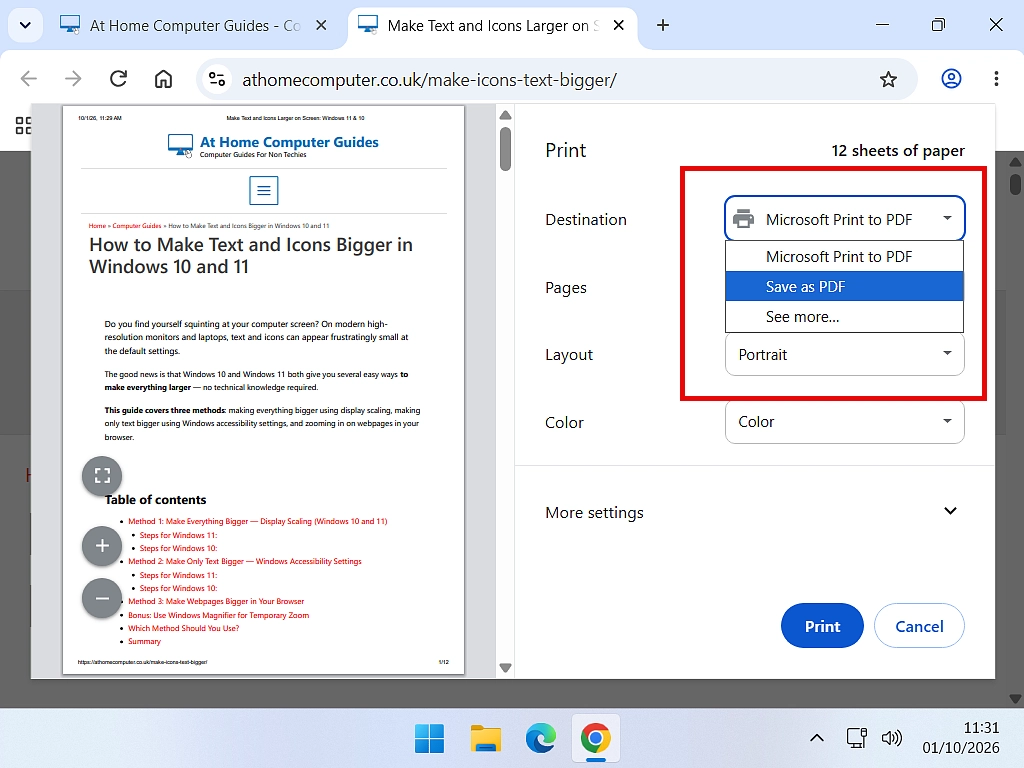
- The print window opens. Next to Destination, click the drop-down and choose Save as PDF.
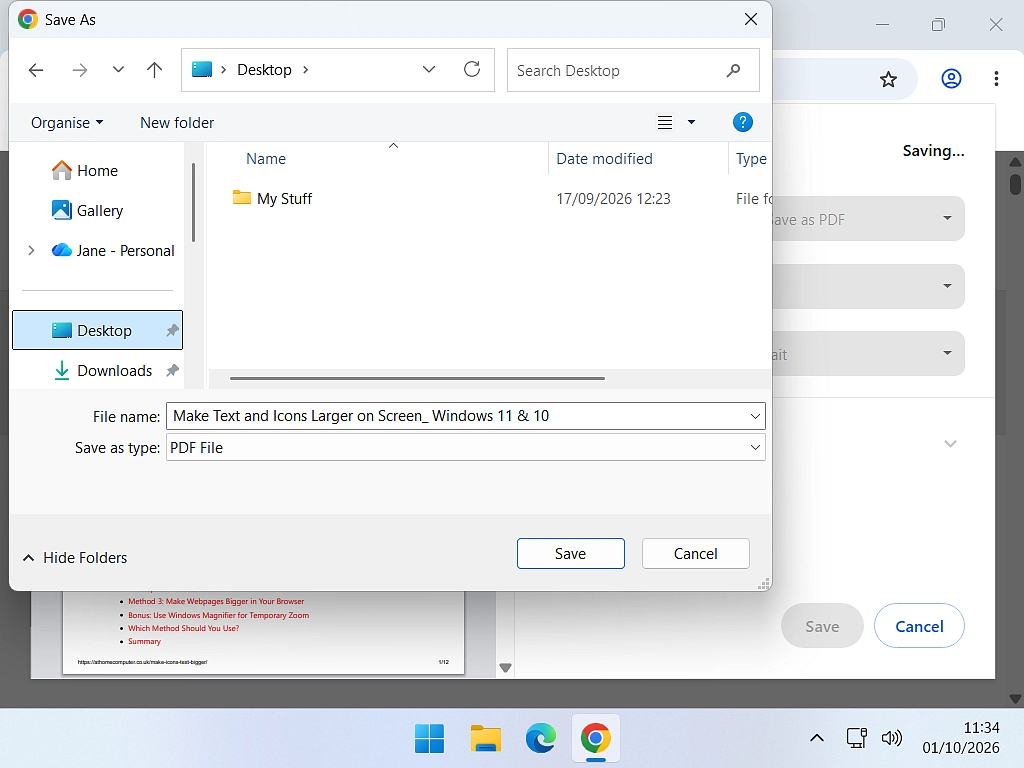
- Click Save.
- Choose the folder you want to save it in, give it a name you’ll recognise, and click Save again.
That’s it. The whole page is saved as a PDF, split into pages just as it would be if you printed it.
Quick Tip
If you save a lot of receipts and confirmations, make a folder for them, such as Receipts inside Documents, and save them all there. How to Create, Name, Rename and Delete Folders shows you how to make one.
It works for emails too. Open an email in Gmail, click the print icon, and choose Save as PDF instead of your printer. I cover the print window in more detail in How to Print an Email in Gmail.
How to Save a Web Page as a PDF in Microsoft Edge
- Open the web page you want to save.
- Press Ctrl + P. Or click the three dots (…) at the top right of Edge, then Print.
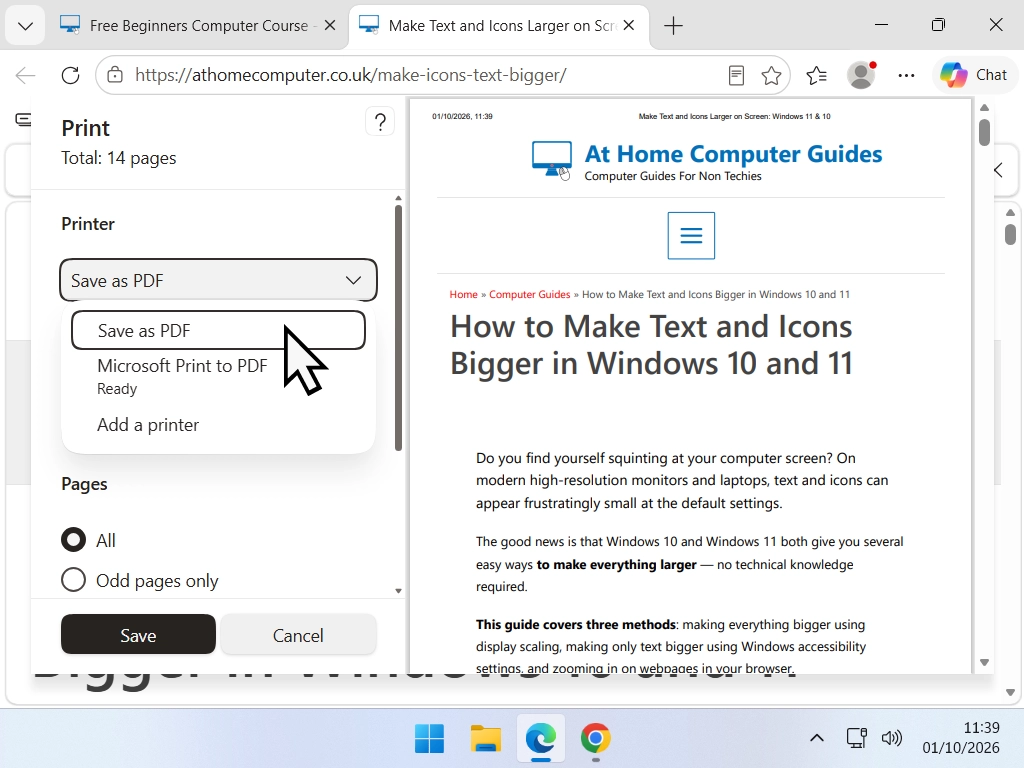
- Under Printer, choose Save as PDF.
- Click Save.
- Choose a folder, give the file a name, and click Save again.
You’ll see Microsoft Print to PDF in the same list. It looks like it does the same job, but pick Save as PDF. I’ll explain why just below.
How to Save a Web Page as a PDF in Firefox
- Open the web page you want to save.
- Press Ctrl + P. Or click the three lines (≡) at the top right of Firefox, then Print.
- Next to Destination, choose Save to PDF.
- Click Save.
- Choose a folder, give the file a name, and click Save again.
Save as PDF or Microsoft Print to PDF?
In Chrome and Edge you’ll usually see two ways to make a PDF in the printer list. They look the same, but they aren’t.
- Save as PDF is built into the browser. The links in the page stay clickable, and you can search and copy the text in the PDF.
- Microsoft Print to PDF is part of Windows. It “prints” the page into a file, so the links stop working and the text may not be searchable.
So in a web browser, always choose Save as PDF. Microsoft Print to PDF is still handy in programs that don’t have their own PDF option, such as when you want to turn an email into a PDF. If it’s missing from your printer list, I show you how to switch it back on in How to Convert an EML File to PDF.
How to Get a Better PDF
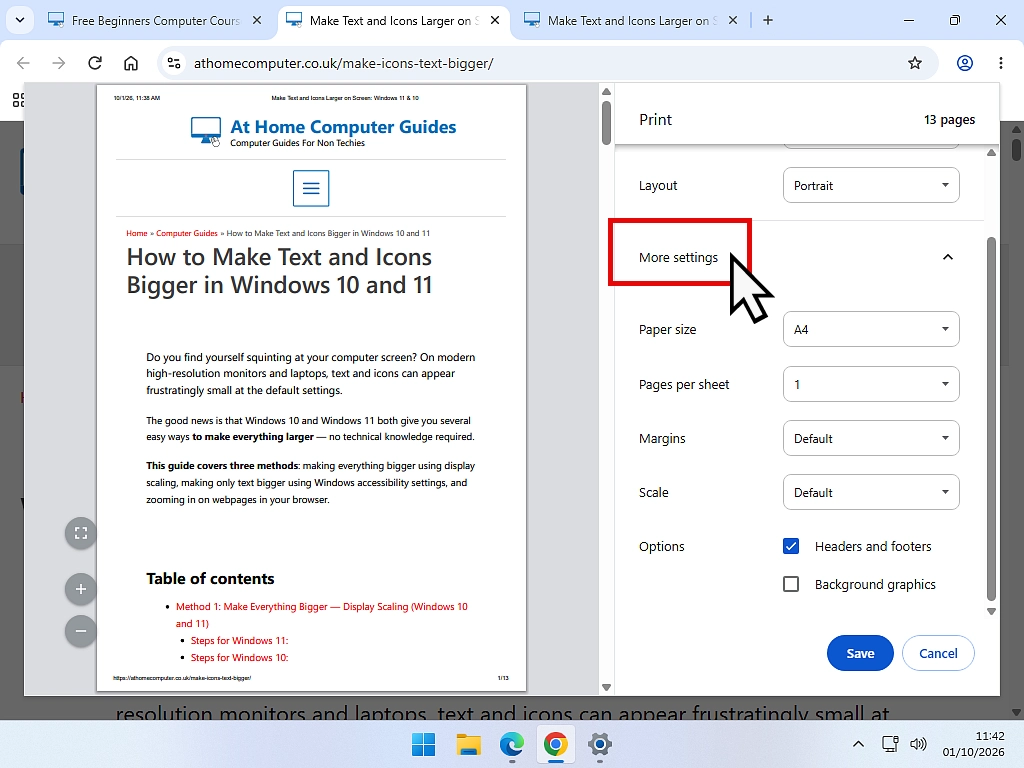
Before you click Save, the print window lets you change how the PDF will look. In Chrome and Edge most of these are under More settings. The preview on the left shows you the result straight away, so try things and watch it change.
Save Only the Pages You Need
Long web pages often end with pages of comments, adverts and links you don’t want. To save just the first few pages, find Pages, choose Custom, and type the page numbers, such as 1-3.
To save one page as a PDF, just type that page’s number.
Save Just Part of a Page
Only want one section, such as the ingredients from a recipe? Select the text first by dragging over it with your mouse, then press Ctrl + P. Under More settings, tick Selection only, and only the bit you highlighted is saved.
Remove the Date and Web Address
Chrome and Edge add the date, the page title and the web address to the top and bottom of every page. Handy for a receipt, as it shows where and when you saved it. If you don’t want them, untick Headers and footers.
Keep the Colours and Pictures
To save ink, browsers leave out background colours and some pictures. If your PDF looks plain or has gaps, tick Background graphics (in Firefox it’s Print backgrounds).
Stop the Sides Being Cut Off
If words or pictures are chopped off at the edge of the page, make everything a little smaller. Find Scale, choose Custom, and try 80. Or change Layout from Portrait to Landscape, which gives wide pages more room.
How to Save a Web Page as a PDF Without Adverts
Lots of web pages are cluttered with adverts, menus and pop-ups, and they all end up in your PDF. Edge and Firefox can strip them out for you first.
In Microsoft Edge: Use Immersive Reader
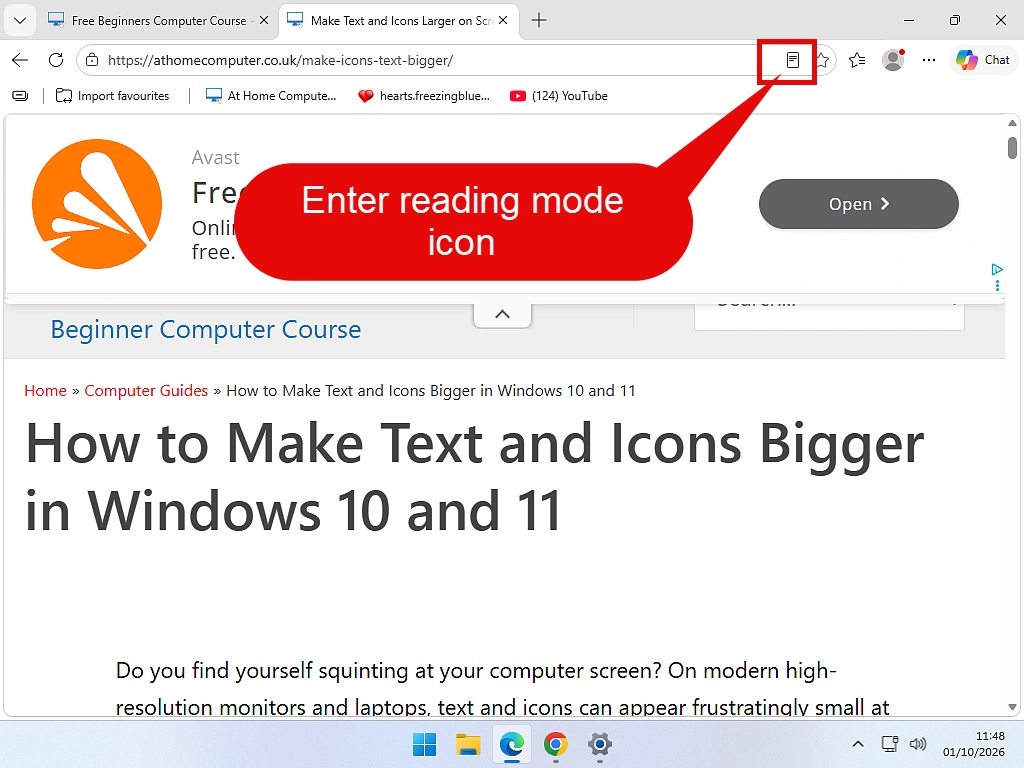
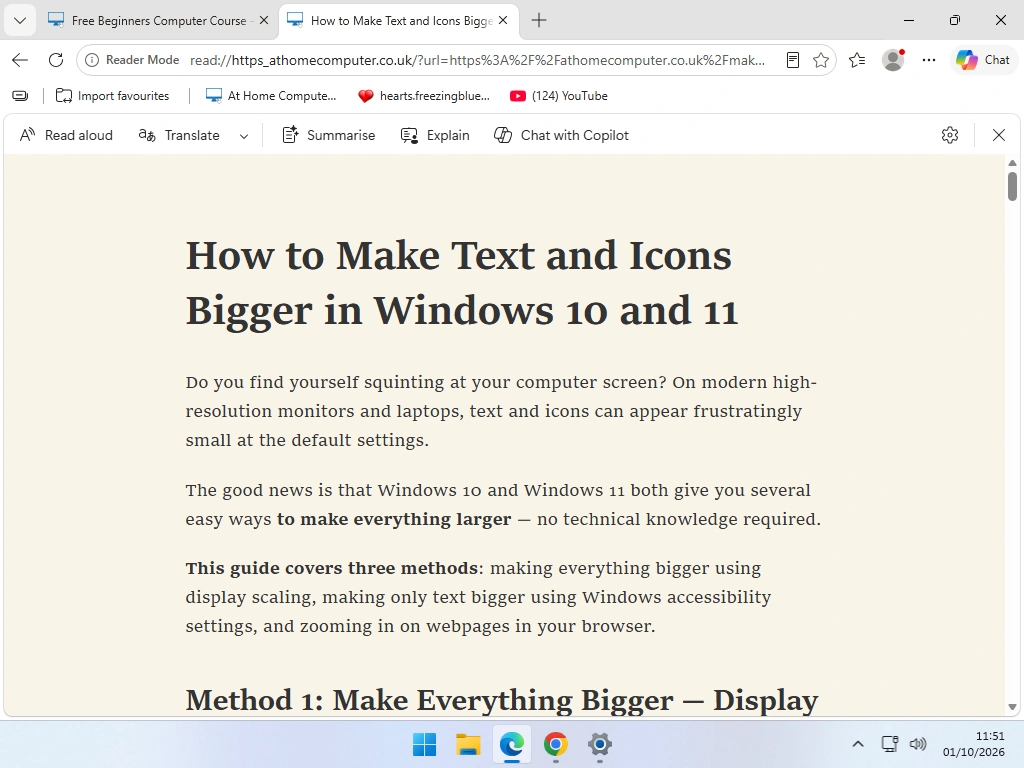
- Open the page and press F9, or click the Immersive Reader icon at the right of the address bar. The page changes to just the words and pictures.
- Press Ctrl + P and save it as a PDF in the usual way.
Immersive Reader doesn’t work on every page. If the icon isn’t there, that page can’t be simplified.
In Firefox: Choose Simplified
In Firefox’s print window, click More settings, then next to Format choose Simplified. If you don’t see Format, Firefox can’t simplify that page.
In Google Chrome
Chrome doesn’t have a clutter-free option in its print window. The simplest fix is to save only the pages you need, as shown above, or open the page in Edge instead, which is already on your PC.
Do You Need a PDF Converter?
No. If you search for how to save a web page as a PDF, the first few results are usually adverts for PDF converters, and plenty of websites offer to do it for free. You don’t need any of them. The browser you already have does the same job.
There are good reasons to skip them, too:
- Your details. An online converter has to see the page to convert it. For an order confirmation or a booking, that means handing your details to a company you know nothing about.
- Pages you’re signed in to won’t work. Most online converters visit the web address themselves, so for anything behind a login, such as your bank or an online order, all they get is the sign-in page.
- Adverts and upsells. Many “free” converters add a watermark, limit how many you can do, or push you towards a paid version.
I say more about online converters in A Beginner’s Guide to File Formats and Filename Extensions.
Why Does My File Say Chrome HTML Document?
This one confuses a lot of people, and it has two quite different causes.
You Saved the Web Page, Not a PDF
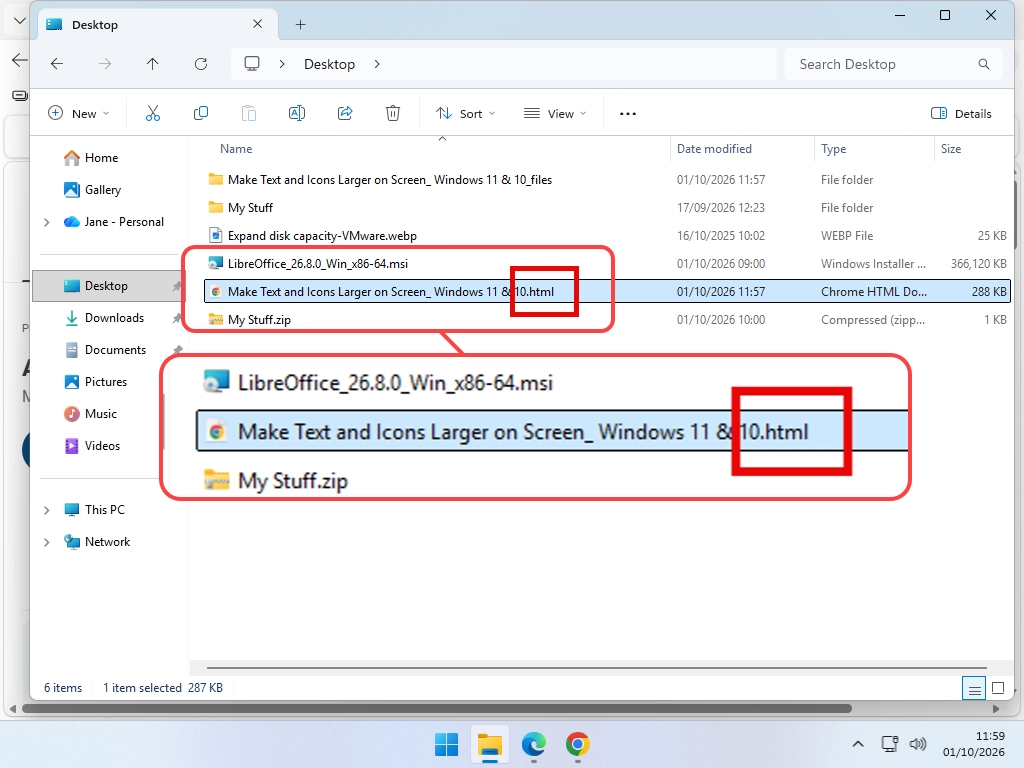
If you pressed Ctrl + S, or chose Save page as from the menu, the browser saves the page as a web page file, not a PDF. File Explorer lists it as a Chrome HTML Document or a Microsoft Edge HTML Document, sometimes with a folder of bits next to it. Edge may also save it as an MHTML file.
To turn it into a proper PDF, double-click the file so it opens in your browser, then press Ctrl + P and choose Save as PDF, just as above.
It Is a PDF, Windows Just Labels It Oddly
If Chrome or Edge is the program that opens PDFs on your computer, File Explorer names your PDFs after it. So a perfectly good PDF can show up as a “Chrome HTML Document” or a “Microsoft Edge PDF Document”.
The easy way to check is to look at the end of the file name. If it ends in .pdf, it’s a PDF. If you can’t see the ending, Windows is hiding it, and my file extensions guide shows you how to turn file name extensions on.
If you’d rather your PDFs opened in a different program, such as Adobe Acrobat Reader, open Settings, click Apps, then Default apps. Type .pdf in the search box, click the result, and choose the program you want.
Troubleshooting
Edge Says “Printing Failed”
If you choose Microsoft Print to PDF in Edge and get a message like “Printing failed” or “Check your printer and try again”, pick Save as PDF from the printer list instead. It does the same job, and it’s the better choice anyway.
Pictures Are Missing or Blank
Many websites only load their pictures as you scroll down to them. If you save the page straight away, the pictures further down haven’t loaded yet and come out blank.
Scroll slowly to the bottom of the page first, give it a moment, then press Ctrl + P. If colours are still missing, tick Background graphics.
I Can’t See Save as PDF
Click the Destination (or Printer) drop-down. Save as PDF is in the list, though in Chrome you sometimes need to click See more to find it.
I Can’t Find the PDF I Saved
The Save As window opens in whichever folder you used last, which may not be where you expected. Next time, look at the address bar at the top of the Save As window before you click Save. To find it now, open File Explorer, click Documents or Downloads, and sort by Date modified so the newest file is at the top.
Frequently Asked Questions
Q: Is it free to save a web page as a PDF?
A: Yes. Chrome, Edge and Firefox all have it built in, so you don’t need to buy or download anything.
Q: Will the links in my PDF still work?
A: Yes, if you use Save as PDF in Chrome or Edge. If you use Microsoft Print to PDF instead, the links stop working.
Q: Can I save a whole website as a PDF?
A: Not with a web browser. It saves one page at a time, so you’d have to save each page separately. Paid programs such as Adobe Acrobat can save a whole website, but for most people it isn’t worth it.
Q: Can I save a web page as one long page without page breaks?
A: Not as a PDF from the print window, which always splits it into pages. If you want one long picture of the page instead, Edge’s screenshot tool (Ctrl + Shift + S) has a Capture full page option.
Q: Will the PDF change if the web page changes?
A: No. The PDF is a copy of the page at the moment you saved it. That’s exactly why it’s a good way to keep receipts, bookings and confirmations.
Q: Can I save a web page as a PDF on my phone?
A: Yes. On an Android phone, open the page in Chrome, tap the three dots, tap Share, then Print, and choose Save as PDF. On an iPhone, open the page in Safari, take a screenshot, tap the little preview, choose Full Page at the top, then tap Done and Save PDF to Files. The exact buttons can vary a little between phones.
Q: Can I edit the PDF afterwards?
A: Yes. You can fill in a PDF form, or turn the PDF into a Word document to change the words. I cover both in my guide to editing a PDF.
Summary
Saving a web page as a PDF is free and built into every browser. Press Ctrl + P, choose Save as PDF (or Save to PDF in Firefox), and click Save.
The things worth remembering:
- In Chrome and Edge, pick Save as PDF rather than Microsoft Print to PDF, so the links keep working.
- Use Pages, Scale and Background graphics to tidy up the PDF before you save it.
- In Edge, press F9 first to save the page without the adverts.
- You don’t need an online PDF converter.
- If a file says “Chrome HTML Document”, check whether its name ends in .html or .pdf. That tells you which of the two problems you have.
Once it’s saved, you can fill it in or change it. How to Edit a PDF shows you how.
What Does a VPN Do?
What does a VPN actually do, and is it worth paying for one?
I’ll walk through exactly how they work, when a VPN genuinely helps, and where the marketing oversells what it can do.
You can find this and other related step by step guides in – At Home Computer Internet Guides