
A website that won’t load properly, a login page that keeps going round in circles, or a page that still shows yesterday’s version. Nine times out of ten, the fix is to clear your cache and cookies.
It sounds technical, but it takes less than a minute and it’s perfectly safe, as long as you know what you’re deleting.
In this guide I’ll show you how to clear cache and cookies on a computer or laptop in Chrome, Edge and Firefox, and on a Chromebook. I’ll show you how to clear them for every website or for just one, how to make your browser do it automatically, and what you’ll lose when you do.
The Short Version
- Open your browser and press Ctrl + Shift + Delete (on a Chromebook, Ctrl + Shift + Backspace).
- Set the time range to All time.
- Tick Cookies and other site data and Cached images and files.
- Untick anything you want to keep, such as Browsing history.
- Click Delete from this device in Chrome (Delete data if you’re signed in to Chrome), Clear now in Edge or Delete in Firefox.
Table of contents
- What Are Cache and Cookies?
- What Happens When You Clear Cache and Cookies?
- How to Clear Cache and Cookies in Google Chrome
- How to Clear Cache and Cookies in Microsoft Edge
- How to Clear Cache and Cookies in Firefox
- Hard Refresh: Clear the Cache for One Page
- How to Clear the Cache in Windows 11 and Windows 10
- Should You Accept or Reject Cookies?
- How Often Should You Clear Cache and Cookies?
- Troubleshooting
- Frequently Asked Questions
- Summary
What Are Cache and Cookies?
Your web browser saves two kinds of information from the websites you visit. They do different jobs, and it helps to know which is which before you delete them.
What Is the Browser Cache?
The cache is a store of copies of the pictures, logos and page files from websites you’ve visited. The next time you open the site, your browser loads them from your computer instead of downloading them again, so the page opens faster.
The problem comes when a website changes. Your browser can keep showing the old copy, which is why a page can look broken or out of date until you clear the cache.
What Are Cookies?
Cookies are small files that websites save on your computer to remember you. They’re what keep you signed in, remember what’s in your shopping basket and remember settings such as your language or location.
Some cookies are also used to track what you do online so that adverts can be tailored to you.
First-Party and Third-Party Cookies
A first-party cookie is saved by the website you’re on, the one shown in the address bar. These are the useful ones that keep you signed in.
A third-party cookie is saved by another company whose content appears on the page, usually an advertiser. These are the ones that follow you from site to site.
For Example
You look at a pair of walking boots on one shop’s website, and then see adverts for the same boots on a news site. That’s third-party cookies at work.
What Happens When You Clear Cache and Cookies?
Clearing your cache and cookies is safe. Nothing on your computer breaks, and your files, photos and programs aren’t touched. Here’s what does change:
- You’ll be signed out of most websites, so you’ll need to sign back in.
- Some website settings reset, such as a cookie choice you’ve made or the items in a shopping basket.
- Websites load a little slower the first time you visit them again, while your browser downloads fresh copies.
Your bookmarks and browsing history are only deleted if you tick them as well, and Chrome and Edge no longer list saved passwords in this window at all. Clearing cookies on their own doesn’t touch any of them.
Before You Clear Your Cookies
Because you’ll be signed out of websites, make sure you know your passwords first. If your browser saves them for you, check they’re in the Chrome password manager or the Edge password manager before you start.
If you use Chrome while signed in to your Google account, clearing cookies won’t sign you out of Google itself. Chrome keeps those cookies so it can carry on syncing. To clear them too, sign out of Chrome first.
How to Clear Cache and Cookies in Google Chrome
- Open Chrome and click the three vertical dots at the top right.
- Click Delete browsing data. Or press Ctrl + Shift + Delete.
- Along the top, click All time. If you can’t see it, click More.
- Tick Cookies and other site data and Cached images and files.
- If you want to keep your history, untick Browsing history and Download history.
- Click Delete from this device.
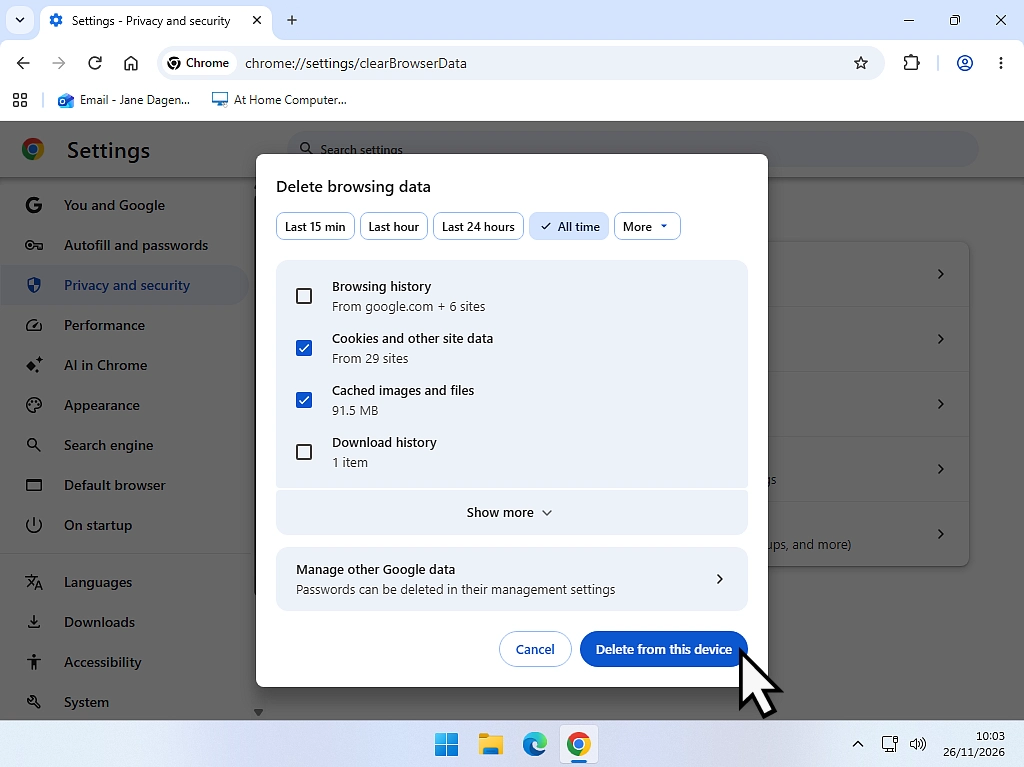
If you’re signed in to Chrome, the button says Delete data instead. Anything Chrome syncs, such as your browsing history, is then deleted from your other devices too. Cookies and cached files aren’t synced, so they’re only ever cleared on this computer.
Click Show more if you want to see the rest: autofill form data, site settings, hosted app data and skills. Your saved passwords aren’t in this list any more. They’re under Manage other Google data, which opens Google Password Manager, so you can’t delete them by accident.
Clear Cookies for One Website in Chrome
If only one website is misbehaving, you don’t need to sign out of everything. You can clear the cookies and data for just that site:
- Click the three dots, then Settings.
- Click Privacy and security, then Third-party cookies.
- Click See all site data and permissions.
- Type the website’s name in the search box at the top right.
- Click the bin next to the site, then Delete.
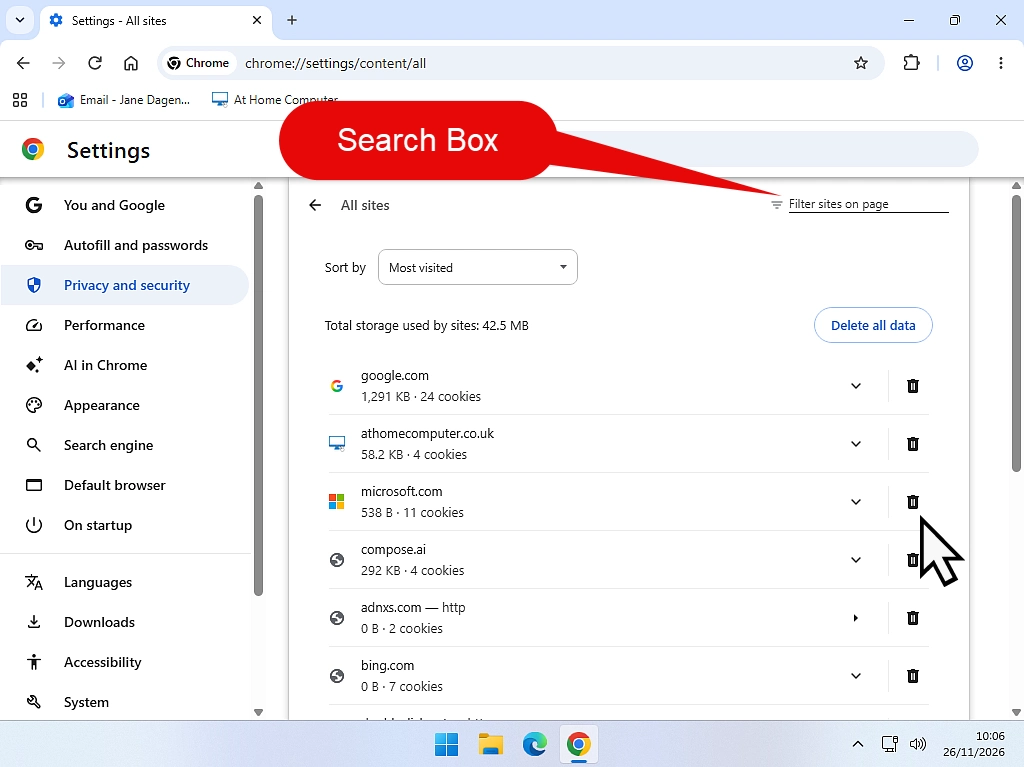
If you’re on the website already, there’s a quicker way. Click the site information icon on the left of the address bar, then Cookies and site data, then Manage on-device site data, and delete it from there.
Clear Cache and Cookies on a Chromebook
A Chromebook uses Chrome, so the steps are exactly the same. The only difference is the keyboard shortcut. Press Ctrl + Shift + Backspace to open Delete browsing data.
How to Clear Cache and Cookies in Microsoft Edge
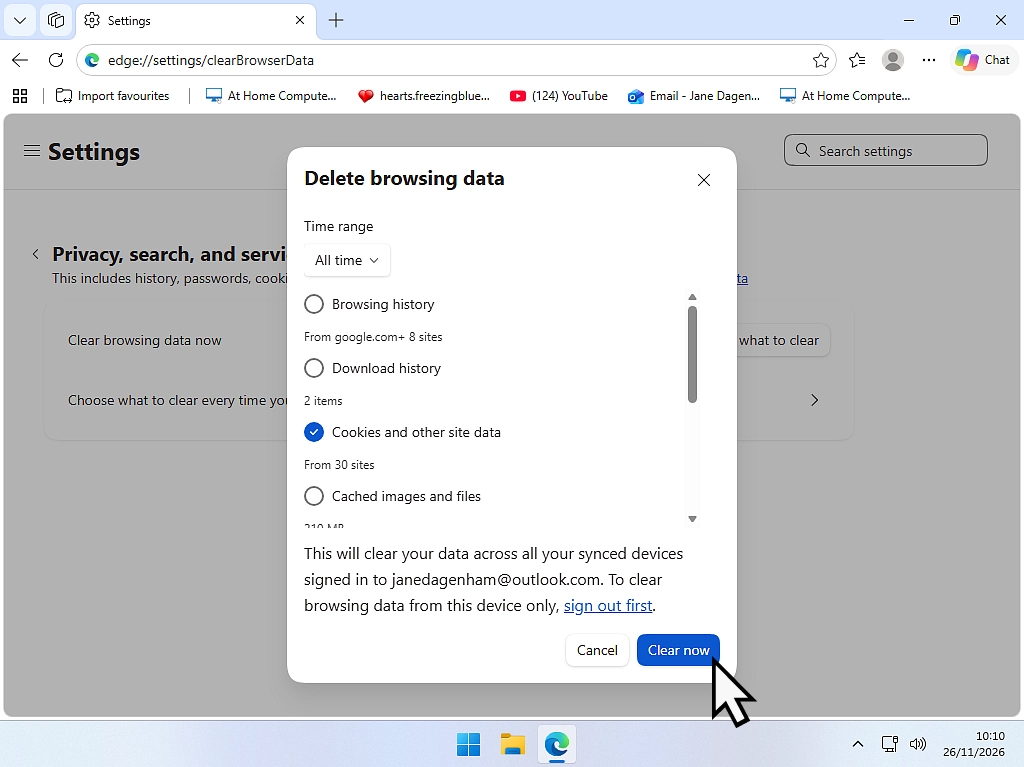
- Open Edge and press Ctrl + Shift + Delete. Or click the three horizontal dots, then Settings, Privacy, search, and services, Clear browsing data, and click Choose what to clear.
- Under Time range, choose All time.
- Tick Cookies and other site data and Cached images and files.
- Untick anything you want to keep, such as Browsing history.
- Click Clear now.
Leave the other options alone. All data from the previous version of Microsoft Edge, near the bottom of the list, includes your old favourites and passwords.
Clear Cookies for One Website in Edge
- Click the three dots, then Settings.
- Click Cookies and site permissions, then Manage and delete cookies and site data.
- Click See all cookies and site data.
- Search for the website and click the bin next to it.
Clear Cache and Cookies Every Time You Close Edge
Edge can do this for you automatically:
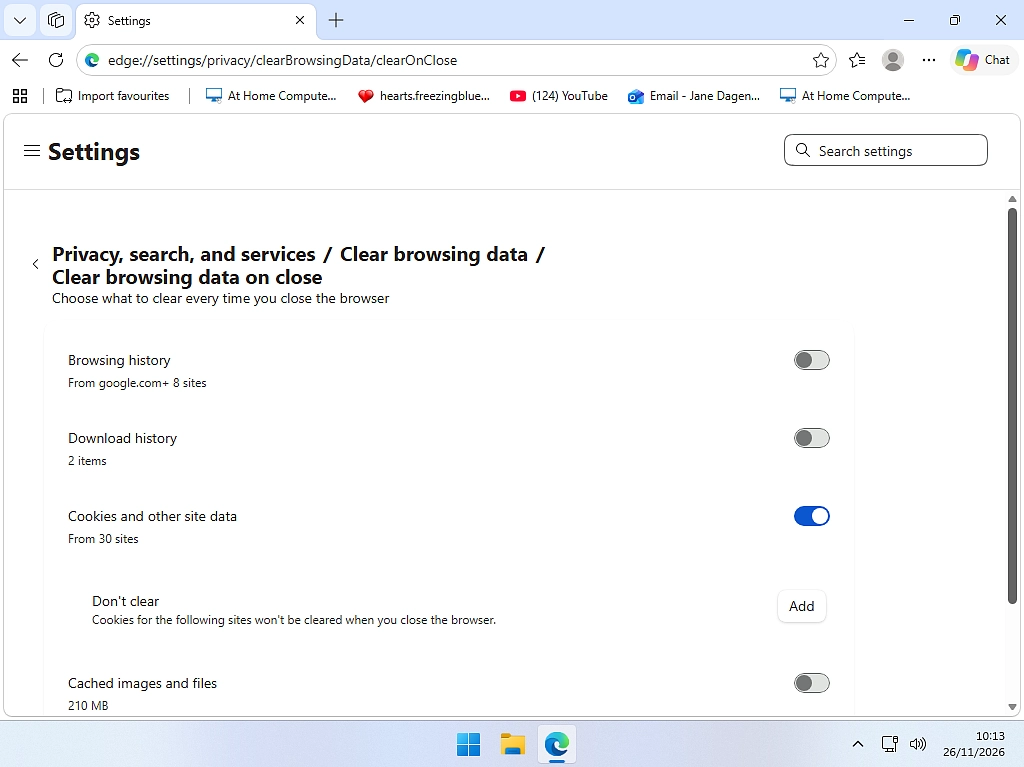
- Go to Settings, then Privacy, search, and services.
- Click Clear browsing data, then Choose what to clear every time you close the browser.
- Turn on Cookies and other site data and Cached images and files.
This signs you out of most websites every time you close Edge, so it suits a shared computer better than your own.
How to Clear Cache and Cookies in Firefox
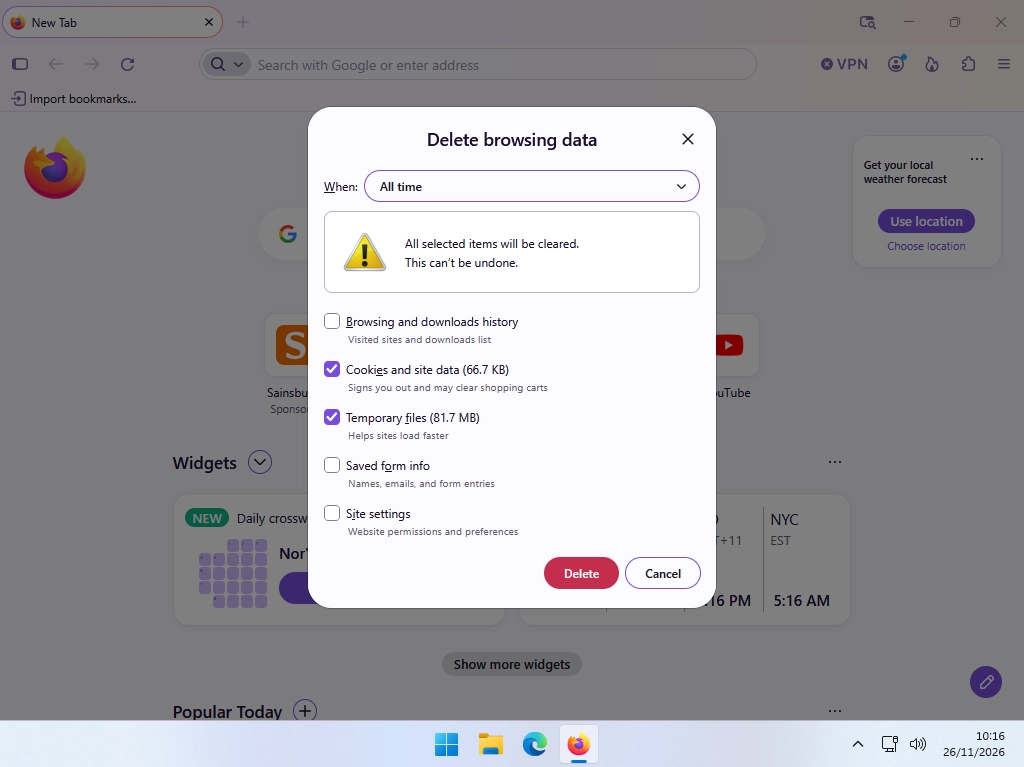
- Press Ctrl + Shift + Delete to open Delete browsing data.
- Next to When, choose All time.
- Tick Cookies and site data and Temporary files. Untick anything you want to keep, such as Browsing and downloads history.
- Click Delete.
Temporary files is Firefox’s name for the cache, so that’s the one to tick if you only want to clear the cache.
Clear Cookies for One Website in Firefox
Go to the website and click the shield icon on the left of the address bar. Click Clear cookies and site data, then Clear.
For a site you’re not on, open Settings and click Privacy and security. Under Browsing data, click Clear data for specific sites. Search for the site, click it, then click Remove Selected and Save Changes.
Clear Cookies Every Time You Close Firefox
In the same Browsing data section, tick Clear cookies and site data every time you close Firefox.
Hard Refresh: Clear the Cache for One Page
If a single page looks wrong or out of date, try a hard refresh before clearing anything. It reloads the page while ignoring the cached copy, and it doesn’t sign you out of anything.
In Chrome, Edge and Firefox on Windows, press Ctrl + F5. Ctrl + Shift + R and Shift + F5 do the same thing.
Quick Tip
For a page that still won’t update in Chrome or Edge, press F12 to open the developer tools. Then right-click the reload button next to the address bar and choose Empty cache and hard reload. Press F12 again to close the tools.
How to Clear the Cache in Windows 11 and Windows 10
When people search for how to clear the cache on a PC, they usually mean the browser cache above. Windows also keeps its own temporary files, and clearing those can free up space on your hard drive.
Delete Temporary Files
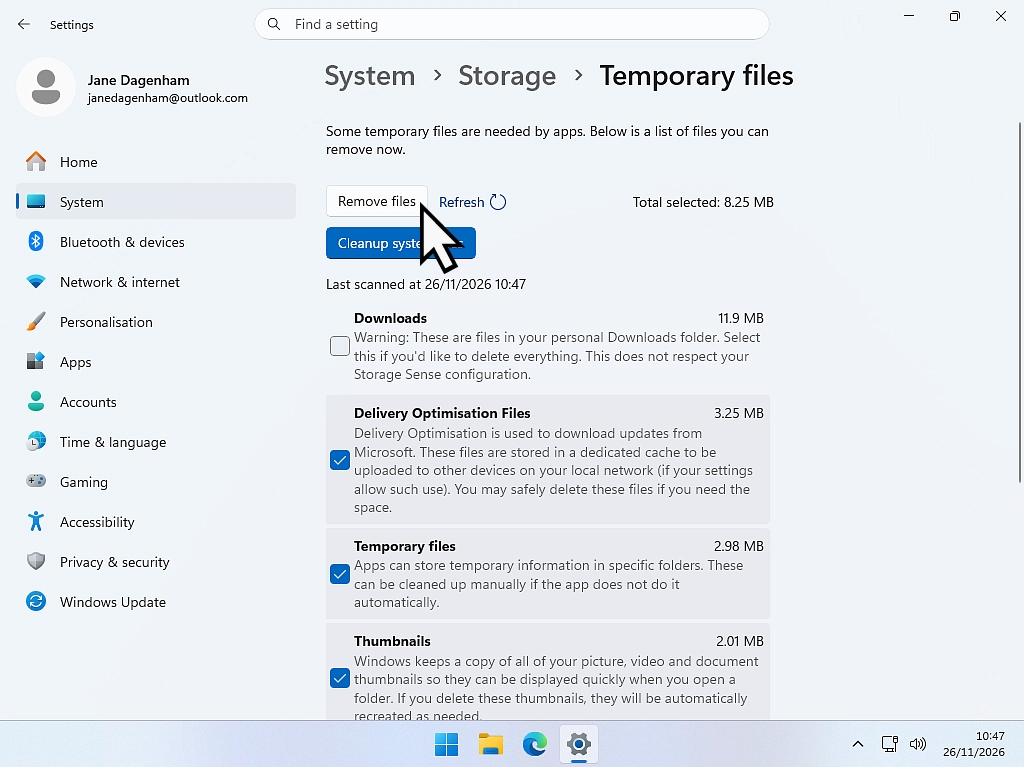
- Press Windows key + I to open Settings.
- Click System, then Storage.
- Click Temporary files.
- Tick the types of files you want to delete. Check Downloads carefully, because that’s your Downloads folder.
- Click Cleanup system files.
To have Windows do this automatically, turn on Storage Sense on the same Storage page.
If your C drive is getting full, my guide on how to free up disk space goes through every other way to get space back.
Temporary files don’t include Chrome’s or Edge’s cache. You still clear those in the browser itself.
Clear the DNS Cache
Windows also remembers the addresses of websites you’ve visited, in what’s called the DNS cache. If a website won’t load on your computer but works on your phone, clearing it can help.
Type cmd in the search box on the taskbar, open Command Prompt, then type this and press Enter:
ipconfig /flushdnsYou’ll see Successfully flushed the DNS Resolver Cache.
Should You Accept or Reject Cookies?
Most websites now ask you about cookies the first time you visit. In the UK, the Information Commissioner’s Office says it must be as easy to Reject all as it is to Accept all.
My advice is to click Reject all, or Necessary cookies only, on websites you don’t use often. The site still works, because the cookies it needs to run aren’t affected. You’ll still see adverts, they just won’t be based on what you’ve looked at elsewhere.
On websites you use every day, accepting is fine. It doesn’t harm your computer.
How to Block Third-Party Cookies
You can stop advertisers’ cookies being saved at all:
- Chrome: Settings, Privacy and security, Third-party cookies, then choose Block third-party cookies.
- Edge: Settings, Cookies and site permissions, Manage and delete cookies and site data, then turn on Block third-party cookies.
- Firefox: already blocks tracking cookies from other sites as standard, with its Enhanced Tracking Protection.
Google had planned to switch off third-party cookies in Chrome, but decided in 2025 to keep them and leave the choice to you. They’re already blocked in Chrome’s Incognito windows.
A few websites, usually ones that sign you in through another company, may not work properly with third-party cookies blocked. If that happens, you can add the site as an exception on the same settings page.
How Often Should You Clear Cache and Cookies?
There’s no need to do it on a schedule. Your browser manages its own cache, and clearing it regularly just makes websites load slower.
My advice is to clear them when you have a reason to:
- A website won’t load properly, looks broken or keeps showing an old version.
- You’re stuck in a sign-in loop or a page keeps throwing an error.
- You’ve used a shared or public computer.
- You want to remove tracking cookies for privacy.
If you’d rather your browser didn’t keep any of it, use private browsing instead. Incognito in Chrome and InPrivate in Edge delete the cookies and cache from that window as soon as you close it.
Troubleshooting
A Website Still Doesn’t Work After Clearing
Try opening it in a private window. If it works there, one of your browser extensions is probably the cause, so turn them off one at a time.
If it doesn’t work in a private window or a different browser either, the problem is with the website itself, not your computer.
I’m Still Signed In to Google After Clearing Cookies
That’s Chrome keeping you signed in so it can sync. Sign out of Chrome first (click your profile picture at the top right), then clear the cookies again.
The Cookies Came Straight Back
That’s normal. Websites save new cookies as soon as you visit them again. To stop it, use the clear on close settings above or block third-party cookies.
Delete Browsing Data Is Greyed Out
If your browser says it’s managed by your organisation, an administrator controls these settings. That’s normal on a work or school computer. On a home PC, it can be a sign of unwanted software, so run a virus scan.
Frequently Asked Questions
Q: How do I clear cache and cookies on my computer?
A: Open your browser and press Ctrl + Shift + Delete. Choose All time, tick Cookies and other site data and Cached images and files, then click Delete from this device in Chrome or Clear now in Edge.
Q: Is it safe to clear cache and cookies?
A: Yes. Nothing on your computer is harmed. You’ll be signed out of websites and some site settings will reset, so make sure you know your passwords first.
Q: Will clearing cookies delete my passwords?
A: No. Chrome, Edge and Firefox don’t include saved passwords in their Delete browsing data windows, and bookmarks and favourites are never deleted.
Q: What’s the difference between cache and cookies?
A: The cache stores copies of pictures and page files so websites load faster. Cookies are small files that websites use to remember you, such as keeping you signed in.
Q: How do I clear cookies for just one website?
A: In Chrome, go to Settings, Privacy and security, Third-party cookies, See all site data and permissions, then search for the site and click the bin. In Edge, go to Settings, Cookies and site permissions, Manage and delete cookies and site data, See all cookies and site data.
Q: How do I clear the cache on a Chromebook?
A: Press Ctrl + Shift + Backspace in Chrome, choose All time, tick Cached images and files and Cookies and other site data, then click the Delete button at the bottom.
Q: Does clearing the cache delete my browsing history?
A: Only if Browsing history is ticked. Untick it before you click Delete if you want to keep your history.
Q: How often should I clear my cache?
A: Only when you need to, such as when a website isn’t working properly or after using a shared computer. Clearing it regularly just makes websites load slower.
Q: Should I accept cookies?
A: On websites you use regularly, accepting is fine. On others, choosing Reject all or Necessary cookies only is safe and the website will still work.
Q: What is a hard refresh?
A: A hard refresh reloads a web page without using the cached copy. Press Ctrl + F5 in Chrome, Edge or Firefox on Windows.
Summary
Clearing your cache and cookies is one of the quickest fixes there is for a website that won’t behave. Press Ctrl + Shift + Delete, choose All time, tick cookies and cached images and files, and you’re done.
If you’re clearing things for privacy rather than to fix a problem, remember that your searches are kept in more places than your browser. My guide on how to delete your search history shows you all of them.
Related Posts
How to Delete Search History
Clear your searches from Chrome, Edge, Google, Bing and Windows.
Private Browsing in Chrome and Edge
Browse without your computer keeping cookies or history in the first place.
Chrome Password Manager
Check your passwords are saved before you clear your cookies.
How to Do a Reverse Image Search
Got a photo and want to know where it came from?
Upload a picture to Google or Bing and they’ll find where else it appears online, or pictures like it.
You can find this and other related step by step guides in – At Home Computer Internet Guides
Written by Jeff Porter. I’ve been fixing Windows PCs since 2010 and I’m CompTIA Network+ certified. More about me