
A red bar under your C drive in File Explorer. A low disk space warning popping up. A Windows update that won’t install because there isn’t enough room. Or a PC that has slowly ground to a halt.
They’re all signs your C drive is full, and the good news is that you almost never need to buy anything to fix it. Windows 11 and Windows 10 come with everything you need to free up disk space, and most people get back several gigabytes in a few minutes.
In this guide I’ll show you how to find out what’s taking up the space, then go through every built-in way to clear it, starting with the quickest and safest. Try them in order and check your free space as you go.
The Short Version
- Open Settings, then System, then Storage.
- Click Temporary files, tick everything except Downloads, and click Remove files.
- Empty the Recycle Bin.
- Uninstall apps and games you don’t use.
- Turn on Storage Sense so Windows keeps on top of it for you.
Table of contents
- How to Check How Much Disk Space You Have
- Delete Temporary Files
- How to Use Disk Cleanup
- Empty the Recycle Bin and Clear Out Your Downloads
- Uninstall Apps and Games You Don’t Use
- Turn On Storage Sense
- Delete the Windows.old Folder
- Delete hiberfil.sys by Turning Off Hibernation
- Clean Up the WinSxS Folder
- Reduce the Space System Restore Uses
- Move Files Off Your C Drive
- Still Not Enough Space? Make Your C Drive Bigger
- Do You Need a PC Cleaner Program?
- Troubleshooting
- Frequently Asked Questions
- Summary
How to Check How Much Disk Space You Have
The quickest way is to open File Explorer and click This PC. Under Local Disk (C:) you’ll see a bar and how many gigabytes are free. When the bar turns red, the drive is nearly full.
For more detail, press Windows key + I to open Settings, then click System and Storage.
What’s Taking Up Space on My PC?
The Storage page breaks down what’s using your C drive: Installed apps, Temporary files, Documents, Pictures, System & reserved and so on. Click Show more categories to see the rest.
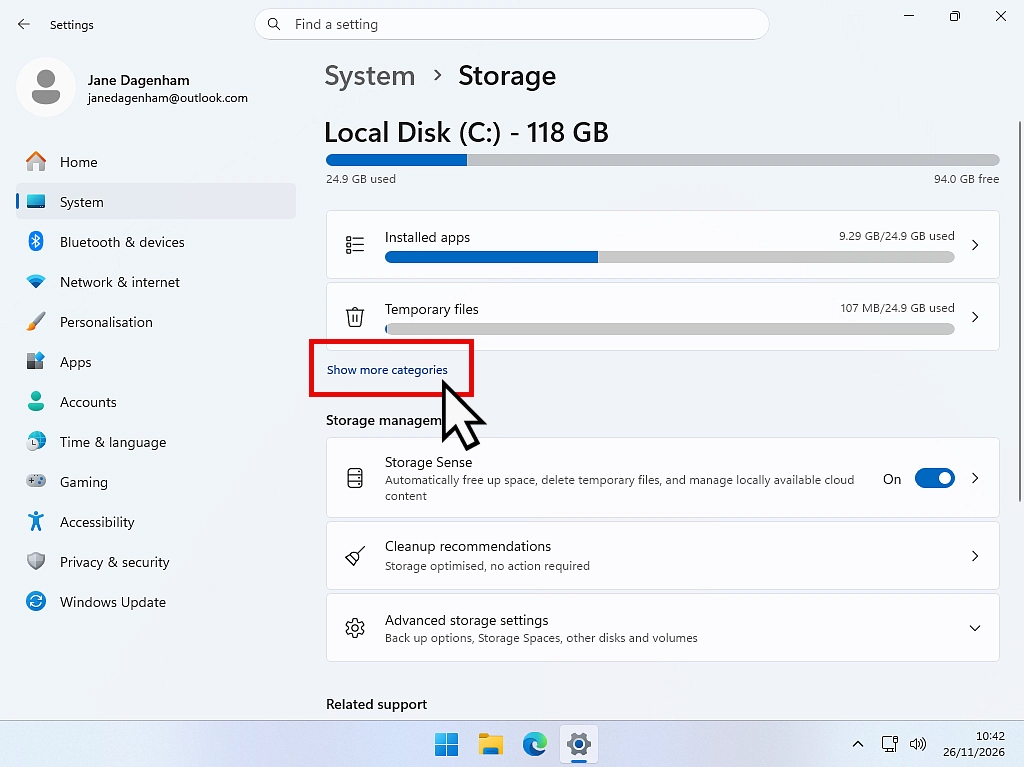
Click any category to see what’s inside it. That tells you where to start. If Installed apps is huge, start there. If it’s Videos or Pictures, the answer is moving them, not deleting Windows files.
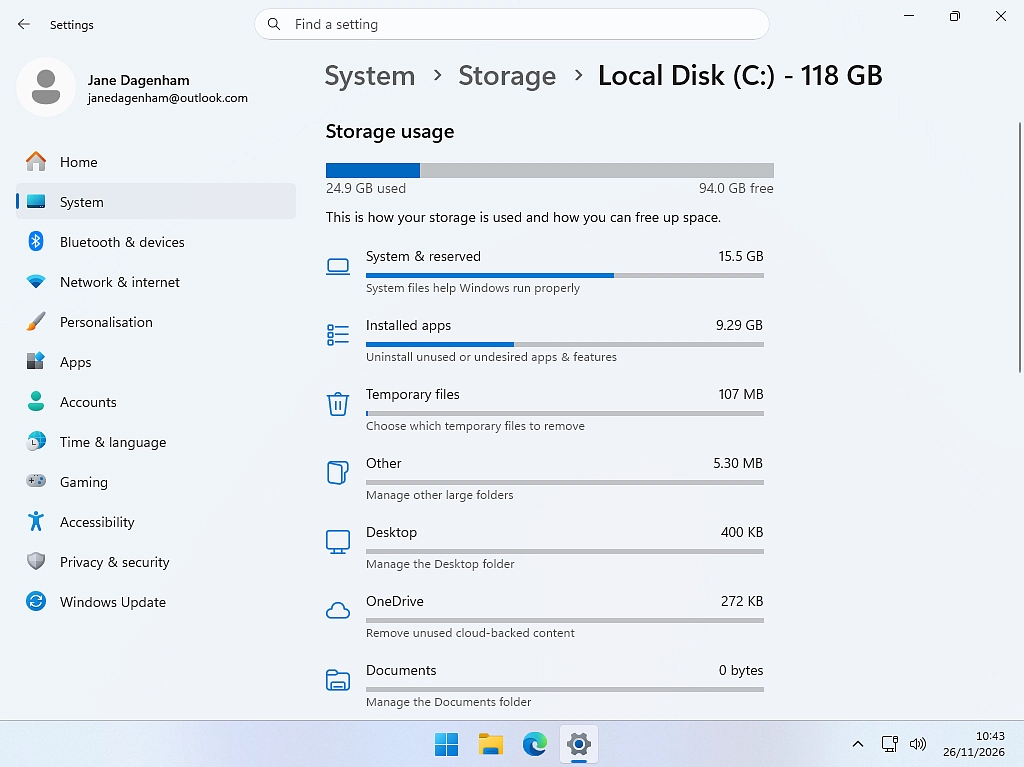
System & reserved is Windows itself, plus space it keeps back for updates. You can’t delete most of it, but two big files in there, the hibernation file and System Restore, can be shrunk. I’ll show you both further down.
How Much Free Space Do You Need?
Windows needs room to work. Big feature updates can need 10 GB or more of free space to install, and Windows slows down when the drive is almost full.
My advice is to keep at least 20 GB free on your C drive. On a small 128 GB drive, aim for at least 10 GB.
Delete Temporary Files
This is the quickest and safest way to free up space. Windows and your apps leave temporary files behind all the time, and old Windows updates can take up gigabytes.
- Open Settings, then System, then Storage.
- Click Temporary files. Windows takes a moment to work out what can go.
- Tick the types of files you want to delete.
- Click Remove files.
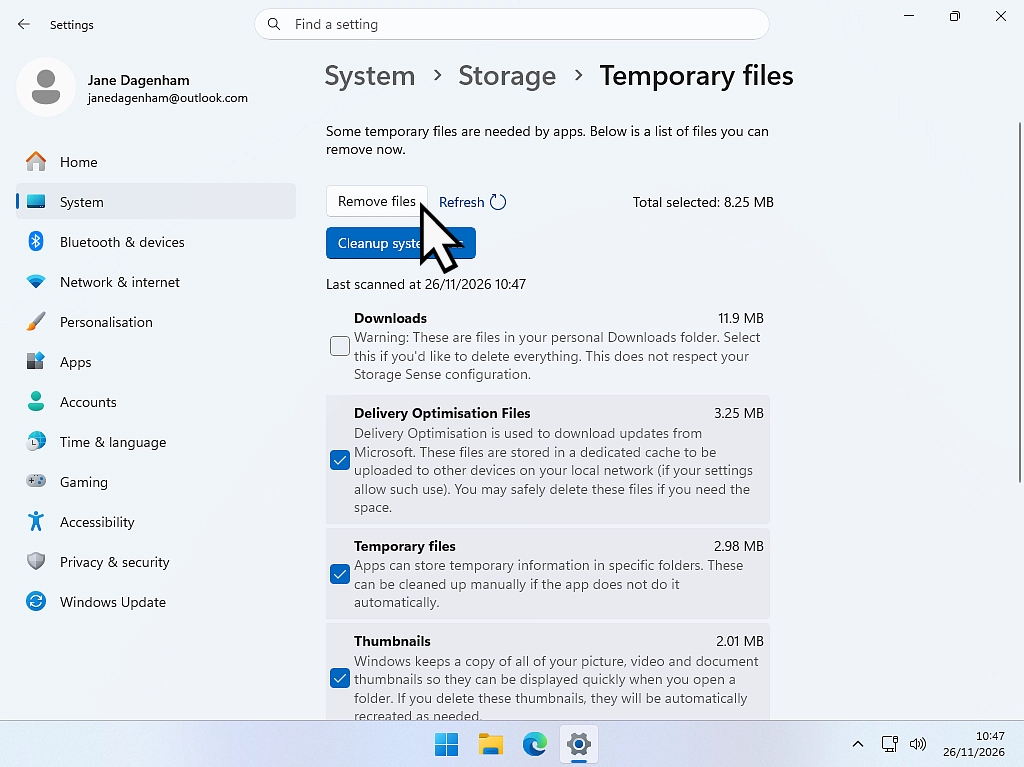
Here’s what the main ones are:
- Windows Update Cleanup: old copies of updates that have already been installed. Often the biggest item, and safe to delete.
- Delivery Optimization Files: update files Windows has shared with other PCs. Safe to delete.
- Thumbnails: the small picture previews File Explorer shows. Windows makes them again when it needs them.
- Recycle Bin: everything you’ve deleted. Check there’s nothing in it you want back first.
- Previous Windows installation(s): only appears after a big update. More on this below.
- Downloads: this is your actual Downloads folder. Leave it unticked unless you’ve checked what’s in there.
Browser Cache Isn’t Included
Temporary files doesn’t clear what Chrome and Edge store. To clear those, see my guide on how to clear cache and cookies.
Use Cleanup Recommendations (Windows 11)
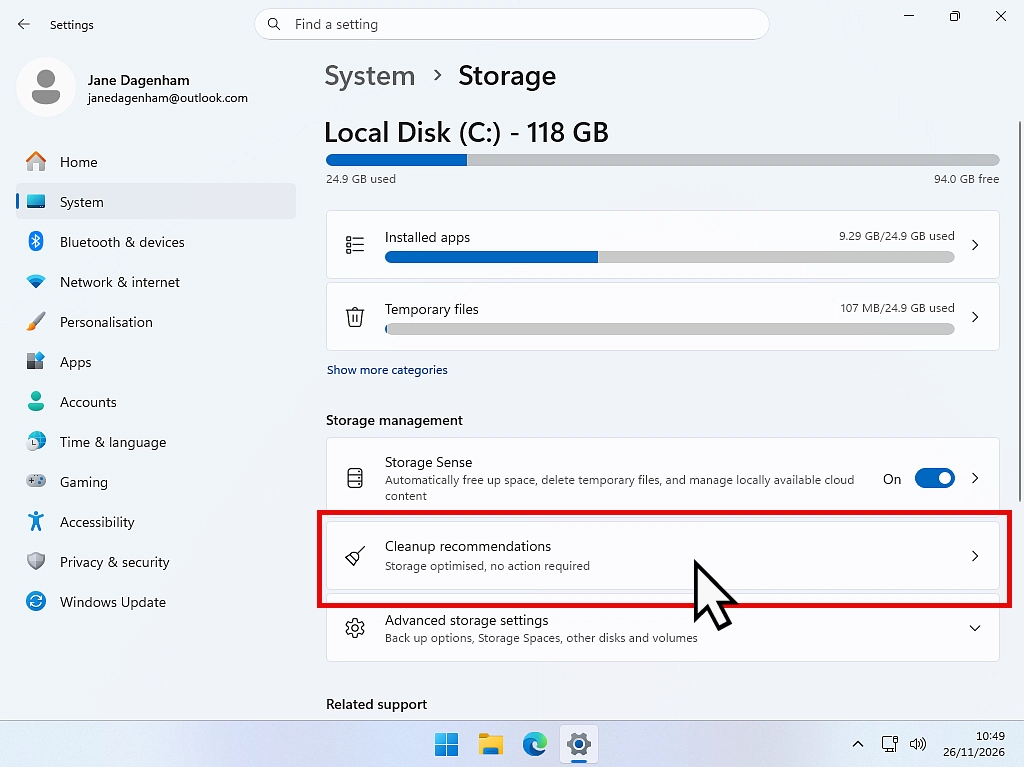
On the same Storage page, click Cleanup recommendations. Windows lists things it thinks you can remove, under Temporary files, Large or unused files, Files synced to the cloud and Unused apps.
It’s a handy way to spot the biggest files on your PC. Check each one before you tick it, though. A large file you haven’t opened in months can still be one you want to keep.
How to Use Disk Cleanup
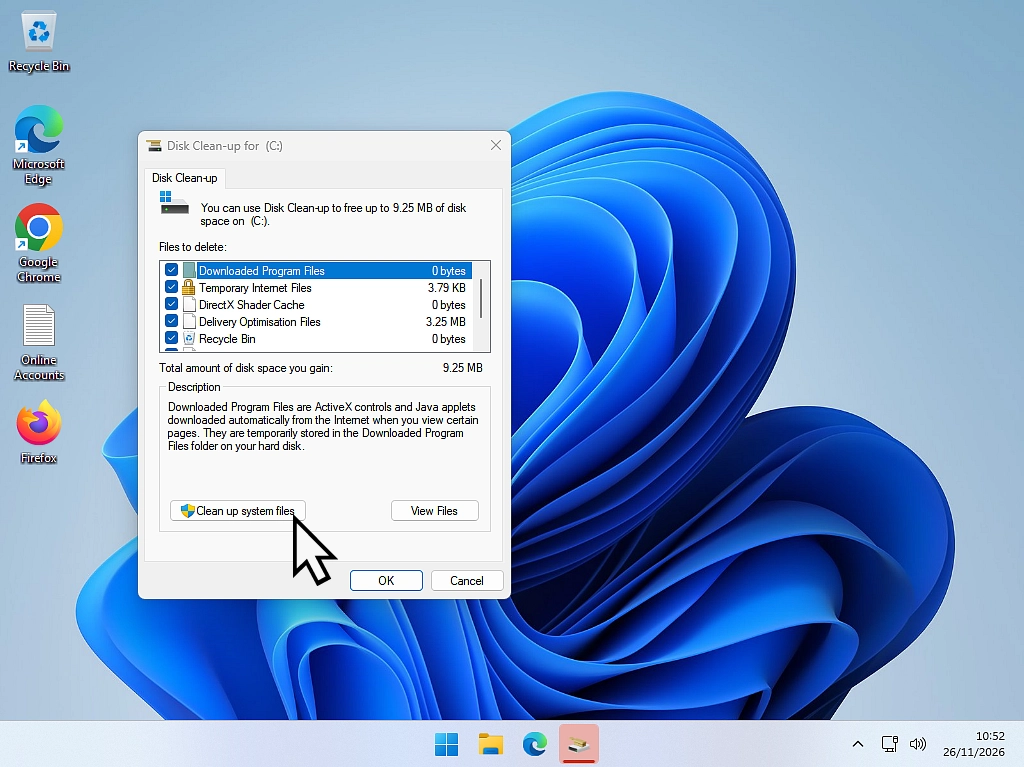
Disk Cleanup is the older tool that does the same job. Microsoft now points people to the Storage settings instead, but Disk Cleanup is still in Windows 11 and Windows 10, and plenty of people prefer it.
- Type disk cleanup in the search box on the taskbar and open it.
- Choose (C:) and click OK.
- Click Clean up system files, choose (C:) again and click OK. This adds Windows Update files to the list, which is where most of the space is.
- Tick the items you want to delete. As before, leave Downloads unticked unless you’ve checked it.
- Click OK, then Delete Files.
Windows Update Cleanup can take a while, sometimes 10 minutes or more. Let it finish.
Empty the Recycle Bin and Clear Out Your Downloads
Files you delete don’t free up any space until you empty the Recycle Bin. Right-click it on the desktop and click Empty Recycle Bin. If you can’t find it, here’s how to get the Recycle Bin back.
Your Downloads folder is the other place things pile up: installers you only needed once, old PDFs and copies of photos.
- Open File Explorer and click Downloads.
- Click Sort, then Size, so the biggest files are at the top.
- Delete anything you don’t need, then empty the Recycle Bin.
Uninstall Apps and Games You Don’t Use
Games in particular can take up 50 GB or more each, and it’s easy to forget what’s installed.
- Open Settings, then Apps, then Installed apps.
- Next to Sort by, choose Size (large to small).
- Click the three dots next to anything you don’t use and click Uninstall.
For the full steps, including Windows 10 and programs that won’t uninstall, see my guide on how to uninstall programs in Windows 11 and 10.
Turn On Storage Sense
Storage Sense clears temporary files and empties the Recycle Bin for you, so your C drive doesn’t fill up again.
- Open Settings, then System, then Storage.
- Turn Storage Sense on.
- Click Storage Sense itself to choose how often it runs and what it cleans.
My advice for the settings:
- Run Storage Sense: every month, or during low free disk space.
- Delete files in my recycle bin if they have been there for over: 30 days.
- Delete files in my Downloads folder if they haven’t been opened for more than: Never. Keep that one in your own hands.
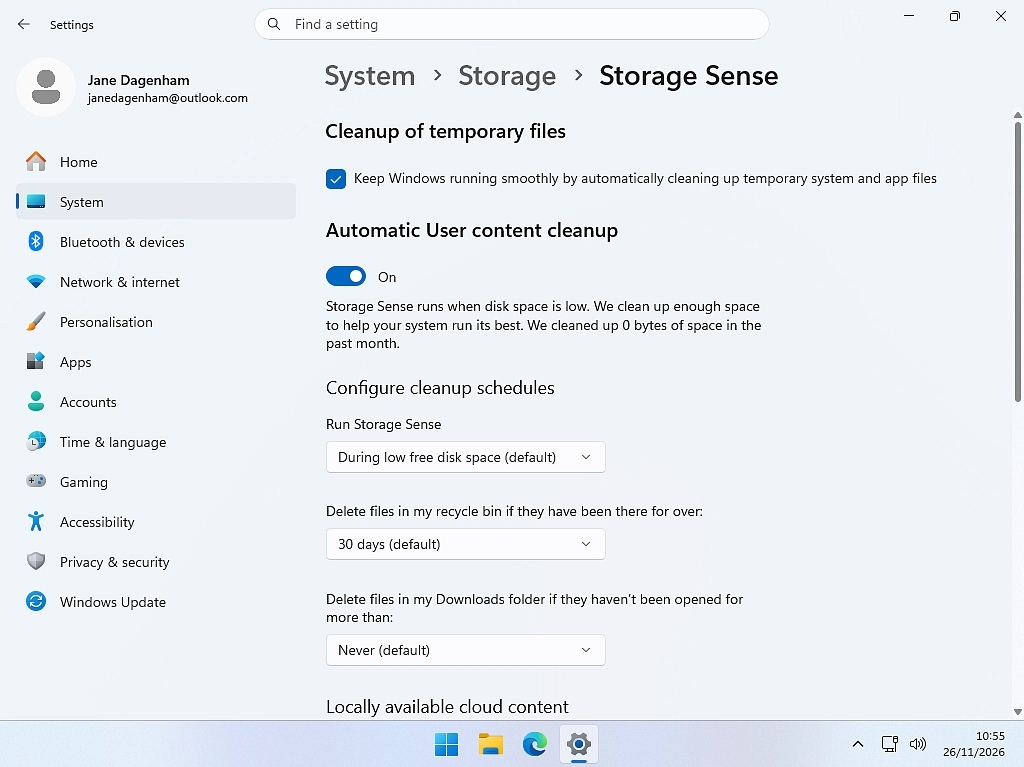
If you use OneDrive, Storage Sense can also make files you haven’t opened for a while online-only. They stay in OneDrive and download again when you open them, but stop taking up space on your PC.
Click Run Storage Sense now at the bottom of the page to run it straight away.
Delete the Windows.old Folder
After a big Windows update, or an upgrade from Windows 10 to Windows 11, you’ll find a Windows.old folder on your C drive. It’s a copy of your previous version of Windows, kept so you can go back if something goes wrong, and it’s often 20 GB or more.
Windows deletes it by itself 10 days after the update. If you need the space sooner and everything is working, you can delete it now:
- Open Settings, then System, then Storage.
- Click Temporary files.
- Tick Previous Windows installation(s).
- Click Remove files.
Before You Delete It
Once Windows.old has gone, you can’t go back to your previous version of Windows. If you’ve only just upgraded, use the PC for a few days first to make sure everything works.
Delete hiberfil.sys by Turning Off Hibernation
hiberfil.sys is a hidden file in the root of your C drive. Windows uses it to save everything that’s open when the PC hibernates, so it can carry on where you left off. It can be several gigabytes, up to the amount of memory (RAM) in your PC.
You can’t delete hiberfil.sys like a normal file. The only safe way is to turn hibernation off, and Windows deletes the file for you.
Should You Turn It Off?
On a desktop PC that you shut down or put to sleep, you’ll never miss it.
On a laptop that you hibernate when the battery runs low, leave it on, or use the smaller reduced option below.
Turning hibernation off also turns off Fast Startup, so your PC may take a few seconds longer to start.
How to Turn Off Hibernation
- Type cmd in the search box on the taskbar.
- Right-click Command Prompt and click Run as administrator. Click Yes when Windows asks.
- Type this command and press Enter:
powercfg /hibernate offNothing appears to happen, but hiberfil.sys has gone. To turn hibernation back on at any time, use:
powercfg /hibernate on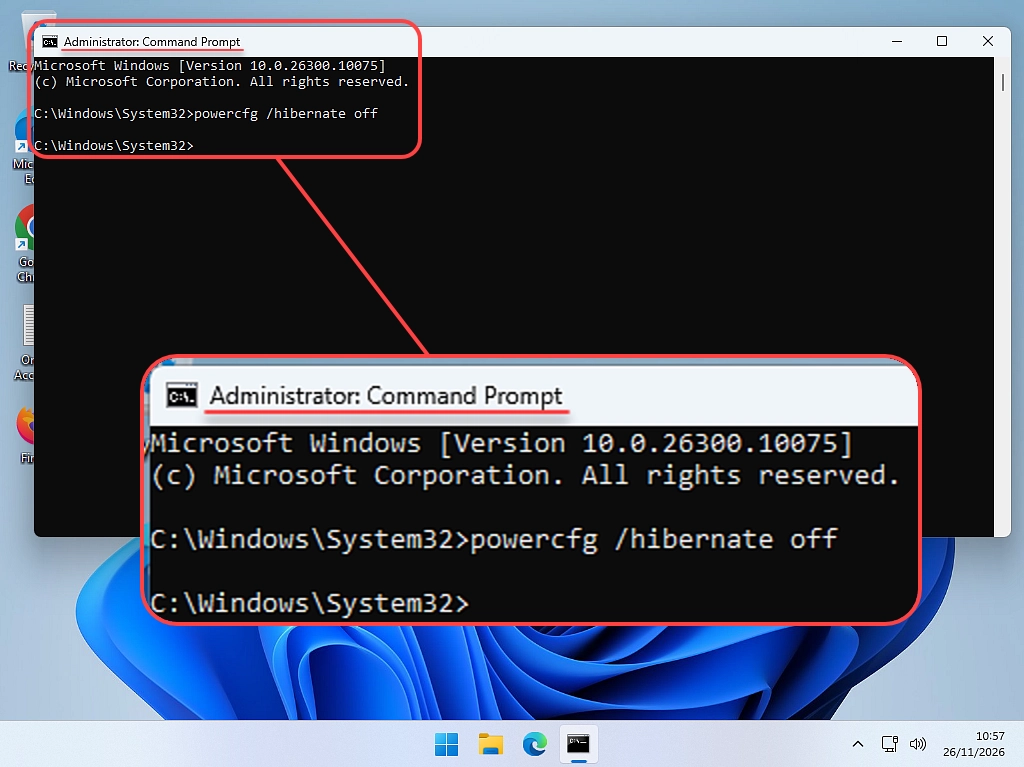
Shrink hiberfil.sys Instead
If you want to keep Fast Startup but never use Hibernate, you can make the file much smaller instead. In an administrator Command Prompt, type:
powercfg /h /type reducedHibernate disappears from the power menu, but Fast Startup keeps working.
Clean Up the WinSxS Folder
The WinSxS folder, inside your Windows folder, holds the files Windows needs to install and remove updates. It can grow to many gigabytes, and it’s one of the folders people find when they go looking for what’s using their space.
Never delete it, or anything in it, by hand. You can stop Windows working or updating properly. Use one of these instead:
- The easy way: run Disk Cleanup, click Clean up system files and tick Windows Update Cleanup. That cleans WinSxS for you.
- The thorough way: in an administrator Command Prompt, run the command below. It can take 10 minutes or more.
Dism.exe /online /Cleanup-Image /StartComponentCleanupWindows also runs this clean-up by itself every so often, so don’t expect a huge amount back if your PC is up to date.
Reduce the Space System Restore Uses
System Restore keeps restore points on your C drive, and they can take up several gigabytes. Don’t turn it off, because it’s a lifesaver when an update or a driver goes wrong. You can limit how much space it uses, though:
- Type create a restore point in the search box on the taskbar and open it.
- Click your C drive, then Configure.
- Move the Max Usage slider to the left. Around 5% is plenty for most people.
- Click Apply, then OK.
Windows deletes the oldest restore points to fit the new limit. Avoid the Delete button on the same screen, because it removes every restore point you have.
Move Files Off Your C Drive
If most of your space is photos, videos or music, deleting Windows files won’t make much difference. The answer is to move them somewhere else.
- An external hard drive or USB stick: copy your files across, check they open on the new drive, then delete them from your PC.
- OneDrive: right-click a folder in OneDrive and click Free up space. The files stay in the cloud and download again when you open them. See what OneDrive is and how it works.
- A second drive in your PC: if you have a D drive, you can tell Windows to save new files there. Go to Settings, System, Storage, Advanced storage settings, Where new content is saved. In Windows 10, it’s Change where new content is saved on the Storage page.
Keep a Second Copy
If you move your only copy of your photos to one external drive, you’ve still only got one copy. Keep them in two places, such as an external drive and OneDrive.
Still Not Enough Space? Make Your C Drive Bigger
Sometimes the drive is just too small. A laptop with a 128 GB drive will always be a squeeze with Windows 11. You have two options.
Extend the C Drive
If your drive has unallocated space, or a D partition you don’t need, you can add it to your C drive in Disk Management. Right-click the C drive and click Extend Volume.
If Extend Volume is greyed out, there’s usually a recovery partition in the way. My guide on how to fix Extend Volume greyed out shows how to move it for free.
Fit a Bigger Drive
A larger SSD is the permanent fix, and they’re cheaper than they’ve ever been. You can copy (clone) everything from your old drive to the new one, so you don’t have to reinstall Windows.
Do You Need a PC Cleaner Program?
No. Everything in this guide is free and already built into Windows, and the cleaner programs mostly do the same jobs.
Some go further than you’d want. They delete things that aren’t junk, install extra software alongside themselves, or show you a scary list of thousands of problems and then ask you to pay to fix them.
Many cleaners also offer to wipe your browsing and search history for privacy. You can do that yourself for free, too: see my guide on how to delete your search history.
My advice is to stick with the built-in tools. If a program you didn’t install starts warning you about junk files, treat it as unwanted software and remove it.
Troubleshooting
My C Drive Keeps Filling Up
Go back to the Storage page and see which category keeps growing. The usual causes are:
- OneDrive downloading files to your PC. Turn on online-only files in Storage Sense.
- A big Windows update that has left a Windows.old folder behind.
- Your browser or a game downloading large files in the background.
- Temporary files that never get cleared. Turn on Storage Sense.
Disk Cleanup Is Stuck on Windows Update Cleanup
It isn’t usually stuck, just slow. Leave it for at least half an hour. If it really hasn’t moved, restart your PC and use Temporary files in Settings instead.
I Can’t Delete the Windows.old Folder
Don’t try to delete it in File Explorer, because Windows won’t let you. Use Temporary files in Settings and tick Previous Windows installation(s), as shown above.
Windows Update Says There Isn’t Enough Space
Windows tells you how much more space it needs. Work through this guide until you’ve freed at least that much, then try again. My guide on how to update Windows shows how to check for the update again.
Frequently Asked Questions
Q: Why is my C drive full?
A: Usually a mix of temporary files, old Windows updates, apps and games, and your own photos and videos. Open Settings, System, Storage to see exactly what’s using the space.
Q: How do I free up disk space on my computer?
A: Open Settings, System, Storage, Temporary files, and remove everything except Downloads. Then empty the Recycle Bin, uninstall apps you don’t use, and turn on Storage Sense.
Q: Is it safe to delete temporary files?
A: Yes. Windows only lists files it doesn’t need. The one to check first is Downloads, because that’s your own Downloads folder.
Q: Is Disk Cleanup still in Windows 11?
A: Yes. Type disk cleanup in the search box on the taskbar. Microsoft recommends Temporary files and Storage Sense in Settings instead, but both do the same job.
Q: Can I delete hiberfil.sys?
A: Not directly. Turn hibernation off by running powercfg /hibernate off in an administrator Command Prompt, and Windows deletes the file for you.
Q: Can I delete the Windows.old folder?
A: Yes, using Temporary files in Settings. Windows deletes it automatically 10 days after an update anyway. Once it’s gone, you can’t go back to your previous version of Windows.
Q: Can I delete the WinSxS folder?
A: No. Deleting it by hand can stop Windows working. Use Windows Update Cleanup in Disk Cleanup to shrink it safely.
Q: How much free space should I keep on my C drive?
A: At least 20 GB if you can, so Windows has room to install updates and run smoothly.
Q: Do I need a PC cleaner program?
A: No. Windows has free tools that do the same job. Avoid programs that warn you about thousands of problems and ask you to pay to fix them.
Q: Will freeing up disk space make my PC faster?
A: If your drive was nearly full, yes. Windows slows down when it has no room to work. Once you have plenty of free space, clearing more won’t make much difference.
Summary
A full C drive is one of the most common computer problems there is, and one of the easiest to fix. Start with Temporary files and the Recycle Bin, uninstall what you don’t use, then work down the list until you have at least 20 GB free.
Turn on Storage Sense when you’re done, and Windows will keep on top of it for you.
Related Posts
How to Use Disk Management
Extend your C drive into unused space, and find your way around your drives.
How to Uninstall Programs in Windows 11 and 10
Remove apps and games you no longer use.
How to Clear Cache and Cookies
Clear the files your web browser keeps, in Chrome, Edge and Firefox.
How to Use Disk Management
Format drives, change drive letters and resize partitions with the tool built into Windows
You can find this and other related step by step guides in – At Home PC Tech Guides
Written by Jeff Porter. I’ve been fixing Windows PCs since 2010 and I’m CompTIA Network+ certified. More about me