OneDrive allows you to backup files to the cloud. It will normally backup your everything inside your Desktop, Documents and Pictures folders. You get 5 GB of free storage space, after that you’ll need to buy more or restrict what files are backed up.
How To Setup OneDrive Backup
Since most users will be signing in to their computer using a Microsoft account, setting up OneDrive is pretty straightforward.
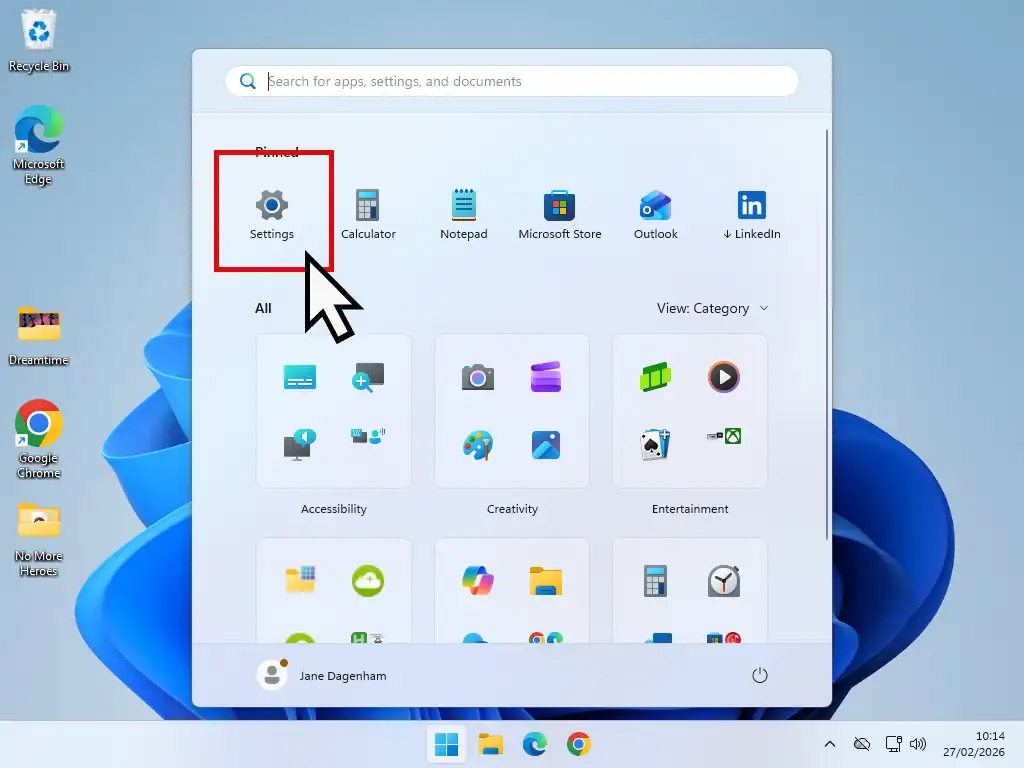
- Click the Start button and then click the Settings icon (gear wheel)
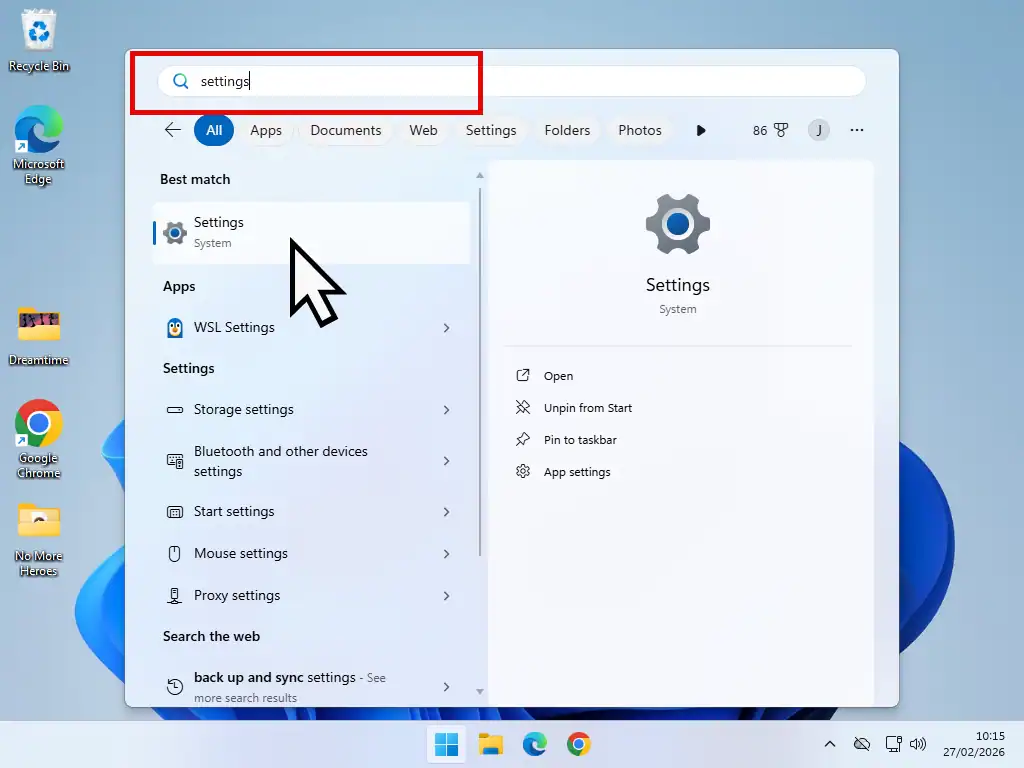
- If you can’t see the Settings icon, search for it by typing “settings“. Click Settings (system).
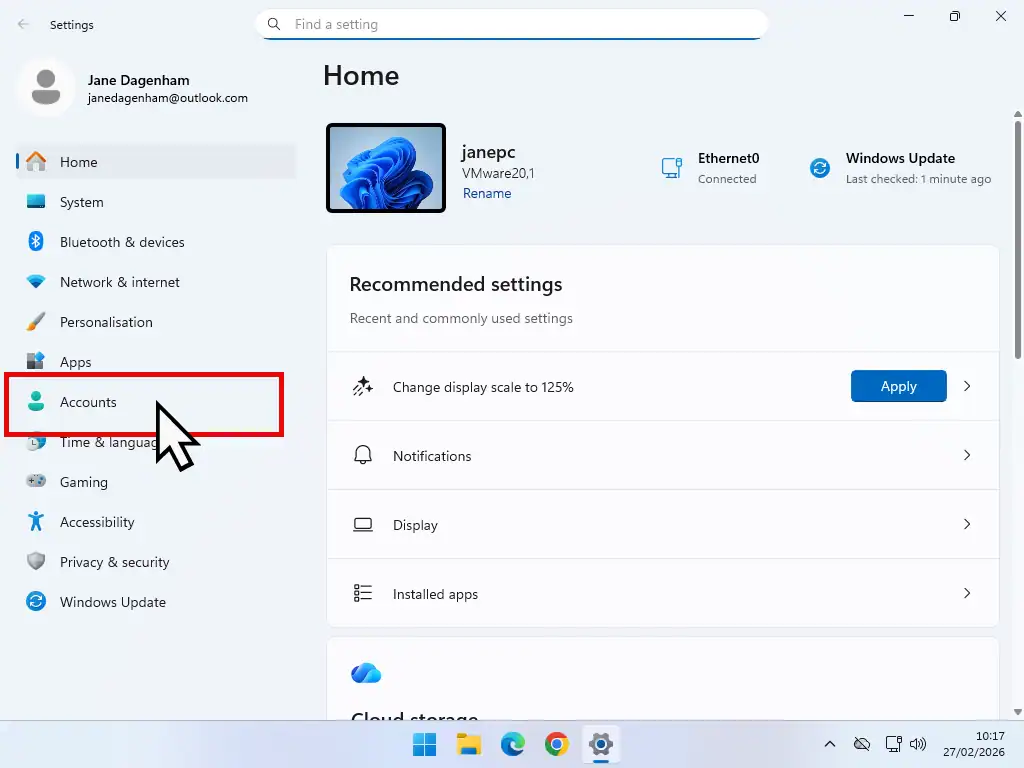
- On the Settings Home screen, click on Accounts in the left hand panel
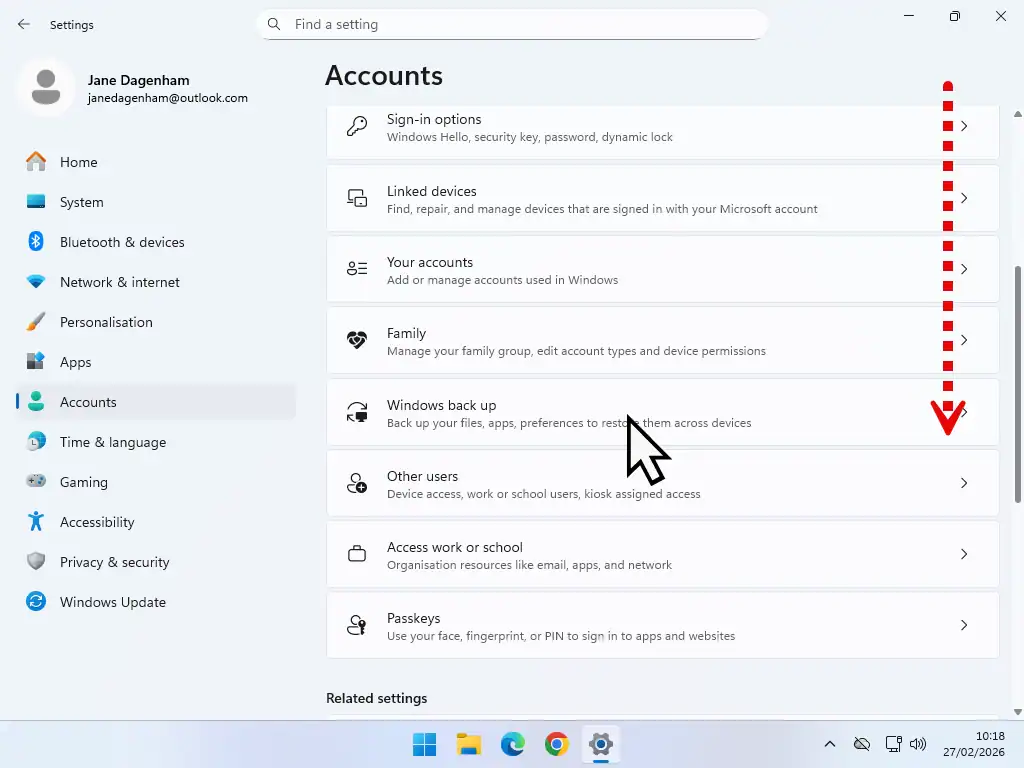
- Then scroll down the Accounts screen and click Windows Back Up.
OneDrive Folder Syncing
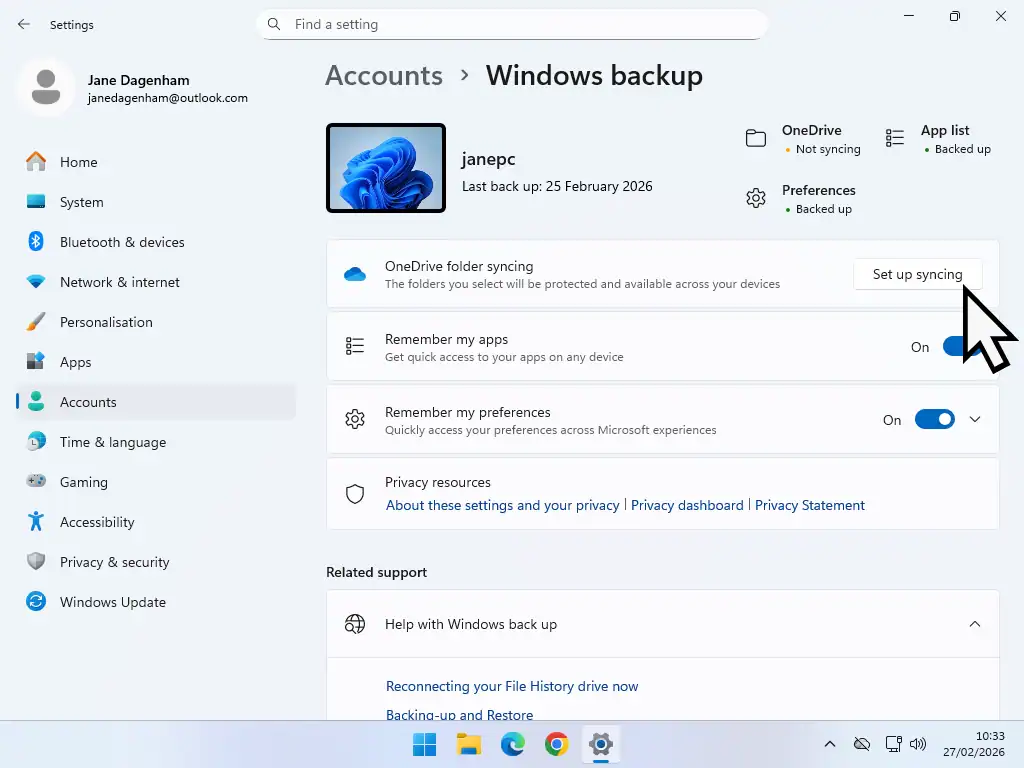
- On the Windows Backup screen click the Set Up Syncing button
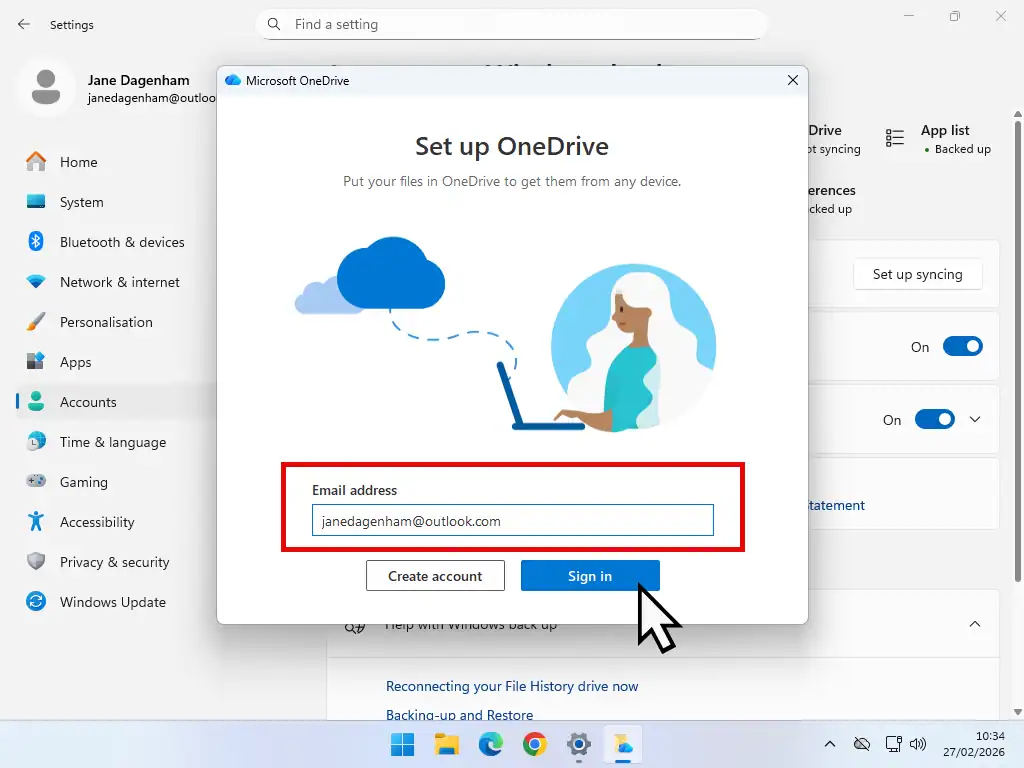
- You’ll need to sign in to your Microsoft account. The Email Address box may be already filled in for you, if it’s not type in the email address that you use for your MS account. Click the Sign In button. You might also need to enter either your PIN that you use to sign in to your PC or your Microsoft password.
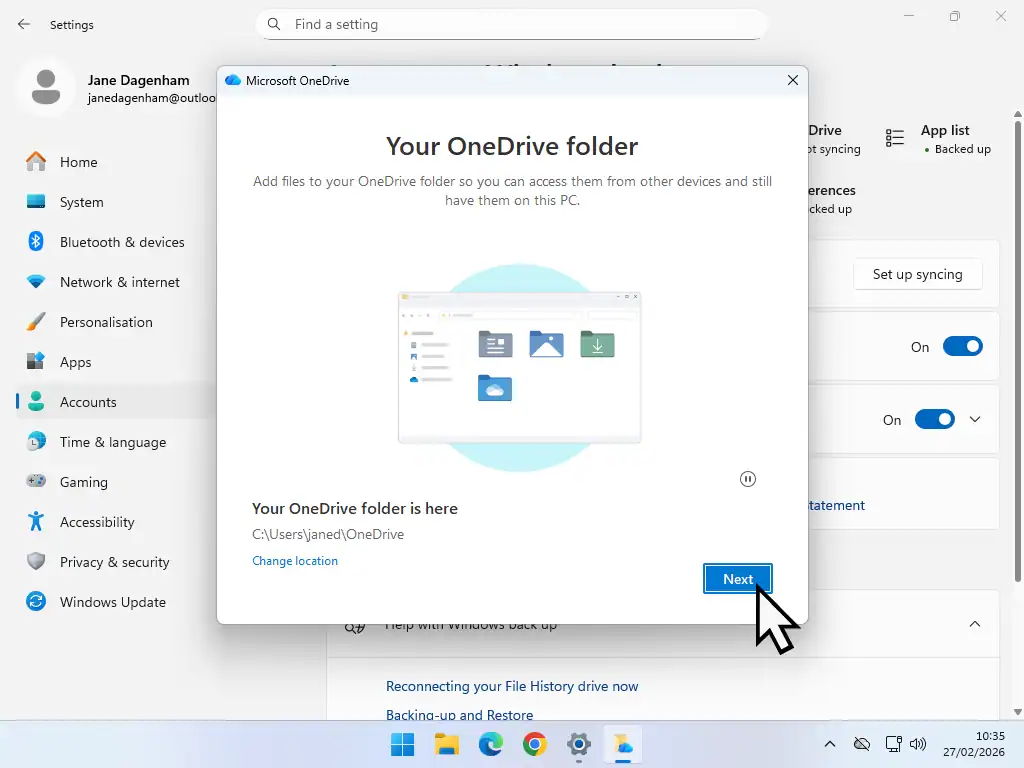
- Your OneDrive folder screen will appear, click Next.
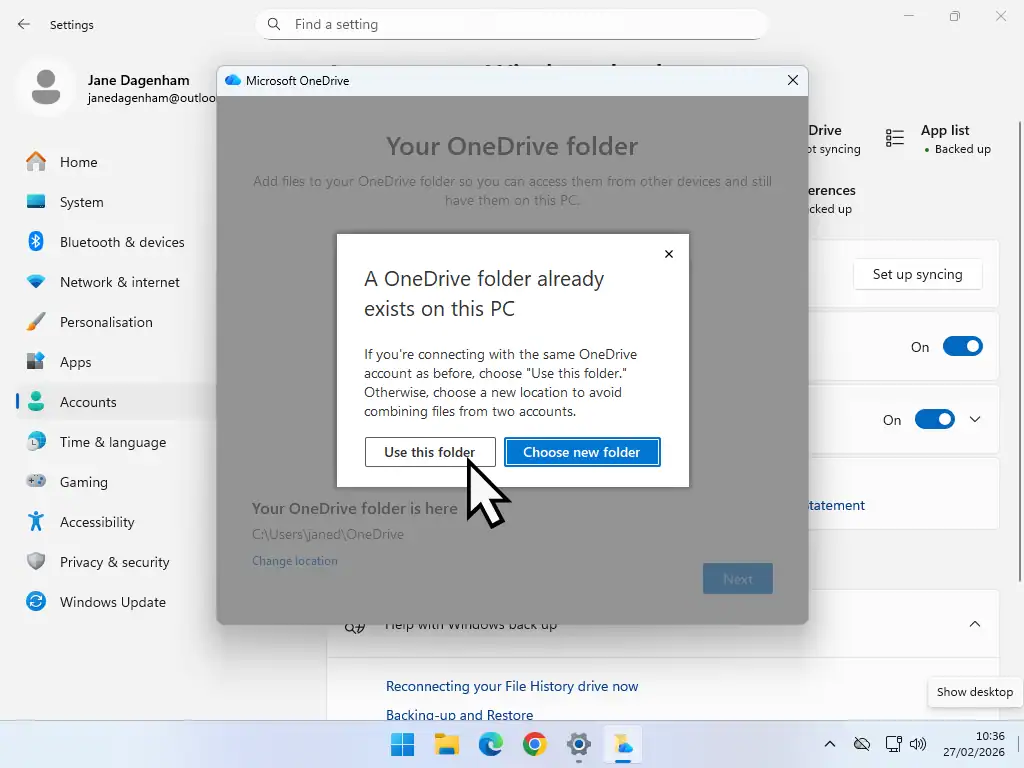
- You might see a popup informing you that the OneDrive folder already exists. If you do then click Use This Folder.
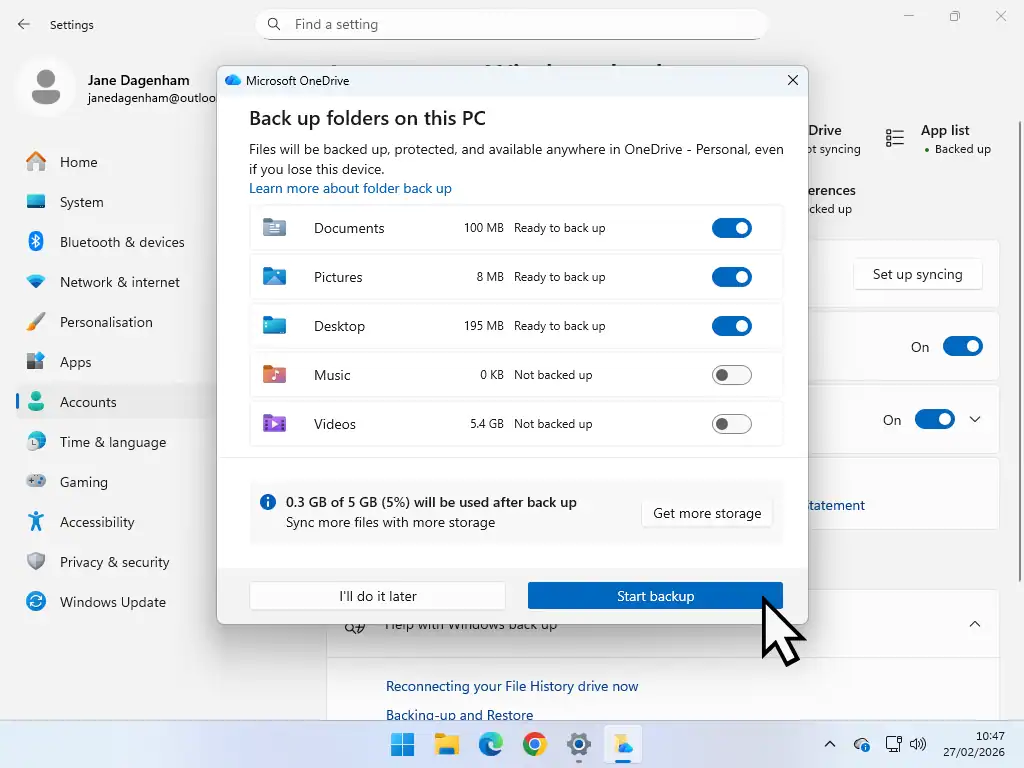
Back Up Folders On This PC
OneDrive will scan your Desktop, Documents and Pictures folders (which are the default folders to backup). It’ll give you a summary of how much space will be used after syncing. With the free plan you get 5 GB of storage, so assuming that these three folders total less than 5 GB you can click the Start Backup button.
You can also add your Music and/or Videos folders by clicking on their respective toggle switches.
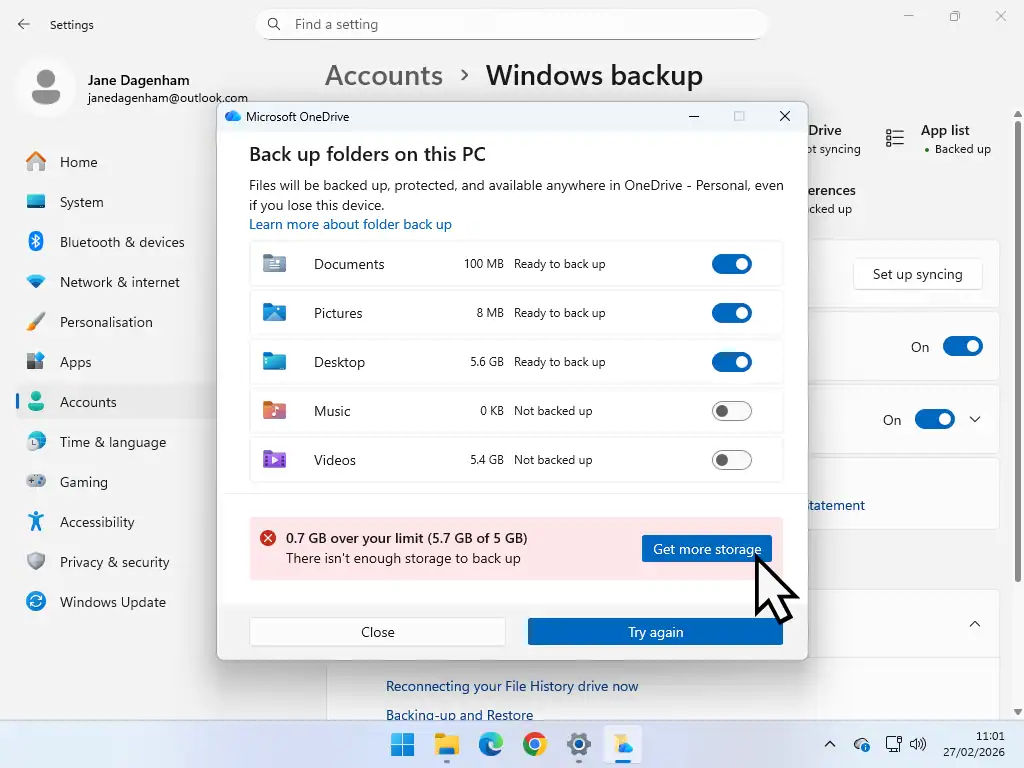
You might find that you get a warning message that you’re over your OneDrive storage limit. If this happens you have a few options.
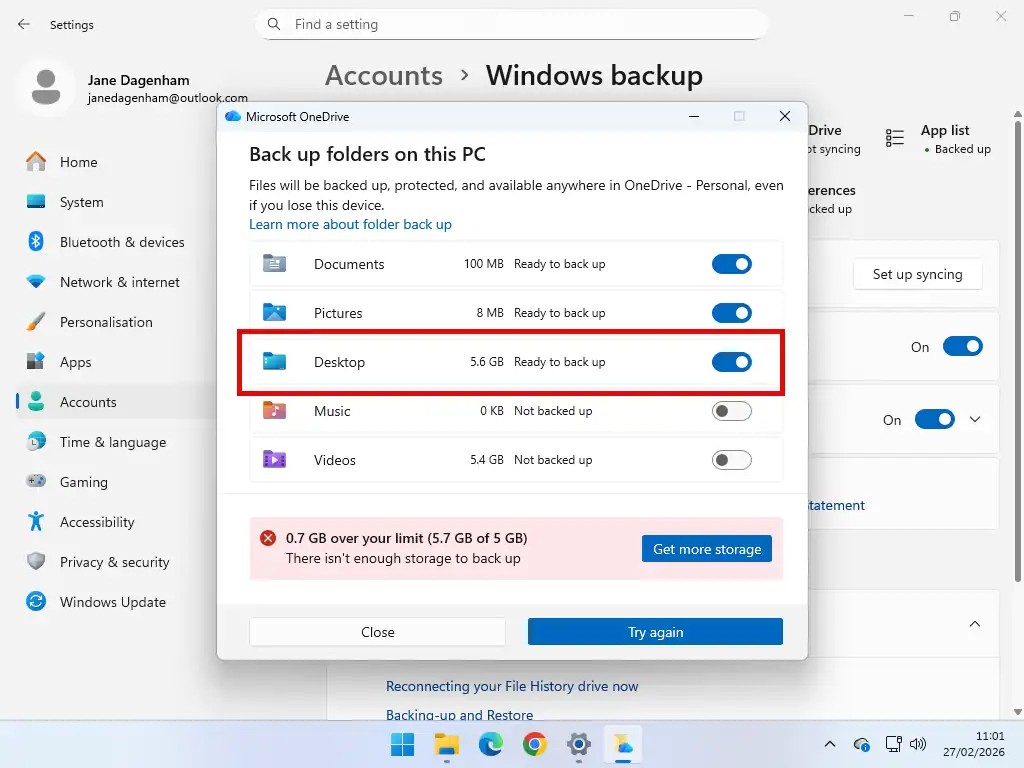
Over Your OneDrive Limit
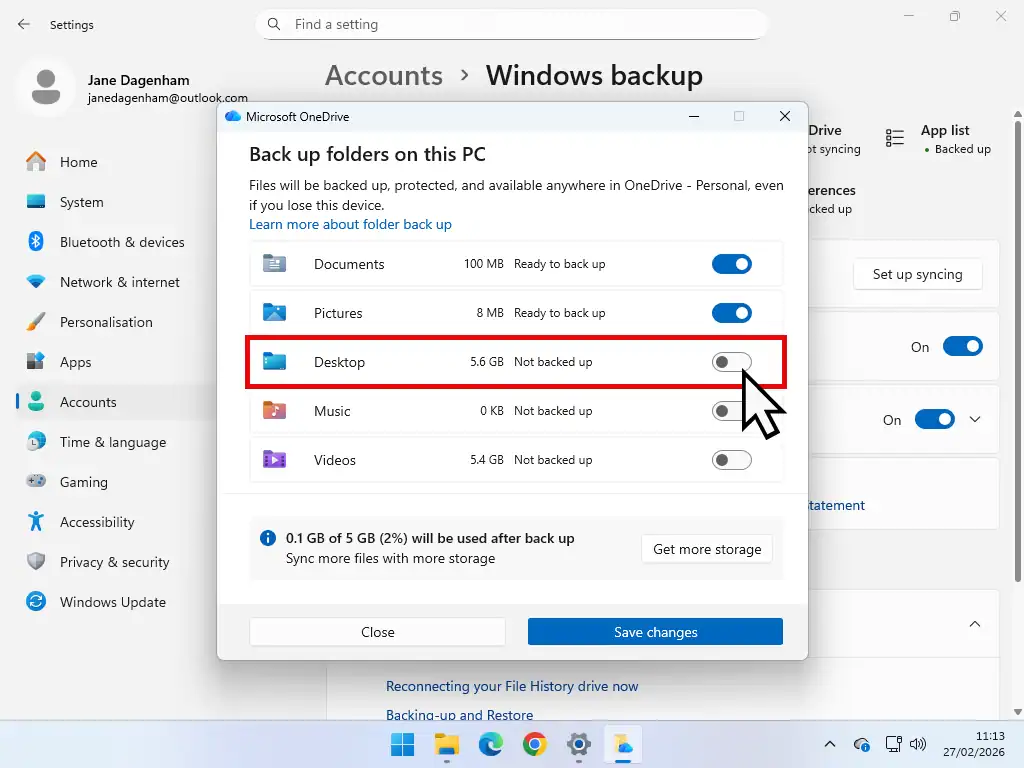
If you find that one or more folders are pushing you over your OneDrive storage limit there are a couple of things you could do.
- Buy more storage space – It’s the obvious thing to do and the one Microsoft would like you to do. If you’re interested then click the Get More Storage button.
- Deselect the oversize folder – Click the toggle switch to deselect the folder that’s pushing you over your limit. You can do that but whichever folder it is won’t be backed up.
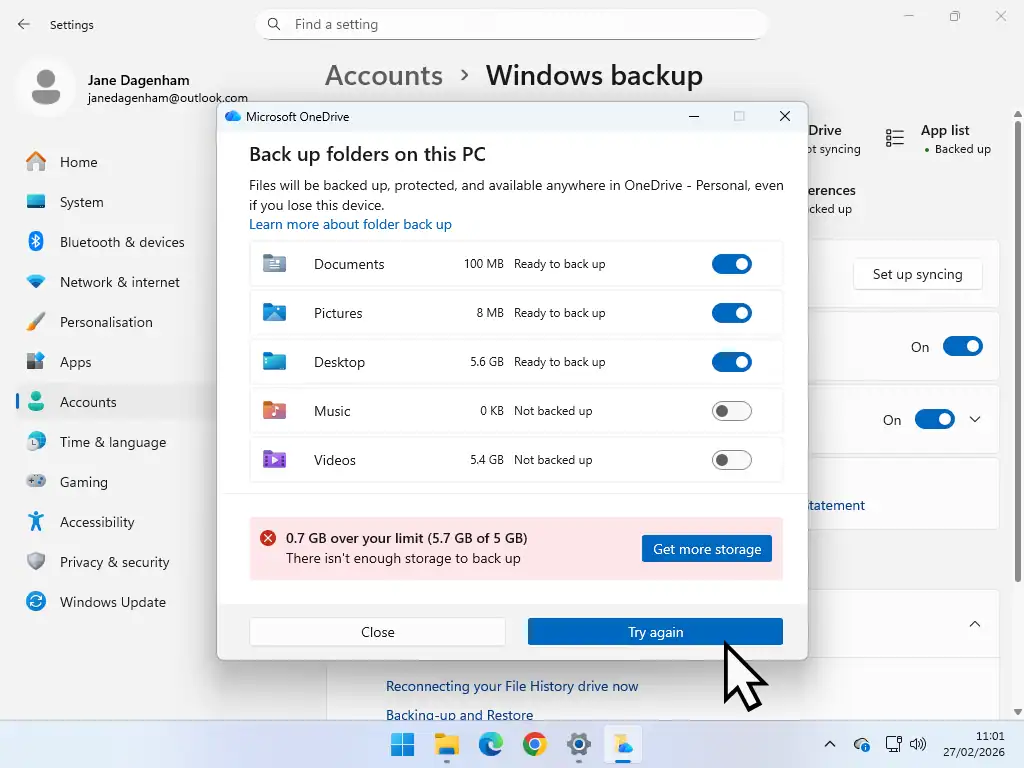
- Move items out of the folder – Use cut and paste to move large files and folders out of the oversized folder. Once this is done click the Try Again button to have OneDrive recalculate how much storage will be needed.
If 5 Gb Is Not Enough For You
There are other ways to backup your files to the cloud. If 5 GB just isn’t cutting it for you consider using Google Drive for Desktop. It’s very similar to OneDrive with a couple of key differences. Firstly you get 15 GB of free storage space and secondly you have more control over what gets backed up.
OneDrive Backup – Always Keep On This Device
In this guide we’re setting OneDrive up as a backup. By default OneDrive will move at least some, if not all, of your files into the cloud. It’ll move them from your computer in to your OneDrive storage. That’s not really a backup since you’ll only have one copy of each file. A backup consists of at least 2 copies. But with OneDrive you often only have a single copy stored in the cloud.
To use OneDrive as a backup for your files you need to change a setting so that it’ll keep a copy both on your PC and in the cloud.
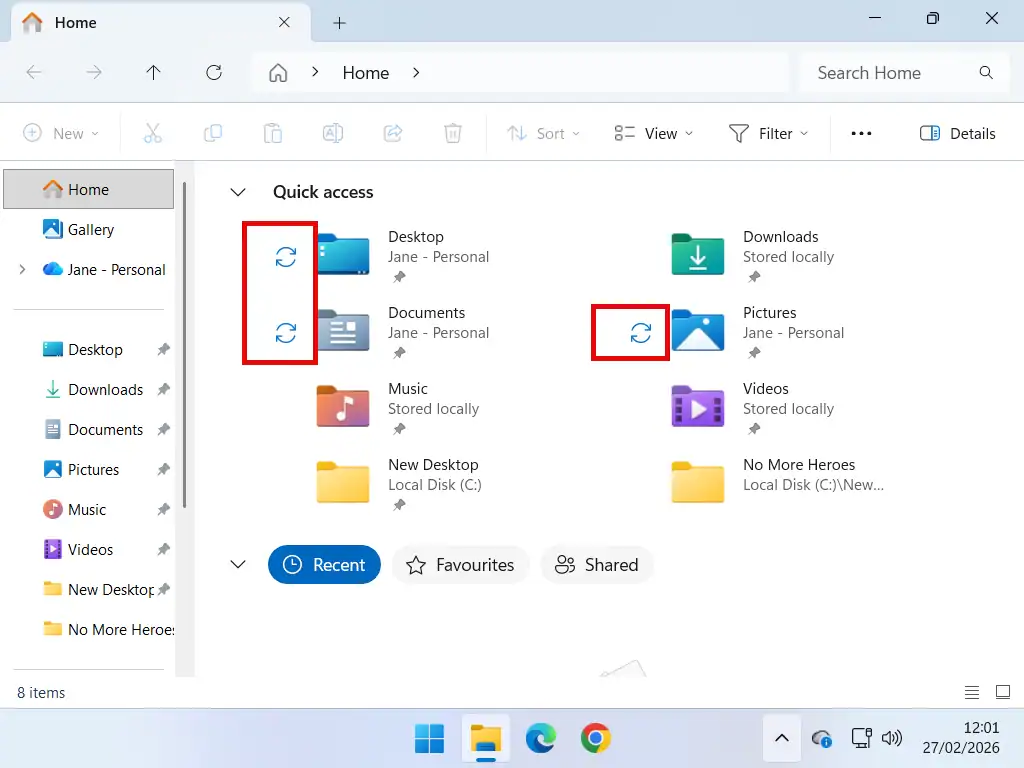
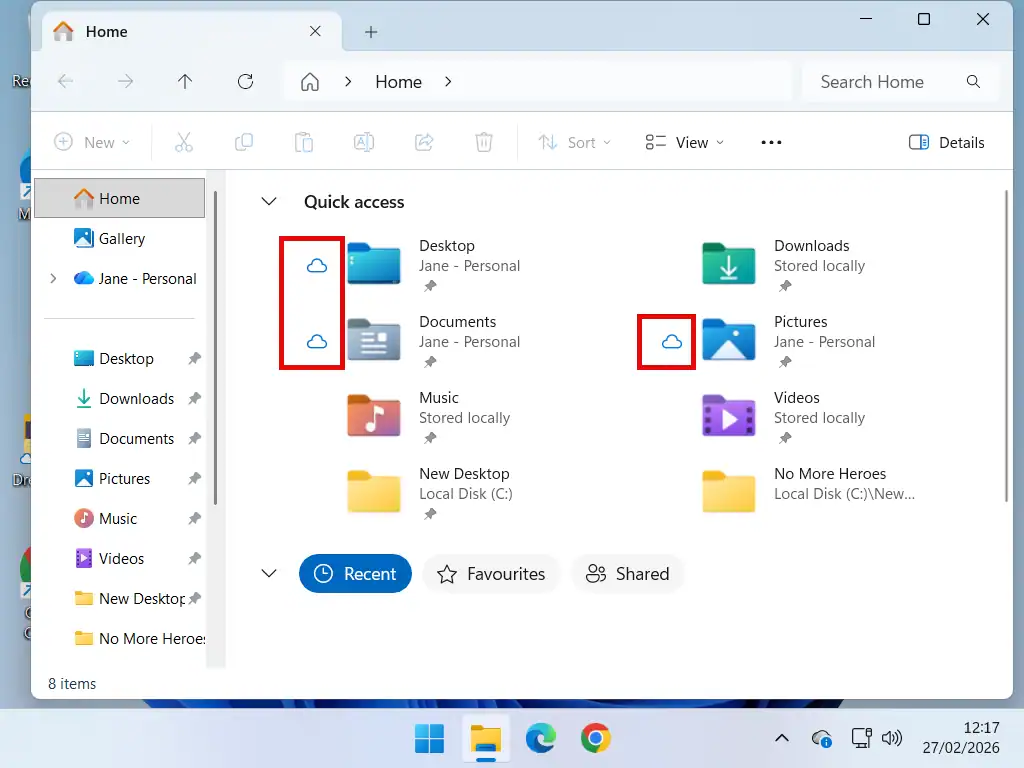
Open File Explorer and take note of the OneDrive status symbols beside your backed up folders.
If you see 2 blue curved arrows, then OneDrive is still syncing your folders to the cloud. Give it a few minutes and refresh the page.
OneDrive Status Symbols
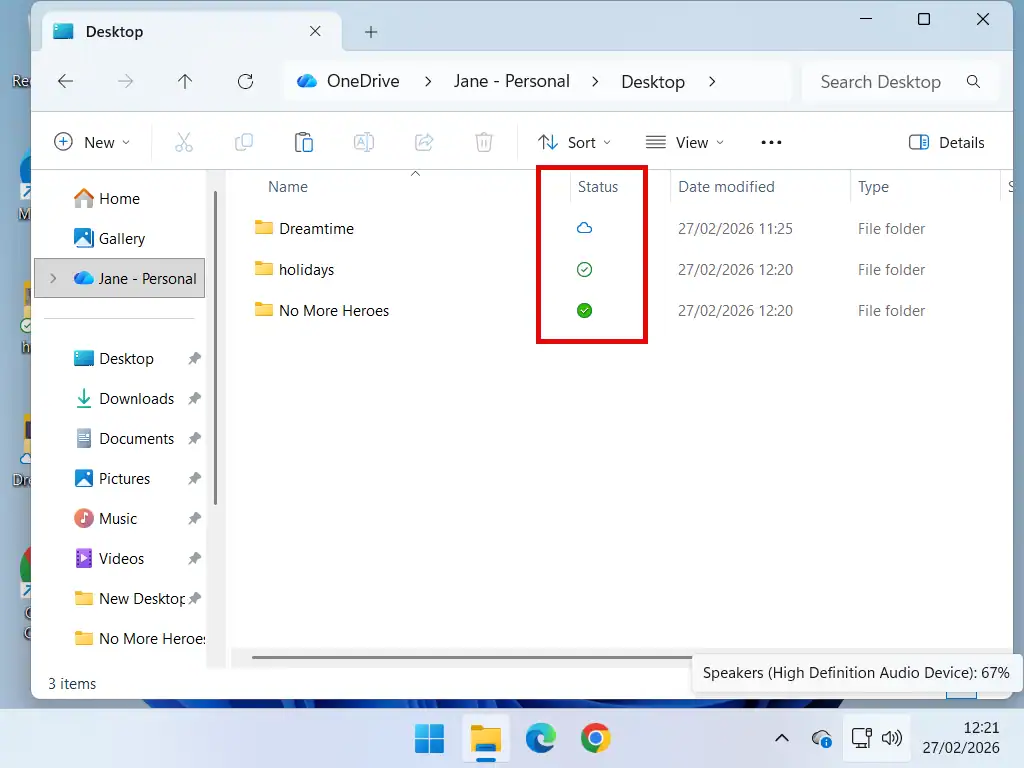
Once OneDrive has finished syncing your folders, take a look at the status symbols beside each folder and file. They’re very important when using OneDrive backup.
 The blue cloud icon means the file or folder is stored online only. It’s not on your computer. It also means that you only have one copy of that file or folder. That’s not a backup.
 The Green circle, white background with a green tick means that currently the file or folder is stored on your PC but will be moved to online only after a short period of not being used.
 The Green circle, green background and white tick mark means that the file or folder is stored both locally (on your computer) and also online. In other words, you have an online backup. this is the OneDrive symbol that you want to see for backups.
How To Keep Files On Your PC
To use OneDrive as a backup for your files you have to keep a copy of those files both on your computer as well as in the cloud. In effect you’ll have 2 copies.
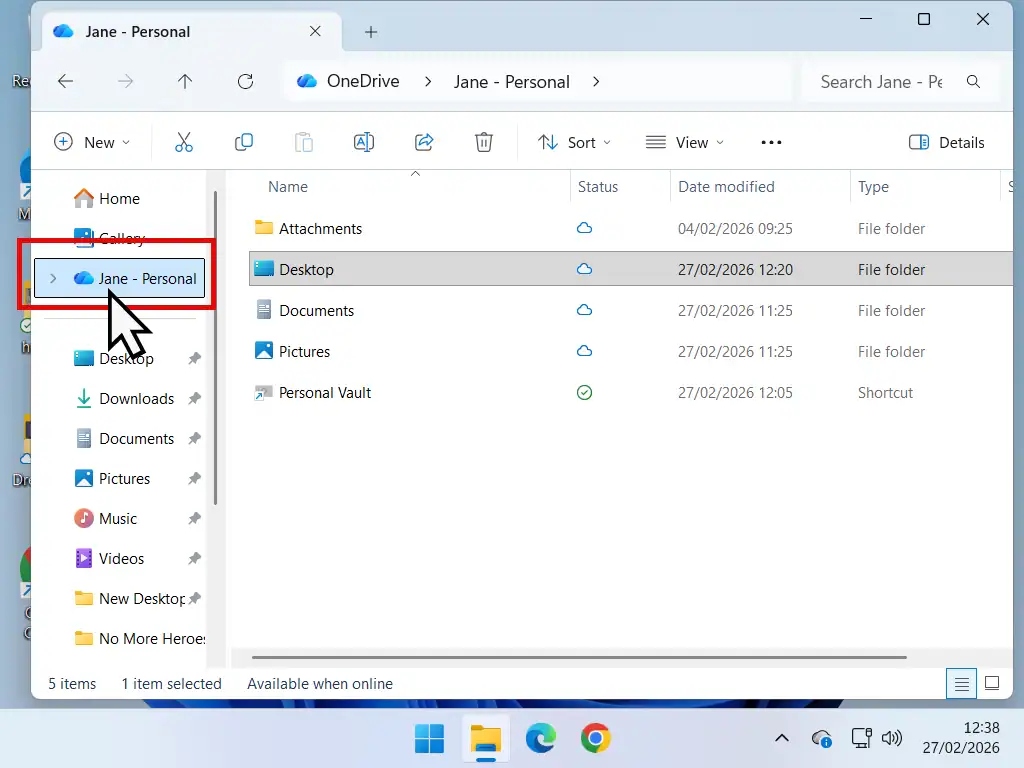
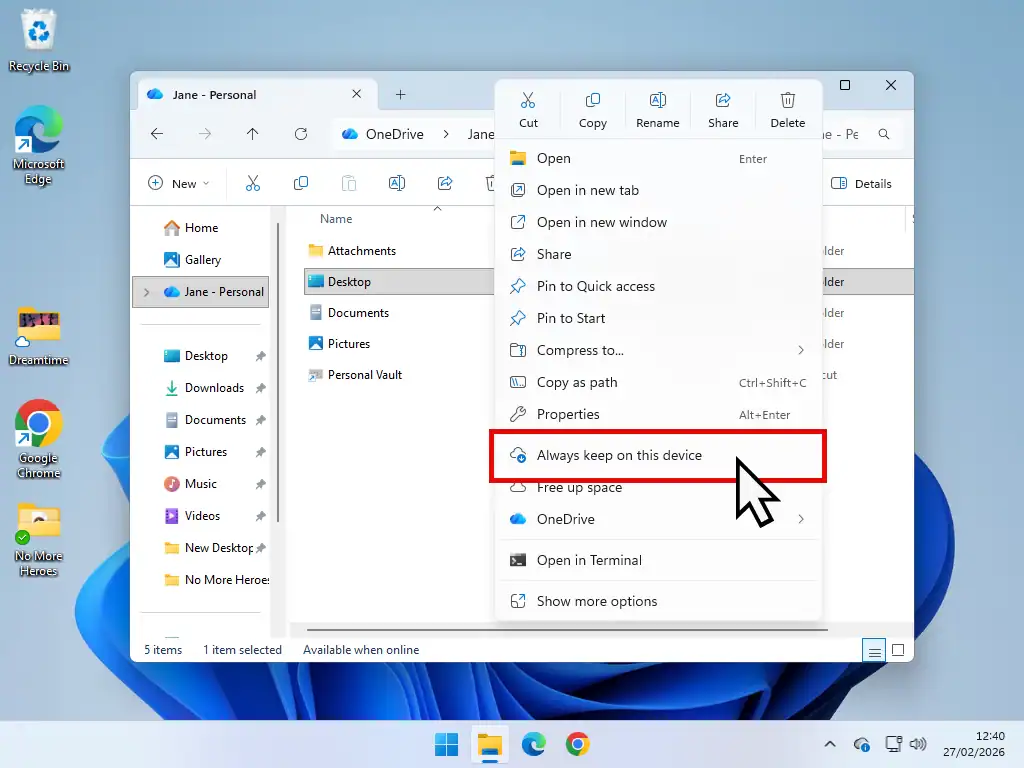
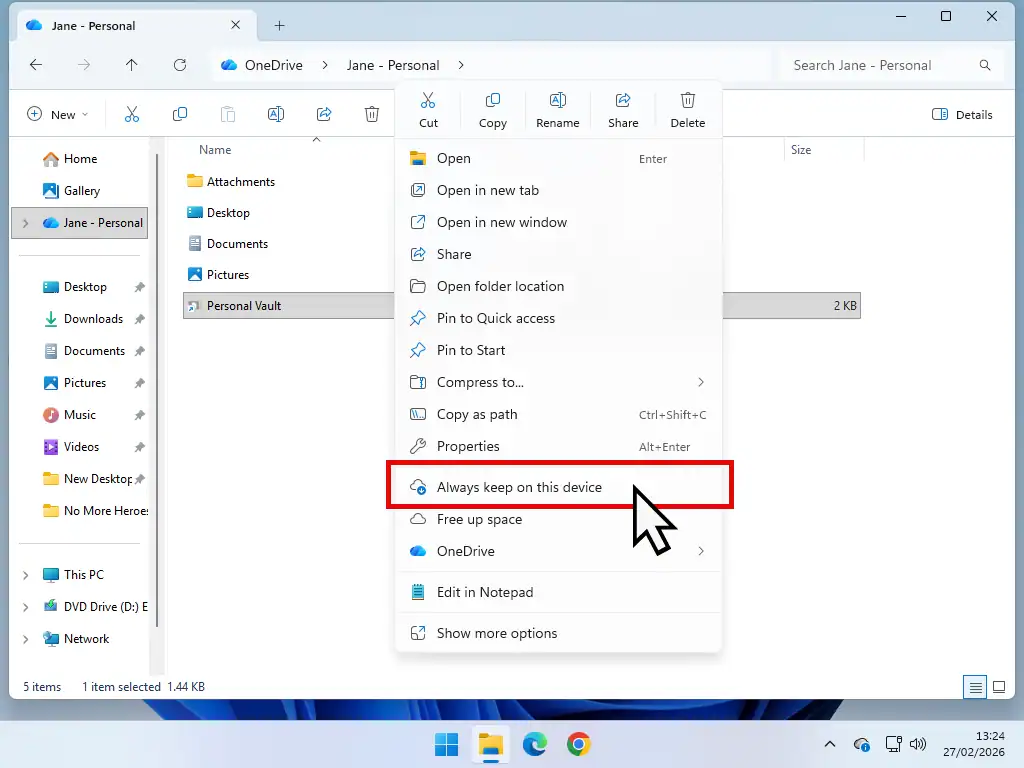
In File Explorer, left click once on your OneDrive folder. Then select a backed up folder in the centre panel and right click on it. On the options menu, left click Always Keep On This Device.
That’ll cause OneDrive to download all the files and subfolders back to your PC whilst also keeping a second copy online. A backup copy.
The OneDrive Personal Vault
Within OneDrive you have what’s called a Personal Vault. The vault is a secure, encrypted area of OneDrive that you can use to backup private, sensitive and personal files. It has to be setup separately and requires a second password or PIN to unlock it.
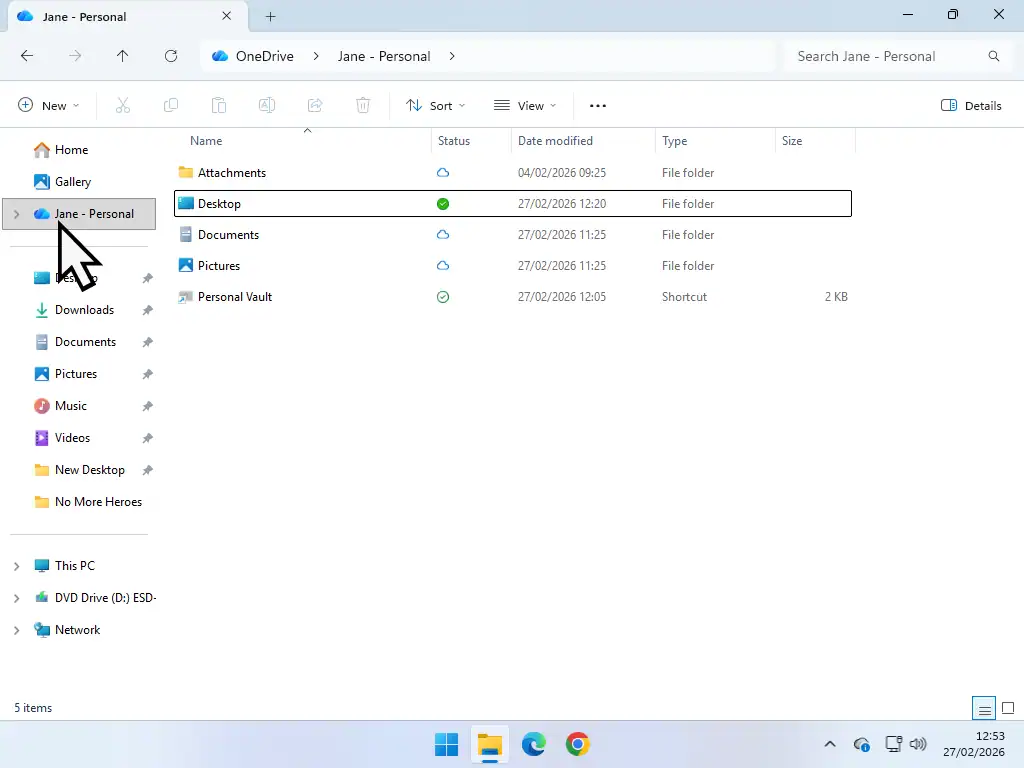
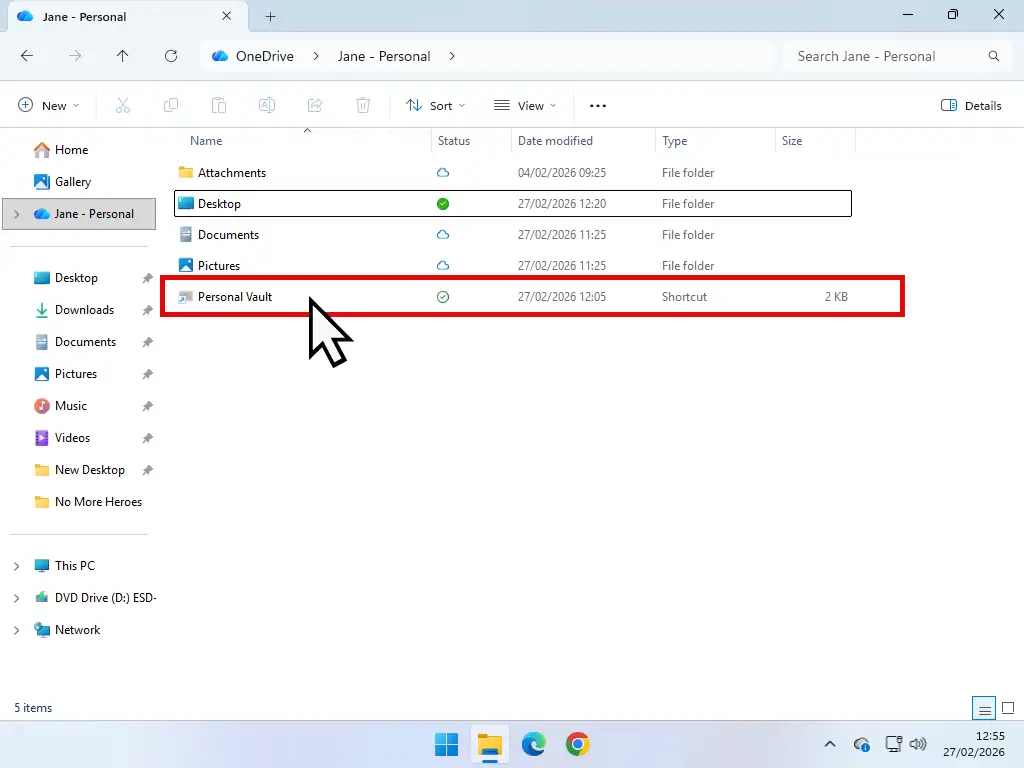
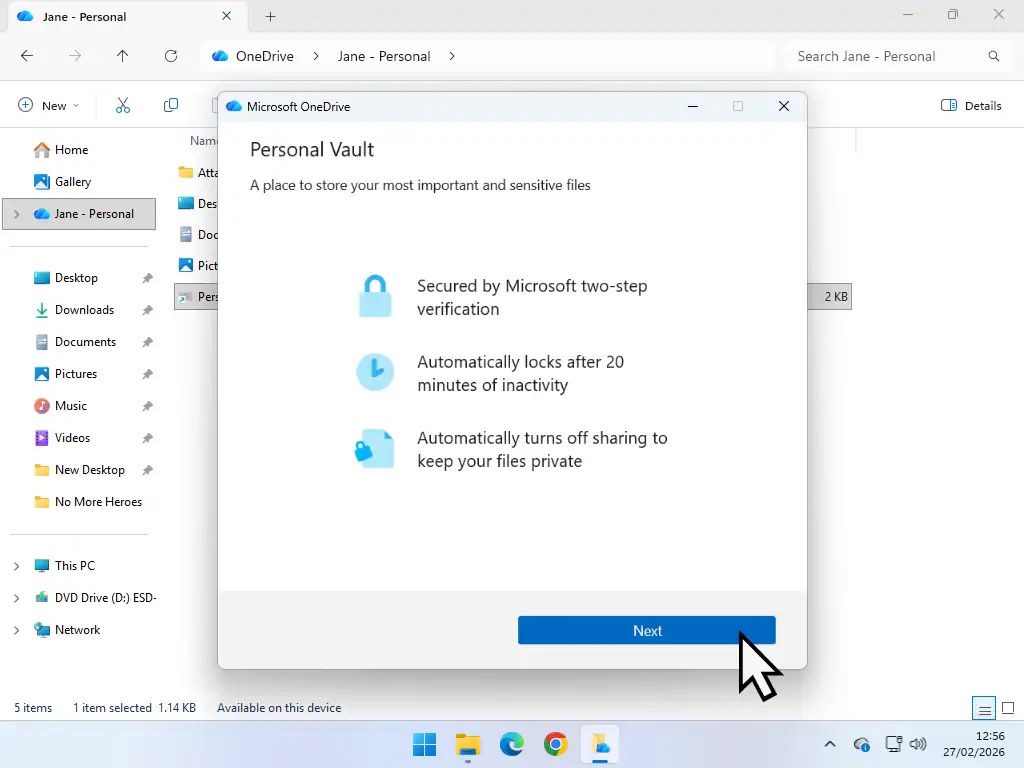
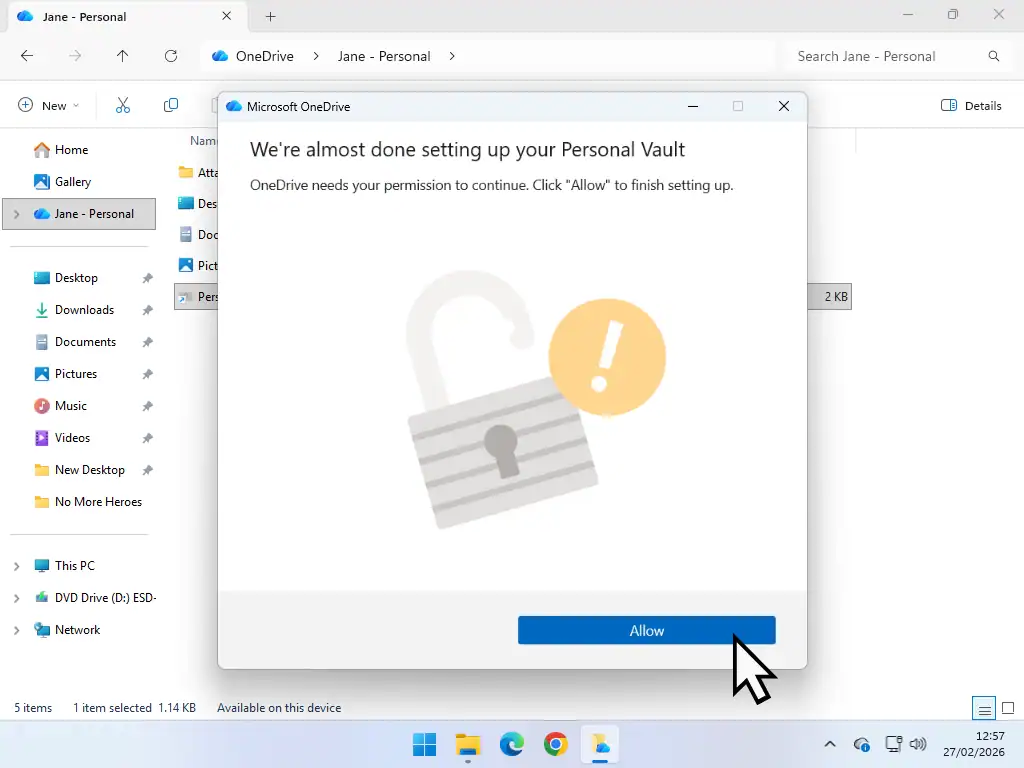
To setup your Personal Vault in OneDrive –
- Open File Explorer and left click on your OneDrive folder in the left hand panel
- In the centre panel double left click the Personal Vault folder
- You’ll see a brief description of what the OneDrive Personal Vault is. Click the Next button.
- OneDrive will need access to your computer. Click Allow.
Sign In With Your PIN
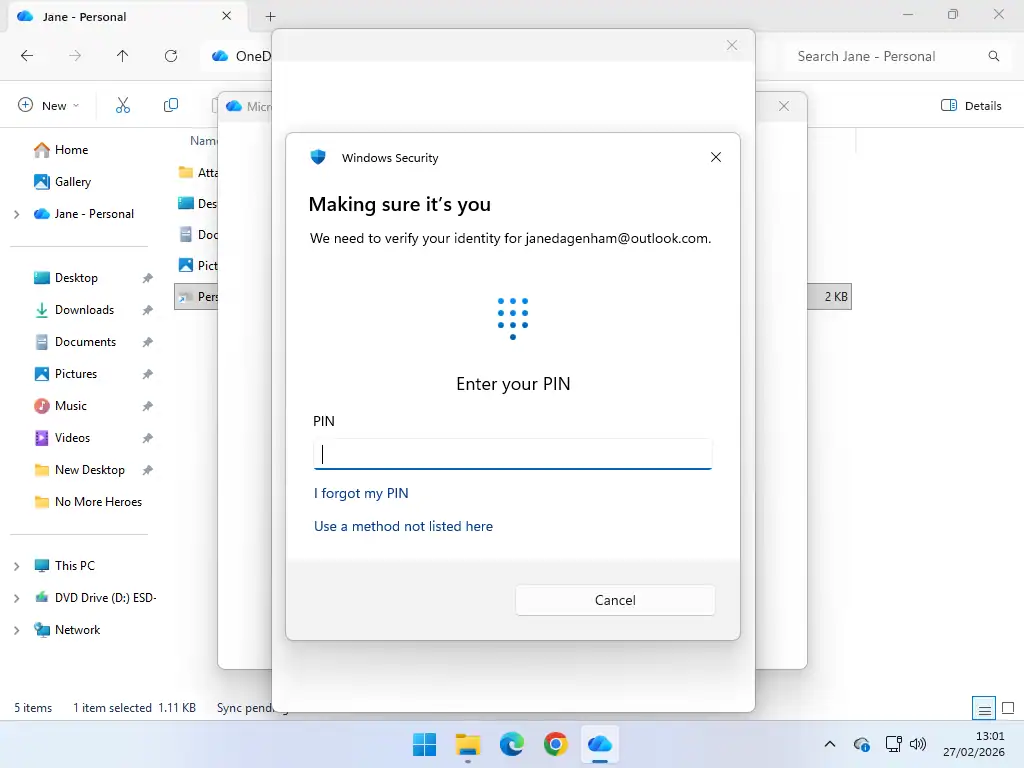
If you sign in to your computer using a PIN number instead of a password, then setting up your vault is very easy. Simply enter your PIN into the box provided and OneDrive will do the rest.
After that, whenever you want to access your vault, just re enter your PIN and it’ll open.
Sign In With A Password
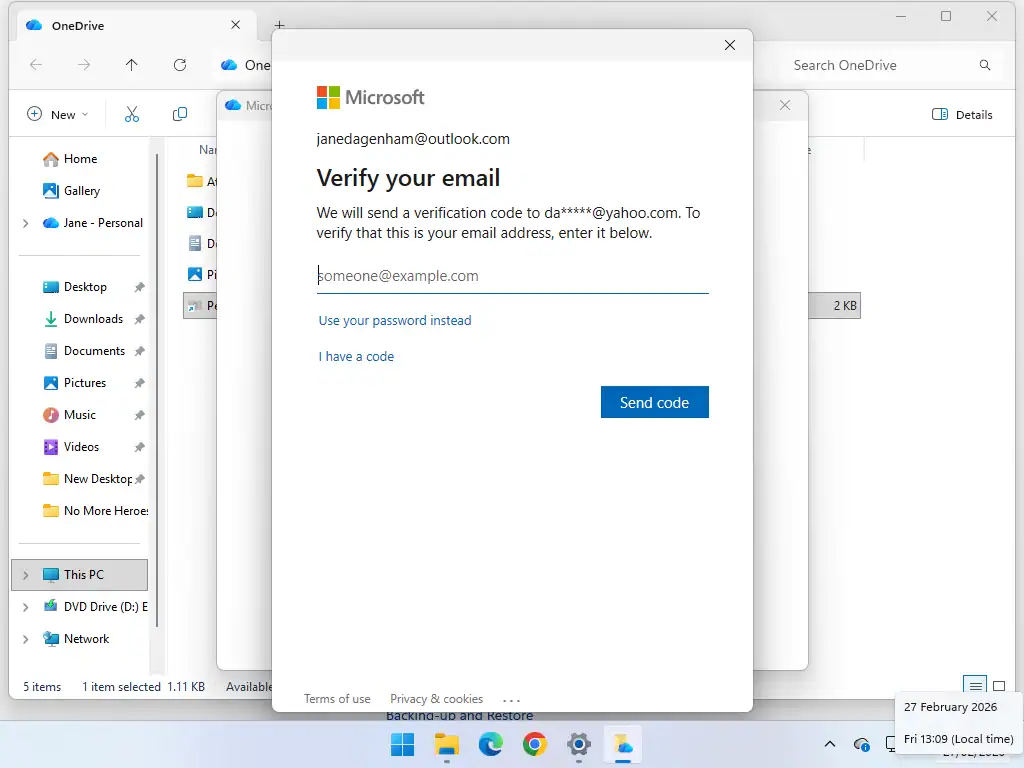
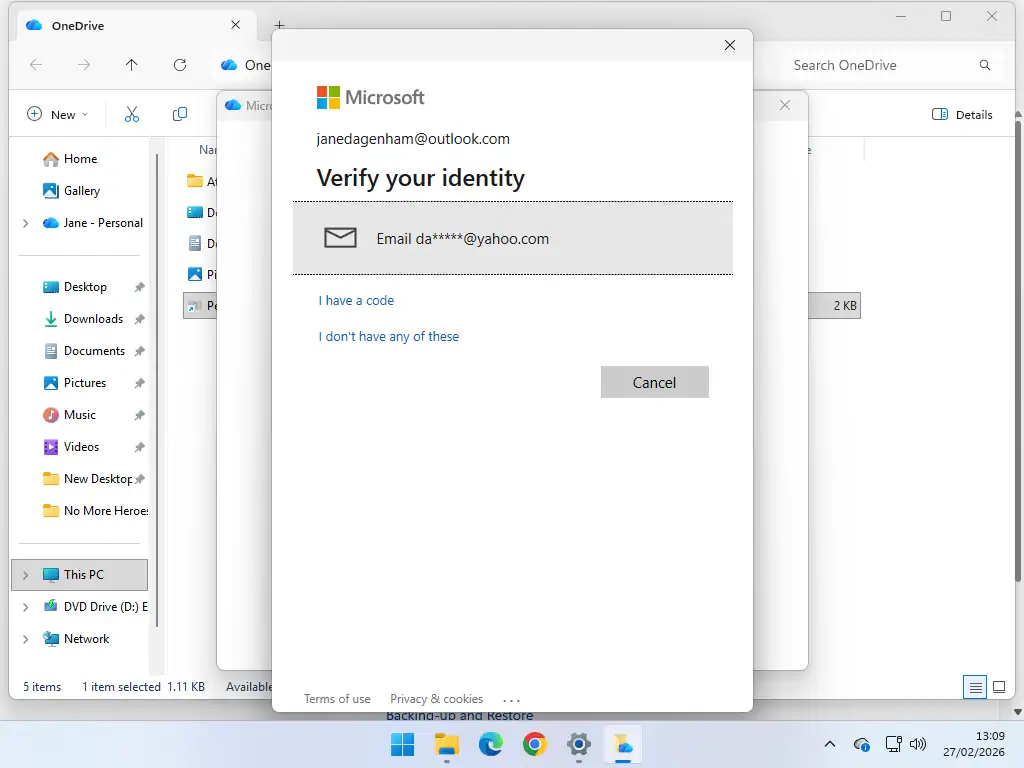
On the other hand if you sign in with your Microsoft password, then you’ll need to verify yourself using some other method such as text message to your phone or a code sent to your recovery email address. This is because Microsoft no longer trust passwords. They can be compromised.
OneDrive Personal Vault Backup
Just as with your other folders, if you’re intending to use the Personal Vault to backup important files and folders you’ll need to change it’s status to Always Keep On This Device to ensure that you have to copies of your important files.
OneDrive Backup
Does OneDrive work as a backup solution? The answer both yes and no. You can use OneDrive to backup files to the cloud, once setup it’s completely automated. Anything saved in to one of the folders covered by OneDrive will be backed up to the cloud.
You can access those files from any device and if something happens to your computer, then simply signing back into your Microsoft account will bring everything from OneDrive back to your computer. In that respect OneDrive works great.
OneDrive also makes sharing files and folders with others easy. For example you could share your pictures with family and friends or collaborate with others when working on a project. Brilliant.
OneDrive Is A Sync Tool
OneDrive is primarily a sync tool. Using it as a backup is can be done but you have to keep in mind that any changes you make to files on your PC will be replicated online. For example, if you delete a file, intentionally or otherwise, that file will also be deleted from your online backup. That’s not what a proper backup does.
Summary
I’d always advise caution when relying on OneDrive as a back up. It has its strengths but also its weaknesses. Always make sure that you’re storing your files on your computer as well as online. Otherwise if you should lose access to your Microsoft account you’ll also lose access to your OneDrive files.
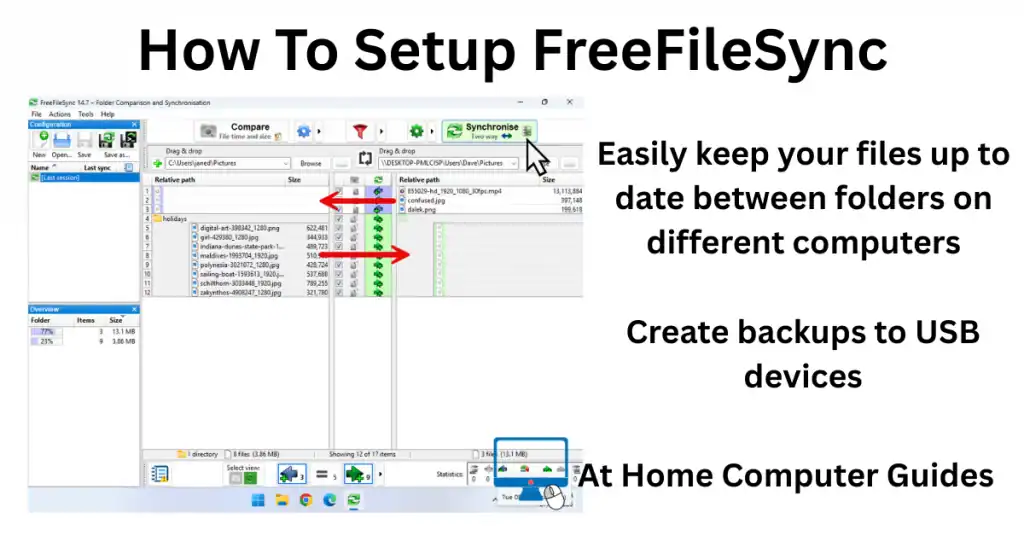
Use another backup solution as well as OneDrive. At least for your most important files. You could use FreeFileSync to make offline backups of your files and folders to USB drives or networked computers.
Related Posts
Windows File History.
You can use Windows File History to backup your files offline to a USB device.
Windows 11 Backup
Create a complete backup of your entire computer for free. Works with both Windows 10 and Windows 11.
5 Steps to Setup a Home Network in Windows 10 and 11.
Connect your laptop to your desktop PC and access, edit or transfer files between the two easily.
Convert An Old PC To A Virtual Machine
As Windows 10 nears the end of its life cycle, many people will be considering buying a new PC. But what then happens to your old computer. It still has all your data and applications on it.
You could save your old machine together with all its data and apps and use it as a virtual computer on your new PC.
Or you could pass it on. In that case, make sure you remove all traces of your activities.