OneDrive is a cloud storage service from Microsoft. It provides a reliable way to store, access and sync your files across multiple devices, e.g. desktop, laptop, tablet and phone. With your Microsoft account you’ll get 5 GB of free storage space. That’s not much but if you’re careful it could be enough.
Microsoft push OneDrive as a backup solution, which it really isn’t and shouldn’t be used as such without knowing how OneDrive works. Read on and I’ll show you what OneDrive is and what it does so that you’ll be able to use it better. and hopefully, not lose your files.
What Is OneDrive
At its simplest, OneDrive is a cloud storage service. Think of it like a hard drive in the sky. Instead of your files only being on your physical computer (desktop or laptop), they’re stored on Microsoft’s secure servers (the “Cloud”).
Because the files are on the internet, you can –
- Access them anywhere – View your documents on your phone, tablet, or another PC from anywhere that you have an internet connection.
- Share easily – Send a link to a large folder of photos instead of emailing them one by one. Your recipient can then click the link and open the folder online.
- Sync automatically – If you change a file on your laptop, the changes show up on your desktop automatically. It’s this last option that can make using OneDrive dangerous, but we’ll get to that later.
Where Is OneDrive On A PC
There are 3 ways to access OneDrive on your computer –
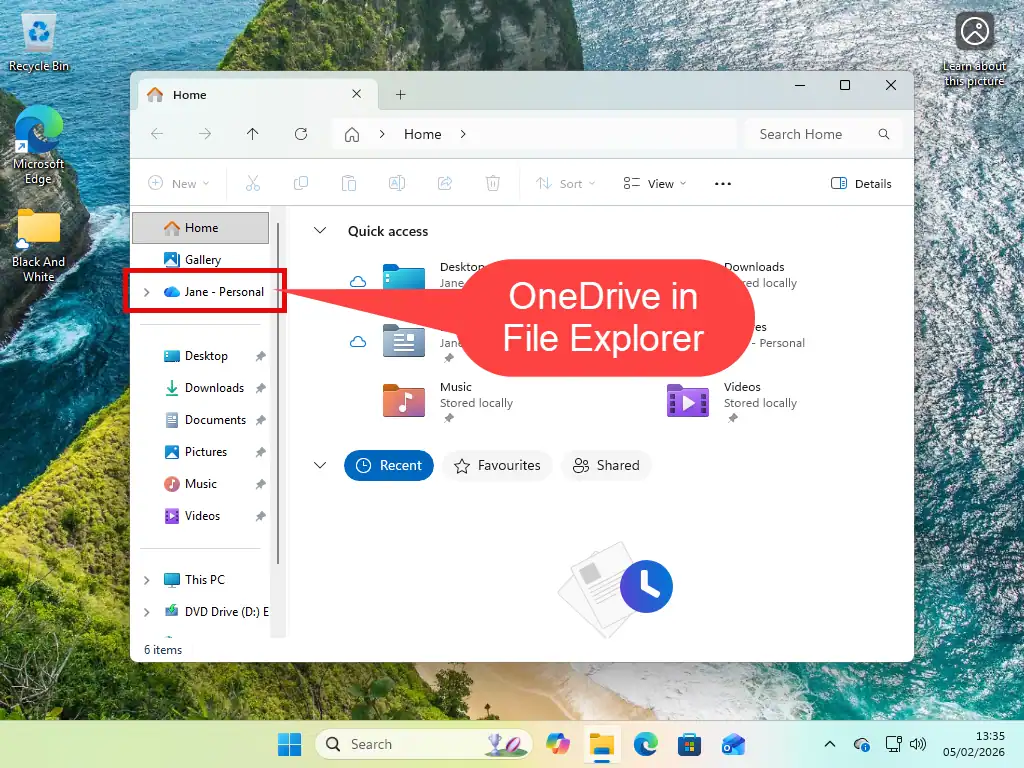
- Open File Explorer (Windows key + E) and you’ll see OneDrive in the navigation pane.
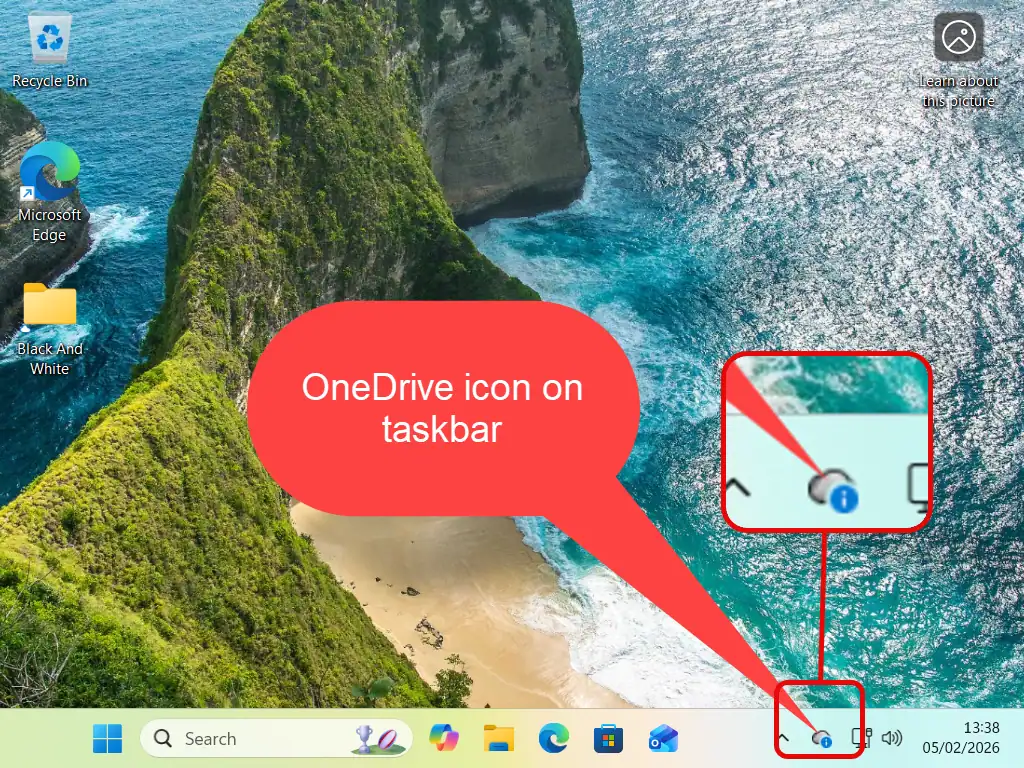
- On your Windows taskbar in the right hand corner (it’s the grey cloud icon). Sometimes you need to click the hidden icons arrowhead.
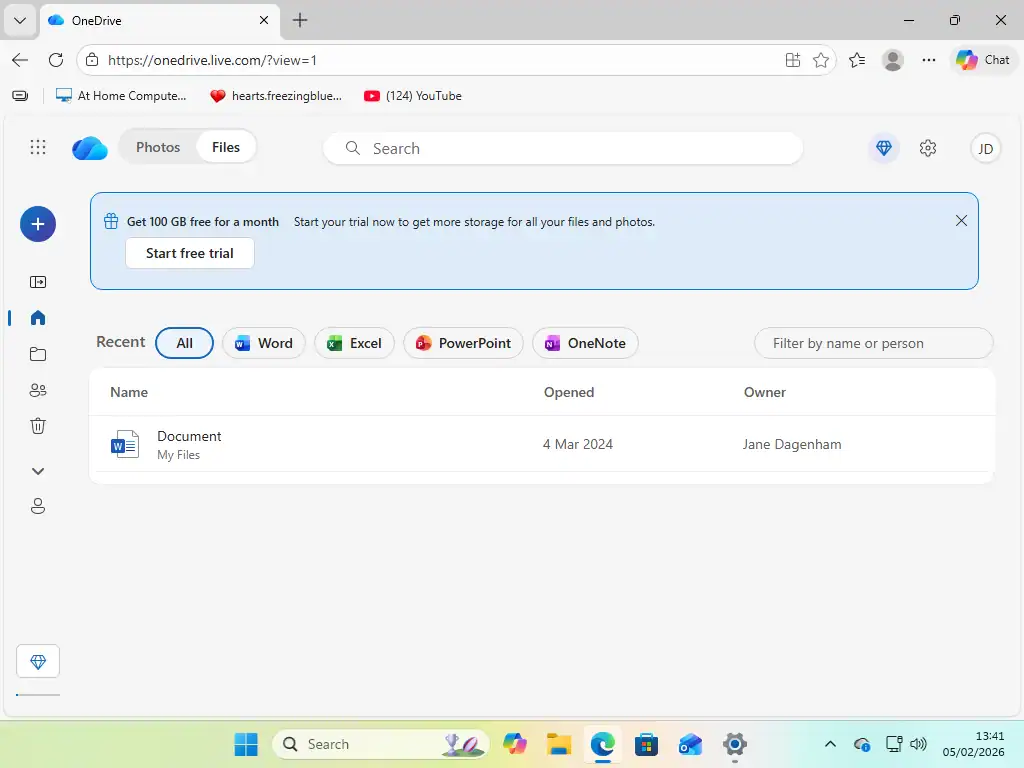
- Using your web browser, go to OneDrive.com and log in with your Microsoft account.
How Does OneDrive Work On A PC
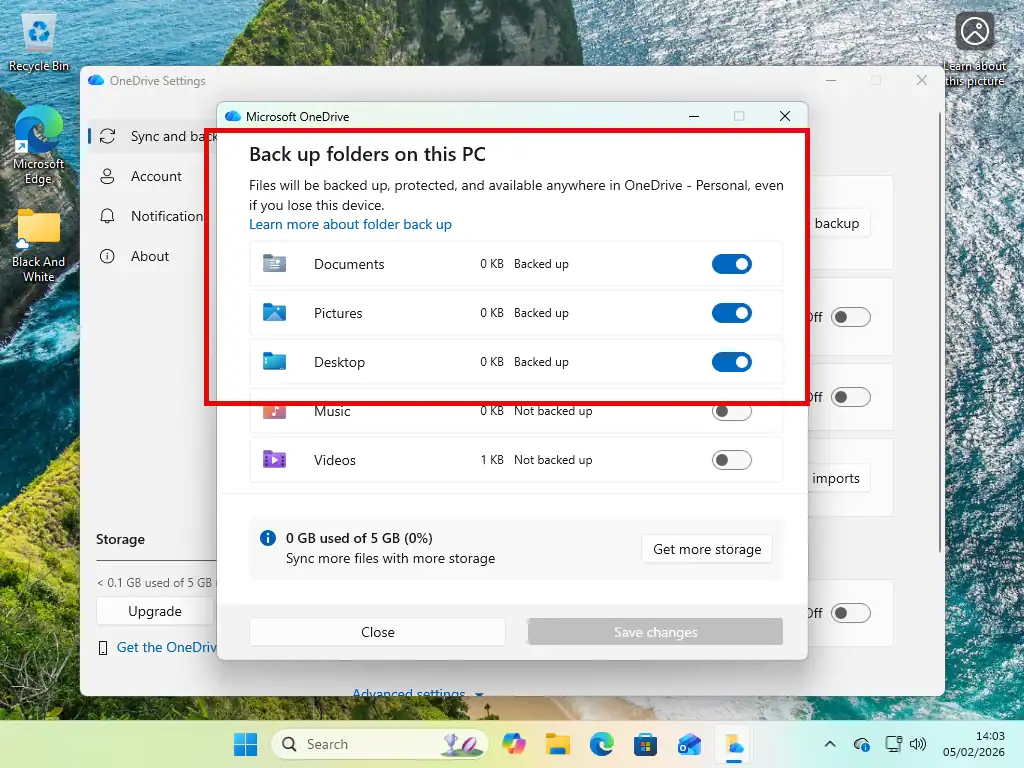
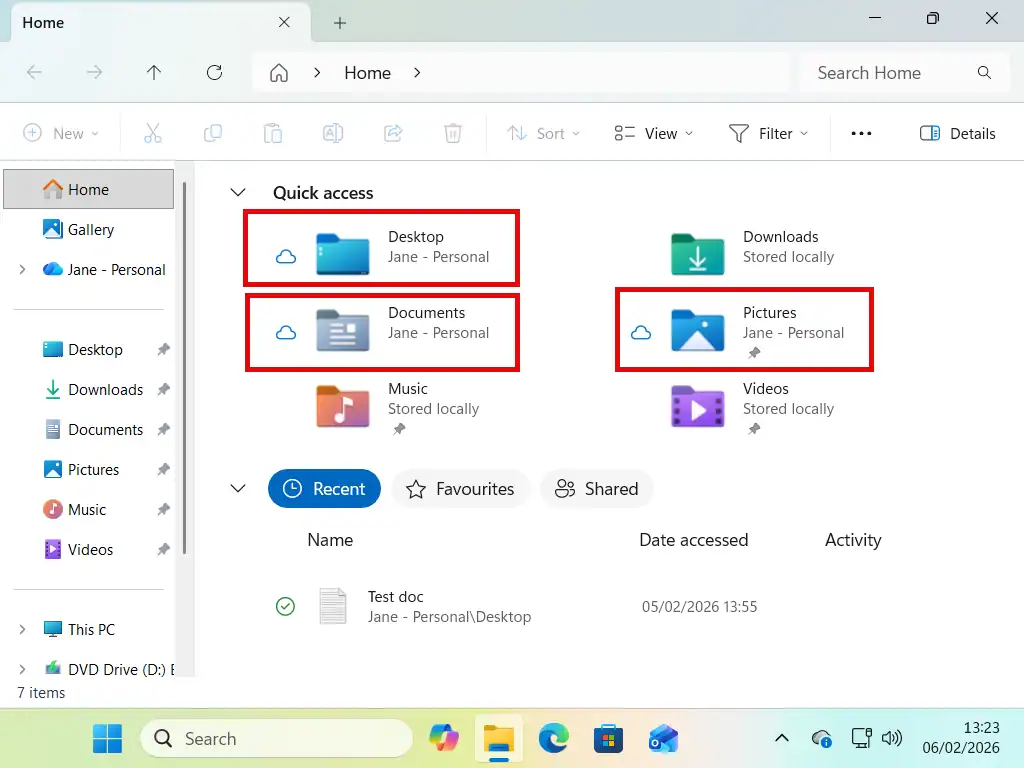
In it’s default setup, OneDrive will sync your Desktop, Documents and Pictures folders to Microsoft’s servers in the cloud automatically.
It doesn’t need you to perform any actions, your files will be synced to the cloud.
Syncing Across Devices
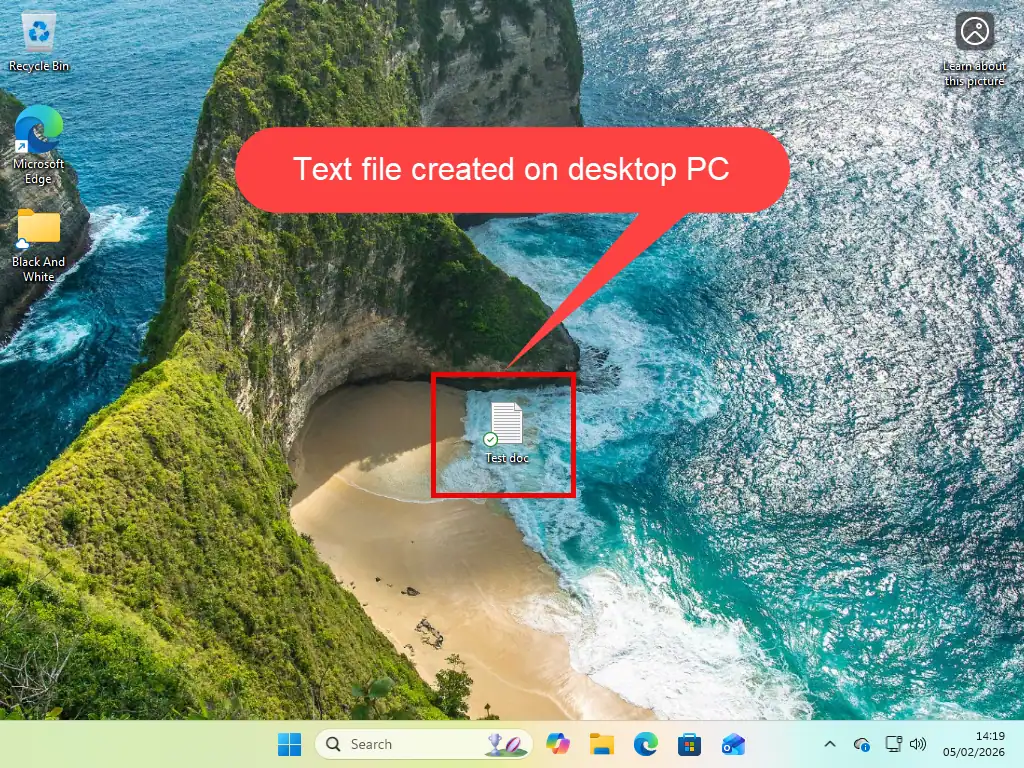
Any files or folders that you create or save in either your Desktop, Documents and Pictures folders will automatically be available on any device where you’re signed in with your Microsoft account.
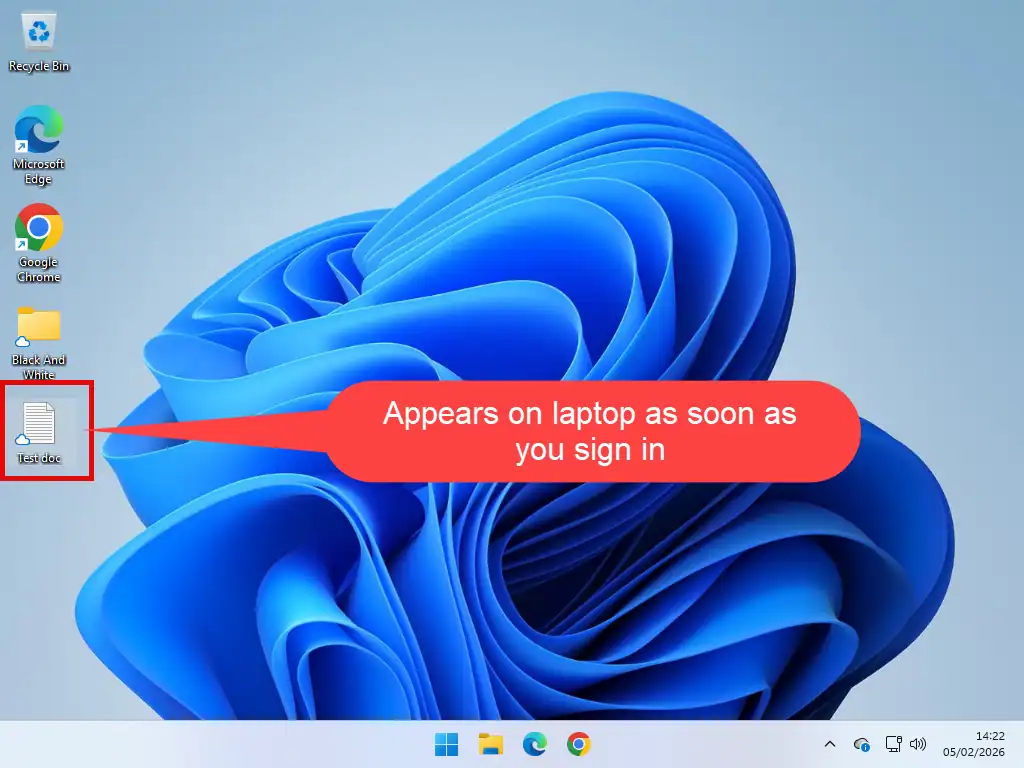
For example, if you saved a new file to your desktop PC, it will appear on your laptop computer as soon as you sign in on that machine. And the same will happen vice versa.
That’s what syncing is. It keeps nominated folders in sync, i.e. the contents of those folders will be exactly the same. All the files and sub folders a synced folder will be propagated to the folder on the other end of the sync.
In OneDrive’s case that’d be your Desktop, Documents and Pictures folders. In this respect OneDrive does a great job. And you can also have OneDrive on your phone, tablet or Mac.
The Hidden Problem With OneDrive Backup
So this is where many users come unstuck. It’s a common mistake made by people using OneDrive.
In it’s default setup, OneDrive “moves” all the files and folders contained inside your Desktop, Documents and Pictures folders into the cloud, to Microsoft’s servers.
It doesn’t just copy your data, as would happen with a standard backup solution, OneDrive moves these folders, along with all the data inside them online.
That means that if you lose your internet connection, or access to your Microsoft account, then you won’t be able to get your files back.
They’re gone.
Losing Access To Your Microsoft Account
All your data, your files and folders, are stored in your Microsoft account. If you lose access to your account, usually because you’ve forgotten your account password, then all your data is effectively gone. You won’t be able to retrieve it.
OneDrive Status Symbols
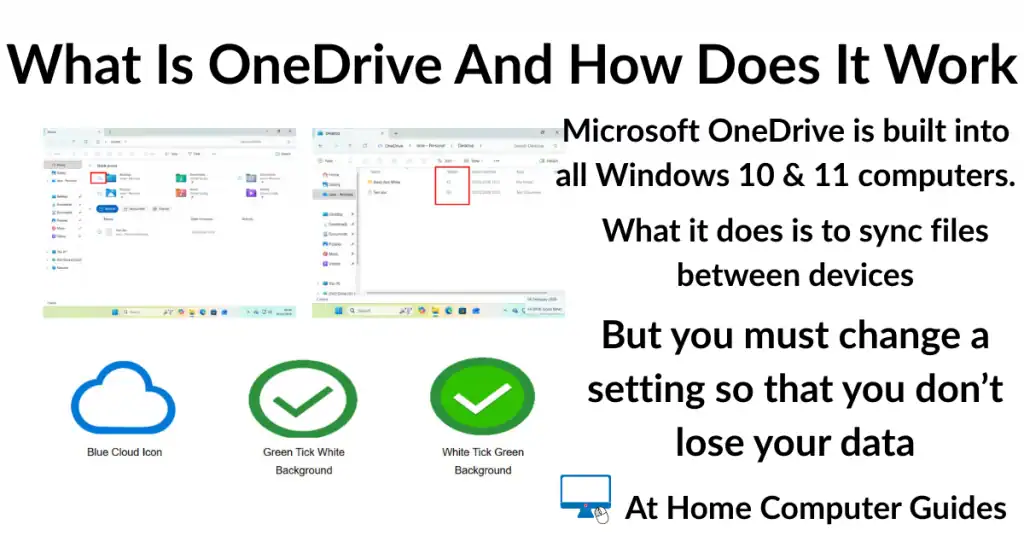
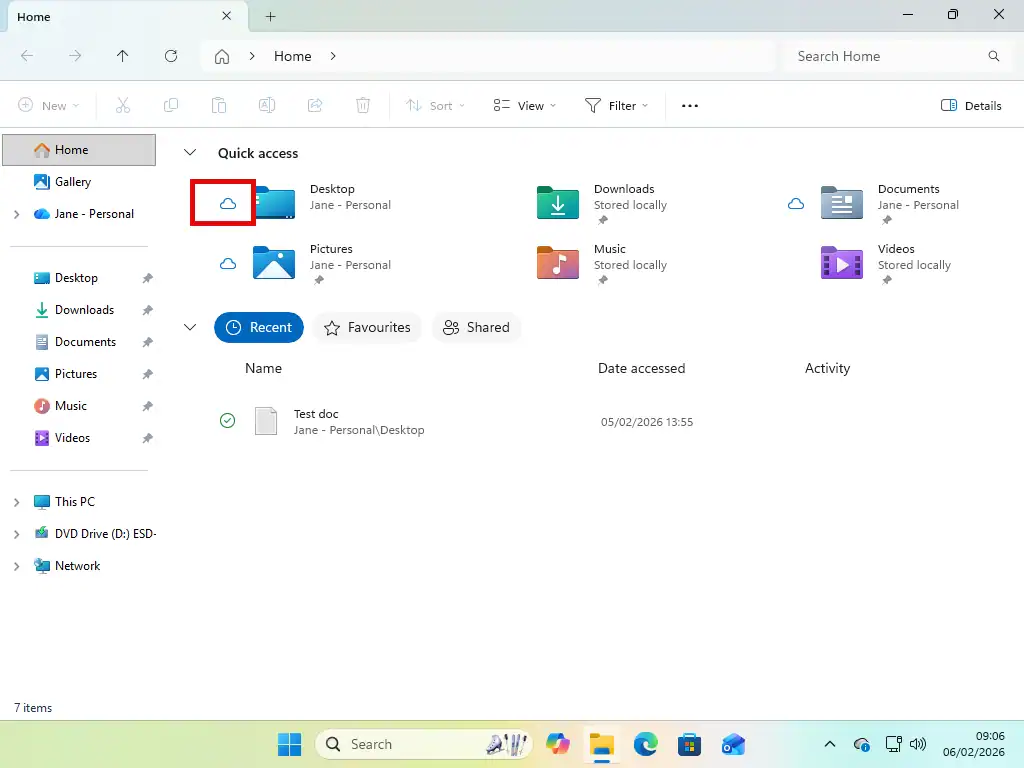
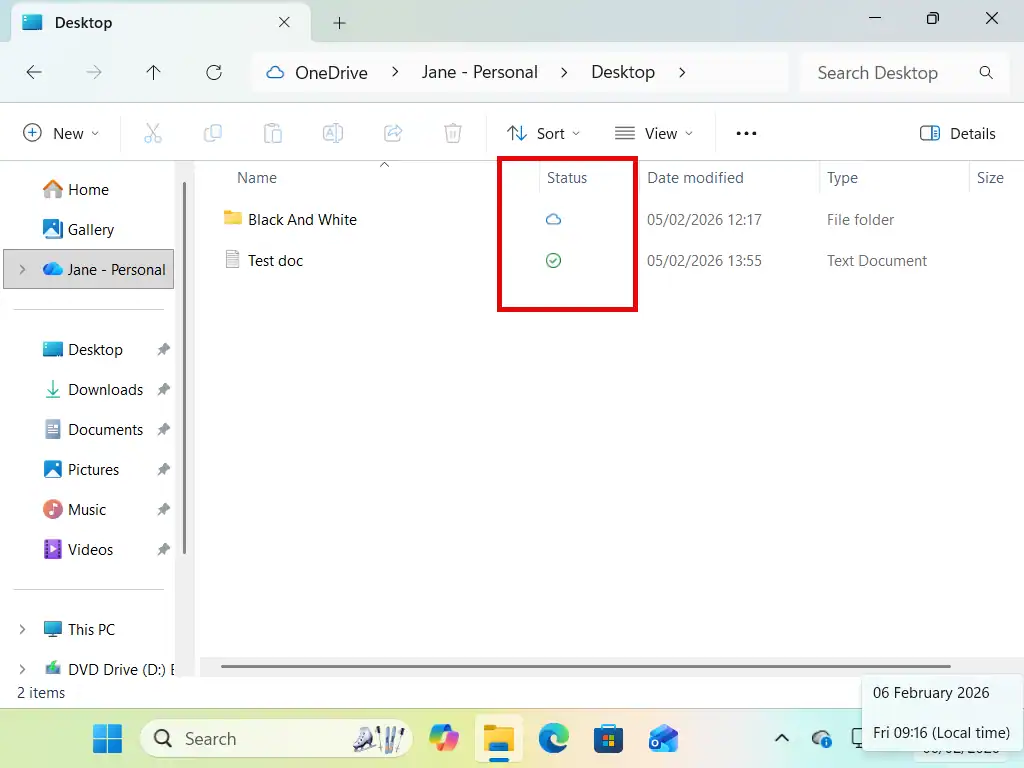
OneDrive displays Status Symbols beside your files and folders to indicated whether they’re stored online or on your computer as well as online.
- Blue Cloud Icon – The file or folder is only stored online in your MS account. It isn’t on your computer. If your internet goes down, or you’re locked out of your Microsoft account, you won’t be able to open these files and folders.
- Green Tick White Background – When you open an online only file, it’s downloaded to your PC. These files are available even without the internet because they’re stored on your computer. How ever they only stay on your PC for a short time. After that they’re re-uploaded to the cloud and will get a Blue Cloud icon.
- White Tick Green Background – Stored both online and on your computer permanently. Ideally this is what you want. They’re available to you even if you lose access to your MS account or the internet goes down.



Change This One Setting To Protect Your Files
By default, OneDrive will move everything in your Desktop, Documents and Pictures folders online and display the Blue Cloud icon. If you do use OneDrive then you should change the settings so that all your files are stored on your computer (locally) as well as in the cloud.
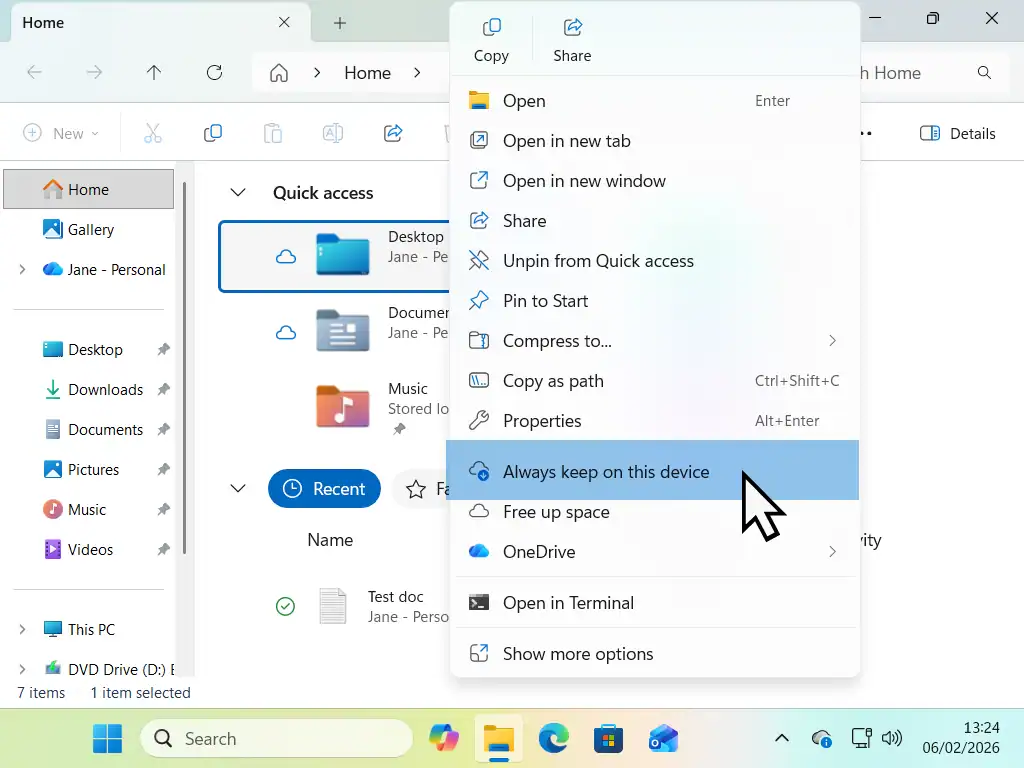
- Open File Explorer (Windows key + E) and then right click on a folder that’s stored in OneDrive (they’ll be the folders with a OneDrive icon beside them).
- On the menu that opens, left Always Keep On This Device.
- Refresh the page, or just close and reopen it, and you’ll see the white tick on green background icon appear.
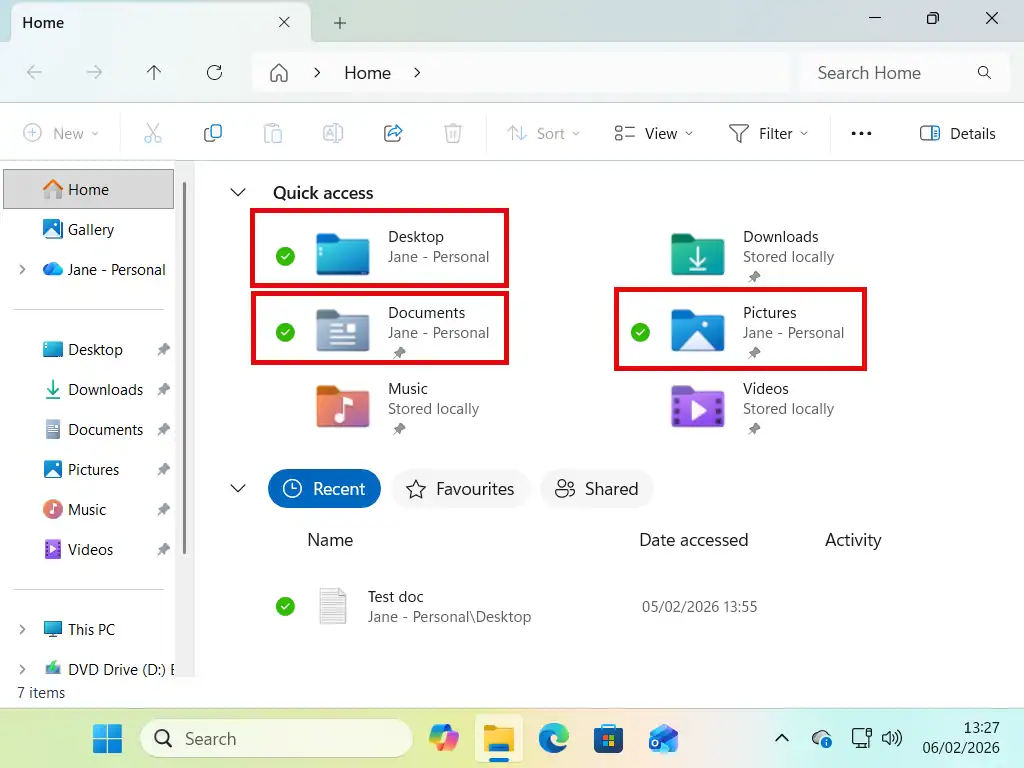
OneDrive will begin downloading everything stored in the cloud to your computer. It’s not moving the files, it’s copying them to your PC. This way you’ll have the same files on both your computer and in your OneDrive account online.
It might take some time to complete, depending on how much data you’ve got in the cloud and the speed of your internet connection.
Summary
OneDrive does a really good job of syncing your files across devices, but Microsoft keep pushing it as a backup, which it’s not.
There’s a lot more to OneDrive than I can cover on this course, scroll down if you’re interested in finding out how to use OneDrive.
At Home Basic Computer Course
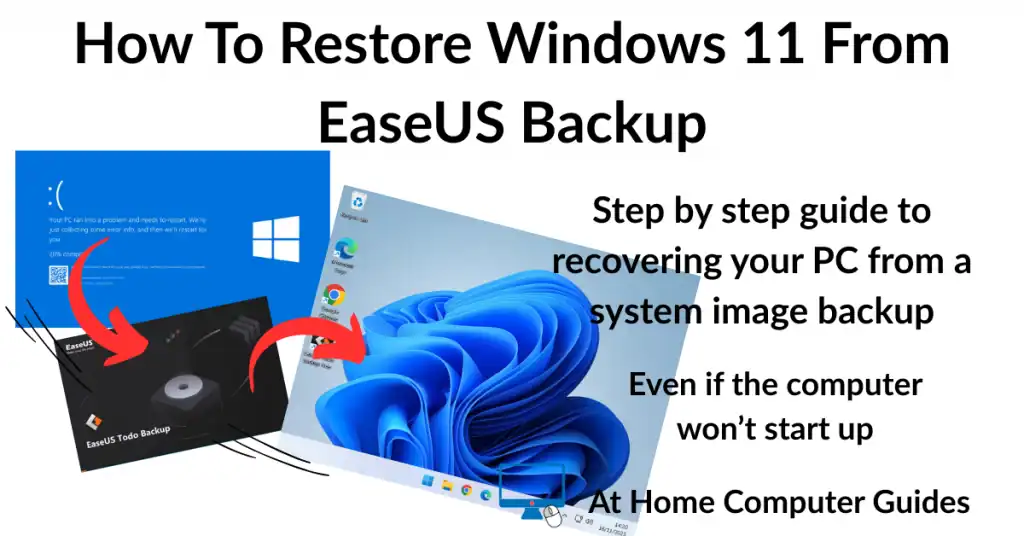
On the next page we’re going to look at how to backup the whole computer, create what’s called system image.
The way in which you’ll do that will depend on which version of Windows you have.
Windows 10 users can make use of the built in backup software, there’s no real need to download and install anything.
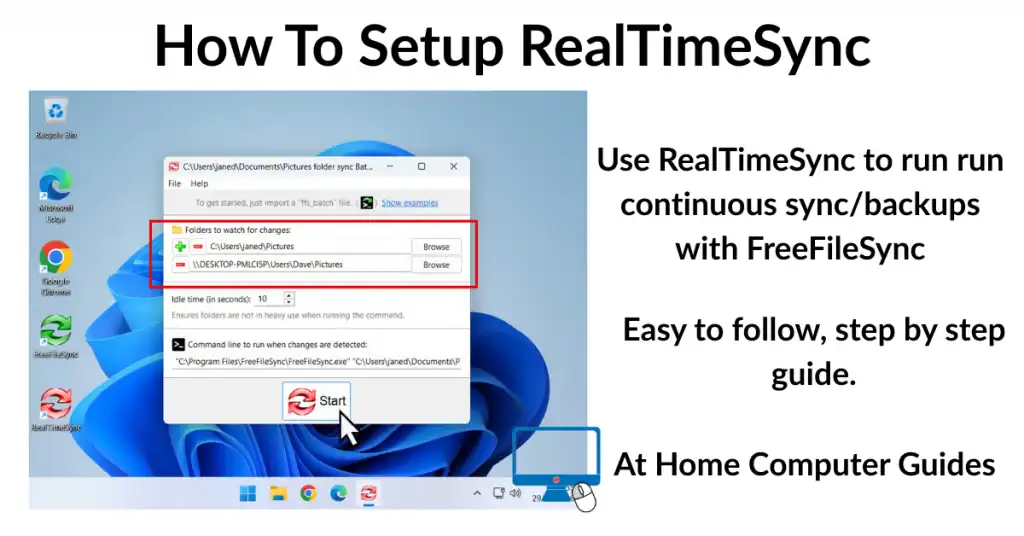
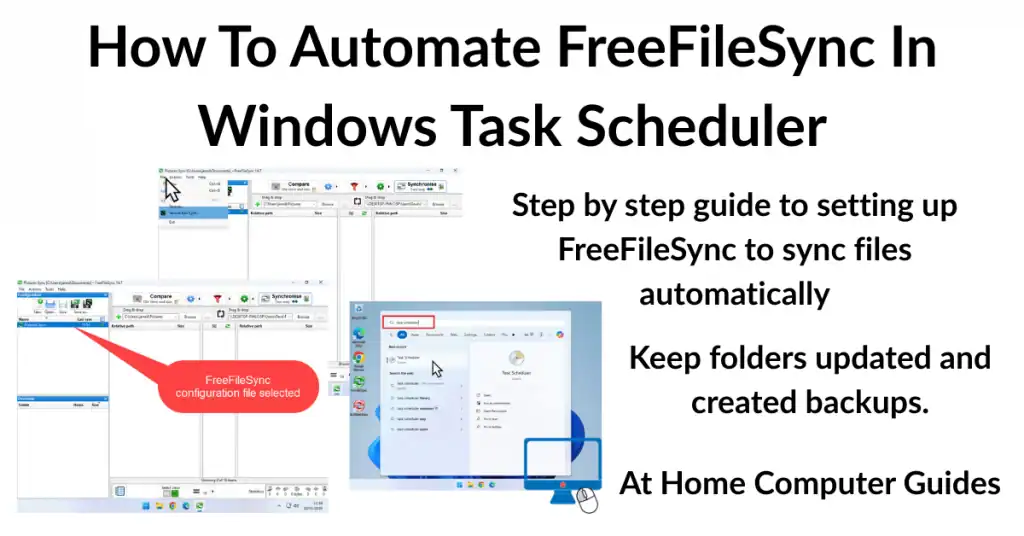
But for Windows 11 users, that software doesn’t really work anymore, it’s just not reliable enough. So you have to use a third party solution. I’ll show you how to install and setup a free program that’ll do the job.
PS, You can also use this software for Windows 10 computers. It works just the same.
Windows 10
If you’re using Windows 10 you can use the built in backup.
Windows 11
But if you’re PC uses Windows 11, this is a better option.
More OneDrive Guides
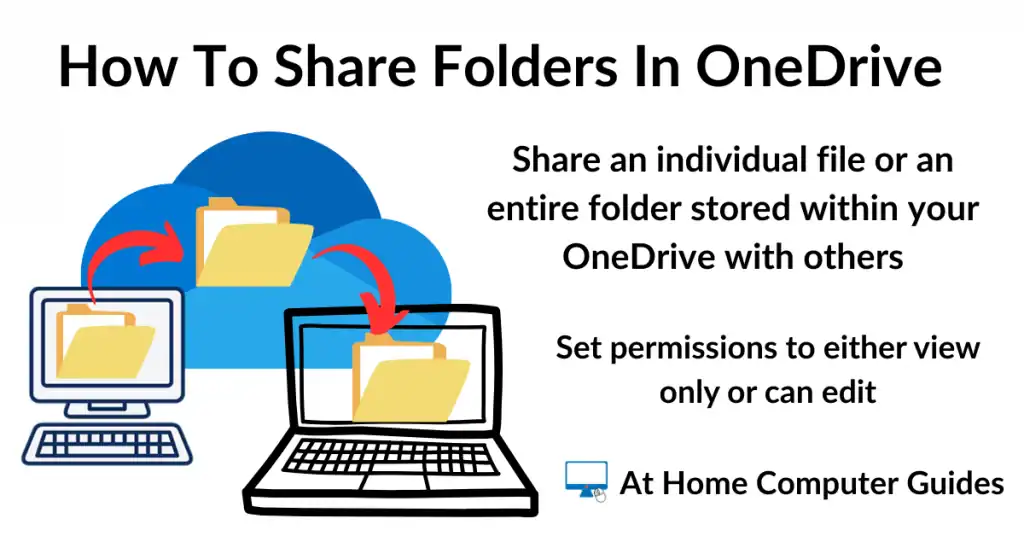
How To Share A Folder In OneDrive
One of the very best uses for OneDrive is its ability to easily share a file or even an entire folder with someone else.
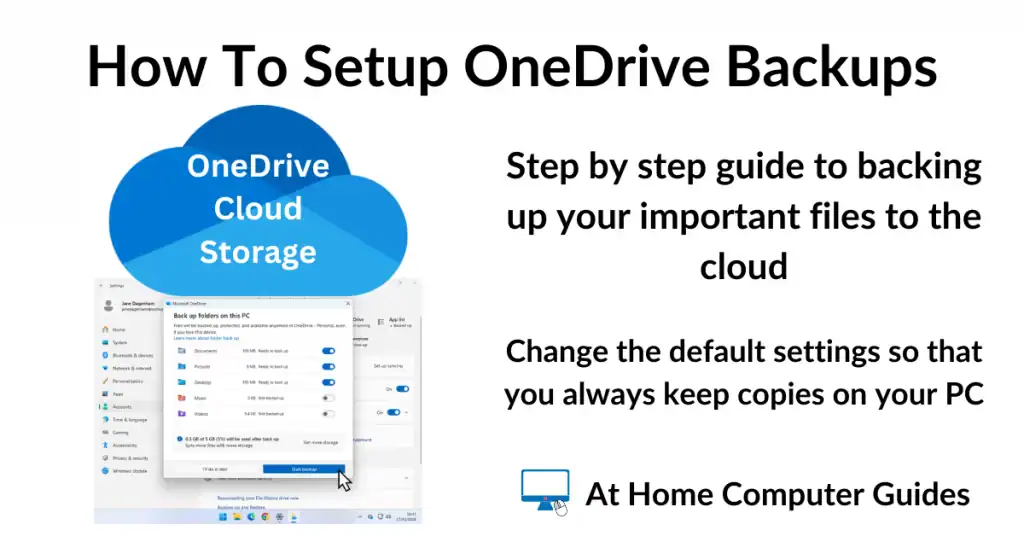
How To Setup OneDrive To Backup Your Files
If you know what you’re doing you can use OneDrive as an online backup for your most important files.
What To Do When OneDrive Is Full.
You only get 5 GB of storage space for free. After that you’ll need to pay, or stop syncing files to OneDrive.
How To Delete Files From OneDrive.
Be careful when deleting files from OneDrive
Microsoft Email Accounts Not Sending Or Receiving Emails.
If you’ve got a Microsoft email account such as Outlook.com, Hotmail or Live, then the storage space for your emails is shared with your OneDrive account. It’s only 5 GB if you’re on the free plan.