Getting unwanted emails or spam can be frustrating and even dangerous. Whether you are using the Outlook desktop app, the web version (Outlook.com), or the mobile app, learning how to block an email address in Outlook is essential for a clean, secure inbox.
When you add an email address or domain to your blocked senders list, Outlook automatically moves messages from that sender or domain to the Junk Email folder, stopping it from reaching your Inbox.
In this guide, I’ll show you how to manage your Outlook blocked senders list and use junk mail settings to stop unwanted messages for good.
How to Block a Sender in Outlook Desktop (Classic & New)
If you use the Microsoft Outlook desktop application on Windows, follow these steps to block a specific sender.
Note that there are 2 versions of the Outlook app for Windows. The first is the free version of Outlook (sometimes called New) that comes pre installed on all Windows PCs, and then there’s the paid for version (called Classic) that usually ships with Microsoft Office.
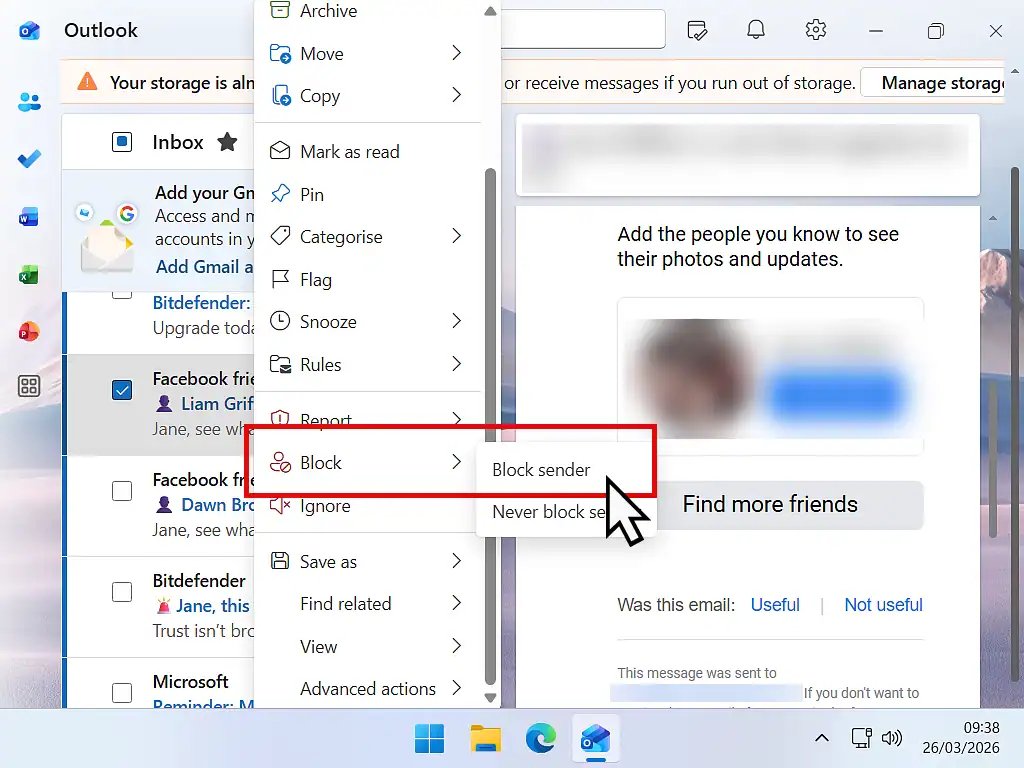
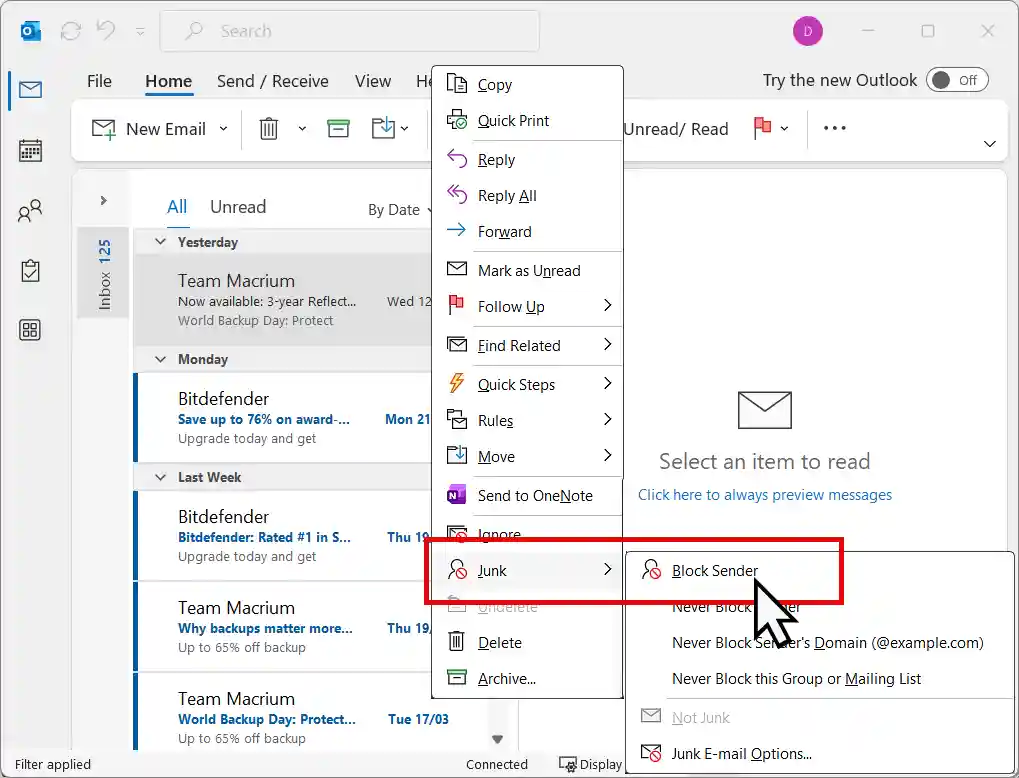
- Right-click the email from the sender you want to block.
- For Outlook New (free version): hover over Block and then click Block Sender.
- Outlook Classic: Hover over Junk and then click Block Sender.
- A confirmation message will appear. Click OK.
All future emails from this address will now go directly to your Junk Email folder.
How to Block Emails on Outlook.com (Web Version)
Blocking a sender on the web version of Outlook (formerly Hotmail and Live Mail) is slightly different but very effective for managing your Outlook 365 account.
- Open your browser and log in to Outlook.com.
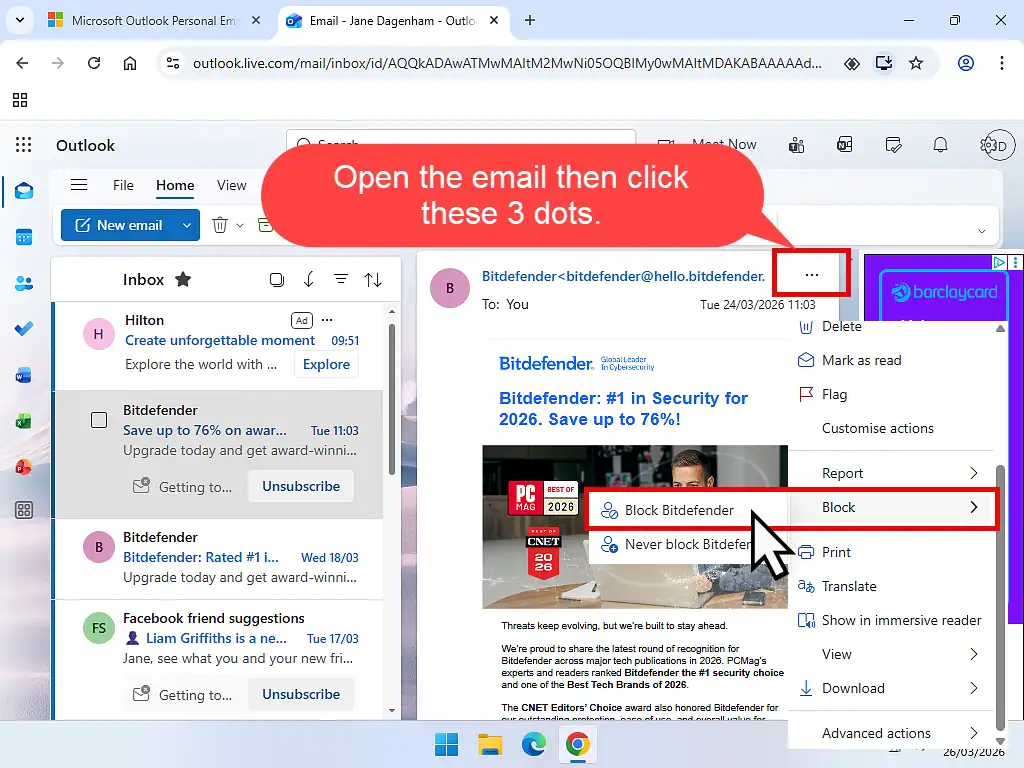
- Open the email from the person or domain you want to block.
- Click the three dots (…) in the top-right corner of the message header.
- Select Block > Block [Sender Name].
- Confirm by clicking OK.
How to Block an Email Address in the Outlook Mobile App
If you are on the go, you can still manage your Outlook junk mail settings directly from your iPhone or Android device.
- Open the Outlook app.
- Tap on the email from the sender you want to block.
- Tap the three dots (…) in the top-right corner of the screen.
- Select Report Junk and then tap Block Sender.
How to Block an Entire Domain in Outlook
Sometimes, blocking one email address isn’t enough because spammers use multiple addresses from the same company. You can block an entire domain (e.g., @example.com) to stop all emails from that source.
Blocking a domain is the same in both the free version Outlook app and the online version, but it’s slightly different in Classic.
For the Online and New version:
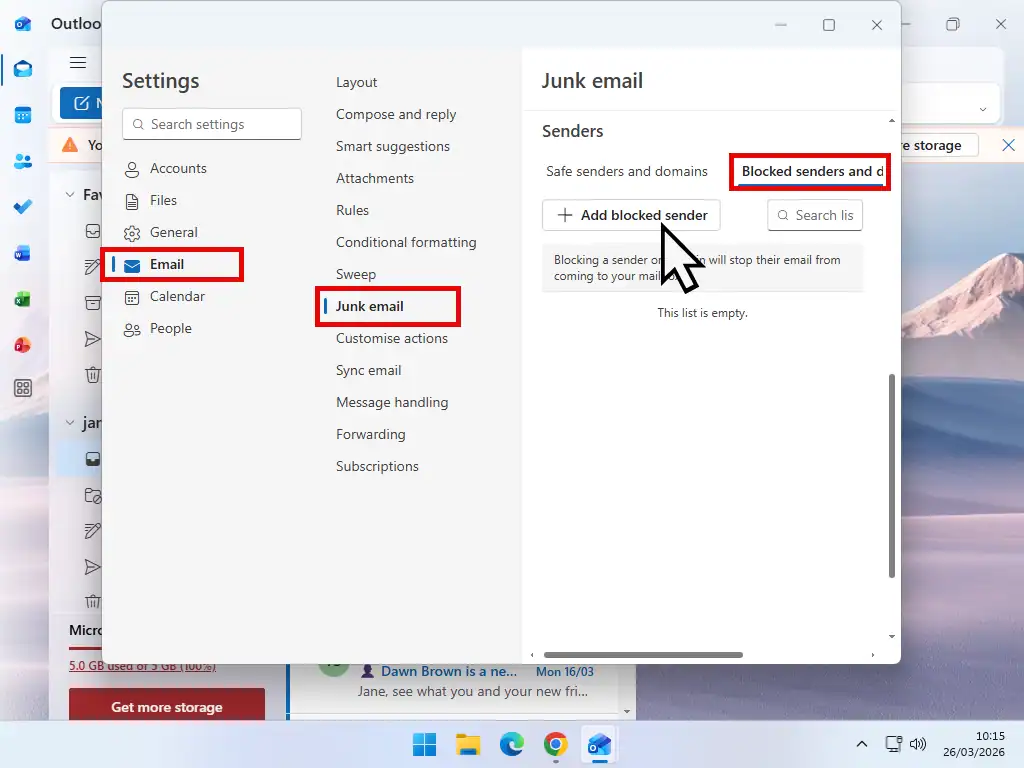
- Go to Settings (the gear icon), you might need to click View all Outlook settings.
- Select Email > Junk email.
- Click the Blocked senders and domains tab, Then click + Add Blocked Sender.
- Type the domain name (e.g., spamsite.com) and press Enter.
- Click Save.
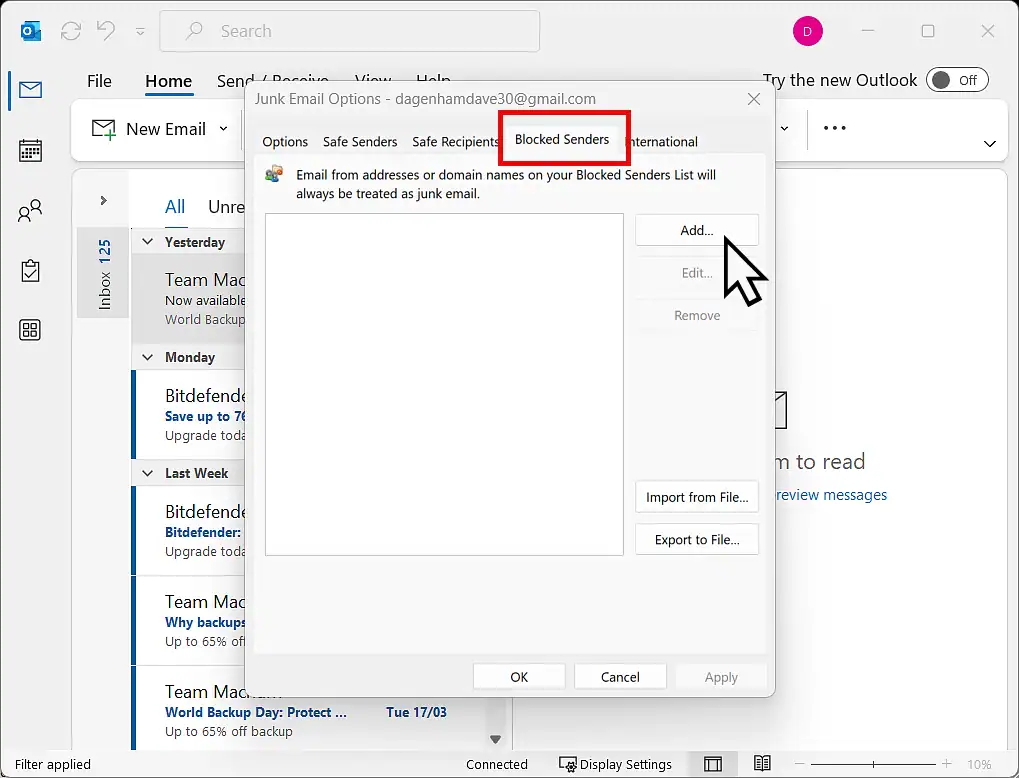
For Outlook Classic:
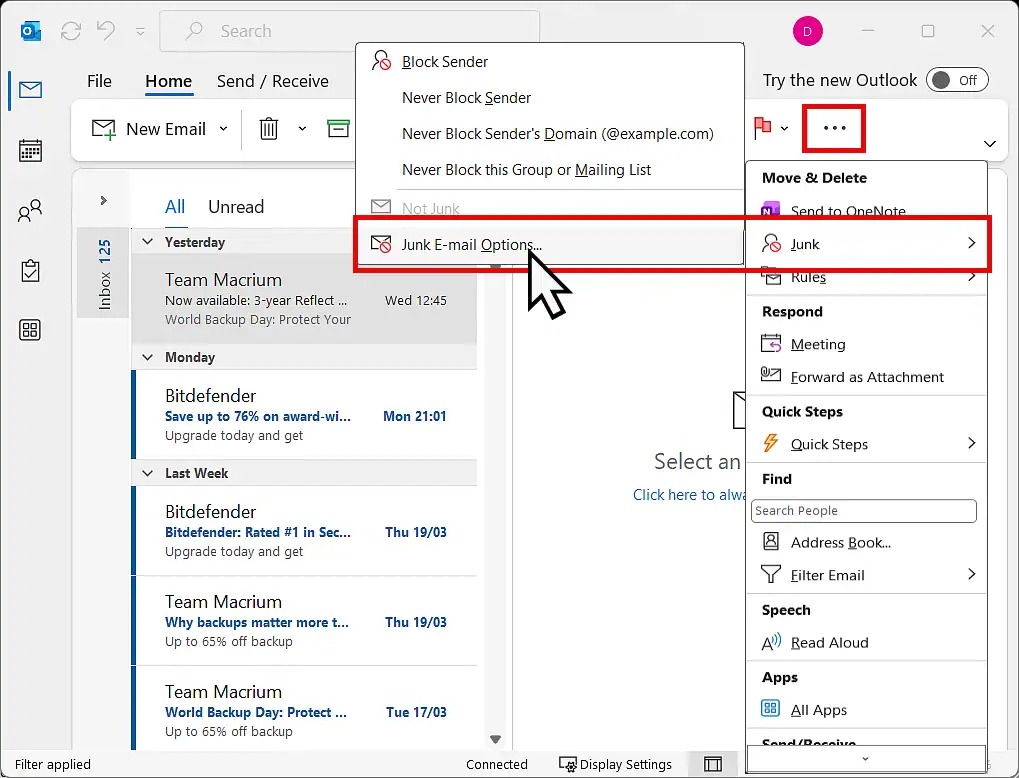
- Click the 3 dots (…) in the top right corner.
- On the menu, hover over Junk and then click Junk Email Options.
- Click the Blocked Senders tab.
- Click the Add button.
- Type the domain name (e.g., spamsite.com) and press Enter.
- Click Save.
Frequently Asked Questions (FAQ)
Where is my Outlook Blocked Senders List?
To view or edit your list, go to Settings > Mail > Junk email. Here, you can see everyone you have blocked and remove them if you accidentally blocked a friend.
Does blocking an email address notify the sender?
No. When you block a sender in Outlook, they are not notified. Their emails simply stop appearing in your Inbox and move to the Junk folder.
Can I block specific words in Outlook?
Yes! You can create Outlook Rules to automatically delete emails containing specific keywords like “Winner,” “Offer,” or “Prize” in the subject line.
Summary
We all get way too much spam and junk in our Inboxes, but by blocking the senders you can start to cut it down. You’ll never be able to stop it completely but you can reduce it to a manageable level.
Also when you block a sender Outlook learns from that. It starts to identify what is junk and what’s not and uses it’s own filters to prevent you from even seeing most of it. That’s why you sometimes need to check you junk folder for an expected email. It sometimes makes mistakes.
Related Posts
Outlook.com Not Sending Or Receiving Emails? How To Fix The “OneDrive Full” Issue
If your @outlook.com, @hotmail.com, or @live.com email account has suddenly stopped working, you aren’t alone. Many users are seeing a message stating, “You’ll need more storage to send or receive emails,” even if their inbox looks empty.
A Basic Guide To Using Email
Learn the basics of using email. Email addresses, forwarding, CC, BCC etc.
How To Print Emails In Gmail, Yahoo Mail, And Outlook.com
If you’ve got a printer it makes sense to have a “hard copy” of important messages as a backup.