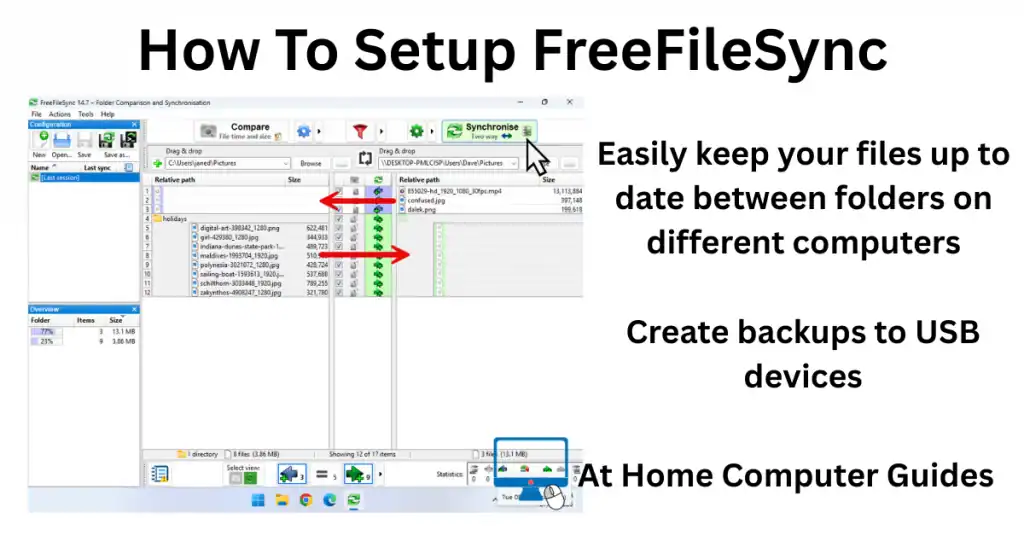
How to automate FreeFileSync in Windows Task Scheduler so that it automatically syncs files and folders without any input from the user. FreeFileSync compares any 2 folders and then copies across any files that have been added or edited. In that way it keeps the folders “synchronised”.
But FreeFileSync isn’t automatic. It needs you, the user, to start the program up and then hit the Synchronise button in order to work.
In this guide, I’ll show you how to automate FreeFileSync using the Task Scheduler so that it syncs your files automatically. You’ll need to have FreeFileSync already setup.
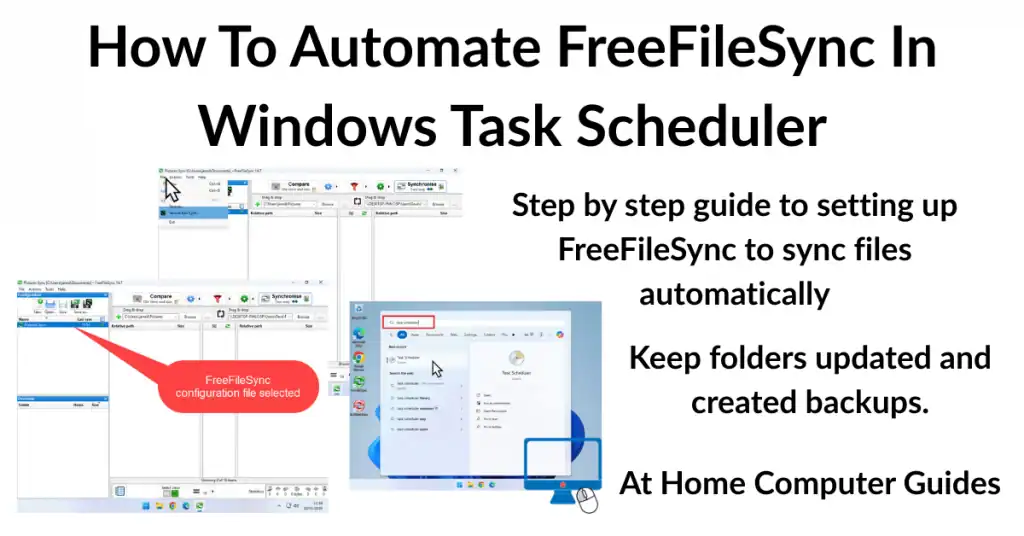
Automate FreeFileSync In Task Scheduler
You can use Windows Task Scheduler to run FreeFileSync once a day, once a week or once a month to sync your folders automatically.
To make use of Task Scheduler, the first thing to do is to create a batch file using FreeFileSync.
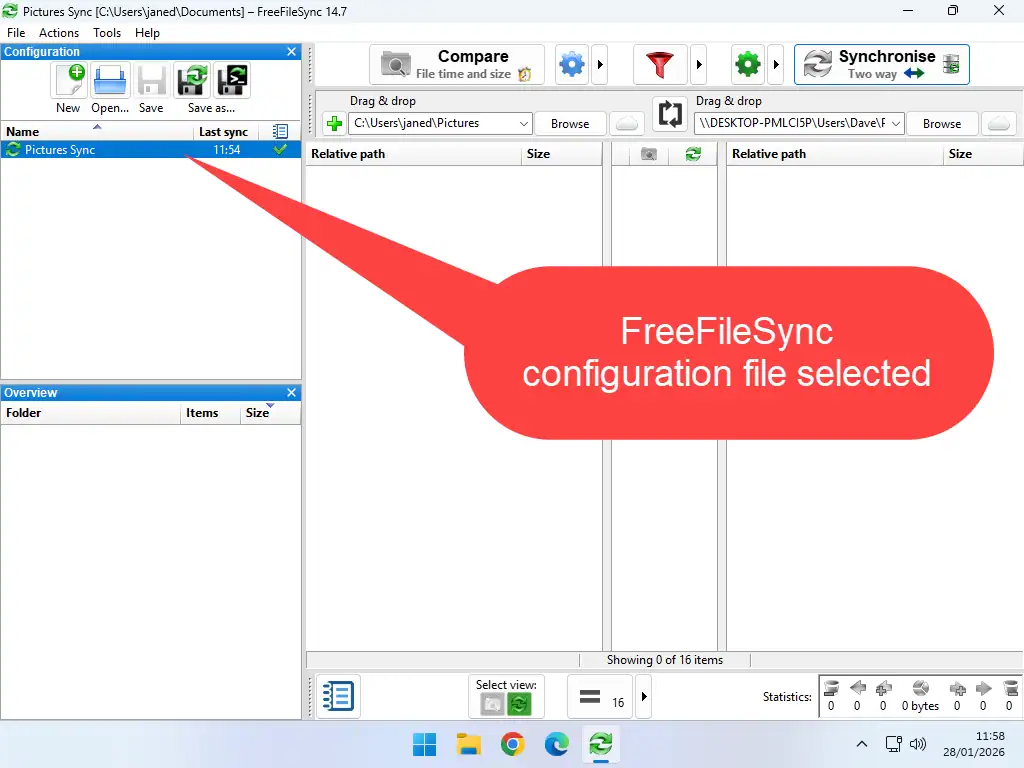
- Open FreeFileSync and select the saved configuration file that you want to use. If you only have one configuration file, then it’ll usually be auto selected
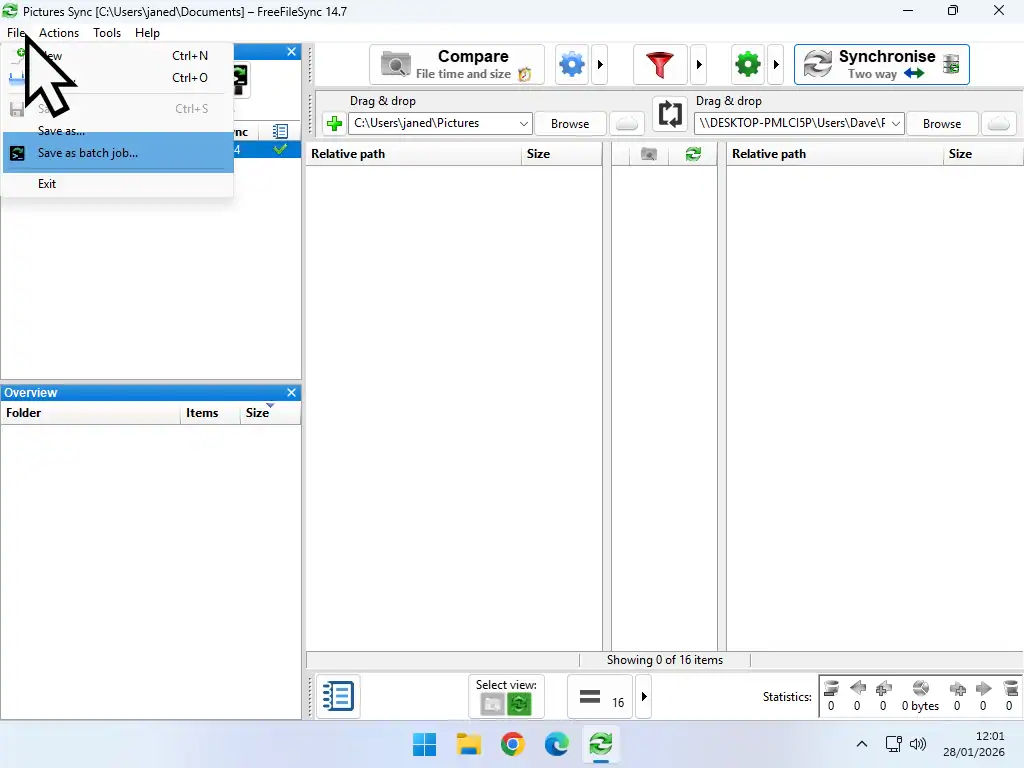
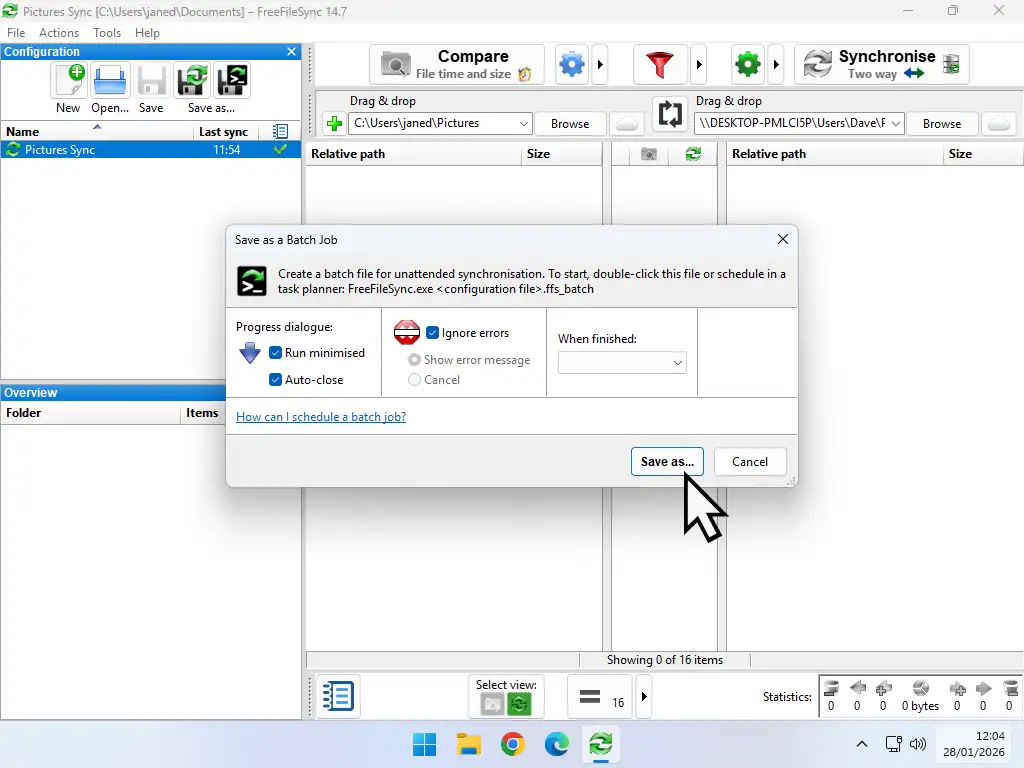
- Click the File button (top left corner) and then click Save As Batch Job
- On the batch job popup select Run Minimised and Ignore Errors, then click the Save As button
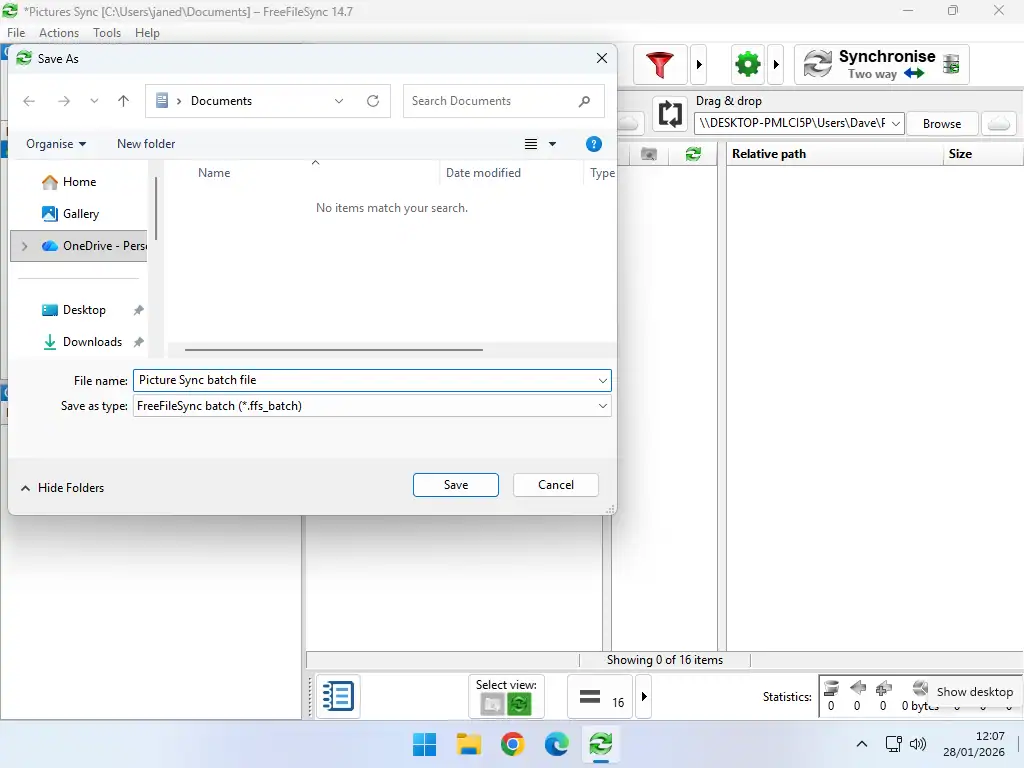
- Give the batch file a descriptive name and save it to your PC. You can use any name, just be sure you know what it is because you’ll need this file later.
Create A FreeFileSync Task
Now you’ll need to create the task schedule to run the FreeFileSync batch file that you just created.
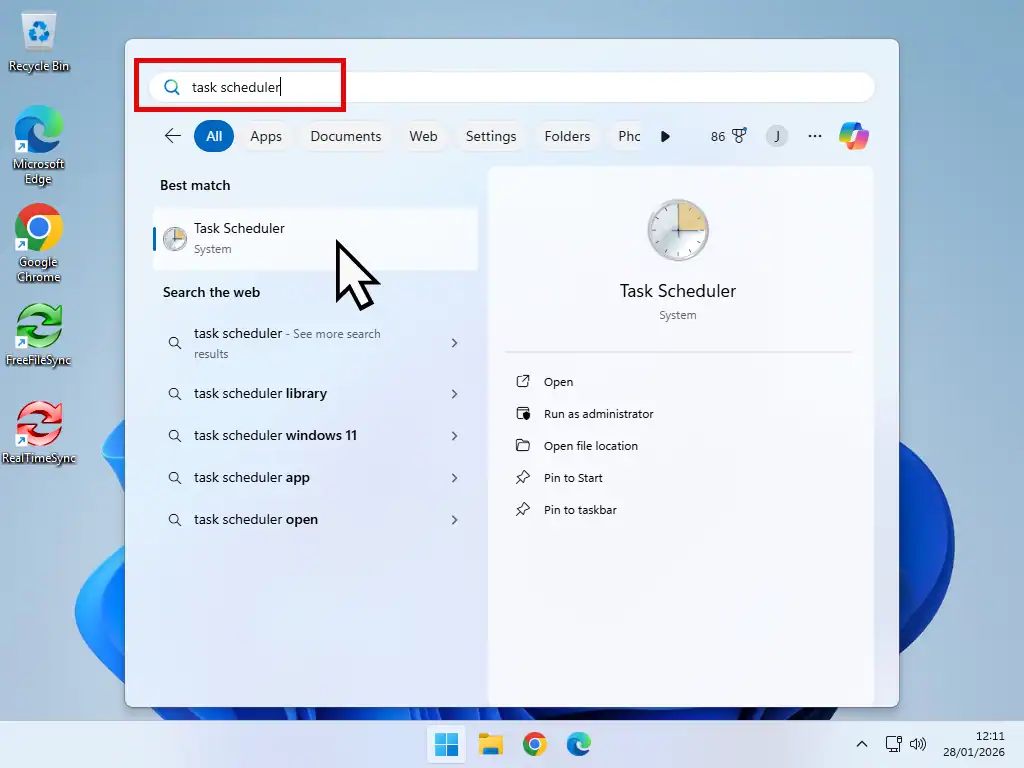
- Click the Start button and type “task scheduler“. Click on Task Scheduler when it appears in the search results.
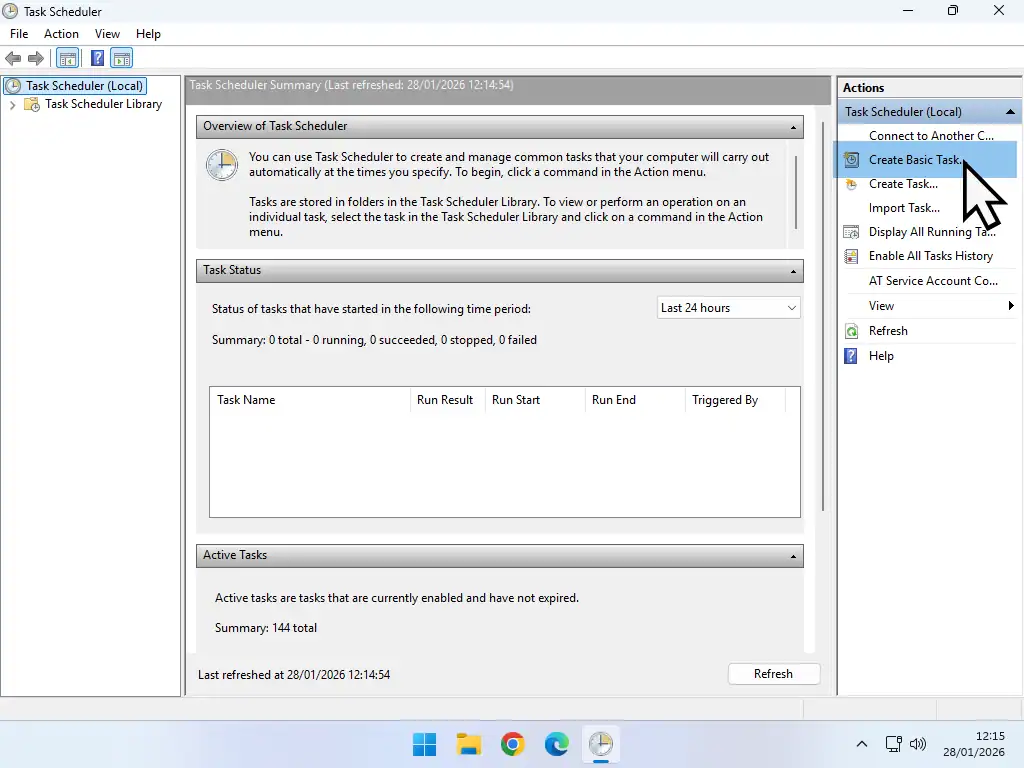
- In the Actions panel of Task Scheduler, click Create Basic Task. Note that there’s also an option to Create Task, that’s not the one that you want. You have to select Create Basic Task.
- Give the task a descriptive name and add a description if you wish. Click Next.
- Now you’ll need to set what’s called a “trigger”. Select Daily, Weekly or Monthly and click Next.
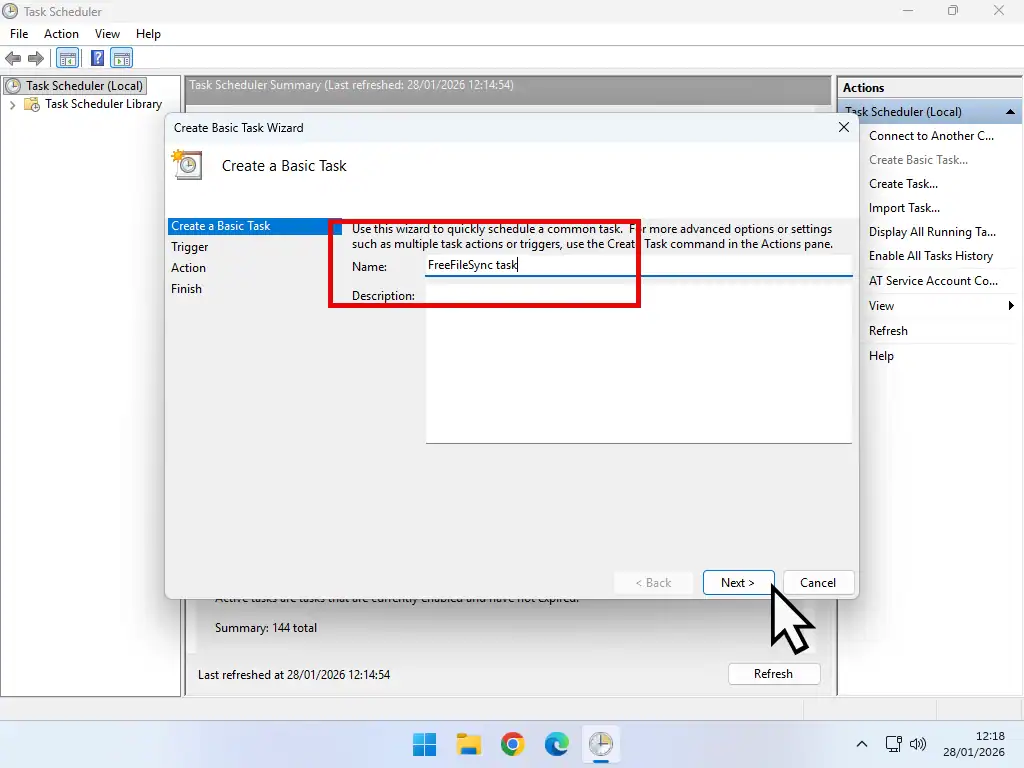
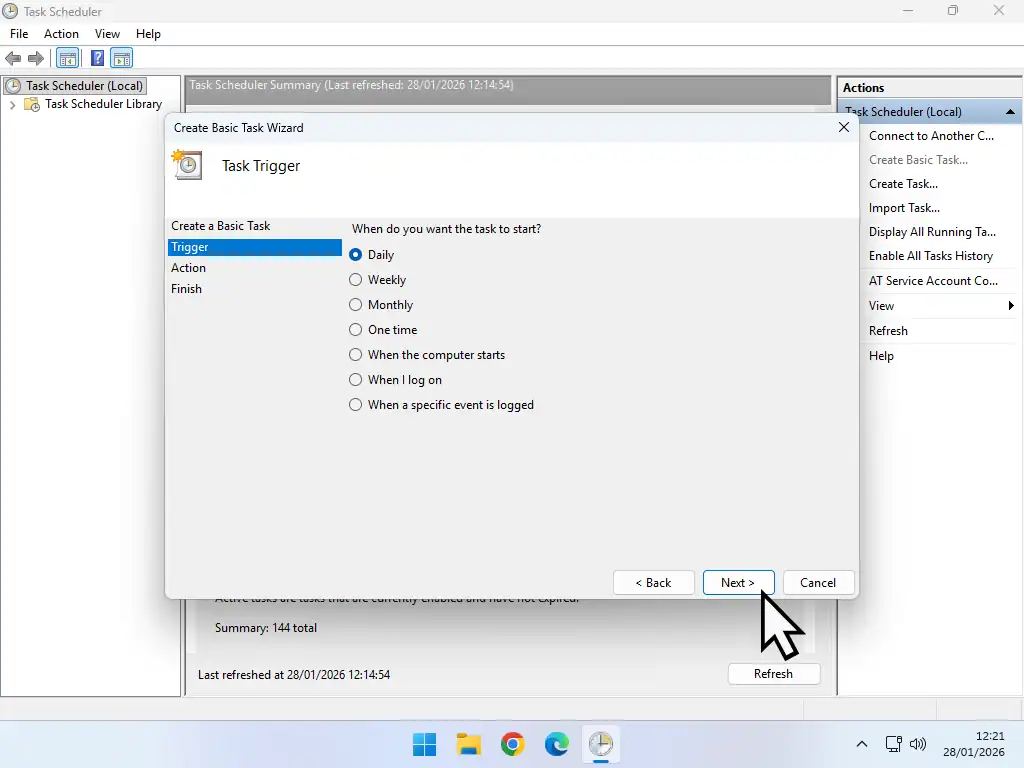
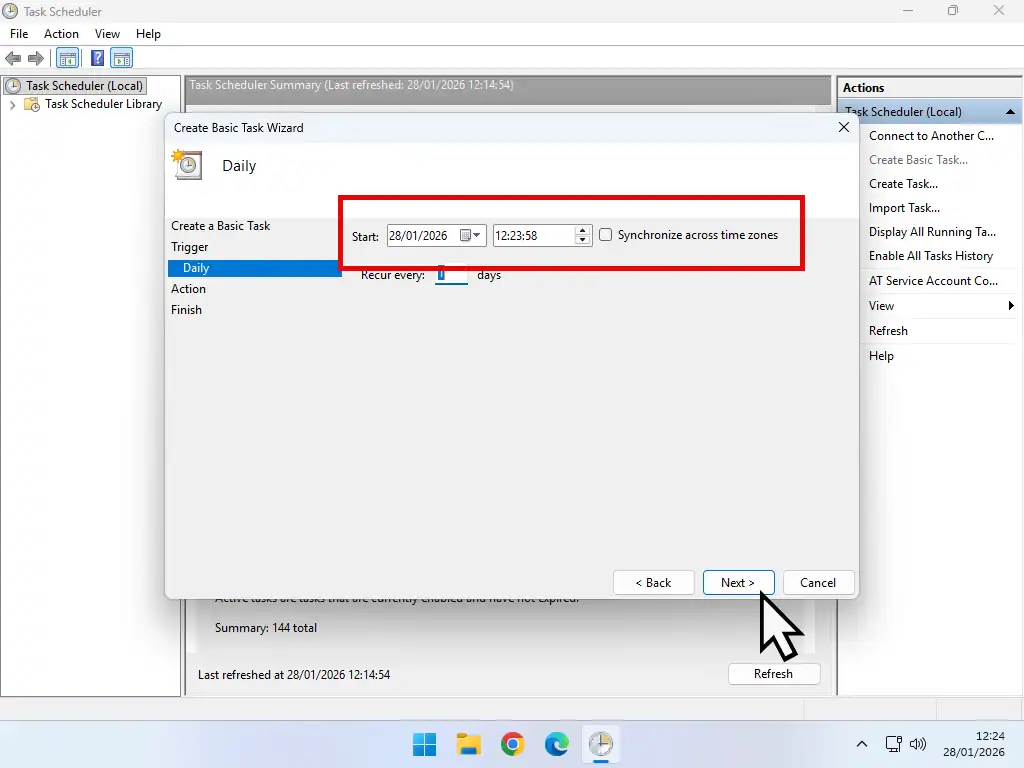
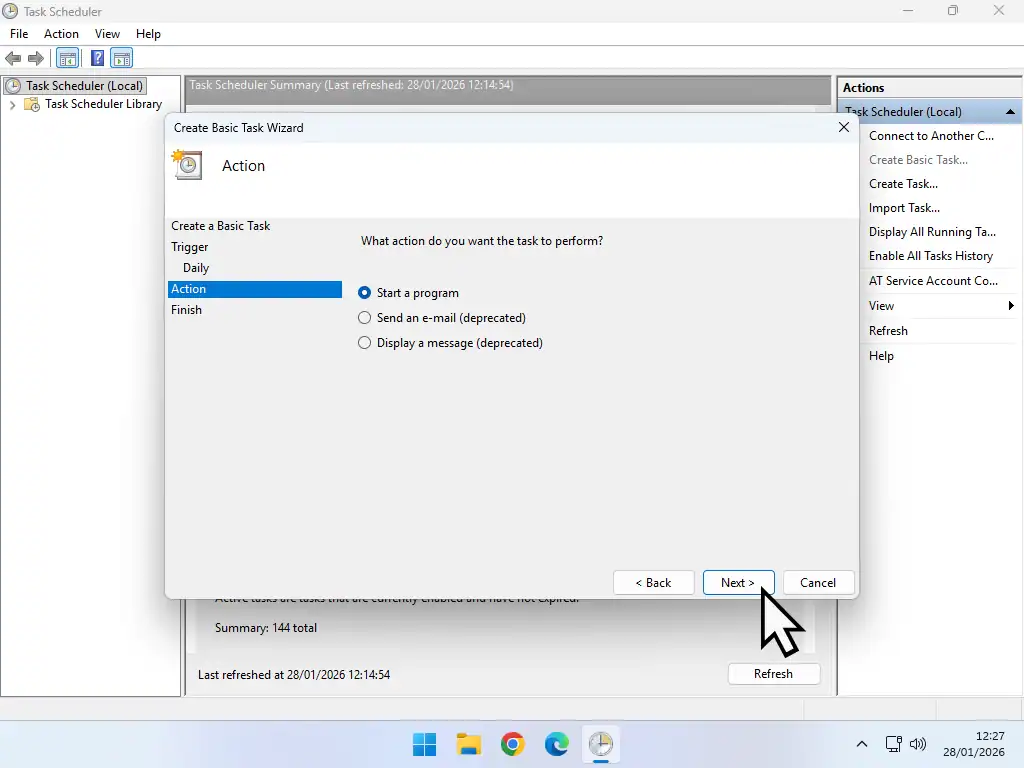
Automating FreeFileSync
- Set the time that you’d like FreeFileSync to run its sync job and click Next.
- For the Action, make sure that Start A Program is selected and then click Next
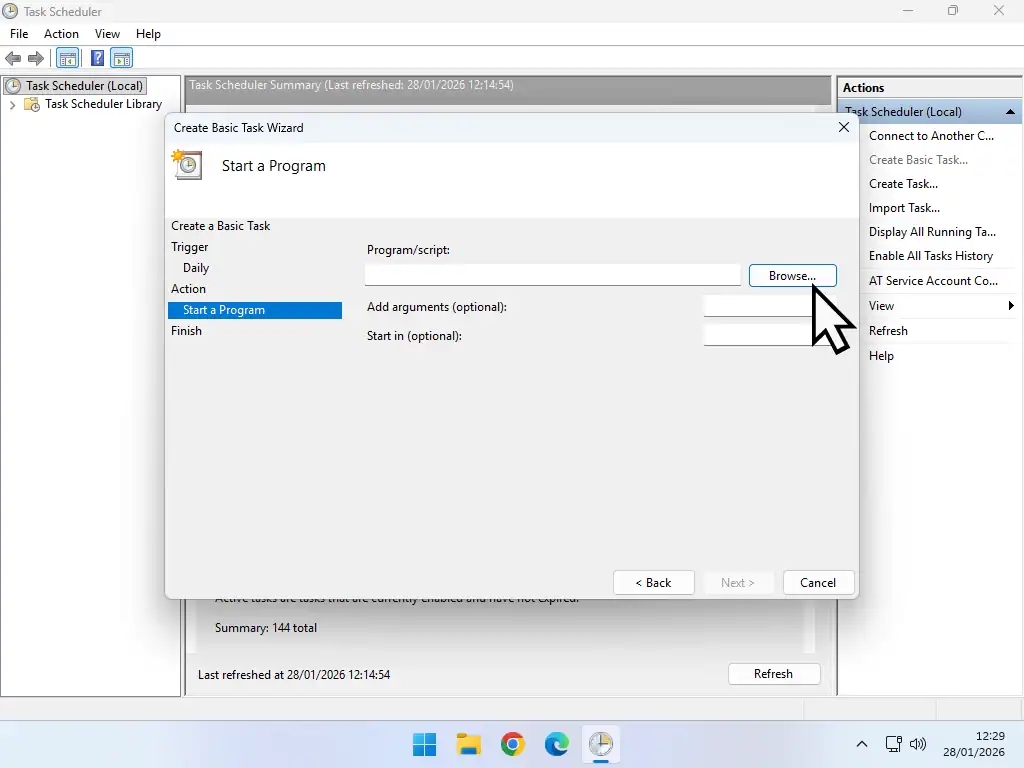
- Now you need to tell Task Scheduler which program it should start. Click the Browse button
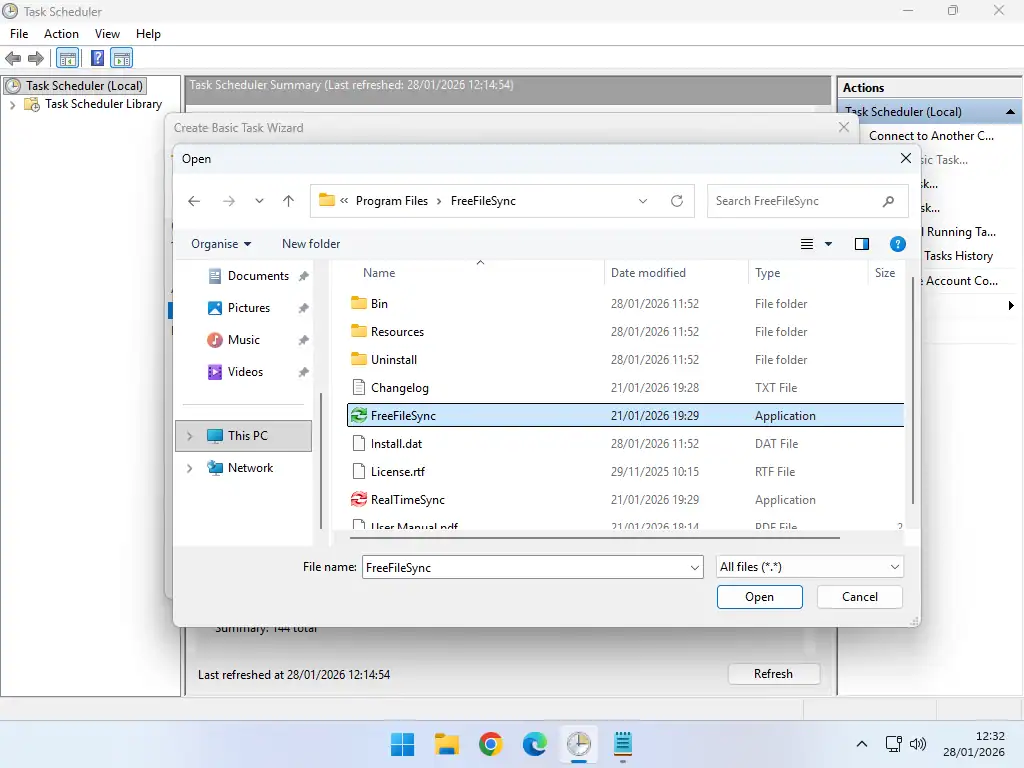
- Navigate to and select the FreeFileSync application which you’ll find at “”C:\Program Files\FreeFileSync\FreeFileSync.exe”.
Add Arguments
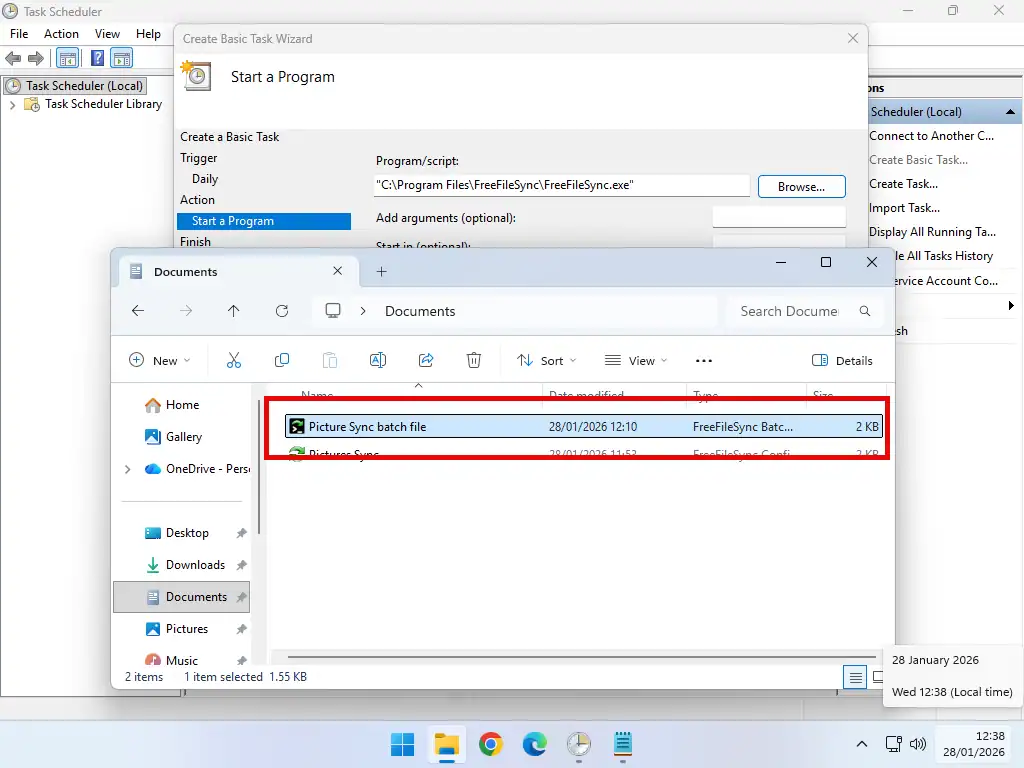
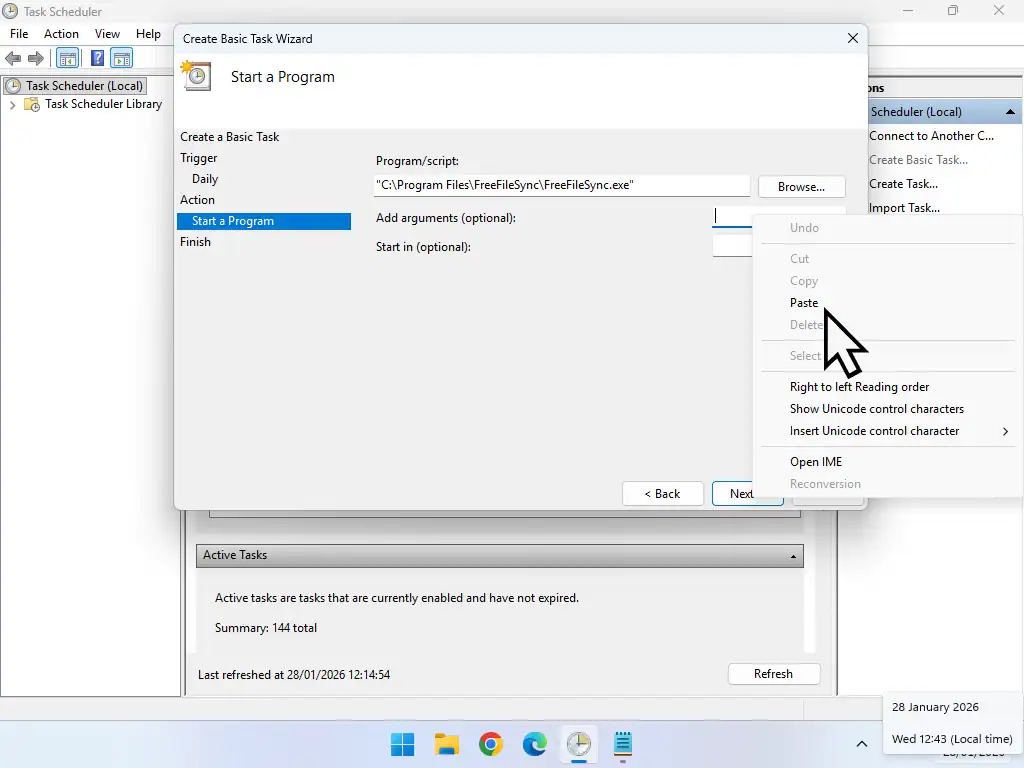
So that’s FreeFileSync selected as the program to run, you now need to include the batch file that you created earlier. To do that –
- Navigate to the FreeFileSync batch file that you created. Note that you should leave Task Scheduler open while you do this.
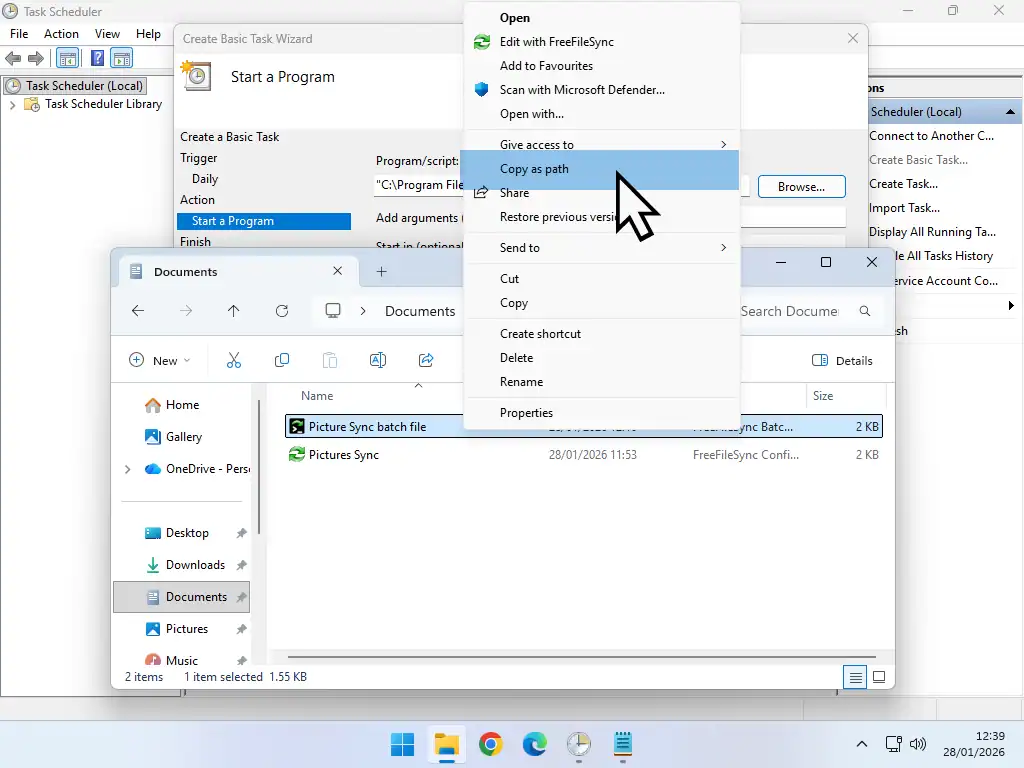
- Right click on the Batch file and then left click Copy As Path. In Windows 11 you may need to click Show More Options. How To Restore The Old Right Click Menu To Windows 11.
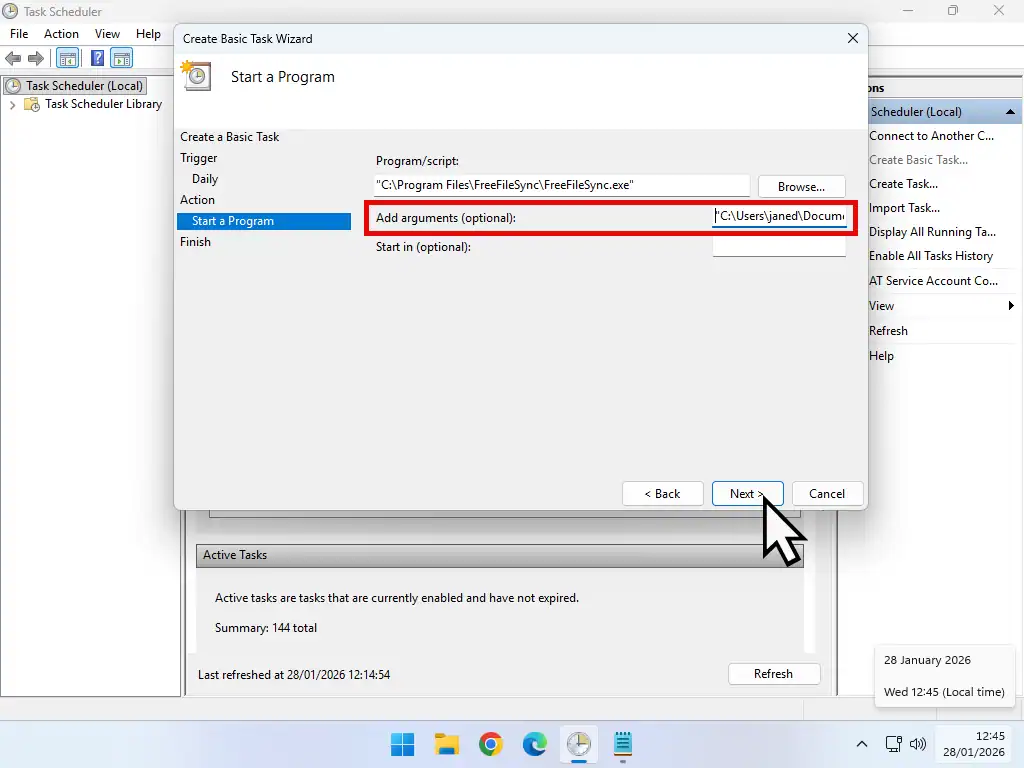
- Close File Explorer and go back to Task Scheduler. Paste the path to the batch file into the Add Arguments box.
- With that done, click the Next button
You’ll see a Summary page, just click the Finish button and that’s it. FreeFileSync will sync your files and folders at what time and frequency you selected in the task setup.
Summary
Once the FreeFileSync task has been created it’ll run automatically in the background at the time specified.
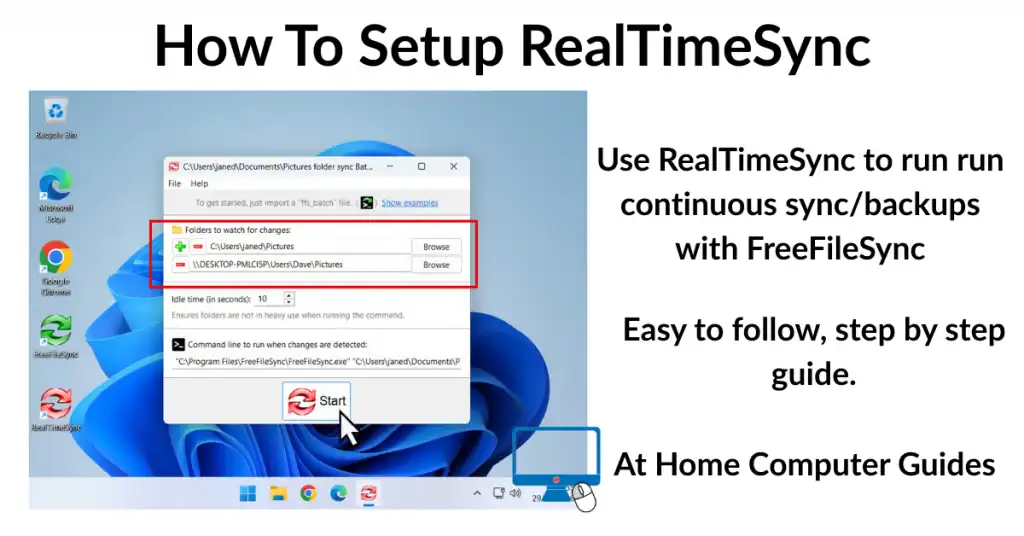
However there may be those who require continuous syncing throughout the day. RealTimeSync is the companion app for FreeFileSync that’ll monitor and detect any changes to the folders that you’re syncing.
Related Posts
The Difference Between Save And Save As
When saving a file there’re two options, Save and Save As. Why?
How To Enable The F8 Key In Windows 10 And 11.
What happened to the F8 key? It doesn’t work anymore. You can bring it back if you need it.
Fix New Hard Drive Not Showing Up In File Explorer.
Divide a large capacity hard drive in to separate partitions. Windows will see them as different drives.
Windows 11 Virtual Computer
Create a Windows virtual machine. It’s free and not that difficult to do.
Virtual machines are great for experimenting with. You can try out new operating systems, you can browse the web safely and open suspicious emails. Download new software to try it out, all without risking your host (real) computer.
Setup a Windows 11 VM even if your current PC doesn’t currently support it.