
Gmail not receiving emails is one of those problems that sounds serious but usually has a simple cause. Most of the time the emails are being sent, and something on your account is stopping them, hiding them or sending them somewhere else.
In this guide I’ll show you how to find out which one it is and fix it, starting with the checks that solve it most often. There’s a section for the Gmail app on your phone too.
The Short Version
Work down this list. The first three solve it more often than not.
- Check your storage. If your Google storage is full, Gmail stops receiving emails altogether.
- Look in Spam and the other tabs. The email may have arrived and been put somewhere you didn’t look.
- Search everywhere. Gmail can search Spam and the Bin too, if you ask it to.
- Check your filters and blocked addresses. A filter can archive or delete emails before you see them.
- Check your forwarding settings. Gmail can send your emails on to another address and delete its own copy.
Table of contents
- Is It Every Email or Just Some?
- 1. Check Your Gmail Storage Isn’t Full
- 2. Look in Spam, the Tabs and All Mail
- 3. Check Your Filters and Blocked Addresses
- 4. Check Your Forwarding Settings
- 5. Emails From Your BT, Yahoo or Other Account Have Stopped
- Gmail Not Receiving Emails on Your Phone
- Gmail Not Loading New Emails on Your Computer
- Still Not Getting Emails From One Person?
- Troubleshooting
- Frequently Asked Questions
- Summary
Is It Every Email or Just Some?
Before you change anything, it helps to know what kind of problem you’ve got. It points you straight at the right fix.
- Nothing is arriving at all. Your storage is the most likely cause, then forwarding. Start with step 1.
- Emails from one person or company aren’t arriving. Check Spam, the tabs, your blocked addresses and your filters (steps 2 and 3), then see the section on emails from one person.
- Verification codes aren’t arriving. Nearly always the Spam folder or the Updates tab. See Troubleshooting.
- Emails show on your computer but not your phone. Gmail is fine. Jump to the phone section.
- Emails from your BT, Yahoo or other account have stopped. That’s a change Google is making. See step 5.
Quick Test
Send yourself an email from a different email address, or ask a friend to send you one. If it arrives, Gmail is receiving emails and the problem is with particular senders. If it doesn’t, the problem is your account, so start with storage.
1. Check Your Gmail Storage Isn’t Full
This is the number one reason Gmail suddenly stops receiving emails. Your free 15GB is shared between Gmail, Google Drive and Google Photos, so it can fill up even if you hardly use email.
When it’s full, Google says you can’t send or receive emails, and emails sent to you go back to the sender. They don’t wait in a queue for you. The person who sent them gets a message saying your mailbox is full.
To check, scroll to the bottom of your inbox on a computer. Gmail shows how much of your storage you’ve used there. Click it to see what’s using the space.
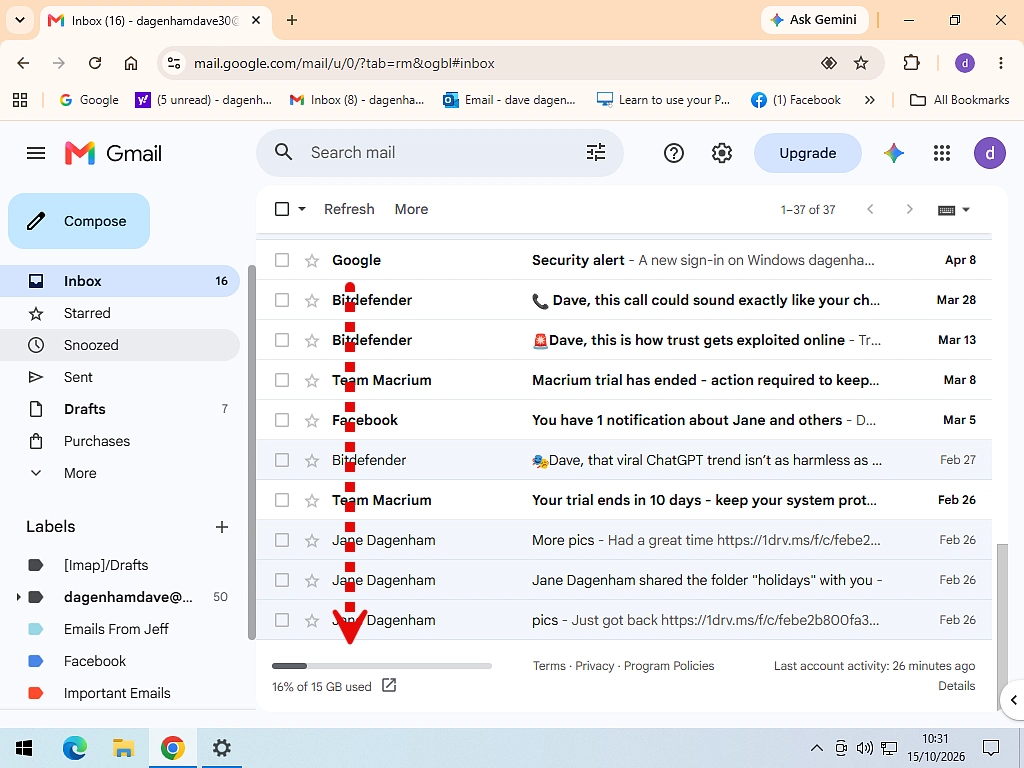
If you’re at or near 100%, that’s your answer. Gmail Storage Full? Here’s Why (and How to Fix it) shows you the quickest ways to free up space, starting with the big emails and the files in Google Drive.
Emails Sent While You Were Full Don’t Come Back
Once you’ve freed up space, new emails start arriving again. But anything that bounced while you were full has gone back to the sender, so ask anyone important to send it again.
2. Look in Spam, the Tabs and All Mail
Often the email did arrive. It just didn’t land in your Primary inbox.
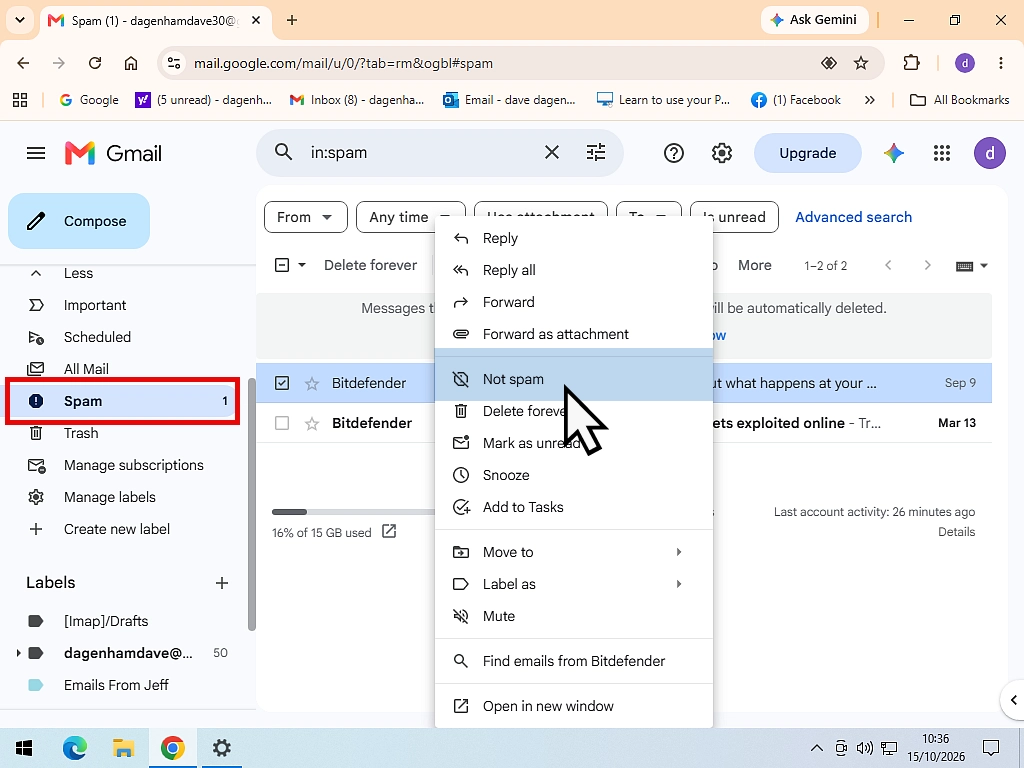
Check Your Spam Folder
Click Spam in the menu on the left. You may need to click More to see it. If your email is there, right click on it it and then click Not spam. That moves it to your inbox and teaches Gmail to let that sender through next time.
Gmail deletes emails in Spam after 30 days, so check it fairly soon.
Check the Promotions, Social and Updates Tabs
If your inbox has tabs across the top, Gmail sorts emails into them for you. Order confirmations, newsletters and verification codes often go to Updates or Promotions instead of Primary.
Click each tab and have a look. If you’d rather have everything in one inbox, you can turn the Gmail tabs off, or drag the email to Primary so that sender always goes there.
Search All Mail, Including Spam and the Bin
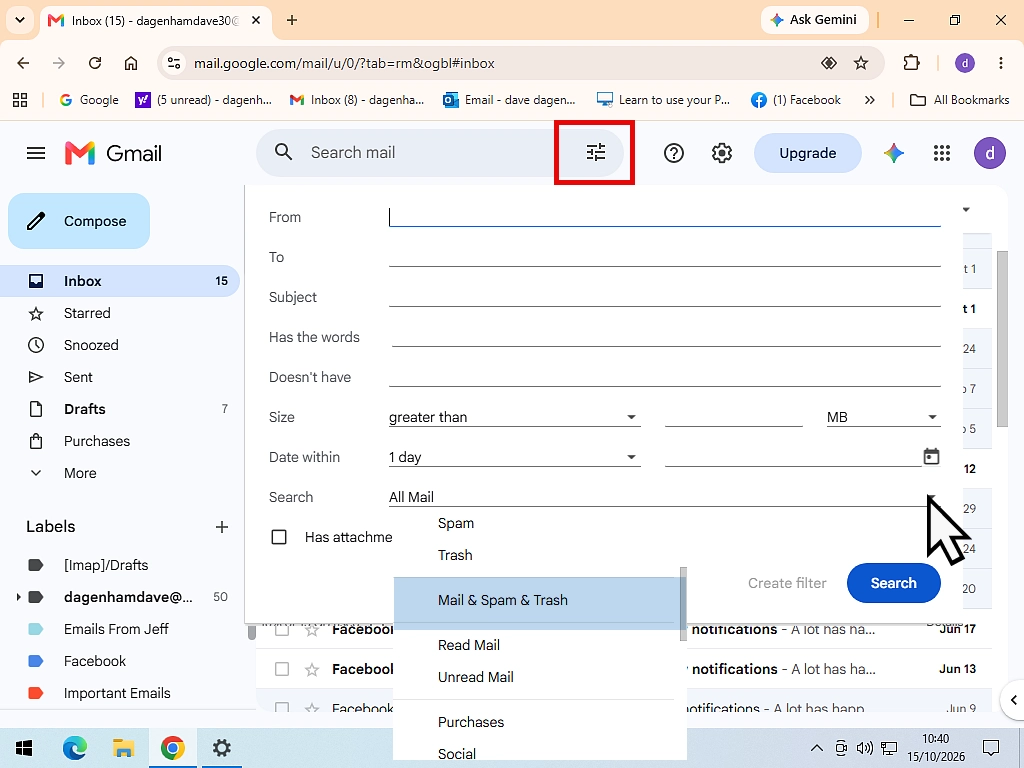
Gmail’s search box normally leaves out Spam and the Bin. To search everywhere:
- Click the Show search options button at the right-hand end of the search box.
- Change the Search options drop-down from All mail to Mail and spam and trash.
- Type the sender’s email address in From, or a word you know is in the email.
- Click Search.
If it turns up in the Bin, open it and move it back to your inbox. If it turns up somewhere odd, or marked as read when you’ve never seen it, check your filters next.
3. Check Your Filters and Blocked Addresses
A filter is a rule that does something to emails as they arrive. It’s easy to set one up for one thing and forget it’s catching other emails too.
- In Gmail on a computer, click the Settings cog at the top right, then See all settings.
- Click the Filters and blocked addresses tab.
- Read through your filters. Look for any that say Delete it or Skip the inbox.
- If one is catching emails you want, click Edit to change it or Delete to remove it.
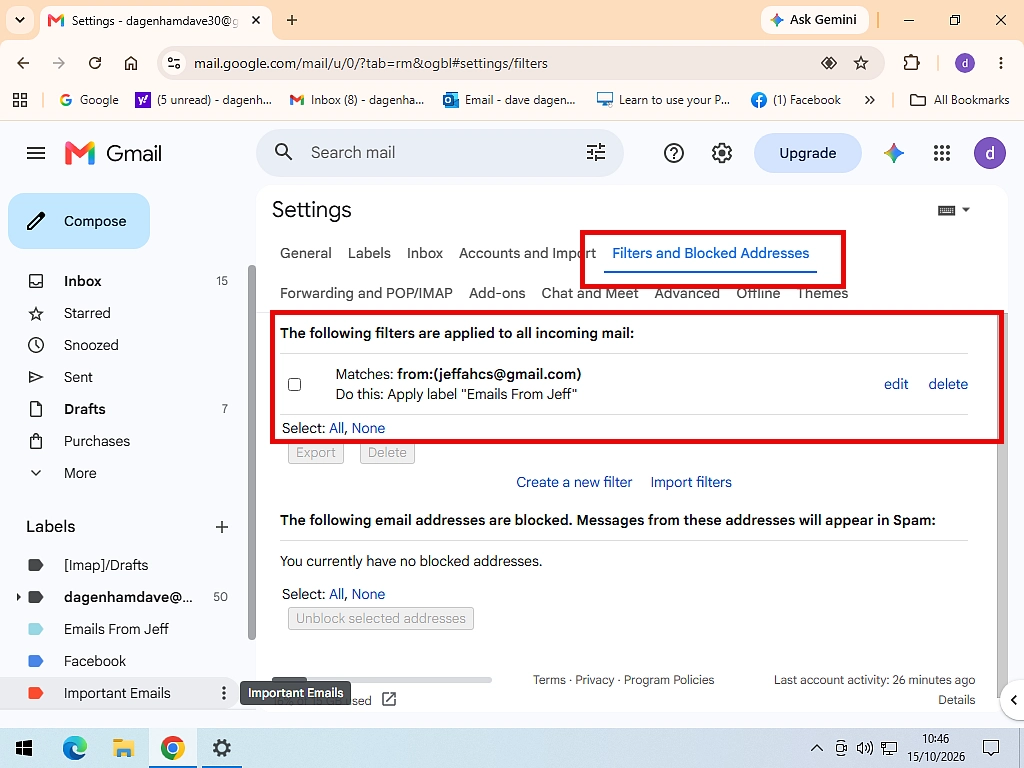
Filters that skip the inbox are how Gmail files emails into folders automatically, so if you’ve set any of those up, the emails will be in that folder rather than missing.
Check Your Blocked Addresses
Further down the same page is the list of addresses you’ve blocked. Emails from a blocked address go straight to Spam, so it’s worth checking you haven’t blocked someone by accident.
To unblock someone, tick the box next to their address and click Unblock selected addresses. How to Block Emails in Gmail and Stop Spam covers blocking and unblocking in more detail.
A Filter You Didn’t Make Is a Warning Sign
If you find a filter that deletes or forwards emails and you didn’t set it up, someone else may have been in your account. Scammers do this to hide emails from your bank or from Google. Delete the filter, change your Google password straight away, and read What Is Phishing? How to Spot a Phishing Email.
4. Check Your Forwarding Settings
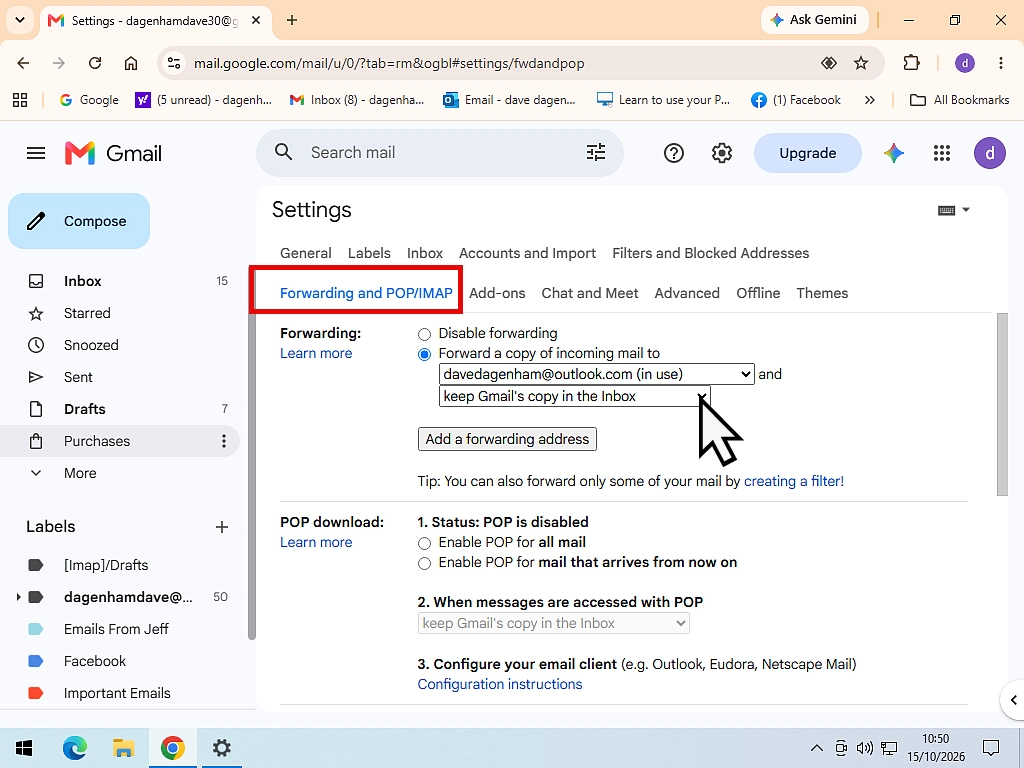
Gmail can send a copy of every email on to another address. If it’s also set to delete Gmail’s own copy, emails arrive and then vanish from Gmail before you ever see them.
- Click the Settings cog, then See all settings.
- Click the Forwarding and POP/IMAP tab.
- Look at the Forwarding section at the top.
- If forwarding is on and set to delete or archive Gmail’s copy, change it to Keep Gmail’s copy in the inbox.
- If emails are being forwarded to an address you don’t recognise, choose Disable forwarding.
- Click Save changes at the bottom of the page.
An unknown forwarding address is the same warning sign as an unknown filter. Turn it off, then change your password.
If You Read Gmail in Another Program
On the same tab, check the POP download section. If it says delete Gmail’s copy or archive Gmail’s copy, an email program on one of your devices is taking emails out of Gmail as it downloads them. Change it to keep Gmail’s copy in the inbox and click Save changes.
5. Emails From Your BT, Yahoo or Other Account Have Stopped
If Gmail collects emails from another email account for you, such as BT, Sky, Virgin Media, Yahoo or Hotmail, that’s coming to an end. Google is switching off Check email from other accounts and Gmailify in January 2027.
When that happens, emails sent to your other address will stop showing up in Gmail. They aren’t lost. They’ll still be waiting in the other account, you just won’t see them in Gmail any more.
Gmail Is Switching Off Gmailify and Check Email From Other Accounts explains how to check whether it affects you and the free ways to keep getting those emails, such as forwarding them from the other account.
If They’ve Stopped Before January 2027
Open Settings, See all settings, then the Accounts and Import tab, and look at the other account listed there. If there’s an error, the usual cause is that you’ve changed the password on the other account, or the other provider now wants an app password instead of your normal one.
Gmail Not Receiving Emails on Your Phone
If your emails show up on a computer but not in the Gmail app, Gmail itself is fine. The app on your phone isn’t updating. If they’re missing on the computer too, go back to the steps above, because the phone isn’t the problem.
Start With the Simple Fixes
- Check your phone has a working internet connection. Try opening a web page.
- In the Gmail app, pull the inbox down from the top to refresh it.
- Close the Gmail app completely and open it again.
- Update the Gmail app from the Play Store or App Store.
- Restart your phone.
Android: Make Sure Gmail Is Syncing
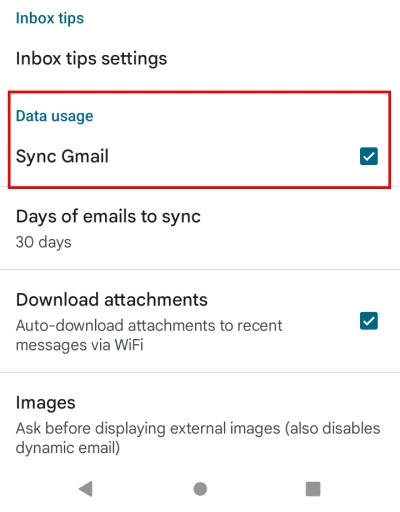
Android phones only fetch new emails if syncing is switched on, and it’s easy to turn off by accident.
- In the Gmail app, tap the Menu button (three lines) at the top left, then Settings.
- Tap your email address.
- Make sure Sync Gmail is ticked.
Also check that battery saver or data saver isn’t stopping Gmail working in the background.
iPhone: Check the App Can Run in the Background
On an iPhone, open the iPhone’s own Settings app, scroll down to Gmail, and make sure Background App Refresh is switched on. Without it, the Gmail app only checks for new emails while it’s open.
Not Getting Gmail Notifications?
Sometimes the emails are arriving and the phone just isn’t telling you. If you use the inbox tabs, the Gmail app normally only notifies you about emails in Primary. Anything that goes to Updates or Promotions, such as a delivery update or a login code, arrives silently.
- In the Gmail app, tap Menu, then Settings.
- Tap your email address, then Notifications or Email notifications.
- Choose to be told about all new emails rather than Primary only or high-priority only.
- Check notifications for Gmail are allowed in your phone’s own Settings app too.
If you have more than one account in the Gmail app, notifications are set for each account separately.
Gmail Not Loading New Emails on Your Computer
If Gmail opens but the inbox looks stuck, or new emails take ages to show, try these in order:
- Press F5 to reload the page.
- Open Gmail in a different web browser, such as Edge instead of Chrome. If it works there, the problem is your usual browser.
- Try a private window (InPrivate in Edge, Incognito in Chrome). That runs without your extensions, so if Gmail works there, one of your extensions is the culprit. Turn them off one at a time to find it.
- Restart your computer.
If you’ve set up Gmail Offline Mode, Gmail can show you a saved copy of your inbox while it waits for the internet, which can look like new emails aren’t coming in.
Check Whether Gmail Is Down
Very occasionally the problem is Google’s. Google’s status page, the Google Workspace Status Dashboard, lists Gmail with a green tick when everything’s working. Search for it by name. If Gmail shows a problem, there’s nothing to fix on your side. Emails usually arrive once it’s sorted.
Still Not Getting Emails From One Person?
If everything else arrives but one person’s emails never do, and they’re not in Spam, the problem may be at their end. Ask them to check:
- Your email address. One wrong letter sends it somewhere else entirely. Ask them to read it back to you.
- Their Sent folder. If it isn’t there, it was never sent.
- Whether they got an email back saying it couldn’t be delivered. That message usually says why, for example that your mailbox is full or the address doesn’t exist.
Also bear in mind that Gmail can only receive emails up to 50MB in size. A very big set of photos may be turned away. Ask the sender to share a link instead, through Google Drive, OneDrive or WeTransfer.
For Example
If someone saved your address in their contacts years ago as yourname@gmial.com instead of yourname@gmail.com, every email they send you goes to the wrong place, however many times they try. Checking how your address is saved in their contacts fixes it in seconds.
Troubleshooting
Verification Codes Aren’t Arriving
Login codes and password reset emails nearly always end up in Spam or the Updates tab. Check both, then search All Mail for the company’s name.
Wait a couple of minutes before asking for another code, because a new code usually cancels the old one. And check you typed your email address correctly on the website, because they can’t send it anywhere else.
Outlook or Another Email App Isn’t Getting My Gmail
Open Gmail in a web browser first. If the emails are there, Gmail is fine and the problem is the email app. Removing the Gmail account from the app and adding it again fixes it most of the time. How to Set Up Your Email Accounts in the Outlook for Windows App shows you how.
I Freed Up Storage but Emails Still Aren’t Arriving
New emails should start arriving within a few minutes. If they don’t, check you’re below 100% on every part of your storage, because Google Drive and Google Photos count too. Emptying the Bin in Gmail and in Google Drive is what actually frees the space.
I Found Settings I Didn’t Make
Filters, forwarding addresses or blocked addresses you don’t recognise can mean someone else has been in your account. Remove them, change your Google password, and turn on 2-Step Verification. What Is Phishing? explains how people usually get hold of passwords in the first place.
Frequently Asked Questions
Q: Why am I suddenly not receiving emails in Gmail?
A: The most common reason is that your Google storage is full. Gmail, Google Drive and Google Photos share the same space, and when it runs out Gmail stops receiving emails. Check the storage figure at the bottom of your inbox.
Q: What happens to emails sent to me when my Gmail storage is full?
A: They go back to the sender, who gets a message saying your mailbox is full. Freeing up space doesn’t bring them back, so ask the sender to send them again.
Q: Why am I not receiving emails from one person in Gmail?
A: Check Spam, the Promotions and Updates tabs, your blocked addresses and your filters. If the email isn’t anywhere, ask the sender to check your address and whether they got a message back saying it couldn’t be delivered.
Q: Why are my Gmail emails going to Spam?
A: Gmail decided they looked like spam. Open one, click Not spam, and Gmail will learn to let that sender through. If you’ve blocked the sender, their emails go to Spam too, so check your blocked addresses.
Q: Why is the Gmail app on my phone not getting new emails?
A: Check the emails are arriving on a computer first. If they are, refresh the app, update it, and restart your phone. On Android, make sure Sync Gmail is ticked in the app’s settings.
Q: Why am I not getting Gmail notifications?
A: If you use the inbox tabs, the Gmail app normally only notifies you about emails in Primary. Change the notification setting to all new emails, and check notifications are allowed for Gmail in your phone’s settings.
Q: How do I know if Gmail is down?
A: Check the Google Workspace Status Dashboard. It shows a green tick next to Gmail when everything is working normally.
Q: Will my BT or Yahoo emails still come into Gmail?
A: Only until January 2027, when Google switches off Check email from other accounts and Gmailify. After that you’ll need to forward them from the other account or use another option.
Summary
When Gmail isn’t receiving emails, start with your storage, because a full account turns emails away altogether. Then look in Spam, the tabs and All Mail, and check your filters, blocked addresses and forwarding.
If the emails are on your computer but not your phone, the app needs refreshing or syncing, not Gmail. And if your BT, Yahoo or other emails come into Gmail, plan for that stopping in January 2027.
Related Posts
Gmail Storage Full? Here’s Why (and How to Fix it)
Gmail Is Switching Off Gmailify and Check Email From Other Accounts
How to Block Emails in Gmail and Stop Spam
Change Your Name in Yahoo Mail
The name people see when you email them often decides whether your email gets opened or ignored.
Change your Yahoo Mail sending name in a minute, in both the new and old Yahoo Mail.
You can find this and other related step by step guides in – At Home Computer Email Guides
Written by Jeff Porter. I’ve been fixing Windows PCs since 2010 and I’m CompTIA Network+ certified. More about me