If you used the old Windows Media Player (now called Windows Media Player Legacy) to rip your music CDs to your computer, there’s a good chance they were saved in the WMA file format, which was the default setting.
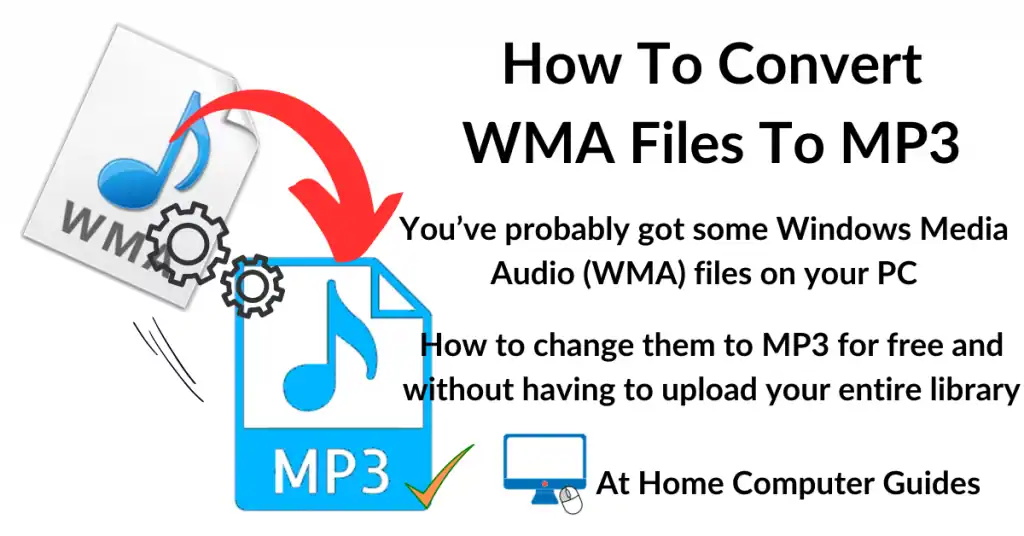
The problem is that WMA (Windows Media Audio), although still supported on Windows computers, isn’t really supported across many other devices like smartphones or modern tablets. The solution is to convert your WMA files to MP3, which is the most common audio format and works on just about every media player and device out there.
In this guide, I’ll show you exactly how to change WMA to MP3 quickly and easily.
VLC Convert WMA to MP3: Step-by-Step Guide
To convert WMA files into MP3 files, you’ll need to use a third-party application since Windows doesn’t have a built-in tool. Although WMP can play and rip both formats, it can’t convert between the two.
A reliable and secure option is the VLC convert WMA to MP3 method. VLC Media Player is a free and open-source program that handles audio conversion perfectly. It handles just about anything you can throw at it.
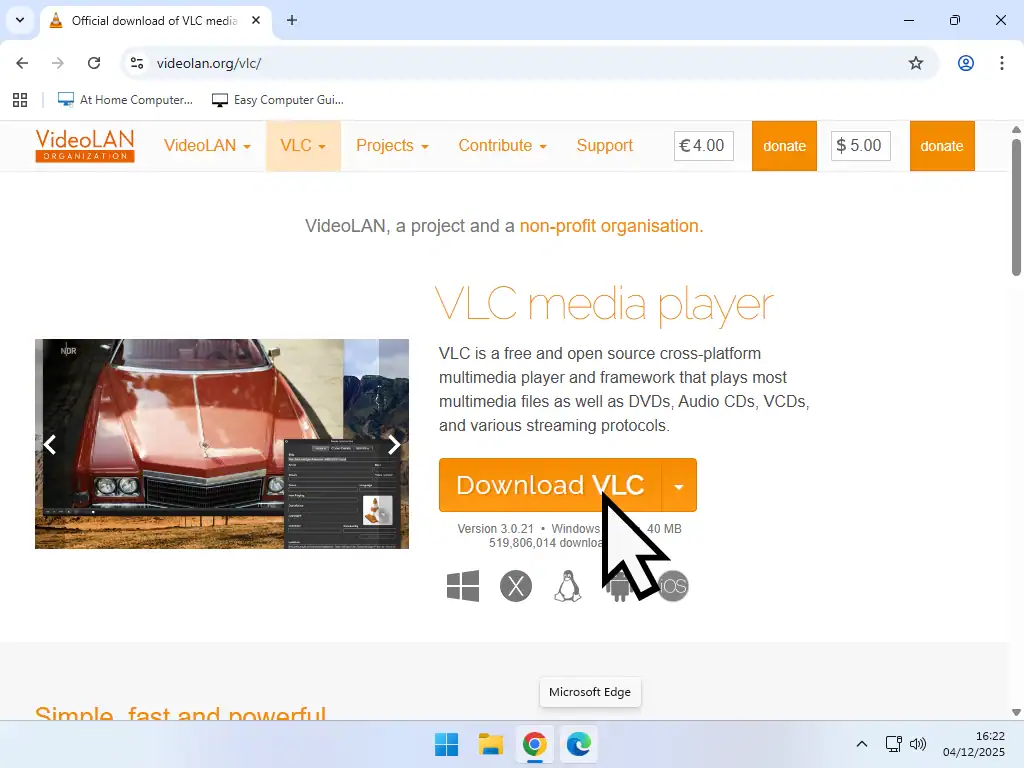
If you don’t already have VLC installed, you can download it from here https://www.videolan.org/vlc/
On the VLC download page, click the Download button, then wait for the download to start. There’ll be a slight pause of around 5 seconds before anything happens.
Don’t be tempted to click on any of the other download buttons. Just wait. Once VLC has finished downloading, run the setup.
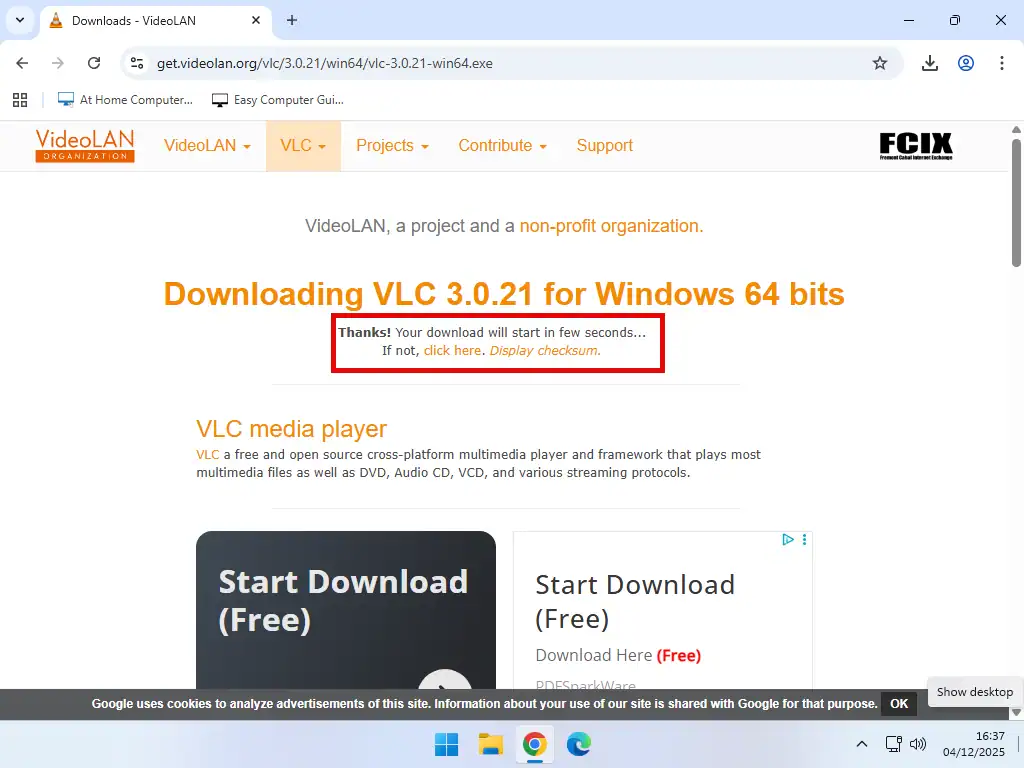
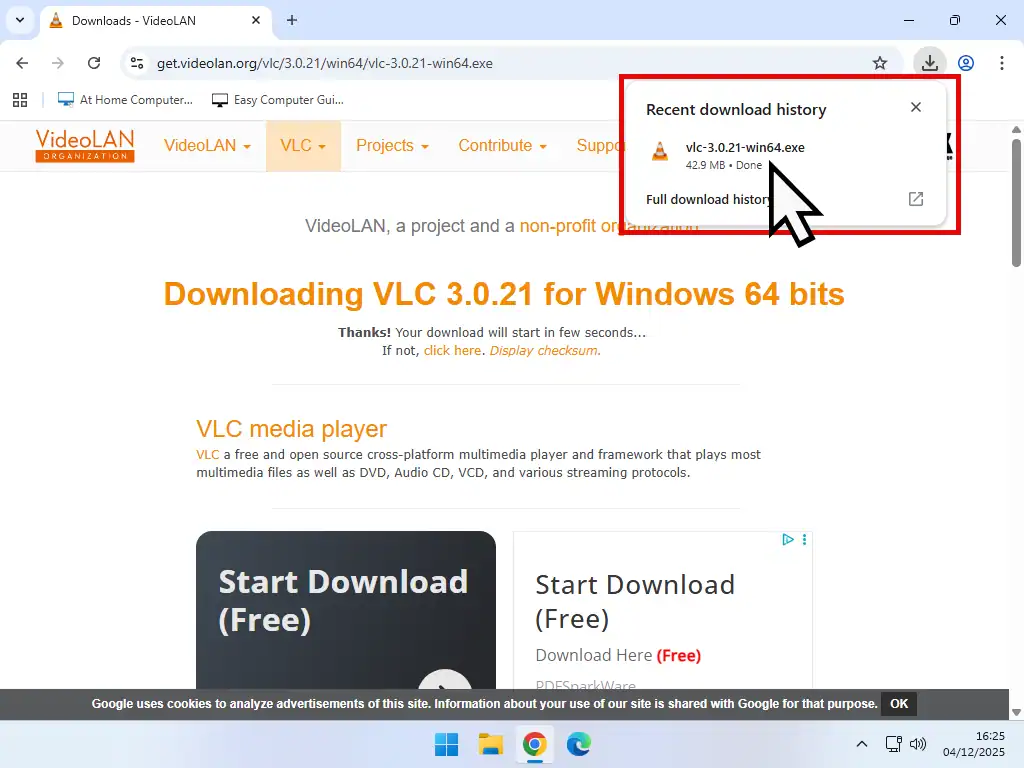
Installing VLC
Installing VLC is a pretty much standard routine. There’s no sneaky software bundles to be aware of. The only issue is on the download page where they rely on your impatience for something to happen.
How To Convert WMA To MP3
To convert your WMA files to MP3, launch VLC media player then, click the Media button in the top left corner.
On the menu that opens, click on Convert/Save. Or you can use the keyboard shortcut CTRL + R.

Adding The WMA Files To Be Converted
Now you need to point VLC towards the WMA files that you want to be changed in to MP3s.
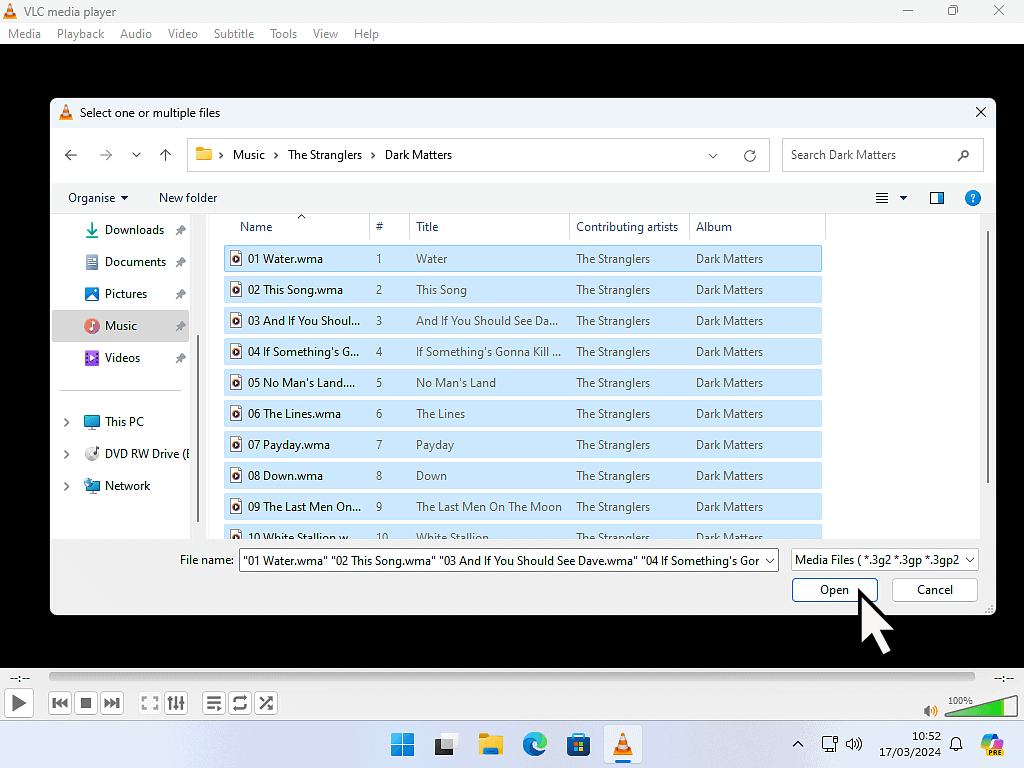
- Click the Add button. A standard File Explorer window will open.
- Navigate to where your WMA music files are stored, for example, your Music folder.
- Open a folder that contains WMA files and select them, then click the Open button.
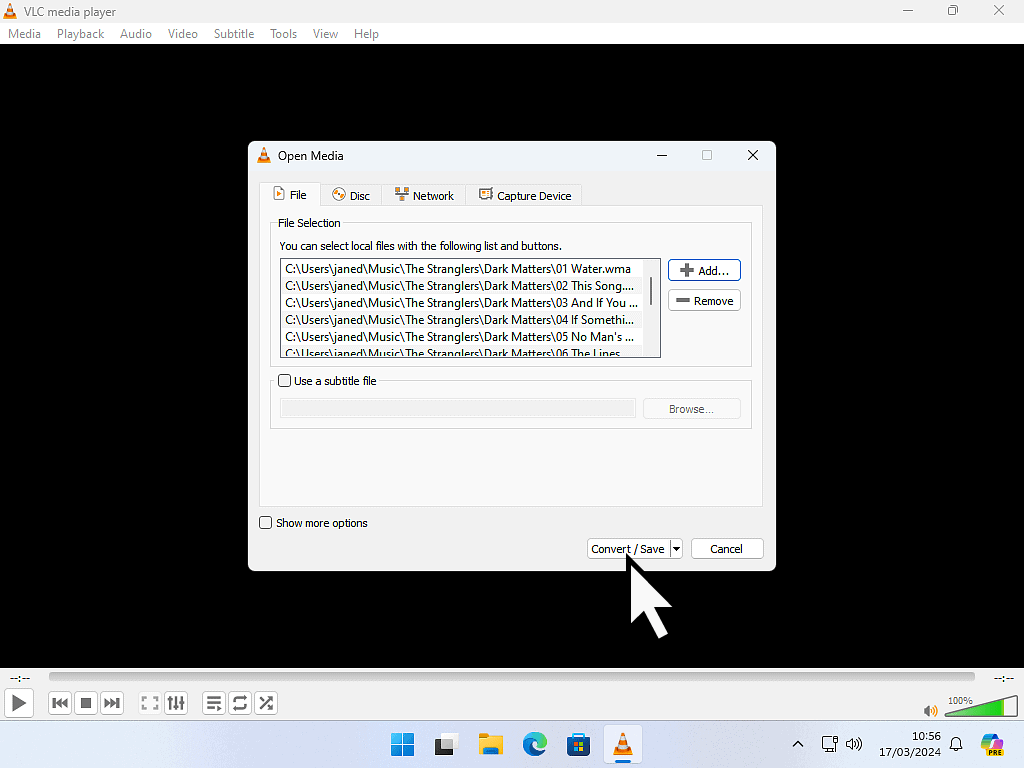
- The selected files will be loaded into VLC. Click the Convert/Save button at the bottom of the window.
If you want to add more files, just click the Add button again, navigate to the next folder and select the files. You can keep adding as many files as you want, but keep in mind that the more files you add, the longer the conversion process will take.
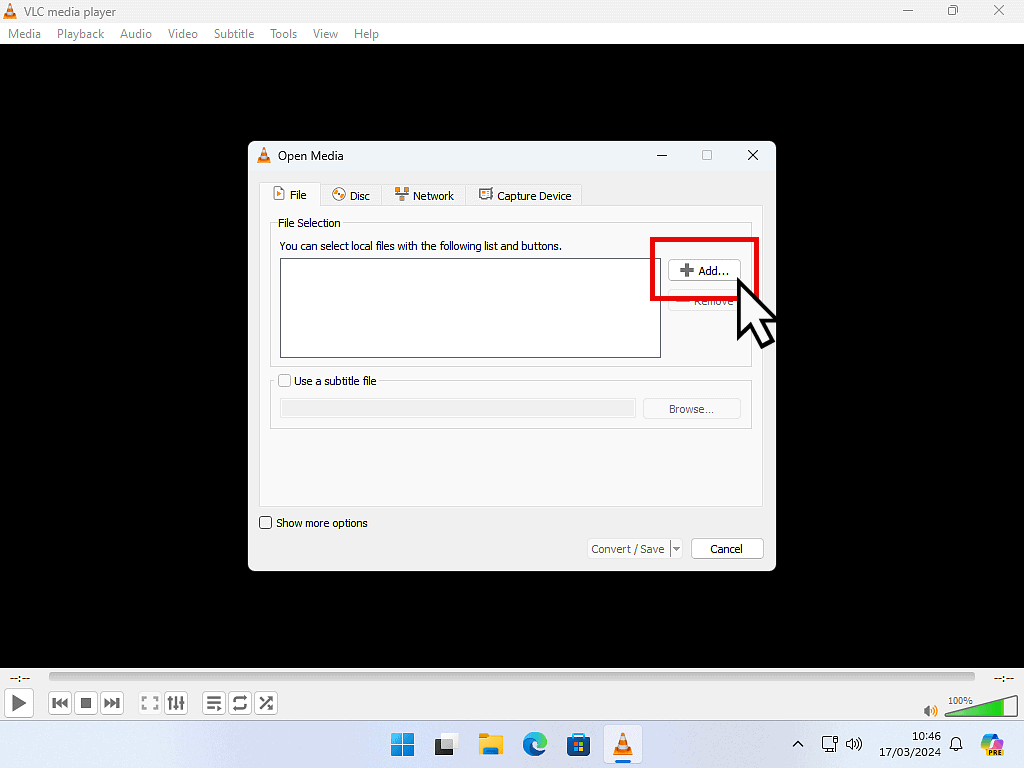
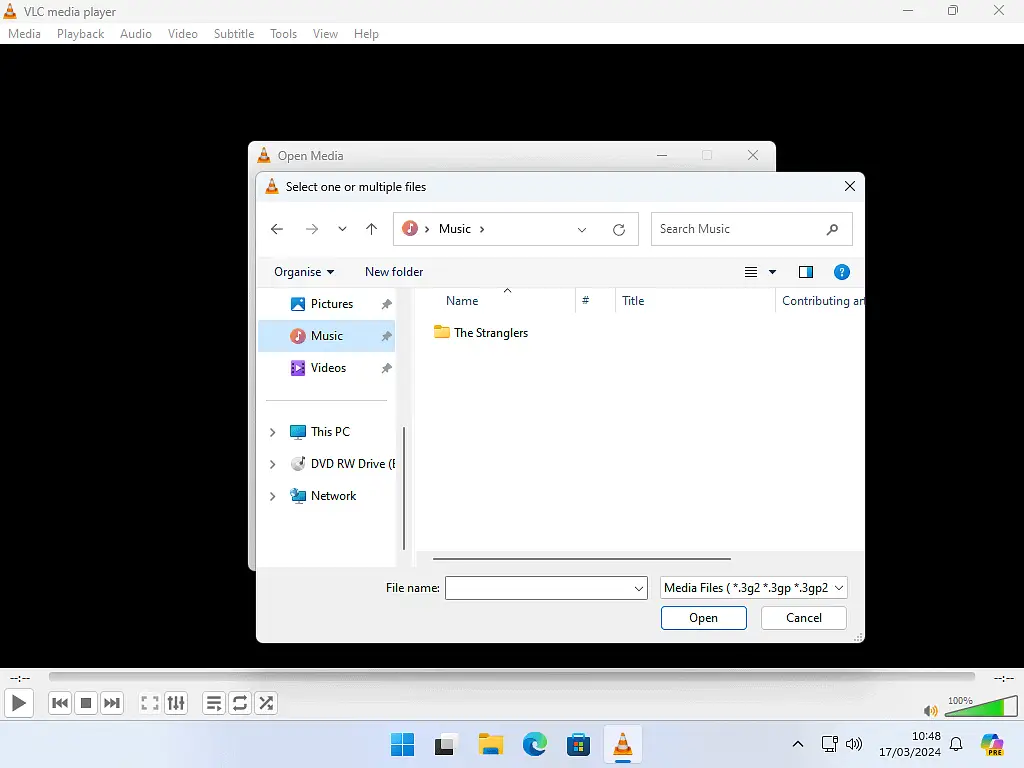
WMA To MP3 Conversion Settings
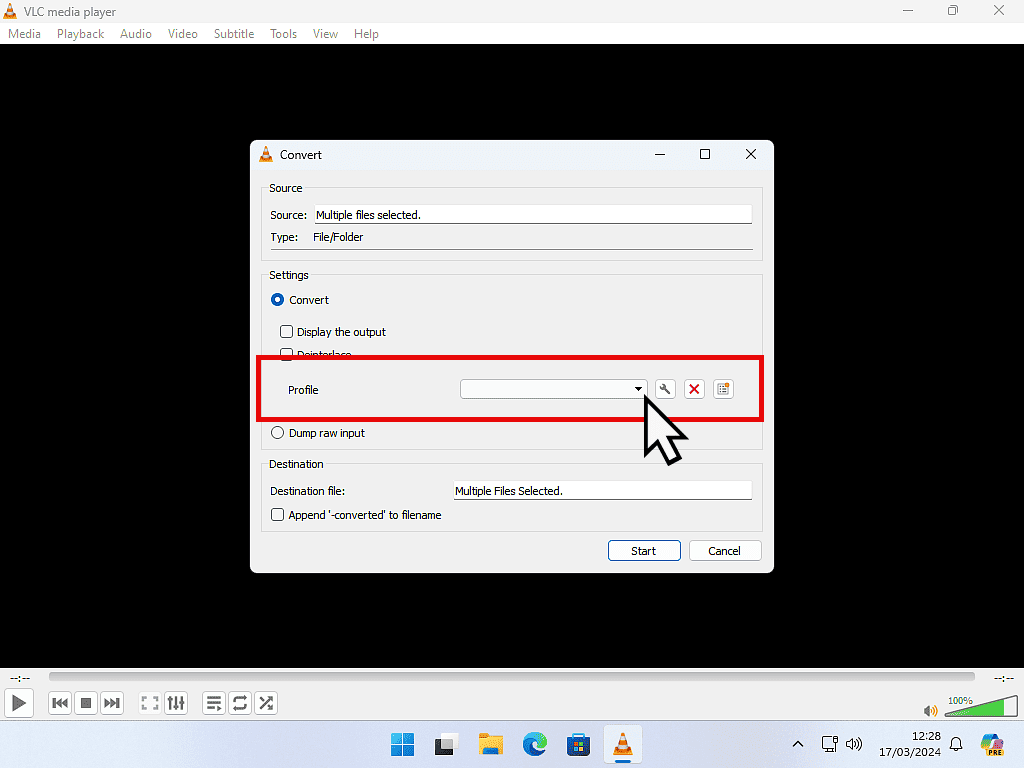
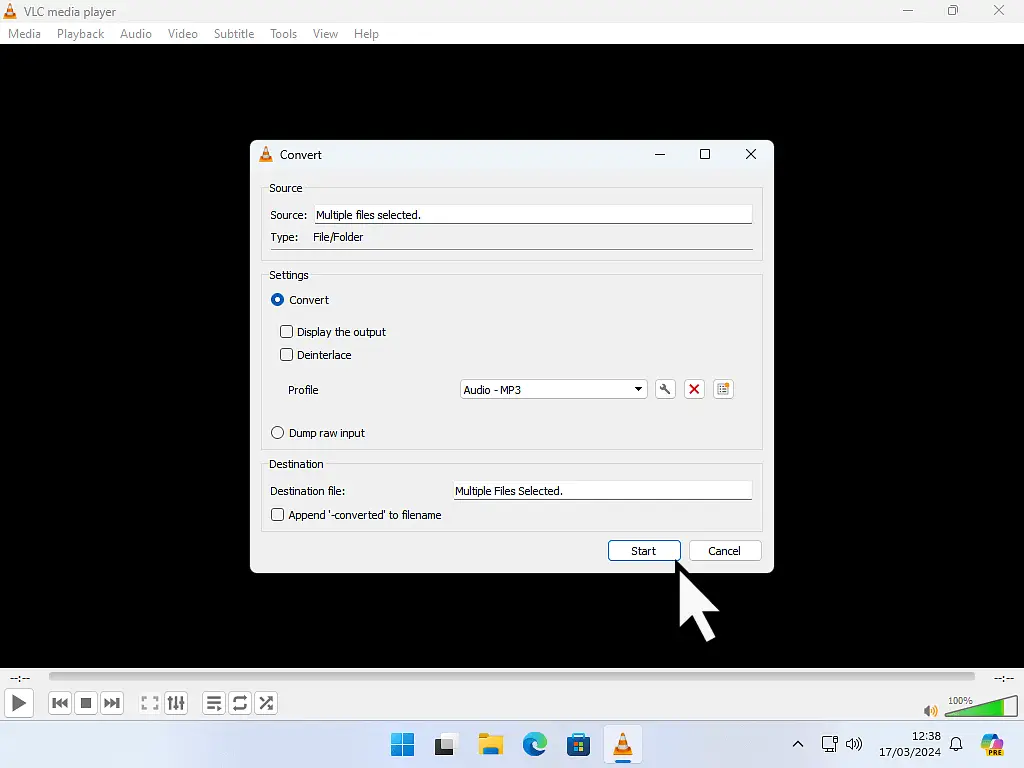
Now that you’ve got the WMA files selected and loaded, you need to tell VLC how to change WMA to MP3 format specifically
- On the VLC Convert screen, click the drop down arrowhead beside the Profile box.
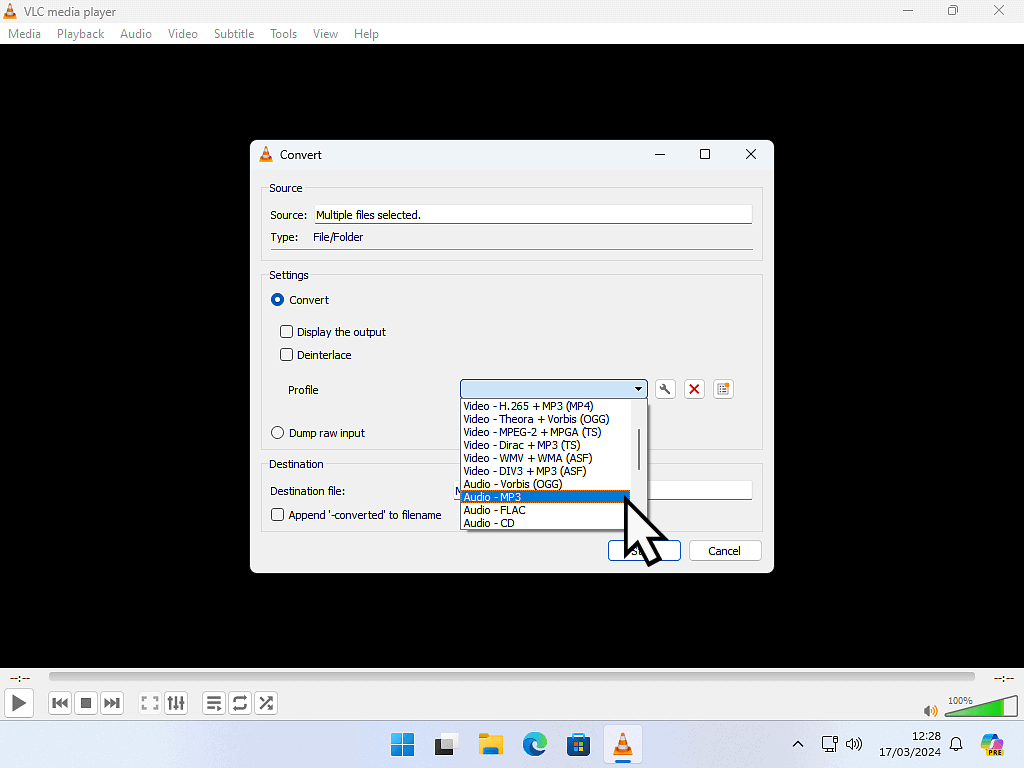
- Scroll through the menu and select Audio-MP3.
- Click the Start button to begin the conversion.
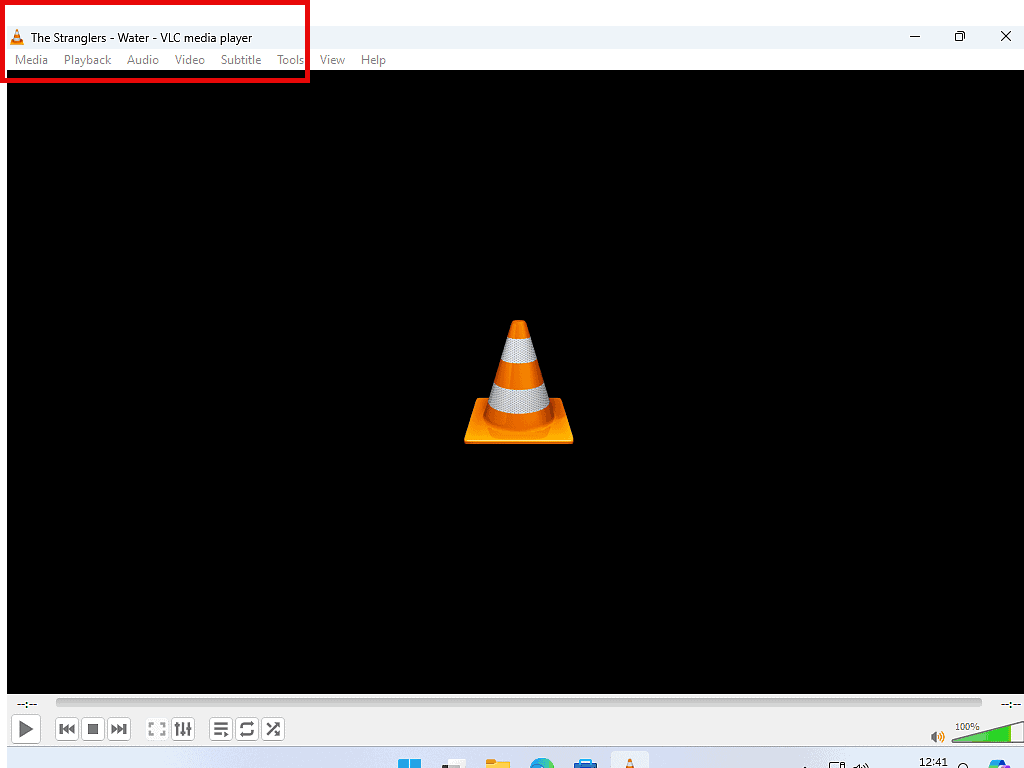
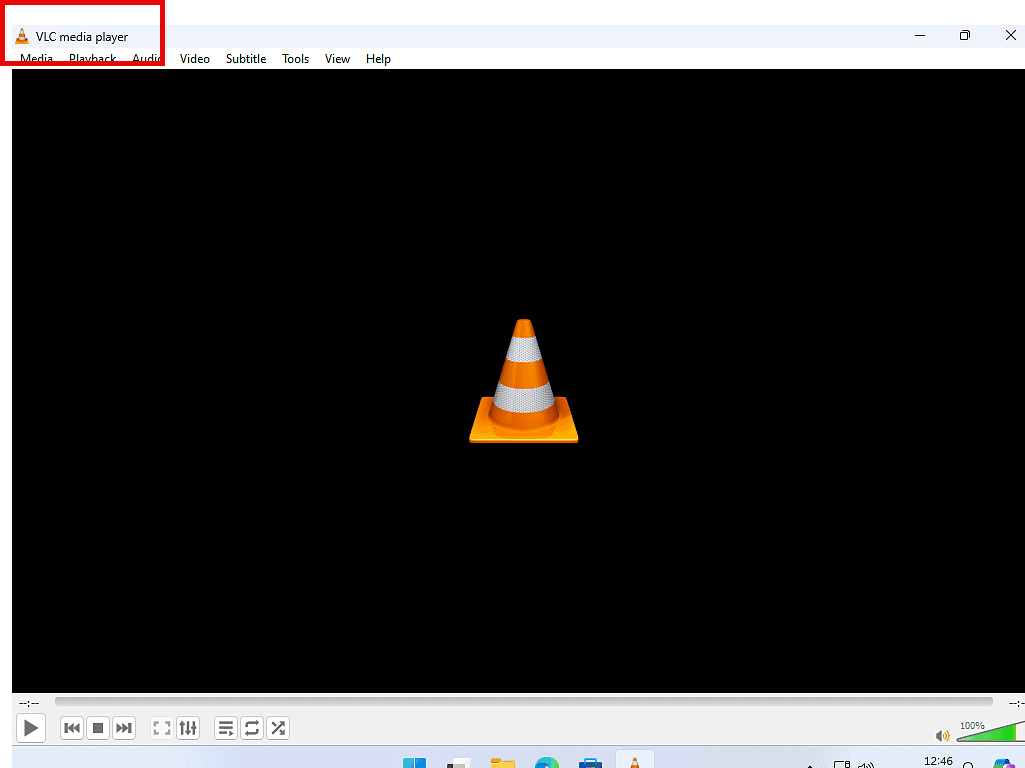
As each WMA file is loaded for conversion, you’ll see its filename appear in the title bar of VLC (top left of the window). You don’t get a traditional progress bar as such, but you can see that it’s working through the list. When the conversion is finished you’ll see VLC Media Player appear.
After You Change WMA to MP3
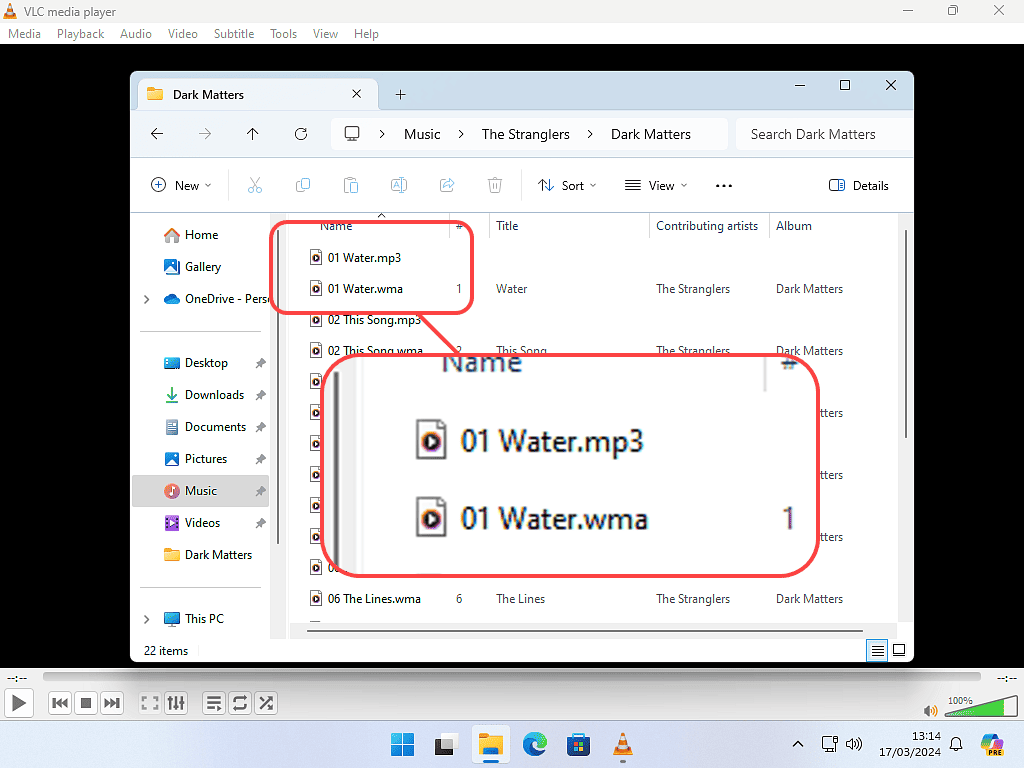
When performing a VLC convert WMA to MP3 task, the software doesn’t destroy or delete your original WMA files. It simply creates new ones with the same filenames in the same folder, but in the MP3 format. Which leaves you with 3 options –
- Leave everything as it is: You can leave the WMA and MP3 files together in the same folder. However, this often leads to confusion later on.
- Delete the WMA files: Deleting the old WMA files is an option, but if something went wrong with the conversion, you’ll lose your original copy.
- Move the WMA files (Recommended): My preferred option is to simply move the WMA files to a different “Archive” folder. This ensures you have a backup if needed, but they are out of the way of your new MP3s.
Frequently Asked Questions
Q. When loading WMA files into VLC I get an error message.
A. Either the file is corrupted or, more likely, it has DRM copy protection added to it. This is a common issue with older music files ripped using Windows Media Player. Read this guide How To Remove DRM From WMA Audio Files.
Q. Would an online converter be better?
A. No, not in my opinion. Online converters require you to upload your files, which can take a very long time, and then download the converted file. You have no way of knowing exactly what is in the file that you download.
Summary
Use VLC to convert WMA files to MP3 files. It’s free to use and much quicker than using an online converter and doesn’t carry the risk of downloading something else.
Related Posts
Copy A CD To Computer Without Any Loss Of Sound Quality
With more storage space available these days you might want to consider ripping your music CDs using a “lossless” format. These files are perfect one to one copies of the original CD.
How To Make An MP3 CD
Did you know you can burn MP3s to a CD. Because MP3 takes up so little space you can fit many more tracks on each CD.
How To Fix Missing MP3 Tags
MP3 tags contain information such as artist, album, track name and CD cover art to name a few.
Windows 10 Virtual Computer
Create a Windows virtual machine. It’s free and not that difficult to do.
Virtual machines are great for experimenting with. You can try out new operating systems, you can browse the web safely and open suspicious emails. Download new software to try it out, all without risking your host (real) computer.
Setup a Windows 10 VM now. Easy to follow guide.