
An email signature is the few lines that Outlook adds to the bottom of your emails for you. Your name, a phone number, perhaps a website address. Set it up once and you never have to type it again.
The awkward part is finding the setting. There are several versions of Outlook, they don’t all keep the signature settings in the same place, and in the newer versions the settings have been moved from where they used to be.
In this guide I’ll show you where the signature settings are in every version of Outlook, how to add a signature and change it, how to make it appear automatically, how to add a logo or a link, and what to do when your signature isn’t showing.
The Short Version
- In the new Outlook app or on Outlook.com, click the Settings cog, then Account, then Signatures.
- In classic Outlook, click File, then Options, then Mail, then Signatures.
- Click Add signature (it’s called New in classic Outlook), give it a name and type your signature.
- Choose whether to add it to new emails, and to replies and forwards. Then save it.
Table of contents
- Where to Find the Signature Settings in Outlook
- How to Add a Signature in New Outlook and Outlook.com
- How to Add a Signature in Classic Outlook
- How to Change or Edit Your Signature in Outlook
- How to Add Your Signature Automatically to New Emails and Replies
- How to Add a Logo or Picture to Your Outlook Signature
- How to Add a Signature in the Outlook App on iPhone and Android
- Outlook Signature Not Showing? How to Fix It
- Where Classic Outlook Keeps Your Signatures, and How to Move Them
- Outlook Signature FAQ
- Summary
Where to Find the Signature Settings in Outlook
Where you look depends on which Outlook you have, so that’s the first thing to work out.
Look in the top right corner of the window. If there’s a Settings cog, you’re using the new Outlook app or Outlook.com. If there’s no cog, it’s classic Outlook, the one that comes with Microsoft Office.
- New Outlook app and Outlook.com. Click the Settings cog, then Account, then Signatures.
- Classic Outlook. Click File, then Options, then Mail, then Signatures.
- The Outlook app on a phone. Open Settings, then tap Signature.
If you remember the signature being with the Compose settings, you’re not imagining it. That’s where it used to be, and it has moved.
How to Add a Signature in New Outlook and Outlook.com
The new Outlook app, which comes free with Windows, and Outlook.com in a web browser work in the same way. So do Hotmail and Live addresses, because they’re all Outlook.com accounts now.
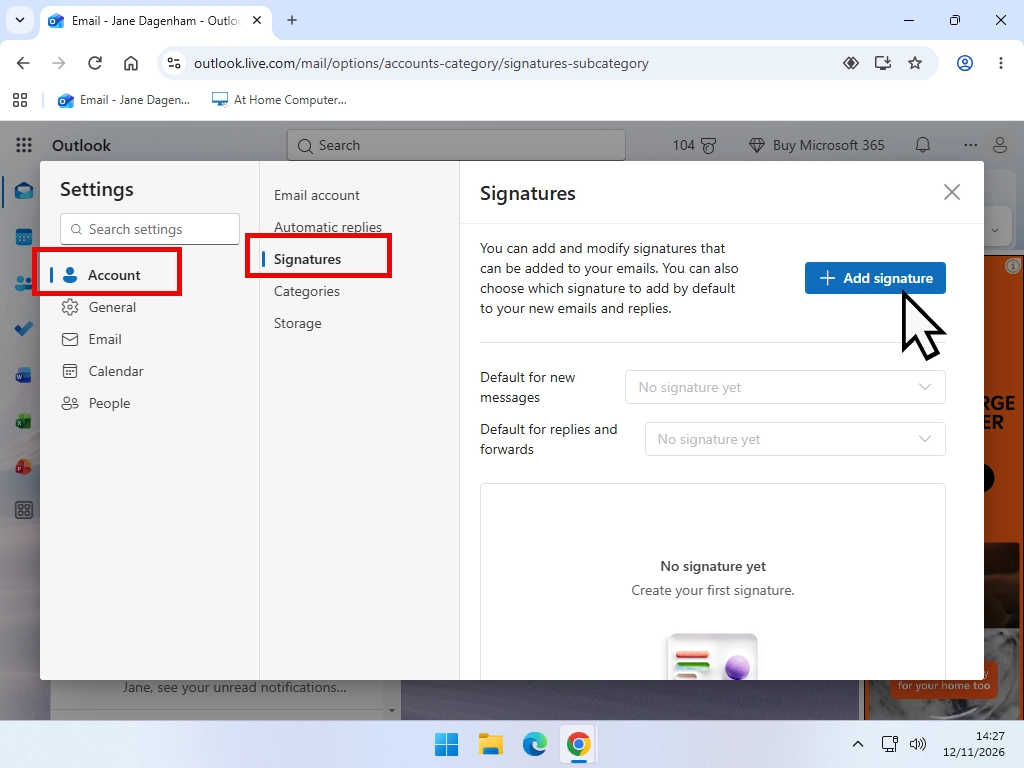
- Click the Settings cog in the top right corner.
- Click Account, then Signatures.
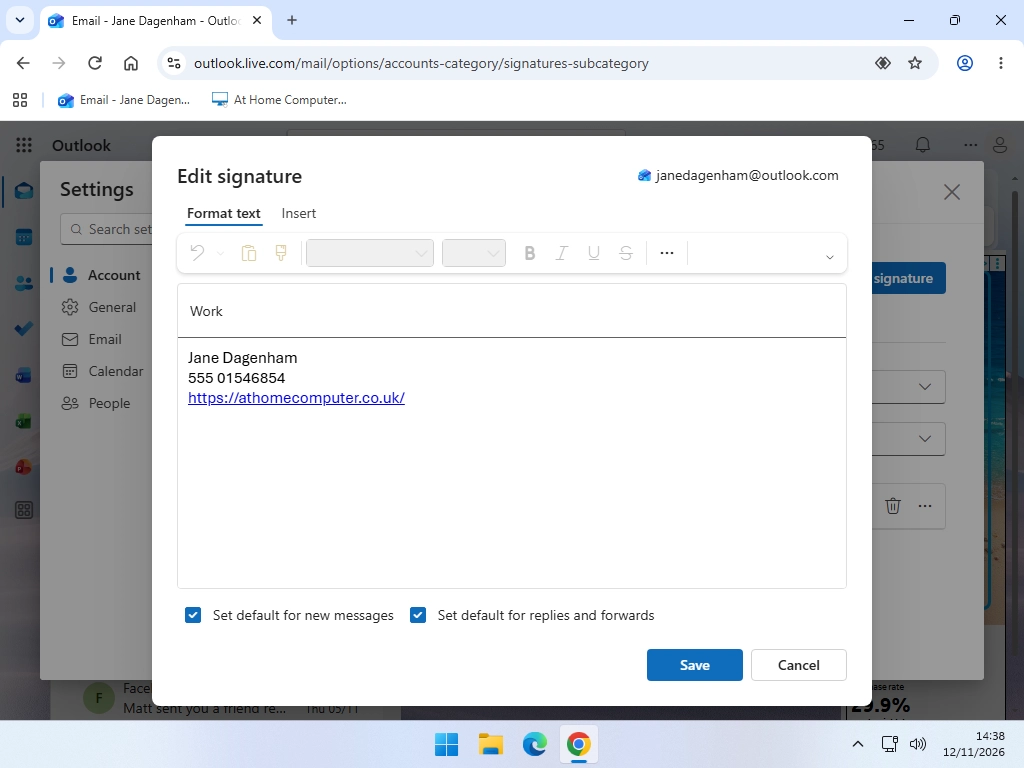
- Click Add signature and type a name for it. The name is only for you, so call it something like Personal or Work.
- Type your signature into the box underneath. Use the formatting toolbar to change the font, size and colour.
- At the bottom of the page, choose whether Outlook adds the signature to new messages, and to replies and forwards.
- Click Save.
What to Put in a Signature
A good signature is short. Your name, a phone number and a website or email address is plenty, on three or four lines.
Leave out anything you wouldn’t want every person you email to see, such as your home address.
If you’ve added more than one email account to the new Outlook app, each account has its own signatures. Choose the account at the top of the Signatures page before you start. I’ve a separate guide on adding your email accounts to the Outlook app.
How to Add a Signature in Classic Outlook
Classic Outlook is the version that comes with Microsoft Office. Its signature window looks older, but it does the same job.
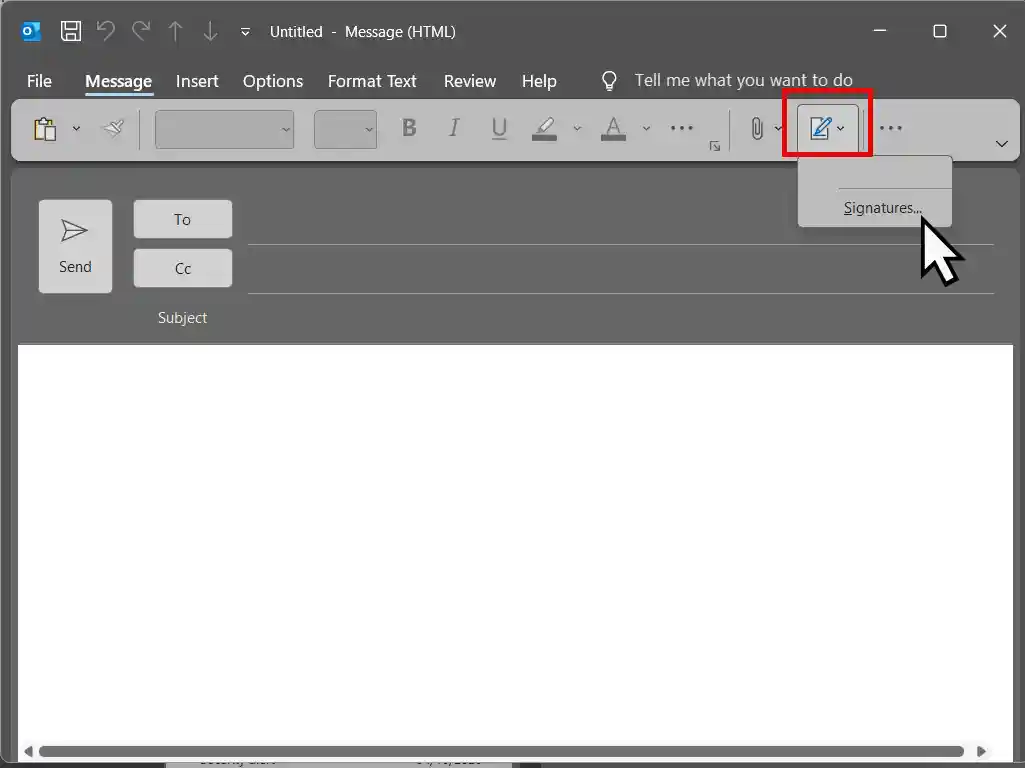
- Click New Email to open a blank message.
- On the Message tab, click Signature, then Signatures.
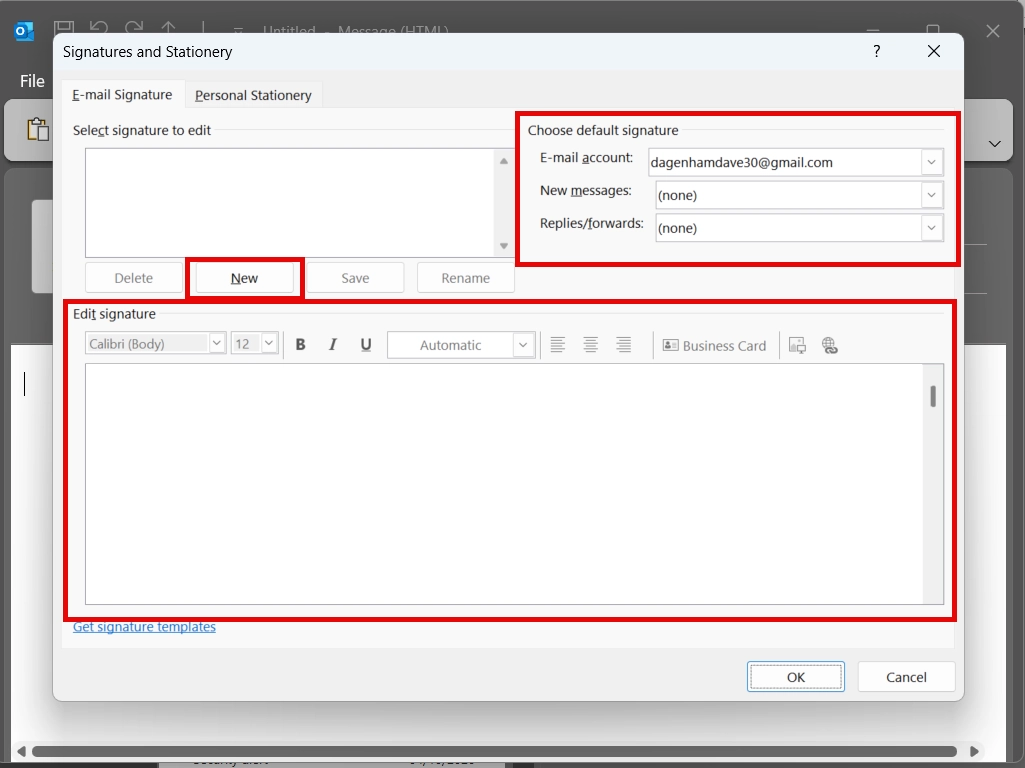
- Click New, type a name for the signature and click OK.
- Type your signature into the Edit signature box.
- Under Choose default signature, pick your signature in the New messages box. To have it on replies as well, pick it in the Replies/forwards box.
- Click OK.
There’s one oddity. The email you had open while you did this won’t have the signature in it. Every new email you start from now on will.
You can get to the same window without opening an email. Click File, then Options, then Mail, then Signatures.
How to Change or Edit Your Signature in Outlook
A new job title, a new phone number, or you’ve spotted a typing mistake. Changing a signature takes a minute, and you go back to the same place you made it.
Change Your Signature in New Outlook and Outlook.com
- Click the Settings cog, then Account, then Signatures.
- Click the edit signature icon (pencil icon) beside the signature you want to change.
- Make your changes in the box.
- Click Save.
Change Your Signature in Classic Outlook
- Click File, then Options, then Mail, then Signatures.
- Click the name of the signature in the list at the top.
- Make your changes in the Edit signature box.
- Click Save, then OK.
The same window has Rename and Delete buttons, if you want to change what a signature is called or remove it altogether.
How to Add Your Signature Automatically to New Emails and Replies
A signature only appears by itself if you’ve told Outlook to use it. And there are two separate settings, one for new emails and one for replies and forwards.
That catches a lot of people out. They set the first one, and then wonder why their signature is missing whenever they reply to somebody.
Automatic Signature in New Outlook and Outlook.com
Go back to the Signatures page (Settings cog, then Account, then Signatures). The two settings are at the bottom, one for new messages and one for replies and forwards.
Turn on the ones you want and click Save.
Default Signature in Classic Outlook
Open the Signatures window (File, then Options, then Mail, then Signatures) and look under Choose default signature on the right.
Pick your signature in the New messages box and again in the Replies/forwards box, then click OK. To switch either one off, choose (none).
Add Your Signature to One Email by Hand
You might prefer not to have a signature on everything. In that case leave both settings off, and add it only when you want it.
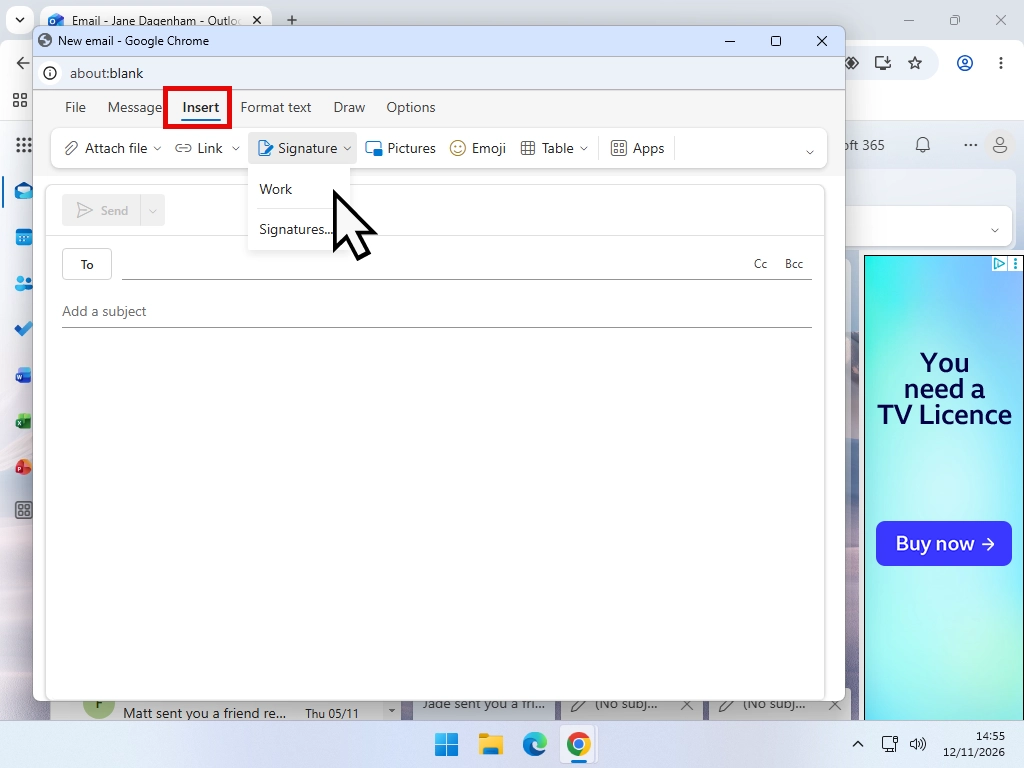
In the email you’re writing, click Signature on the Message tab and choose the signature from the list. That works in all three desktop and web versions, and it’s also how you swap to a different signature if you’ve made more than one.
How to Add a Logo or Picture to Your Outlook Signature
You can put a picture in your signature in new Outlook, Outlook.com and classic Outlook. A company logo, a small photo, or a scan of your handwritten signature are all added in the same way.
Add a Picture in New Outlook and Outlook.com
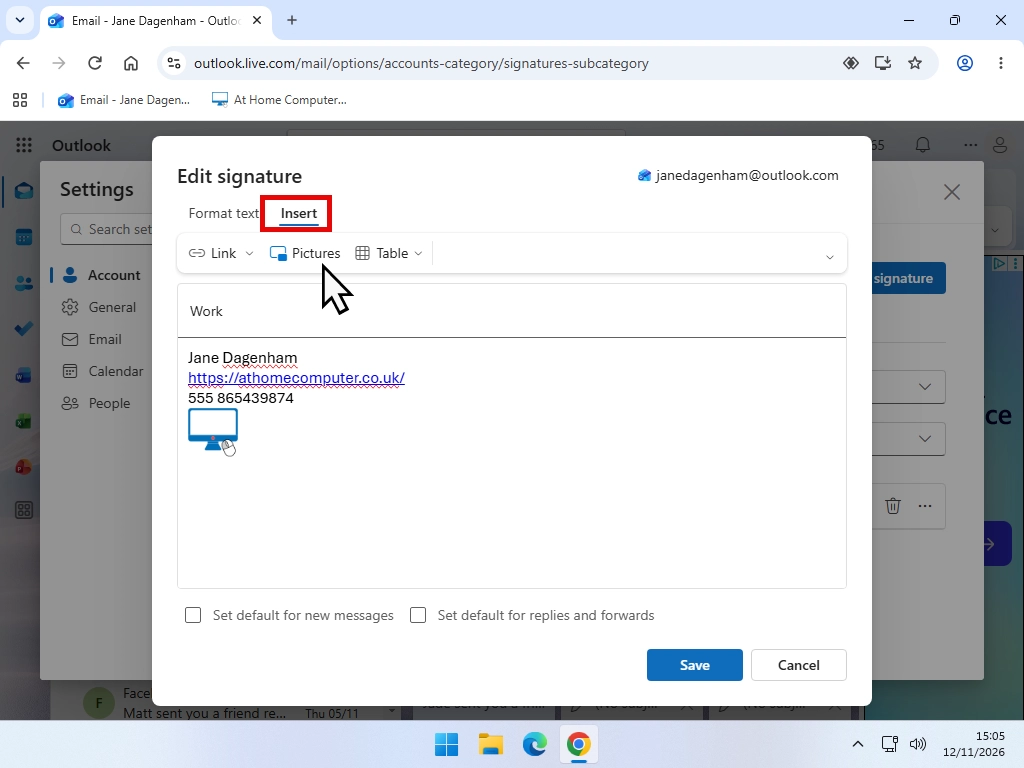
- Open your signature for editing (Settings cog, then Account, then Signatures).
- Click in the signature box where you want the picture to go.
- Click the Insert tab.
- Click the picture icon on the formatting toolbar.
- Find the picture on your computer and click Open.
- Click Save.
It’s the same as inserting a picture into an Outlook email, which I cover in a separate guide.
Add a Picture in Classic Outlook
- Open the Signatures window (File, then Options, then Mail, then Signatures).
- Click the signature you want to add the picture to.
- Click in the Edit signature box where the picture should go.
- Click the picture icon at the right-hand end of the toolbar, find your picture and click Insert.
- Click OK.
If the picture is too big, right-click it and choose Picture. On the Size tab you can make it smaller. Leave Lock aspect ratio ticked so that it doesn’t get squashed.
Quick Tip
Keep the picture small. A logo a couple of hundred pixels wide is plenty, and a large photo makes every email you send slower to open.
Don’t put everything in a picture either. If your phone number is part of an image, nobody can copy it or tap it to call you.
Add a Link to Your Signature
A link to your website or your Facebook page works in the same way in every version. Type the words you want people to click, select them, then click the link icon on the toolbar and paste in the web address.
There’s more about links in my guide on how to add links in Outlook.
How to Add a Signature in the Outlook App on iPhone and Android
The Outlook app on your phone has its own signature. It doesn’t use the one you made on your computer.
Until you change it, the app signs your emails with a line advertising itself, such as Get Outlook for Android. Here’s how to replace it.
- Open the Outlook app and go to Settings.
- Under Mail, tap Signature.
- Delete what’s there and type your own signature.
If you have more than one email account in the app, turn on Per Account Signature and you can give each account a different one.
The wording can vary a little between iPhone and Android, and from one version of the app to the next.
Outlook Signature Not Showing? How to Fix It
You’ve made a signature, but your emails are going out without it. One of these four things is nearly always the reason.
The Signature Is Not Set as the Default
Making a signature doesn’t switch it on. Go back to the signature settings and check that it’s chosen for new messages.
If it’s only missing when you reply, it’s the second setting, replies and forwards, that’s been left off.
You Made the Signature in a Different Version of Outlook
Classic Outlook usually keeps its signatures on your computer. The new Outlook app and Outlook.com keep theirs in your account. And the phone app has its own again.
So a signature you made in one may not appear in the others. If it’s missing, you have to add it in that version as well.
The quick way is to open the signature where it already exists, copy it, and paste it into a new signature in the other version.
The Wrong Email Account Is Selected
Each email account in Outlook has its own signature settings. If you have two accounts, you may have set the signature up for one and be sending from the other.
In the new Outlook app, choose the account at the top of the Signatures page. In classic Outlook, it’s the E-mail account box in the Signatures window.
The Picture in Your Signature Is Not Showing
If your signature turns up without its logo, the email is probably being sent as plain text, which can’t carry pictures or colours.
In classic Outlook, click the Format Text tab in the email you’re writing and choose HTML.
If it looks right to you but the person receiving it can’t see the picture, the cause is at their end. Many email programs hide pictures until the reader chooses to show them, and there’s nothing you can change to prevent that.
Where Classic Outlook Keeps Your Signatures, and How to Move Them
Because classic Outlook stores signatures on your computer, they don’t follow you to a new PC. But they’re easy to copy across.
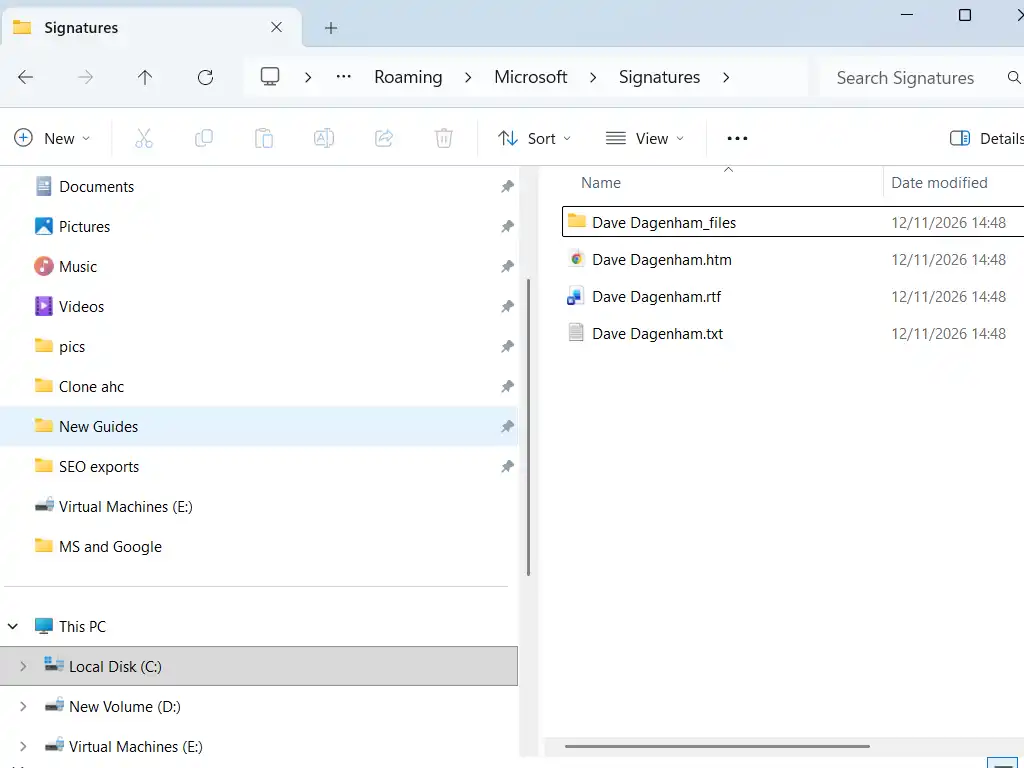
Open File Explorer, paste this into the address bar at the top and press Enter.
%APPDATA%\Microsoft\SignaturesEach signature is a few files with the same name, and a folder if it has pictures in it. Close Outlook, then copy everything in there onto a USB stick.
On the new PC, open the same folder in the same way and paste the files in. Your signatures will be in the list the next time you open Outlook.
There’s nothing to move for the new Outlook app or Outlook.com. Those signatures are saved in your account, so they’re there as soon as you sign in.
If you pay for Microsoft 365, check the new PC before you copy anything. Newer versions of classic Outlook can save signatures to your account as well, so yours may already be there.
Outlook Signature FAQ
Q: Can I have more than one signature in Outlook?
A: Yes. Make as many as you like, each with its own name. One is used automatically, and you can swap to another in any email by clicking Signature and choosing it from the list.
Q: How do I add a signature in Hotmail?
A: Hotmail is part of Outlook.com now. Sign in at Outlook.com, click the Settings cog, then Account, then Signatures, and add your signature there.
Q: Does my Outlook signature show on my phone?
A: No. The Outlook app on a phone has its own signature, which you set in the app’s Settings under Signature.
Q: How do I remove my signature from one email?
A: Click in the email, select the signature and press Delete. That removes it from that email only. It will still be added to the next one.
Q: How do I add a handwritten signature in Outlook?
A: Sign a piece of white paper, take a photo of it or scan it, and crop the picture close to the writing. Then add it to your signature as a picture, in the same way as a logo.
Q: Why does my signature look different when someone receives it?
A: Email programs don’t all show fonts and pictures in the same way. Use a common font such as Arial, keep pictures small, and send yourself a test email to see what arrives.
Q: Is an email signature the same as a digital signature?
A: No. An email signature is the name and details at the bottom of an email. A digital signature is a security feature that proves an email really came from you and hasn’t been altered.
Summary
Once you know where the setting is, adding a signature in Outlook only takes a couple of minutes. In the new Outlook app and on Outlook.com it’s under Account in Settings. In classic Outlook it’s under File, then Options, then Mail.
Remember the two things that catch most people out. Replies and forwards have their own setting, and a signature made in one version of Outlook won’t always appear in the others.
So if you use Outlook on your PC and on your phone, set your signature up in both.
Related Posts
How to Block an Email Address in Outlook
How to Insert an Image Directly into Outlook Emails
Change Your Name in Yahoo Mail
The name people see when you email them often decides whether your email gets opened or ignored.

Change your Yahoo Mail sending name in a minute, in both the new and old Yahoo Mail.
You can find this and other related step by step guides in – At Home Computer Email Guides
Written by Jeff Porter. I’ve been fixing Windows PCs since 2010 and I’m CompTIA Network+ certified. More about me