
To do just about anything on a computer you need a program, or an app. The good news is that your computer already has some decent ones to get you started.
So before you go hunting for something to download, it’s worth knowing what is already sitting there. Some of the preinstalled apps in Windows are actually good at what they do. A few are excellent. And a handful you’ll want to replace.
Below is the full list of what comes with Windows 11 and Windows 10, what each one is actually for, and which ones are worth your time.
Table of contents
- How to See Every App on Your Computer
- The Full List of Preinstalled Apps in Windows 11
- The Ones Worth Actually Using
- Apps That Have Disappeared From Windows
- What Your Laptop Maker Added (HP, Dell, Lenovo, Acer, Asus)
- What Is Different on Windows 10
- Frequently Asked Questions
- One Extra Worth Adding Yourself
- Summary
How to See Every App on Your Computer
To see all the installed programs on your PC:
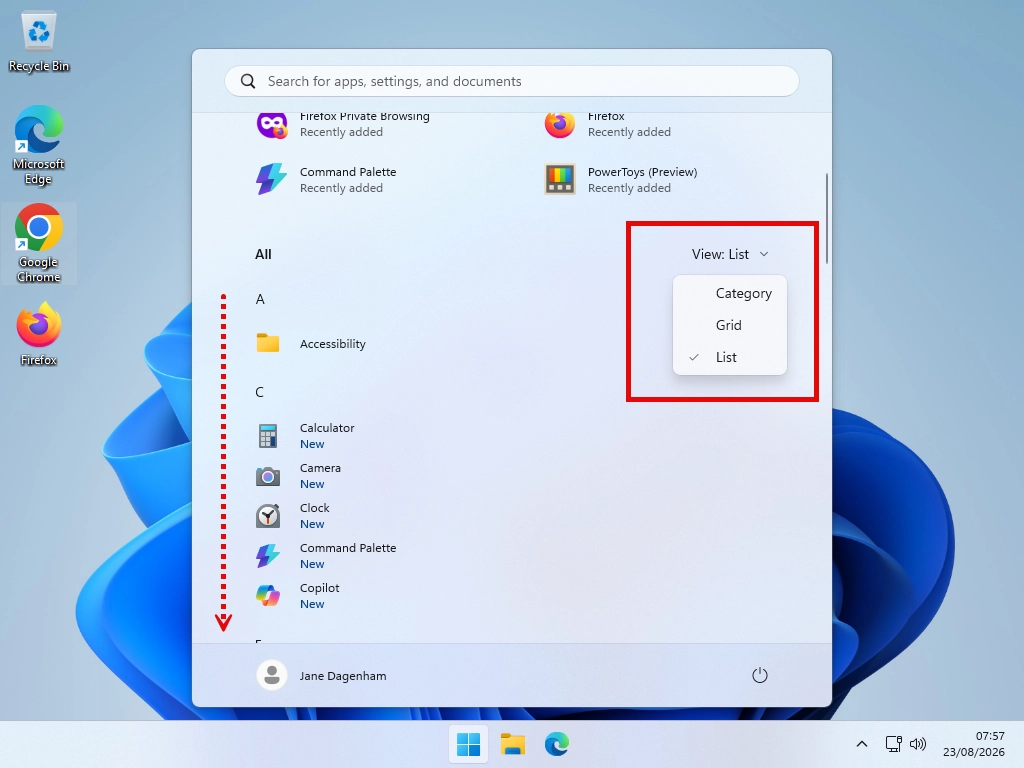
- In Windows 11, click the Start button, then click the View button and change it to List.
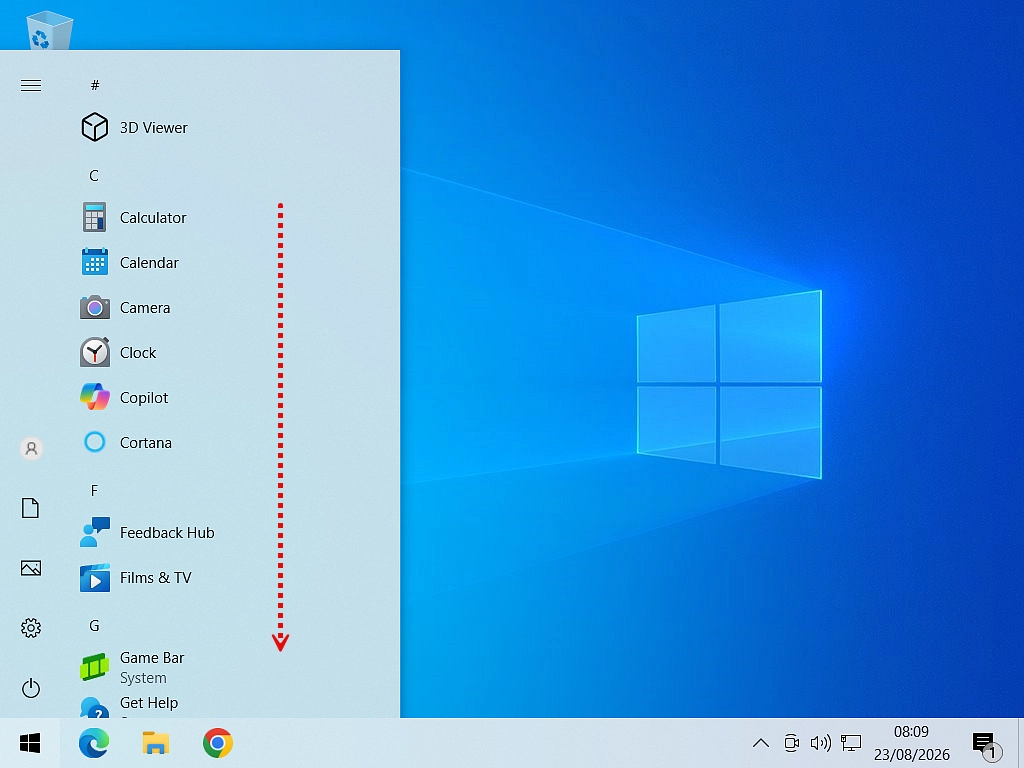
- In Windows 10, just click the Start button. The list is already there.
Either way you get a scrollable list in alphabetical order, which makes finding things a lot easier.
Note
If your own Start menu looks much more crowded with apps than mine does, that’s because we tidied it up earlier in the course at lesson 2 How To Setup Your Windows Start Menu. Much of the unwanted junk and clutter has been removed to make it easier to use.
The same is true for the taskbar, lesson 3 How to Manage and Customise the Windows Taskbar
Searching for an App by Name
If you already know the name of the program or app that you want, searching beats scrolling every time, it’s much quicker.
- Click the Start button.
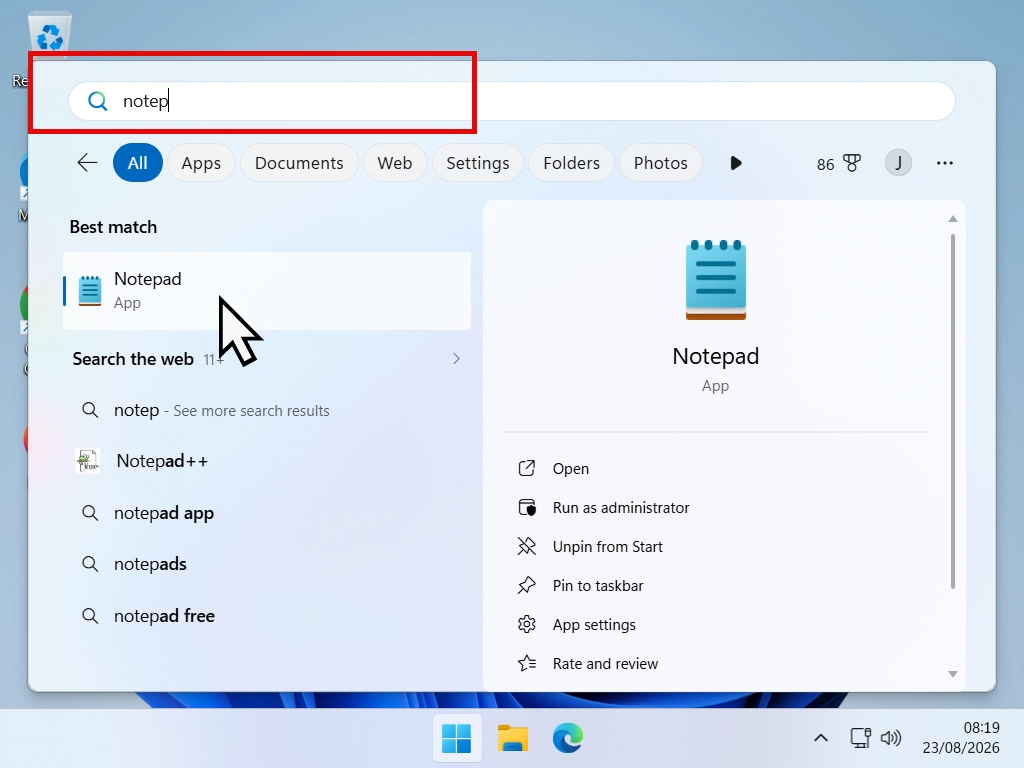
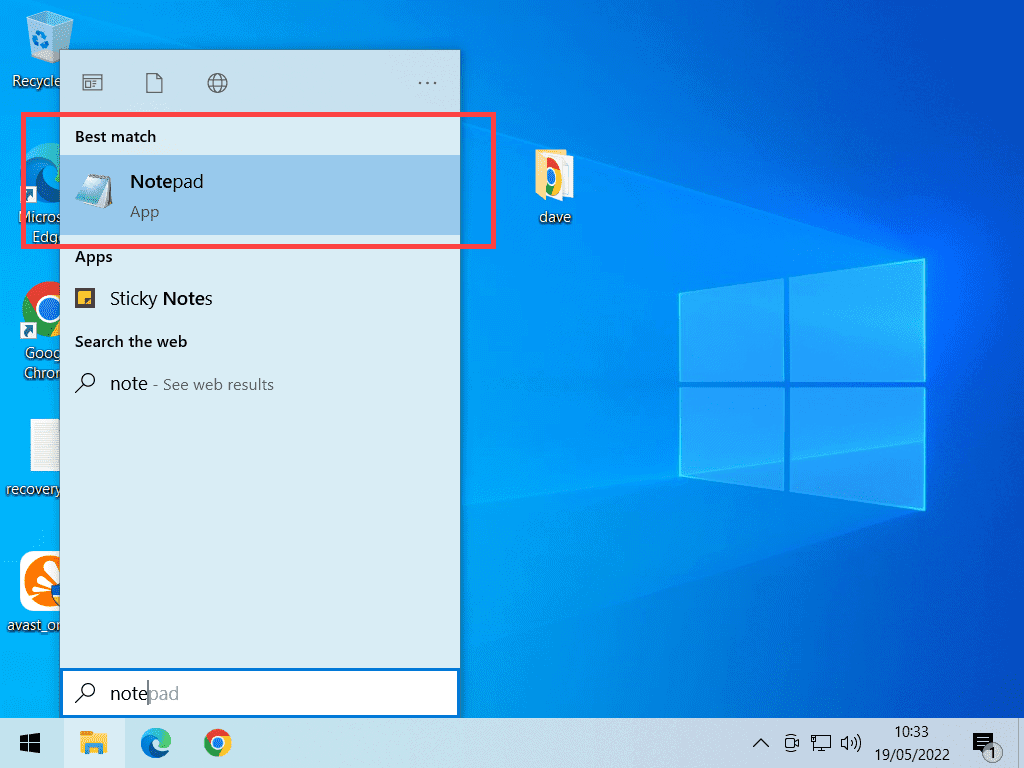
- Start typing the name of the app. Windows will try to guess what you’re looking for as you type.
- As soon as it appears at the top of the results list you can either click on it or just press Enter on your keyboard to open it.
That works the same way in both Windows 10 and Windows 11, and you don’t need to click into a search box first. Just press the Windows key to open Start and then begin typing.
The Full List of Preinstalled Apps in Windows 11
Here is everything Microsoft puts on a new Windows 11 computer, grouped by what you would actually use it for rather than alphabetically. Windows 10 is very close, with the differences noted further down.
Writing and Notes
- Notepad – plain text. Fast, simple, no formatting. I use Notepad a lot. Keep it pinned to your Start menu.
- Sticky Notes – little yellow notes that live on your desktop. Used to be very popular, not so much now.
- Microsoft To Do – lists and reminders. It;s a kind of calendar, cloud based so that it can sync across devices. OK if you need it.
Pictures
- Photos – views your pictures and does basic edits. Much improved over Microsoft’s previous versions. This will do for most people who just need to crop or resize a few pictures.
- Paint – draw and edit images. Another basic MS app that has had big improvements over the years.
- Snipping Tool – screenshots and screen recording. This one works great.
- Camera – for your webcam. Says it all really.
Video and Music
- Media Player – plays your music and videos. Another basic media player. Works fine and is really easy to use.
- Microsoft Clipchamp – video editing.
- Sound Recorder – records audio.
Everyday Bits and Pieces
- Calculator – including unit and currency conversion, which most people never notice. Another handy tool that you should keep pinned to Start.
- Clock – alarms, timers and a stopwatch. If you need it, it works.
- Weather – OK, if you can’t see outside, then maybe it has a use.
- Phone Link – connects your mobile to your PC.
Internet and Email
- Microsoft Edge – the web browser. Edge is fine, it works but it’s heavily tied in to the Microsoft, Bing ecosphere.
- Outlook – email and calendar. This replaced the old Mail and Calendar apps. A decent enough email client for free built right in to Windows.
- Microsoft Store – where you get more apps.
Safety and Backup
- Windows Security – antivirus and firewall. Yes Windows does have its own antivirus. And truth be told it works. Good enough for most people.
- Windows Backup – backs up your files and settings. Windows has a couple of ways to backup your PC, which we’ll cover later in the course.
- Quick Assist and Get Help – for when someone is helping you remotely. These are ones you should probably get rid of.
Games and Xbox
- Solitaire Collection – yes, it is still there.
- Xbox Game Bar – an overlay for recording and chat while gaming.
The ones you’ll never open
Scroll your apps list and you will spot things like HEVC Video Extension, AV1 Video Extension, WebP Image Extension and App Installer. Those are not really apps, they are the bits that let Windows open certain types of photo and video.
You never open them and you should not remove them. If you do, some of your photos and videos will simply stop working. Scroll past and forget about them.
The Ones Worth Actually Using
A list is one thing, but which of them are any good? These are the ones I would point a beginner at first.
Notepad, for Writing Things Down
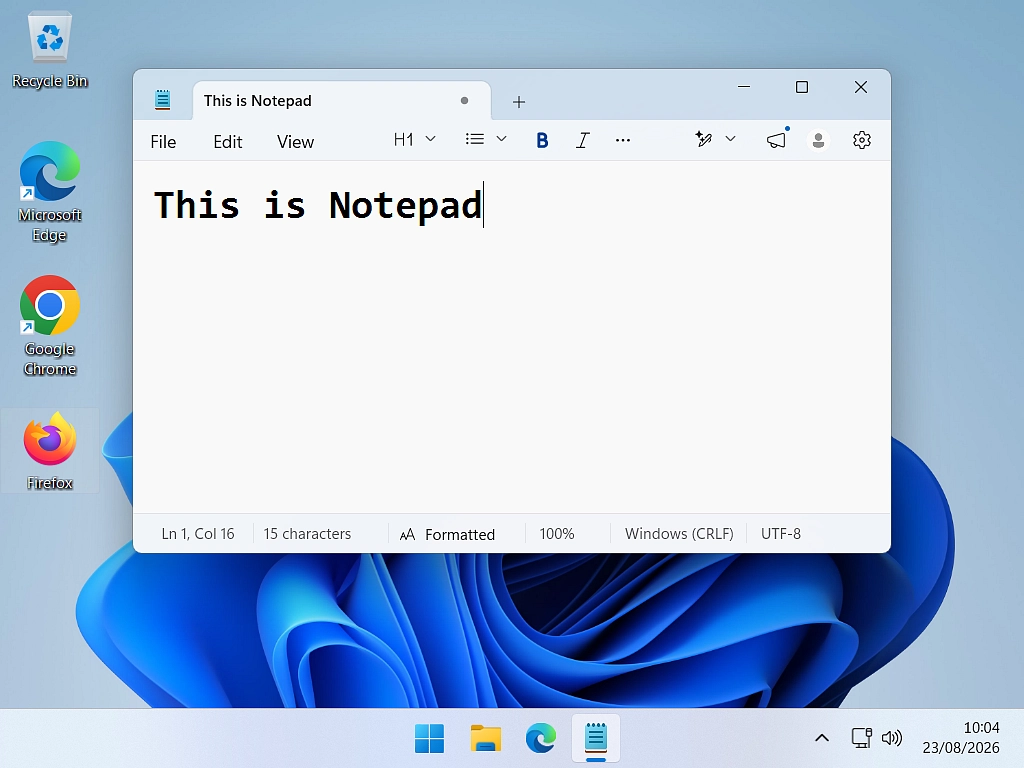
Notepad is a text editor, which means it handles words and nothing else. No fonts, no colours, no pictures. That sounds like a limitation but actually it’s a feature. It opens instantly, it never mangles your formatting, and it is perfect for jotting something down.
It has quietly improved, too. Modern Notepad keeps multiple files open in tabs, remembers what you had open when you closed it, and will spellcheck if you want it to.
Notepad Behaving Oddly?
If Notepad now opens in tabs, or reopens files you closed days ago, that is the new behaviour rather than a fault. Here is how to change it back.
If you want a proper word processor, for a letter or a report with headings and pictures, Windows doesn’t have one any longer. There is more on that in the next section, along with what to use instead.
Photos and Paint, for Pictures
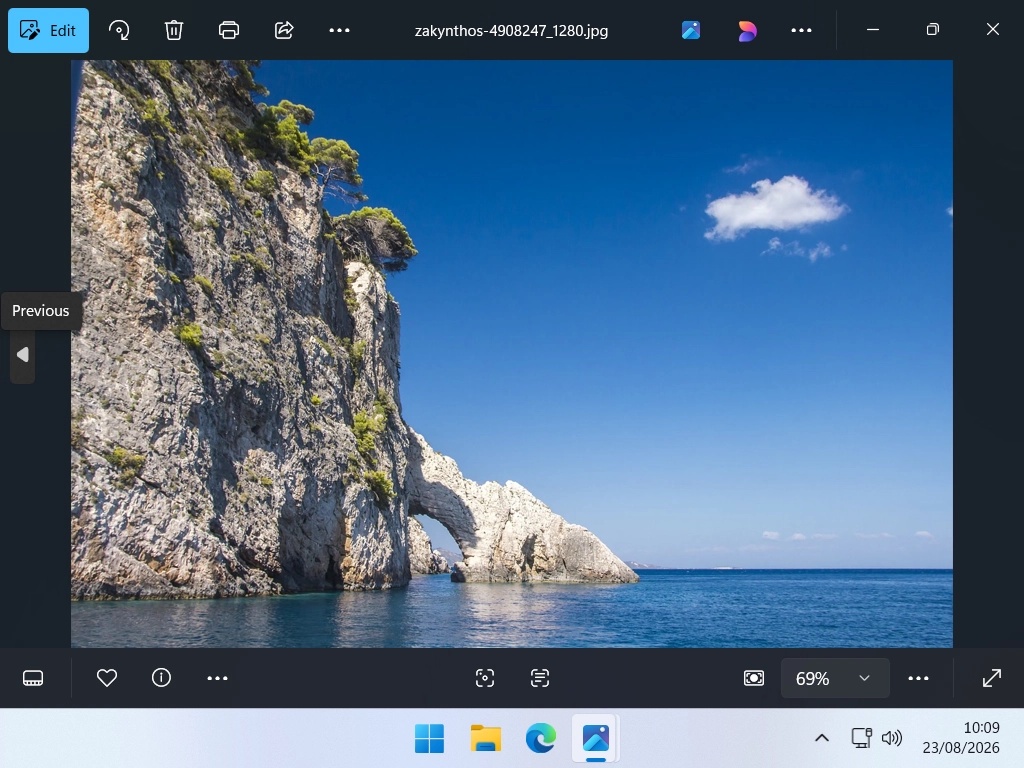
Photos is usually what opens when you double click a picture. It views your images and does the basics: crop, rotate, straighten, adjust the brightness. It has also picked up some clever tricks lately, including erasing an unwanted object out of a photo.
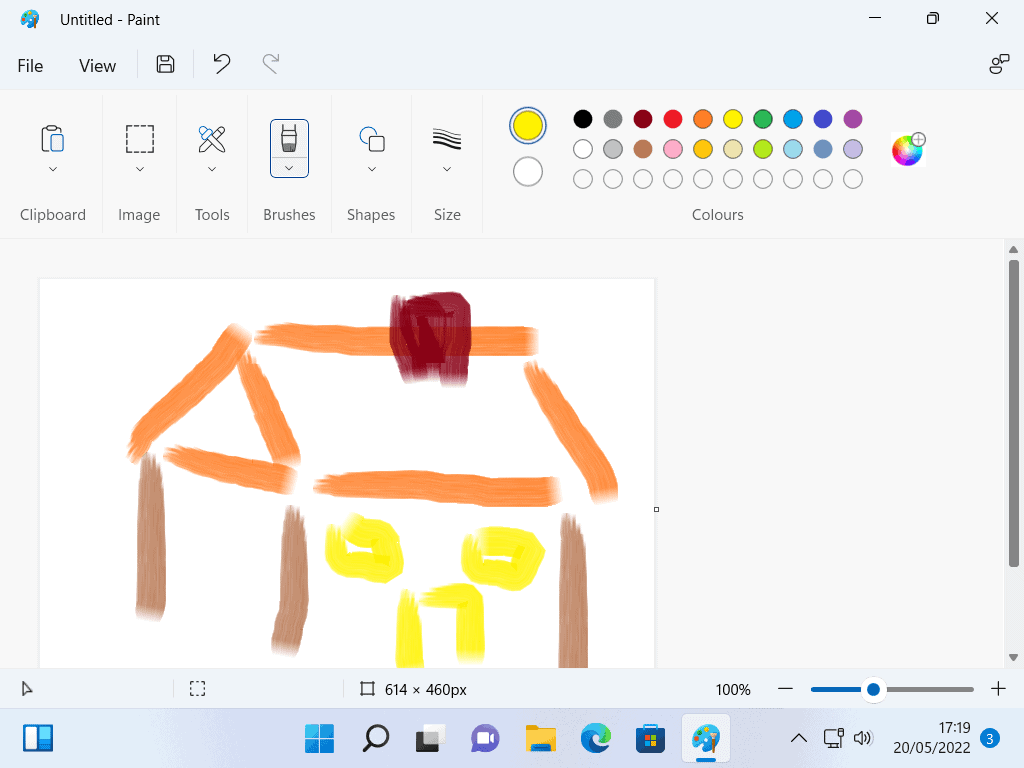
Paint is for drawing and simple editing. It’s been on Windows since 1985 and it is still perfectly good for cropping a screenshot or scribbling an arrow onto something.
Neither is a professional tool and neither pretends to be. But for a simple job that’s often all you need and they’re already installed, they open in a second, and for most home jobs that beats downloading something else that may have a steep learning curve.
Media Player, for Music and Video
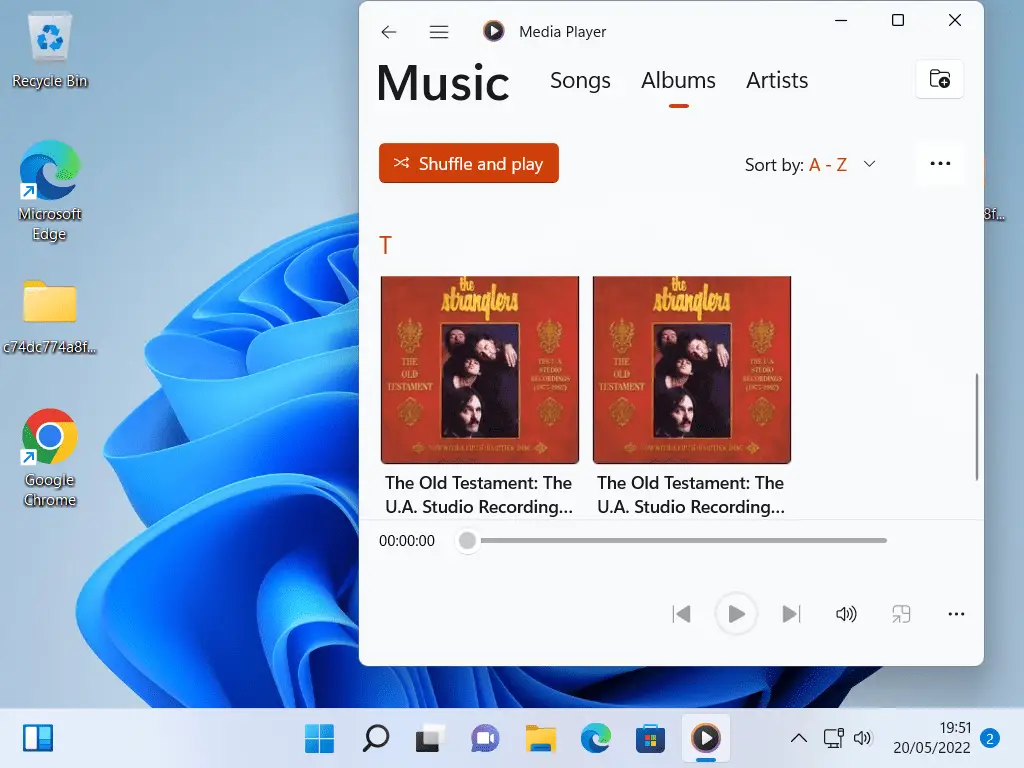
Media Player is the app that plays your music and videos. It replaced the old Groove Music and it does the job without any fuss.
There is also Windows Media Player Legacy, which is the older program a lot of people still prefer. It plays music, and it will also copy your CDs onto the computer and burn new ones, which the modern app won’t do. It’s no longer installed by default, but you can add it back.
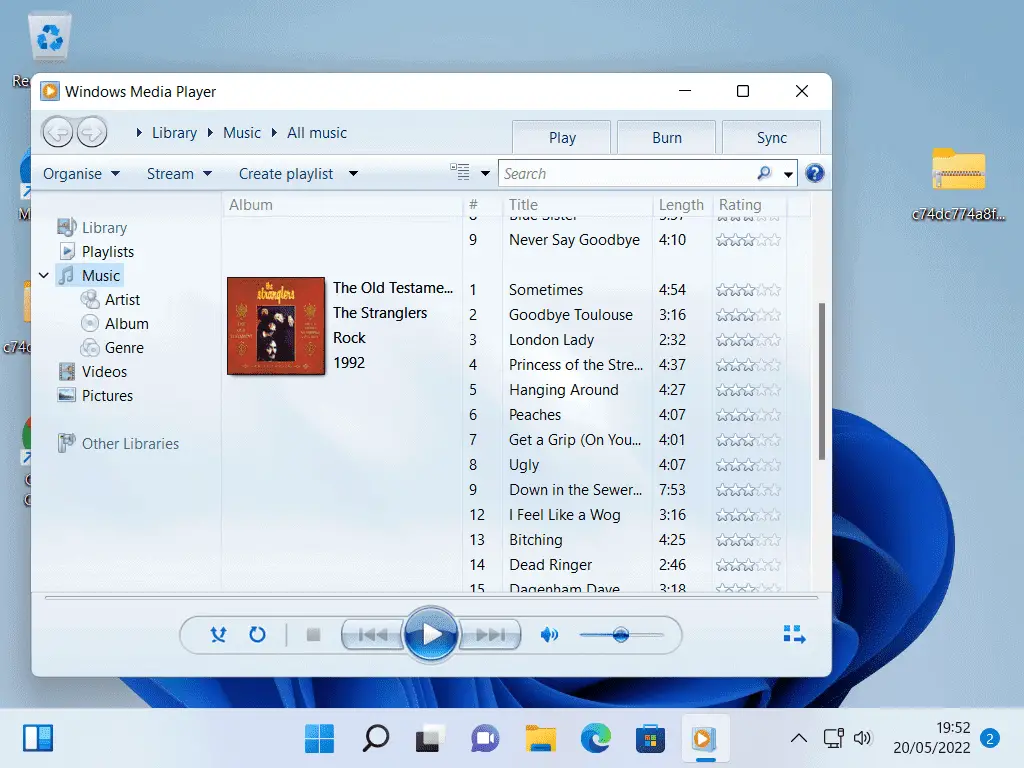
Want the old Media Player back?
It is an optional extra now rather than something you get automatically. How to install Windows Media Player Legacy.
One thing neither of them does is play a DVD movie. Windows hasn’t included DVD playback for years now. If you still have discs, the free VLC media player will play them, along with just about anything else you throw at it.
Windows Security
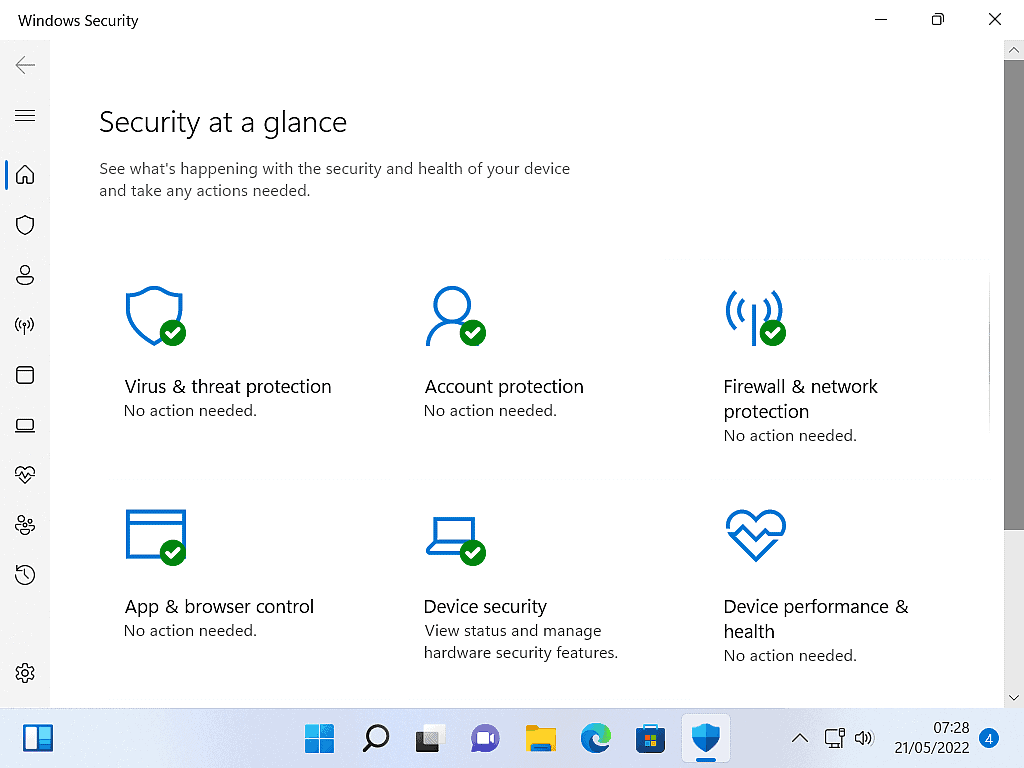
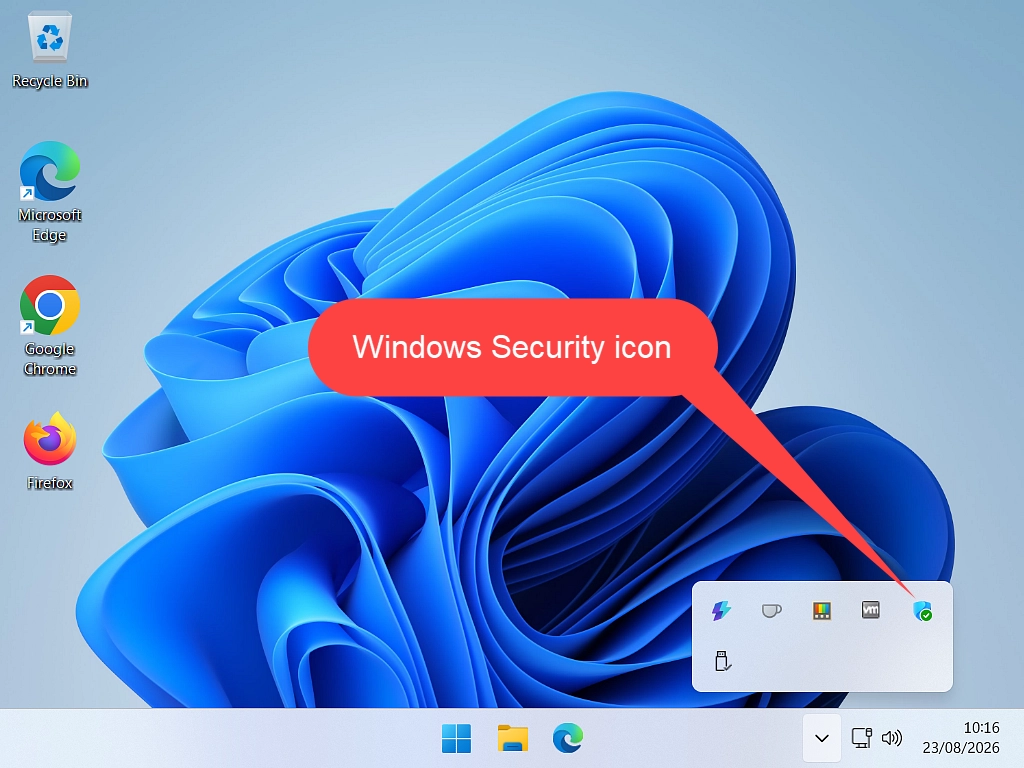
Windows Security is the antivirus and firewall built into Windows, sometimes still called Windows Defender. Nobody claims it is the very best available, but it is genuinely decent, it’s already there, totally compatible with Windows and it doesn’t nag you to buy anything.
For most people at home, being sensible about what you click on plus Windows Security is enough.
Apps That Have Disappeared From Windows
If you have had a computer for a while, some of the programs you remember are simply not there any more. You are not going mad and you have not deleted them. Microsoft has removed quite a few.
WordPad Has Gone
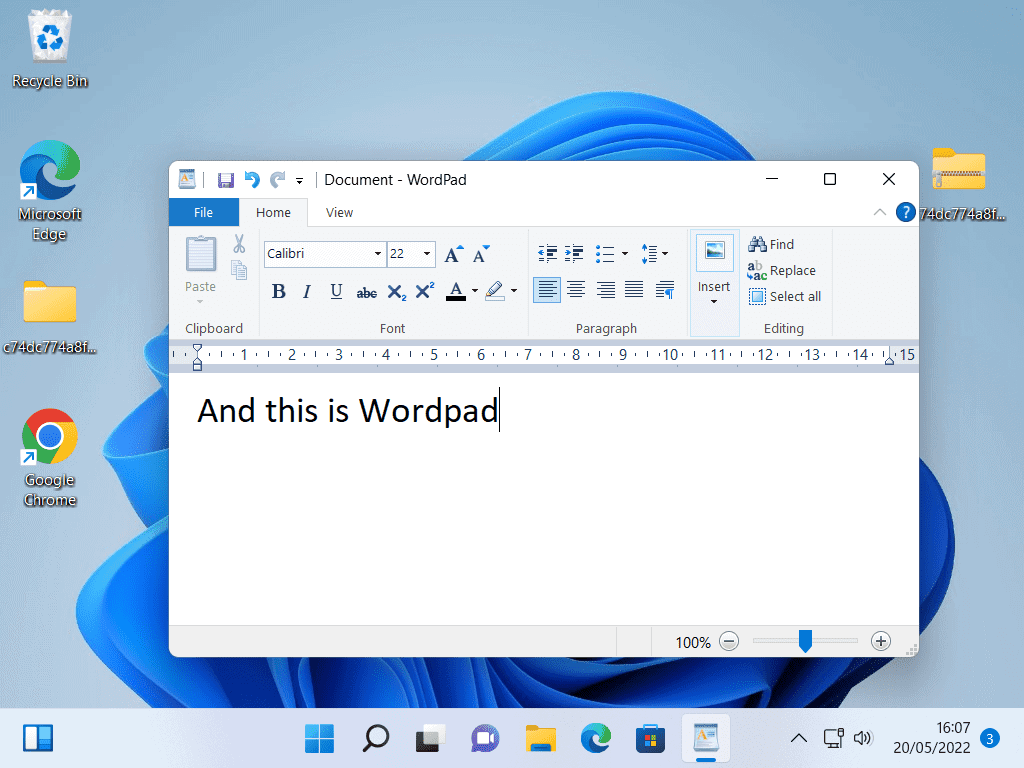
This is the one people miss most. WordPad was the free word processor that sat between Notepad and Microsoft Word, and it was perfectly good for a letter or a simple report and anything that didn’t need too much formatting.
Microsoft removed it from every edition of Windows starting with Windows 11 version 24H2, after twenty eight years. Although all versions of Windows 10 still have it as an optional feature.
Microsoft’s own advice is to use Notepad for plain text and Microsoft Word for anything fancier. Word isn’t free, so if you want a proper word processor without paying, the usual answers are the free web version of Word with a Microsoft account, Google Docs in your browser, or LibreOffice Writer.
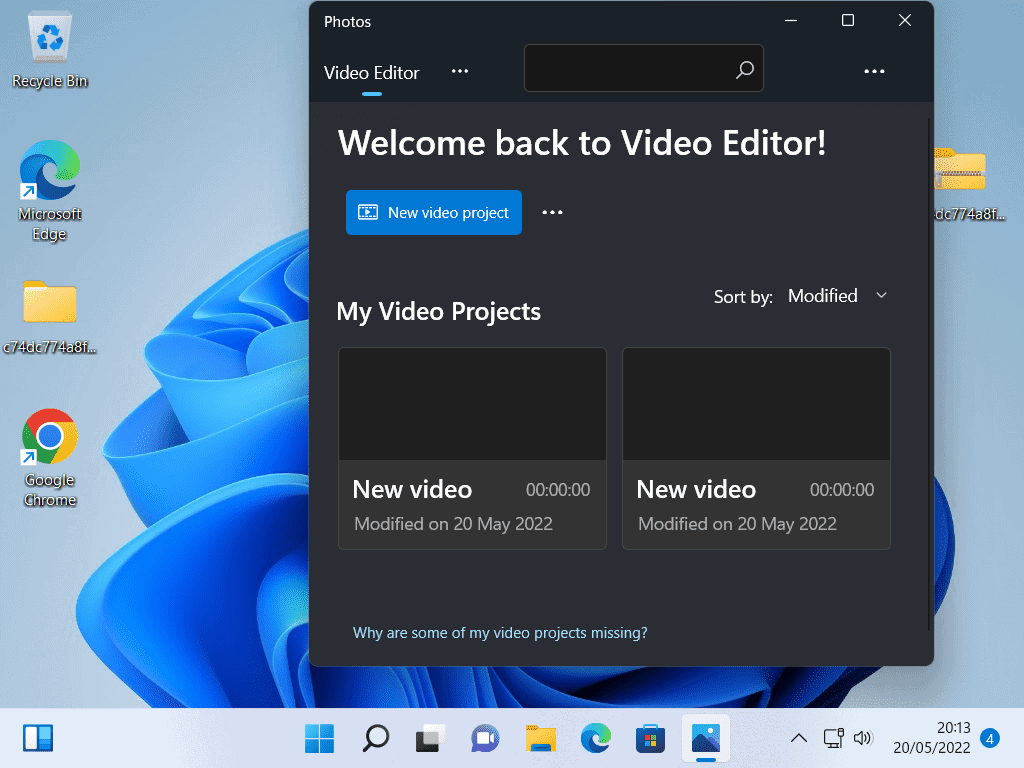
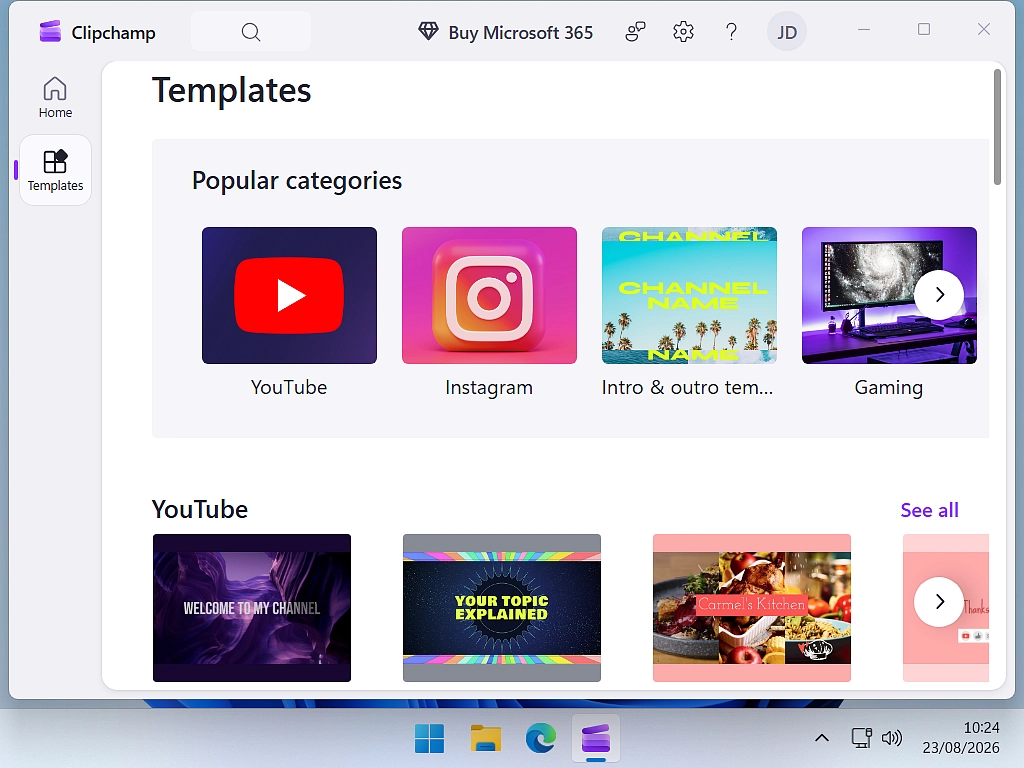
Video Editor Became Clipchamp
Windows used to include a simple app called Video Editor, tucked inside Photos. Microsoft replaced it with Clipchamp, which is now the video editor that comes with Windows 11.
Clipchamp does more than the old one did, and it is still free for the basics. Be aware that some of its fancier features want you to sign in or pay, which the old Video Editor never did.
Mail, Calendar, Maps and a Few Others
- Mail and Calendar stopped working at the end of 2024. Outlook does both jobs now and comes installed on Windows 11.
- Maps was pulled from the Microsoft Store in 2025.
- Paint 3D went at the end of 2024. Ordinary Paint is still here.
- Cortana, the old voice assistant, is no longer a standalone app.
None of this is a problem you need to fix. It is just worth knowing, so you stop searching the apps list for something that is not coming back.
What Your Laptop Maker Added (HP, Dell, Lenovo, Acer, Asus)
Here is something that trips people up. Not everything on a new computer came from Microsoft. Not everything is actually a part of Windows.
Whoever built your machine, HP, Dell, Lenovo, Acer, Asus or anyone else, will have added their own software on top of Windows. You’ll spot it because it usually carries their name: HP Support Assistant, Dell SupportAssist, Lenovo Vantage, MyASUS and so on.
That software falls into two groups.
- Worth keeping. The maker’s own support or update tools, and anything that runs your actual hardware, like the software for the fingerprint reader or the fancy keyboard lighting. These do a real job.
- Safe to lose. Trial versions of antivirus that will start nagging you in thirty days, trial office suites, games you didn’t ask for, and toolbars. These are on there because someone paid to put them there.
My rule of thumb: if it has your computer maker’s name on it and mentions drivers, updates or support, leave it. If it is a trial version of something, get rid of it before it starts asking for money.
When in doubt, leave it alone
If you don’t recognise something and it’s not obviously a trial, the safe answer is to leave it where it is. An unused app costs you a little disk space and nothing else. Removing something Windows or your hardware needs costs you an afternoon trying to get it back.
When you’re ready to have a clear out, here is how to uninstall programs in Windows 10 and 11, and what to do about the stubborn ones.
What Is Different on Windows 10
Nearly everything above applies to Windows 10 as well. The apps are largely the same and they work the same way.
The differences worth knowing:
- Windows 10 still has WordPad, because the removal only applies from Windows 11 24H2 onwards.
- Clipchamp is a Windows 11 app. On Windows 10 the old Video Editor was retired without a like for like replacement.
Frequently Asked Questions
It means the app was already on the computer when you got it. You did not install it and you did not pay extra for it. Some preinstalled apps come from Microsoft as part of Windows, and some are added by whoever made the computer.
Not any more. WordPad was removed from Windows 11 starting with version 24H2. Notepad is still there for plain text. For letters and reports you would need Microsoft Word, the free web version of Word, Google Docs or LibreOffice Writer.
Click Start, then All apps in Windows 11. In Windows 10 the list appears as soon as you click Start. Everything is in alphabetical order.
Keep Windows Security, Photos, Notepad and anything from your computer’s manufacturer that mentions drivers or updates. Trial versions of antivirus and office software can go. If you are not sure what something is, leave it alone.
All of the Windows apps listed above, plus that manufacturer’s own software. HP adds HP Support Assistant, Dell adds SupportAssist, Lenovo adds Vantage. Those keep your drivers up to date and are worth keeping. Anything that is a thirty day trial is not.
Solitaire Collection is still included. The old set of Minesweeper, Hearts and FreeCell went years ago, though most are available free from the Microsoft Store.
Not through Windows. Microsoft removed it from every edition and there is no optional feature to switch it back on. Use one of the free alternatives above instead.
The Windows ones are free and included. Some, like Clipchamp, have paid extras you can ignore. Manufacturer trials are free for a short period and then ask for money, which is the whole point of them.
One Extra Worth Adding Yourself
Everything above came with your computer. This one does not, but it is the first thing I add to mine.
Microsoft PowerToys is a free set of extra tools made by Microsoft themselves. It is not bundled with Windows and it is not something a manufacturer put there to earn a commission. It is a genuine Microsoft project, it costs nothing, and it adds the handful of things people always wish Windows did: keeping a window on top of the others, renaming hundreds of files in one go, resizing a batch of photos, pulling text out of a picture.
It is completely optional, and nothing in this course depends on it. But if you have worked through the list above and thought “is that really all there is”, this is where I would go next.
What Microsoft PowerToys is and how to use it · How to install PowerToys, and is it safe
Summary
Before you go looking for anything else, have a proper look through what is already on your computer.
Between Notepad, Photos, Paint, Snipping Tool, Media Player, Clipchamp, Calculator, Windows Security and Windows Backup, most day to day jobs on a home PC are already covered, and every one of them is free and already installed.
Two things to remember. WordPad has gone, so if you need a proper word processor you will have to find one. And not everything on your machine came from Microsoft, so have a look for your computer maker’s trial software before it starts asking you for money.
There is no harm in installing something else later if you find you need more. Just give the built in ones a chance first.
Next Lesson
How To Install Programs
Install programs on your computer without all the junk and add-ons.

Course Progress – 22 of 37 completed.
Part of the At Home Beginner Computer Course.
Previous Lesson
Downloading from the Internet.
How to download files from the internet
Written by Jeff Porter. I’ve been fixing Windows PCs since 2010 and I’m CompTIA Network+ certified. More about me