Sometimes a picture is worth a thousand words. Instead of sending an image as a separate file (an attachment), you can place it directly inside your message so your recipient sees it immediately. This is called an “inline image.”
If you use Outlook.com (the web version of Outlook), then this is how you can do it.
Adding An Image To An Outlook Email
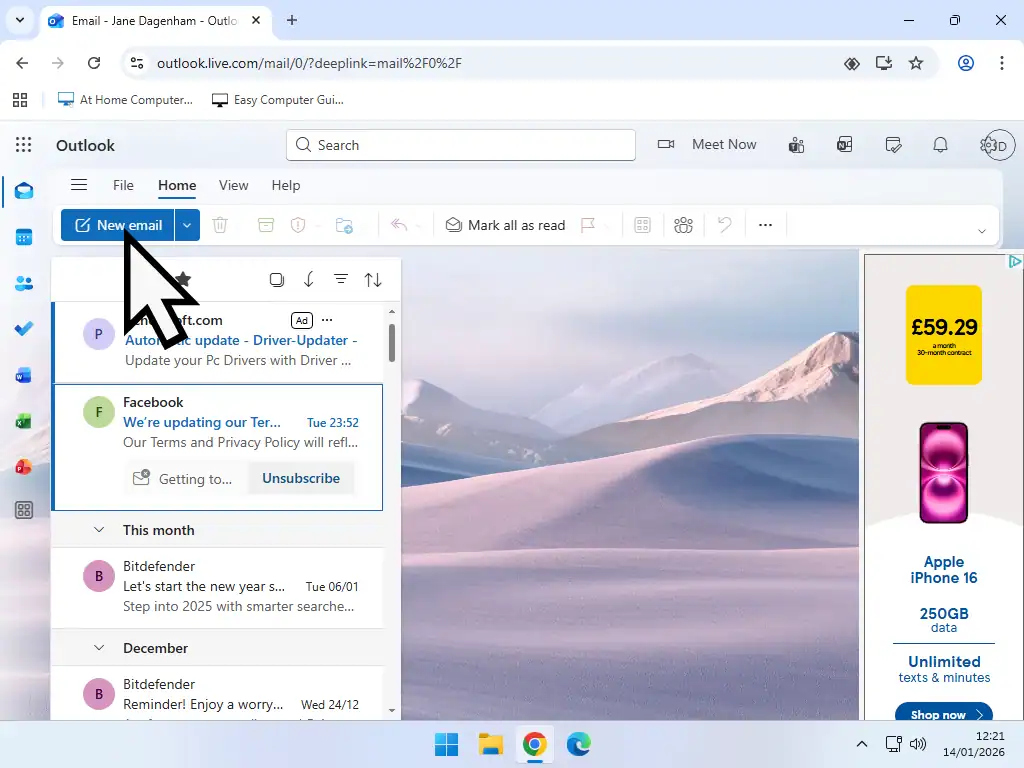
To add an inline image to an email, log in to your Outlook.com account and then click the New Email button in the top left hand corner of the window to start a new message.
Enter the recipient’s address and your subject line and then click into the body of the email and add in whatever you want to say. A quick description of what the pictures are etc.
Next, position the flashing cursor where you want to insert the picture. The top left corner of the image will start at the cursor.

Insert The Picture
Now you’re ready to add a photo to your email. Click the Insert button on the top toolbar and then click Pictures.
That’ll open a standard File Explorer window where you can navigate to and select the image you want to use in the message


Resize The Image
If you’re lucky the picture that you’ve added inline will be just the right size for your email. But if it’s too big or too small, you can easily resize it to make a better fit for your message.
The quickest method to resize an inserted image is to select it (left click it once) then right click on it. On the menu that appears, hover your pointer over Size and then choose an option from the sub menu – Best Fit, Small, Medium or Full Size.
If none of the auto fit options work for you, left click to select the image and then drag it to size using the “grab handles” that appear.
That’s it, the message is ready to send. If you want to insert more images, position your cursor and click Insert – Pictures again.
One other thing you can do with images in Outlook emails is to use them as links to web pages


Summary
Although you can obviously send pictures as attachments in Outlook.com, having them appear right in front of your recipient is much more effective, especially for family and friends.
Related Posts
How To Block Email In Outlook
Cut down on spam and other nuisance messages.
Microsoft Email Accounts Not Sending Or Receiving Emails.
If you’re receiving messages about Outlook being full, this could be why.
How To Print Emails In Gmail, Yahoo Mail, And Outlook.com
because every now and then you’ll want a hard copy.
Windows 11 Upgrade
With Windows 10 now out of support many people are looking at options they have. If you’re lucky enough to have a compatible PC, you can upgrade to Windows 11 for free. But if not, then what can you do?
In this step by step guide I’ll show you how you can easily install Windows 11 on to a Windows 10 PC that’s currently “unsupported”.