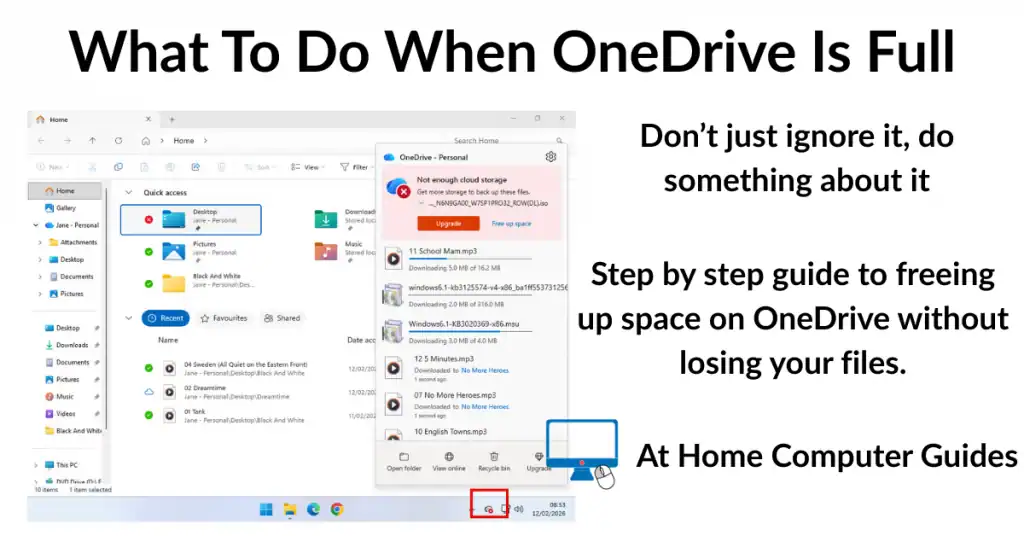
Is your computer telling you that your OneDrive is full? It’s a common frustration for Windows users. Many people find that their cloud storage reaches its limit without them ever intentionally uploading a single file.
OneDrive is essentially a sync tool (not a backup tool as Microsoft claim), and you only get 5 GB of free storage space. Once that’s been filled then you’ll need to do something about it. And I mean do something about it, Don’t just leave it and ignore it. Read on and I’ll show you why you should act.
Does It Matter If OneDrive Is Full
The short answer is, yes, it matters significantly. When your OneDrive is full, it doesn’t just stop you from saving new documents to the cloud, but since Microsoft has integrated OneDrive with their other services, a full storage account can cause a “domino effect” of technical issues-
- Email Stops Working – Since 2023, Microsoft uses your OneDrive quota to store your Outlook.com email. If OneDrive is full, you’ll stop receiving and sending emails. Microsoft Email Accounts Not Sending Or Receiving Emails.
- Syncing Stops – Any changes that you make to files on your PC won’t be synced to the cloud.
- Data Risk – If your account remains over the OneDrive storage limit for more than six months, Microsoft may eventually freeze or even delete the contents of the account. That’s right, they can start deleting your files and because of the way in which OneDrive works, you could lose the files from your PC.
- Read-Only Mode – Some files on your PC will become “Read-Only,” meaning you can view them, but you cannot edit or save changes until space is cleared.
Why Is My OneDrive Full
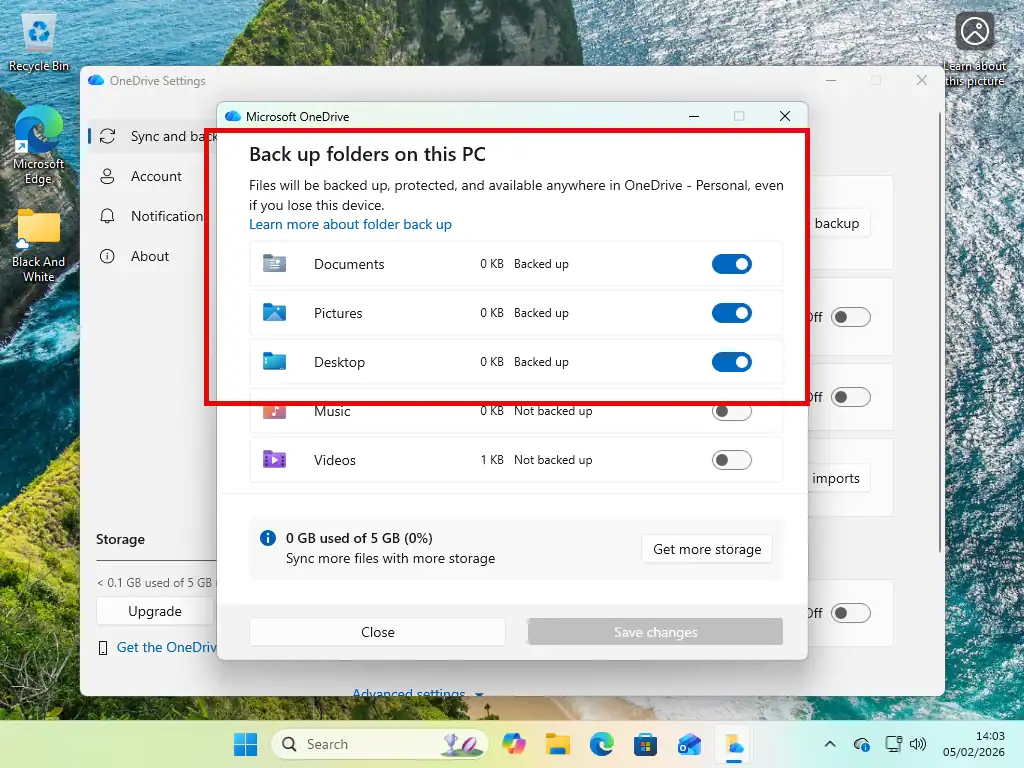
The OneDrive app on your computer will usually be enabled by you, the user, either purposely or by accident. But once enabled OneDrive will move all the files and folders from your Desktop, Documents and Pictures folders online. In to your OneDrive storage. And that’s why it’s full.
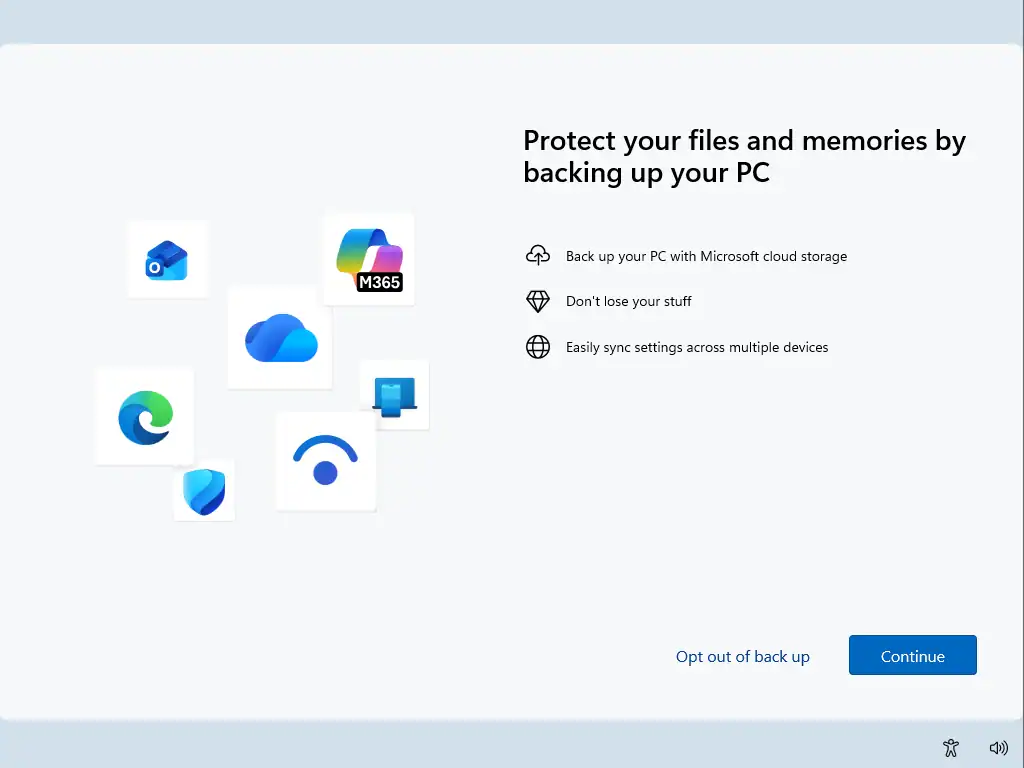
Microsoft push OneDrive as a backup solution. You may have seen a splash screen appear either during setup or occasionally it’ll randomly appear when starting your PC.
Preparing To Fix OneDrive Is Full
You can’t just start deleting files and folders from OneDrive to free up space because it’s a sync tool. Whatever you delete from your online storage will also be deleted from your computer. So before you do anything you have to prepare make sure that you have all the files and folders stored locally (actually on your computer).
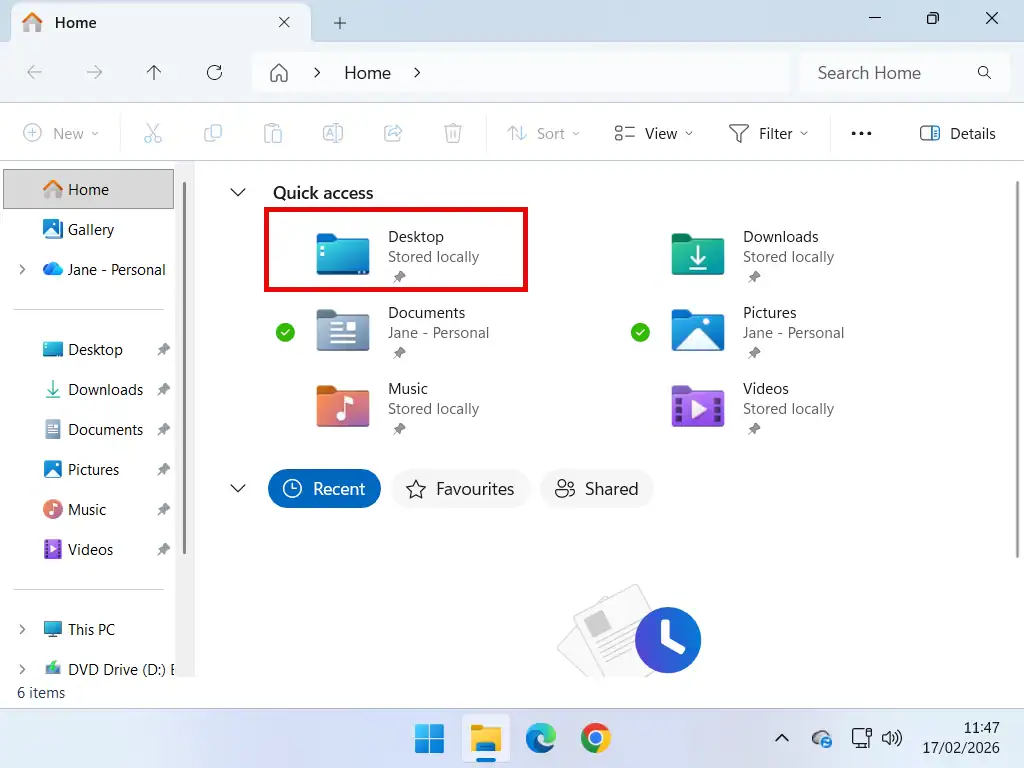
To start fixing the OneDrive is full issue, open File Explorer and check which files and folders are stored locally (on your computer) and which ones are only stored in the cloud. You might be surprised to find just how many files are only in the cloud.
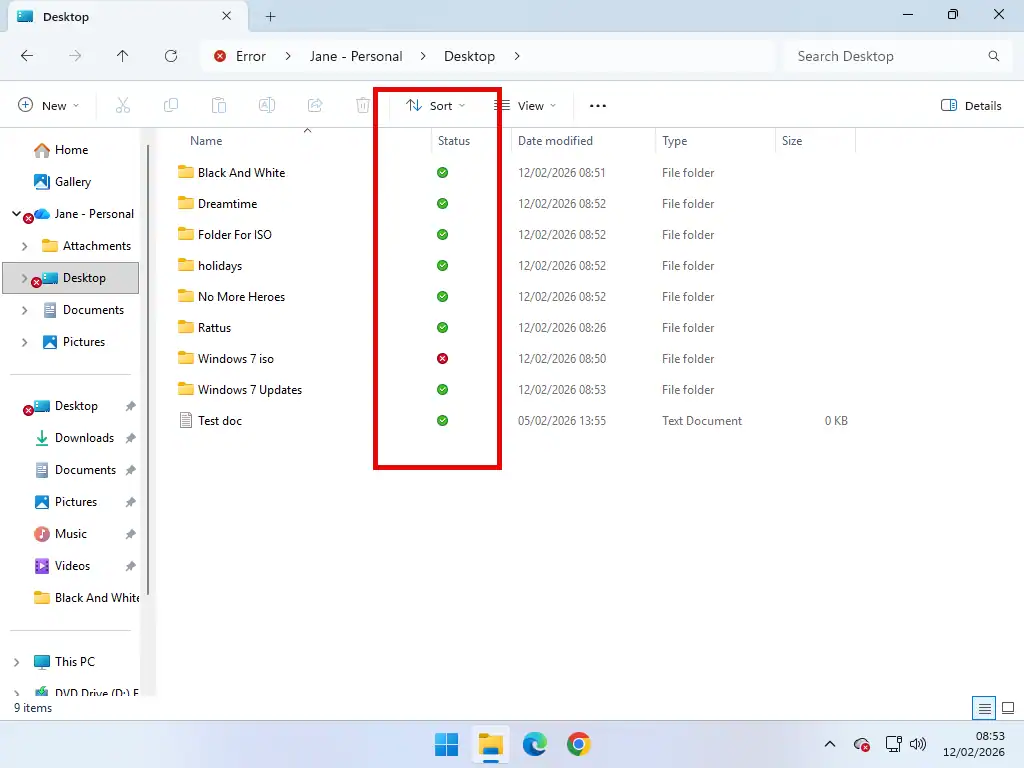
Beside each file and folder you’ll see a OneDrive status symbol. Any that have a blue cloud icon are only stored in the cloud.
They’re not on your PC. When you open one of them, it’s automatically download from your OneDrive storage.
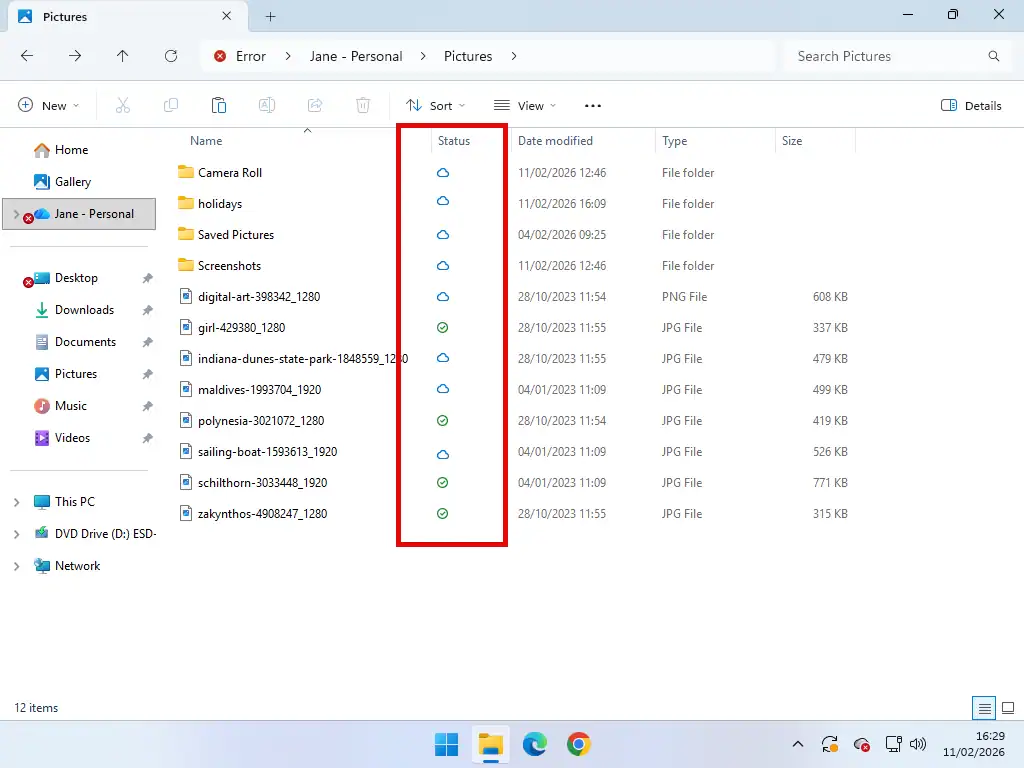
OneDrive Status Symbols
 The blue cloud icon means the file/folder is stored online only. Not available when you’re offline.
 The green circle, green checkmark means the file will be downloaded when you open it.
 Stored locally on your computer as well as online.
Download Everything To Your Computer
To avoid losing your data (files and folders) download everything from OneDrive. The easiest way to do that is to change the status of each synced folder.
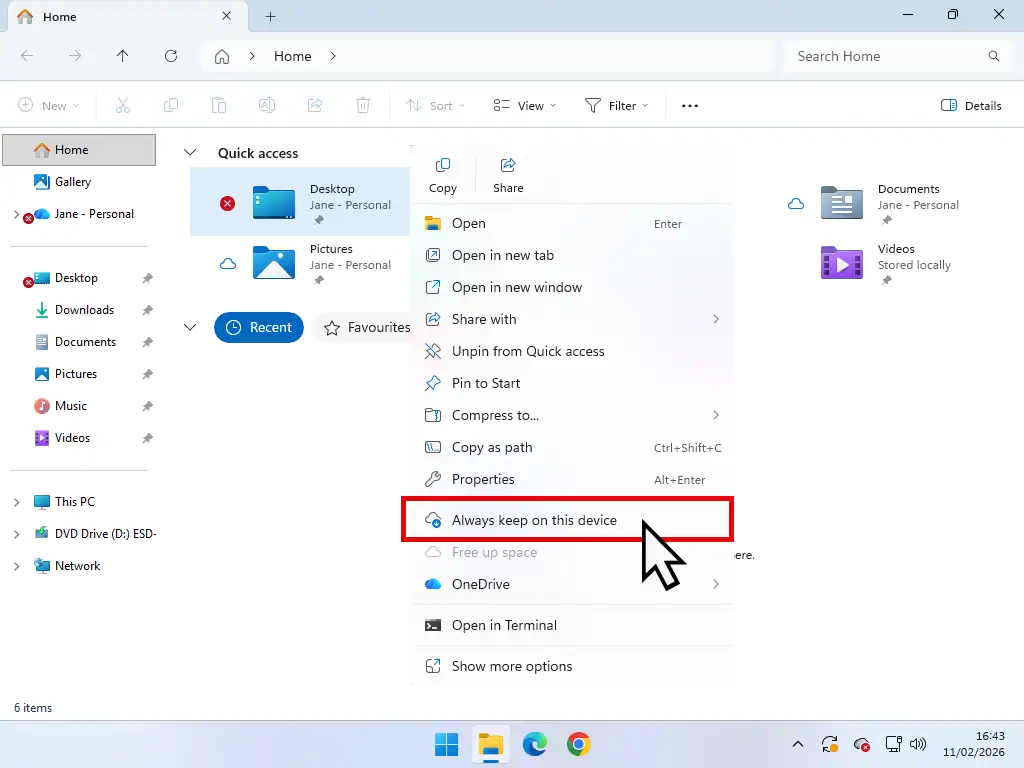
- Right click on the folder and then left click “Always keep on this device”. Do that to each synced folder, even the one marked with a nasty looking red circle and white cross. That’ll force OneDrive to download all your files and save them to your computer.
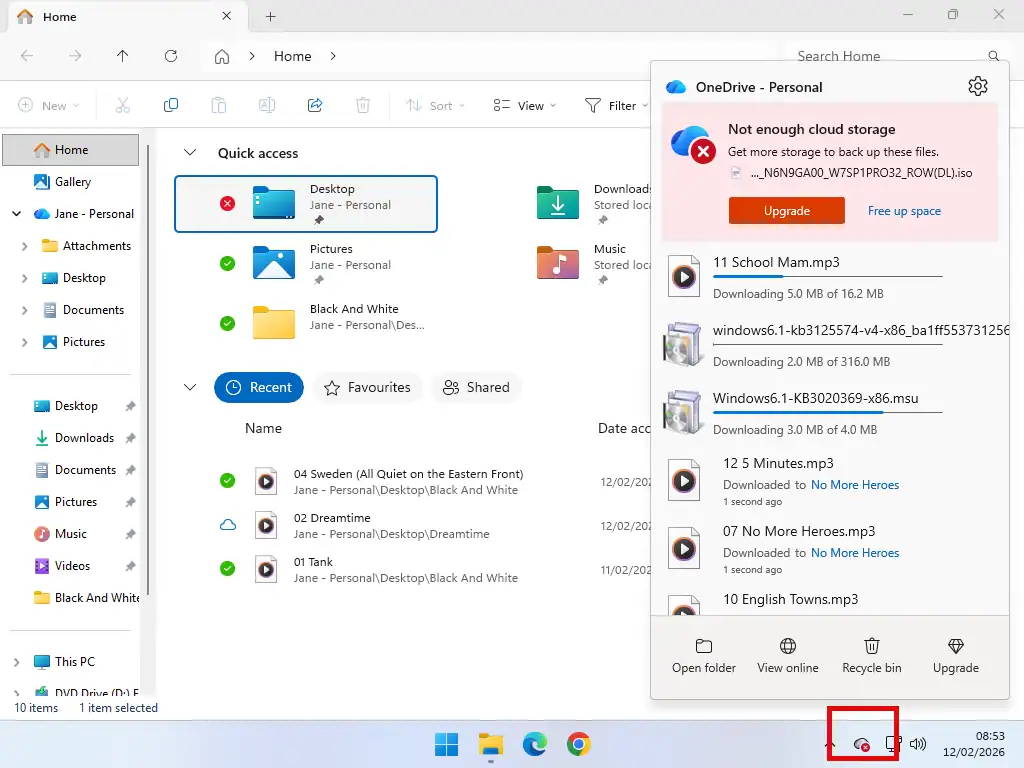
- You can see the progress by clicking on the OneDrive icon on the taskbar. It might take sometime to complete depending on how much data there is to download.
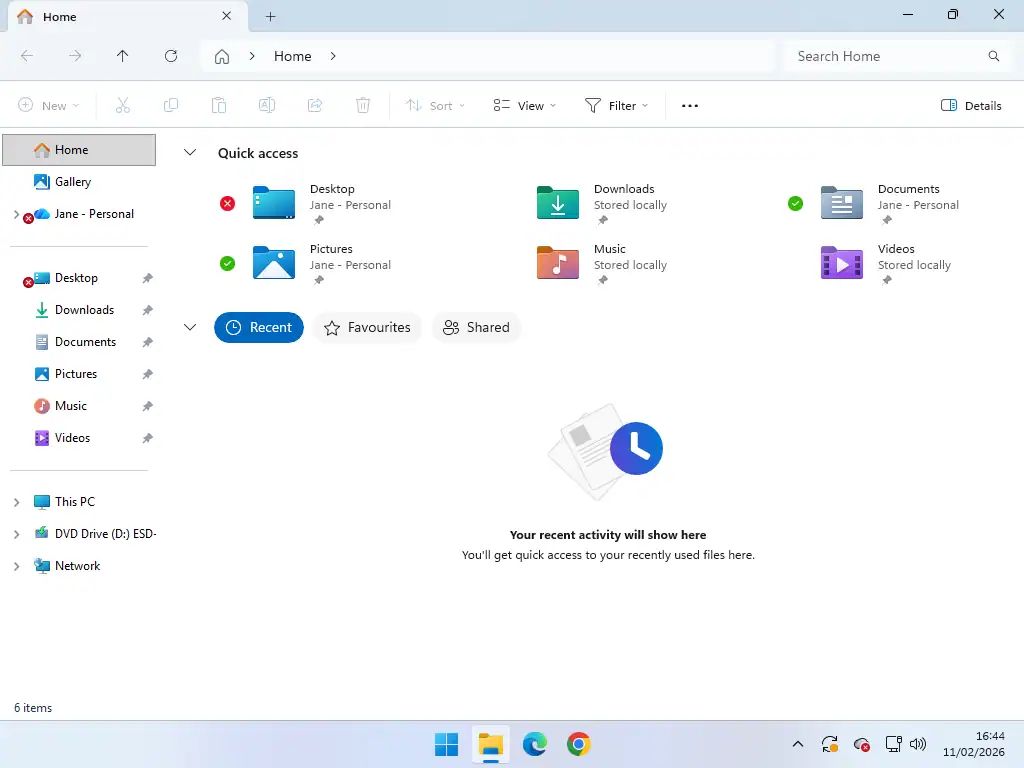
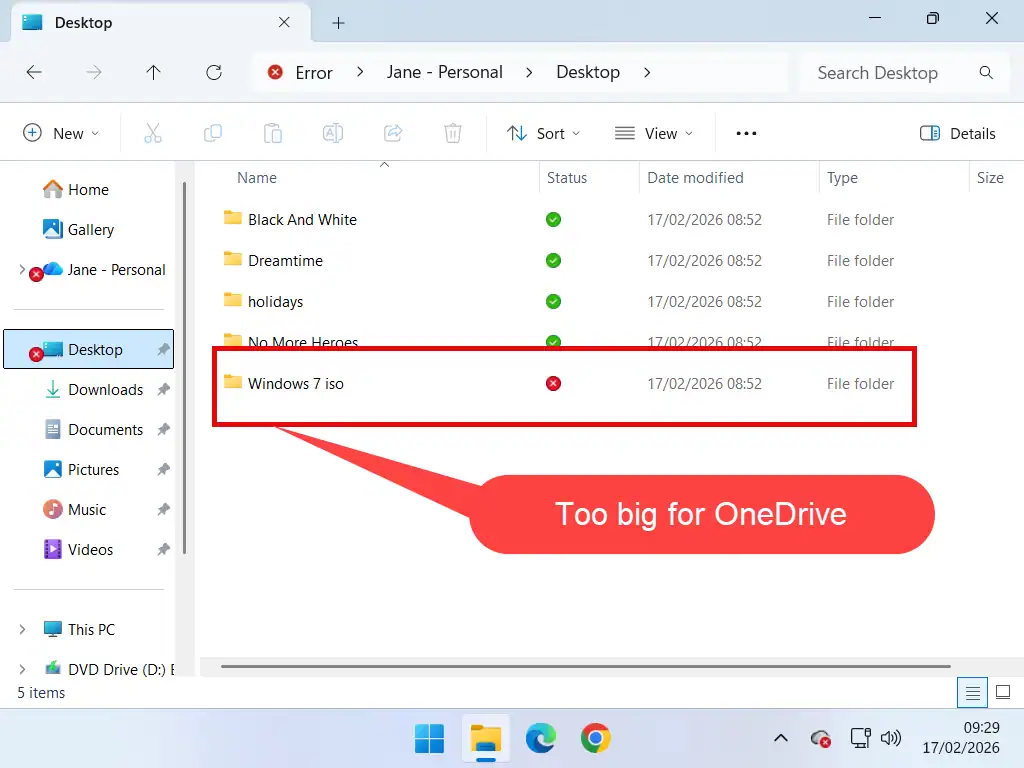
- When it’s finished downloading, open File Explorer and you should see most of your folders marked with a green circle and white tick. That indicates that the files within are stored on your PC. The one exception will be the folder that’s causing all the trouble. That’ll be indicated by a red circle and white cross (X).
- Open each folder and check that every sub folder and file are definitely on your computer.
Note that this doesn’t move your files out of OneDrive. It merely tells OneDrive to save copies of your files both online in the cloud and on your computer.
Double Checking Important Files
Where you have files that are important to you, double check that they are actually on your computer by going offline and then opening the files. If they’re on your PC they should open properly.
When OneDrive is full you don’t want to delete anything that you need just to create space. Make sure that you have your files safe.
What To Do When OneDrive Is Full
Now that you know all your files and folders are safely stored on your computer, you can decide what you want to do about your OneDrive storage being full. And you do have options. The 3 easiest are –
- Deselect the folder (Desktop, Documents or Pictures) that’s too large for your OneDrive storage allowance. For example if your Desktop folder is the issue, deselect it from OneDrive sync options.
- Sometimes it’s just a single very large file that’s causing the issue. Move the file or folder using cut and paste that’s too big to be synced in OneDrive to another location on your PC.
- Stop using the OneDrive app altogether. If you disable OneDrive it’ll no longer sync your files to the cloud. You can do that by Unlinking your computer from OneDrive.
You’ll still need to delete the files that are already stored in OneDrive, but you can do that using a web browser. Read on and I’ll show you how to stop syncing a folder, how to unlink a computer from OneDrive and finally how to delete files from OneDrive.
How To Deselect A Folder From OneDrive
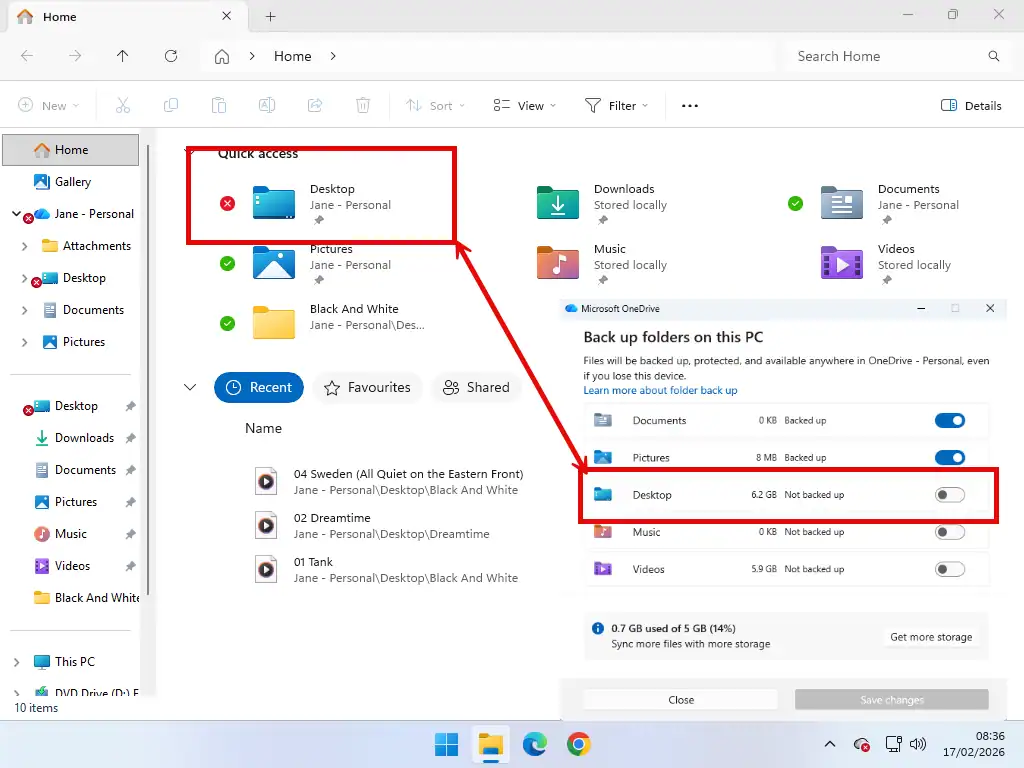
When OneDrive is full it can often be just one of your selected folders (Desktop, Documents or Pictures) that’s too large for the available space. By deselecting that specific folder, you can continue to use OneDrive to sync the other folders.
To deselect a folder –
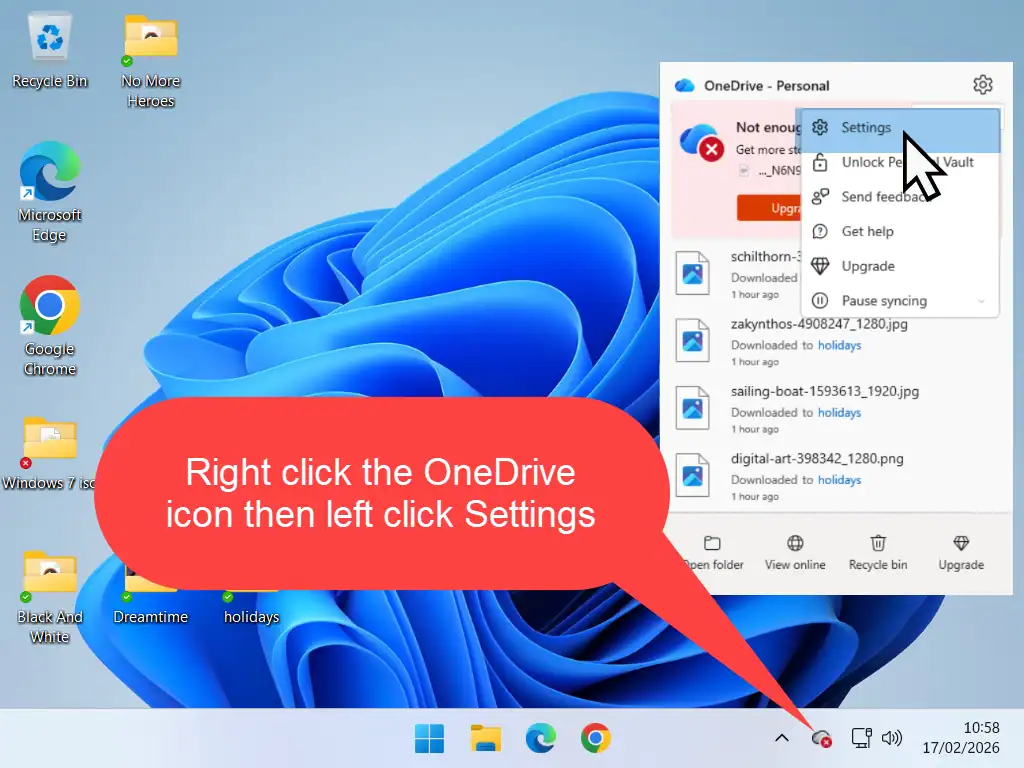
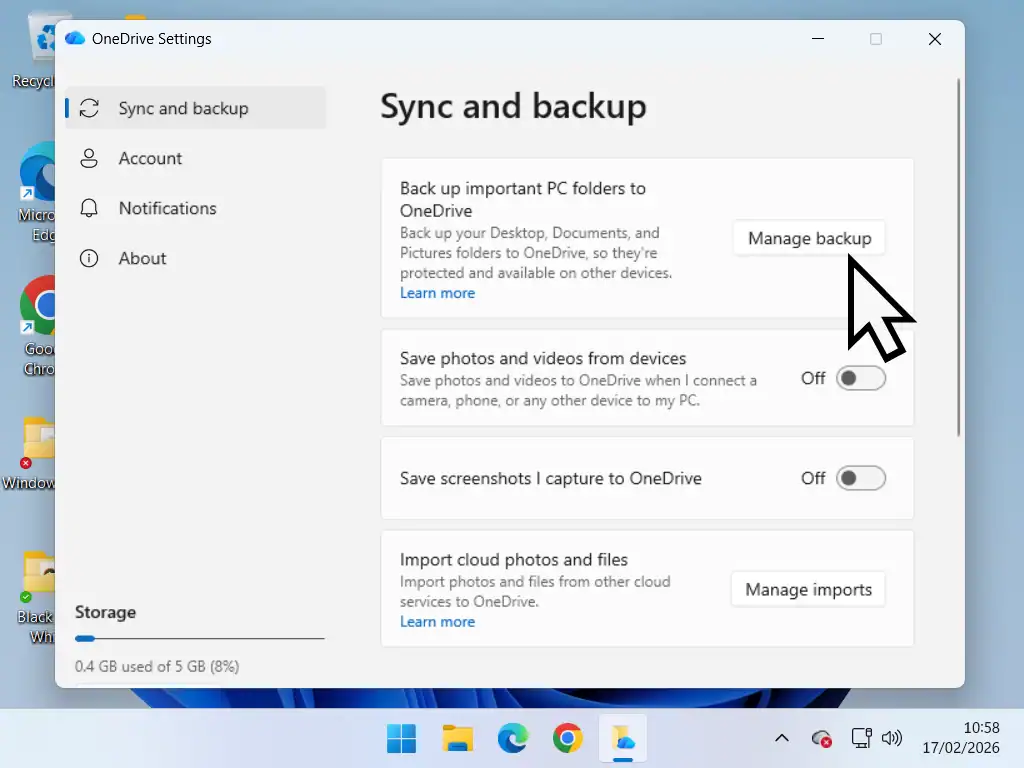
- Right click on the OneDrive cloud icon on your taskbar. On the menu that opens left click Settings. You might need to click the Settings icon (gear wheel) first.
- Sync and Backup settings page will open. Click Manage Backup.
- Click the toggle switch beside the folder that you want to stop syncing in OneDrive.
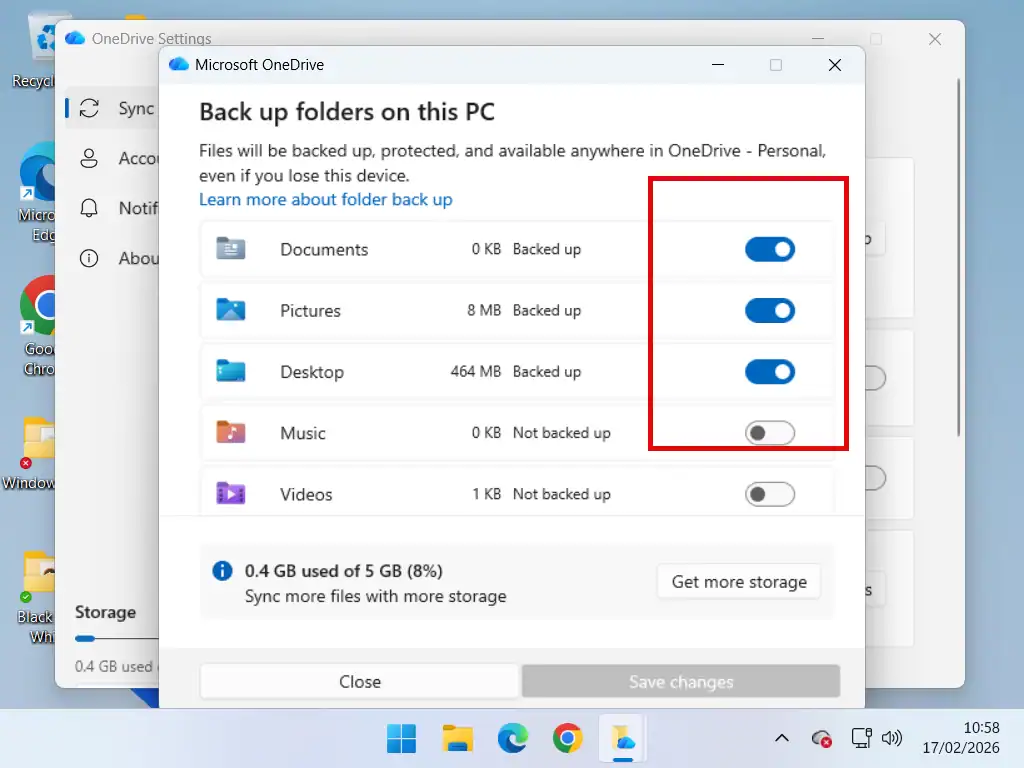
Stop Backing Up To OneDrive
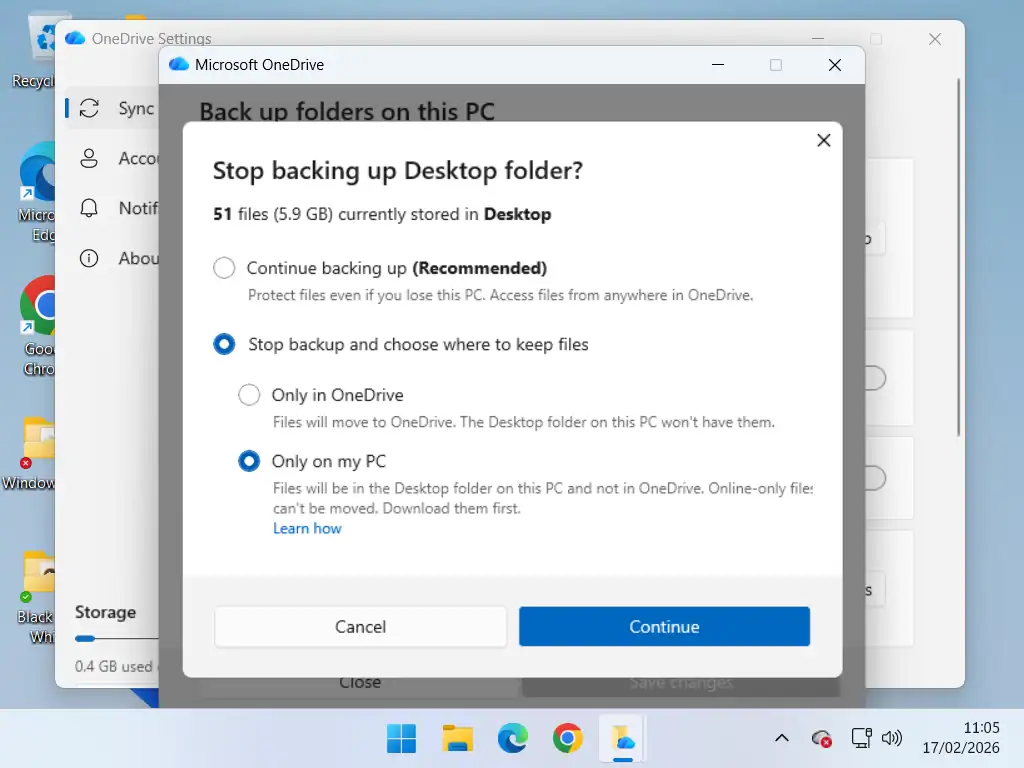
- Select “Stop backup and choose where to keep files. Then select “Only on my PC”.
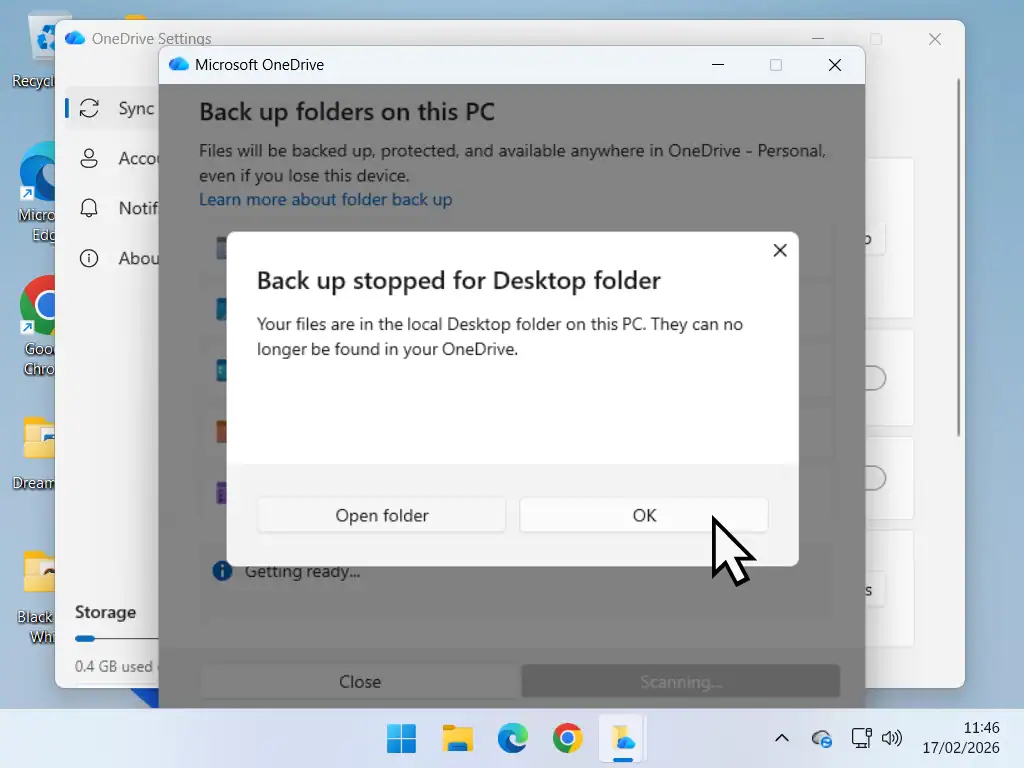
- You’ll see a confirmation popup that the backup has stopped. Click the OK button.
- Open File Explorer and you’ll see that whichever folder you deselected has now stopped syncing.
OneDrive Storage Is Still Full
It’s very possible that your OneDrive storage is still full. All you’ve done at this point is stop the OneDrive app from trying to upload even more files to your account.
The next step is to delete files from your OneDrive storage to free up space.
How To Disable OneDrive On Your PC
To disable OneDrive completely the best option is to unlink it from your PC.
To unlink a PC from OneDrive –
- Right click on the OneDrive cloud icon on your taskbar. On the menu that opens left click Settings. You might need to click the Settings icon (gear wheel) first.
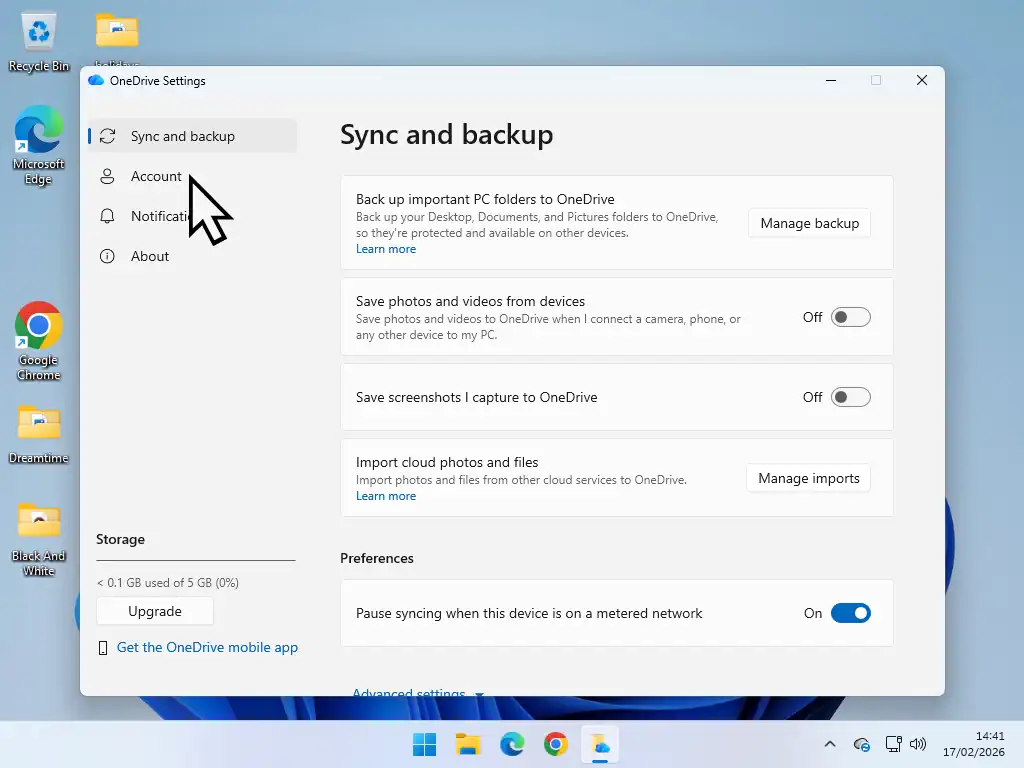
- On the Sync and Backup page, click Account in the left hand panel.
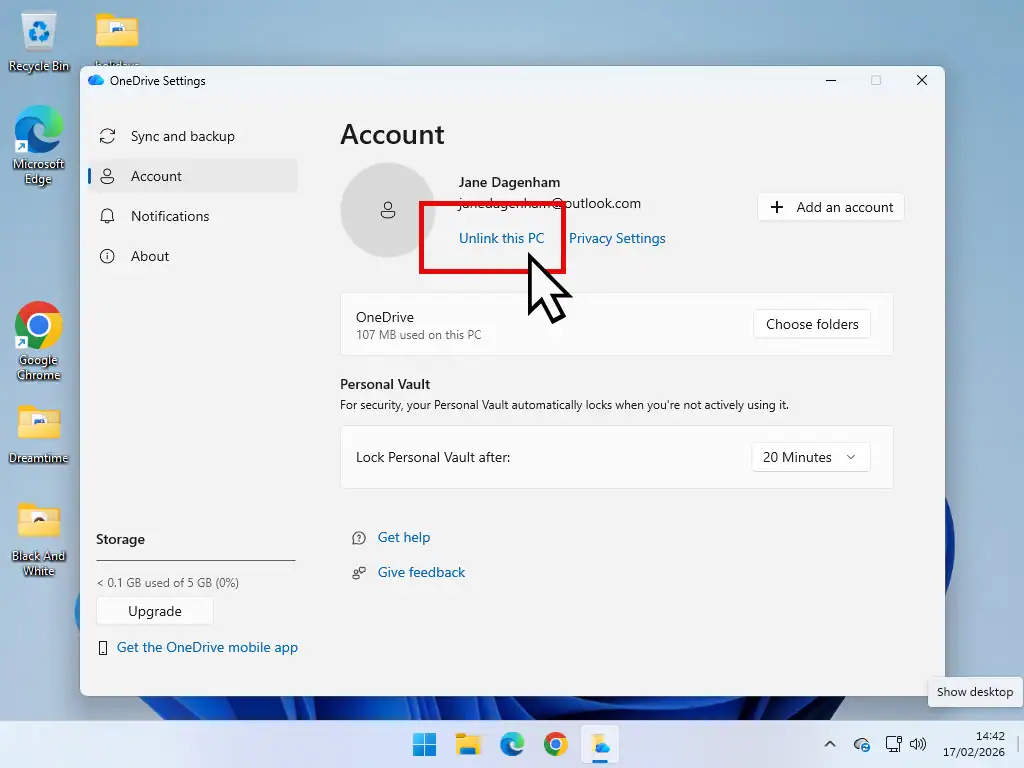
- Next, click Unlink This PC.
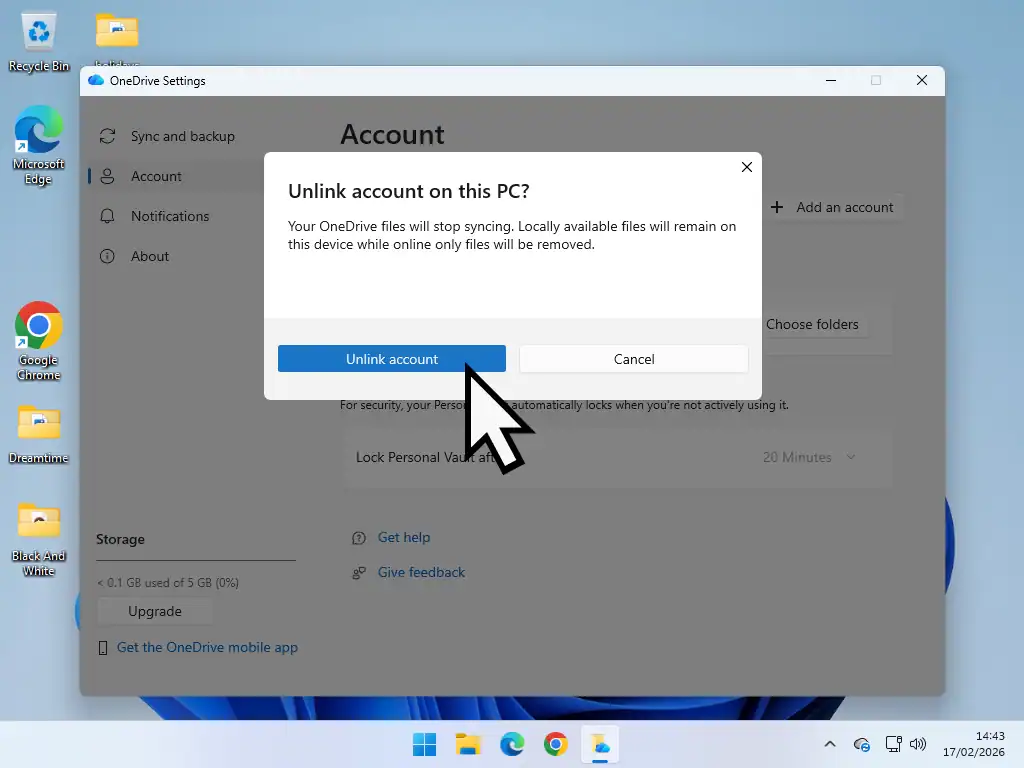
- You’ll see a confirmation popup, click Unlink Account.
How To Delete Files From OneDrive To Free Up Space
Now that OneDrive isn’t constantly trying to upload files into you’re already full account, you’ll need to delete some of the files that are already stored there to free up space.
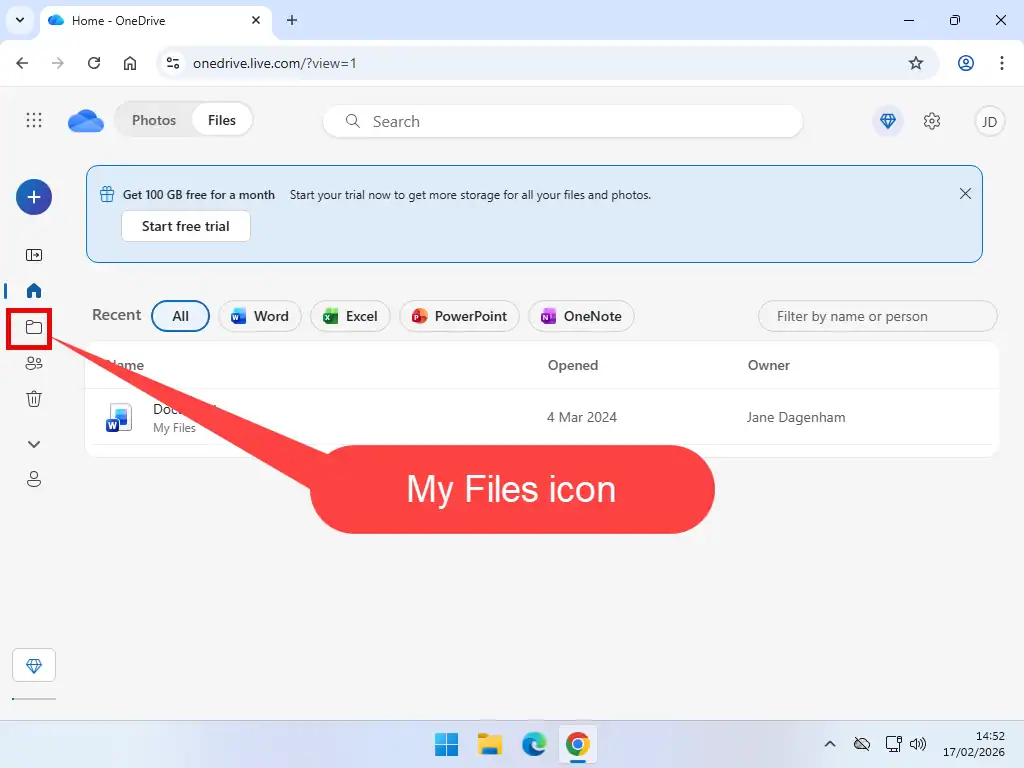
Open your web browser and go to OneDrive.com. You might need to sign in with your Microsoft account details.
- In OneDrive online, click the My Files icon in the left hand panel.
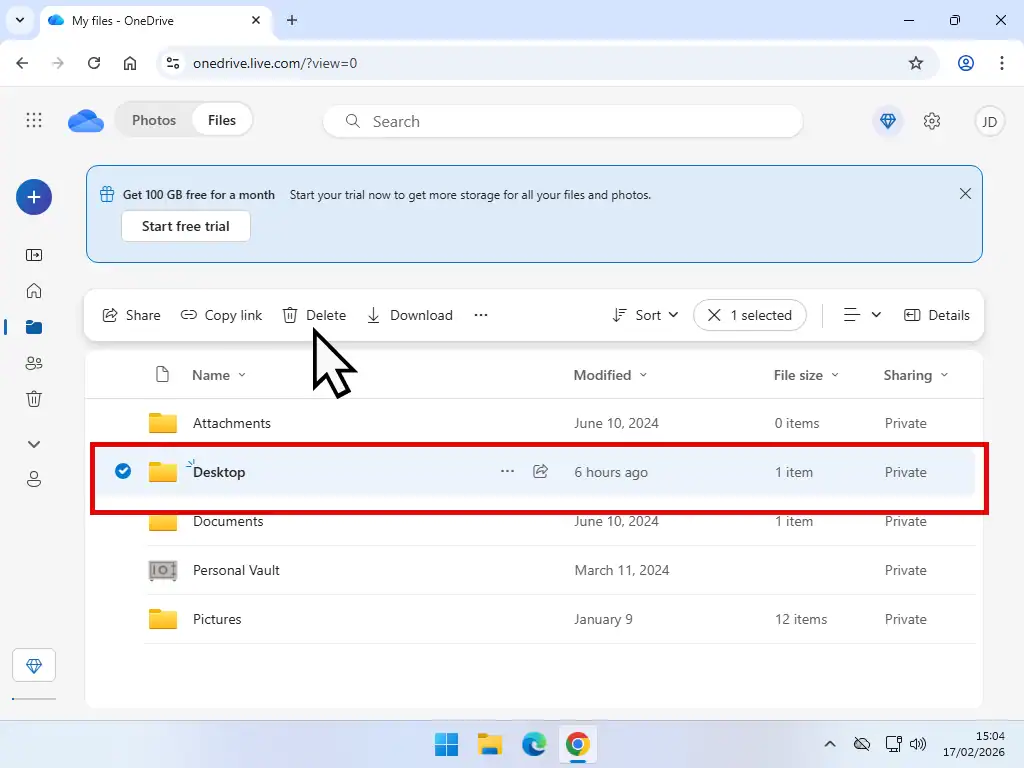
- Select a folder to delete by left clicking on it once. Then click the Delete button to delete it.
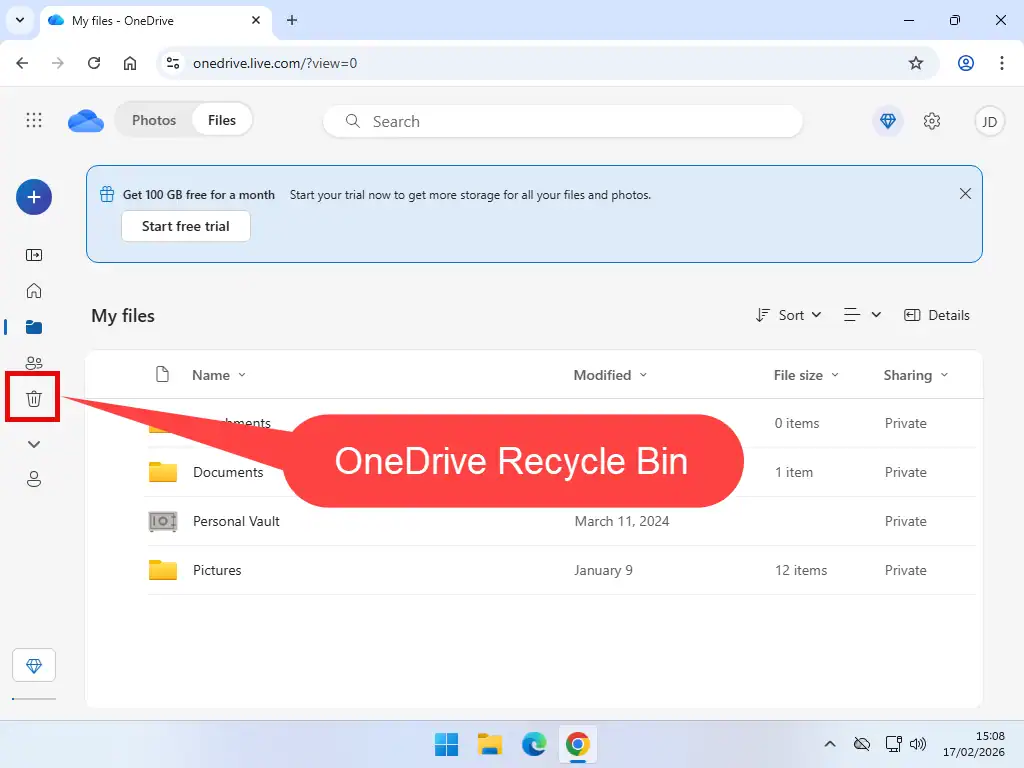
- Anything that you delete from OneDrive is moved to the Recycle Bin, rather like on your computer. The Recycle Bin also counts against your storage allowance so you’ll need to empty it to regain the space. Click the Recycle Bin icon.
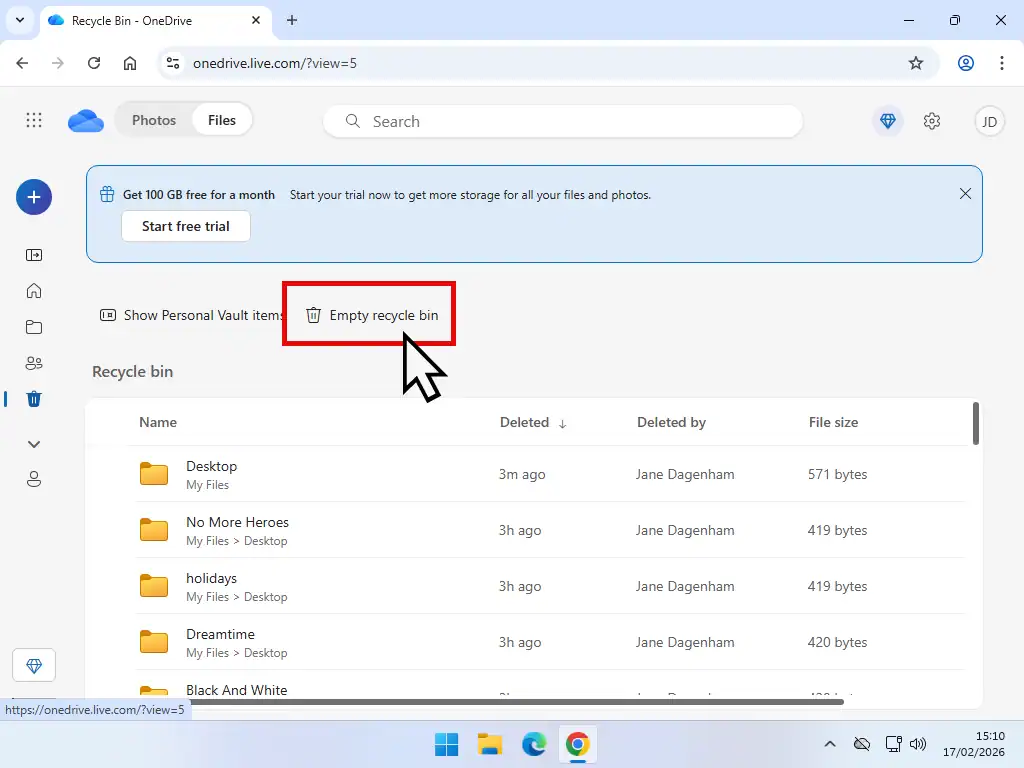
- Double check that you do actually want to delete all the files. Assuming that you do, click the Empty Recycle Bin link.
Summary
When OneDrive is full it can cause all sorts of issues. Microsoft only allow you 5 GB of free space so it can get full very quickly. Personally I always unlink OneDrive. It’s much too easy to either delete something by accident.
If you still wanted to use your OneDrive storage to backup important files to the cloud read this How To Setup OneDrive To Backup Your Files.
Related Posts
How To Use Google Drive Online.
With your Google account you get 15 GB of free storage space. You can use it for whatever you want but saving important files to the cloud is a good idea.
How To Setup And Use Google Drive For Desktop
Similar to OneDrive, Google has a desktop version that’ll automatically backup your folders to the cloud.
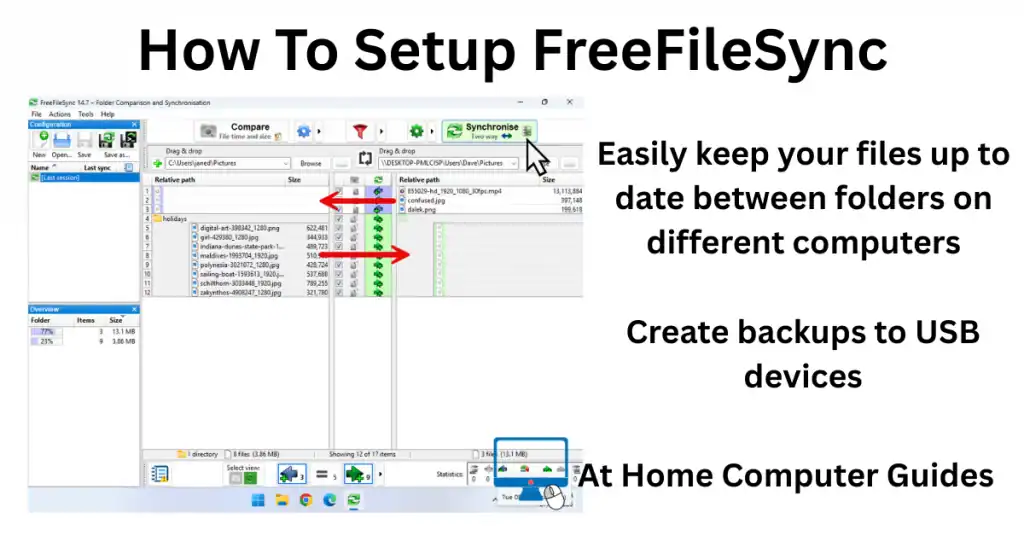
How To Setup FreeFileSync
FreeFileSync is, as the name suggests, completely free to use. With it you can create offline sync jobs to backup your files to a USB drive or over your network to a different PC.