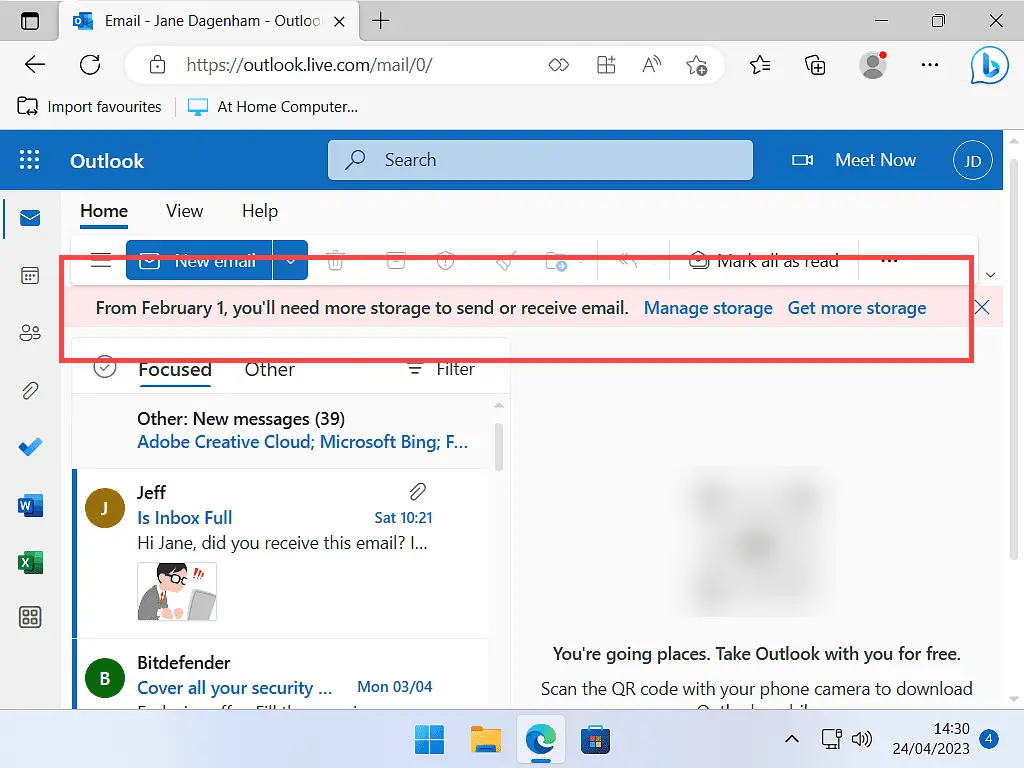
If your @outlook.com, @hotmail.com, or @live.com email account has suddenly stopped working, you aren’t alone. Many users are seeing a message stating, “You’ll need more storage to send or receive emails,” even if their inbox looks empty.
As a computer technician, I’m seeing this happen to people often. Even after deleting all emails the message persists. The culprit isn’t your email, it’s your OneDrive. Here is how to fix it and prevent it from happening again.
Why Is My Outlook Storage Full When I Deleted Emails?
In early 2023, Microsoft changed its storage policy. Previously, with a free outlook.com email account you had 15GB of email storage and 5GB of free storage in OneDrive. These to accounts were completely separate from each other.
Since 2023 all your email attachments and images now count toward your 5 GB OneDrive limit. That change links your email storage allowance with your OneDrive allowance. And it’s often OneDrive that’s getting full. Once OneDrive is full, your email account can’t accept any new emails because there’s not enough space to store any attachments or images.
Even if an email doesn’t contain any attachments or images, it doesn’t matter. The message just won’t be accepted by Microsoft until you create more storage space.
You can’t send new emails and incoming mail will be bounced back to the sender.
Delete Your Old Emails
Goes without saying that you should start by deleting old emails that you don’t need to keep, but you’ve probably already done that.
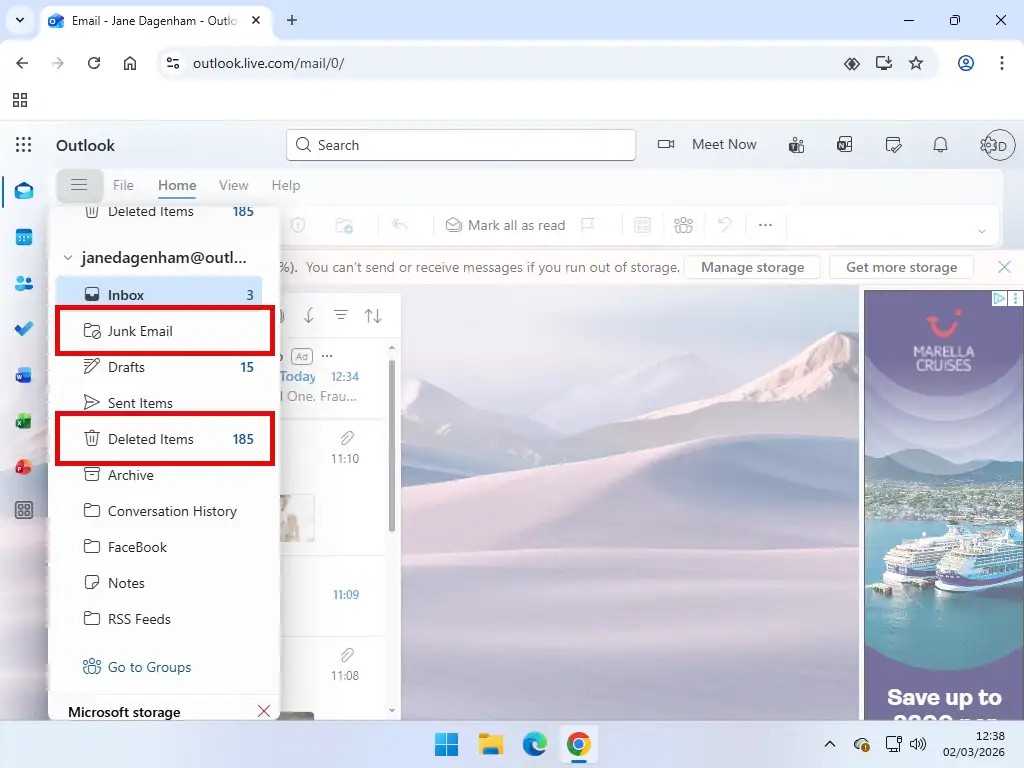
The next easy step is to make sure that you’ve emptied both your Deleted Items folder and the Junk Email folder in Outlook.com. These are often overlooked so it’s worth detailing the them here.
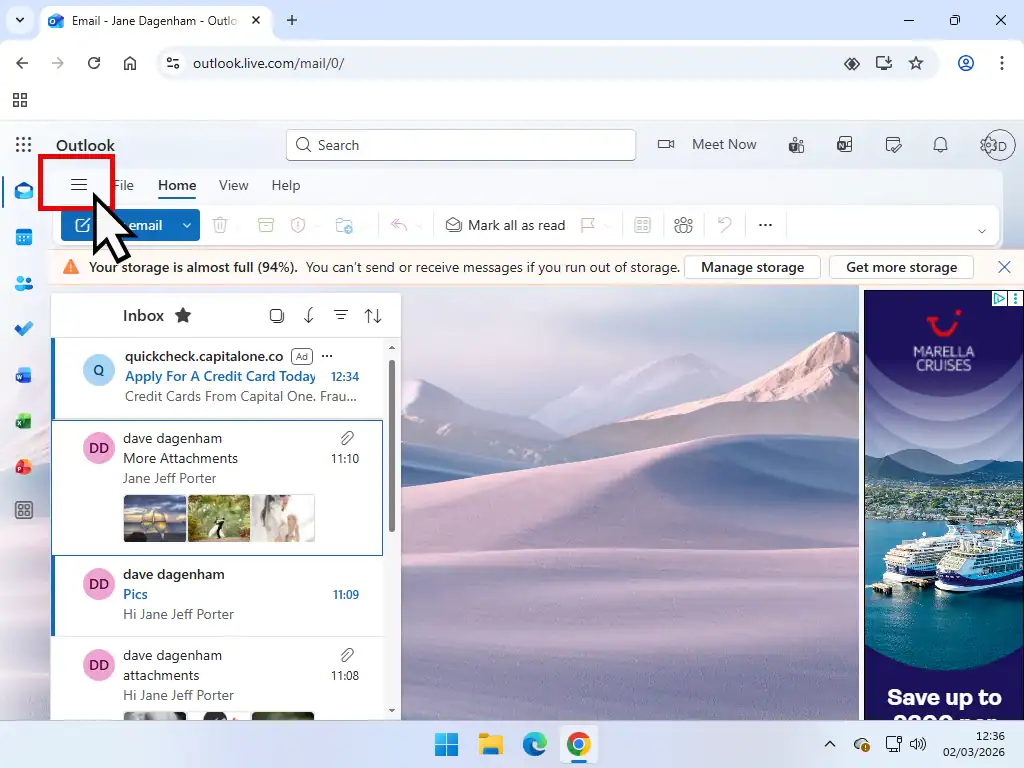
- If you can’t see the Outlook.com navigation pane, click the 3 horizontal lines (Show Navigation Pane).
- On the navigation pane, open and delete everything from the Junk folder and then the Deleted Items folder.
- After deleting everything from the Deleted Items folder, click the link to “Recover items deleted from this folder”. That’ll open the Outlook.com recycle bin, which is where deleted emails are stored. Delete everything from there too.
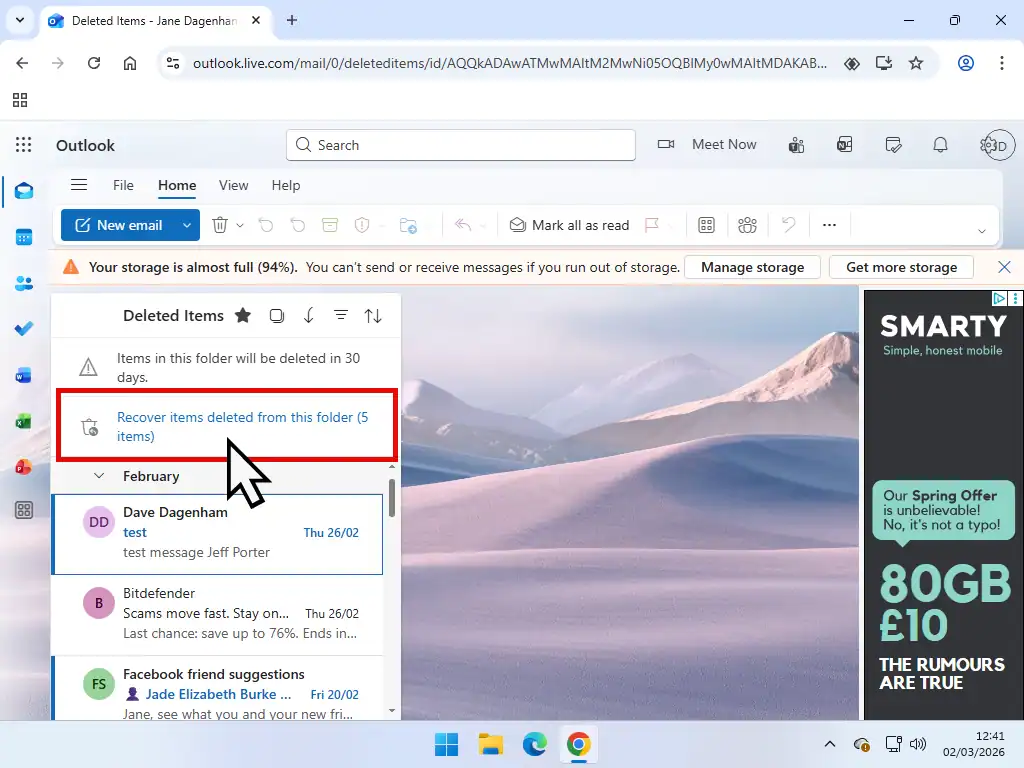
Outlook.com Still Not Sending Or Receiving Emails
Even after deleting everything that you can find in your Outlook.com email account, you’re still getting the “You need more storage space” message, then it’s probably due to your OneDrive folder being full. That’s almost always the issue.
It doesn’t matter if you’re using the older @hotmail or @live email addresses, they’ve both been integrated into Outlook.com. And Outlook.com is linked to your 5 GB OneDrive storage allowance.
Checking Your Microsoft Cloud Storage
The next step is to check your Microsoft cloud storage allowance, which includes both your emails and OneDrive. Log in to your Outlook.com account, if you’re not already.
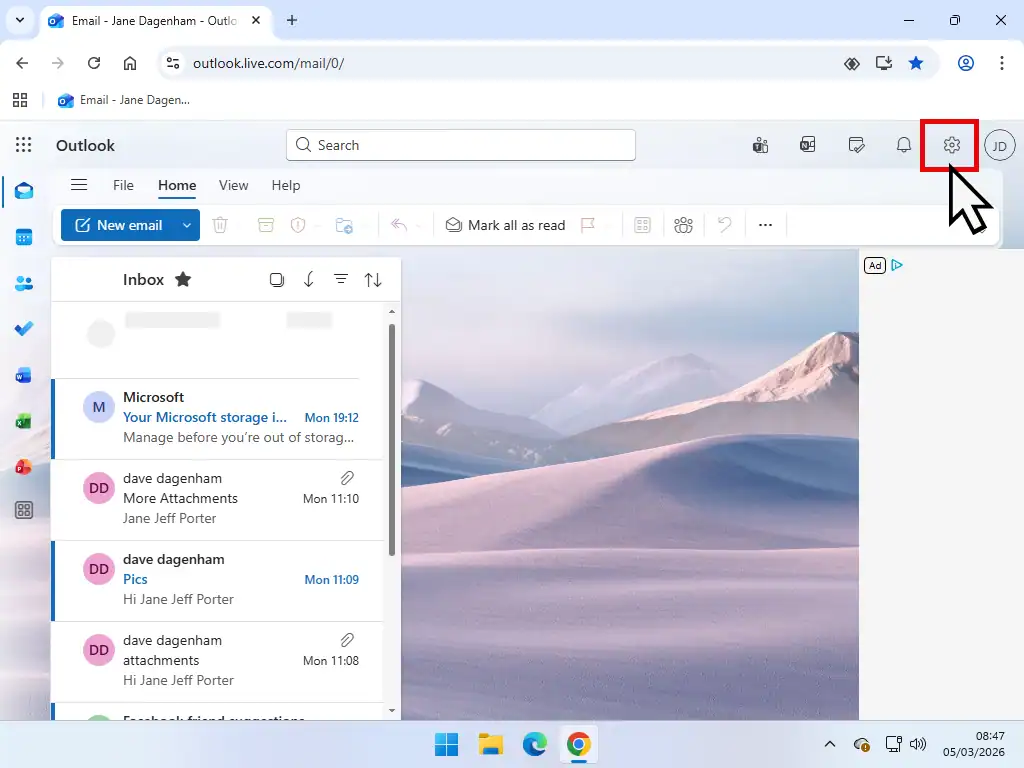
- Click the Settings icon (gear wheel) in the top right corner.
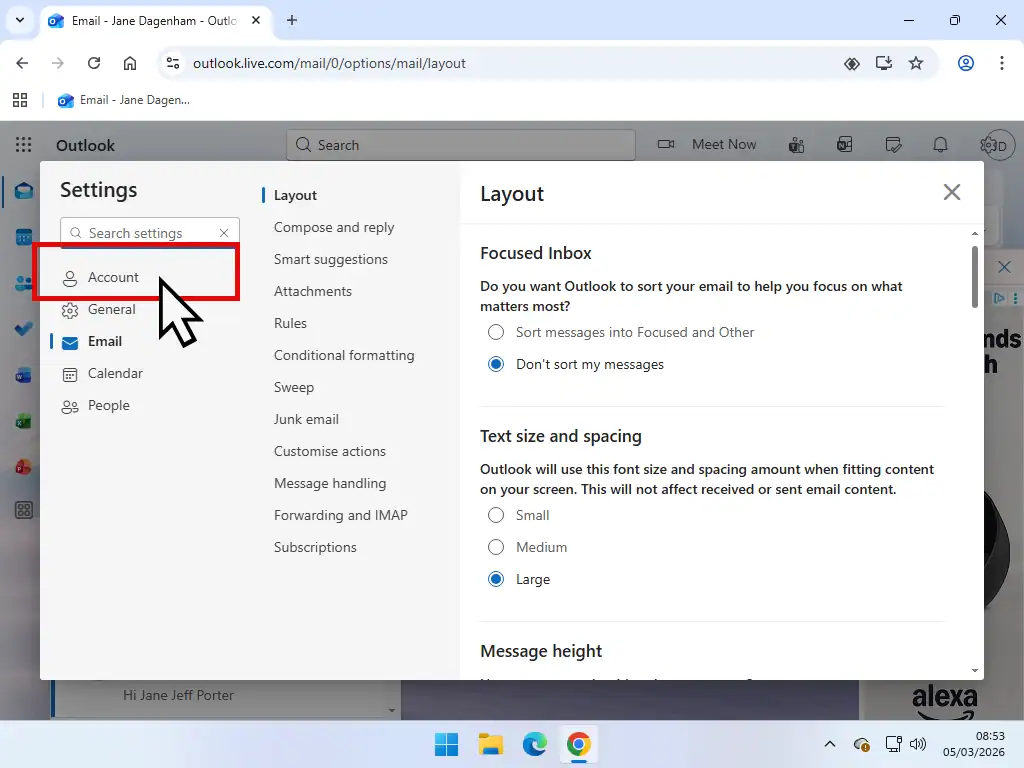
- Then click Account in the left hand pane.
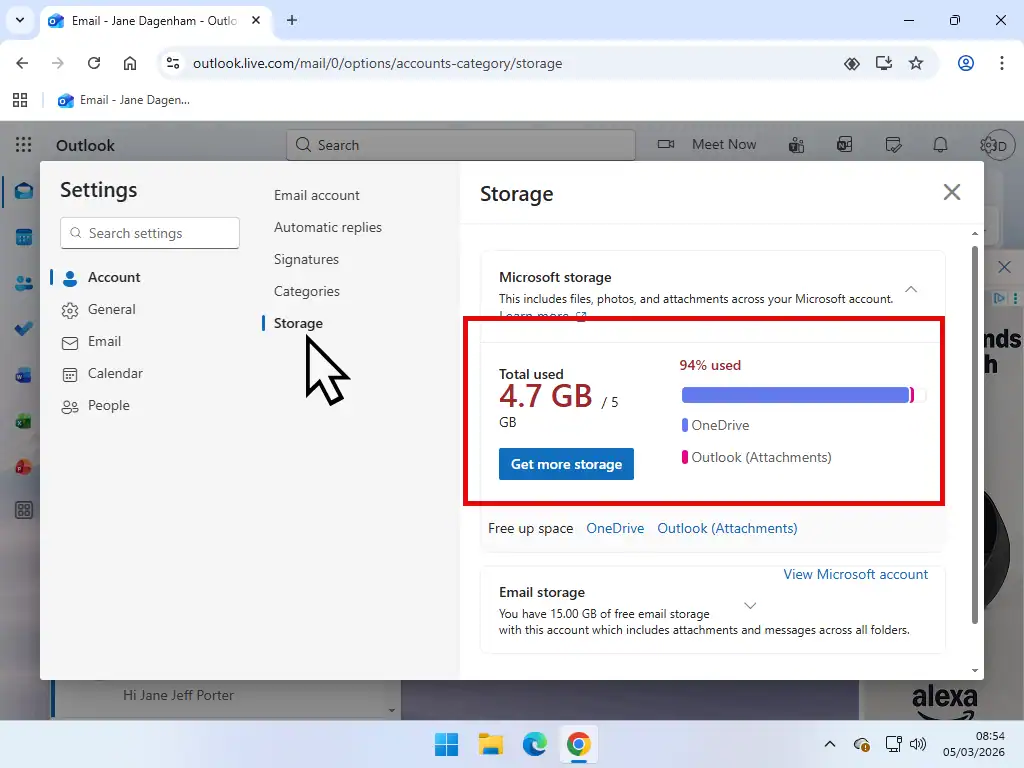
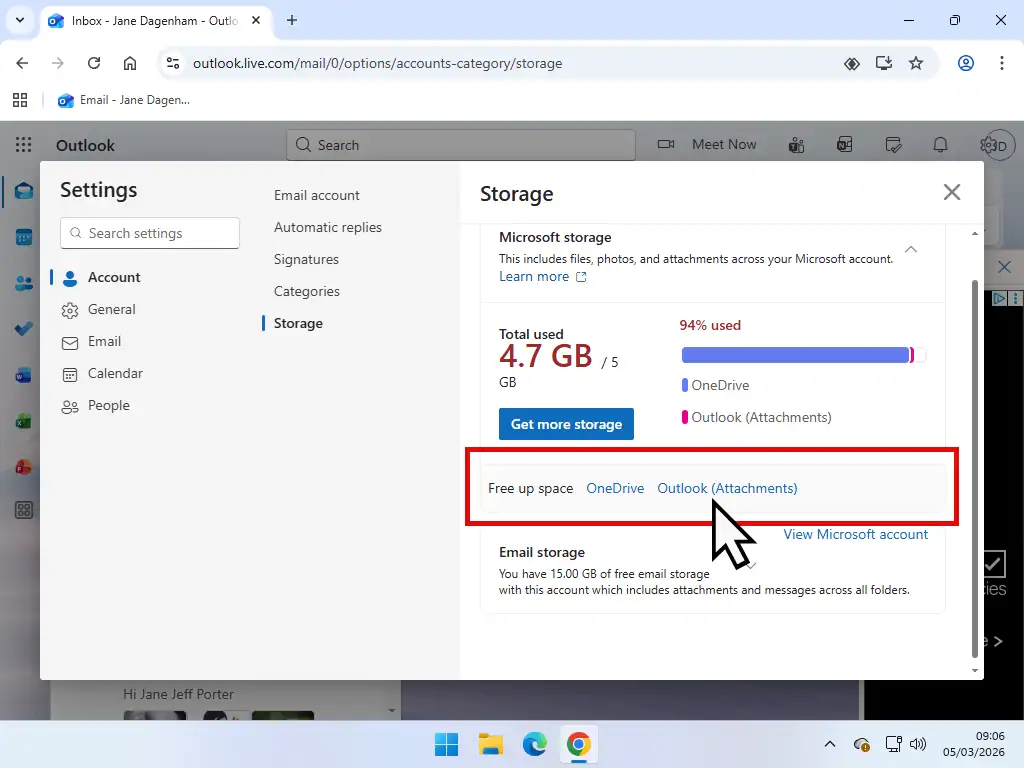
- And finally click Storage in the centre pane. You’ll most likely see that the 5 GB free allowance is either almost or completely full.
OneDrive And Email Attachments
On the Microsoft storage page you can see how much space is being used by files stored in OneDrive (blue bar) and how much is being used by emails with attachments (red bar).
If on your account you see that you’ve got a lot of emails with attachments clogging up your storage, then delete those first. Otherwise you’ll need to clear your OneDrive files.
Delete Your Outlook Attachments
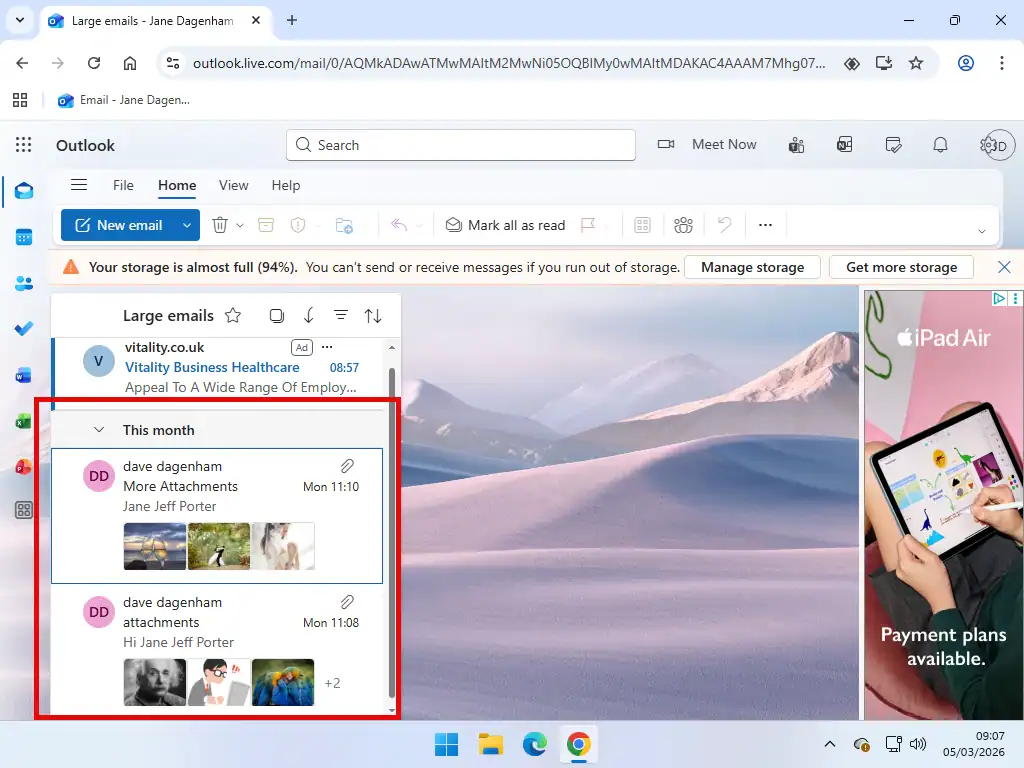
To delete the attachments, in the Free Up Space section, click Outlook (Attachments). That’ll take you back to your Outlook account and show you all the “large emails”. These are messages that have an attachment. Delete as many as you can to free up space.
Free Up Space On OneDrive To Get Your Emails Working Again
If your OneDrive folder is full it’ll stop your Outlook, Hotmail and Live emails from working because their storage allowances are all linked.
Freeing up space in OneDrive will get your emails working again and get rid of the “Your storage is almost full” message in Outlook. But it’s not as straightforward as simply deleting files from OneDrive. For a complete walkthrough of how to deal with OneDrive read these two guides What To Do When OneDrive Is Full and How To Delete Files From OneDrive.
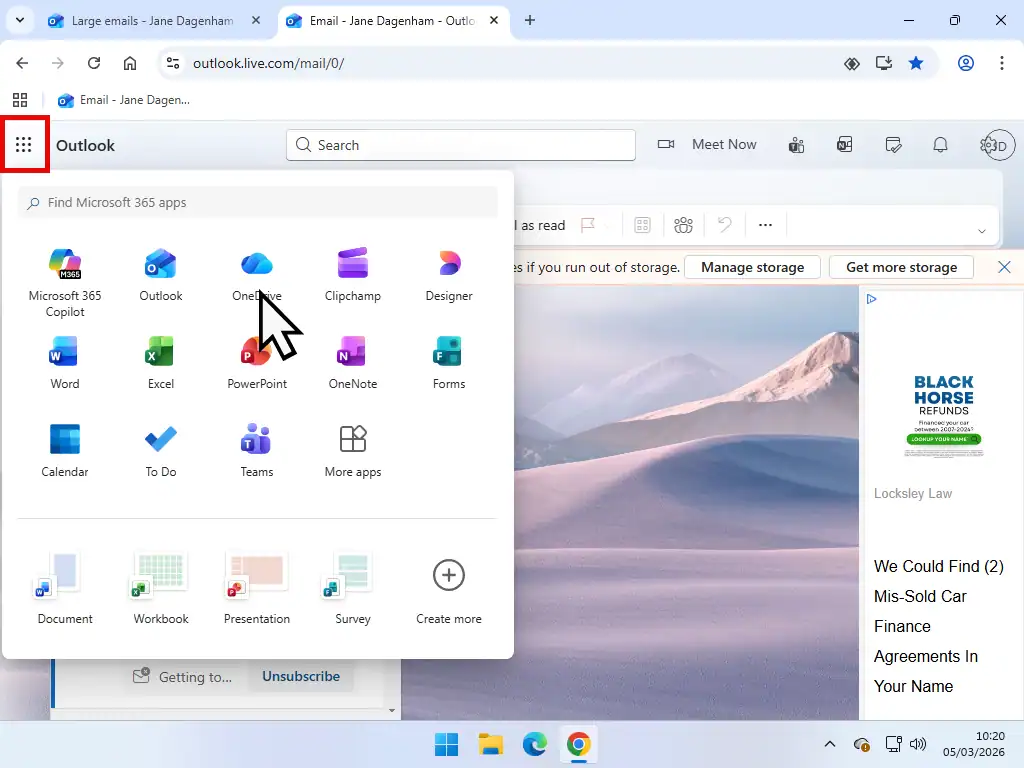
- From within your Outlook account click the 9 dots arranged in a square in the top left corner.
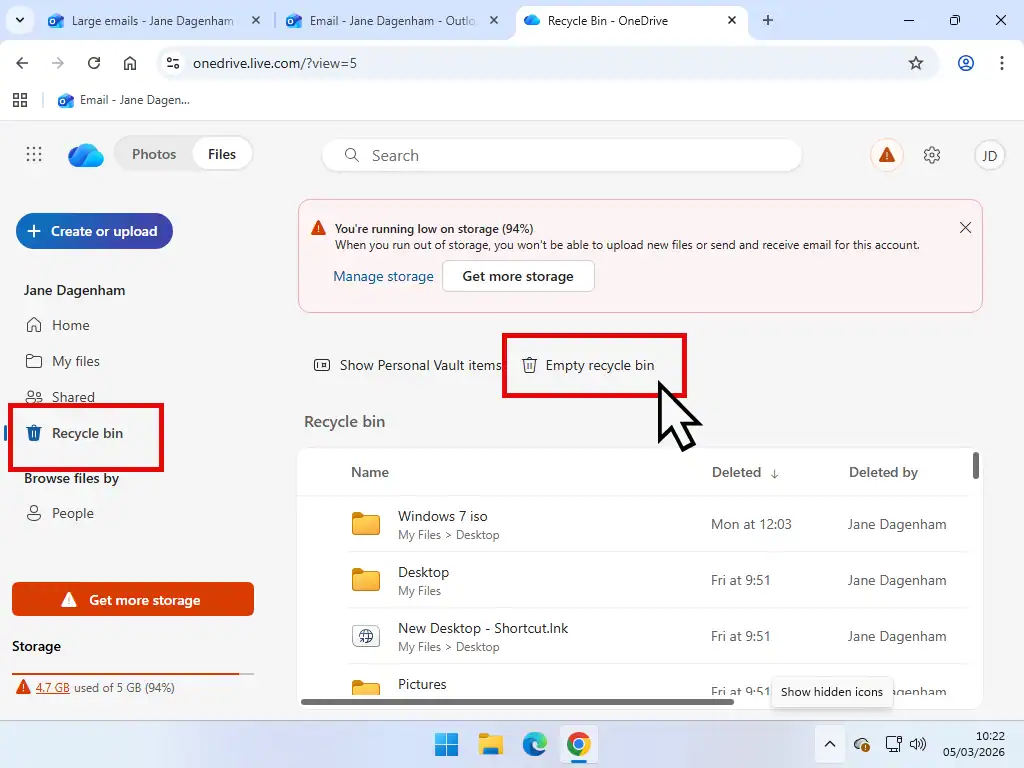
- Inside OneDrive click the Recycle Bin in the left hand pane. Then click Empty Recycle Bin. That may free up enough space for Outlook.com to start working again.
You Still Need More Storage For Outlook.com
If emptying the OneDrive recycle bin didn’t create enough space to get Outlook.com emails working again, then your only option is to either buy more storage or delete files from OneDrive.
Because OneDrive is actually a sync (synchronisation) tool, rather than a backup, anything that you delete from the Onedrive cloud might also be deleted from your computer.
To free up storage space and get your emails working without losing any data –
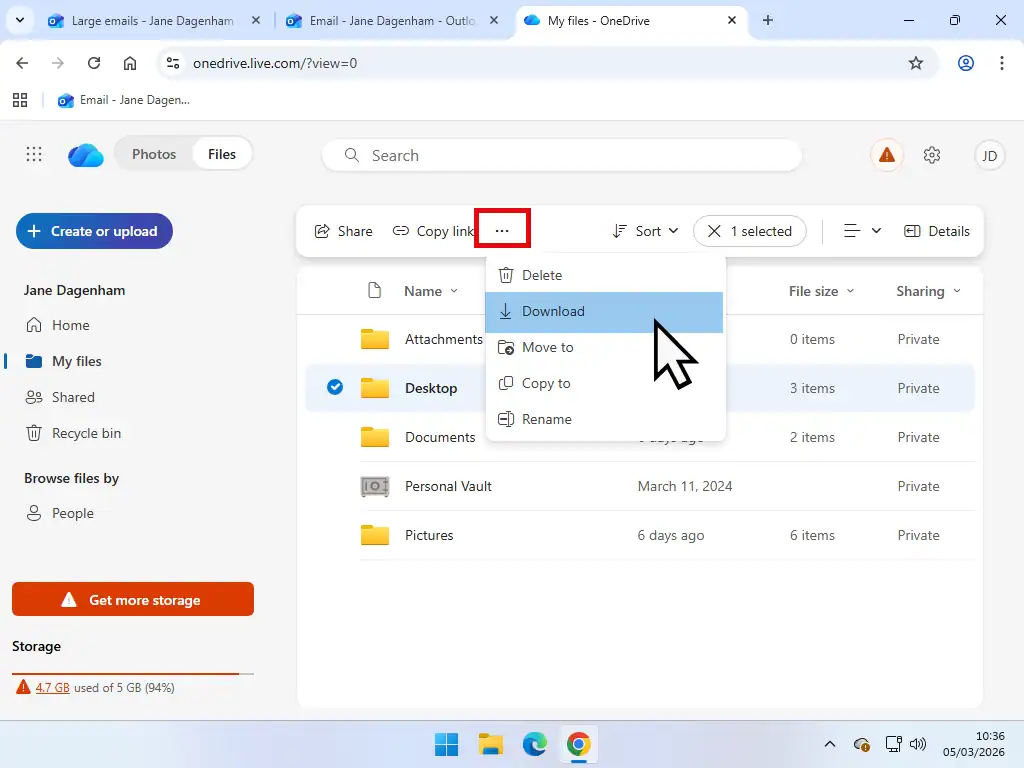
- Download everything from OneDrive before you start deleting. Select a file or folder, click the 3 hrizontal dots on the toolbar and then click Download.
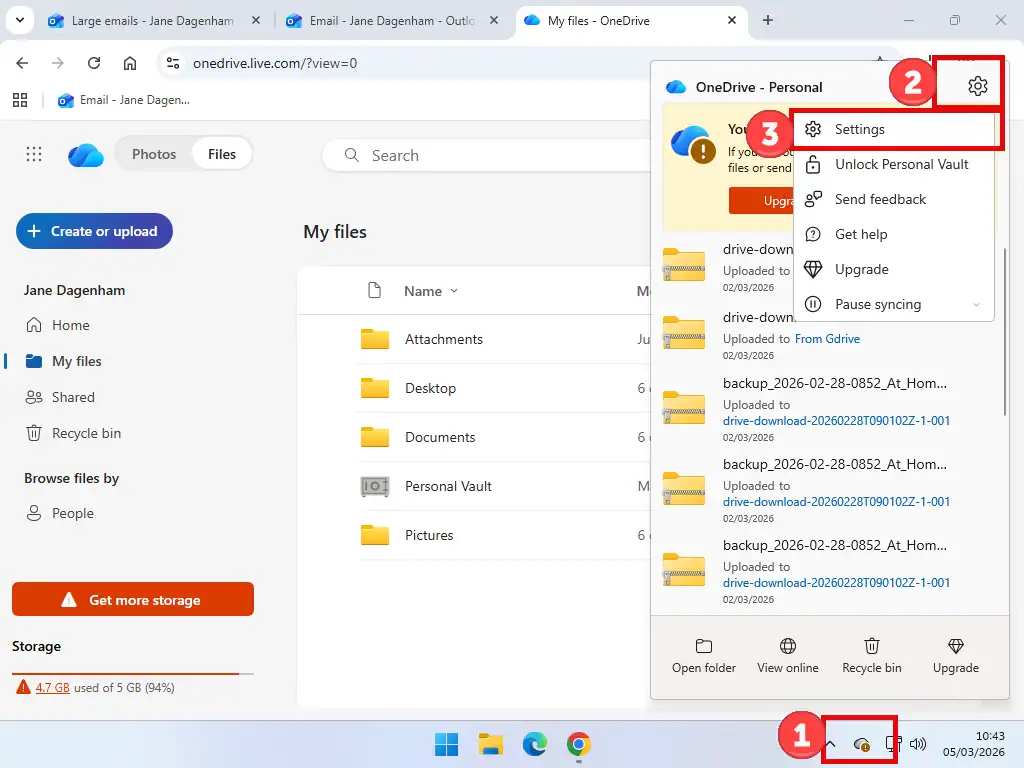
- Next you’ll need to unlink OneDrive on your computer. If your storage space is full, then you’ll probably have a queue of files waiting to be uploaded when space appears. Open the OneDrive settings by clicking on the cloud icon on your taskbar. Then click the Settings icon and finally Settings.
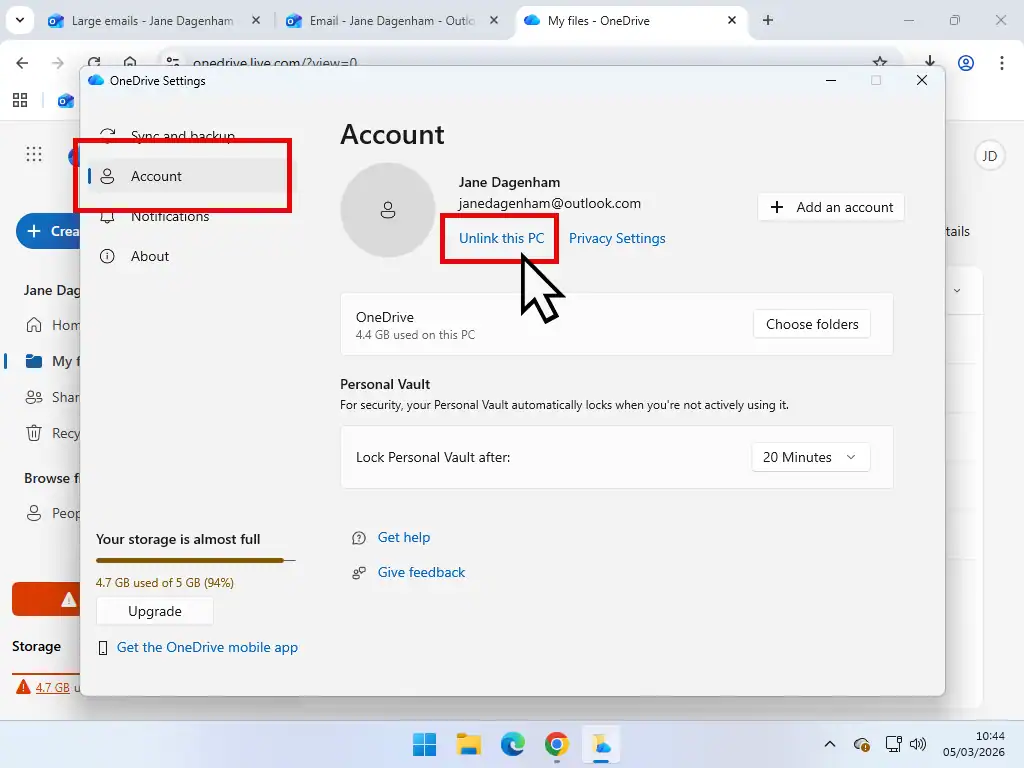
- On the Settings screen, click Account in the left hand pane. Then you can click Unlink This PC. Follow the prompts to stop OneDrive syncing your files to the cloud.
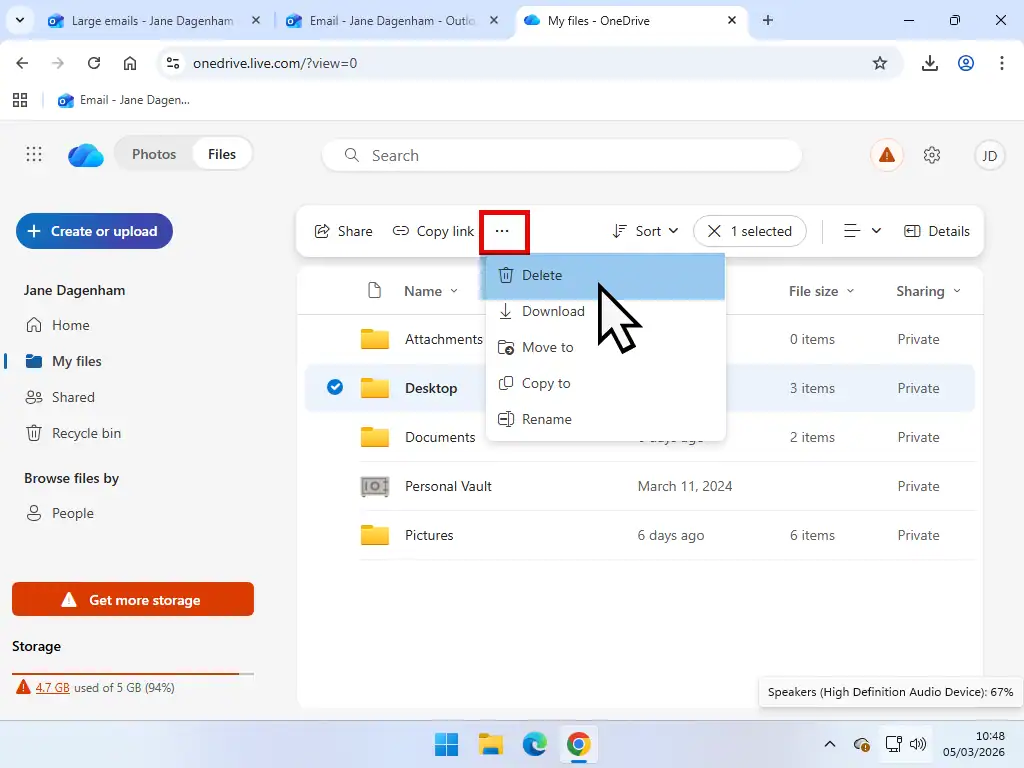
- Now you can start deleting files and folders from your OneDrive account. Select a file or folder, click the 3 horizontal dots and then click Delete.
Summary
Since Microsoft linked Outlook.com storage to your OneDrive storage many people have hit this issue of emails not sending or receiving when they appear to have only a few messages.
OneDrive itself is much more complicated than a simple online backup and you have to careful when your deleting items from it because you could lose something that you wanted to keep What Is OneDrive And What Does It Do
If you want to use an online sync (backup) tool then I’d suggest trying Google Drive for Desktop. It has all the features of OneDrive but importantly it offers 15 GB of free storage space and it’s separate from your Outlook.com email account.
Related Posts
How To Block Email In Outlook
How to stop unwanted, nuisance and spam emails in Outlook.com
How To Add Links In Outlook
Insert clickable links to web pages in to your Outlook.com emails.
How To Setup FreeFileSync
Rather than using a cloud storage service you could always synce your files offline. FreeFileSync will synchronise to any attached USB device or across your home network to other computers.