FreeFileSync is a free and open source program that allows you to synchronise 2 folders between computers that are on the same network.
In layman’s terms it simply compares 2 different folders on 2 different computers and then copies files between them to make them the same. You can setup FreeFileSync to move files both ways or just one way and that can be either way.
You’ll need to have file sharing already setup if you want to sync between computers 5 Steps to Setup a Home Network in Windows 10 and 11.
Install FreeFileSync
Download and install FreeFileSync on just one of your computers. It only needs to be installed on one of them because it uses Windows file sharing to sync your folders.
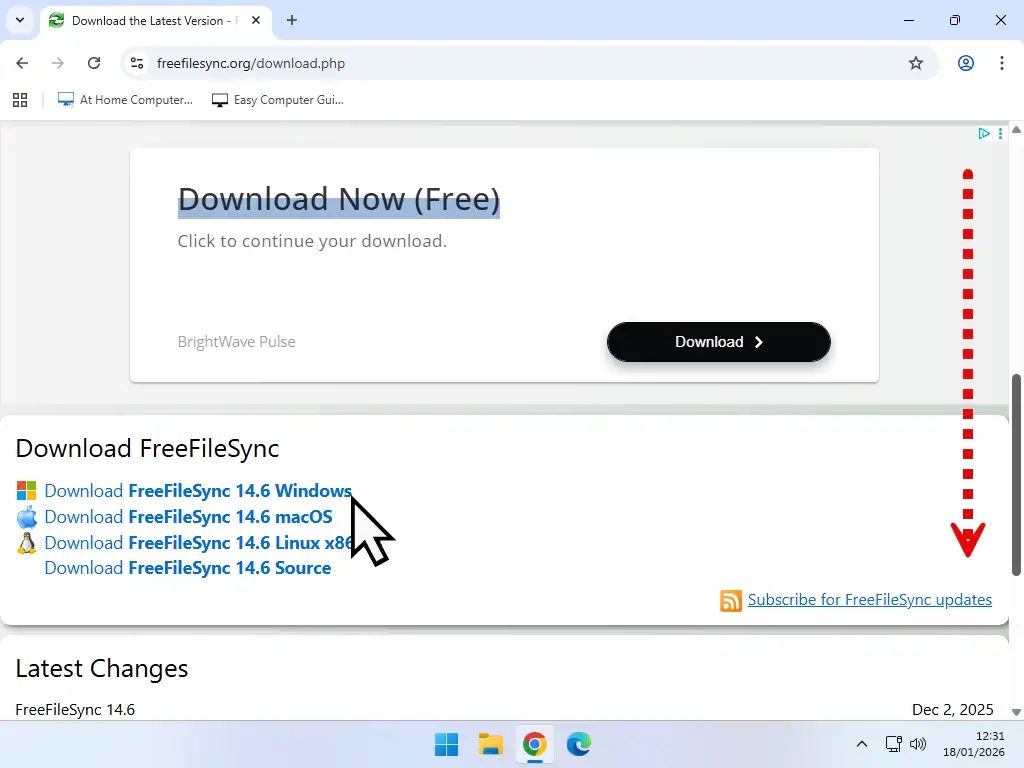
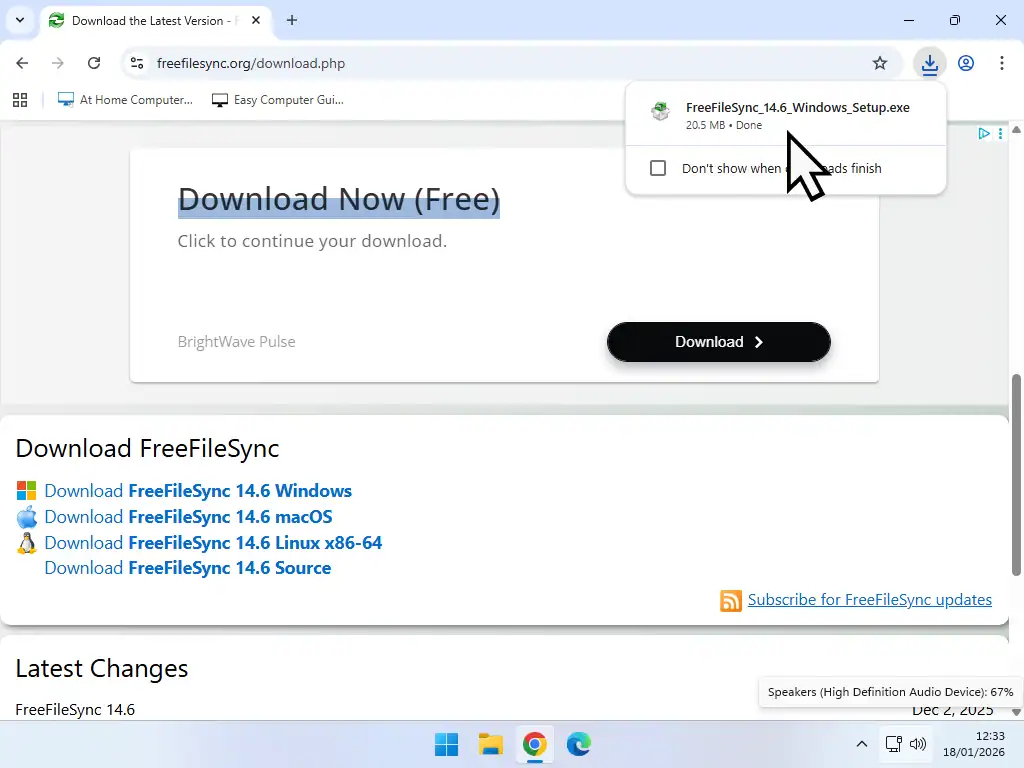
You can download FreeFileSync from here https://freefilesync.org/download.php. On the download page, scroll down a little and then click the download link for whichever version of FreeFileSync you require. It’s available for Windows, Mac and Linux.
Run the setup either from your browser or wherever you saved the download to. The installation is fairly standard and all you need to do is click Next a couple of times.
How To Setup FreeFileSync
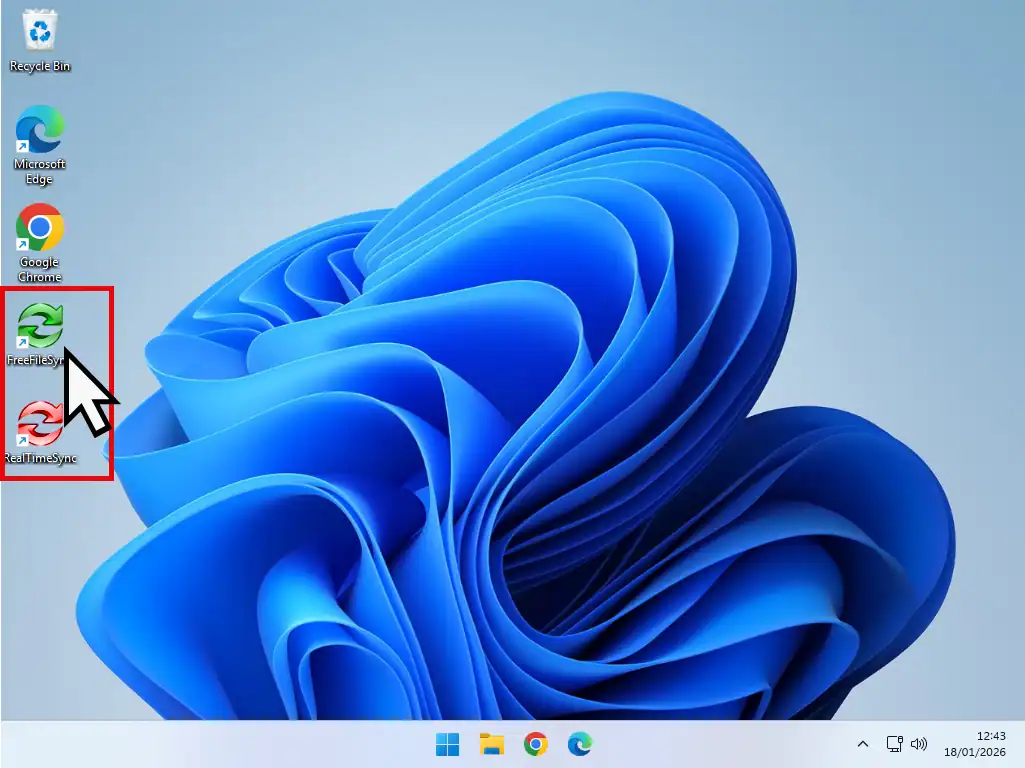
Once the installation is completed you can exit all open windows. You’ll see 2 new icons have appeared on your desktop, FreeFileSync and RealTimeSync. We’ll get to RealTimeSync later, but for now we need to setup FreeFileSync.
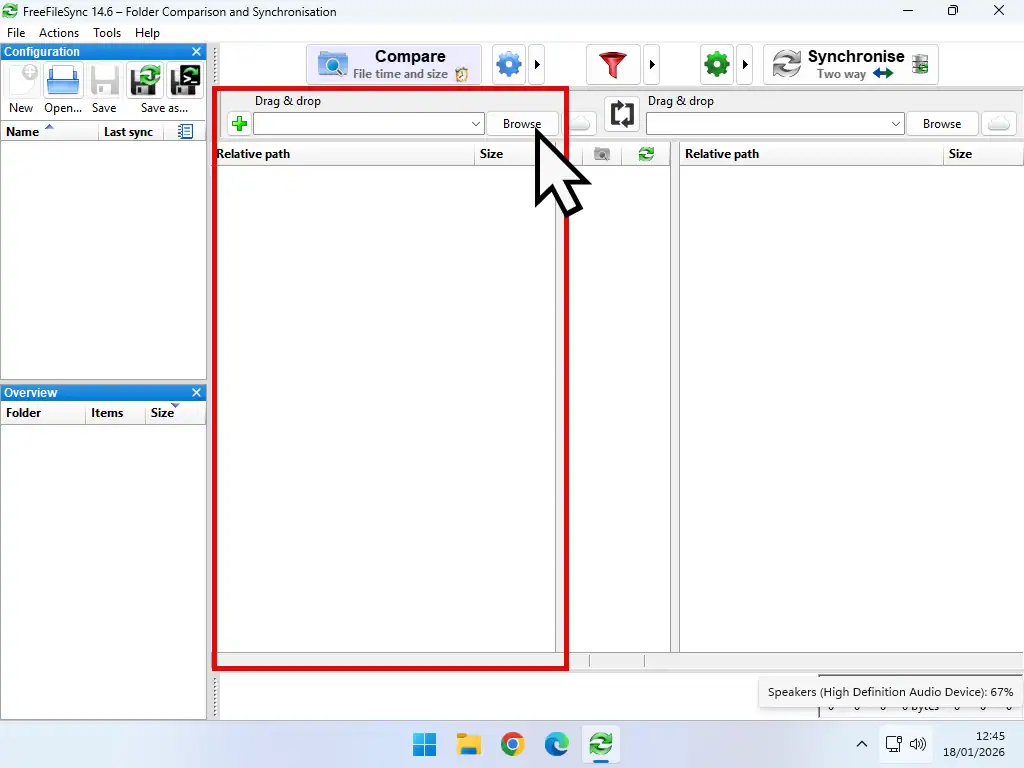
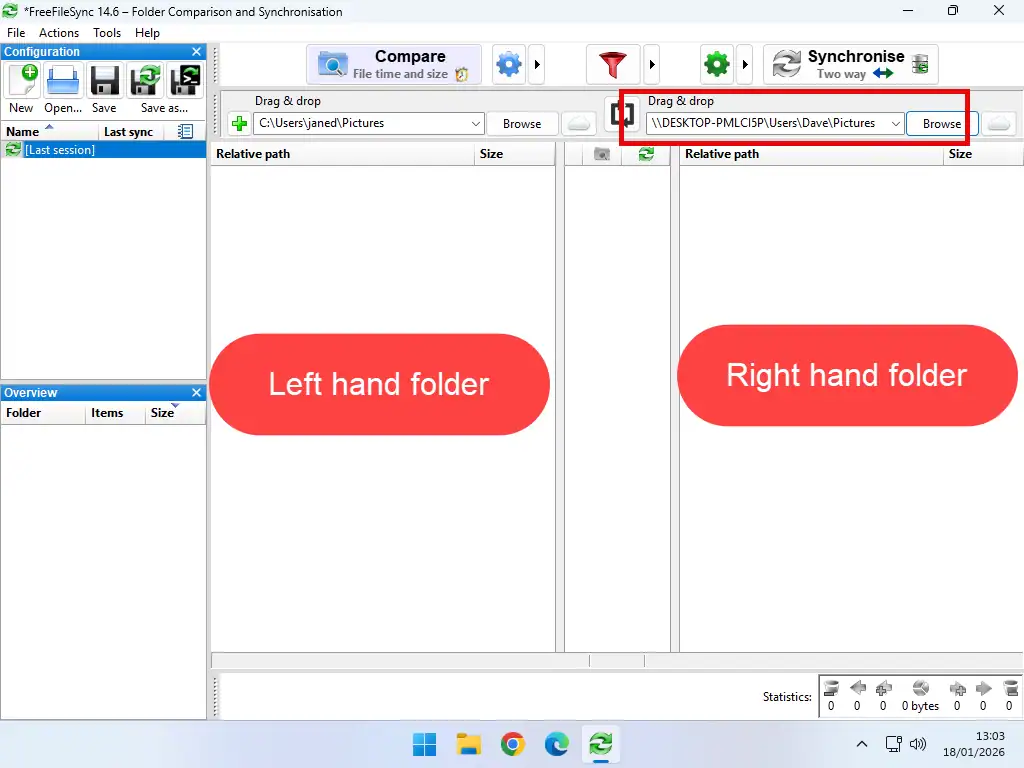
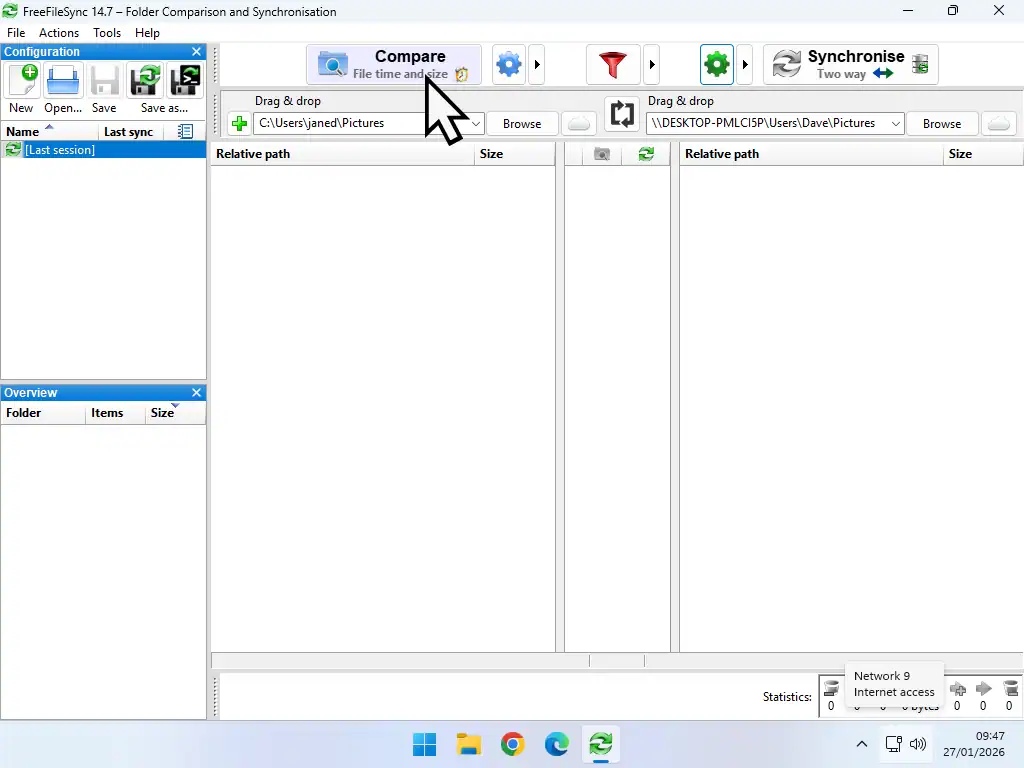
Double left click FreeFileSync icon to launch the program. To setup FreeFileSync you’ll “pair” 2 folders that you want to keep synced. One on the left side of the main screen and the other on the right.
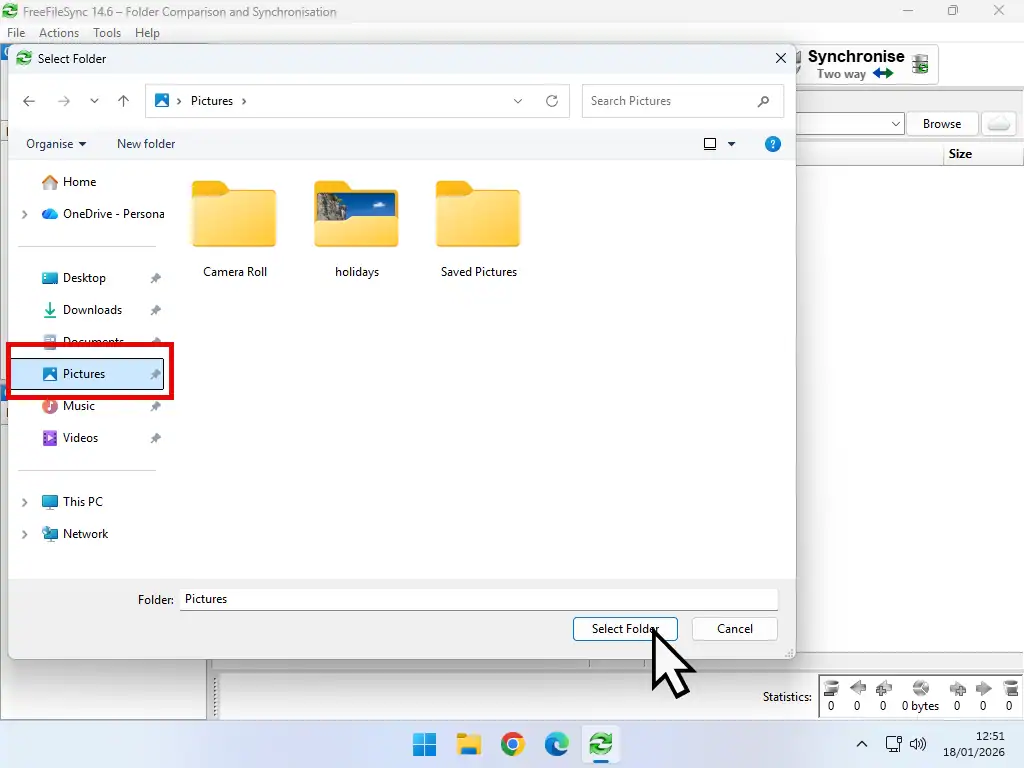
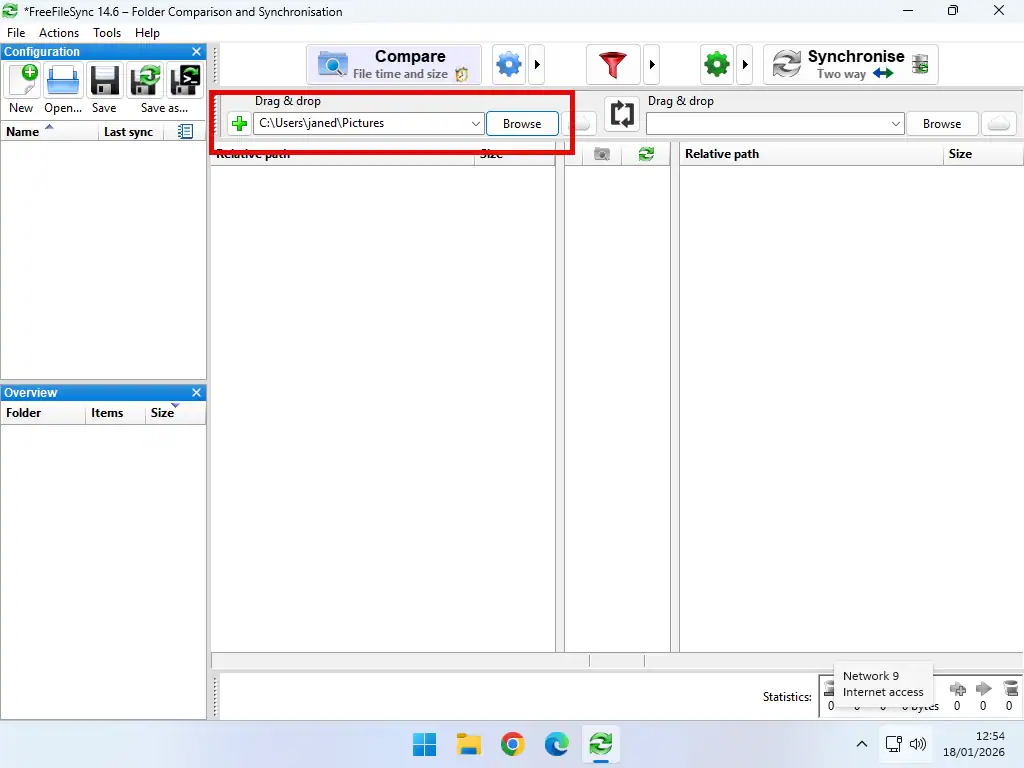
The folder that you select on the left hand side will be a folder that’s on the computer where you’ve installed FreeFileSync. To get started, click the Browse button on the left side and select the folder you want to sync. For example the Pictures folder.
You’ll see the folder’s path appear in the folder box. This is the first folder that you’re going to sync, now you need to pair it with a different folder.
Select A Second Folder
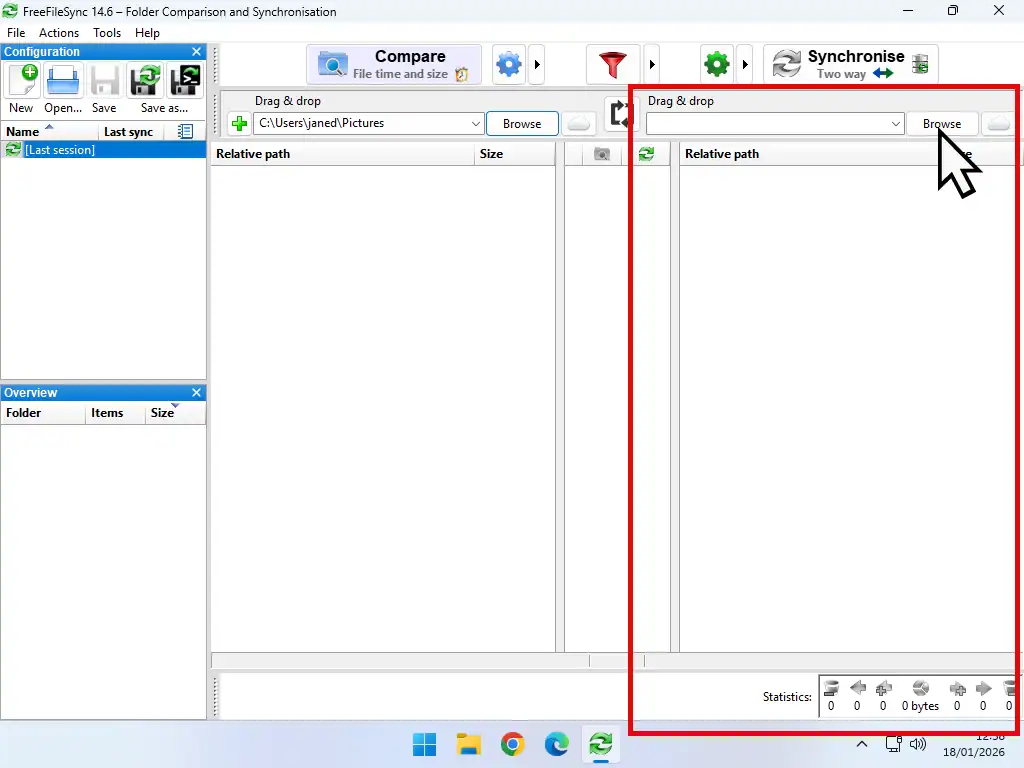
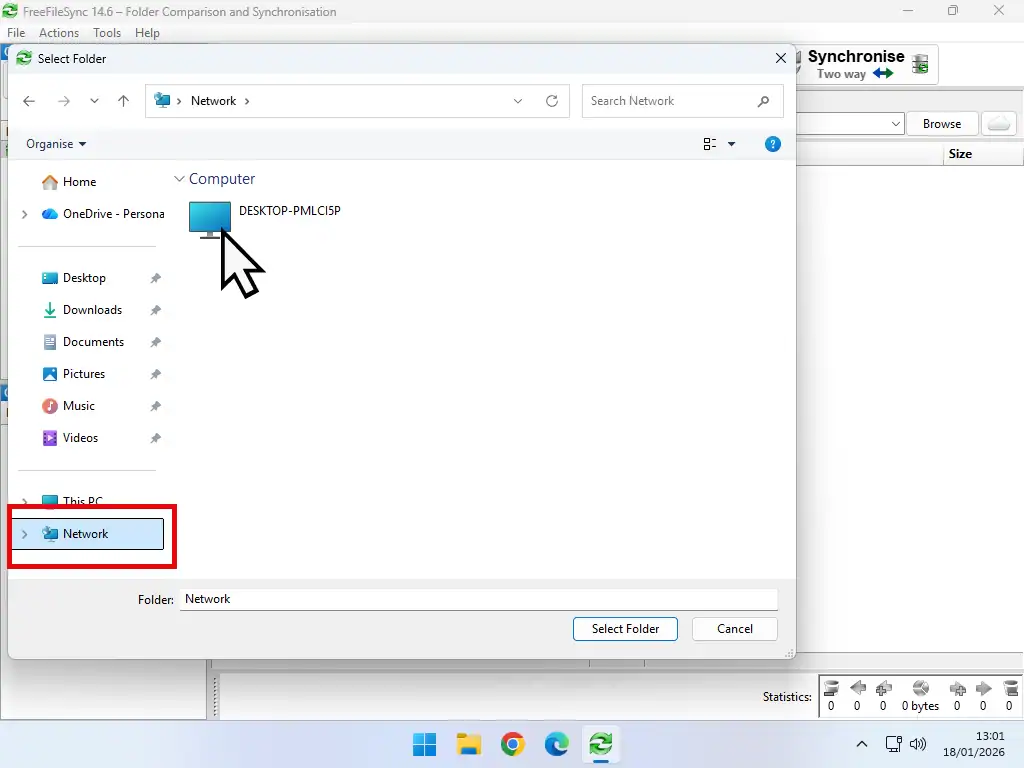
To select the second folder click the Browse button on the right hand side of FreeFileSync. This second folder can be on a USB drive (flash drive or hard drive) or more likely on a networked computer.
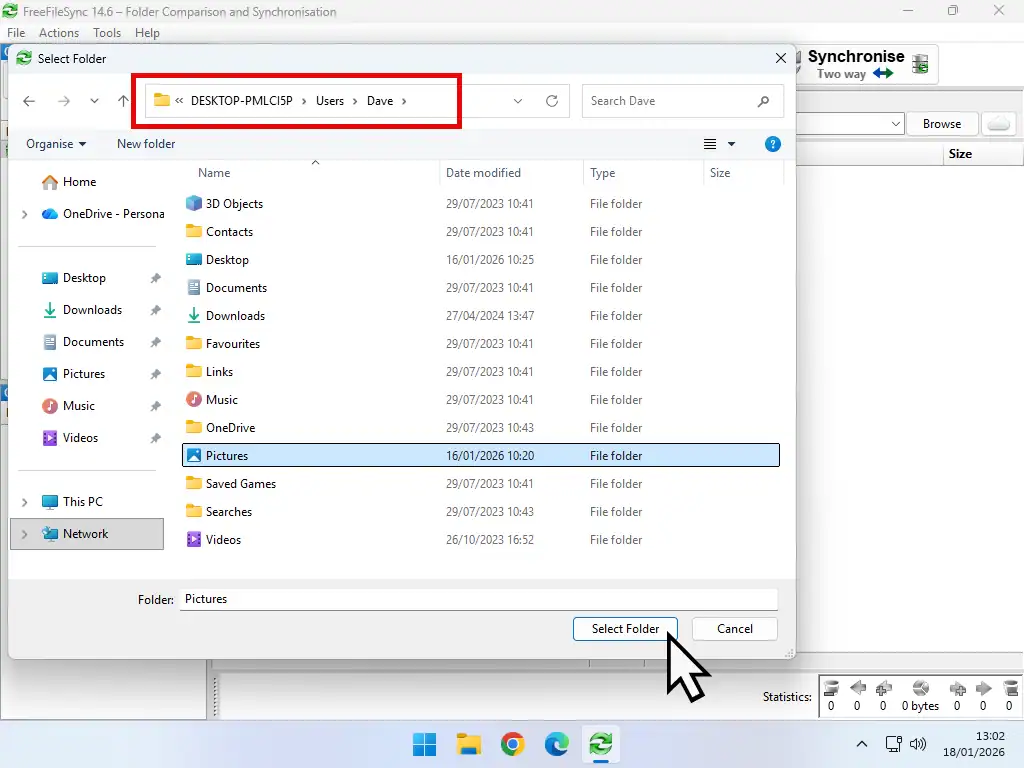
Navigate through File Explorer and select the folder that you want to use. It’s path will appear in the right hand folder box. These 2 folders are now “paired”.
You’ll have 2 folders selected to sync across, one in the left hand pane and the other in the right hand pane.
Two Way Or One Way Syncing In FreeFileSync
FreeFileSync allows you to set the direction of the synchronisation between the left hand folder and the right hand folder.
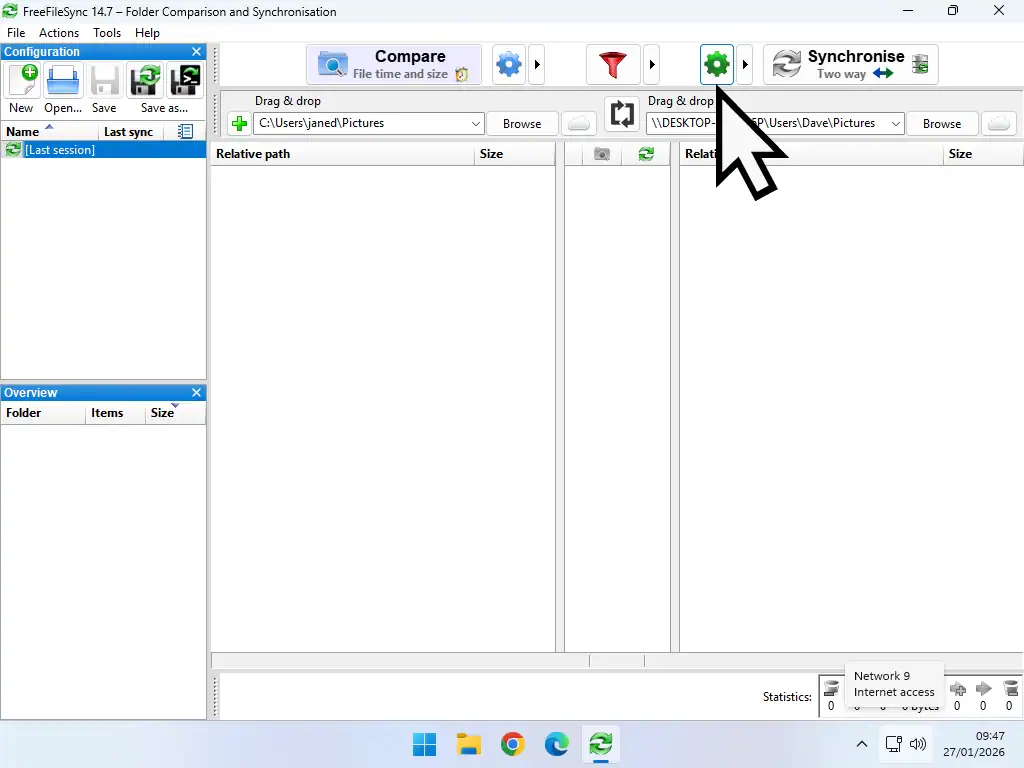
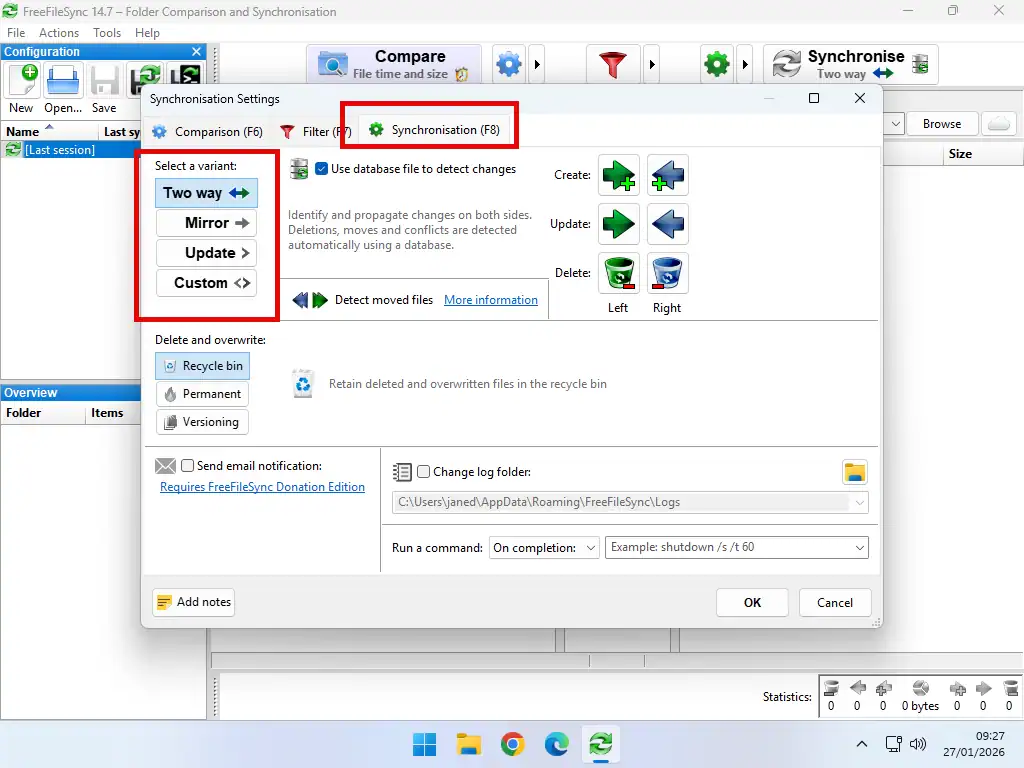
Click the Settings icon (gear wheel) and when the sync settings screen opens make sure you’re on the Synchronisation tab.
In the Select a Variant section you can set the direction of sync between the folders that you’ve paired.
- Two Way – Syncs both ways between the folders. Any changes in either folder will be propagated to the other. Use this option to keep your files updated on both computers. Be aware that deletions are also replicated on either side.
- Mirror – This is an option for backing up a folder. New and updated files from the left folder are copied across to the right hand folder. The one downside to this option in FreeFileSync is that files in the right folder that do not exist in the left are deleted.
- Update – Similar to the Mirror option but doesn’t delete anything from the right hand folder. Probably the better option for backups.
- Custom – You can manually set rules based on category (Left only, Right only, Left newer, etc.) or create custom actions.
Save The FreeFileSync Configuration File
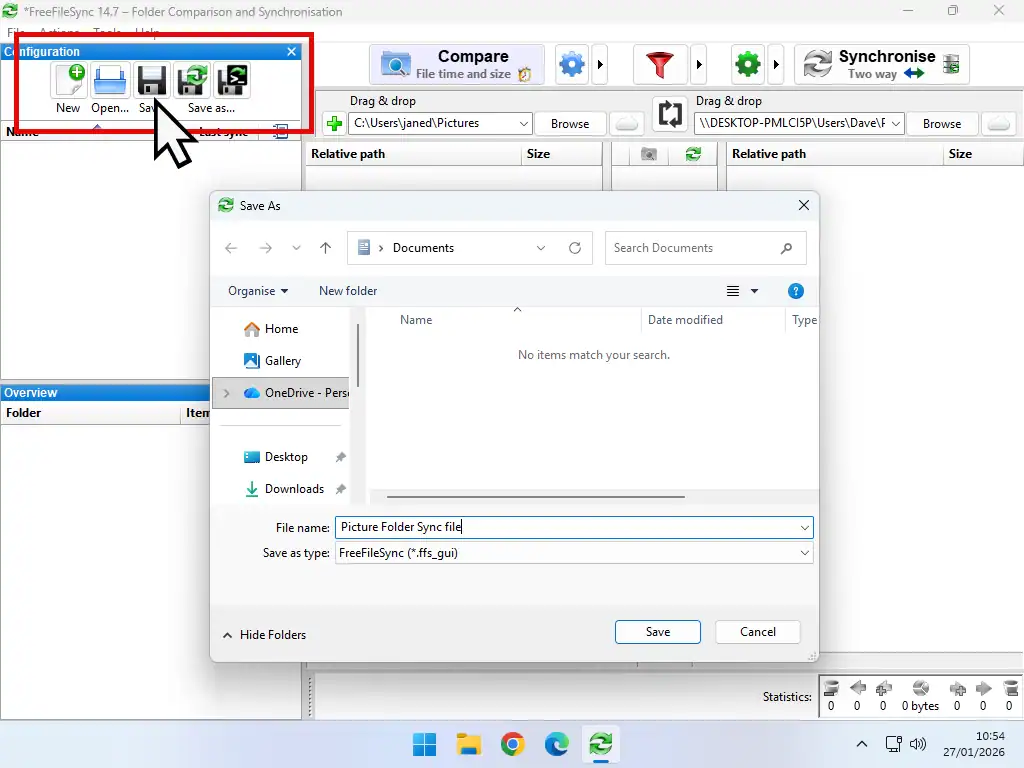
Save the configuration file for use later on. Click the Save button to open the Save As window. Give the file a descriptive name so that you’ll know what it is and save it.
Syncing The Folders
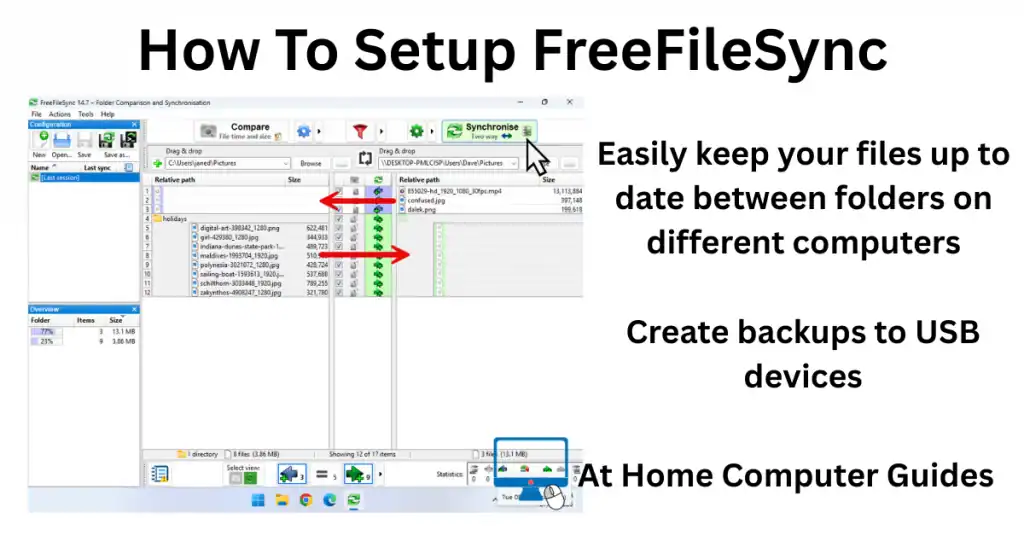
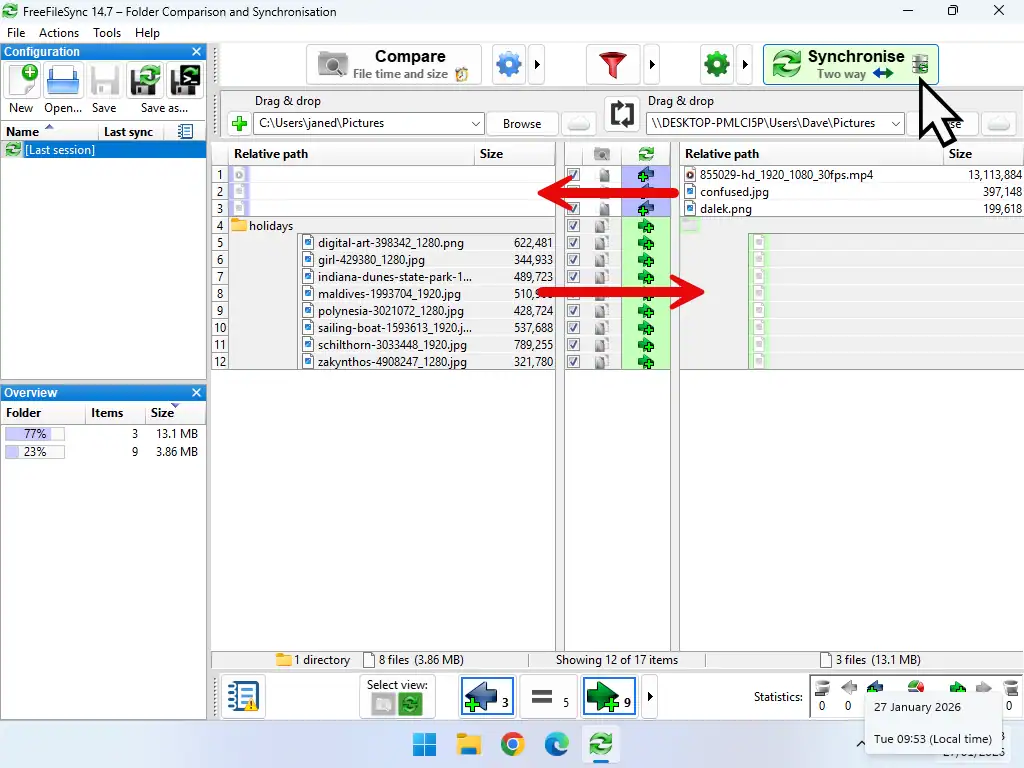
After setting the direction of the folder sync, click the Compare button and FreeFileSync will scan both the left and right hand folders and display the contents of both along with the proposed direction of the sync.
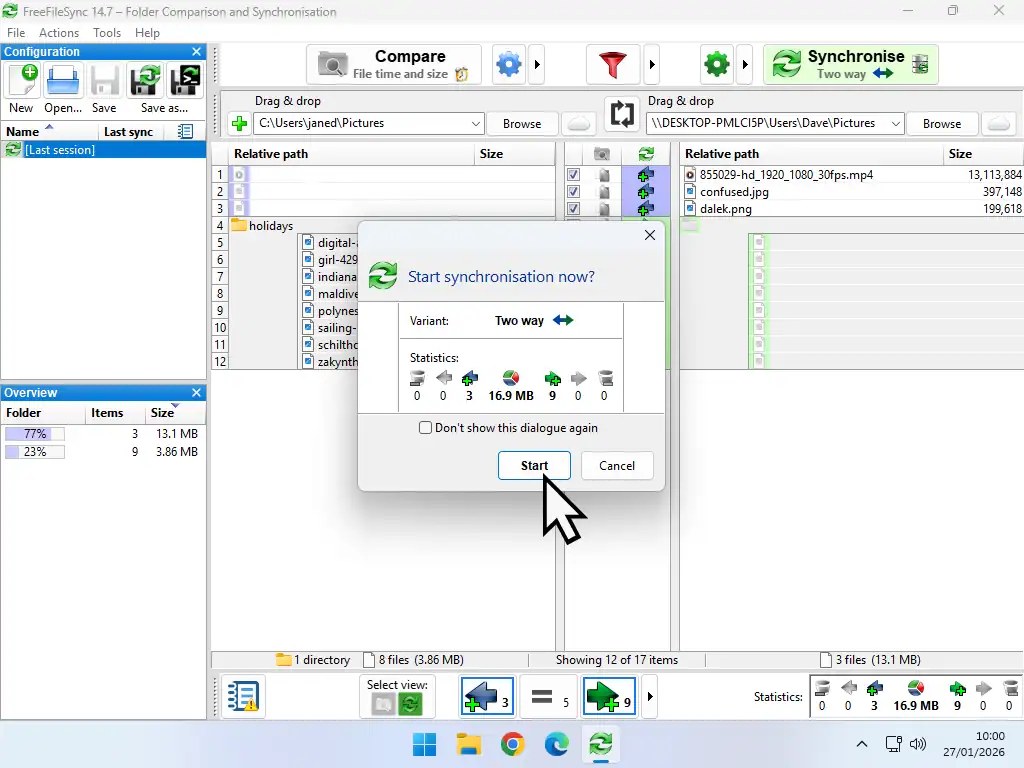
In the example below I’ve selected two way sync. FreeFileSync will copy 3 files from right to left and a folder containing 8 files from left to right. Click the Synchronise button to start the sync. You’ll see a confirmation popup appear. Click the Start button
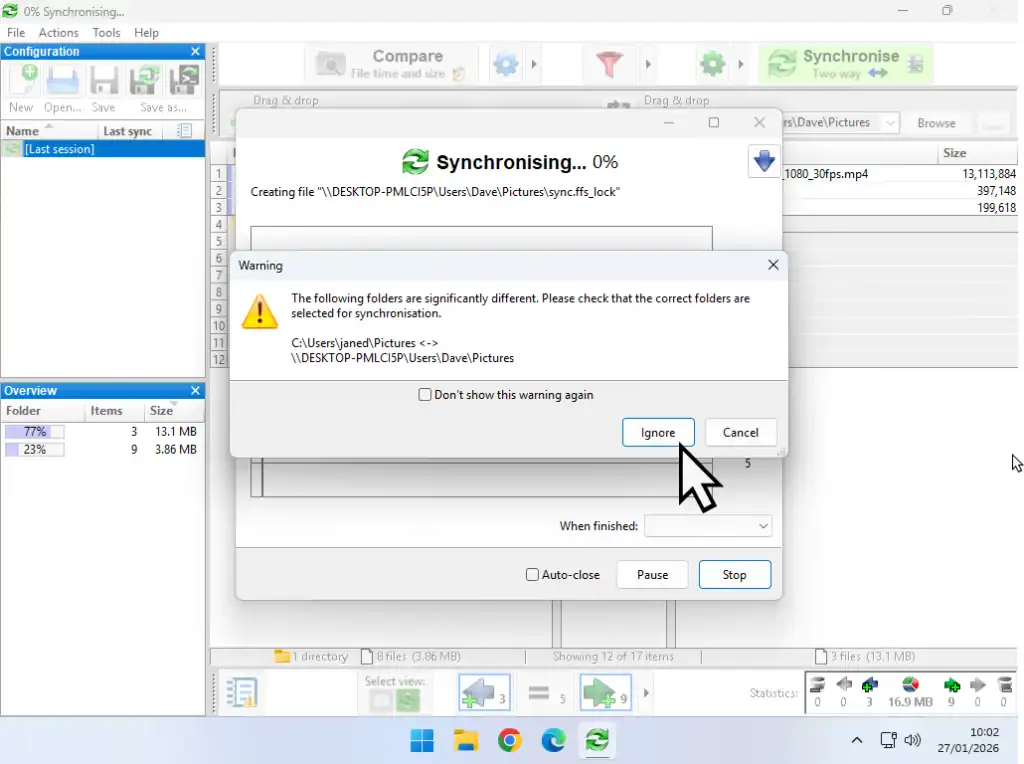
If this is the first sync you’ll probably see a warning popup appear stating that the two folders are significantly different. In Two Way sync and Update sync you can safely click the Ignore button since nothing is going to be deleted. But if you’ve selected the Mirror option, then check that you aren’t going to lose anything important.
The file sync may take some time to complete depending on what you’re syncing and of course how you’re doing it. When it’s finished, check your folders and make sure that everything is as expected.
Adding More Folders To FreeFileSync
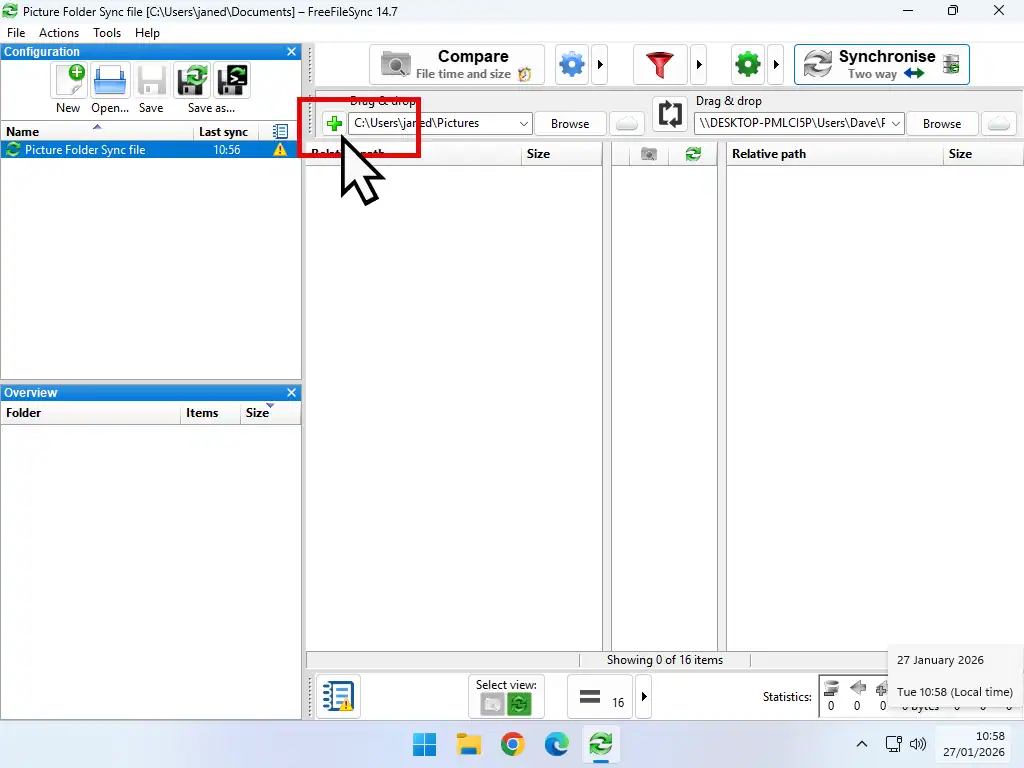
FreeFileSync only allows you to sync files between 2 folders (folder pairs). However you can easily add more folders pairs by clicking the Plus (+) icon.
Then just follow the same procedure as above to pair more folders.
You can re-use folders that are already included in a sync.
Summary
FreeFileSync works amazingly well on home computers. You can sync files to external USB drives as well as over a network. Perfect for running manual backups from your PC.
The sync options can be a little confusing at first so experiment with test files and folders first to make sure that you’re selecting the best option for you.
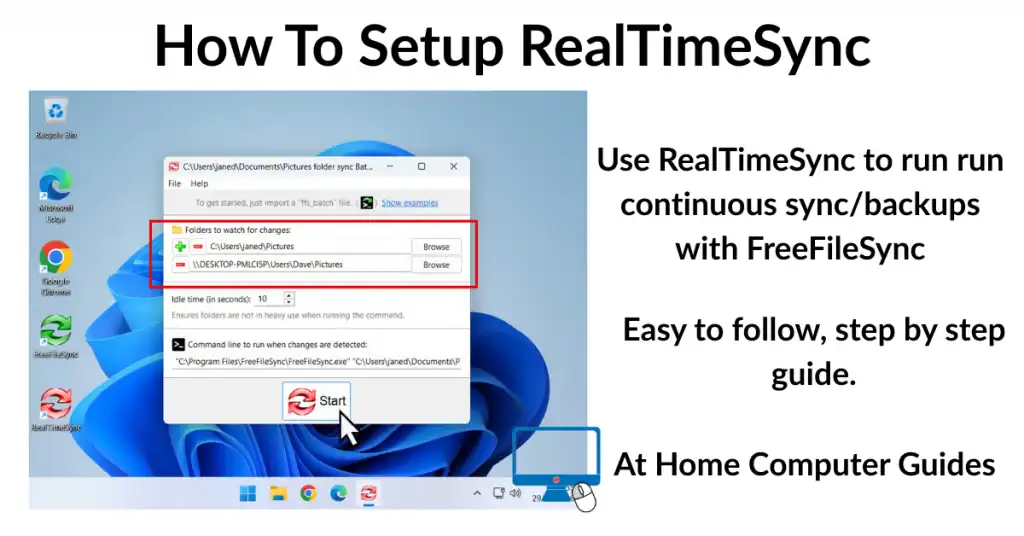
You can also have FreeFileSync run automatically without you, the user, having to start it up. By setting up a Task Schedule it’ll run once at a given time either daily or weekly. Alternatively you can use the companion app RealTimeSync for continuous backups.
Related Posts
How To Create An ISO File From A Disc.
Create ISO files from your CD and DVD discs. This’ll help preserve them since they only need to be used once.
Fix New Hard Drive Not Showing Up In File Explorer.
Have you added a new hard drive to your PC only to find it doesn’t appear in File Explorer? A common problem solved easily.
How To Store Multiple Windows System Images On A Single Drive.
Windows System Image backups are easy to create. However you can’t store more than one image on a disk because the newest one overwrites any previous backups.
Convert An Old PC To A Virtual Machine
As Windows 10 nears the end of its life cycle, many people will be considering buying a new PC. But what then happens to your old computer. It still has all your data and applications on it.
You could save your old machine together with all its data and apps and use it as a virtual computer on your new PC.
Or you could pass it on. In that case, make sure you remove all traces of your activities.