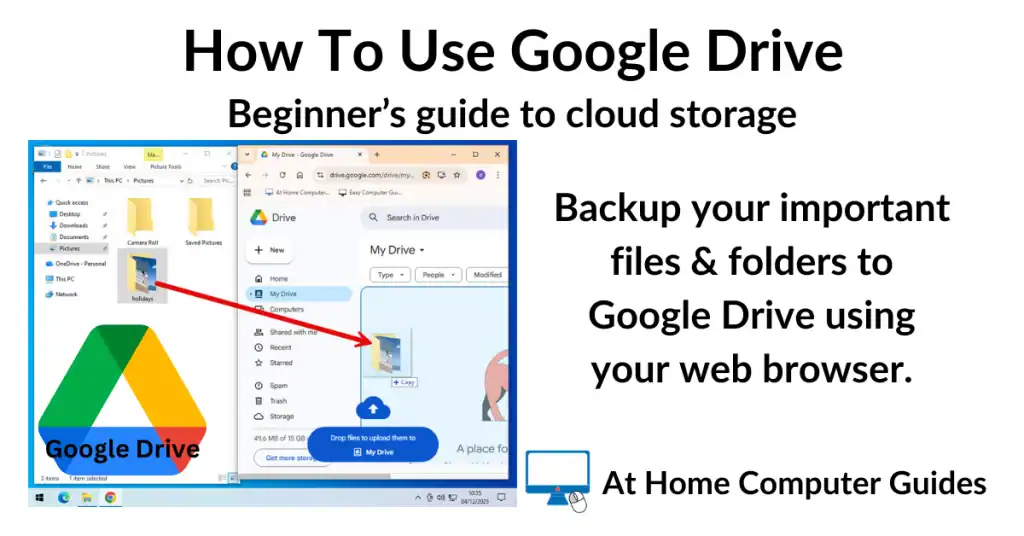
If you’ve already got a Google account (which most of us do for Gmail), you already have access to one of the best free tools available: Google Drive.
With Google Drive you can store up to 15GB of data online for free in the cloud.
Cloud storage simply means that your files are stored safely on the internet rather than just on your computer’s hard drive. In efect your have a cloud backup pf your most important files, (documents, photos, and folders etc), ensuring they are safe even if your computer breaks.
There are two ways to use Google Drive:
Google Drive for Desktop: An app that syncs folders on your PC to the cloud (similar to Microsoft OneDrive).
Google Drive Online: Accessing your files through a web browser.
This guide will focus on how to use Google Drive with your web browser.
How To Access Google Drive
You don’t need to install anything on your computer to get started with Google Drive. You can access your files from any computer in the world.
Open a web browser (Chrome, Edge, Firefox etc) then type “drive.google.com” into the address bar and press Enter
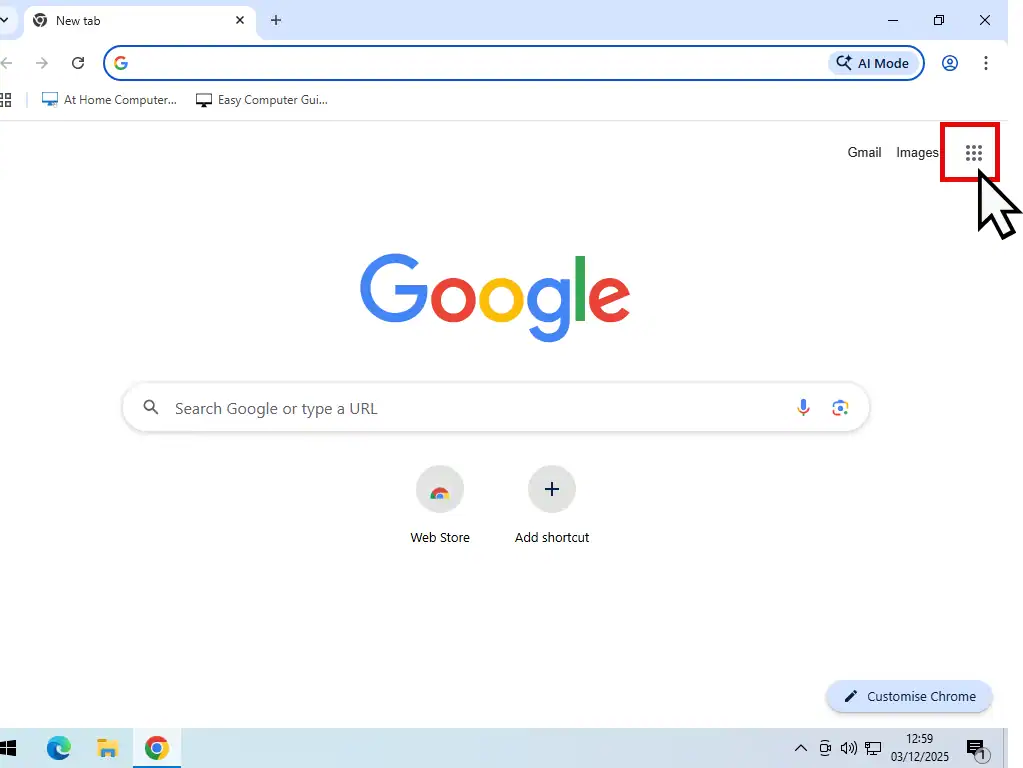
- Alternatively, if you’re on the Google homepage, click the 9 dots (Google Apps icon) in the top right hand corner
- Then click Drive on the menu
- If you aren’t signed in, simply enter your Gmail address and password. Once in, you’ll see your main dashboard, known as “My Drive.”


How To Back Up Files To Google Drive
To backup your files to Google Drive you’ll need to upload them and there’re two simple methods to do that. Firstly you can just drag and files onto the Google Drive window. And secondly, you could use the Upload Tool.
Note that you can’t use copy and paste, it doesn’t work with Google Drive.
Drag And Drop Files To Google Drive
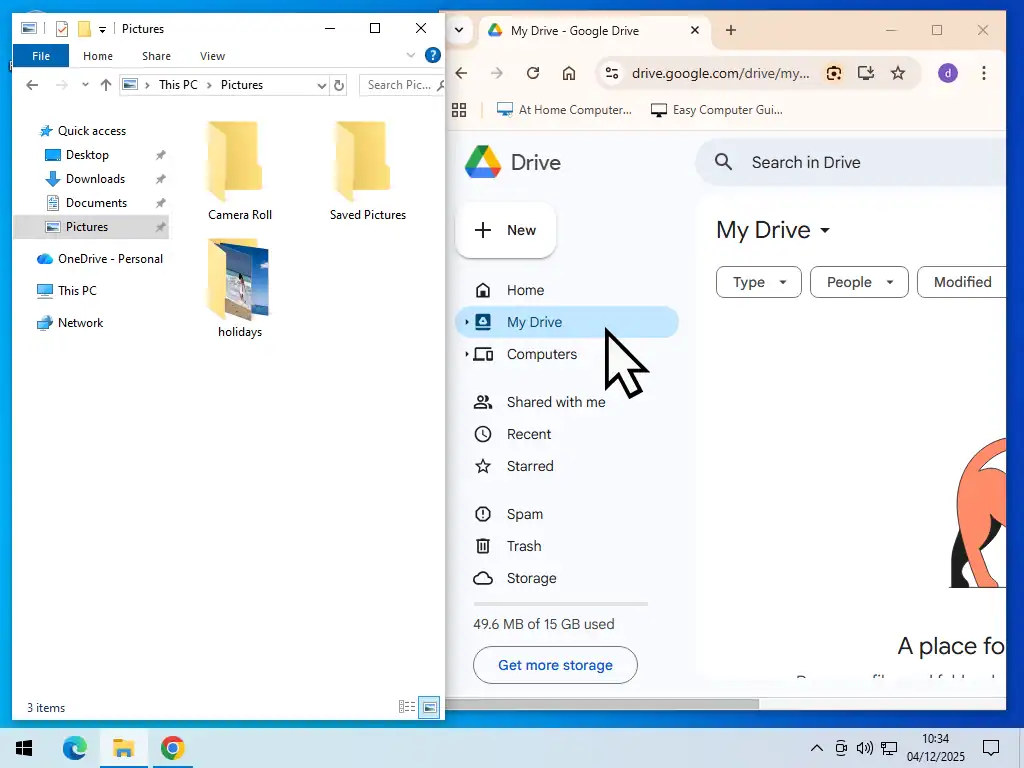
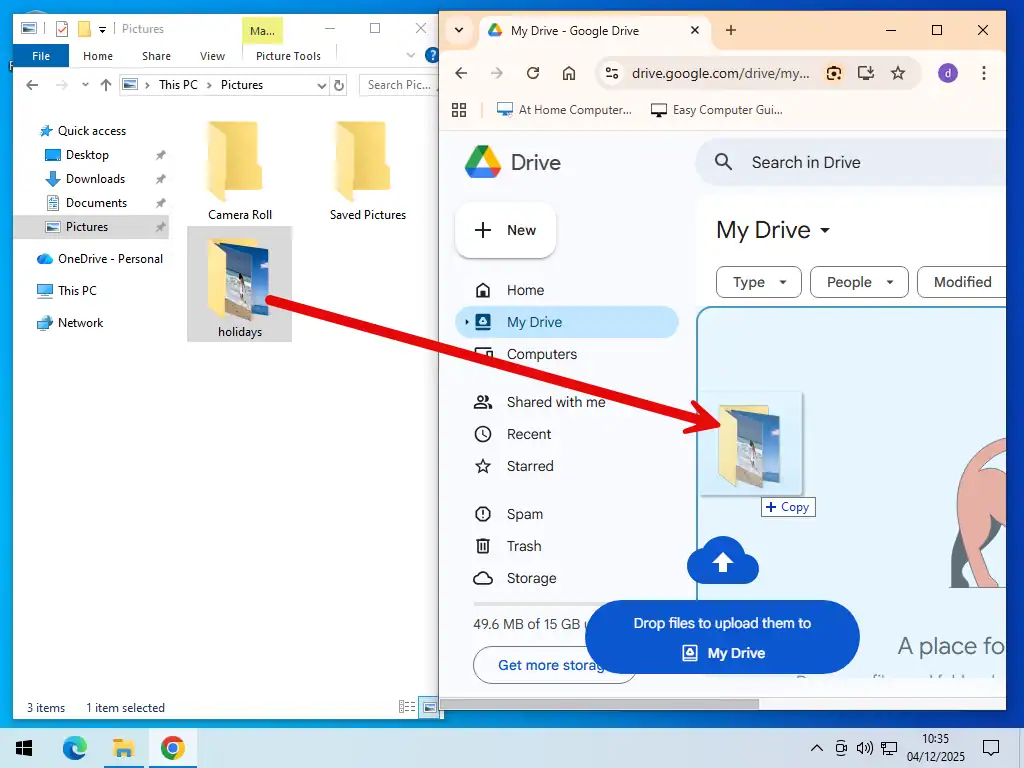
To drag and drop files into Google Drive you’ll need to have 2 windows open at the same time, Your browser window, which is logged in to Google Drive and an Explorer window where the files are that you want to upload. That’s easy to do in Windows 11 but in Windows 10 you’ll need to resize the windows.
Click My Drive and then just drag and drop your files on to the Google Drive window. You can upload folders as well as individual files.
You will see a notification in the bottom right corner showing the upload progress. Once complete, your file is safe in the cloud.
How To Use The Upload Tool
If you prefer a menu driven approach to uploading your files to Google Drive you can make use of the Upload Tool. This avoids the need to have multiple windows open at the same time, handy if you’re using a smaller screen.
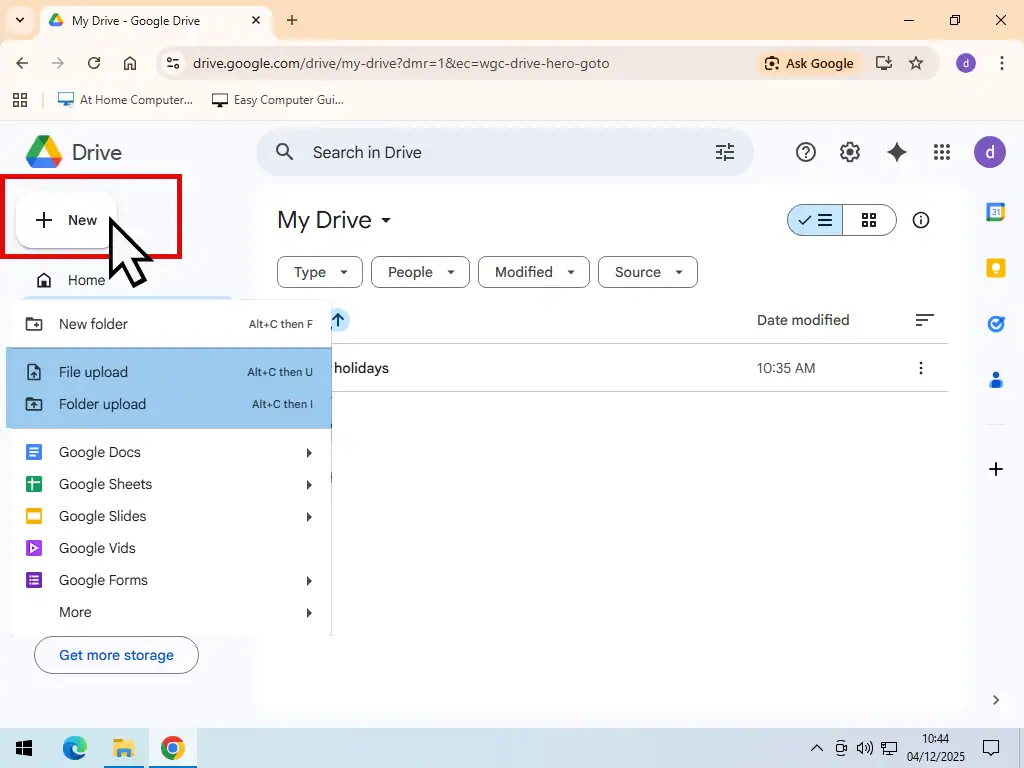
Click the New button on the top left corner. On the menu select either File Upload or Folder Upload. Note that it’s important to get this right. If you select Folder Upload, you won’t be able to select individual files, only folders. And the same is true the other way round.
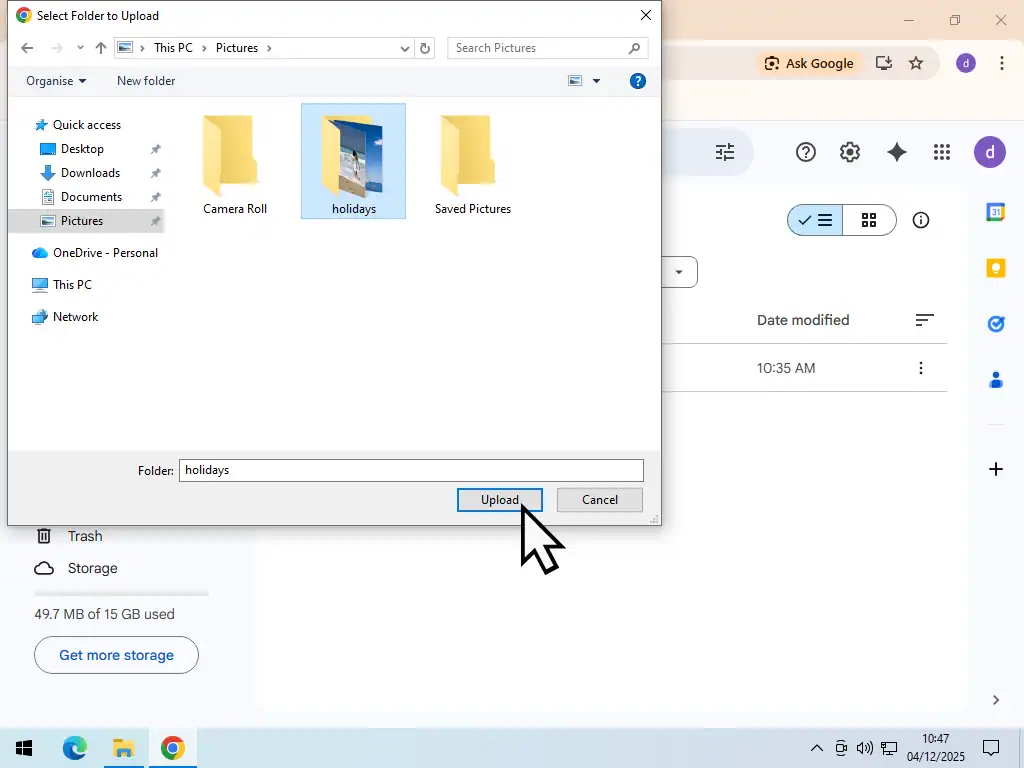
An Explorer type window will open. Navigate to the file or folder that you want to backup, select it and then click the Upload button.
Storing Sensitive Files
When storing sensitive, personal files in any online cloud storage you have to consider the possibility of your privacy being compromised. This can happen through data breaches or by having your account hacked.
You can help to protect yourself by encrypting files and folders before backing them up to Google Drive. One quick and easy method of adding password protection is by using 7-Zip. How To Use 7-Zip To Password Protect Files.
Organise Your Files With Folders In Google Drive
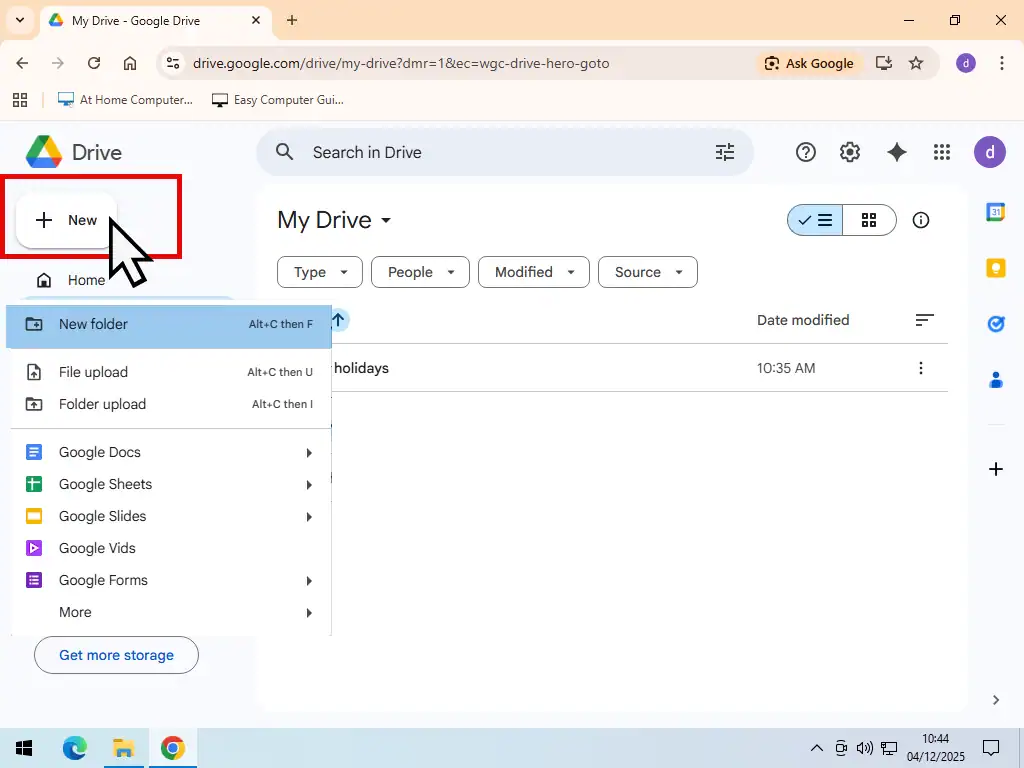
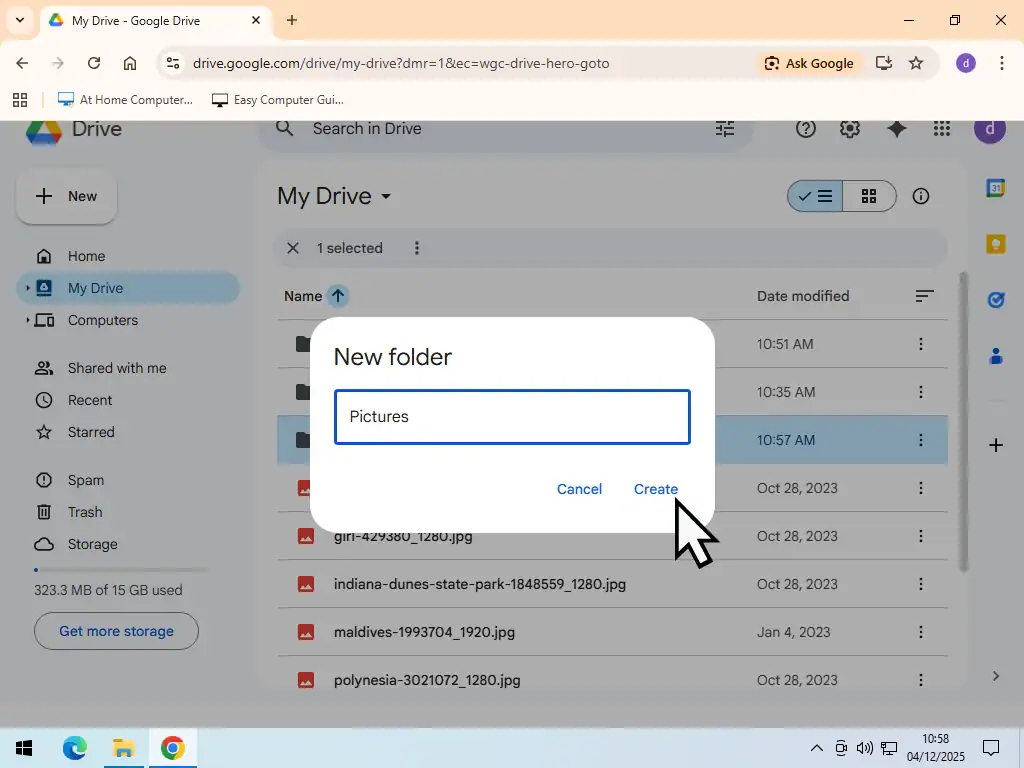
You can keep your files organised by creating folders in Google Drive just like on your PC. To create a folder, click the New button and then click New Folder from the menu. Give the folder a descriptive name and click the Create button.
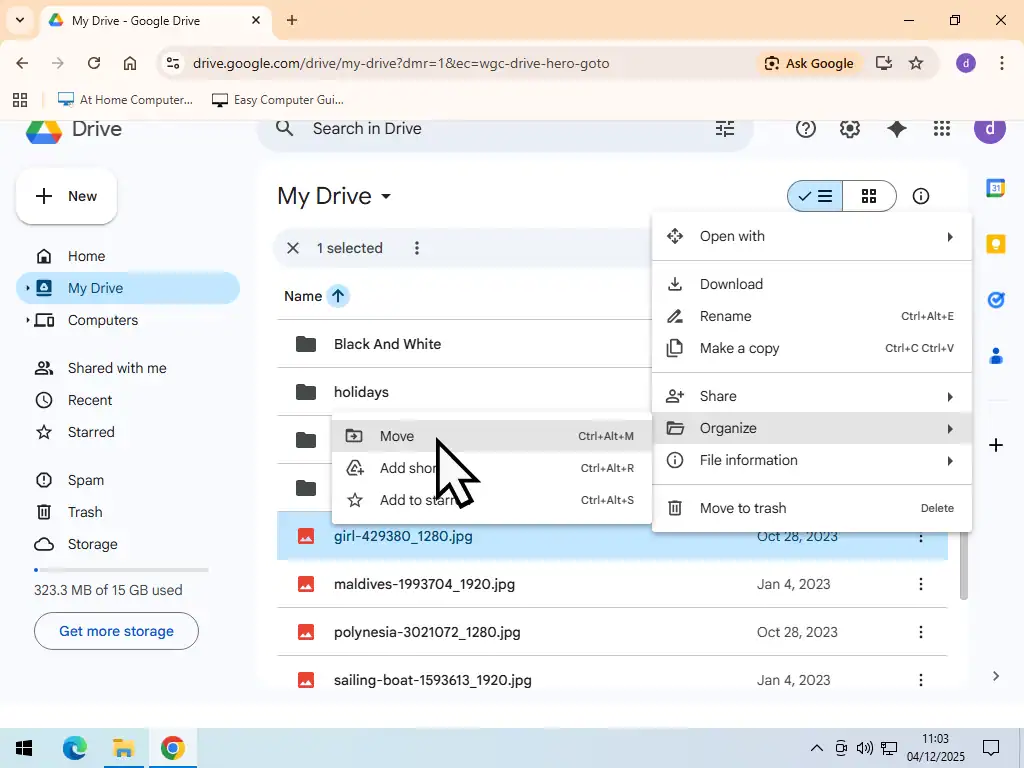
Move files into your folder by dragging and dropping them on to the folder or by using the menu. Right click a file and then hover over Organise. On the second menu, click Move.
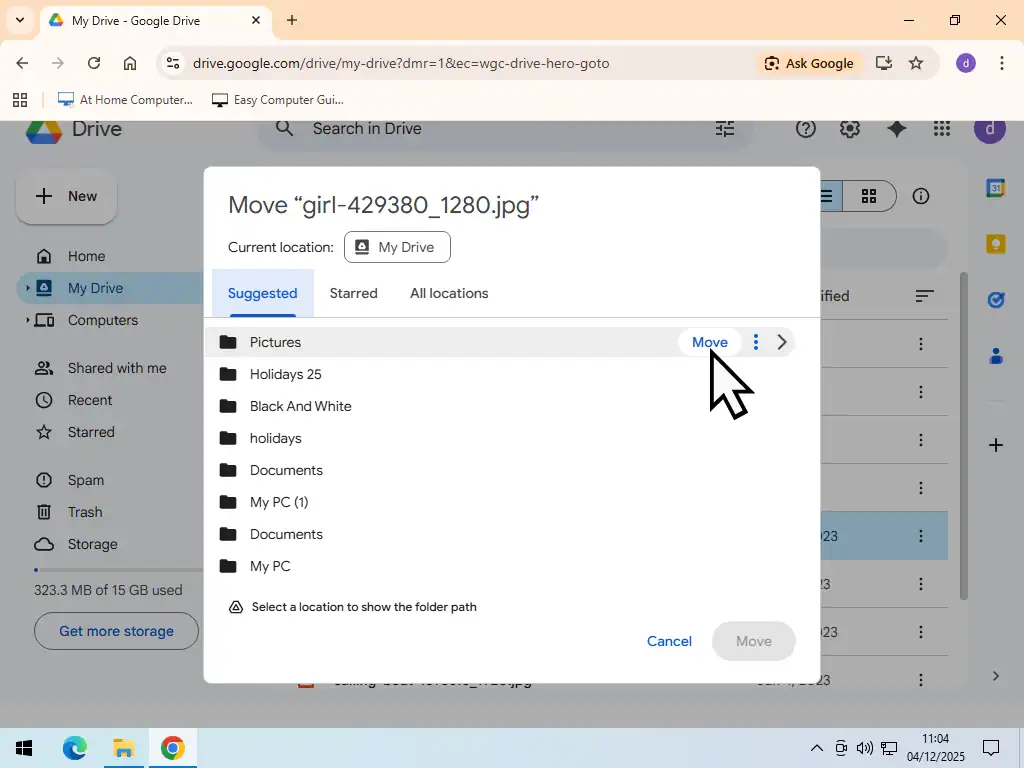
You’ll see a list of all your current folders in Google Drive, hover your mouse pointer over the folder that you want to move the file in to and then click the Move button.
How To Share Files
One of the great strengths of using Google Drive is the ease with which you can share files over the internet. While you could simply attach files to an email, this becomes more cumbersome with larger files and folders. How To Email A Folder
Instead of attaching it to an email, you can just send a link to the file or folder that’s stored in your Google Drive.
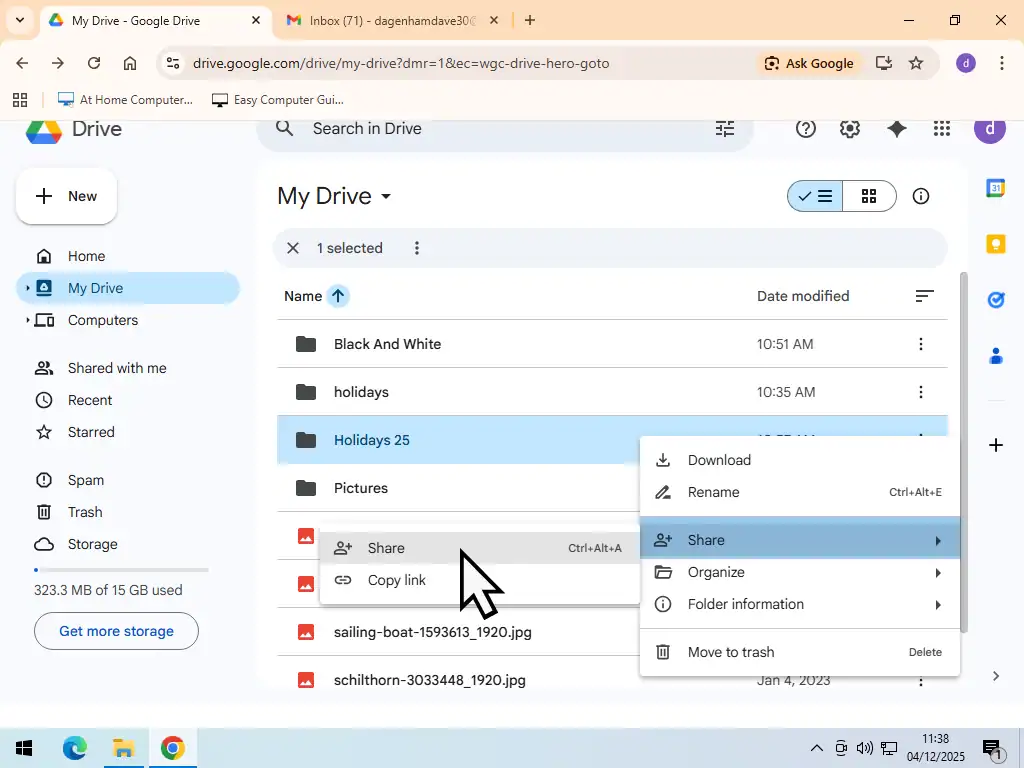
- To share a file/folder, right click on it and hover your mouse pointer over Share, then left click Share on the second menu.
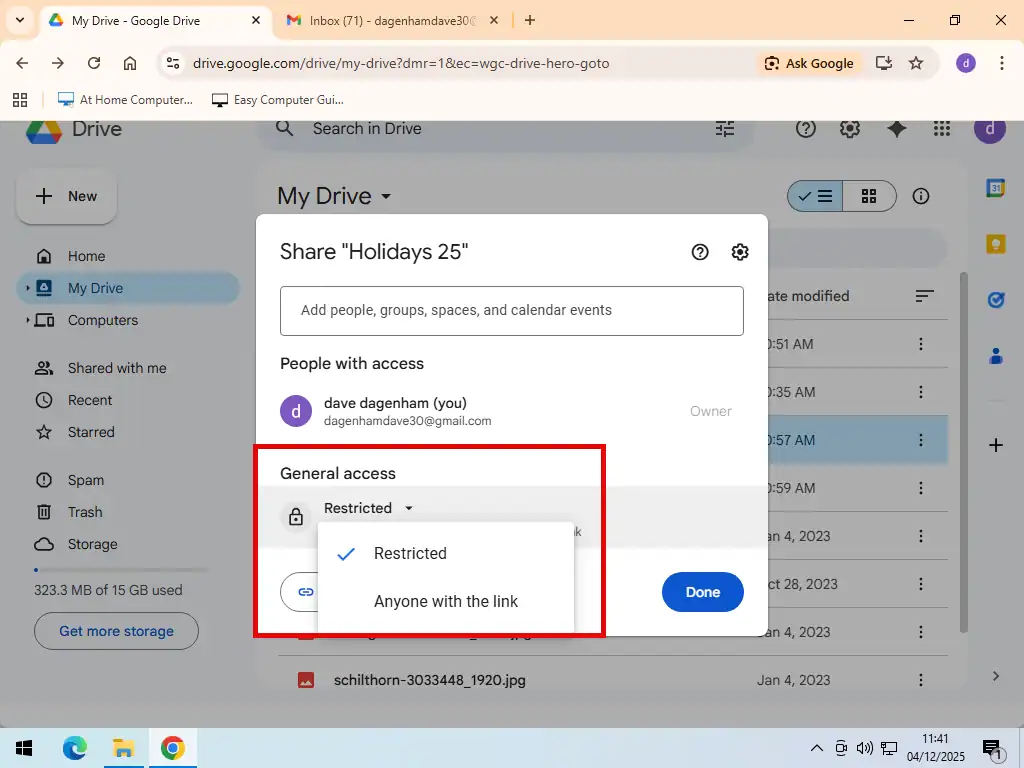
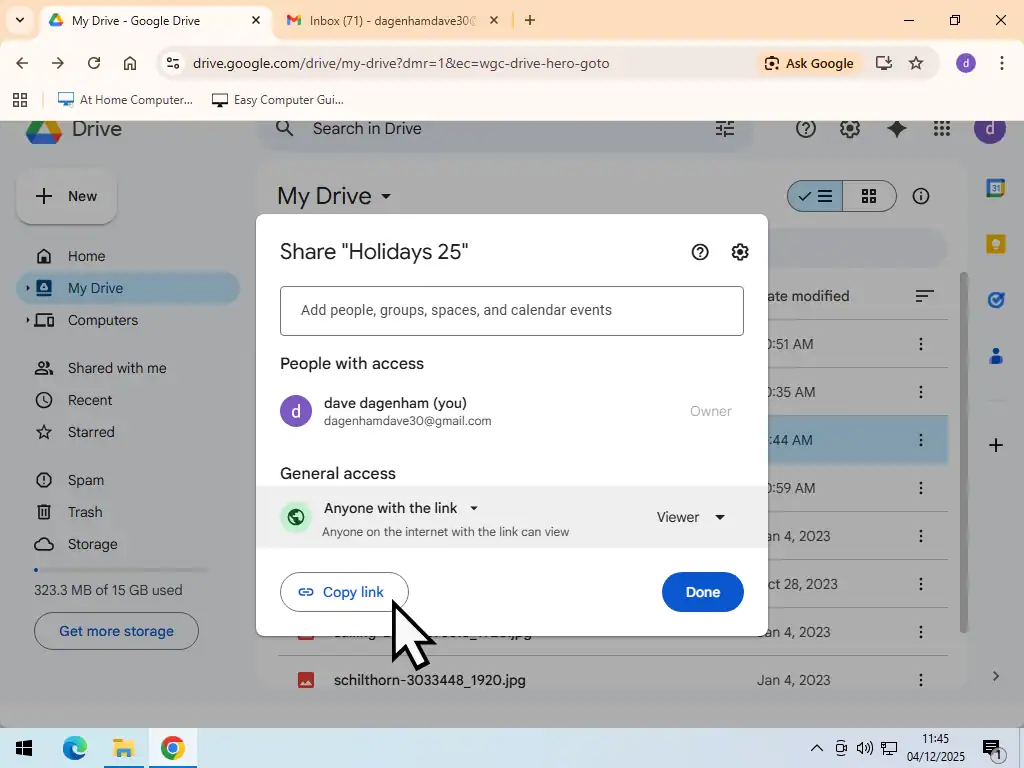
- Set the General Access level. Restricted means that the recipient will have to sign in to their Google account and Anyone With The Link means what it says.
- You can add a quick note by way of explanation as to what the files are and then click the Send button.
Send The Link
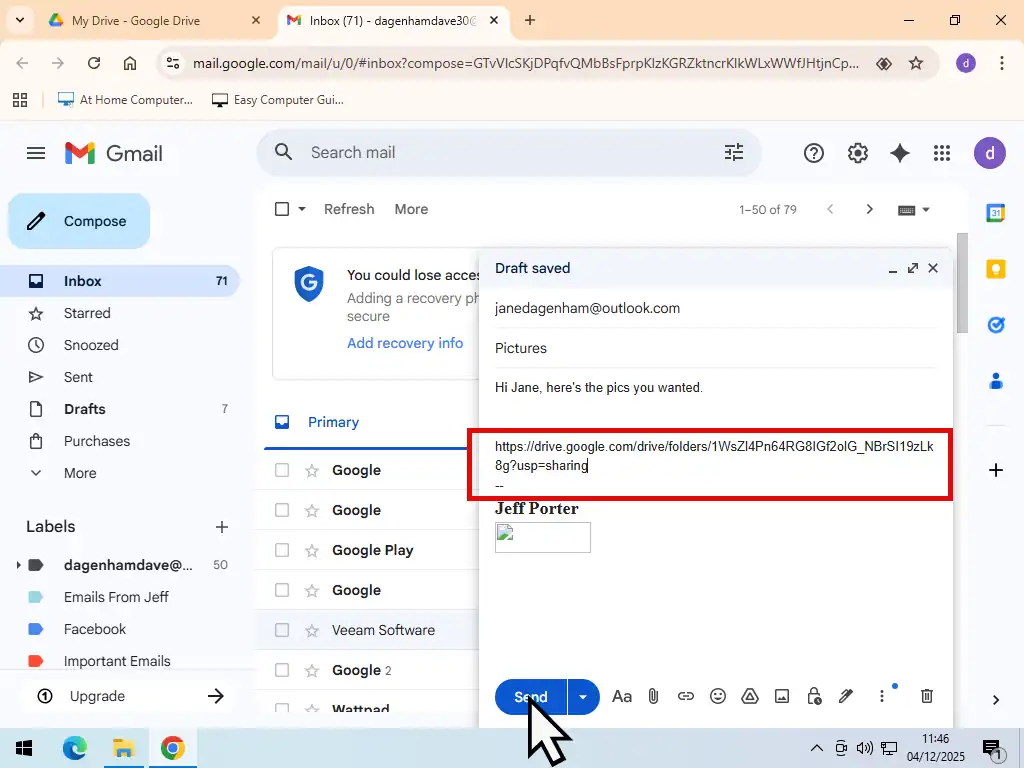
- Paste the link that you just copied in to a new email and click the Send button.
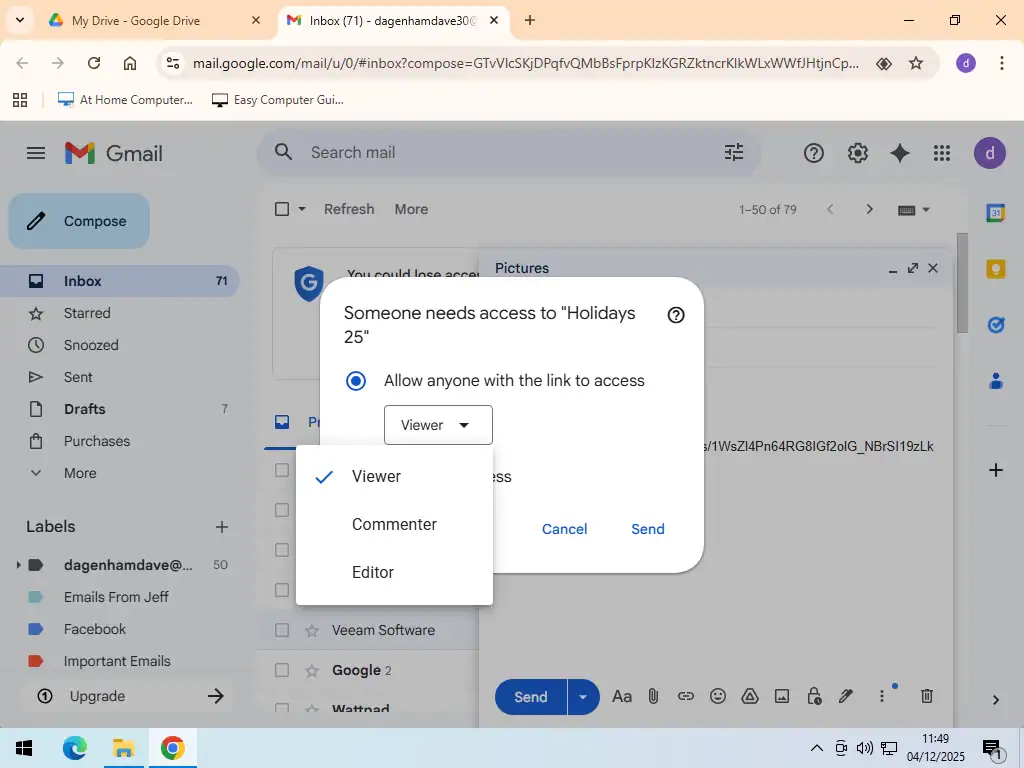
- Before the email will send you’ll be prompted to set the permission level for the Google Drive link. Viewer can only look at the file/folder, Commenter can add notes but make no changes and Editor can change the files.
Google Drive Storage Allowance
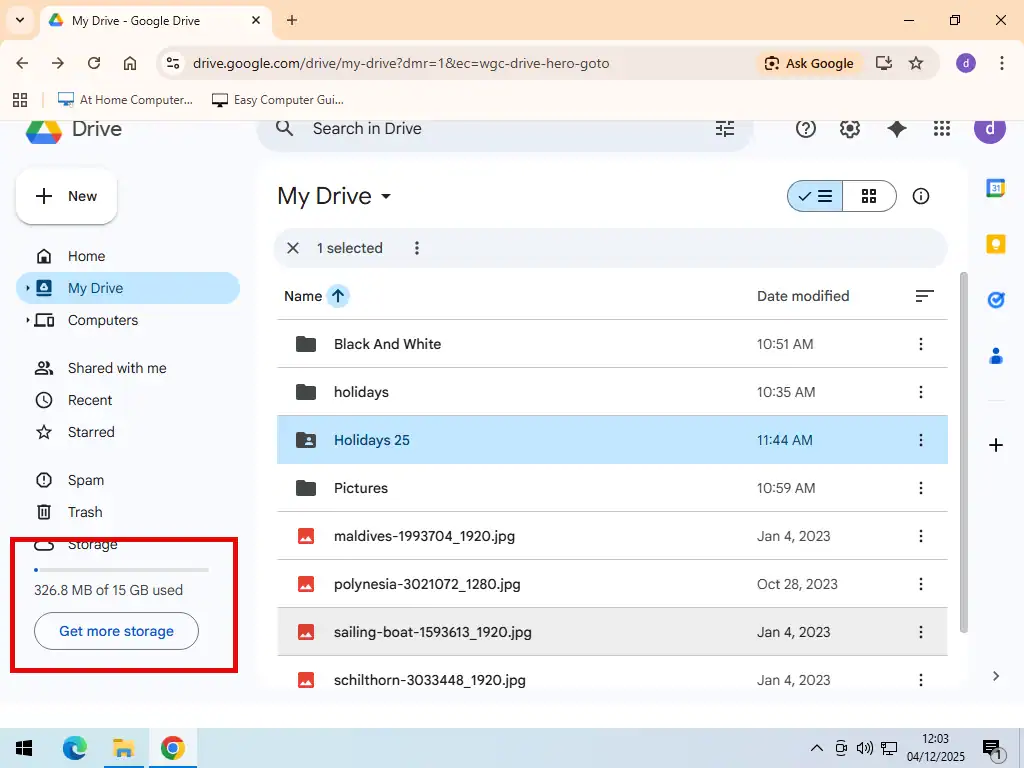
Keep an eye on just how much storage space you’re using in your Google Drive. You only get 15 GB for free. If you run out of space you might need to upgrade to one of Google’s paid plans.
Be aware that the storage space is shared between your Drive and your Gmail account as well as your smart phone if you’re using the same account.
Summary
Google Drive is a fantastic alternative to Microsoft OneDrive and provided you can stay under the 15 GB limit, it’s completely free. You can use it to create secure, offsite backups of your most important files.
You can also use it to access your files from anywhere and with any device, as well as sharing files with others.
Related Posts
How To Make Google The Default Search Engine
Set Google as the default search engine in your browser.
How to Setup Google Chrome.
It’s the most popular web browser. You’re probably using it right now.
How To Manage Your Bookmarks In Google Chrome
Get them organised, make space on your bookmarks bar.
Remote Desktop
Remote Desktop allows you to connect and control another computer from the one you’re using.
Windows Remote Desktop works across your home network.
Chrome Remote Desktop allows you to connect from anywhere across the internet.