How to add password protection to a folder in order to keep your files private and secure. Windows doesn’t really offer a convenient way to password protect a folder, there’s no “right click and add password” option. However you can encrypt folders in Windows, especially if you have the Pro version of Windows 10 or Windows 11.
Why You Should Password Protect Your Folders?
There are many reasons why you might want to encrypt your files, it’s not just for spies and large corporations. We should all value our own privacy.
- Privacy from Shared Users: If you share a home computer, you might not want your children or spouse accidentally deleting or viewing your work files or private journals (such as a simple diary).
- Theft Protection: If your PC is lost or stolen, a standard Windows login password can often be bypassed. However, if your sensitive folders are encrypted, the thief cannot access the actual data inside them without your specific decryption password.
- Cloud Security: When you upload files to cloud storage like Google Drive or Dropbox, encrypting a folder beforehand ensures that even if the cloud provider is hacked, your files remain unreadable to the hacker.
Method 1: The Quick And Easy Way – Using 7-Zip
You can password protect a folder (and all its contents) quickly and easily using 7-Zip. 7-Zip is free, open source and lightweight. Its primary function is zipping and unzipping files and folders, it has a powerful feature, while compressing a folder it can add AES-256 encryption
Password Protect Folder With 7-Zip
- Right click the folder that you want to add password protection to. On the Options menu, hover over 7-Zip and click Add To Archive
- In the Encryption section enter a password, set the encryption method to AES-256 and select Encrypt File Names
7-Zip will create a new file with the .7z or .zip extension. You can now delete the original unencrypted folder. Whenever you (or anyone else) tries to open this new archive, they’ll be prompted for the password.
You can read the full step by step guide here How To Use 7-Zip To Password Protect Files.


Method 2: The “Digital Vault” – Using VeraCrypt
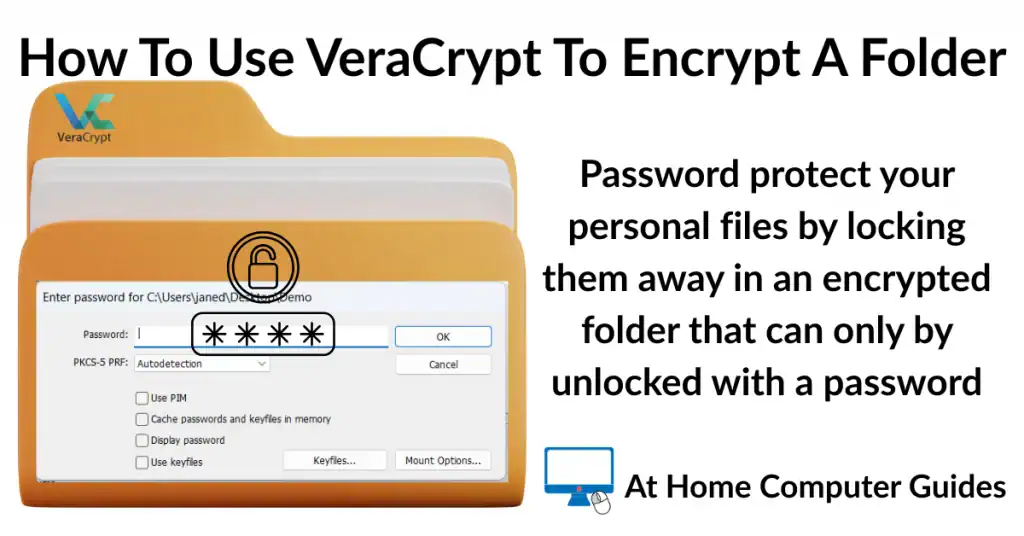
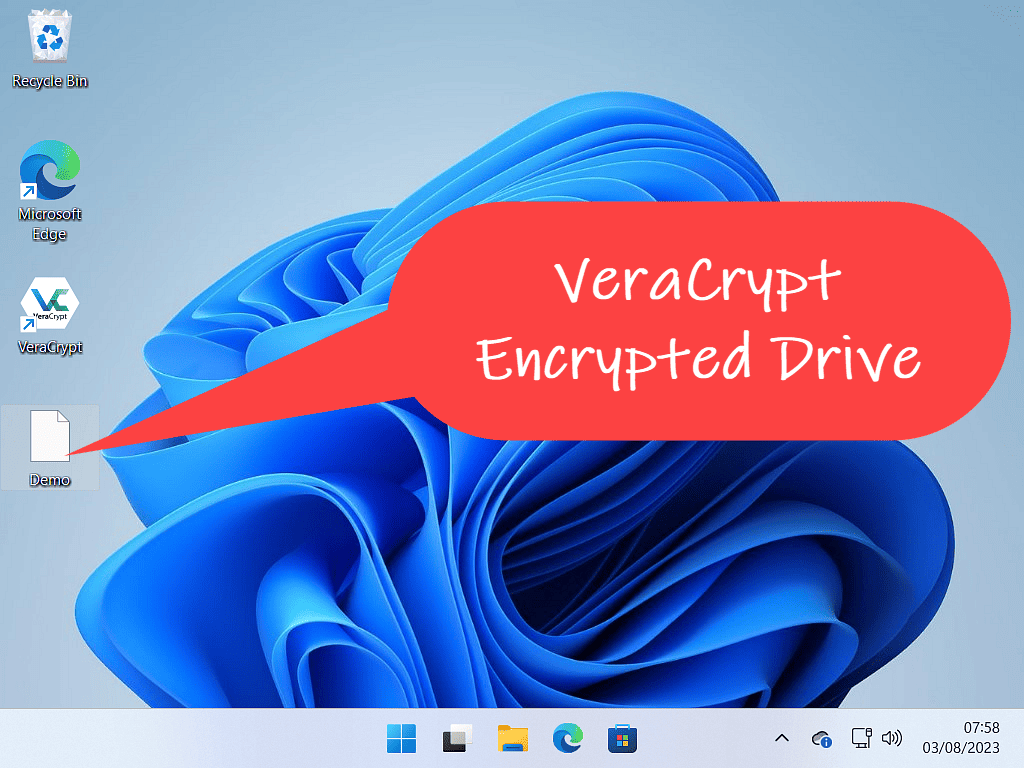
VeraCrypt provides very strong, on the fly encryption. Unlike 7-Zip, where you have to unzip files to use them, VeraCrypt creates a “virtual encrypted disk.” When you mount this disk, and it acts like a USB flash drive. It appears in File Explorer with its own drive letter. You can drag and drop files (or copy and paste) in and out freely. When you are done, you “dismount” it, and everything is instantly locked, only accessible by applying the correct password. For a complete step by step guide click How To Use VeraCrypt To Encrypt A Folder
Encrypt Folder With VeraCrypt
- Create a volume – Open VeraCrypt and click Create Volume. Select Create An Encrypted File Volume, click Next and then select Standard VeraCrypt Volume.
- Choose a Location – Click Select File. Navigate to where you’d like to store the encrypted “vault” (e.g. Desktop, Documents folder etc). Name the file and click Save then Next.
- Encryption Settings – VeraCrypt will ask you to choose an encryption algorithm. The default is AES. This is excellent. Leave the Hash Algorithm as SHA-512. Click Next.
- Set A Password – Enter a strong password. VeraCrypt may warn you if the password is too short. Warning, there’s no password reset option in VeraCrypt. The only way to access your files is by using the correct password. Remember it.
- Format the Volume – This is a little weird the first time that you do it. VeraCrypt uses your mouse movements to create a random encryption key. Move your mouse pointer around inside the window until the bar goes green lick the Format button.
- Once finished, you will see a success message. Click Exit to close the wizard.
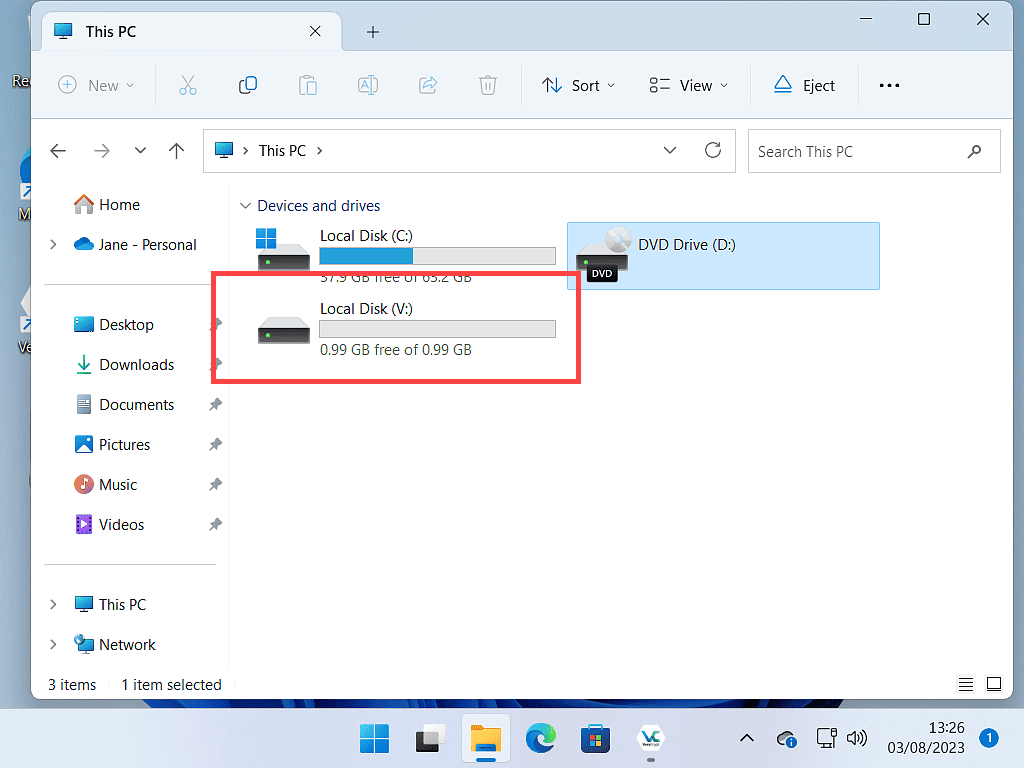
- How to open your encrypted folder – Open VeraCrypt and select a drive letter. Then click Select File and find the container you just created. Click Mount and enter the password that you set.
Your computer will now recognize a new drive with whichever drive letter you selected earlier in This PC. You can open it, drag files into it, and work on them. When you are finished, go back to the VeraCrypt app and click Dismount. The drive will disappear, and your files are now safely locked inside the encrypted container file.
Method 3: Windows Built-in Encryption (EFS) – The “Invisible” Lock
If you search for “how to encrypt a folder in Windows,” you might stumble upon a built-in feature called EFS (Encrypting File System). However, it’s crucial to understand how this works, as it behaves differently to what you might normally expect for password protection.
Using EFS in Windows you won’t be asked to set a password, instead the encryption is tied to your Windows User Account. As soon as you log in to your account the folder is decrypted. And encrypted when you sign out.
- The Benefit: If you are logged in, you can access the files seamlessly. You won’t even notice they’re encrypted.
- The Catch: If you leave your computer unlocked and walk away, anyone can sit down and open your files because you’re still logged in, therefore the folder is accessible.
How To Enable EFS
- Right-click the folder you want to encrypt.
- Select Properties.
- Click the Advanced button.
- Check the box that says “Encrypt contents to secure data”.
- Click OK and then Apply.
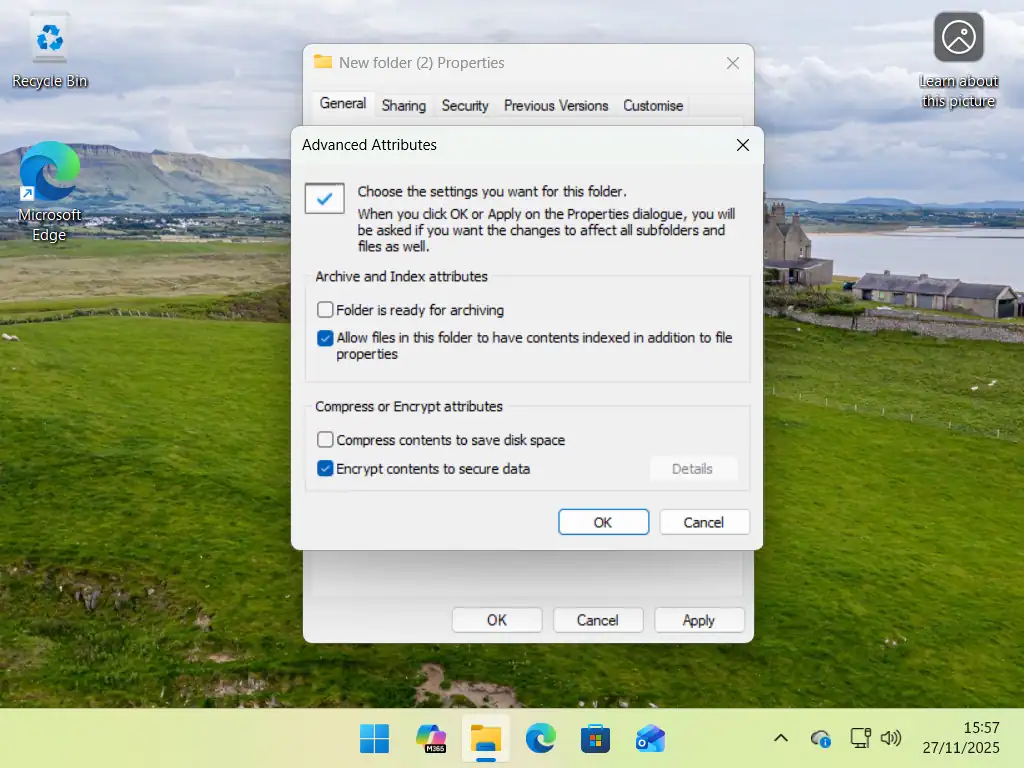
Windows will prompt you to back up your file encryption key. DO IT. If your user profile gets corrupted or you forget your login password, you will lose access to these files forever without that backup key.
Method 4: Windows BitLocker (Full Drive Encryption)
Unlike VeraCrypt, which creates a virtual drive and then encrypts the contents of that drive. BitLocker encrypts all the data on your computer hard drive. Everything on your computer including the operating system (Windows ), programs and apps, user accounts and all your files and folders.
I have a full step by step guide here How To Use Microsoft BitLocker.
Password Protect USB Drive – BitLocker To Go
One very useful feature of BitLocker is its ability to encrypt USB drives. If you have a USB stick containing sensitive data, BitLocker To Go is an excellent way to password protect the entire external drive.
- Plug in your USB drive.
- Open This PC (File Explorer).
- Right-click the USB drive and select Turn on BitLocker.
- Check “Use a password to unlock the drive”.
- Enter your password.
- Save your recovery key to your Microsoft Account or print it out.
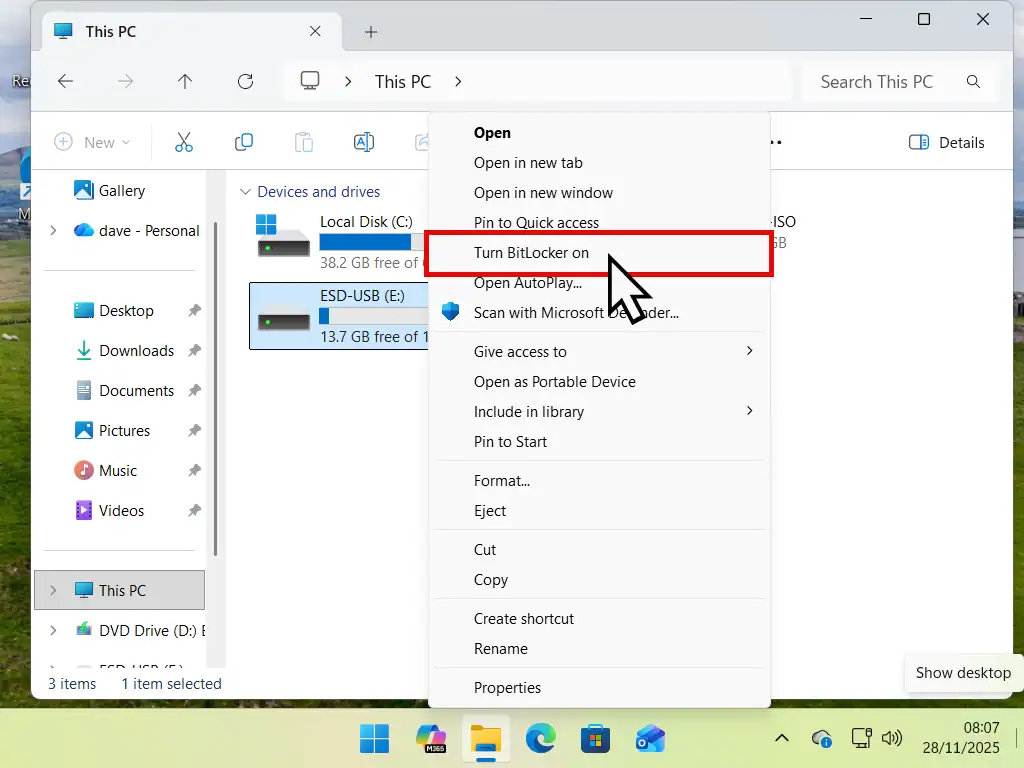
After encryption has finished, whenever you plug the USB drive into any other Windows computer, it will ask for the password before allowing access to the files. BitLocker To Go
Method 5: Device Encryption – Windows Home Edition
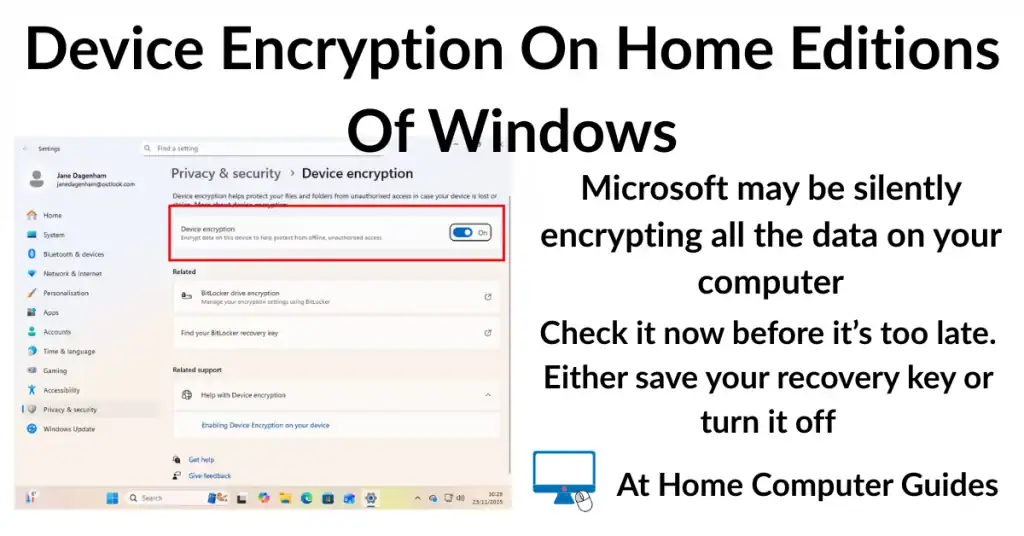
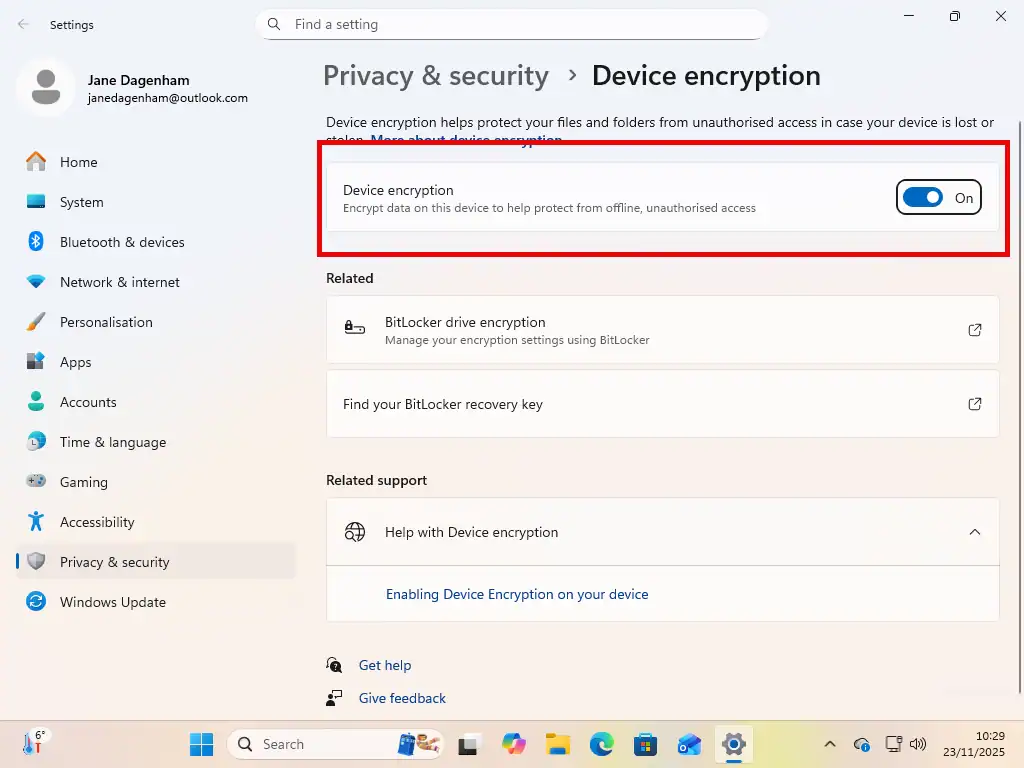
While BitLocker is only available to Windows Pro users, Windows Home users might be able to use a feature called Device Encryption. If you sign in to your computer using a Microsoft account and your PC meets the hardware requirements, then Device Encryption might already be enabled.
Similar to BitLocker, Device Encryption encrypts the whole system drive. There’s no password option, it simply unlocks the drive when you sign in with your MS account.
If you do have either Windows 10 Home or Windows 11 Home, then it’s worth checking to see if Device Encryption is indeed enabled.
If it is, then then you’ll want to grab a copy of the recovery key, which is held inside your Microsoft account online Device Encryption On Windows Home Editions
Frequently Asked Questions
Q: Can I password protect a folder in Windows Home without extra software?
A: Generally, no. Windows Home lacks the native ability to password-protect individual folders effectively. You can use free third-party tools like 7-Zip or VeraCrypt.
Q: If I forget my VeraCrypt or 7-Zip password, can Microsoft reset it?
A: No. VeraCrypt and 7-Zip are nothing to do with Microsoft. If you lose your password, your data is gone forever. Always keep a backup of your password in a secure (offline) location.
Q: Is hiding a folder the same as encrypting it?
A: No. You can “hide” a folder in Windows by changing its properties, but any savvy user can tick the “Show hidden items” box in File Explorer and see it immediately. Encryption scrambles the data so it is unreadable without the password. How To Hide Folders In Windows.
Summary
Learn how to password protect a folder. Our computers hold much more data about us than you could ever imagine. In the wrong hands it can be used against you and the effects can be devastating.
Related Posts
How To Hide A File Or Folder Inside An Image.
You can hide an entire folder inside an ordinary picture file on your PC.