BitLocker drive encryption can help to protect the data stored on your computer from unauthorised access. Should your PC be lost or stolen, then all the data (documents, pictures etc) stored on it can be accessed by anyone who picks up your machine. It’s particularly useful for laptop users because their portability means that they’re more likely to be left behind at train stations and coffee shops etc.
Despite being a standard feature on many PCs, few home users know how to use BitLocker properly. In this step by step guide I’ll show you how to use Windows BitLocker to ensure your sensitive files remain private.
What is BitLocker Drive Encryption?
BitLocker is a full-volume encryption feature included with Windows 10 Pro and Windows 11 Pro. Unlike simple password protection which can be bypassed by various means such as simply removing the hard drive and reading it on another machine, BitLocker drive encryption scrambles the data on your entire drive using advanced encryption algorithms (typically AES-128 or AES-256).
When Windows BitLocker is enabled on your computer, your files are unreadable to anyone who doesn’t have the correct encryption key. The key is stored in the TPM (Trusted Platform Module) and is automatically applied when you log on. But if the drive is removed or the computer has been tampered with, the key is withheld, and the data remains locked (encrypted).
How To Use BitLocker
To use BitLocker click the Start button and then type “bitlocker“. Click Manage BitLocker (Control Panel) in the search results.
In the main window you’ll see the Operating System Drive, which is usually the C: drive. Click the Turn On BitLocker link.


Is BitLocker Already Turned On?
Over recent years Microsoft have quietly been enabling BitLocker drive encryption on Windows computers through the Updates.
It’s quite possible that when you open the BitLocker Manager you’ll find that it’s already turned on.
If that’s the case, then your hard drive is already encrypted.
What you really need to do is to backup the recovery key. Which is what we’ll look at next.

Backup The BitLocker Recovery Key.
Before BitLocker does anything at all, it insists that you backup the recovery key and with good reason. This 48-digit numerical password is the only way to unlock your computer if your TPM fails, you forget your password, or you move the drive to another PC.
You have 3 options to backup the recovery key –
- Save to your Microsoft account – This is the easiest to do since you’re probably logged in with your MS account anyway.
- Save to file – You can save a simply text file to a USB drive.
- Print the recovery key – If you have a printer then why not?

The Recovery Key
Use at least two of the available options to backup the recovery key. If for some reason one of them fails, you at least have a fallback option.
Choose How Much of Your Drive to Encrypt
When BitLocker starts encrypting your drive it’ll take time, how much depends on your PC and how much data there is encrypt.
- Encrypt used space only – This option will only encrypt your files and and folders leaving empty disk space unencrypted. As you save new files, they’ll be encrypted on the fly.
- Encrypt entire drive – Does what it says. Even empty space on the drive will be encrypted.
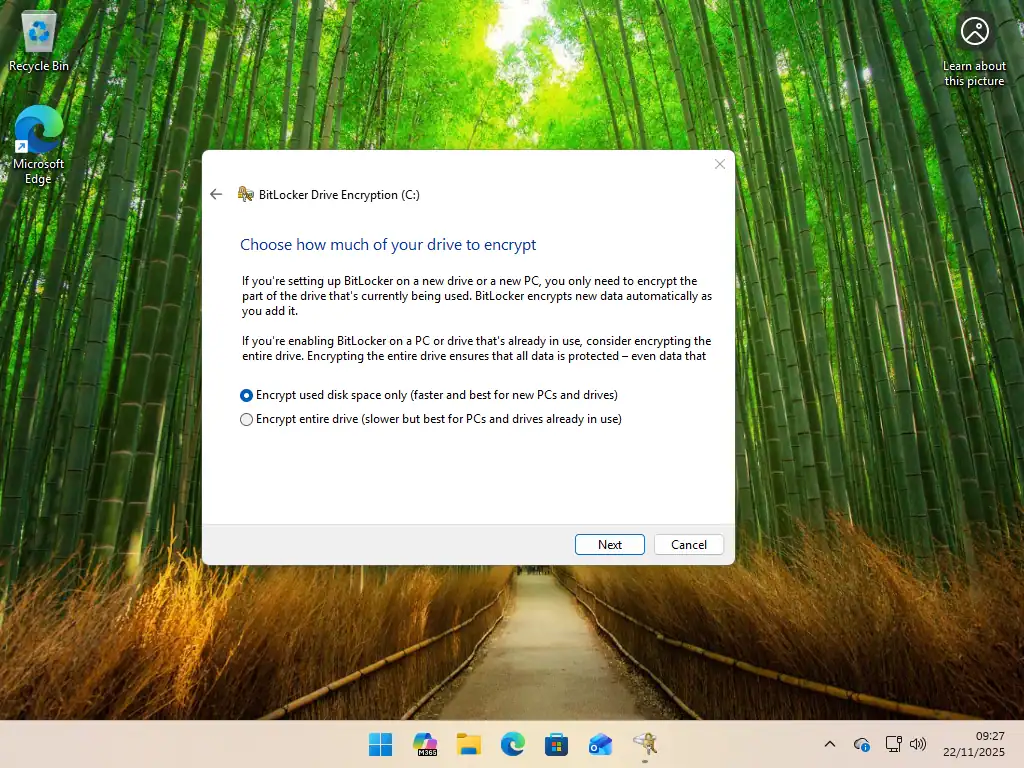
How Much To Encrypt
Encrypting just the used disk space is the quicker option, but is does carry the risk that previously deleted files can be retrieved. This is why it’s usually recommended for new PCs.
Select Encrypt Entire Drive if you’ve been using the computer for some time. Deleted files will often still be present in “empty space” on the drive.
Choose Encryption Mode
In Windows 10 (version 1511 and later) and Windows 11, Microsoft upgraded the encryption algorithm for BitLocker to make it more secure. The new encryption mode isn’t readable on Windows versions prior to Windows 10 1511.
The next screen will ask you which encryption mode Windows BitLocker should use. Generally you should opt for the New encryption mode, which is the default option.
The Compatible Mode is only there if you need to use the drive in a computer that runs older versions of Windows.

BitLocker System Check
Before the actual encryption begins, check the box for Run BitLocker System Check. Then click Continue, Windows will ask you to restart your computer.
This “test run” ensures that the TPM can correctly release the key to unlock the drive upon reboot. If this check fails, you will simply boot back into Windows with an error message, but your data won’t be locked out.
If it succeeds, encryption will begin automatically once Windows loads.

BitLocker Drive Encryption
After the restart, you’ll see a notification that Encryption In Progress.
This will take some time to complete.

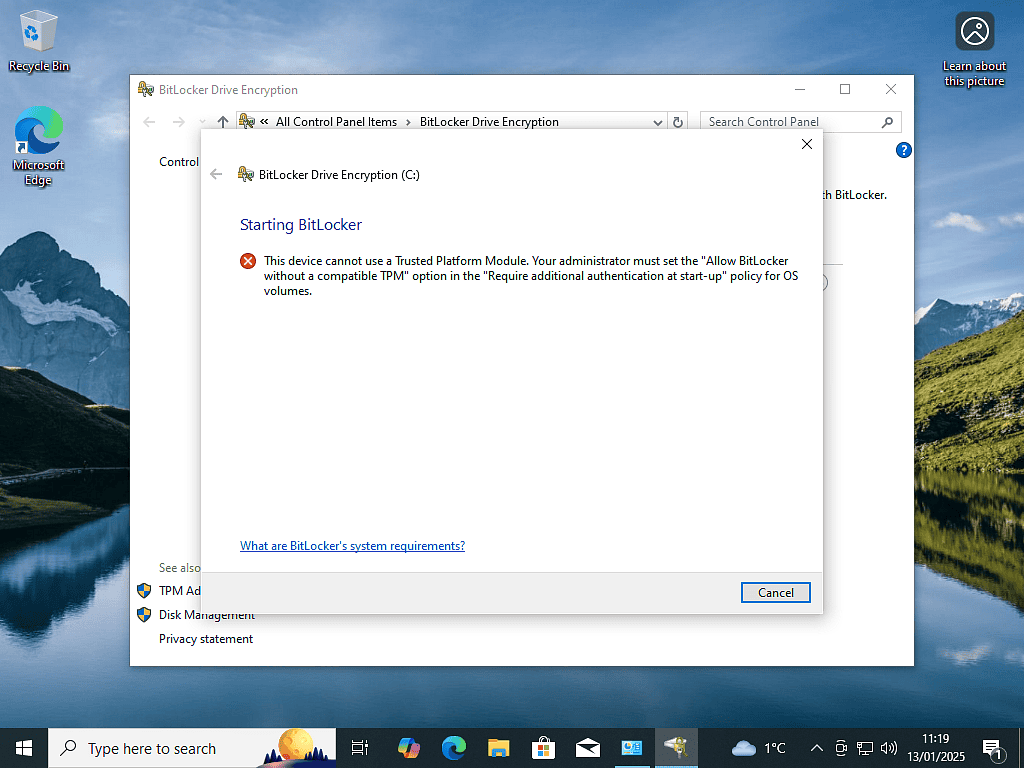
This Device Cannot Use A Trusted Platform Module
While Windows BitLocker is generally reliable you might see this error message “This device cannot use a Trusted Platform Module“
BitLocker stores its encryption keys in the TPM, so if your PC doesn’t have one or Windows can’t find it, then there’s obviously a problem. This issue is more prevalent on Windows 10 computers, since all Windows 11 PCs are required to have a TPM.
But before you give up on using BitLocker, it might just be that the TPM is disabled on your motherboard. Even if you really don’t have a compatible TPM, you can still use BitLocker drive encryption without a TPM.
To check and enable the TPM you’ll need to enter your computer BIOS/UEFI.
Look for “Security” or “Trusted Computing” and ensure the TPM (sometimes called PTT on Intel or fTPM on AMD) is Enabled.
How To Fix BitLocker Recovery Loop
If your computer constantly asks for the recovery key at startup (a recovery loop), it often means the hardware configuration has changed (e.g., you updated the BIOS or changed a startup setting). In which case the TPM is no longer supplying the encryption key to BitLocker.
To fix the recovery loop simply turn BitLocker off, which will cause it to decrypt your drive. When it’s finished, turn it back on. Save the new recovery key and all should be good.
Frequently Asked Questions (FAQ) About BitLocker Drive Encryption
Q: Does BitLocker protect against ransomware?
A: No. Just because your files have been encrypted doesn’t mean that they can’t be encrypted again. Your best defence against malware is an up to date system and regular backups.
Q: Does BitLocker encrypt emails sent to others?
A: NO. It encrypts the files stored on your PC, so if you’ve saved emails to your computer, they’ll be encrypted. But anything that leaves your PC, such as sending emails, are unencrypted.
Q: What happens if I lose my recovery key?
A: If your drive locks and you’ve lost your recovery key, there’s no back in. Microsoft support can’t retrieve it for you. Your data will be permanently inaccessible, and you will likely need to format the drive to use it again. Bottom line, don’t lose the recovery key.
Q: Can I use BitLocker to encrypt a USB flash drive?
A: Yes, in a way, you can use BitLocker To Go. It will encrypt and password protect any external USB device such as flash drives and hard drives.
Q: Can I use BitLocker on Windows Home?
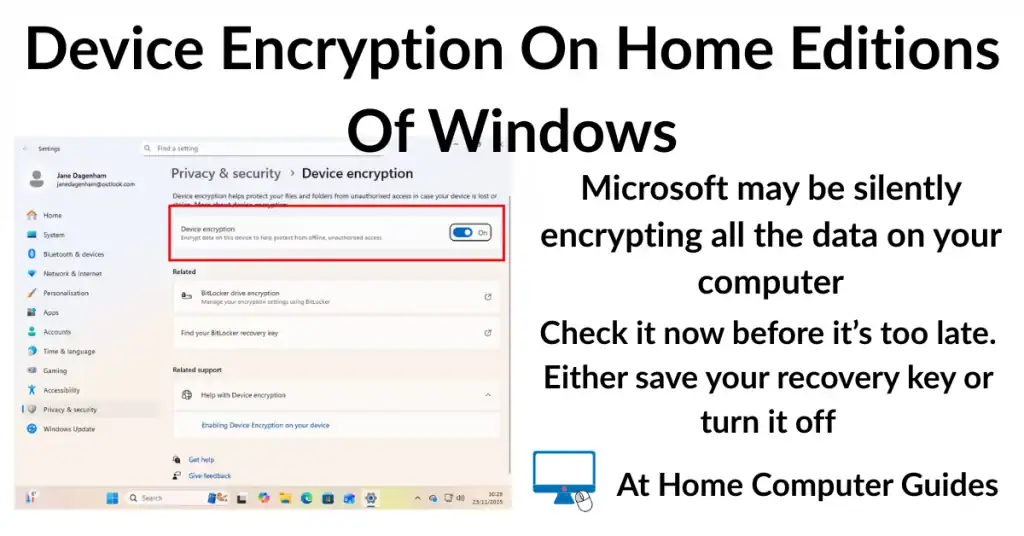
A: The full Windows BitLocker isn’t available on Home editions of either Windows 10 or Windows 11. However, many Home versions of Windows support “Device Encryption,” which is a streamlined version of BitLocker that automatically encrypts the drive if you sign in with a Microsoft Account.
Q: Can you use BitLocker to encrypt a single file or folder?
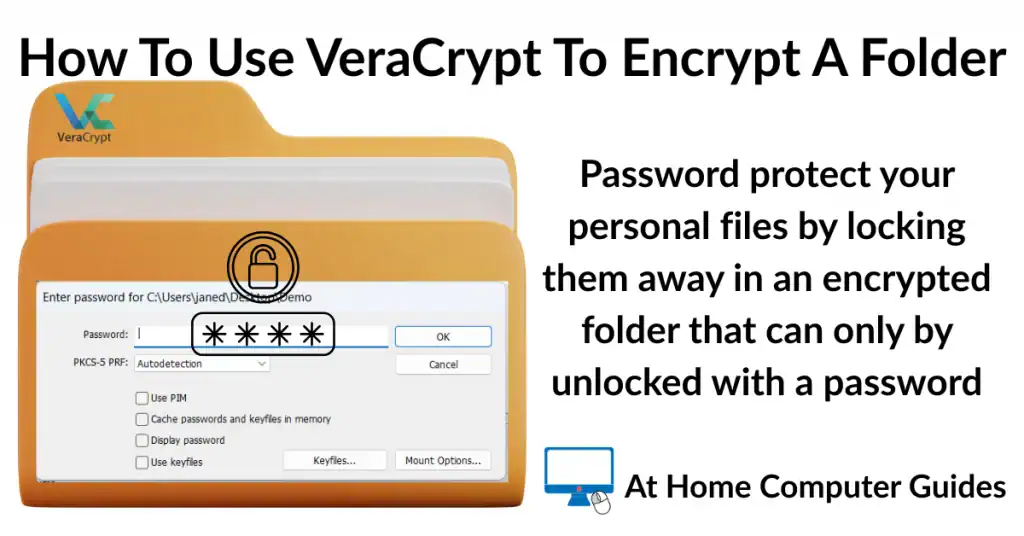
A: No. BitLocker is an all or nothing tool. To encrypt individual files or folder use either 7-Zip and add a password or VeraCrypt.
Summary
Windows BitLocker is a kind of “set it and forget it” option for protecting your data from unauthorised access. The only real issue is that of the recovery key. Keep it safe, otherwise you might find that BitLocker is working against you.
Related Posts
How To Hide Folders In Windows.
If you just want to hide a folder rather than have it encrypted it’s easy to do.