Windows Media Player has been around for many years. Now in its 12th version, it still has a lot to offer when it comes to listening to music on your PC. Play music that’s stored on your computer, or directly from an audio CD or external drive (USB flash Drive). Add music to your library and best of all create playlists.
WMP (as it’s often known as) is still available on both Windows 10 and Windows 11 but it’s possible that it isn’t installed on your computer. If that’s the case read How To Install Windows Media Player Legacy
Please note that this guide is specifically for the classic Windows Media Player (Legacy), not the new ‘Media Player’ app introduced in Windows 11. It can get confusing.
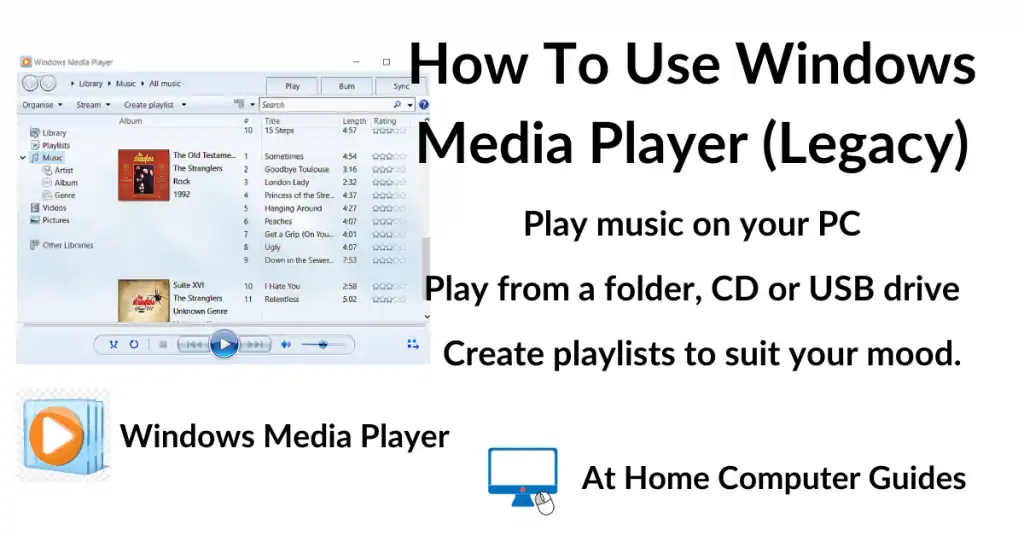
Windows Media Player (Legacy)
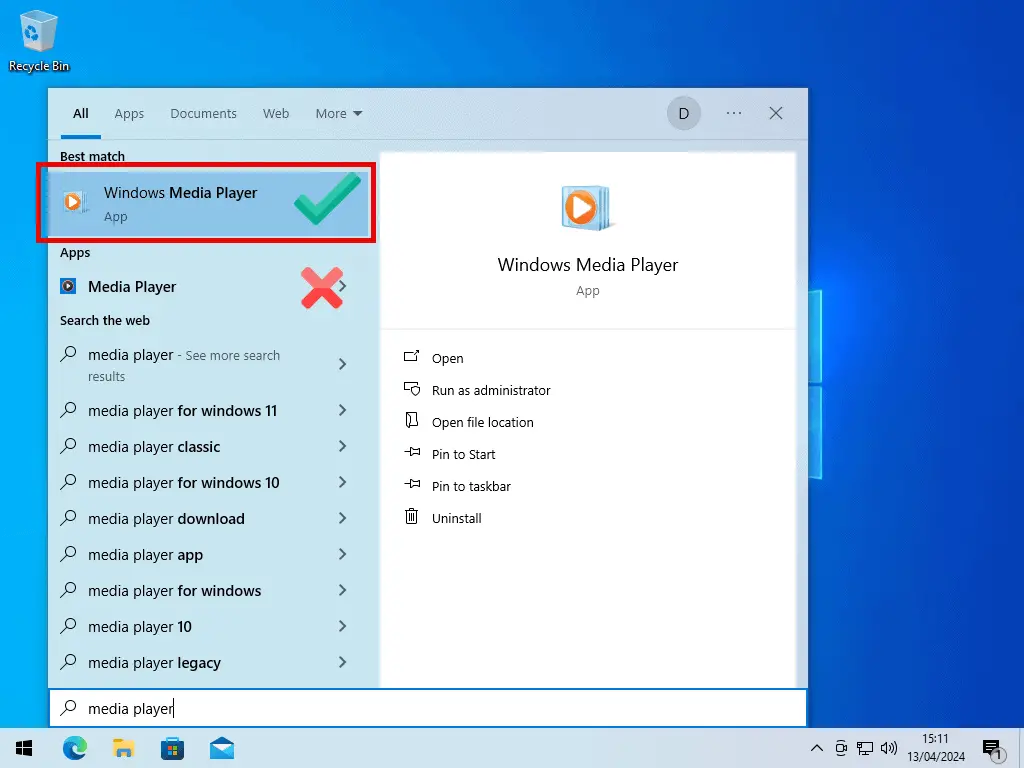
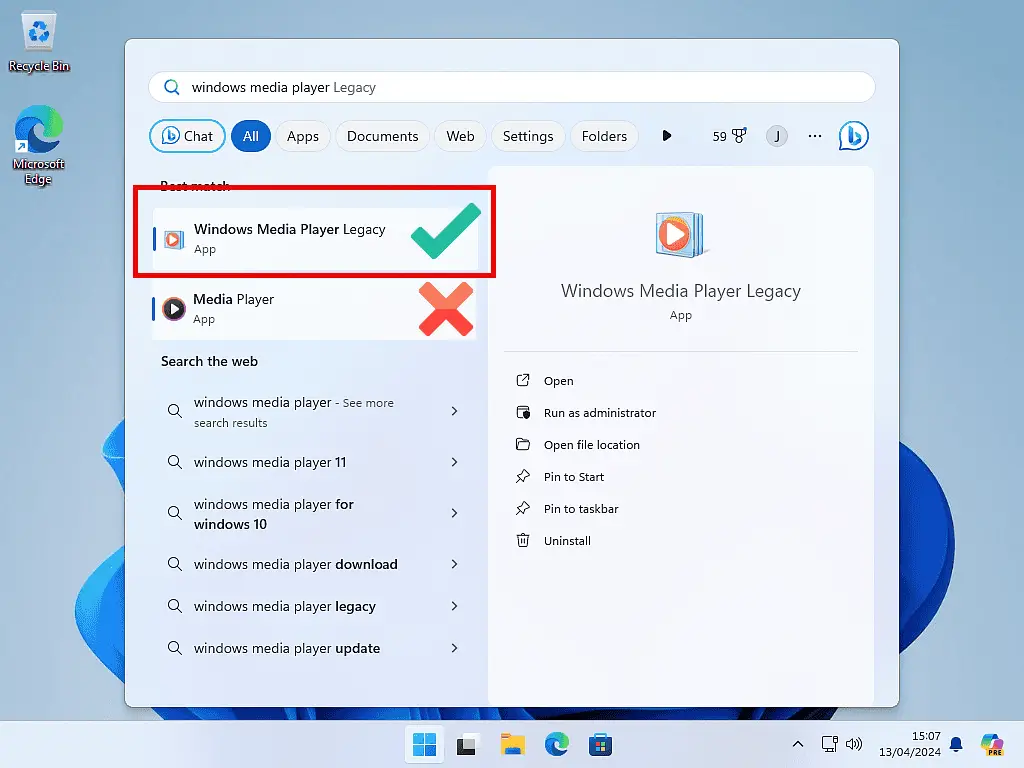
To get started, left-click the Start button and type “windows media player“.
- If you’re using Windows 10, left click Windows Media Player (App).
- And if you’re using Windows 11, left click Windows Media Player (Legacy).
Welcome To Windows Media Player
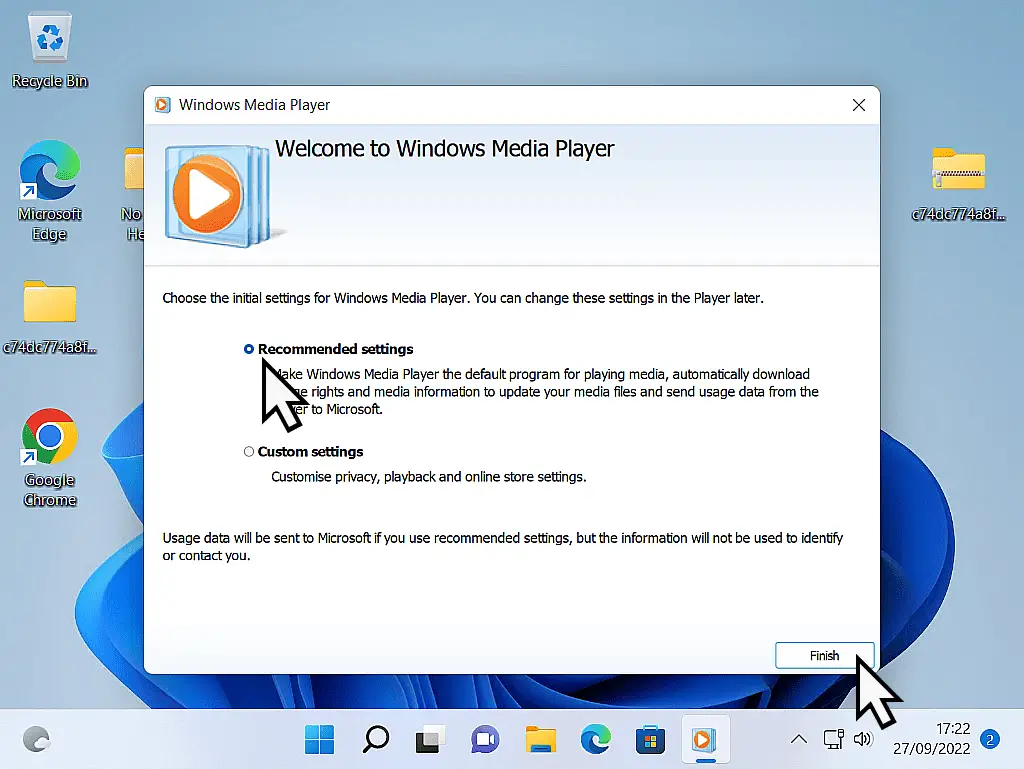
If this is the very first time that you’ve started WMP, you’ll be greeted with the “Welcome to Windows Media Player” splash screen.
Select “Recommended Settings” and then click the FINISH button.
Playing Music
After clicking the Finish button, Windows Media Player will start.
Again, if this is the first time that you’ve used Windows Media Player, it’ll start a scan of your music folder looking for audio files.
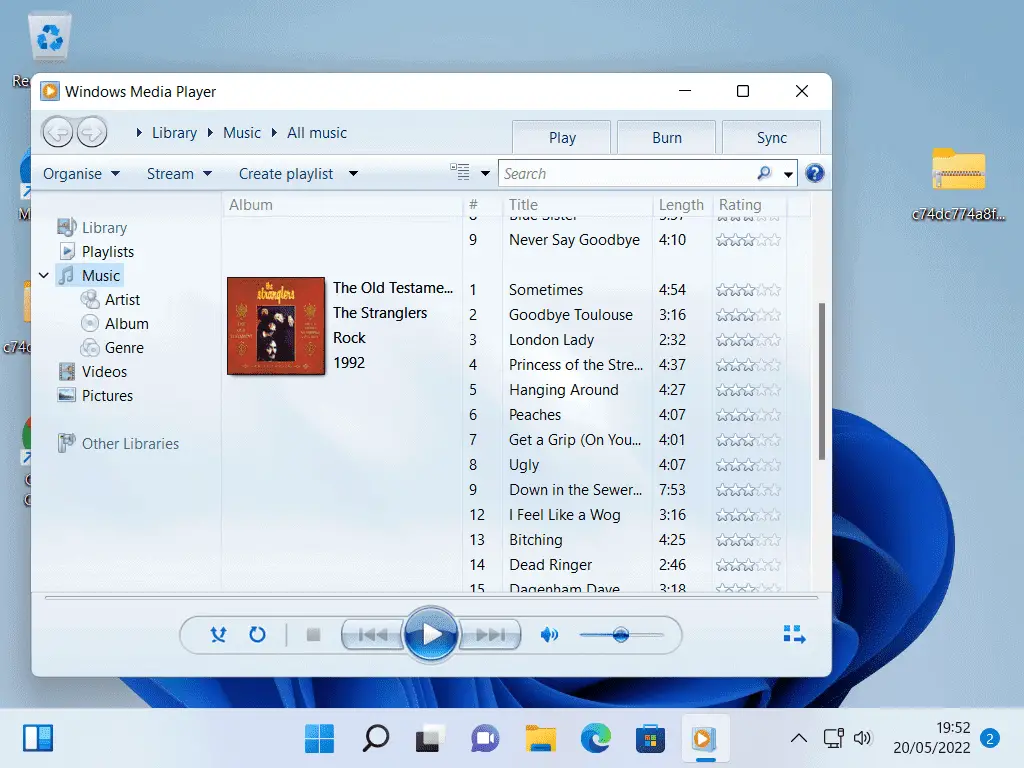
That might take a few minutes but eventually, it’ll display your music collection.
To play a single track you can just double left-click on it.
Select multiple tracks to play by holding down the CTRL key on your keyboard and then single left-clicking on all the songs you want to play.
You can select tracks from different albums, they don’t all have to be from the same album. Scroll up and down and choose your favourite songs.
Troubleshooting: Music Not Showing in Library
This is one of the biggest issues that users run into on modern computers, music files not appearing in the WMP library. By default, Windows Media Player will only scan your Music folder, Video folder and Pictures folder looking for audio and video files. If it doesn’t show your entire music collection, it’s most likely that you have it stored in another folder.
The easiest way around this issue is to just cut and paste your audio files in to your Music folder. After that’s done, relaunch Windows Media Player and your music will be “discovered”.
Or you can include any folder in the music library.
How To Include A Folder In Your Music Library
Perhaps you’d rather leave your music where it is, for example it might be on an external drive.
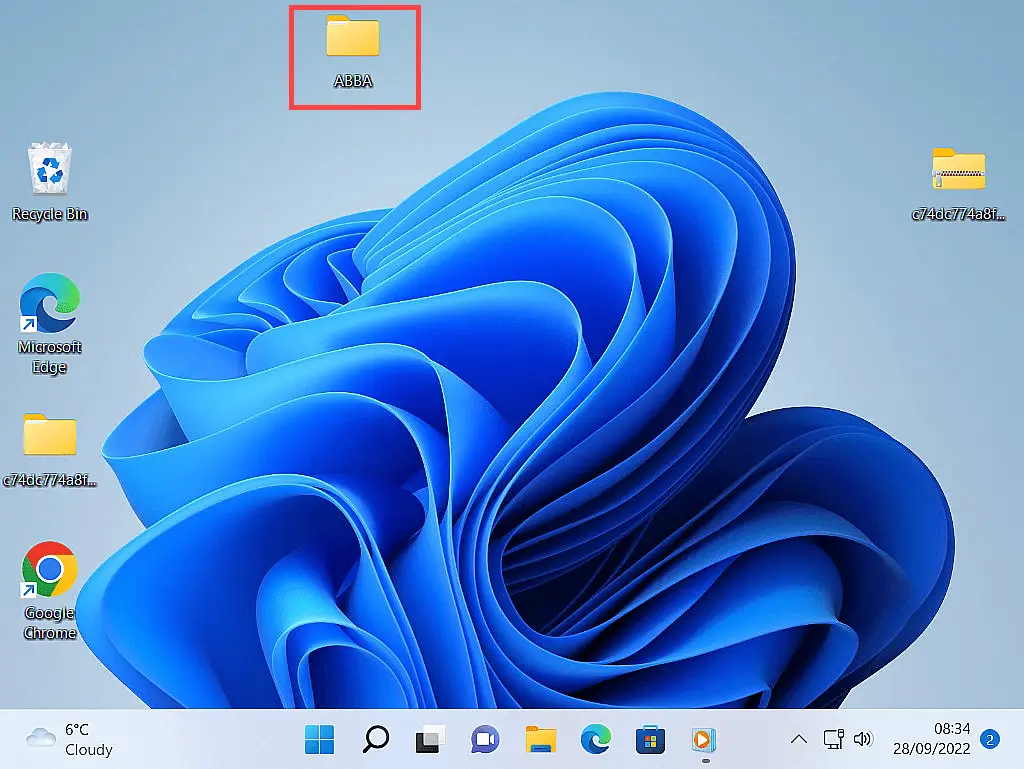
In that case, you just need to let WMP know where else to look for music files by adding the folder to your library. As an example, here I’ve got a music folder on my desktop, and I want to leave it there.
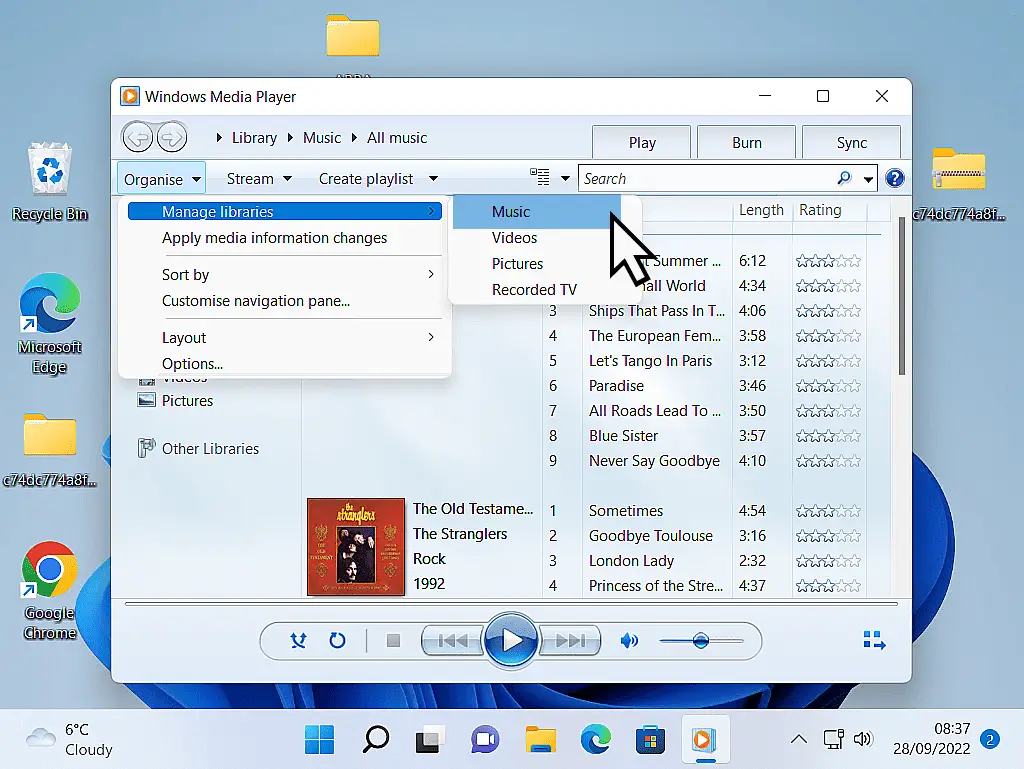
To add a folder to your Windows Media Player library, click the Organise button in the top left corner of the screen. On the menu that opens, hover your pointer over Manage Libraries and then click Music.
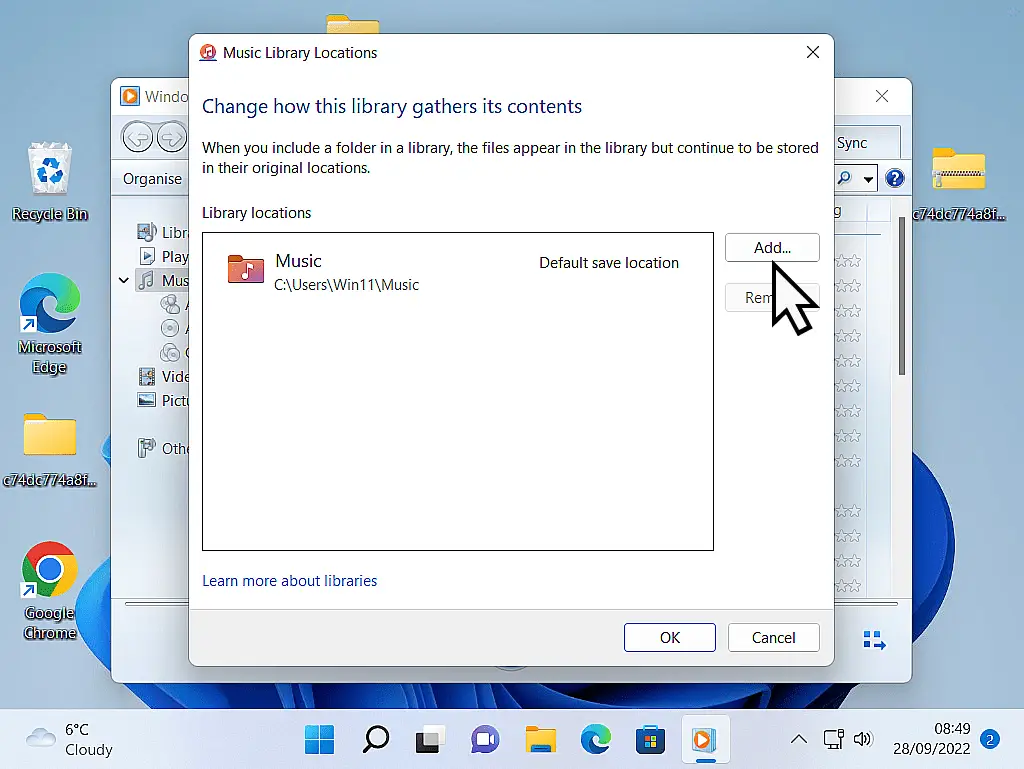
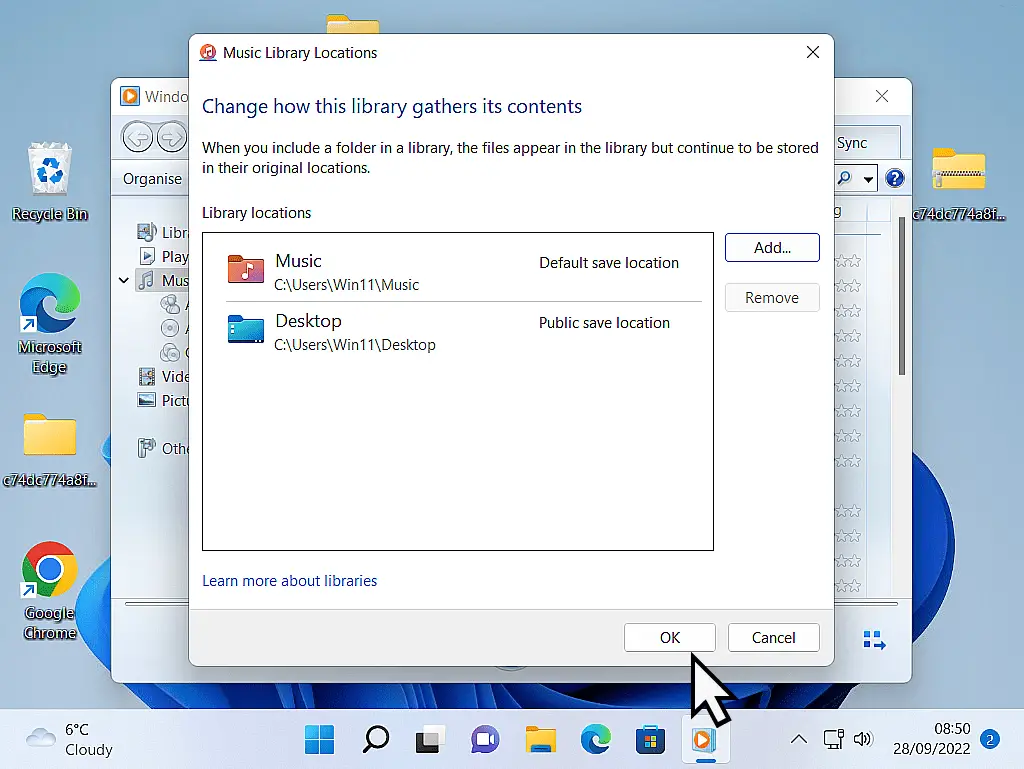
The Music Library Locations window will open. Click the Add button.
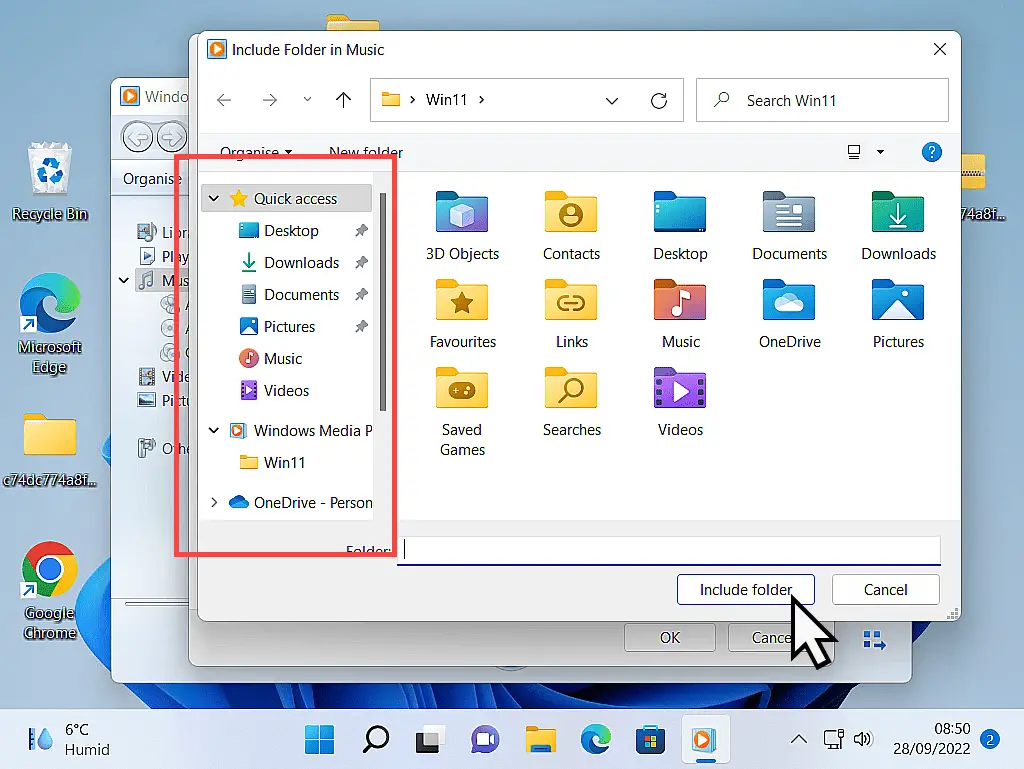
An explorer window will open allowing you to navigate to folder that should be included in the library. Select the folder you want to include and then click the INCLUDE FOLDER button.
After clicking the Include Folder button, you’ll be returned to the “Change how this library gathers its contents” page.
If you want to add other folders, click the ADD button and do the same again.
When you’re finished adding folders, click the OK button.
How To Play Audio CDs Or USB Drives
As well as playing music that’s stored on your computer, you can, of course, play your music directly from a regular old audio CD, assuming your computer has a CD/DVD drive, or if you’ve got music stored on a USB drive you can use that.
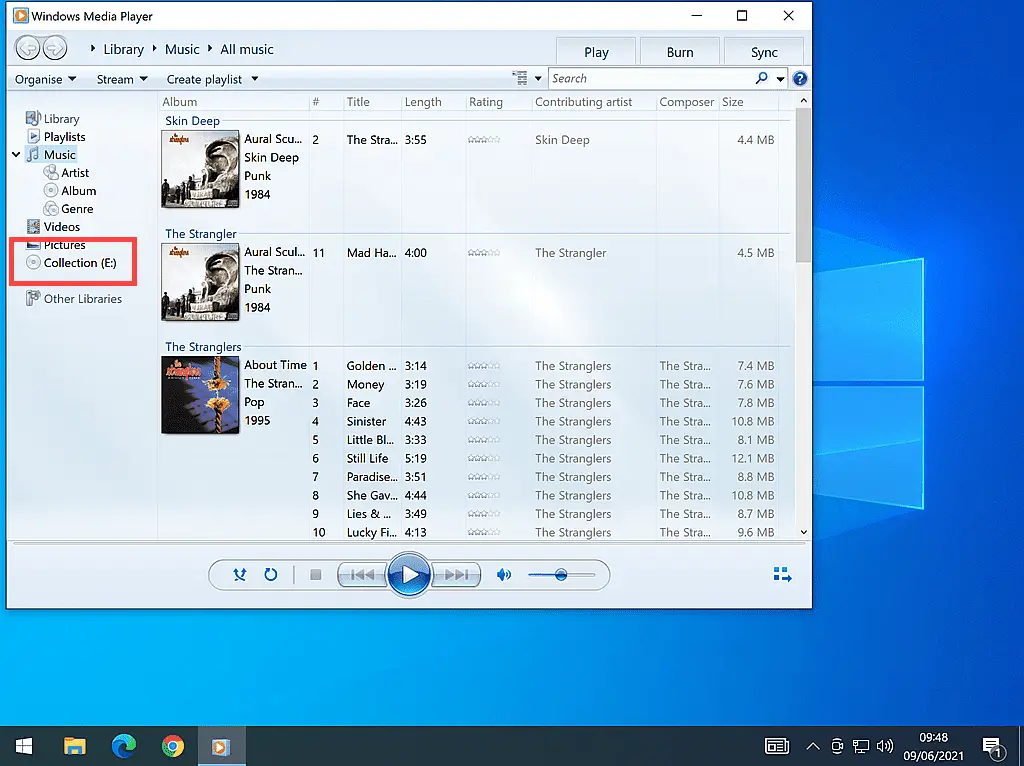
With the audio CD loaded into the CD drive, you’ll see it appear in the left-hand panel of Windows Media Player.
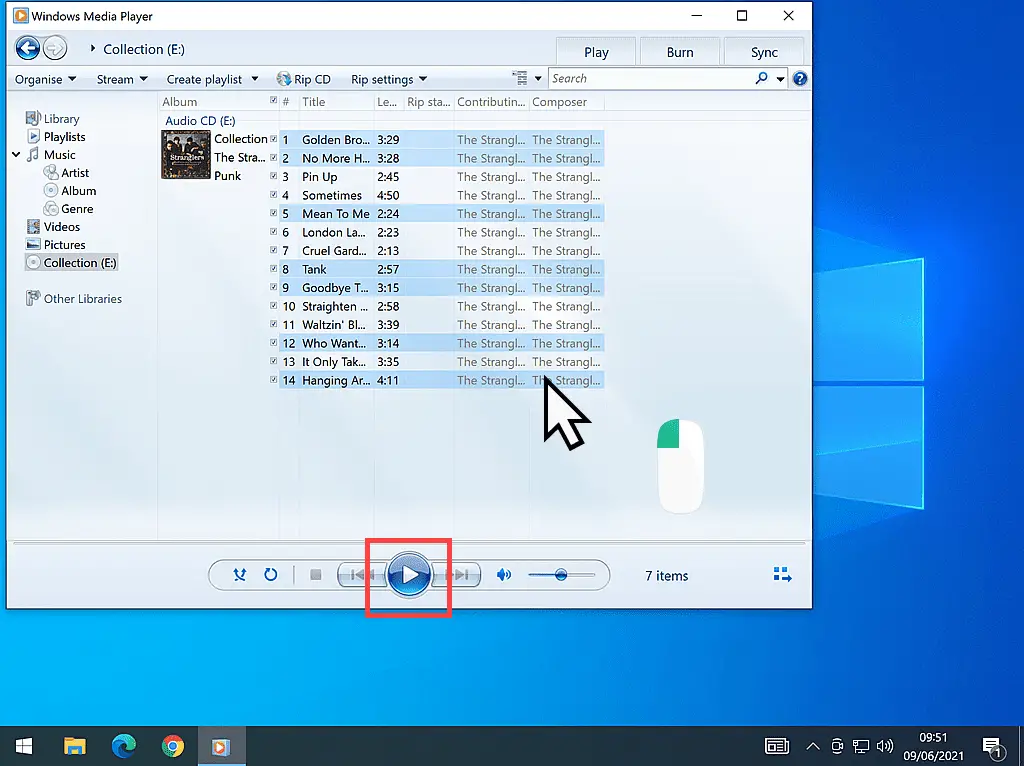
Left-click once on the CD in the left panel and the contents will appear in the centre panel. You can play the whole CD by clicking the PLAY button.
Play individual tracks by double left-clicking them. Or select multiple tracks by holding down the CTRL key and then selecting which tracks to play.
To Play Music From A USB Drive
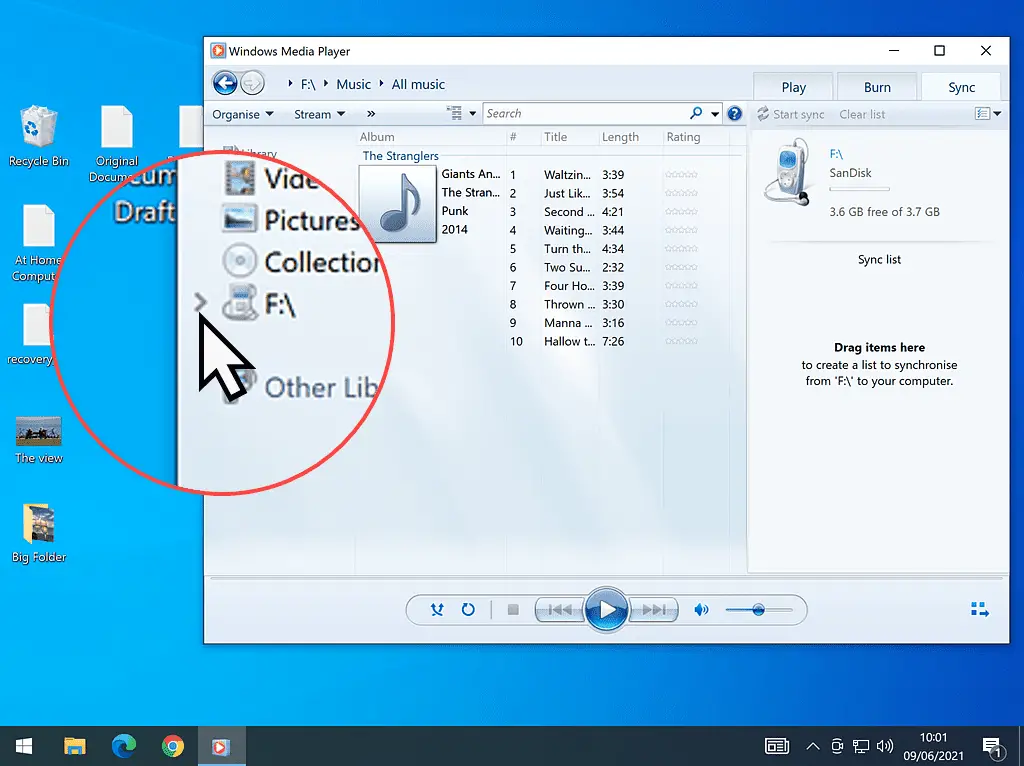
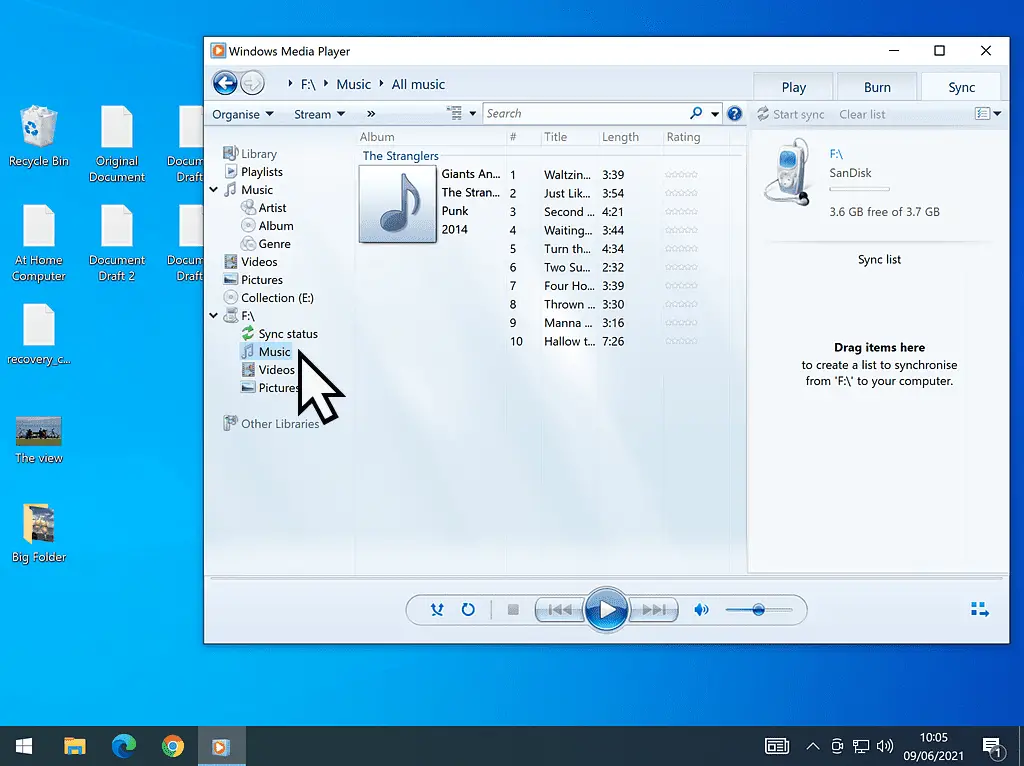
To play music from a USB drive, find the drive in the left-hand navigation panel of Windows Media Player. Then click the small arrowhead beside it to expand the contents of the drive.
With the USB drive expanded, click on the MUSIC option. WMP will scan the drive for audio files. When it’s finished, your music will appear in the centre panel and you can play it by clicking the PLAY button or selecting which tracks you want to hear.
How To Create A Playlist In Windows Media Player
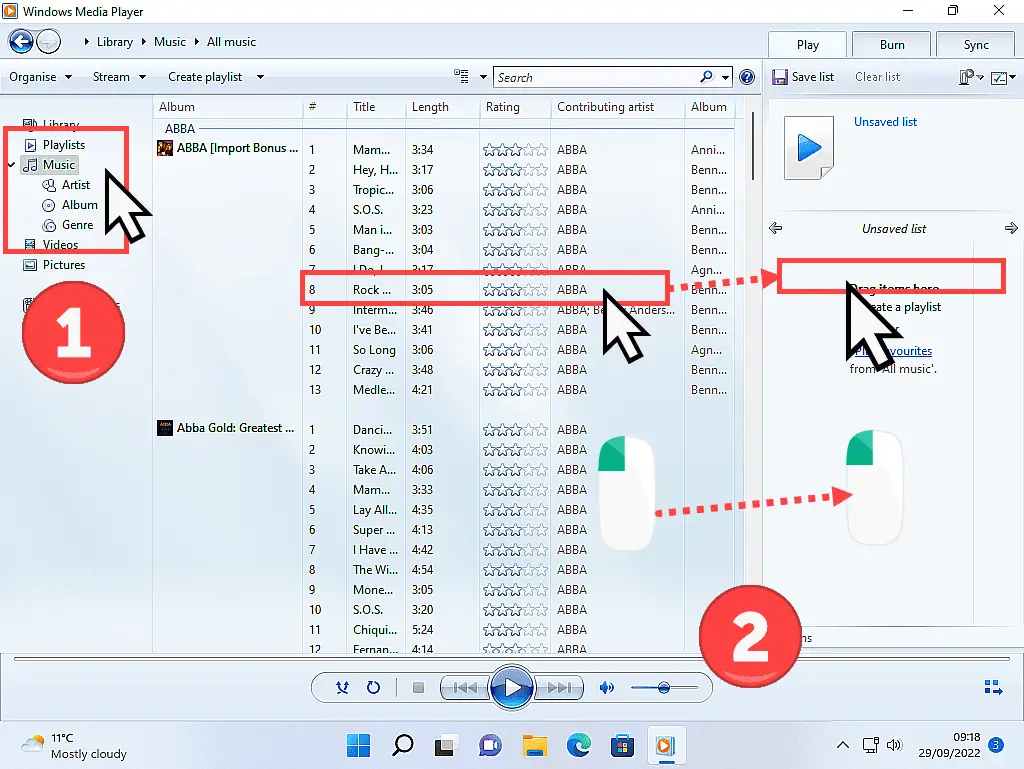
To create your first playlist, open Windows Media Player. If it isn’t showing you’re music tracks, left-click the MUSIC tab in the left-hand panel.
Scroll through your music tracks until you find one to add to your new playlist. When you find a track, drag it into the right-hand panel.
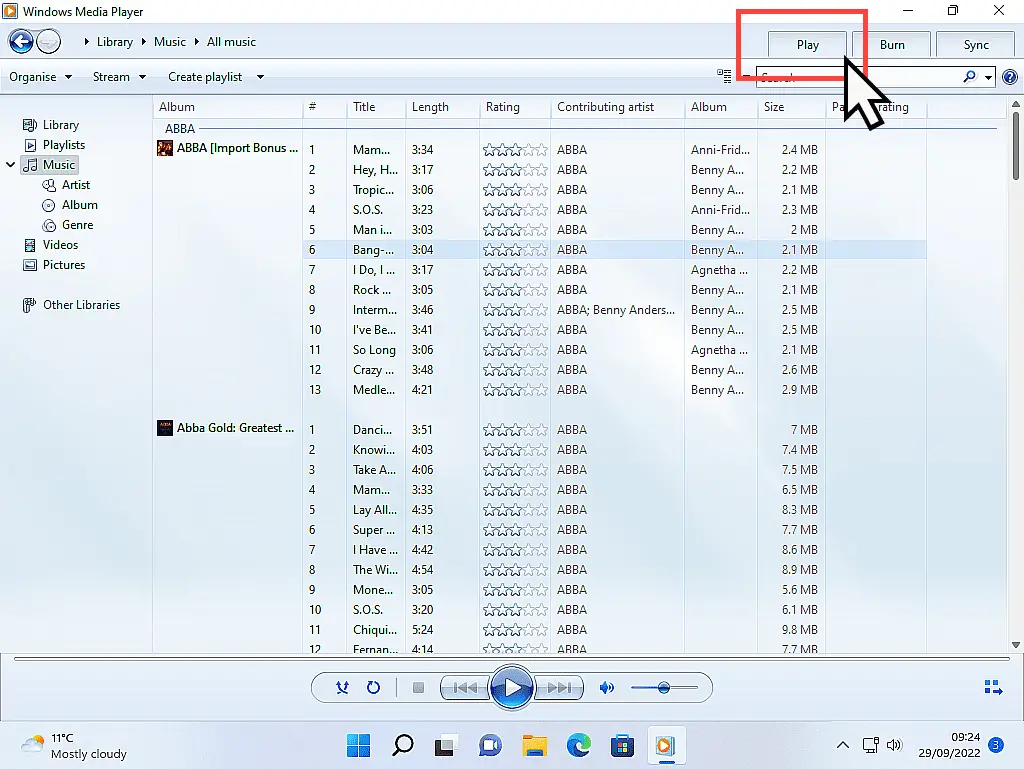
If you can’t see a right-hand panel, click the PLAY tab in the top right corner of the toolbar.
Build Your Playlist.
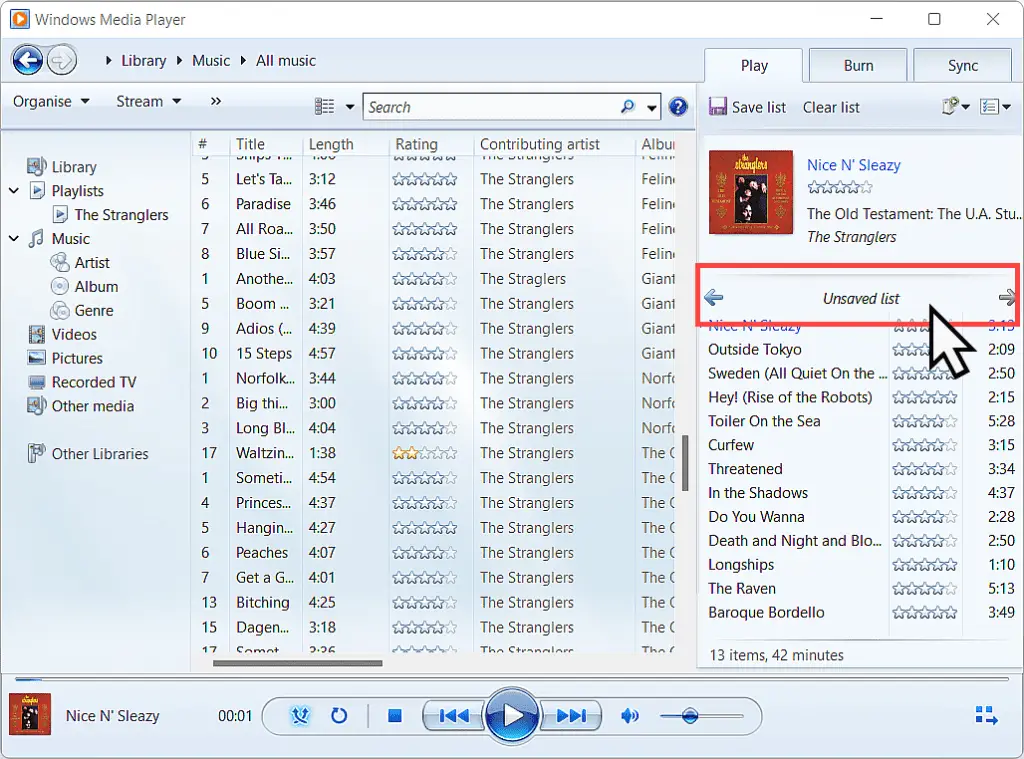
Continue adding tracks to your playlist. You can add them one at a time, or by selecting multiple tracks and then dragging them over to the list in one go. There isn’t any real limit to how many tracks you add to your playlist.
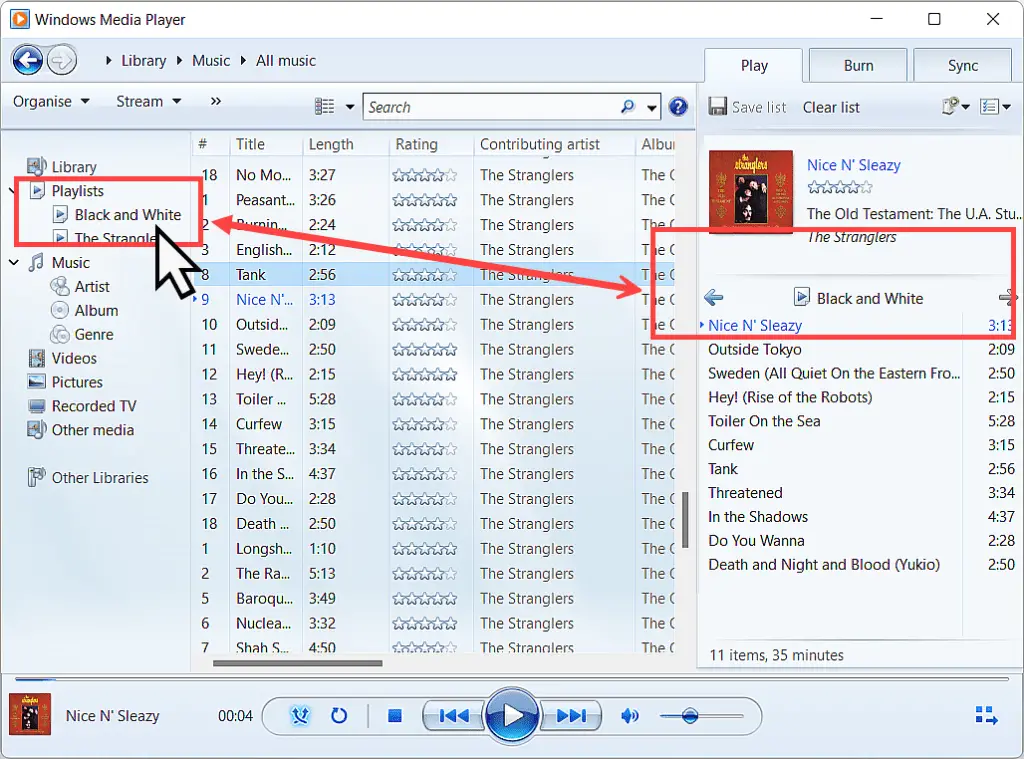
When you’ve finished building your playlist, you’ll need to save it. At the top of the list, you’ll see it’s as yet an “Unsaved list”. Left click once in the “Unsaved list” box. The Unsaved Playlist becomes highlighted. Now you can type in anything that you want to name the playlist.
When you’ve named your playlist, press ENTER on your keyboard to save the it. To listen to a playlist, simply double left-click on its name in the navigation area.
Ripping Audio CDs With Windows Media Player
As well as playing music you can also rip (or copy) music from CDs with Windows Media Player. There’re two main reasons why you might want to rip a CD.
- Convenience – Having all your music stored on your computer is much more convenient than having to constantly change discs. And it helps when creating playlists. However a large music collection can take up a large amount of space. If you’re looking to save on space then rip your CDs in the MP3 format.
- Protecting Your Original CD – The second most common reason to copy CDs to PC is in order to protect the original disc. Rip it to your computer, place the disc back in its case and it never needs to see the light of day again. In that case you may want to copy your CDs at their original quality. This will use up much more storage space, but it might be worth it to you.
Summary
Windows Media Player (Legacy) is still a good choice for handling your audio files. It’s fairly easy to use and is created by Microsoft so should just work without any conflicts on your system.
In this beginner’s guide, we’ve only really touched on the basics, but I think that’s all we need to get started.
Have a go at creating playlists. Once you get the hang of them, you’ll never go back to playing individual tracks.
More Music Guides
How To Burn A Music CD In Windows 10 And 11 In 2025.
Create your very own best hits mega tape CDs. No fillers guaranteed.
How To Make An MP3 CD
A lot of modern CD players can play MP3s. You can cram an extraordinary amount onto a standard blank CD if you use the MP3 format.
How To Remove DRM From WMA Audio Files.
Maybe you’ve got some older music files that were ripped in the WMA format and you can’t play them. It maybe that they’re just corrupted, or it might be that they had DRM added when you ripped.