Setting up a Windows 11 virtual machine (VM) is the perfect way to test the new OS, install untrusted software, test out system changes and browse the web in a secure, isolated environment. The best part? You can run Windows 11 as a VM even if your host computer doesn’t meet the official system requirements. VMware Workstation Pro emulates the necessary hardware, including TPM 2.0.
In this guide, I’ll walk you through the entire process, from downloading the ISO to installing VMware Tools for peak performance.
1. Prerequisites: What You’ll Need
Before you begin you’ll need to have:
- VMware Workstation Pro installed. (If you don’t have it yet, check out my guide on How to Download VMware Workstation Pro for Free.
- At least 64GB of disk space for the virtual hard drive.
- 4GB+ of RAM dedicated to the VM. Ideally your host pc will have at least 8GB of RAM.
2. Download the Windows 11 ISO File
To create a virtual machine you’ll need to have the operating system (in this case Windows 11) saved to your computer as an ISO file. Microsoft provides the ISO for free although you’ll need a licence key (or serial key) to activate Windows 11 after installation.
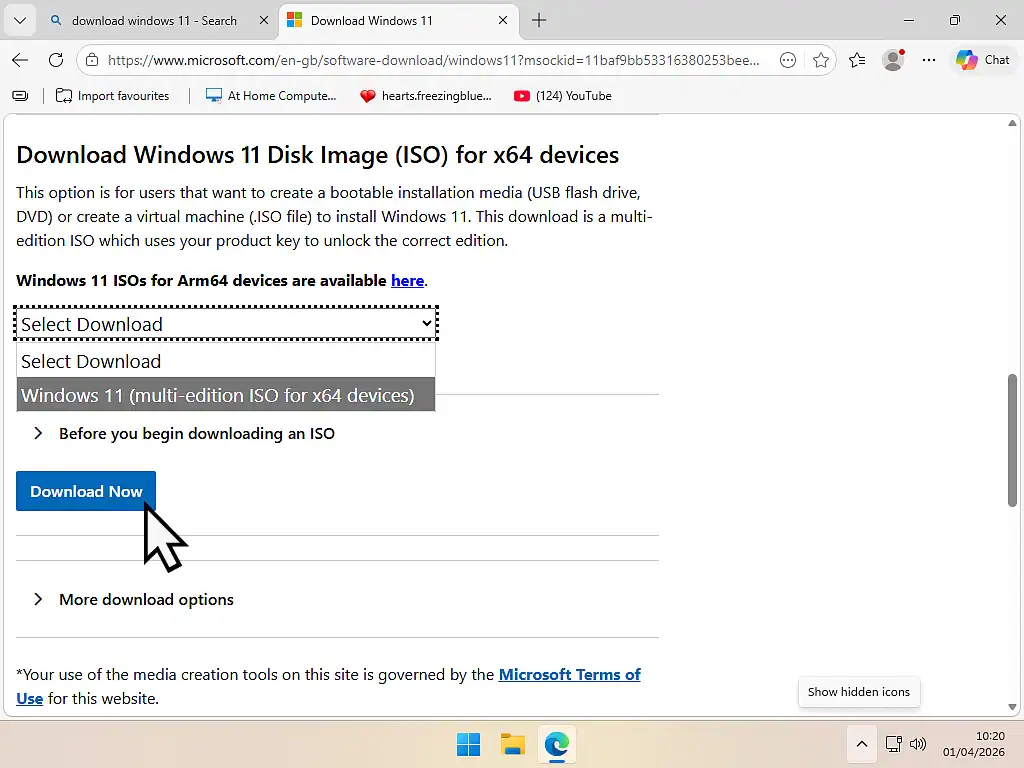
- Visit the Microsoft Windows 11 Download Page.
- Scroll to “Download Windows 11 Disk Image (ISO)”.
- Select “Windows 11 (multi-edition ISO)” and click Download.
- Choose your language and save the file to your PC.
You could also use the “Media Creation Tool” if you prefer. Just be sure to save the file as an ISO rather than create a USB drive. Personally I usually use the direct ISO download because it’s a little faster and more reliable for virtual machines.
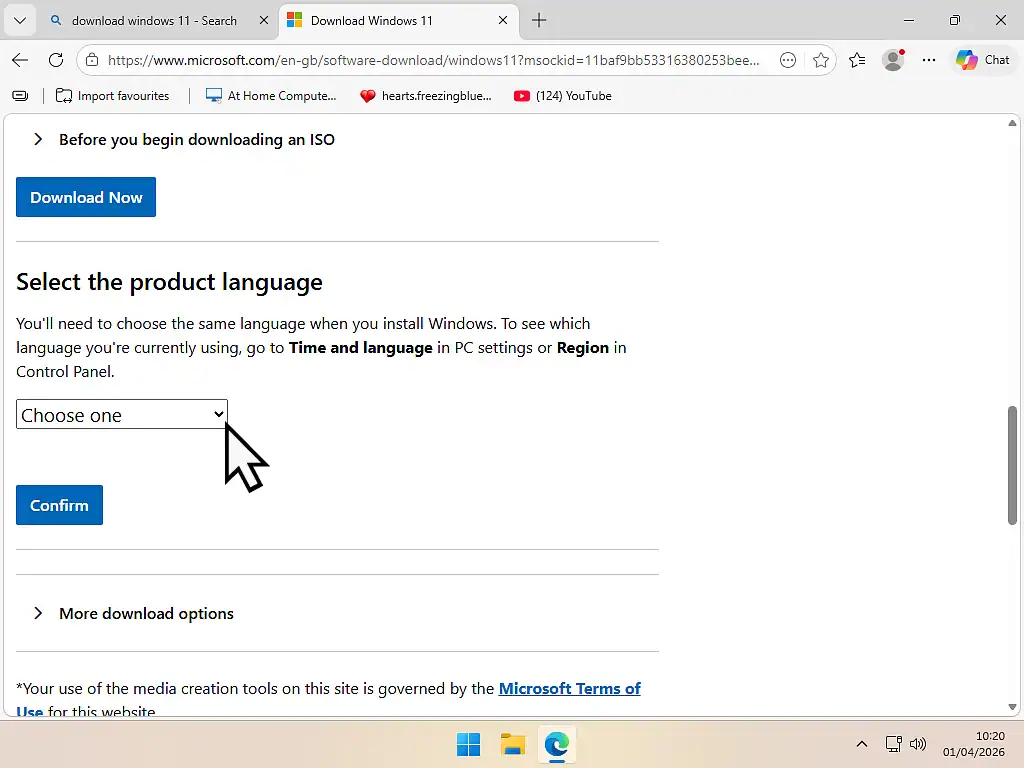
English Language Download
To download the Windows 11 ISO in English there are only 2 choices: English (United States) or English International. If you require Windows in any form other than United States (e.g. British), then use the International option.
3. Creating the Windows 11 Virtual Machine
Now you should have everything in place to begin creating a Windows 11 virtual machine. With VMware, it’s done in 2 separate parts. Firstly you’ll create the actual virtual machine (the virtual hardware) and then install your operating system (Windows 11) onto it.
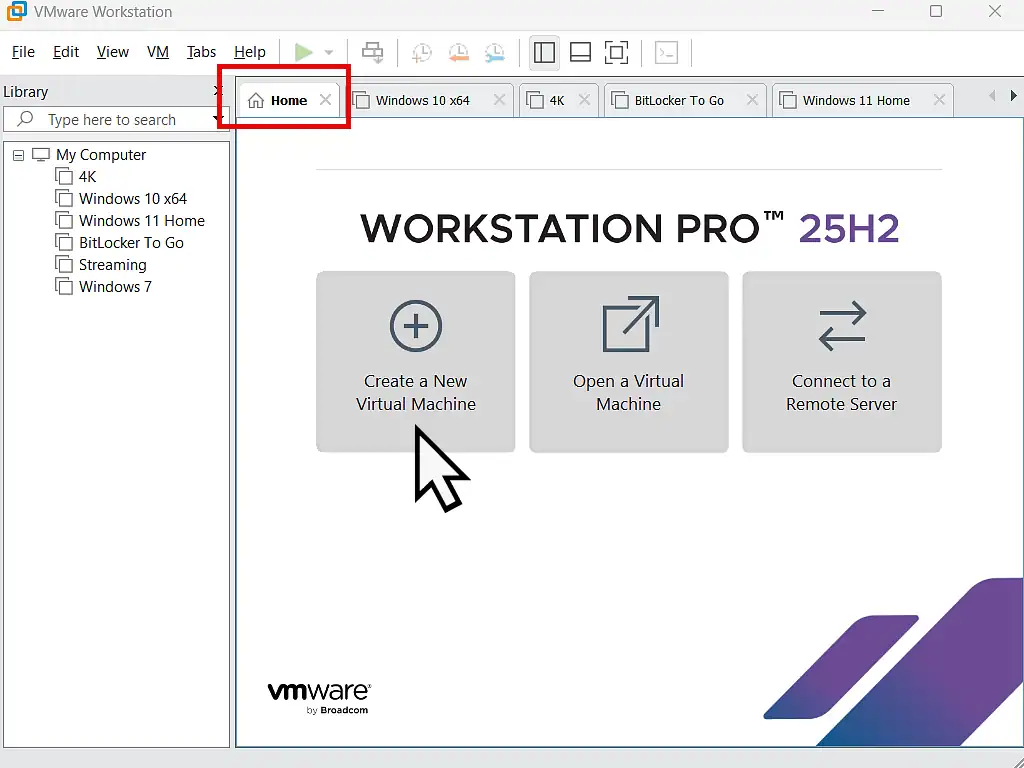
- Launch VMware Workstation Pro and click Create a New Virtual Machine. You may need to click the Home tab first. When the Wizard screen opens choose Typical (recommended) and click Next.
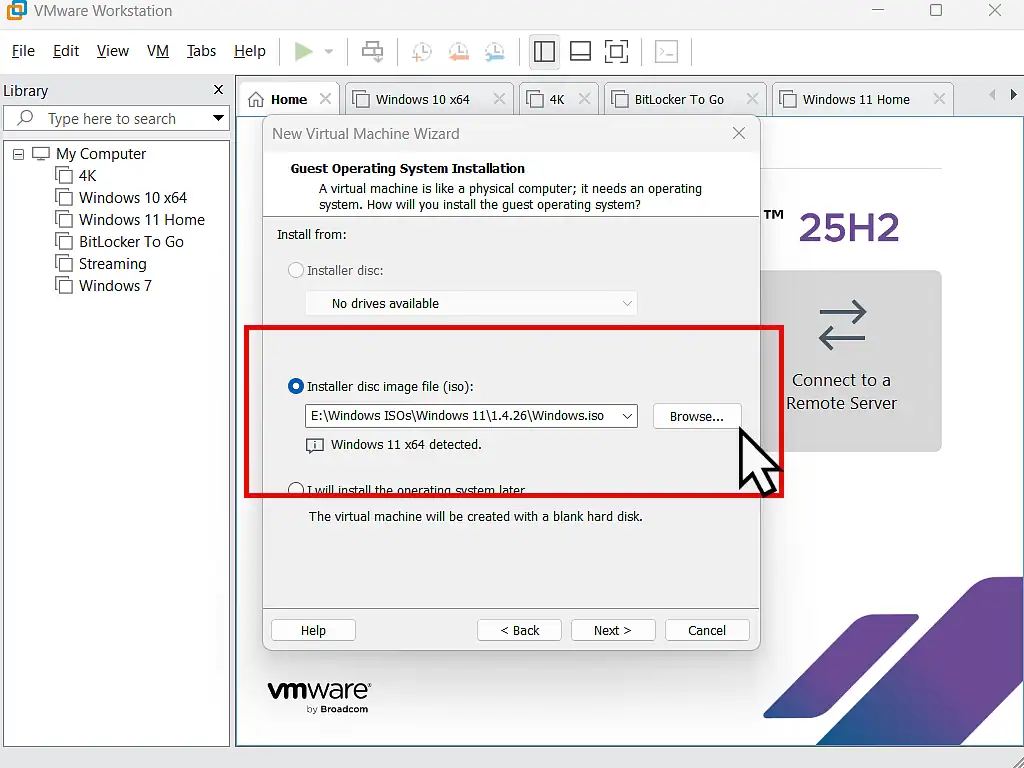
- Select Installer Disc Image File (iso) and then use the browse button to locate the Windows 11 ISO you just downloaded. When it’s loaded VMware will identify it as Windows 11. Click Next.
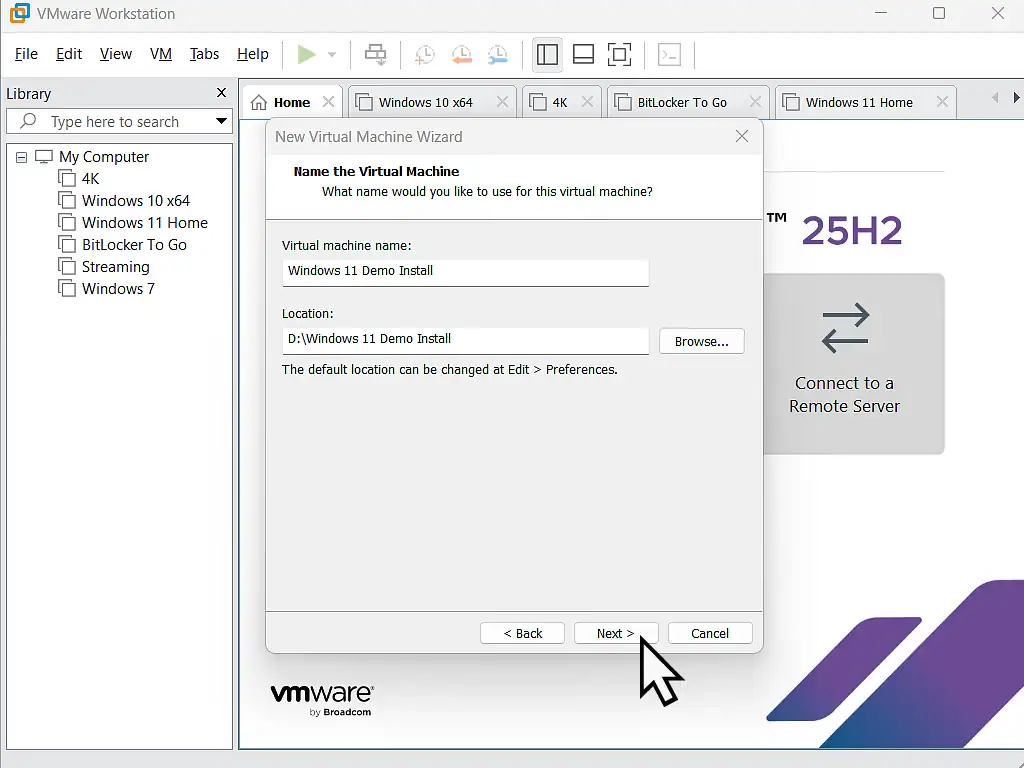
- Name your VM: You can give your virtual machine any name you want or just leave it at the default. You can also change the location where Workstation Pro will store your VM. By default it’ll be saved to Documents\Virtual Machines.
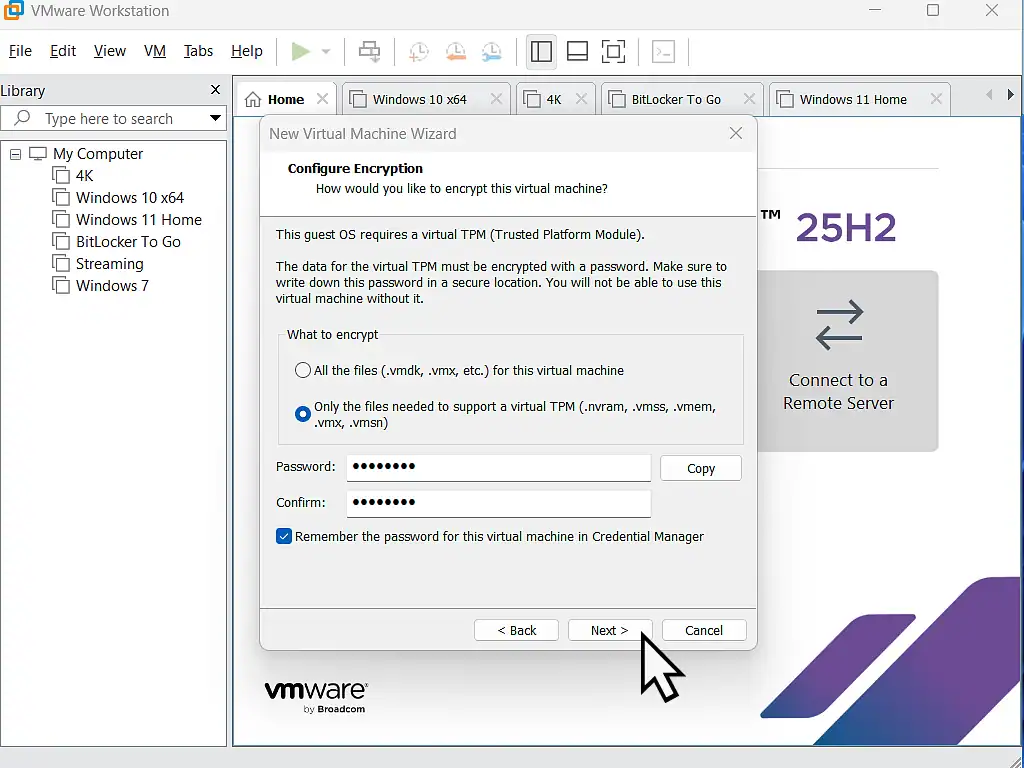
- The vTPM Requirement: Windows 11 requires a Trusted Platform Module (TPM). VMware will create a virtual TPM for Windows to use, even if your host doesn’t have one. When prompted, choose either “All files are encrypted” or “Only the files needed to support TPM are encrypted.” The latter option is quicker. Note: You’ll need to set a password for the VM’s encryption. My advice is to use something easy and write it down. Don’t lose it.
Virtual Disk Capacity
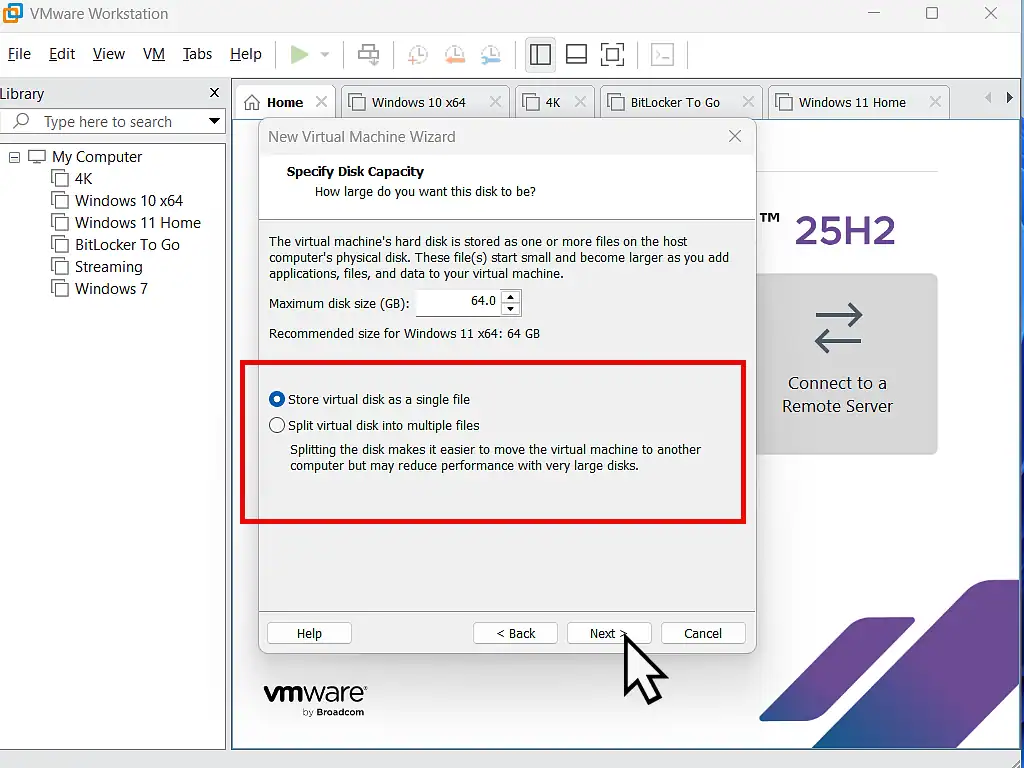
- You’ll need to specify a capacity for the virtual hard drive of your VM. Windows 11 requires 64GB to operate properly. I’d also recommend selecting “Store virtual disk as a single file“. It can take a little longer to create the virtual disk but will give better performance once the VM is set up. Click Next.
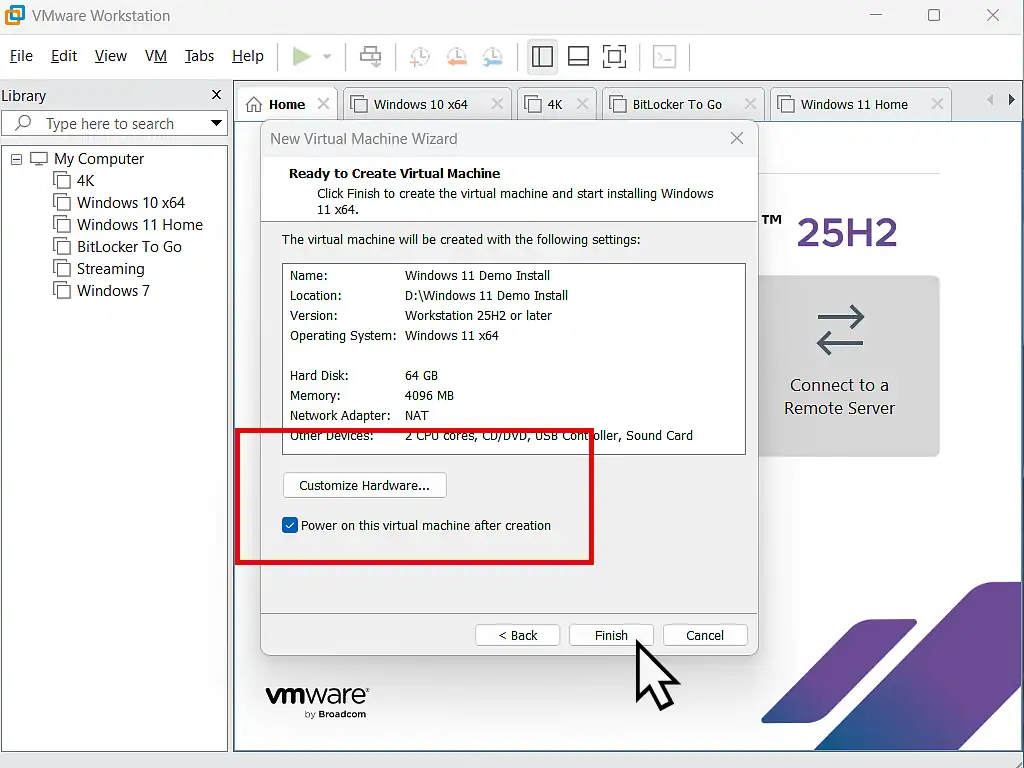
- A confirmation screen will appear. Here you can change amy of your virtual machine settings by clicking the Customize Hardware but and making changes as necessary. Make sure that “Power on this virtual machine after creation” is selected and click Finish.
4. How to Install Windows 11 in VMware
There’ll be a short pause while Workstation Pro creates the virtual computer onto which you’ll be installing Windows 11.
- Booting: As soon as you see the “Press any key to boot from CD/DVD” message, click inside the VM window and hit Enter. You have to be quick. If you miss it and you see a “Boot Manager” screen, just restart the VM by clicking the Ctrl+Alt+Del icon
 on the VMware toolbar.
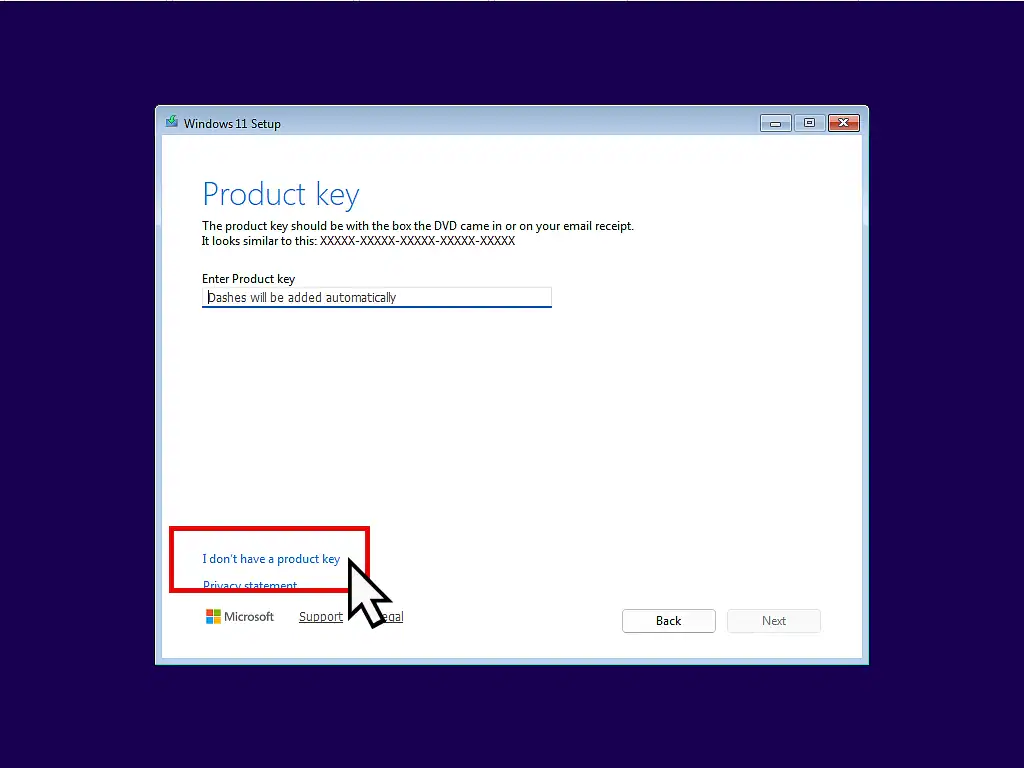
 - Windows Setup: Follow the prompts. Generally you can leave everything at the defaults and just click Next. When asked for a Product Key, click “I don’t have a product key” at the bottom. You can activate it later once you’re sure the VM is working. Select the Windows 11 edition you’re installing (e.g. Home or Pro) and click Next.
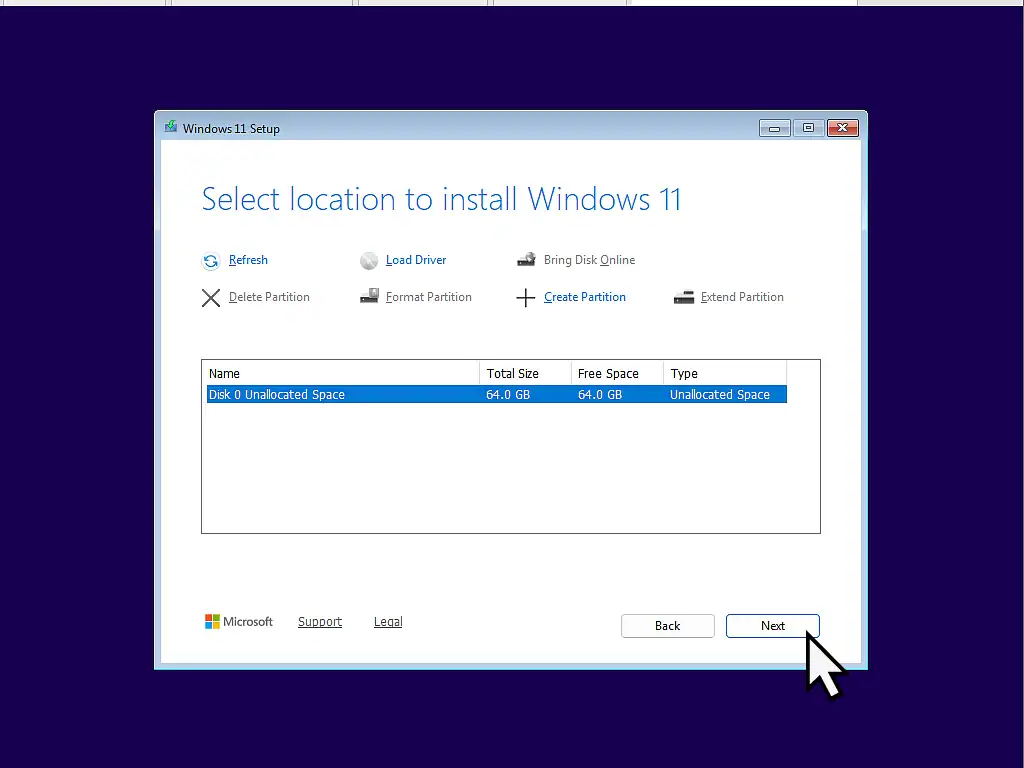
- Select Location: Select the “Unallocated Space” (your 64GB drive) and click Next.
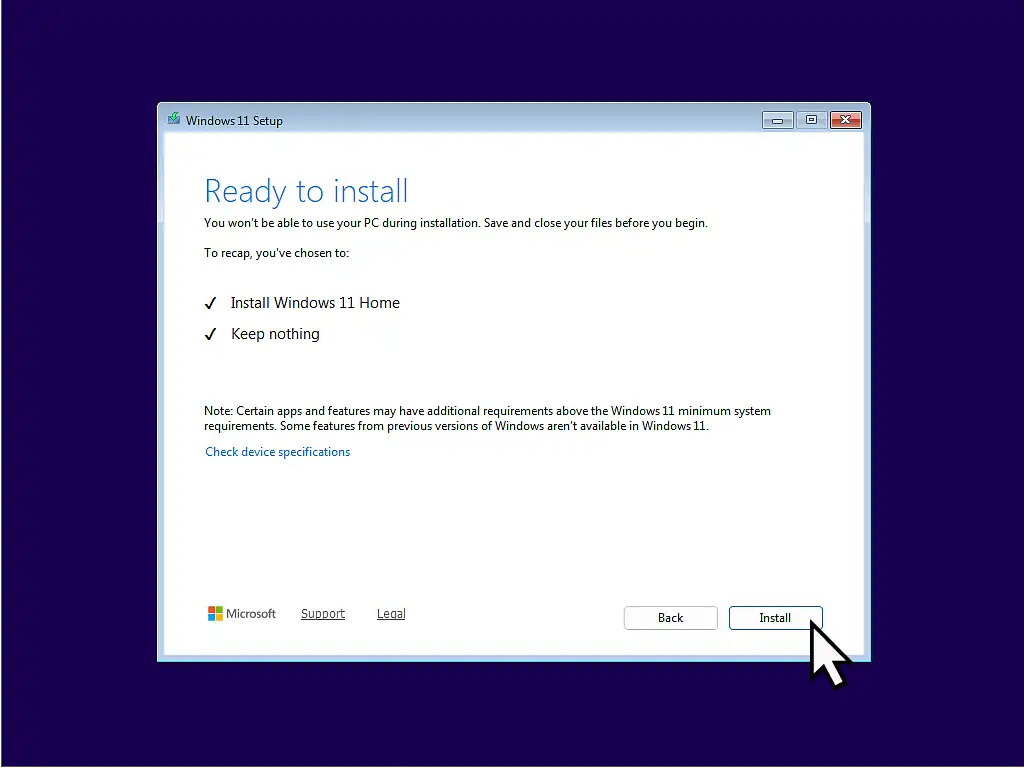
- Ready to Install: Click Install.
 on the VMware toolbar.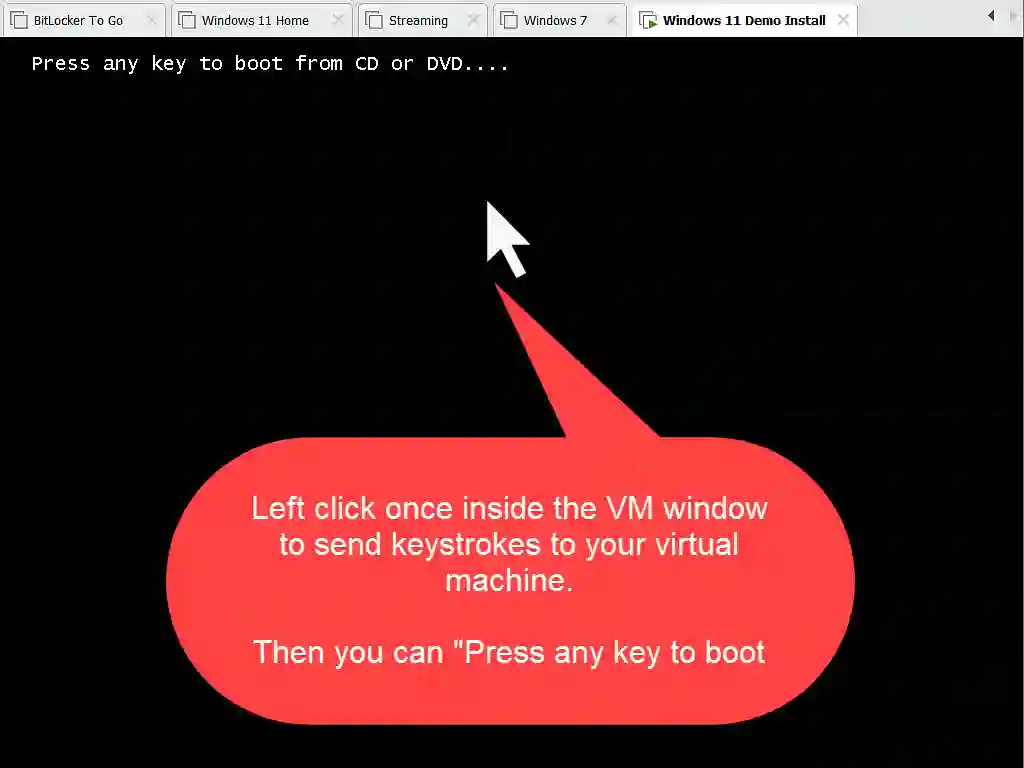
Why Bypass the Product Key for now?
If you activate Windows 11 immediately, the key becomes tied to that specific virtual hardware. If you delete the VM and start over, you might run into activation issues when trying to use the same key. Get the VM running perfectly first. then you can activate Windows.
5. Completing the Windows 11 Setup (OOBE)
Windows will restart. First you’ll see the “Installing Windows 11” screen. There’s nothing for you to do here. Once it’s installed follow the “Out of Box Experience” (OOBE):
- Region & Keyboard: Select your preferred settings.
- Next Windows 11 will check for updates.
- Naming your device: Optional, but helpful for networking. You can click Skip For Now.
- More Updates: Windows will check again for updates.
- Microsoft Account: Windows 11 will “force” you to sign in with a Microsoft account. If you want a Local Account, check out my guide on installing Windows 11 without a Microsoft account.
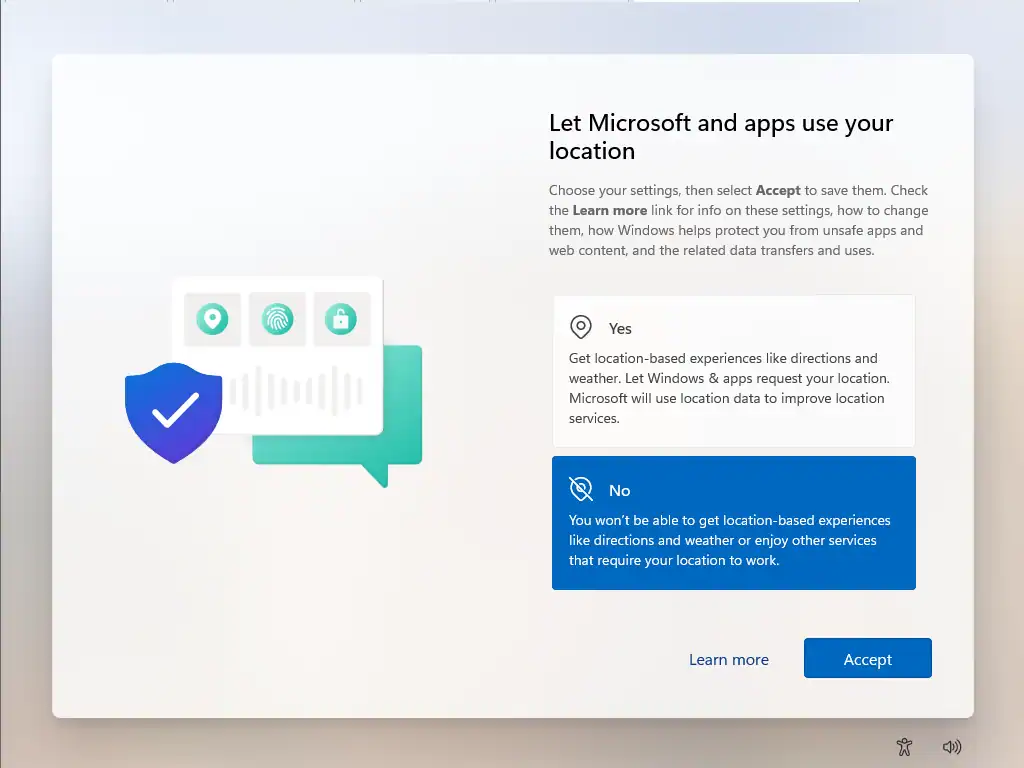
After setting up an account, or using a local account, you’ll see an assortment of diagnostic and telemetry settings.
I recommend toggling OFF all diagnostic and location data options during setup to improve VM speed and privacy.
6. Crucial Step: Install VMware Tools
VMware Tools are a set of virtual drivers for your VM. It just won’t run properly until you install them.
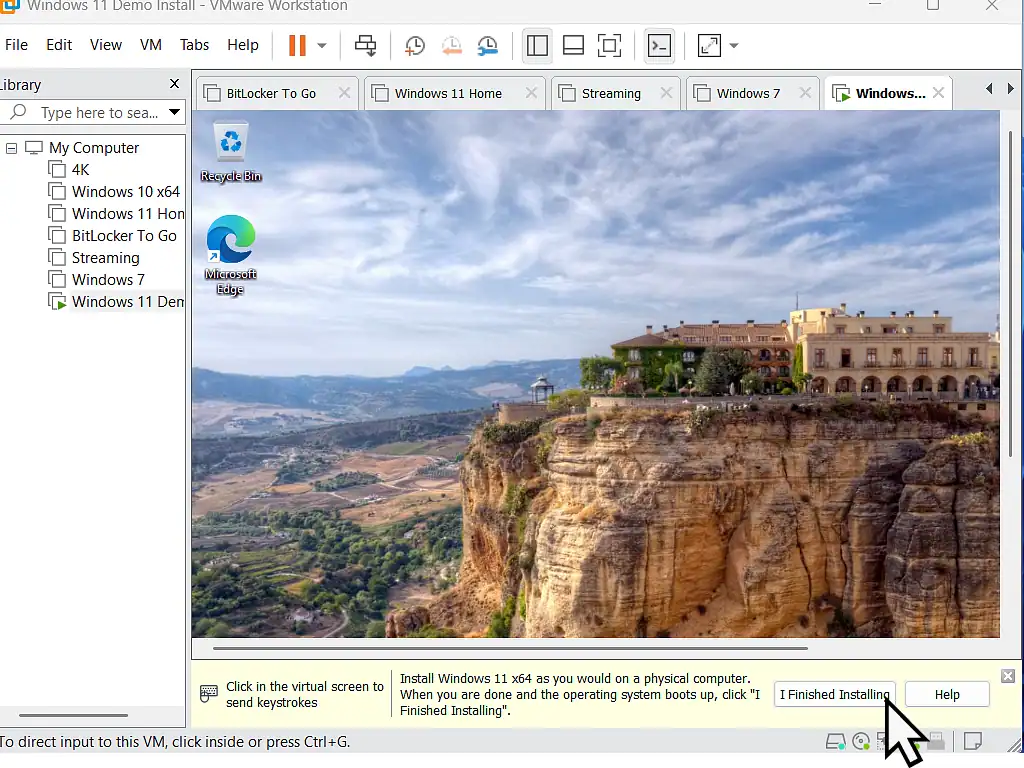
- When Windows 11 has finished installing, click the “I finished Installing” button at the bottom of the VMware window.
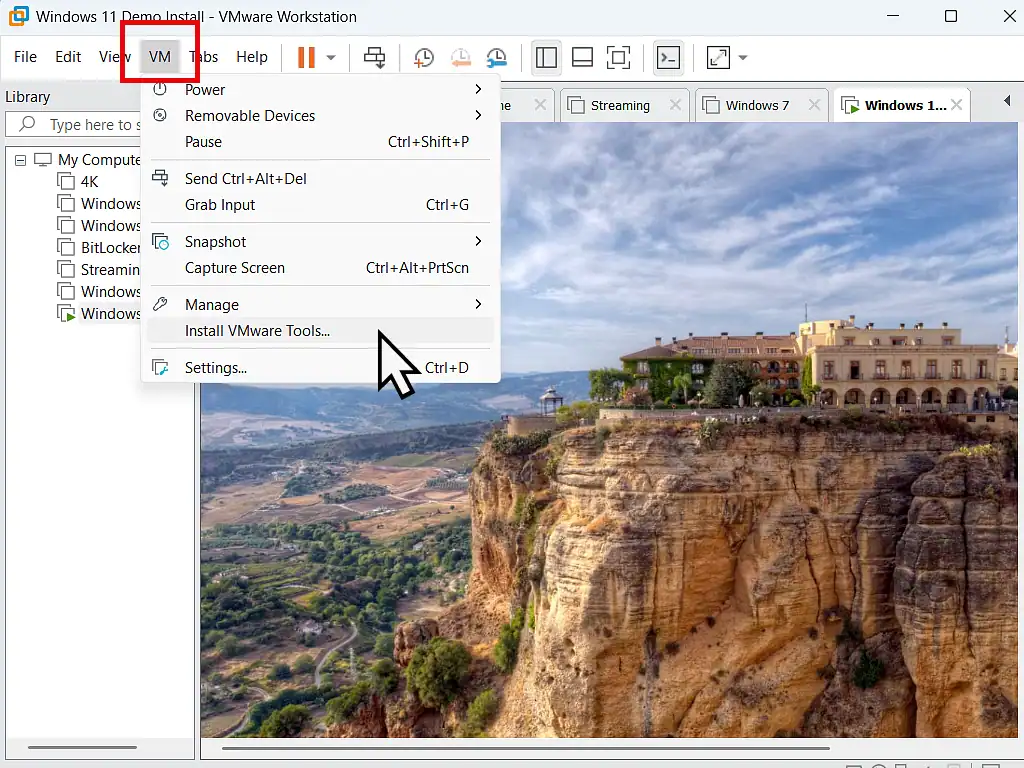
- In the VMware menu, go to VM > Install VMware Tools.
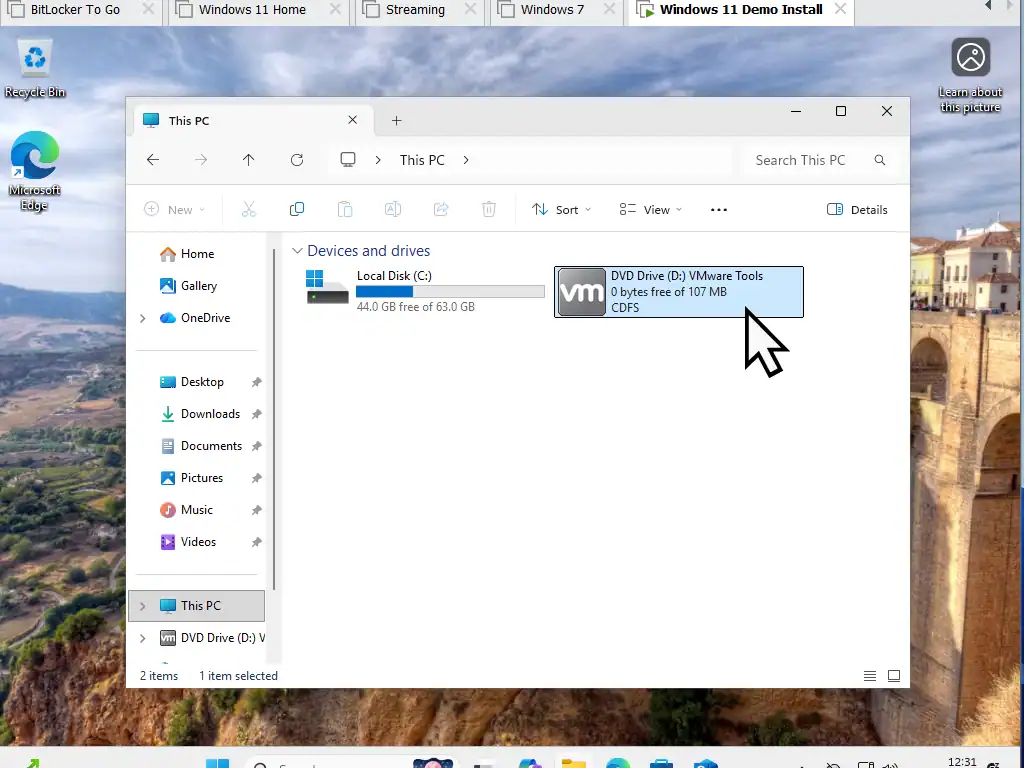
- A virtual CD/DVD disk will appear inside the Windows 11 VM. Open File Explorer, go to “This PC,” and double-click the VMware Tools drive. It should automatically start the installation process.
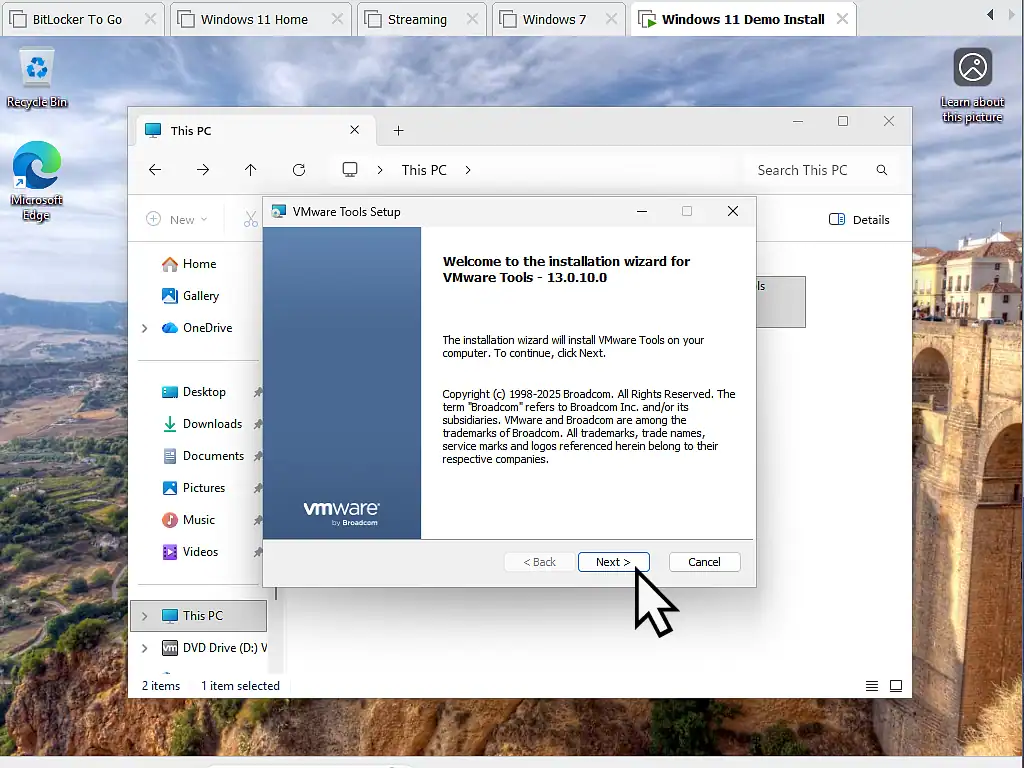
- Follow the prompts in the installation wizard. You can leave everything set to their default values.
Troubleshooting Common Issues
- “This PC can’t run Windows 11”: This usually means you didn’t enable the Trusted Platform Module (TPM) in the VM settings. Go to VM Settings > Options > Advanced and ensure UEFI/Secure Boot is enabled, and add a “Trusted Platform Module” device.
- Slow Performance: Ensure you have allocated at least 2 processor cores and 4GB of RAM in the VM settings.
- Install VMware Tools is “Greyed out”. If you find that Install VMware Tools is greyed out and doesn’t work, delete all the virtual CD/DVD drives, then create a new one. You can do that through Settings > Hardware. If not sure then check out my guide How To Fix Install VMware Tools Is Greyed Out. for a complete walkthrough.
Summary
Run all the Windows 11 updates and then the virtual machine will be ready to go. I’d recommend creating a backup of your VM before doing anything else because it’ll save you a lot of time in the future, especially if you go ahead and activate it.
Related Posts
VMware Shared Folders
By default your Workstation Pro virtual machine is isolated from you host computer. It’s what makes VMs so secure to use. However you can setup a “Shared folder” so that you can can “pass” files and folders between the VM and host.
Add A USB Device To VMware Workstation Pro
Want to attach a USB drive to your VM?
How To Install Windows 10 Virtual Machine In Workstation Pro.
Now that Windows 10 is “Out of service”, running it as a virtual machine makes it safe and secure to use because it’s totally isolated from your host PC.
Setup Windows 7 As Virtual Machine On VMware Workstation Pro.
The same applies to Windows 7. If you’ve got any older software that won’t run on modern versions of Windows, setup a Windows 7 VM and run it on that.
Convert An Old PC To A Virtual Machine
As Windows 10 nears the end of its life cycle, many people will be considering buying a new PC. But what then happens to your old computer. It still has all your data and applications on it.
You could save your old machine together with all its data and apps and use it as a virtual computer on your new PC.
Or you could pass it on. In that case, make sure you remove all traces of your activities.