
Welcome to this free beginner computer course – a friendly, step-by-step guide to using a Windows PC at home. Whether you’ve never touched a computer before, you’re a senior getting started, or you’re simply brushing up after a long break, this course will walk you through everything you need to know.
I’ve tried to make the course as easy to use as possible, there aren’t any confusing tech terms, no rushing, and no cost. Work through the lessons at your own pace, in your own time, and come back to any section whenever you like.
By the end of this free course you’ll be able to:
 Set up and personalise your Windows PC
Browse the web safely
Keep your computer safe from viruses
Use a mouse and keyboard with confidence
Send and receive email
Back up your important files
Find, open, move and organise your files
Install and uninstall programs
Part 1: Setting Up and Personalising Your Windows PC
The best place to start any beginner computer course is at the very beginning – making sure your PC feels comfortable and easy to use. In this section you’ll set up your mouse, rearrange the Start menu and taskbar, and tidy up your desktop. It only takes a few minutes and makes a real difference.
Lesson 1
Mouse and Keyboard
Setup your mouse to work for you, change pointer size and double click speed. Find important keys on your keyboard
Lesson 2
Setup the Start Menu
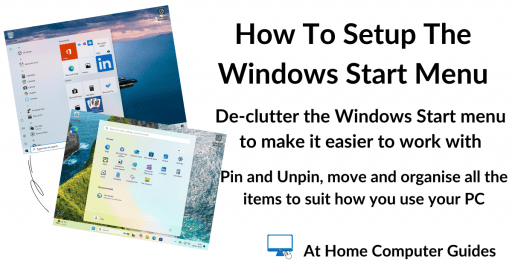
Get the Start Menu working for you by removing the apps you don’t use and adding the ones you do.
Lesson 3
The Windows Taskbar
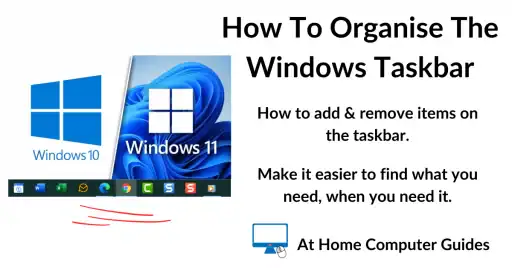
The Taskbar is the best place to keep your most used applications. But it gets full quickly. Manage the taskbar easily.
Lesson 4
Arranging Your Desktop Icons
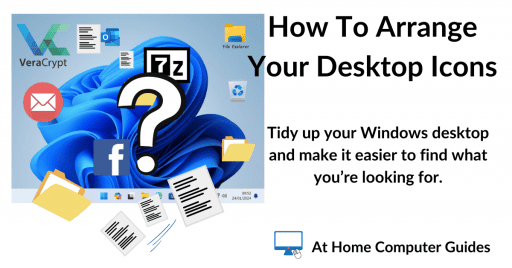
Your Desktop is a great place to keep items that you need. They’re readily available, but a messy desktop doesn’t work.
Lesson 5
Make It Bigger
Hi-Def computer screens make everything appear small. Change the size of icons and text to easily.
Part 2: Essential Windows Skills for Beginners
These are the core skills you’ll use every single day on a Windows PC. Once you’ve worked through this section, you’ll feel genuinely comfortable using your computer – opening programs, finding files, creating folders, and moving things around.
Lesson 6
Move and Resize Windows
How to use Maximise, Minimise and Restore Down. Move program windows around your screen.
Lesson 7
Windows File Explorer
File Explorer is the way in which you store and then retrieve your files. Master File Explorer and never lose a file again.
Lesson 8
All About Folders
Folders are containers for your files. Pictures, documents, videos etc are stored in a folder. Create, name and rename them.
Lesson 9
Saving a File
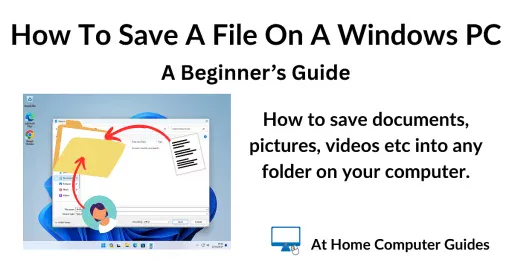
How to save a file on a Windows PC. Save your documents, pictures etc to any folder so that you can find it later.
Lesson 10
How to Open Files
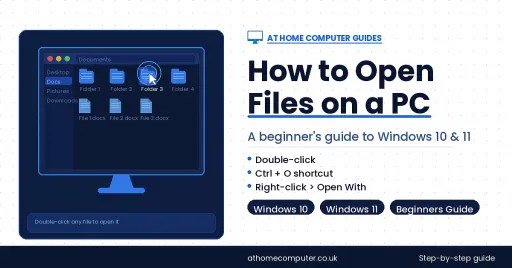
Files of any sort aren’t really much use if you can’t open them when you want them. Open files in any program/app.
Working with Files and Folders
Learning to navigate your computer’s filing system is one of the most important basic computer skills you can have. We’ll cover File Explorer, creating and naming folders, and how to save and open files properly.
Lesson 11
Copy and Paste
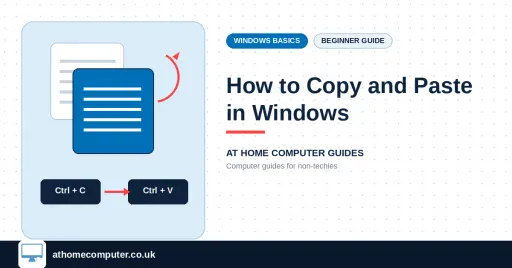
How to copy and paste files and folders.
Lesson 12
Cut and Paste
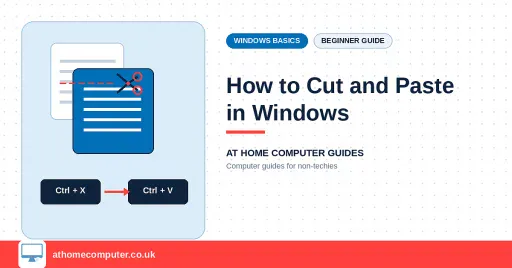
Use Cut and Paste to move files quickly.
Lesson 13
Copy and Paste Text
Copy text from one document to another.
Lesson 14
Select Multiple Files
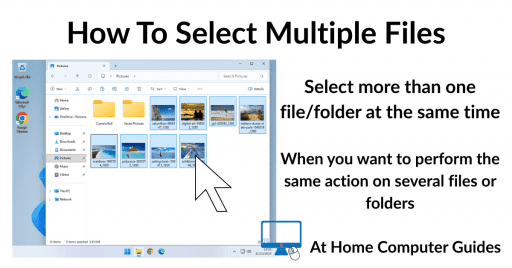
Select more than 1 file at a time
Lesson 15
Copy to USB Device
Store files on a USB flash drive
Part 3: How to Use a Web Browser – Edge and Chrome
A web browser is the program you use to go online and visit websites. In this part of the course we’ll look at the two most popular browsers for Windows beginners – Microsoft Edge and Google Chrome – and get them set up just the way you like them.
Simply click on the one that you use regularly.
Lesson 16
Microsoft Edge
Edge ships with every Windows PC. It’s there and it works.
Lesson 17
Google Chrome
Chrome is the most popular browser on the internet.
Lesson 18
Favourites in Edge
Favourites are saved web pages. Learn how to use them effectively.
Lesson 19
Bookmarks in Chrome
Virtually every browser calls saved web pages bookmarks. Learn how to use them.
Part 4: Email Basics for Beginners – Gmail, Outlook and More
Email is one of the most useful things you can do on a computer, and it’s easier than you might think. We’ll start with the absolute basics — what an email address is, how to send and reply – and then move on to handy skills like printing emails and opening attachments safely.
Lesson 20
Basics of using Email
Sending, addressing, forwarding, replying and CC, BCC.
Lesson 21
Printing Emails
How to print emails. You can’t just use CTRL + P. It’ll print everything.
Lesson 22
Email Attachments
Email attachments are files added to an email, often some sort of form.
Part 5: Managing Your Windows PC – Accounts and Programs
Programs are the apps you use to actually do things on your PC — from writing documents to watching videos. Here we cover what comes built in to Windows, how to add new programs safely, and how to remove ones you no longer need.
Lesson 23
Windows User Accounts
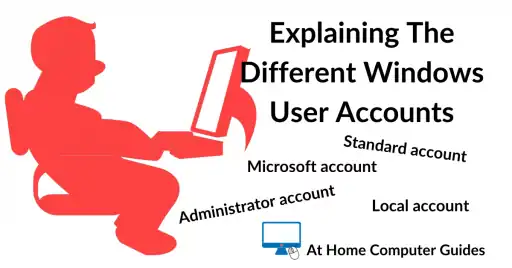
Windows computers have 4 main account types, Administrator, Standard, Microsoft and Local.
Lesson 24
Adding a New Account
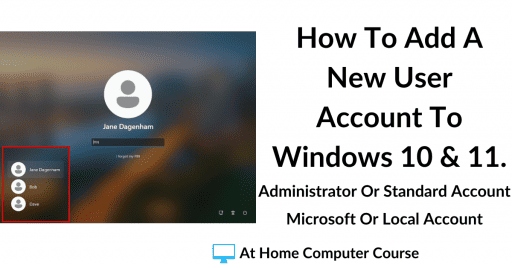
Add someone new to your computer with their own account. Better on shared PCs when everyone has their own account.
Lesson 25
Deleting an Account
How to delete an old user account from your computer. Even if you don’t have their account password.
Installing and Uninstalling Windows Programs
Programs are the apps you use to actually do things on your PC — from writing documents to watching videos. Here we cover what comes built in to Windows, how to add new programs safely, and how to remove ones you no longer need.
Lesson 26
Windows Programs
What programs and apps come with Windows?
Lesson 27
How to Install Programs
How to install programs from the internet without the junkware.
Lesson 28
How to Uninstall Programs
Uninstall programs and apps that you’re no longer using.
Part 6: Beginner’s Guide to PC Security and Antivirus
Keeping your computer safe has never been more important. Viruses, scams and ransomware are a real threat — but a few simple habits will protect you. These lessons explain what you need (and don’t need) and how Windows Security works.
Lesson 29
Anti Virus
Which antivirus should you use?
Lesson 30
Windows Security
What is Windows Security?
Lesson 31
Computer Security
What is Phishing? How to avoid it.
Part 7: How to Back Up Your Windows Computer – A Beginner’s Guide
Backing up your files is the single most important thing you can do to protect yourself. Whether it’s a virus, accidental deletion, or a hardware failure, a recent backup means you’ll never lose your photos, documents or anything else that matters to you.
Lesson 32
What Are Backups?
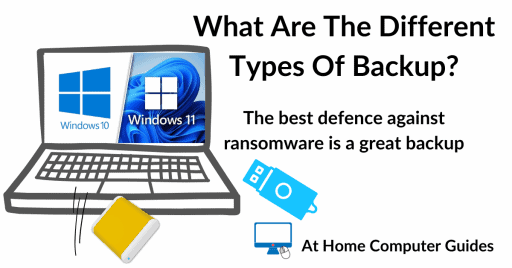
Learn the different types of backup that you could use and choose the one for you.
Lesson 33
What is OneDrive?
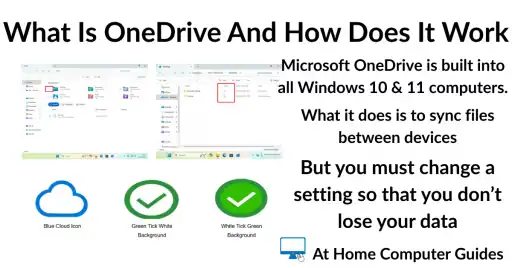
OneDrive is built into Windows, but is it a viable backup solution?
Lesson 34
Windows 10 Backup
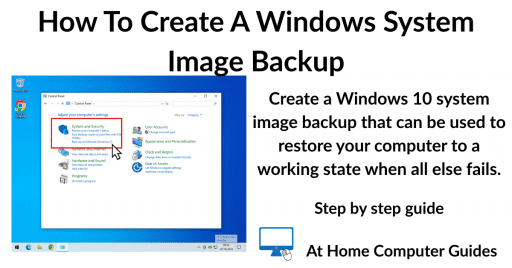
Windows 10 has it’s own built in system image tool.
Lesson 35
Restore Windows 10
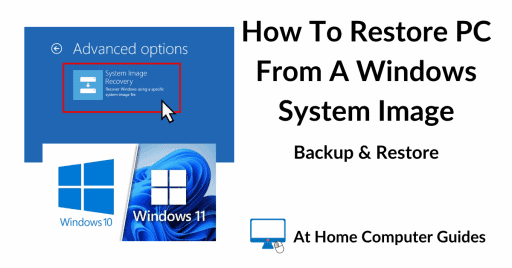
How to recover your Windows 10 computer from a system image backup.
Lesson 36
Windows 11 Backup
Windows 11 doesn’t have a reliable backup tool so you’ll need to use something else.
Lesson 37
Restore Windows 11
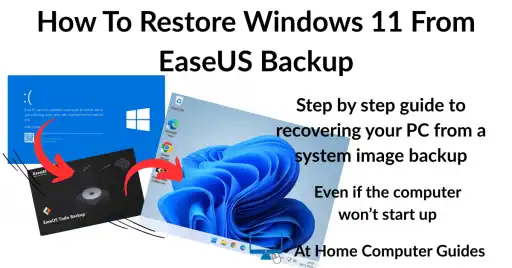
Recover your Windows 11 computer from a backup after a disaster.
Frequently Asked Questions About This Computer Course
Yes, completely. There is no charge, no sign-up and no hidden fees of any kind. Every single lesson is available to read on this website for free.
Not at all. The course begins at the very beginning — including how to use a mouse — and builds up gently. If you’ve never used a computer before, this is the right place to start.
Absolutely. The whole course was written with non-techies in mind, including seniors and older adults who are new to computers or who haven’t used one for a while. Everything is written in plain English — no jargon, no rushing.
Yes. The lessons cover both Windows 10 and Windows 11, with screenshots and step-by-step instructions for both versions wherever they differ.
There are 37 lessons in total. Most people work through a few at a time, so it typically takes a few hours spread over several sessions. There are no deadlines — you can go at whatever pace suits you and return to any lesson at any time.
No. You can start Lesson 1 right now without signing up for anything. The newsletter is optional — it’s just a way to hear about new guides as they’re published.